
Certain countries require additional information before you can activate and use a tracking number. Verify a business identity for business or commercial use, or a personal identity for non-commercial use with a single tracking number.
Verify a business
Note
This section covers identity verification for business use. For personal (non-commercial) use, follow Verify an individual instead.
Certain countries require additional information before you can activate and use a tracking number. When required, this information is shared only for verification purposes and in accordance with local telecommunications regulations. If the number you acquired falls under this category, you’ll see the following pop-up message:
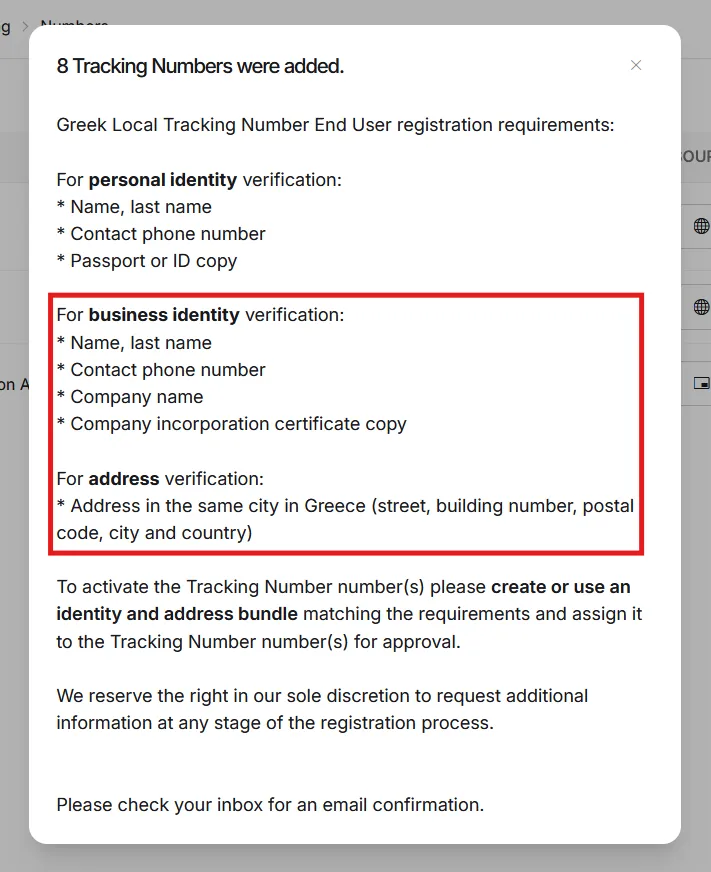
What you’ll need
Before starting, gather the following for your business identity:
- First name
- Last name
- A phone number local to your country of residence/registration
- Company name
- Identity document(s), for example: Business Registration Certificate, Trade License, Passport, or National ID
- An address (as required by local regulations)
- Proof of address, for example: Utility Bill, Phone Bill, or Rental Receipt
A copy of the pop-up message is also sent to your email for reference. You can access the identity verification page by clicking the link in the email.

Go to Workspace > Identities
- Click the link in the verification email, or navigate directly to Workspace > Identities.
- Click + Create Identity.
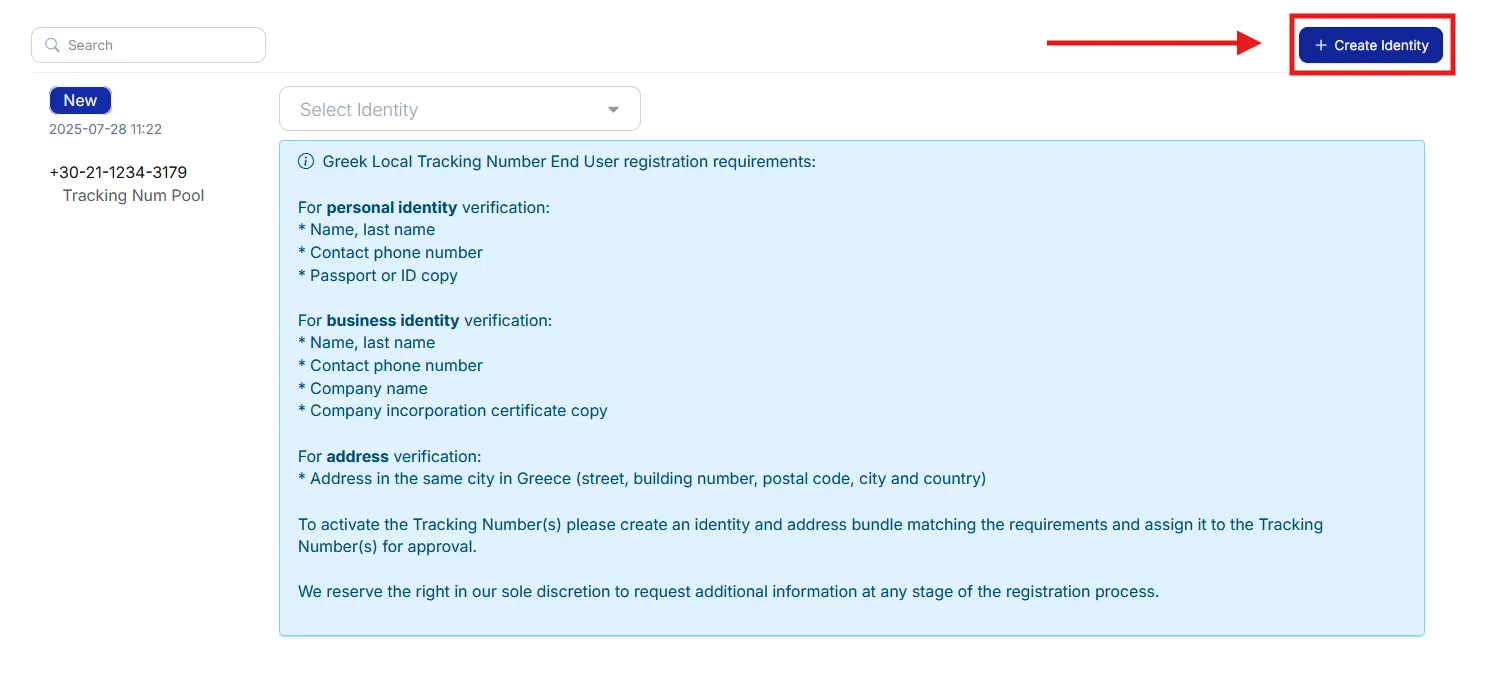
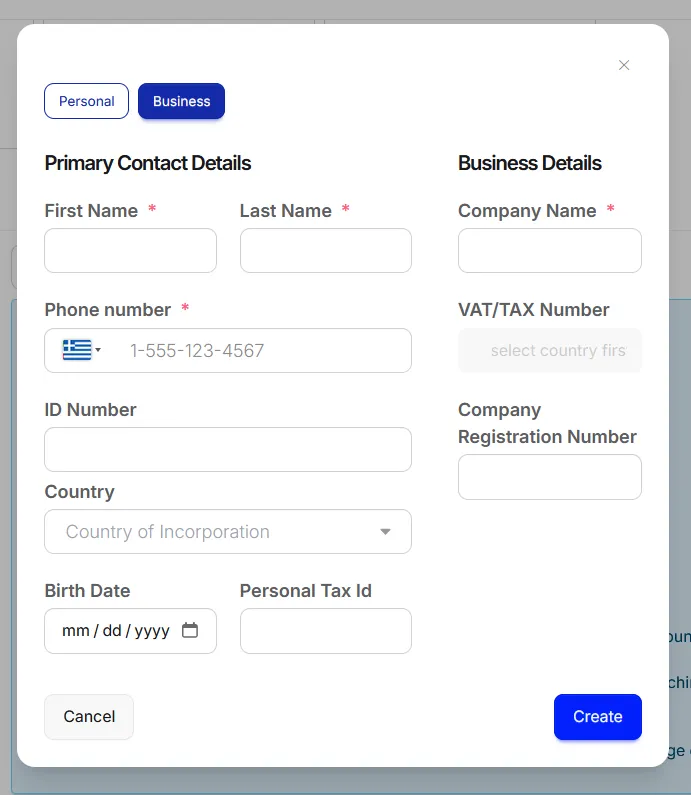
Set the use type and fill in your details
- Keep the default use type set to Business.
- Select Personal only if you are verifying a single number for non-commercial use.
- Fill out the required fields:
- First Name
- Last Name
- Company Name
- Phone Number
- Click Create.
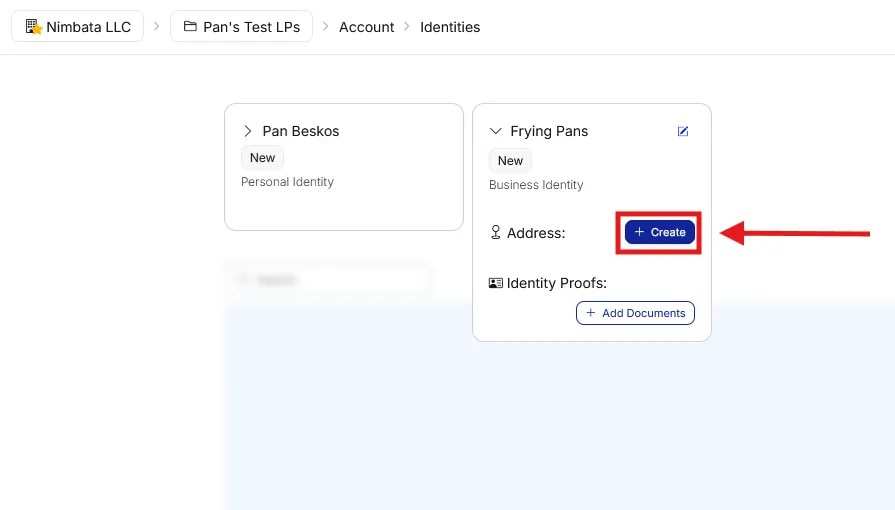
Your identity is now created. You are ready to add your address.
Create an address
- Click + Create under the address section.
Fill in your address details
- Enter your Street and street number.
- Enter your City.
- Select your Country.
- Enter your Postal Code.
Upload proof of address (if required)
- If local regulations require proof of address, this option appears in the identity overview after you’ve added your address.
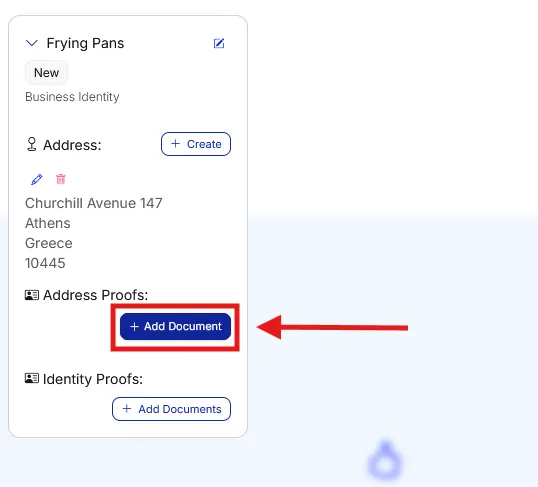
- Click + Add Document.
- Choose the type of document you wish to upload.
- If no proof of address is required, skip to the next step.
Upload your identity documents
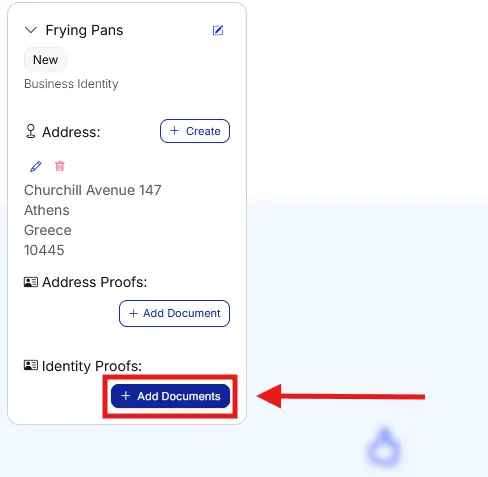
- Click + Add Documents under Identity Proofs.
- Upload the relevant identity documents.
- Select the correct document type for each upload.
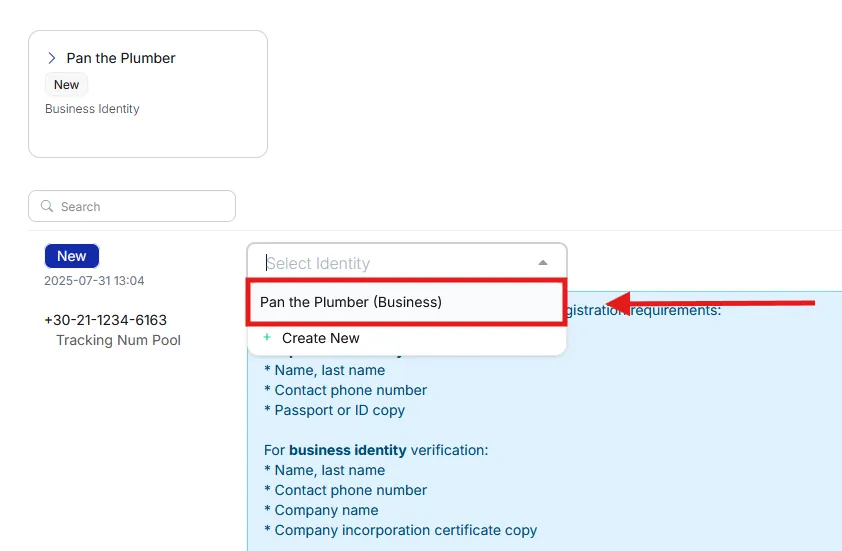
Select your identity
- Collapse the identity panel once all information and documents have been uploaded.
- Select the identity you created.
Click Verify
- Click Verify to begin the authentication process.
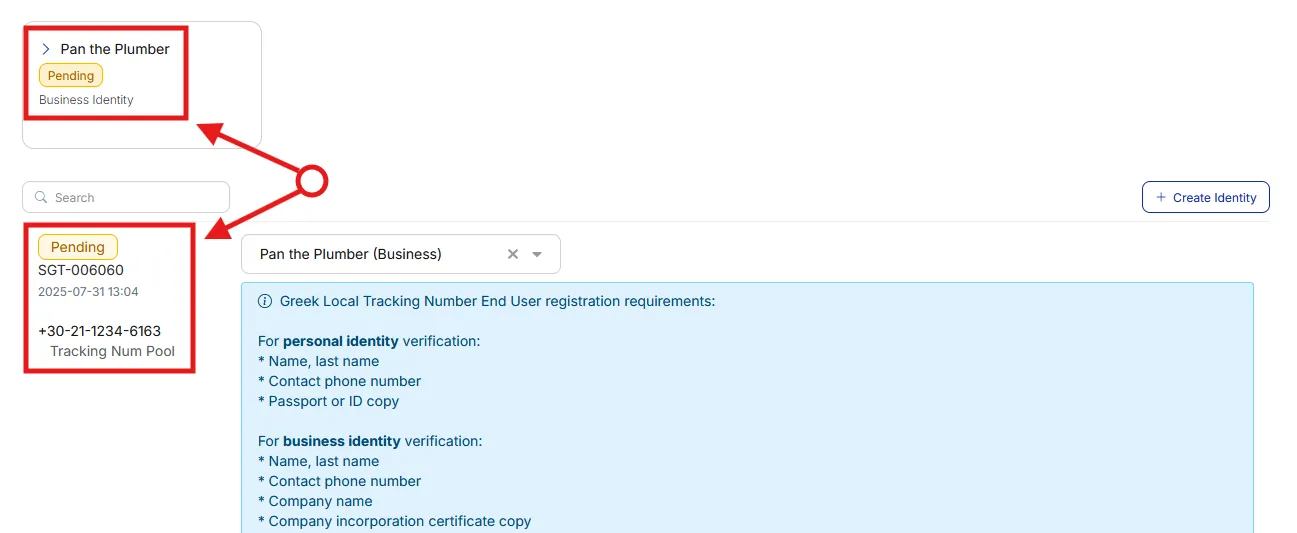
Check your status
- Your identity status changes to Pending.
- A case number is assigned.
Await confirmation
- Verification may take up to 24 hours.
- You’ll be notified by email once your identity is approved or if additional documentation is needed.
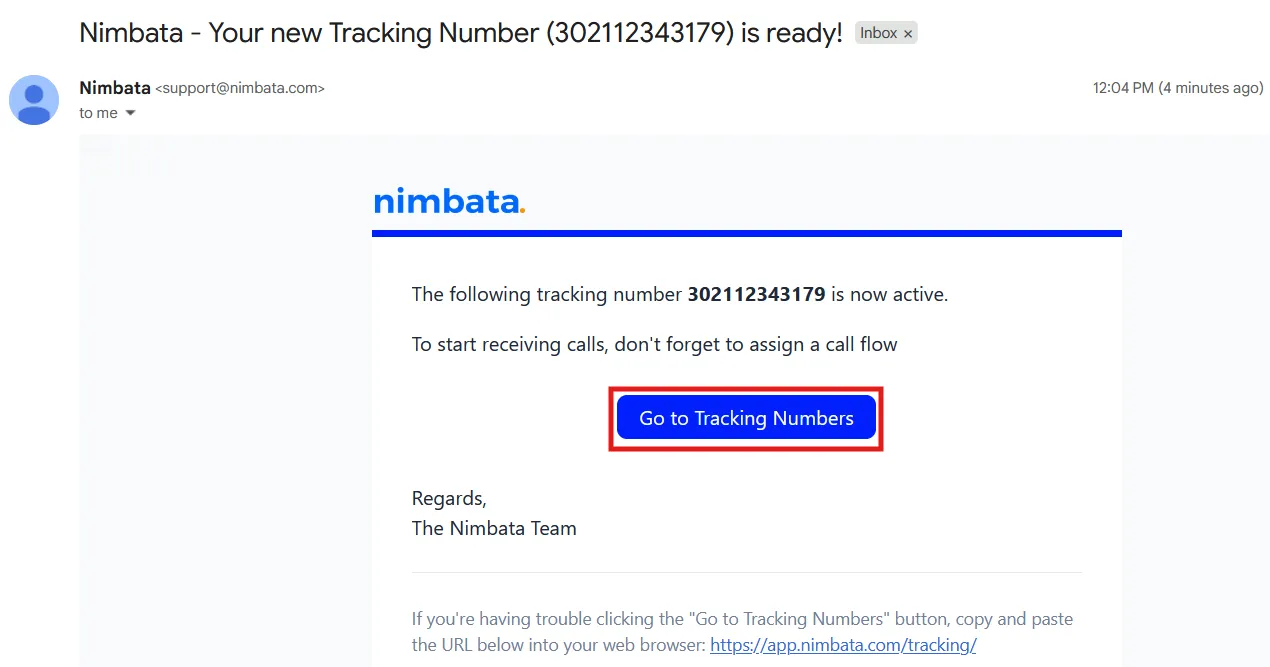
If verification is successful, you receive the following email:
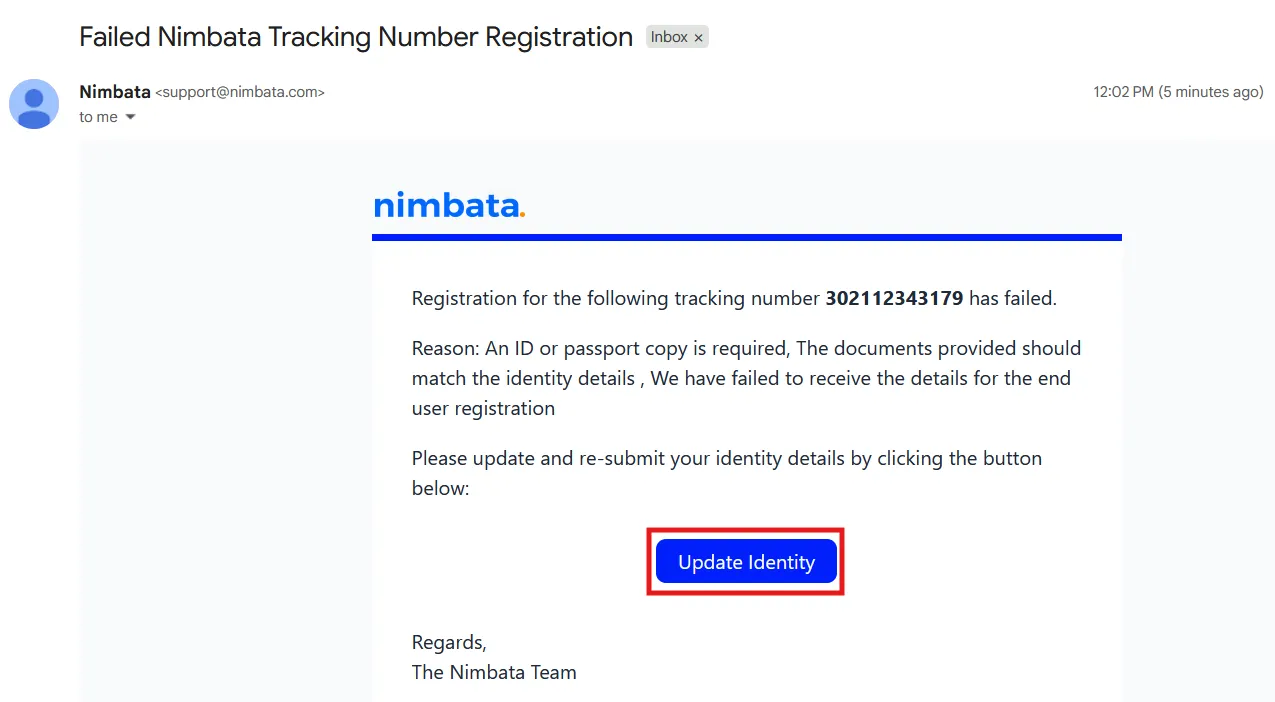
If verification is unsuccessful or additional information is required, you’ll receive an email with next steps.
- Click Update Identity to return to Workspace > Identities and upload the missing documentation.
🎉 Once your identity is approved and your number is activated, you can assign a call flow to your tracking number.
Detailed guide: Assign a call flow
Detailed guide: Requirements by country
Detailed guide: Verify an individual
Verify an individual
Warning
This section covers identity verification for personal (non-commercial) use, with a single tracking number. For business or commercial use, follow Verify a business instead.
Certain countries require additional information to be provided to the local regulator before you can activate and use a number. These requirements are country-specific and mandatory; if verification is required, the number cannot be activated until the process is completed. Your information is handled securely and shared only with authorized parties, such as local regulators or number providers, as required by applicable legislation.
If the number you acquired falls under this category, you’ll get the following pop-up message:
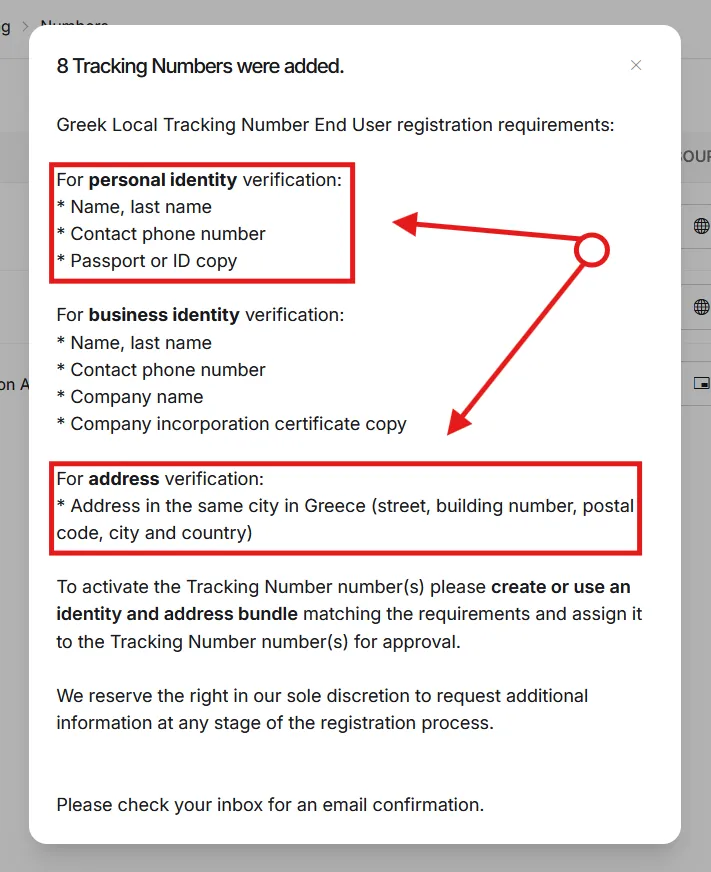
A copy of this message is also forwarded to your email for reference. You can access the identity verification page by clicking the link in the email (the same email as under Verify a business).
Go to Workspace > Identities
- Click the link in the verification email, or navigate directly to Workspace > Identities.
- Click + Create Identity (the same button as under Verify a business).
Set the use type to Personal and fill in your details
- Change the default use type to Personal.
- Select Business if you plan to activate more than one tracking number or use the numbers for commercial purposes.
- Fill out the required fields:
- First Name
- Last Name
- Company Name
- Phone Number
- Click Create.
Note
For personal use, the Company Name field may be used to enter your personal name if applicable.
Your identity is now created. You are ready to add your address.
Create an address
- Click + Create under the address section.
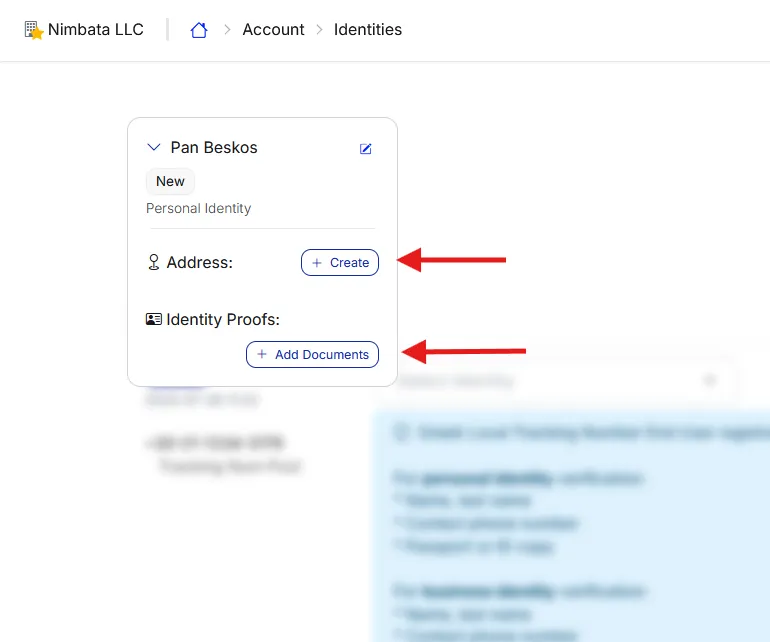
Fill in your address details
- Enter your Street and street number.
- Enter your City.
- Select your Country.
- Enter your Postal Code.
Note
Document requirements vary by country. You will only be asked to upload documents if they are required by local regulations.
Upload proof of address (if required)
- If local regulations require proof of address, this option appears in the identity overview after you’ve added your address.
- Under Address Proofs, click + Add Document.
- Choose the type of document you wish to upload.
- If no proof of address is required, skip to the next step.
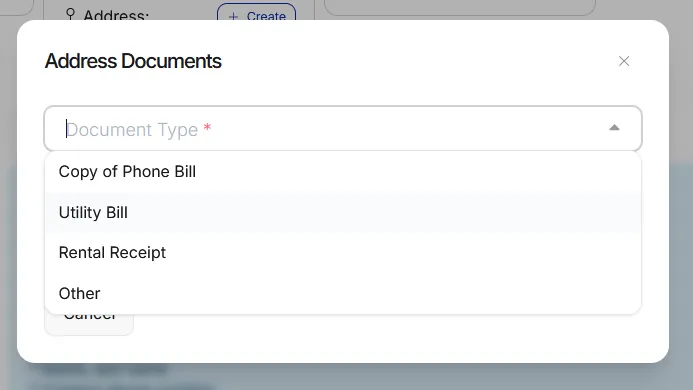
Upload your identity documents
- Click + Add Documents.
- Choose the type of document you wish to upload as proof. Accepted document types depend on local regulations and are indicated in the upload interface.
Select your identity
- Minimize the identity menu once all information and documents have been uploaded.
- Select the identity you’ve created.
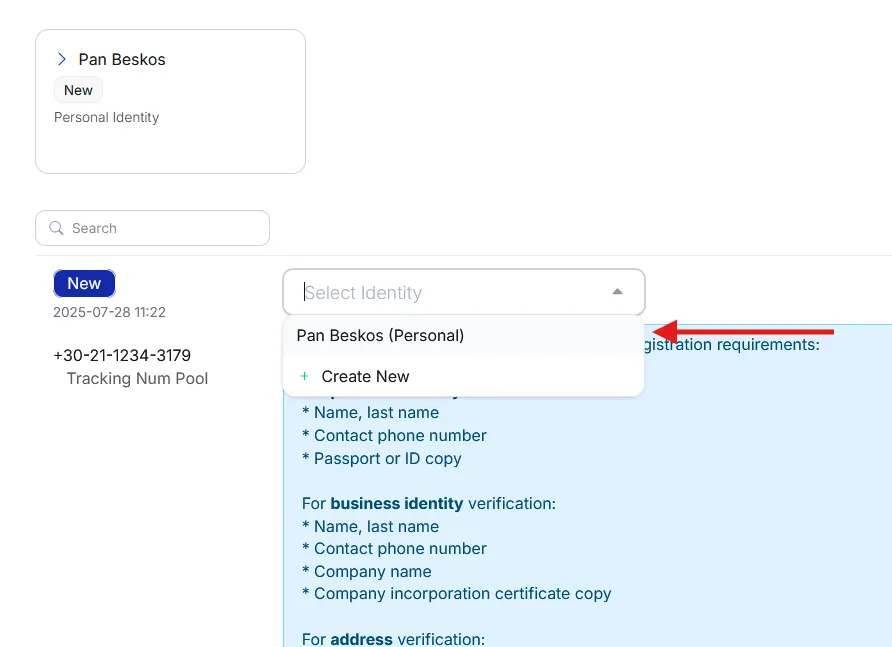
Click Verify
- Click Verify to begin the authentication process.
Check your status
- Your identity status changes to Pending.
- A case number is assigned.
- A Pending status means your information is under review by the verification provider or local regulator.
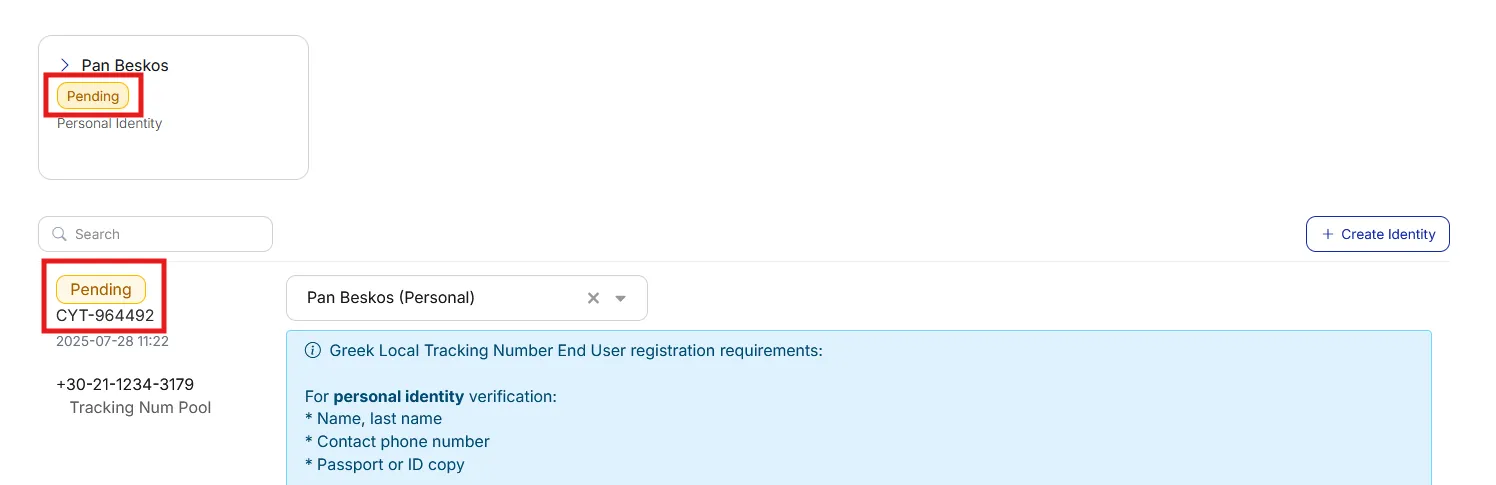
Await confirmation
- Verification typically takes up to 24 hours, but may take longer depending on local regulations.
Note
While verification is pending, the tracking number cannot receive or forward calls.
If verification is successful, you receive the same “Your new Tracking Number is ready!” email as under Verify a business.
If verification is unsuccessful, you receive the same “Failed Nimbata Tracking Number Registration” email as under Verify a business.
- Click Update Identity to return to Workspace > Identities and provide the necessary documentation.
- If you’re unsure which documents are missing or incorrect, contact Nimbata support for guidance.
🎉 Once your identity is verified, you can activate your tracking number and assign call flows to it.
Detailed guide: Assign a call flow
Detailed guide: Requirements by country
Detailed guide: Verify a business