
The Record add-on records the calls on a call flow, so you can review, download or share them from the call log. This page shows how to turn recording on, give callers a way to stop it, how long recordings are kept, and what to check when a call has no recording or transcript.
Turn on recording
Note
To use the templated setup instead, see: Start from a template.
Warning
In EU countries, recording calls requires the caller’s explicit consent before the recording begins. An opt-out option alone is not sufficient. Use a Call Greeting to play a consent message before the call connects.
The Record add-on automatically records every inbound call on the call flow. Recordings are stored in your account and accessible from the Calls activity log for review, download, or sharing.
Open the Call Flow Builder
- Go to Call handling > Call Flows.
- Click Create to start a new call flow, or click an existing call flow to add recording to it.
Add the Record action
- Click the + button under New Call.
- Select Record from the Add-ons menu.
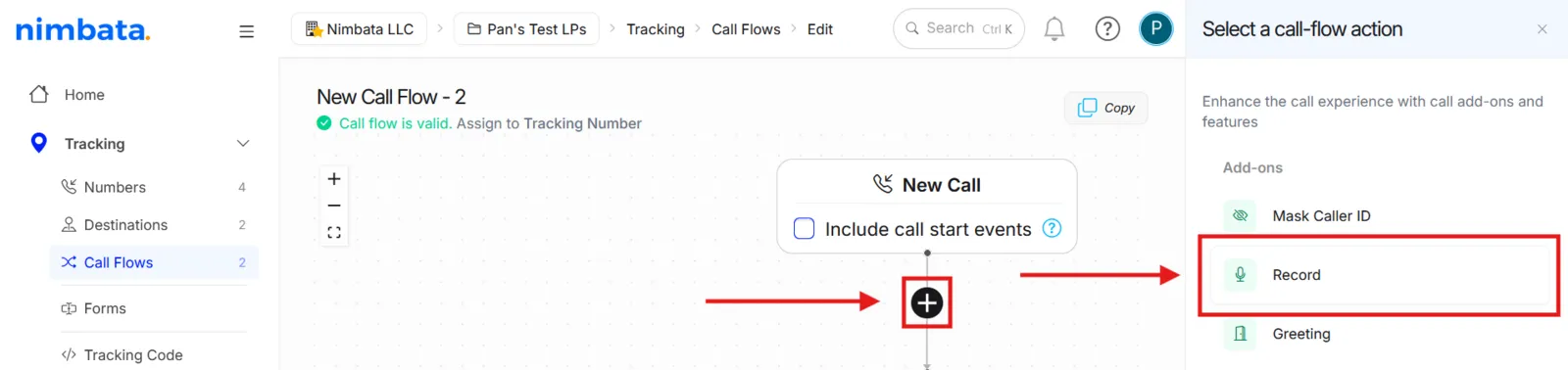
🎉 Done. Every call on this flow will now be recorded automatically.
Detailed guide: Start from a template
Detailed guide: Let callers stop recording
Detailed guide: Play and download recordings
Detailed guide: Assign a call flow
Start from a template
Note
To build this call flow manually using the full Call Flow Builder instead, see: Turn on recording.
Warning
In EU countries, recording calls requires the caller’s explicit consent before the recording begins. An opt-out option alone is not sufficient. Use a Call Greeting to play a consent message before the call connects.
The Simple with Recording template creates a call flow with Record and Dial already wired together: just select a destination number and you’re live.
Open the template picker
- Go to Call handling > Call Flows.
- Click Create.
- Select From Template.
Choose the Simple with Recording template
- Hover over Simple with Recording.
- Click Use template.
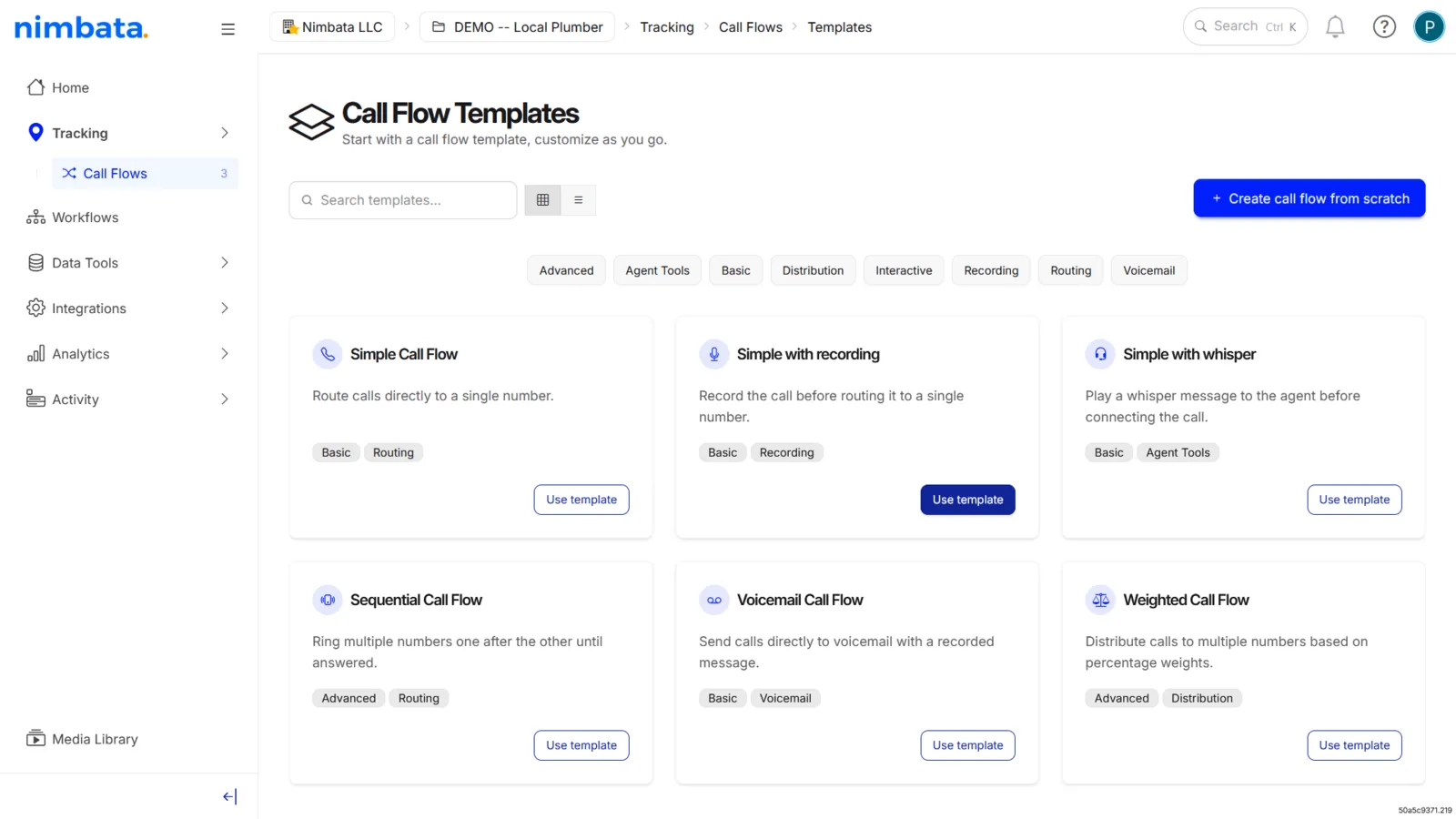
Select your destination number
- The template is created and named automatically.
- Click the Dial action and select the destination number you want calls forwarded to.
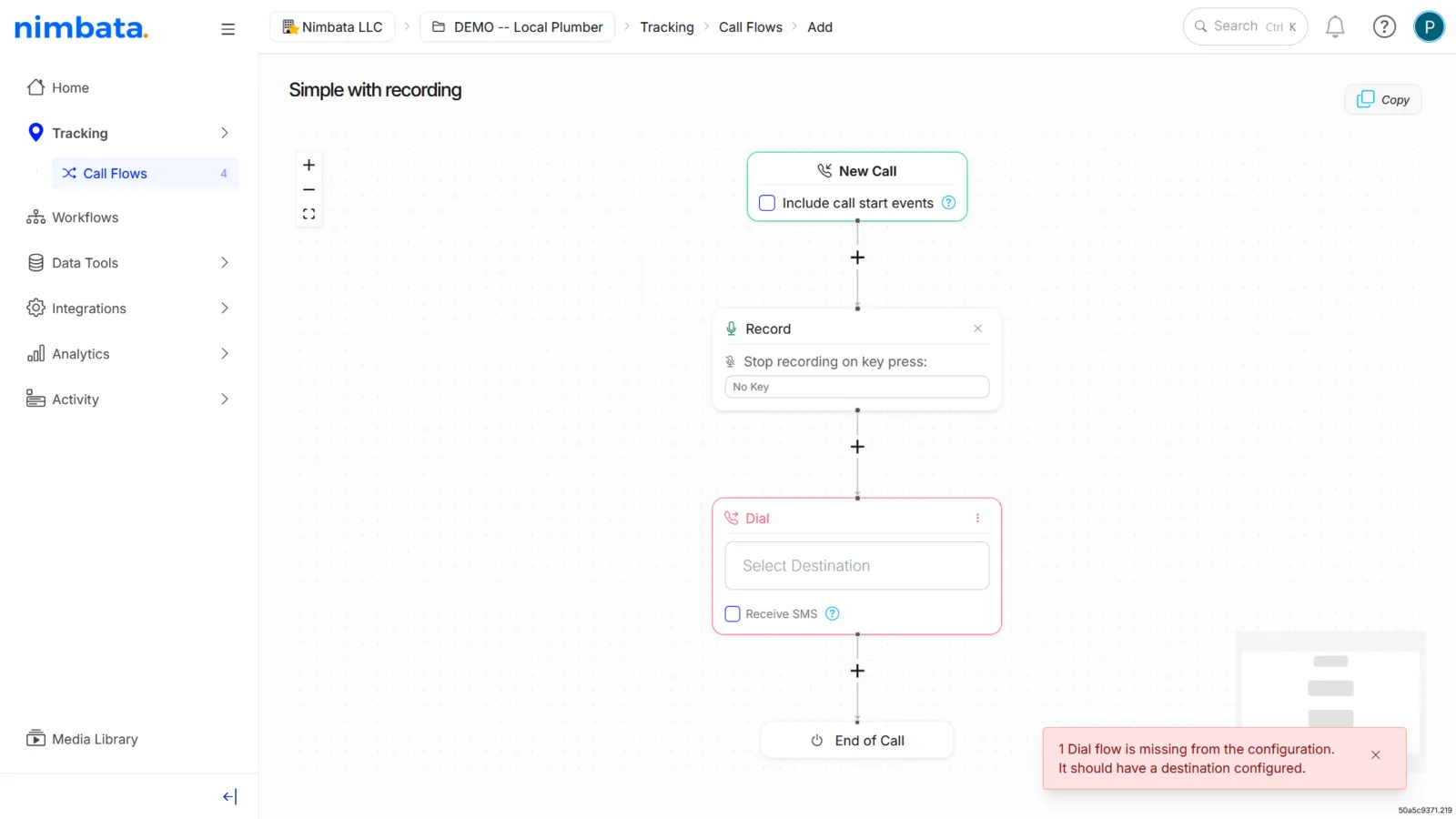
🎉 Your call recording flow is ready. Assign it to a tracking number under Tracking > Numbers to go live.
Detailed guide: Assign a call flow
Detailed guide: Let callers stop recording
Detailed guide: Play and download recordings
Let callers stop recording
Giving callers the option to stop a recording builds trust, supports compliance with privacy laws such as GDPR and CCPA, and encourages more open conversation. When enabled, callers press a designated key during the call to stop the recording.
Tip
Before you start: this feature requires an active Record action in the call flow. See Turn on recording.
Open the call flow that uses recording
- Go to Call handling > Call Flows.
- Click the call flow that already has the Record action enabled.
Set the stop-recording key on the Record action
- Find the Record block in the call flow.
- Open the dropdown and select the key number the caller must press to stop the recording.
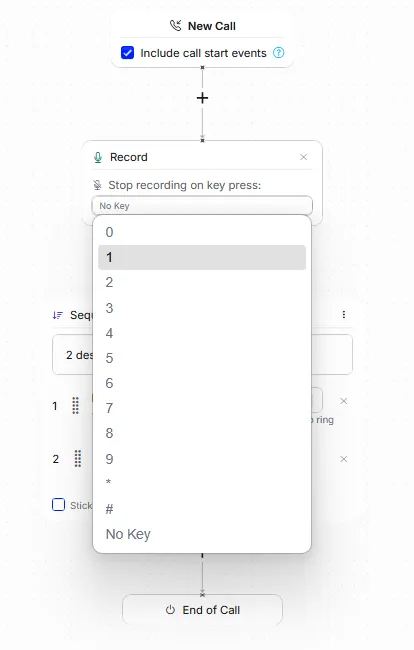
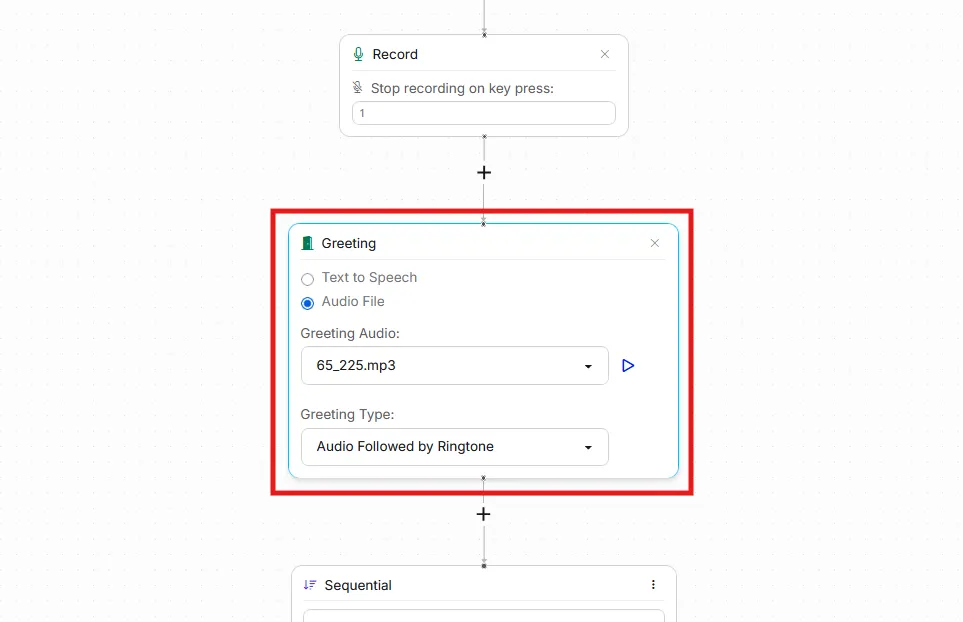
Add a greeting that tells callers how to stop the recording
- Add a Greeting action before the Dial.
- Record or type a message informing callers of the key they can press. For example, “This call may be recorded. Press 9 at any time to stop recording.”
Save and assign the call flow
- Save the call flow.
- If this is a new flow, go to Tracking > Numbers and assign it to the relevant tracking numbers.
🎉 Done. Callers can now press the designated key at any time during the call to stop the recording.
Detailed guide: Turn on recording
Detailed guide: Add a greeting
Detailed guide: Assign a call flow
Retention
Call recordings are stored in your Nimbata account for as long as your account is active. There is no retention setting: you delete recordings one at a time, or ask support to delete them for you. This section explains the defaults, your options, and what happens to recordings when an account or project is closed.
Default retention
- By default, Nimbata retains call recordings for the lifetime of your account.
- There is no automatic expiry that deletes recordings after a fixed number of days on a standard plan.
- Recordings made today will still be accessible months or years from now, as long as your account remains active.
Managing retention
You have full control over your recordings and can remove them at any time.
Deleting individual recordings:
- Go to Activity > Calls.
- Open the call detail panel for the call you want to remove.
- Delete the recording from within the panel.
Bulk deletion: if you need recordings cleared for compliance or data minimization reasons, contact support@nimbata.com and support deletes them for you.
Recordings and transcripts
- If a call has been transcribed, the transcript is stored separately from the recording.
- Deleting a recording does not automatically delete the associated transcript, and vice versa.
- If you need both removed, delete each independently.
What happens when a project is deleted
- Deleting a project removes the project’s configuration, such as its tracking numbers, call flows, and workflows.
- Call data, including recordings and transcripts, is not deleted with the project. To have it deleted, contact support@nimbata.com.
Tip
Detailed guide: Delete a project
What happens when an account is cancelled
- Upon cancellation, Nimbata retains your data for a period to allow for account recovery.
- After that window, data is deleted in accordance with the Data Processing Agreement.
- If you need your recording data exported before cancellation, do this before closing the account.
Tip
Detailed guide: Export call activity
Detailed guide: Cancel your subscription
GDPR and data minimization
- If you are operating under the GDPR or a similar regulation, you may be required to retain recordings only for as long as there is a legitimate purpose.
- Nimbata provides the tools to delete recordings on demand and to configure processes that support your compliance obligations.
Tip
Detailed guide: Data protection
Detailed guide: Turn on recording
Detailed guide: Play and download recordings
Why a call has no recording
Recordings and transcripts are not enabled by default. Both require specific configuration before they appear on calls. If you see calls in your activity log with no recording or transcript, one of the reasons below is the cause.
No recording
1. The Record action is not in the call flow
Recording is added as an action inside a call flow. If the call flow assigned to that tracking number does not include a Record action, calls are not recorded.
- Go to Call handling > Call Flows.
- Open the call flow linked to the tracking number.
- Check whether a Record action appears in the flow.
- If it does not, click + and add Record from the Add-ons menu.
Detailed guide: Turn on recording
2. The call was not answered
Recording starts when a call connects. Missed calls, unanswered calls, and calls that went to voicemail before connecting to a live agent do not produce a recording.
3. The caller opted out
If your call flow includes the option for callers to stop the recording, and the caller chose to do so, no audio is stored.
Detailed guide: Let callers stop recording
4. The call was too short
Very short calls, typically under a few seconds, may not produce a usable recording even if the Record action is present.
5. Phone number redaction is enabled
If phone number redaction is active in your DNI advanced settings, call recordings may also be suppressed depending on your configuration. Check Tracking > Tracking Code under Advanced Settings.
No transcript
1. No transcription workflow is active
Transcripts are generated by a workflow action, not automatically. A workflow with the Transcribe Call action must be enabled and triggered on the relevant calls.
- Go to Workflows.
- Check whether a workflow with a Transcribe Call action exists and is enabled.
- If not, create one.
Detailed guide: Turn on transcriptions and summaries
2. The call has no recording
- Transcription requires an audio recording to process.
- If there is no recording on a call, there can be no transcript.
- Resolve the recording issue first.
3. The call predates your transcription workflow
- Transcriptions are not retroactive.
- The workflow only applies to calls that occur after it is enabled.
- Calls made before the workflow was active will not have transcripts.
4. The workflow filters excluded this call
If your transcription workflow includes filters (for example, only transcribing calls longer than 60 seconds, or only calls with a specific tag), calls that do not meet those conditions will not be transcribed.
- Open the workflow in Workflows.
- Review the filter conditions and confirm the call in question meets all of them.
5. Transcription is still processing
Transcription runs after the call ends and may take a few minutes to complete. If the call ended very recently, wait a few minutes and refresh the call detail panel.
🎉 Once recording and transcription are correctly configured, all qualifying future calls will include both automatically.
Detailed guide: Turn on recording
Detailed guide: Turn on transcriptions and summaries
Detailed guide: Create a workflow