
Nimbata’s CRM integrations send call data to HubSpot, Salesforce, Zoho, Pipedrive or GoHighLevel. You choose what Nimbata creates when a caller is not found in your CRM, and what it sends when the caller already exists.
HubSpot
Tip
The integration is configured at the project level. Make sure you’re editing the correct project before proceeding.
Connect your HubSpot account
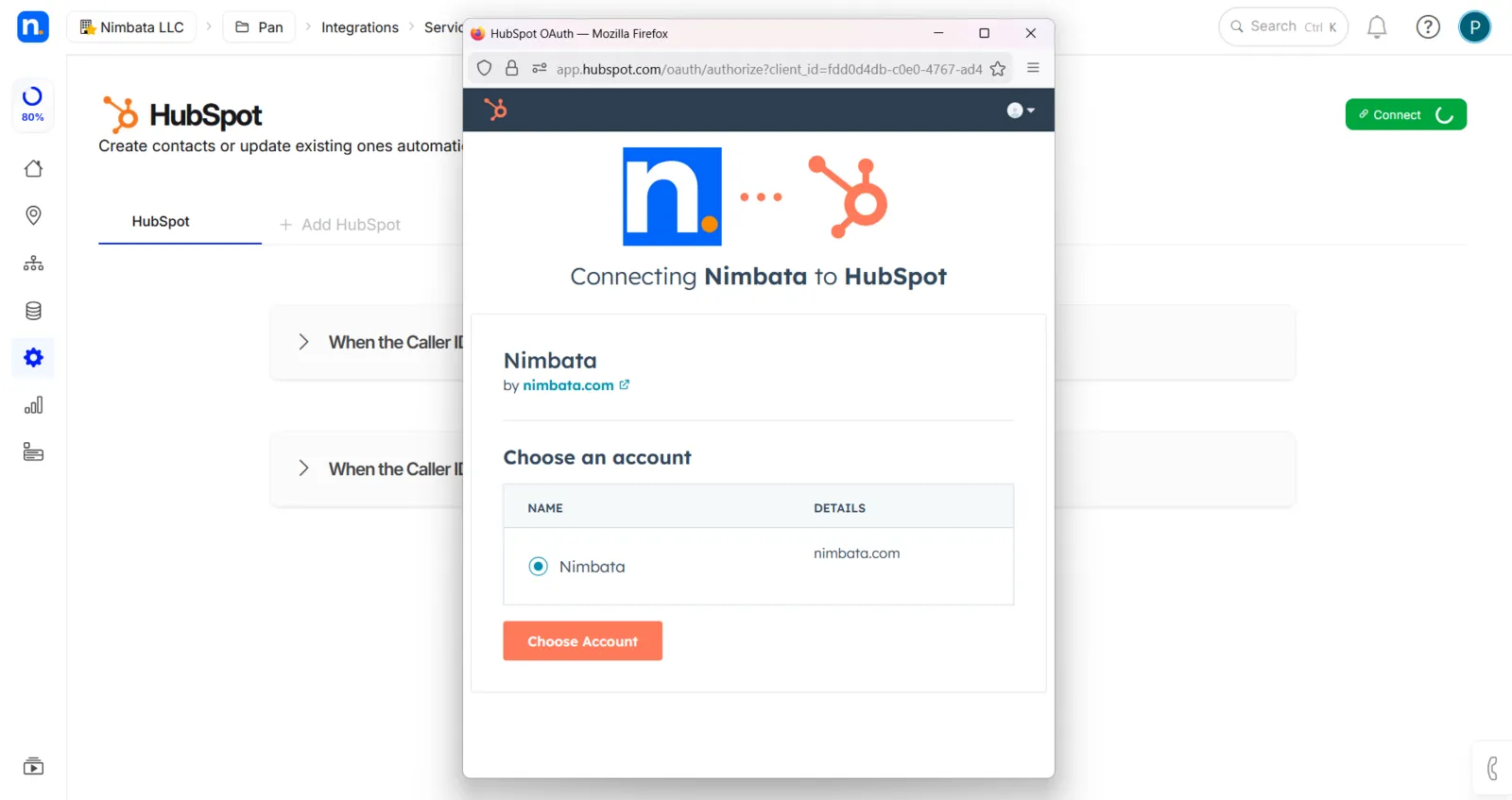
- Go to Integrations > HubSpot and click Sign in with HubSpot.
- A pop-up asks you to choose a HubSpot account.
- Select your account and click Choose Account.
You’re then shown the permissions Nimbata is requesting. Review them and click Connect app to complete the connection.
Configure what happens when a new lead calls
Expand the When the Caller ID is not found section. Define what Nimbata creates in HubSpot when an unknown caller dials your tracking number.
Common setup:
- Create a Contact
- Set a recognizable name, for example First Name: Nimbata, Last Name: Lead.
- Map the caller’s phone number automatically from the Nimbata log.
- You can also include the GCLID or FBCLID and set the lead status to New.
- Create an Inbound Call Activity
- Log who called, which number they called, the talk duration, and marketing details, for example utm_source, utm_medium, utm_campaign, call page, and a link to the recording.
Click + Add object to add each item, then expand it to map the fields you want to populate.
Note
SHORTCUT: click Use Default Config to auto-populate the recommended field mapping.
- Create a Contact
Configure what happens when an existing customer calls
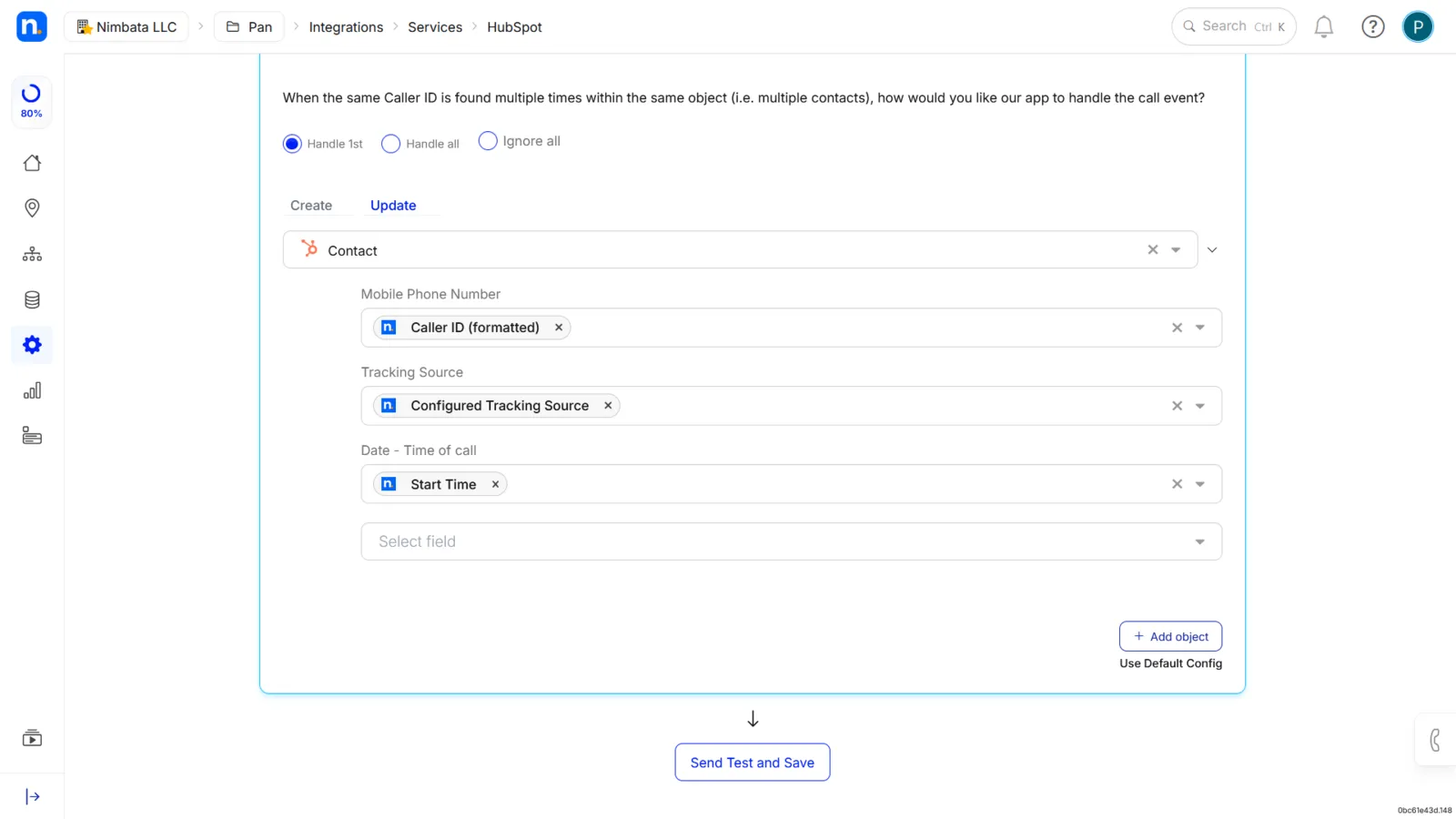
Expand the When the Caller ID is found section. First, set two matching preferences:
- Which entity to enrich: choose Contact, Company, or Both.
- How to handle duplicates: if the same Caller ID appears across multiple records, choose Handle 1st, Handle all, or Ignore all.
Then use the Update tab to define which HubSpot properties should be updated with call data.
Nimbata maps the Tracking Source field on the Contact object to the Configured Tracking Source (default). Click + Add property to map additional fields, or click Use Default Config to apply the recommended setup automatically.
Test and save
Click Send Test and Save at the bottom of the page. This verifies that call data is reaching the right HubSpot properties before going live.
Set up a workflow to control when data is sent
By default, the integration fires after every call. You can filter which calls get sent to HubSpot by setting up a workflow in Nimbata.
Detailed guide: Create a workflow
🎉 That’s it! From now on, calls that meet your workflow criteria are automatically logged in HubSpot.
Remove the HubSpot app
Tip
To uninstall the HubSpot + Nimbata integration, follow these four steps.
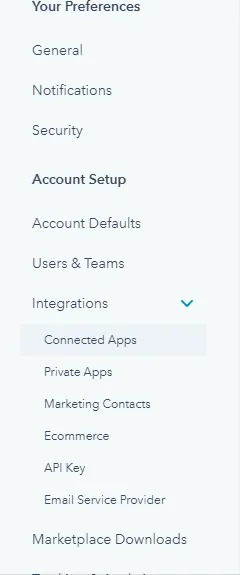
Open HubSpot Settings
Log in to your HubSpot account and go to Settings, at the top right of your screen.

Open Connected Apps
Expand the Integrations tab and click Connected Apps.
Find Nimbata
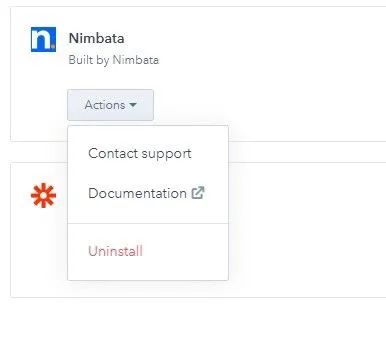
Search for Nimbata in your connected apps list and click the Actions button in the Nimbata card.
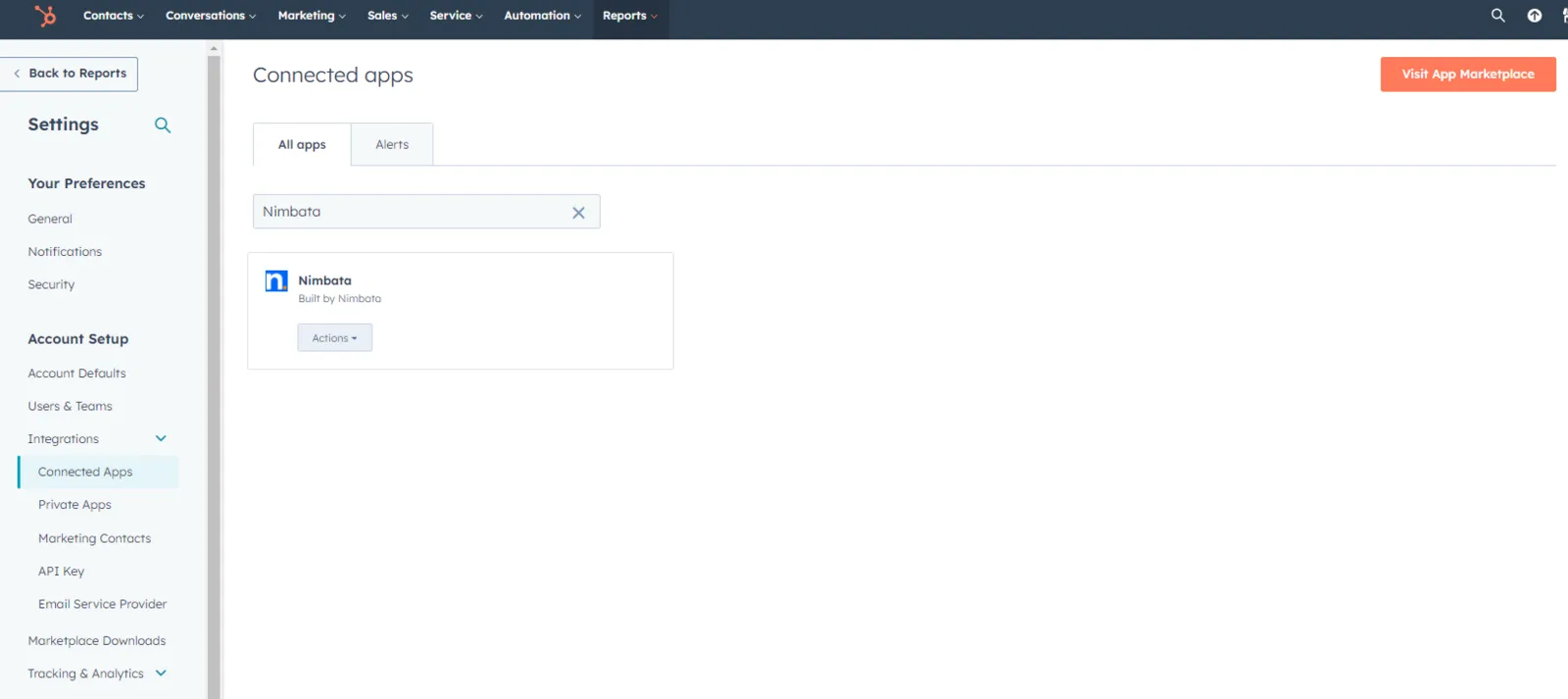
Uninstall the app
Select Uninstall.
Note
Uninstalling the integration won’t affect your HubSpot accounts and call data.
🎉 That’s it! You have successfully uninstalled the HubSpot + Nimbata integration.
Salesforce
Nimbata’s Salesforce integration automatically sends call data to Salesforce, so you can capture caller details and track which marketing sources drive phone leads.
Connect your Salesforce account
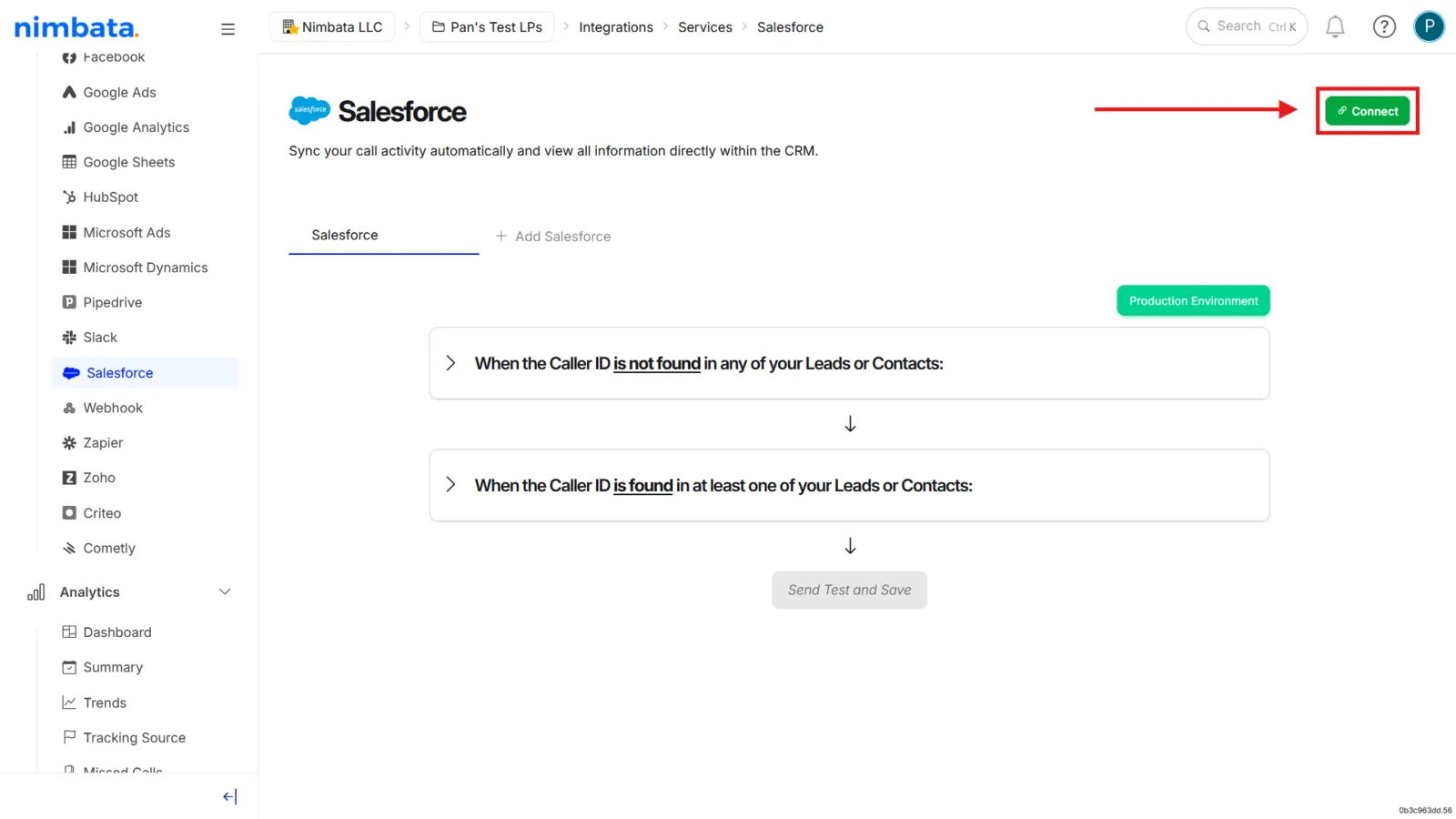
- Go to Integrations > Salesforce and click Connect.
- Sign in with your Salesforce credentials.
- A confirmation message appears once connected.
Map your fields
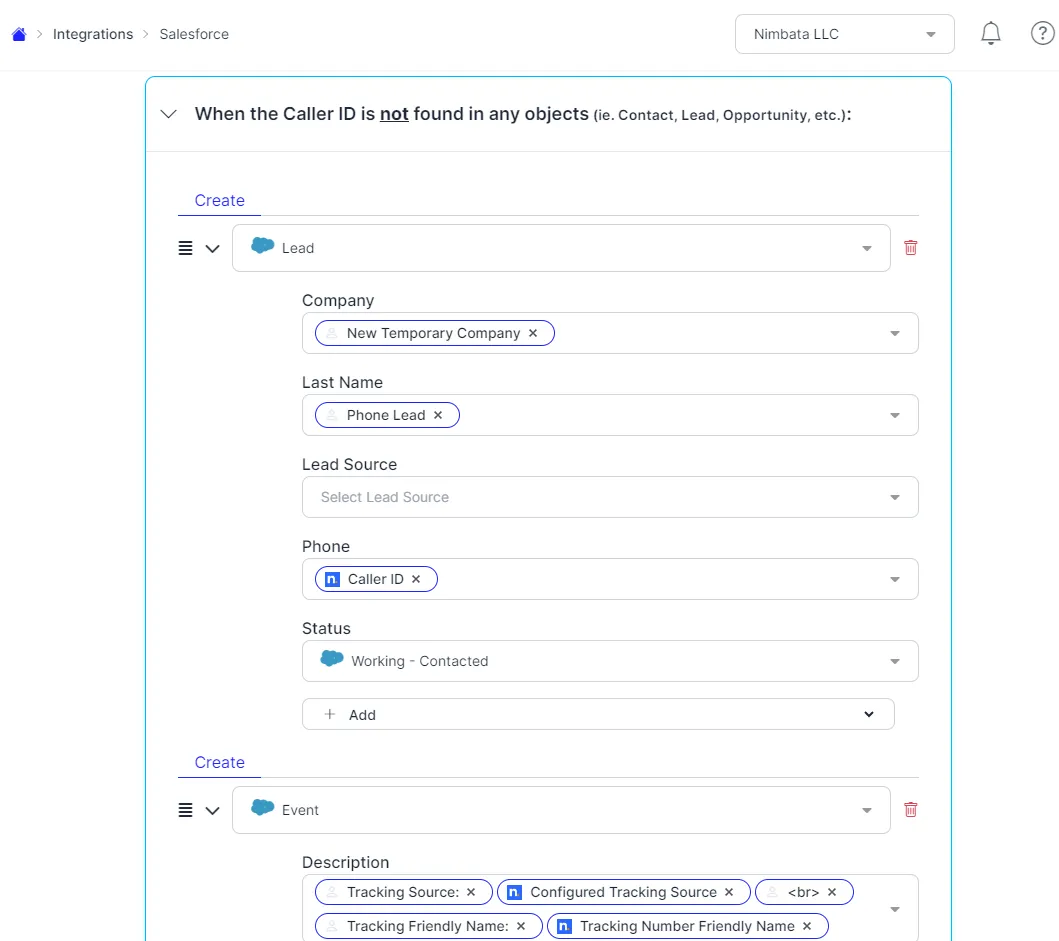
- Nimbata loads all objects and fields from your Salesforce account.
- For each scenario, new caller and existing caller, choose which Salesforce object to create or update.
- Map the Nimbata fields to the corresponding Salesforce fields.
Test and save
- Click Send Test and Save, fill in the test data fields, and send a test event.
- Check your Salesforce account to confirm the record was created or updated as expected.
- Then click Save.
🎉 Done! Nimbata sends call data to Salesforce after every call that matches your configuration.
Detailed guide: Create a workflow
Zoho
Nimbata’s Zoho integration automatically sends call data to Zoho CRM, so you can create or update contacts and track the marketing sources that drive phone leads.
Connect your Zoho account
- Go to Integrations > Zoho and click Sign in with Zoho.
- In the pop-up, select the Zoho account you want to connect.
- A confirmation message appears once connected.
Select your trigger
- Either choose After Every Call to send all calls,
- Or click Create Trigger in the trigger field to filter by specific criteria (for example call outcome or tracking number).
Configure what happens when a new caller reaches you
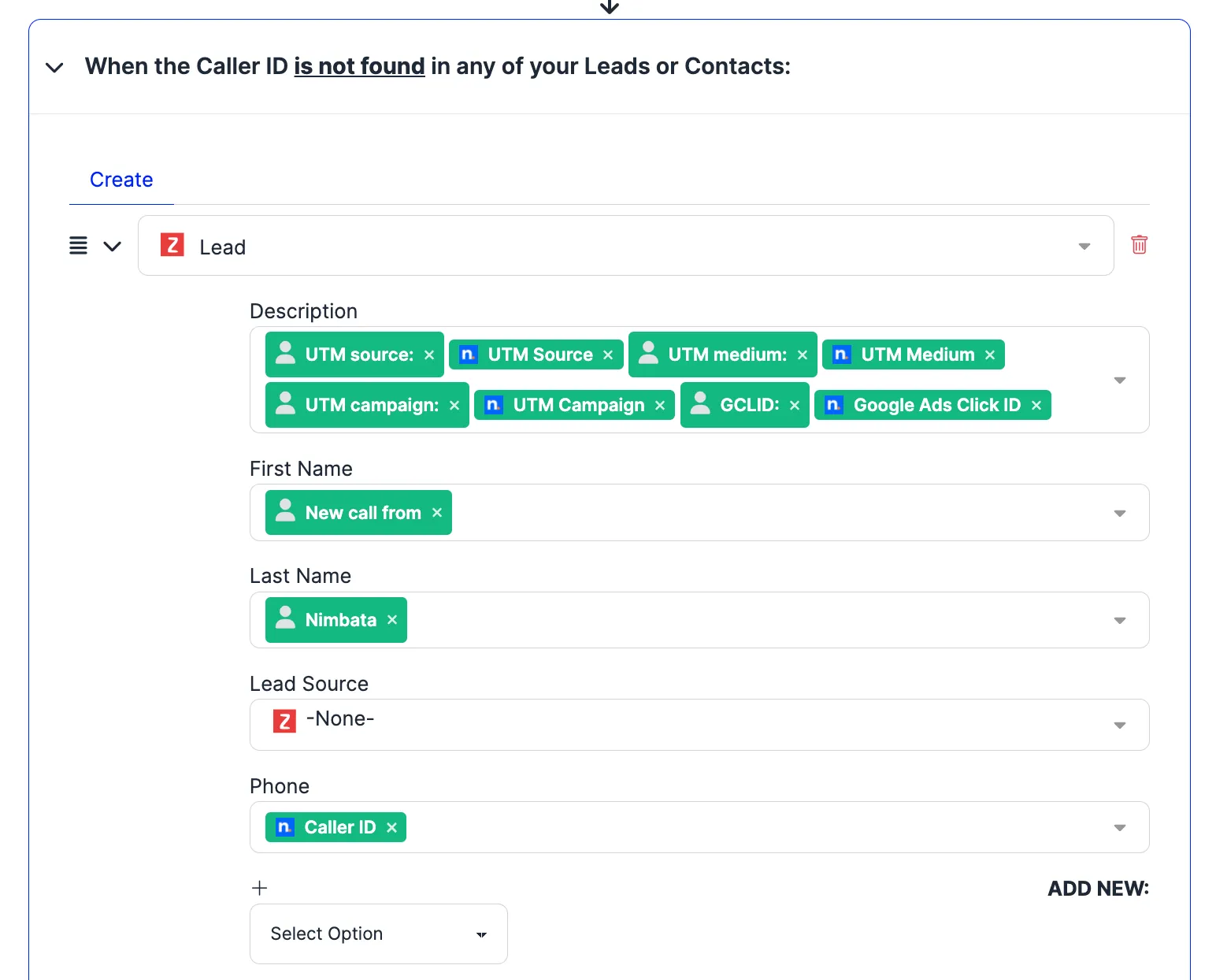
- Choose whether to create a Lead, Contact, Account, Task, or Call Activity.
- Then map the Nimbata fields (caller ID, UTM parameters, recording link, and so on) to the corresponding Zoho properties.
Tip
Click Use default config at the bottom of the section to auto-populate the recommended field mapping.
Configure what happens when an existing contact calls
- Define what call information is sent when a caller already exists in Zoho.
- For example, log a Call Activity with duration, tags, and a recording link against the existing record.
Test and save
Click Send Test and Save to validate your configuration before going live.
🎉 Done! Each call that meets your trigger criteria is automatically logged in Zoho CRM.
Detailed guide: Create a workflow
Pipedrive
Nimbata’s Pipedrive integration automatically sends call data to Pipedrive, so you can track leads, update deals, and keep your sales pipeline accurate.
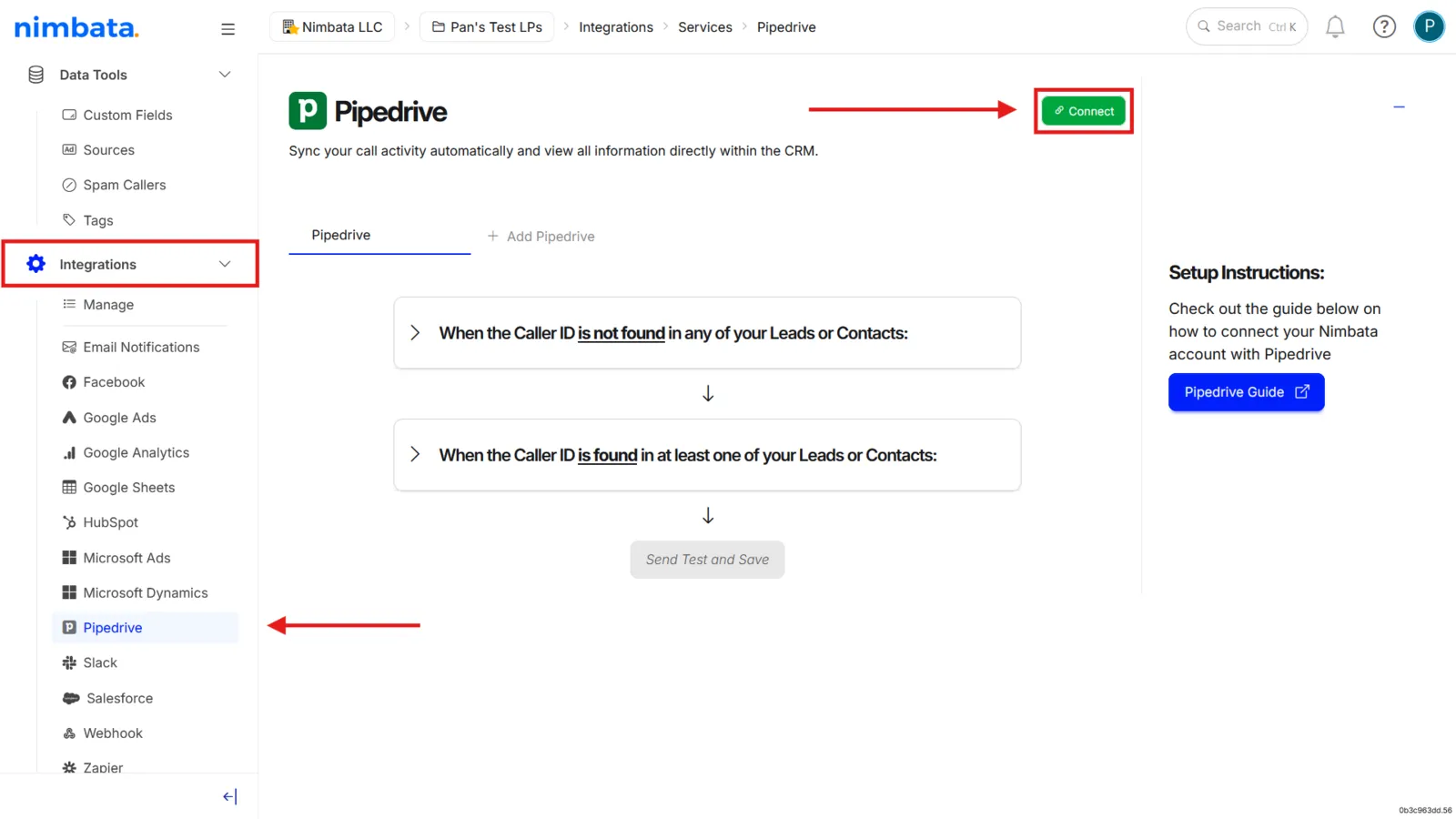
Connect your Pipedrive account
- Go to Integrations > Pipedrive and click Connect.
- In the authorization pop-up, click Allow and Install.
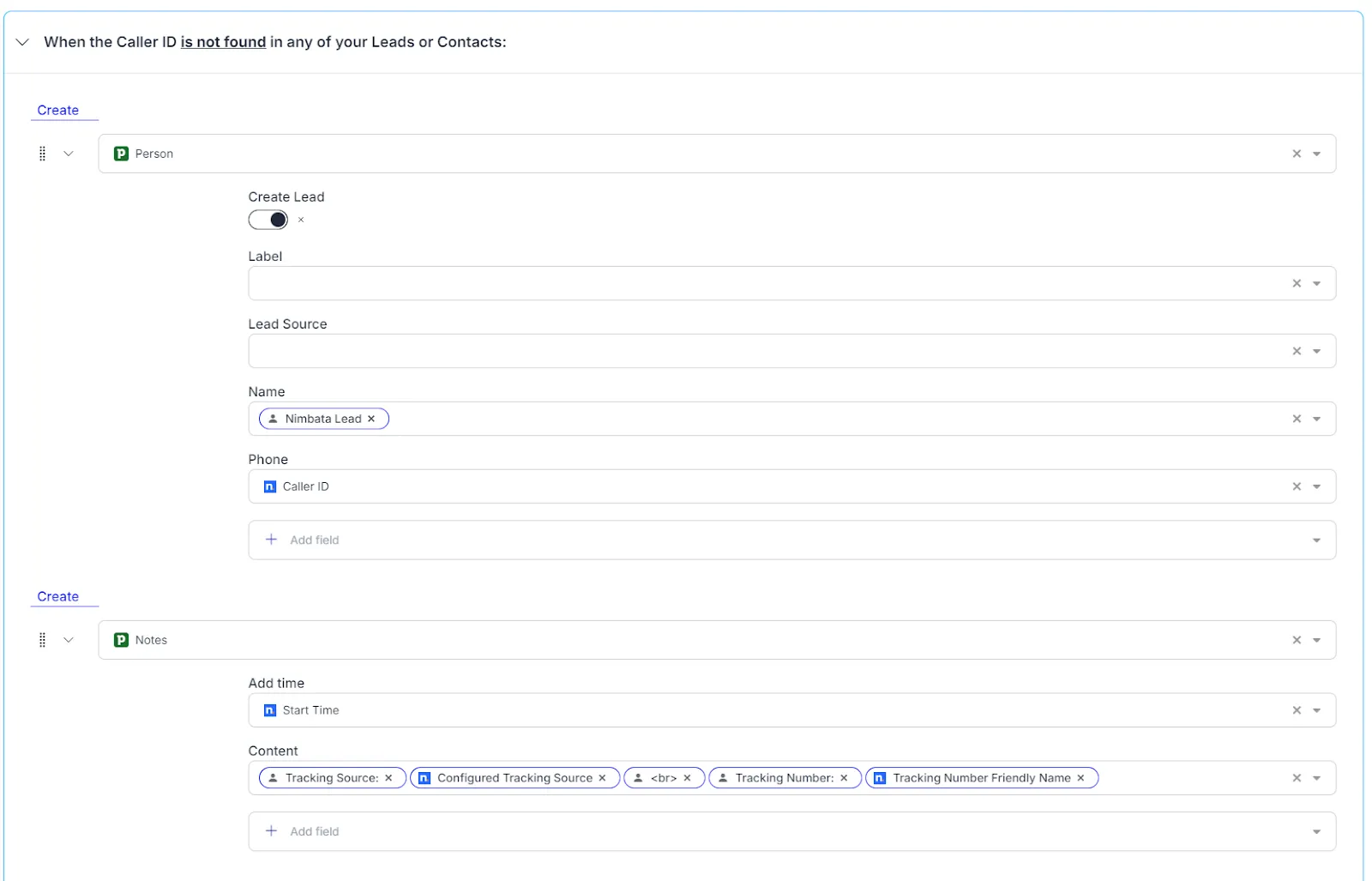
Map your fields
Map Nimbata fields to Pipedrive fields for two scenarios:
- One for when the caller is not found in your CRM
- One for when they already exist
Select your trigger
Choose the default After Every Call, or customize the workflow rules to control exactly when Nimbata fires the integration.
Test and save
Click Send Test and Save, review the test event in Pipedrive, and click Save to activate.
🎉 Done! All calls that match your workflow criteria are automatically logged in Pipedrive.
Detailed guide: Create a workflow
GoHighLevel
Nimbata’s GoHighLevel integration automatically sends call data to GoHighLevel, so you can track leads, update deals, and keep your sales pipeline accurate.
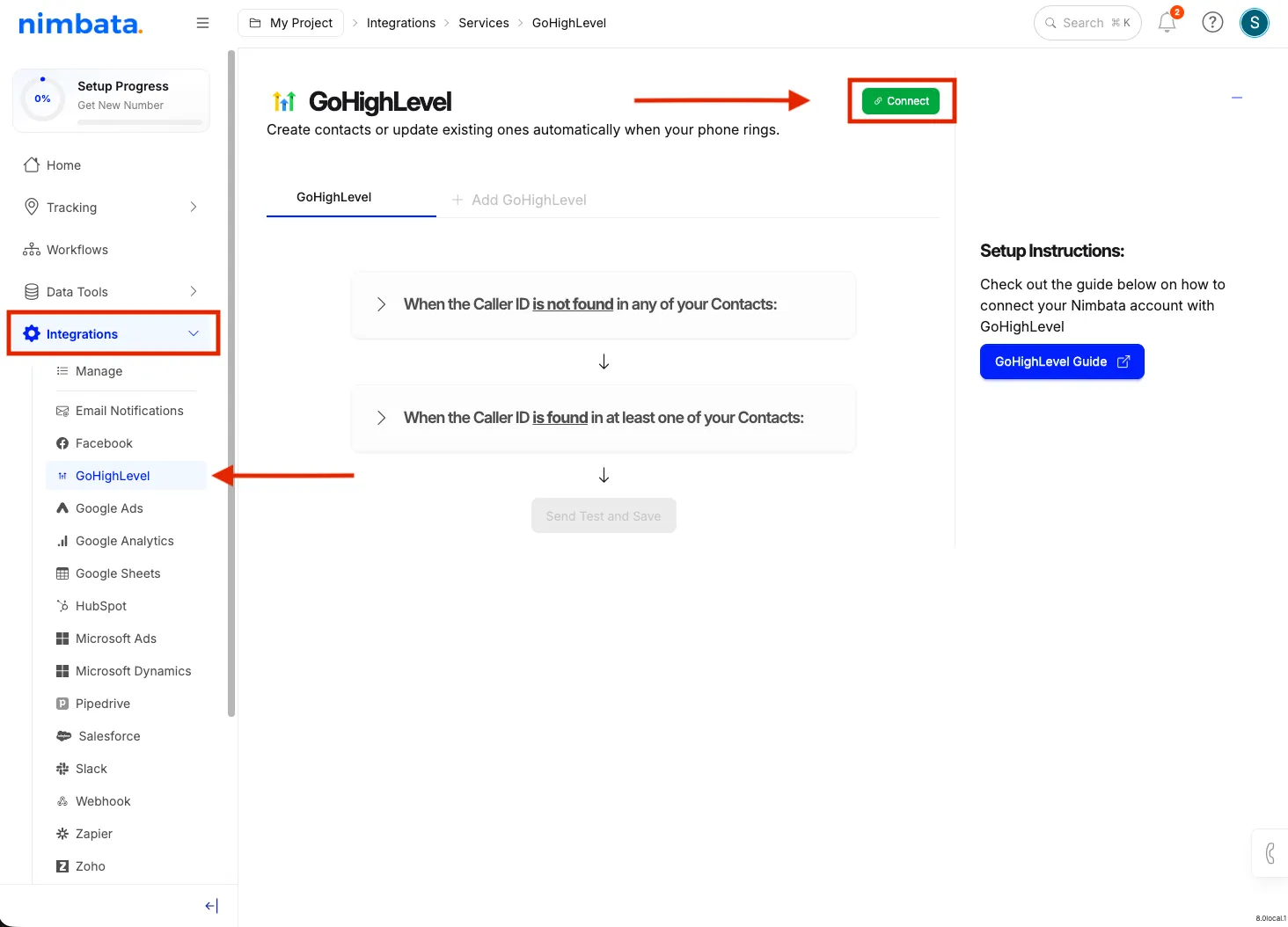
Connect your GoHighLevel account
- Go to Integrations > GoHighLevel and click Connect.
- In the authorization pop-up, click Allow and Install.
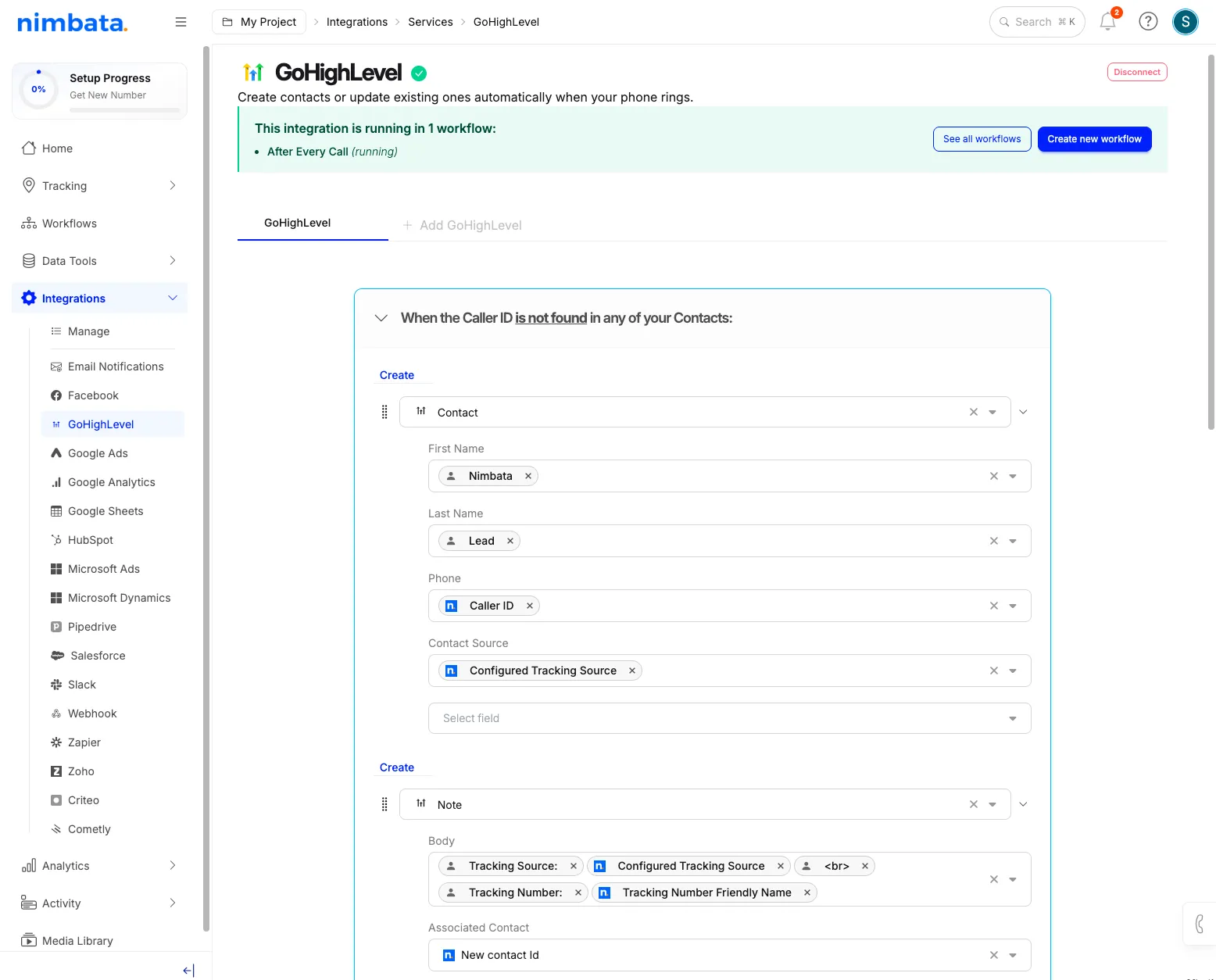
Map your fields
Map Nimbata fields to GoHighLevel fields for two scenarios:
- One for when the caller is not found in your CRM
- One for when they already exist
Select your trigger
Choose the default After Every Call, or customize the workflow rules to control exactly when Nimbata fires the integration.
Test and save
Click Send Test and Save, review the test event in GoHighLevel, and click Save to activate.
🎉 Done! All calls that match your workflow criteria are automatically logged in GoHighLevel.
Detailed guide: Create a workflow