
Conversion workflows send your calls and tracked form submissions from Nimbata to Google Ads, Google Analytics 4 and Meta. This page covers each template, approving Google Ads conversions by tagging calls, and sending several conversion types to Google Ads, Meta or Microsoft Ads from one integration.
Google Ads call conversions
The Google Ads Call Conversion workflow sends call conversions from Nimbata directly to Google Ads as offline conversions. It shows you which campaigns, ad groups, and keywords drive qualified calls, and gives Smart Bidding the data it needs to optimize toward better leads.
Note
To send multiple conversion types to Google Ads (for example qualified lead, booked appointment, sale), you do not need multiple workflows. Configure multiple conversions within the same Google Ads integration using different triggers.
Go to Workflows and click Create
- Go to Workflows.
- Click Create in the top-right corner.
Select From Template
- In the Create a New Workflow menu, select From Template.
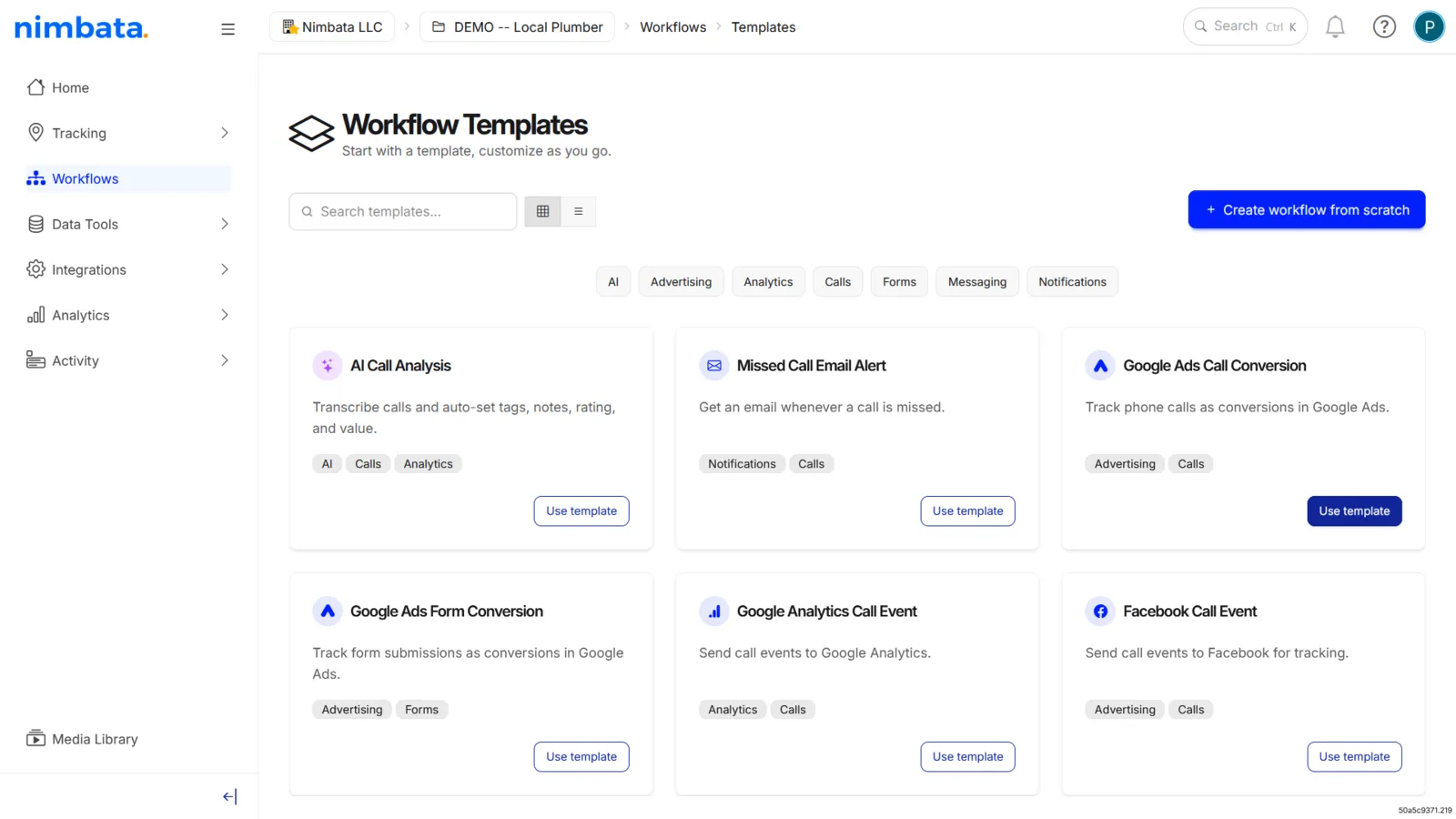
Choose the Google Ads Call Conversion template
- In the Workflow Templates menu, hover over Google Ads Call Conversion.
- Click Use template.
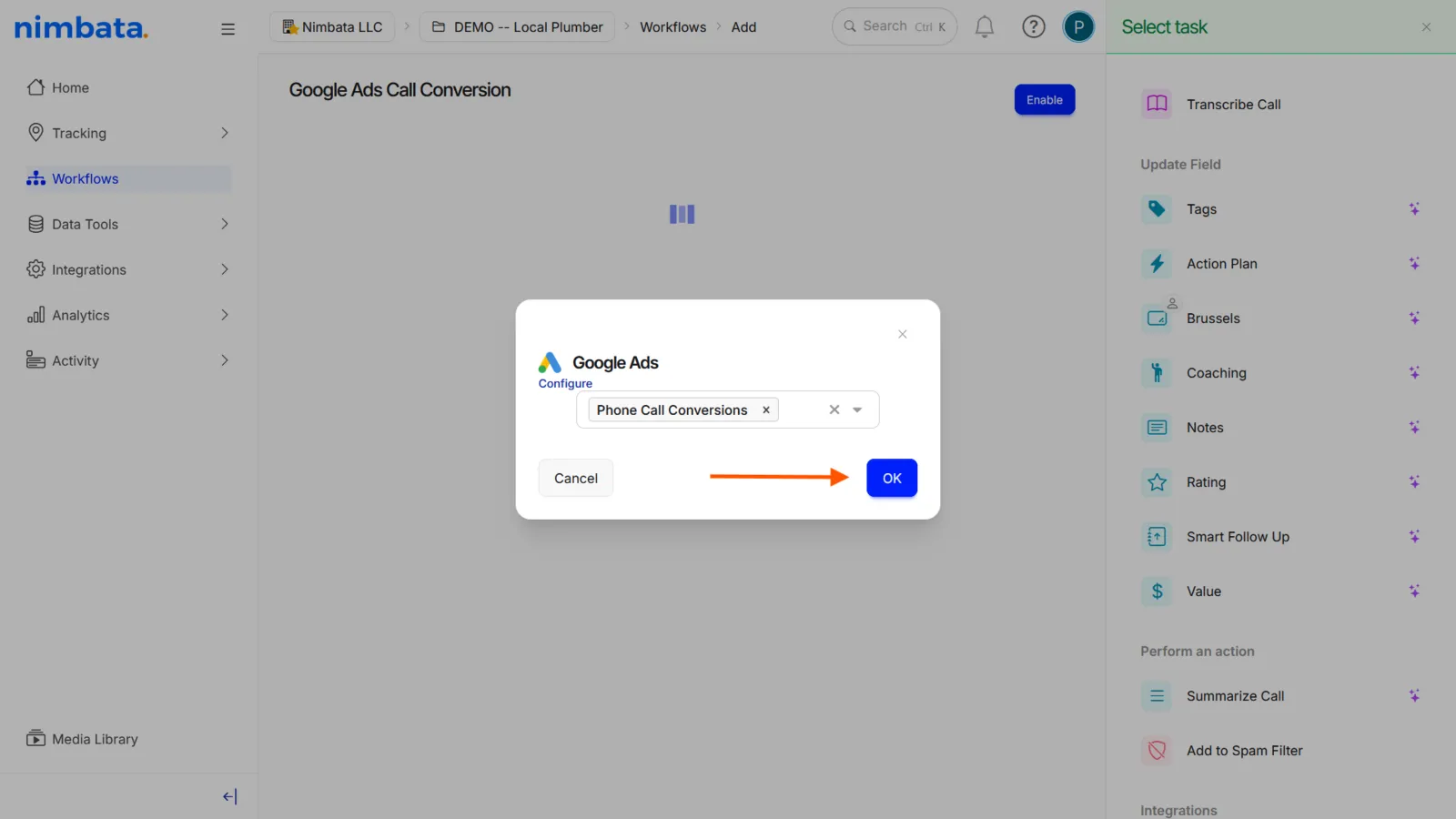
Select your Google Ads configuration
- In the pop-up, create or select the Google Ads configuration you want to associate with this workflow.
- Click OK.
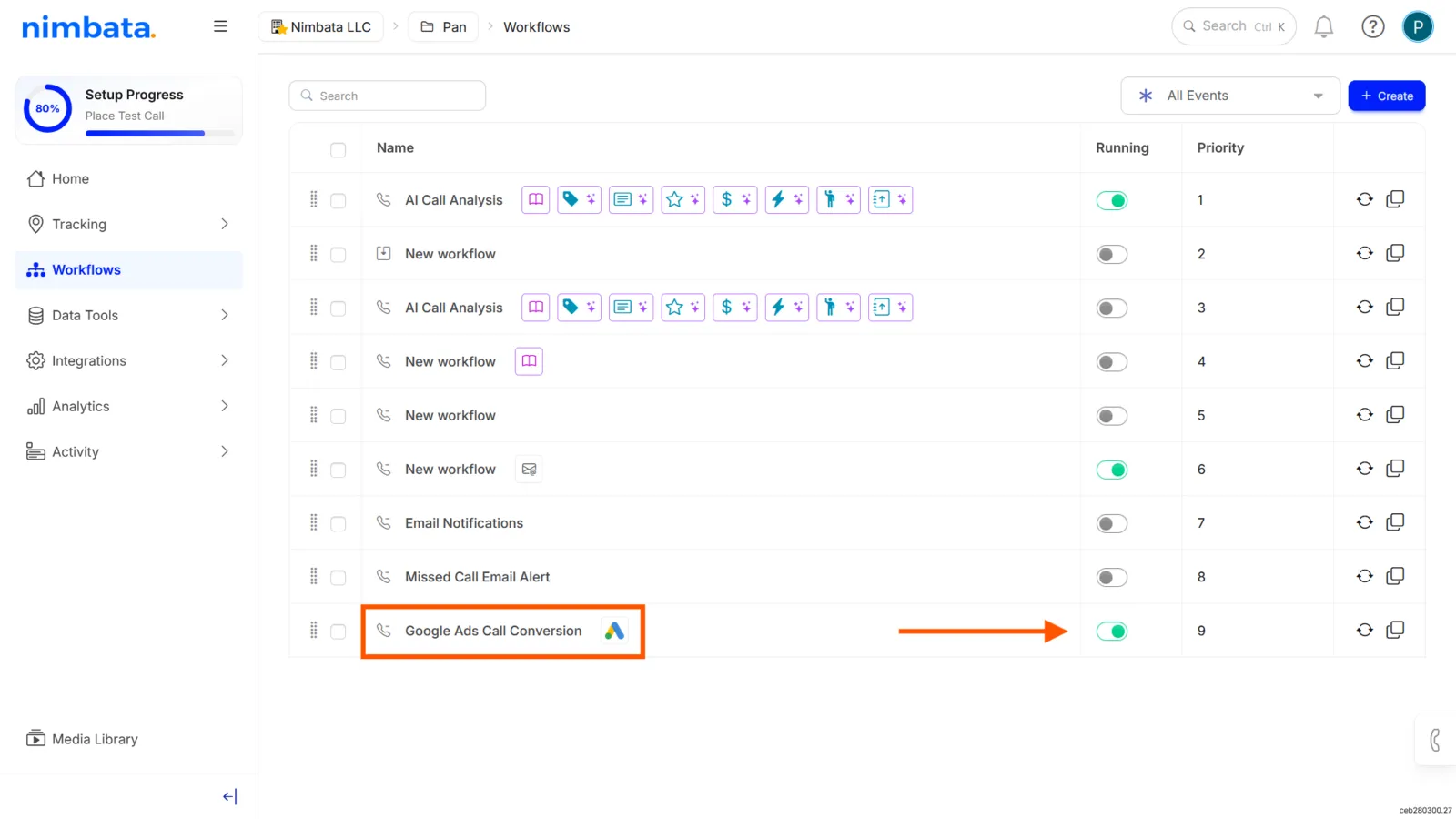
Enable the workflow
- Click Enable in the top-right corner of the workflow builder.
Alternatively, go back to the main Workflows list, find the workflow titled Google Ads Call Conversion, and toggle it on.
🎉 Nimbata now sends call conversions to Google Ads automatically when the trigger conditions are met.
Detailed guide: Connect Google Ads
Detailed guide: Several conversion types
Detailed guide: Approve conversions by tagging
Approve conversions by tagging
Note
Before you start, make sure your Google Ads integration is connected under Integrations > Google Ads, and that you have at least one Conversion Action mapped in Nimbata. Need help? See: Connect Google Ads.
Nimbata usually handles conversions automatically, but sometimes you need more control. This section shows you how to build a workflow that only sends a conversion to Google Ads when you manually approve a call by tagging it. Use this approach when you want to vet leads before they reach your ad reports, or as a fallback when Google Ads API delays occur.
Disable any existing automatic Google Ads conversion workflows
- Go to Workflows.
- Locate any existing Google Ads conversion workflows.
- Toggle them off or delete them.
This prevents double-counting.
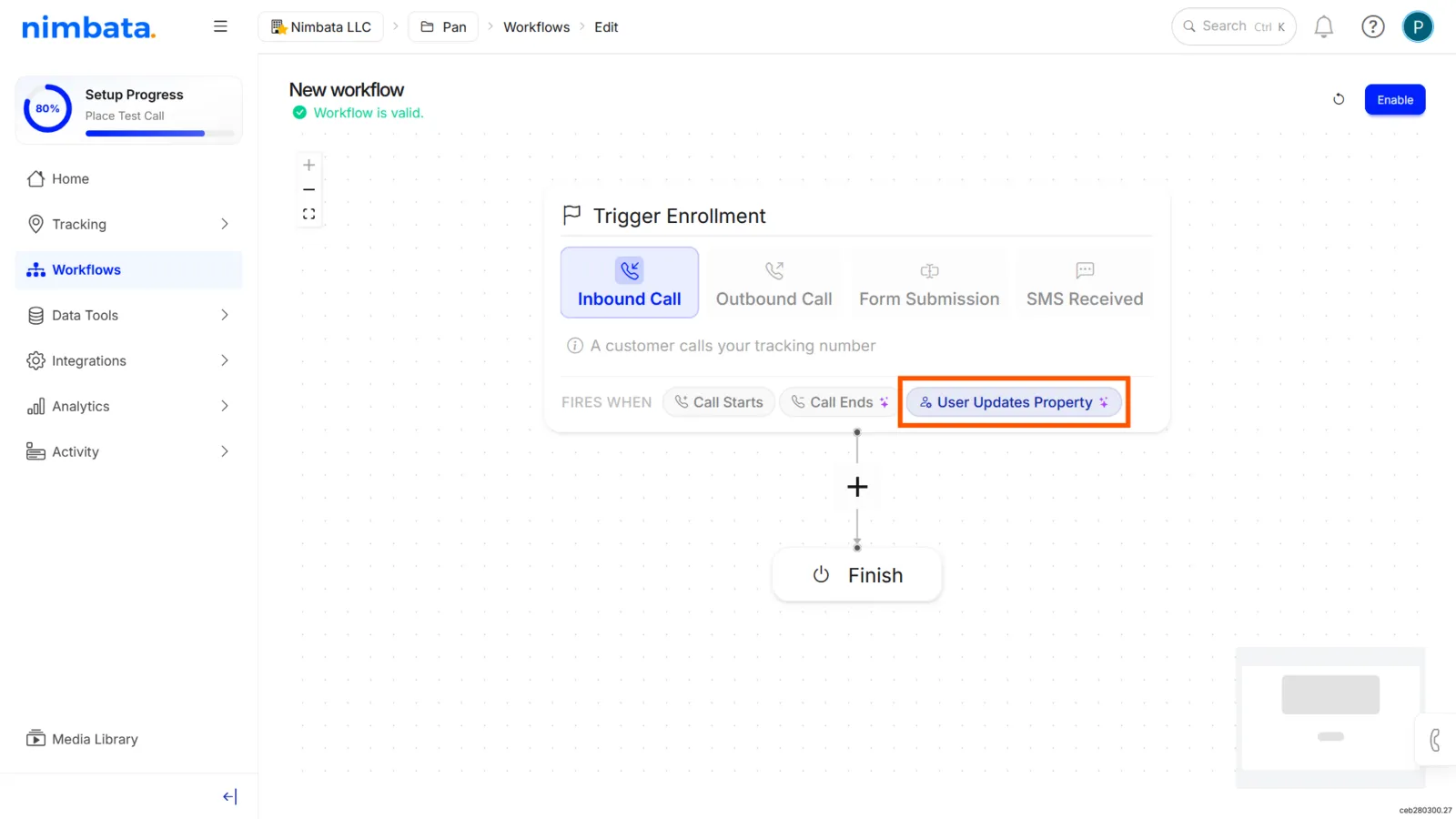
Create a new workflow triggered by a property update
- Click + Create.
- Select From Scratch.
- Give the workflow a clear name, such as Google Backup - Manual Approval.
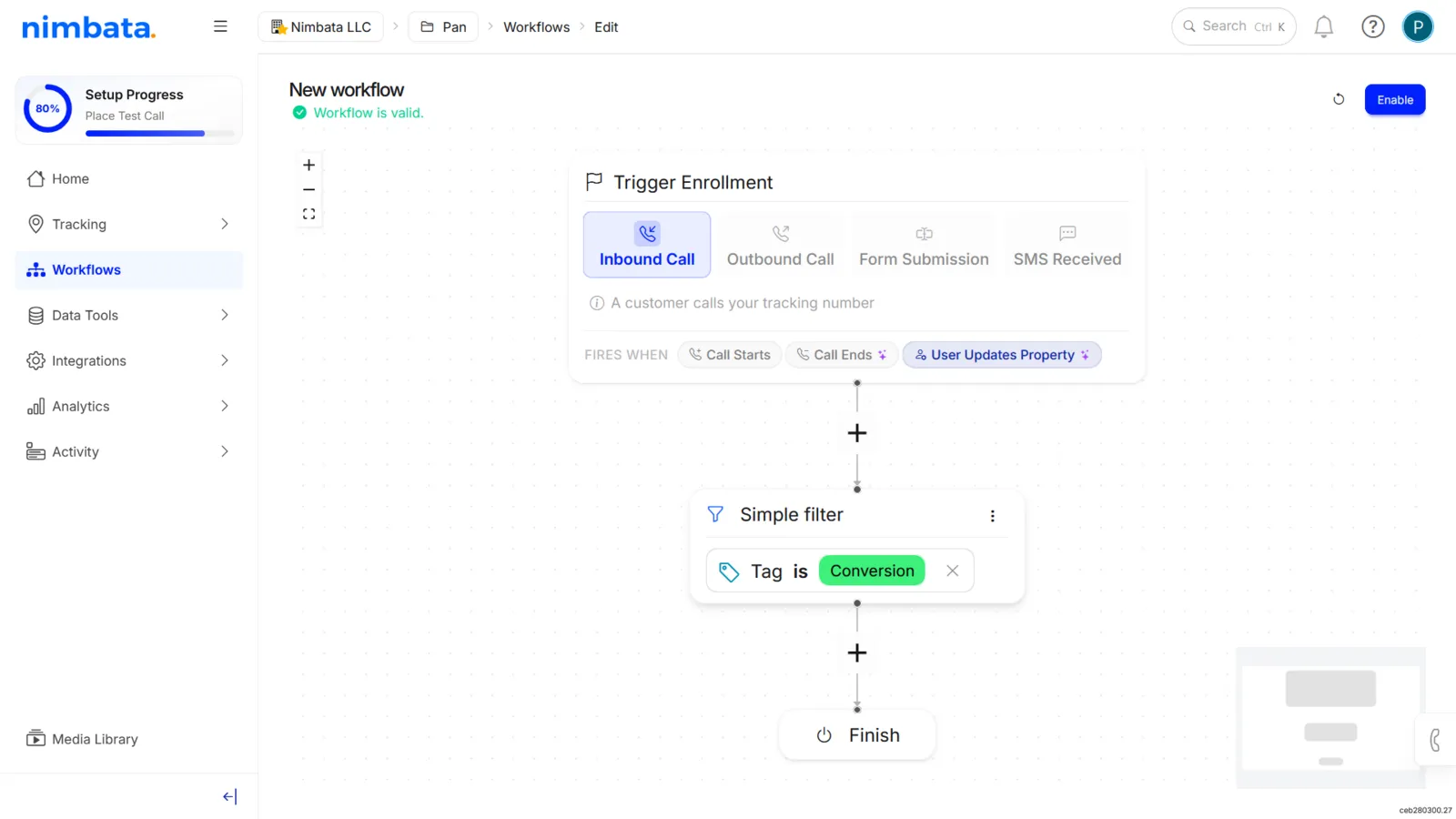
- Under Trigger Enrollment, select User updates property.
Add a Tag filter for "Conversion"
- Click the + icon under the trigger block.
- Select Add filter.
- Select the Tag filter.
- Set the value to Conversion.
- Click OK.
This ensures the workflow only fires when you manually apply the Conversion tag.
Add the Google Ads action
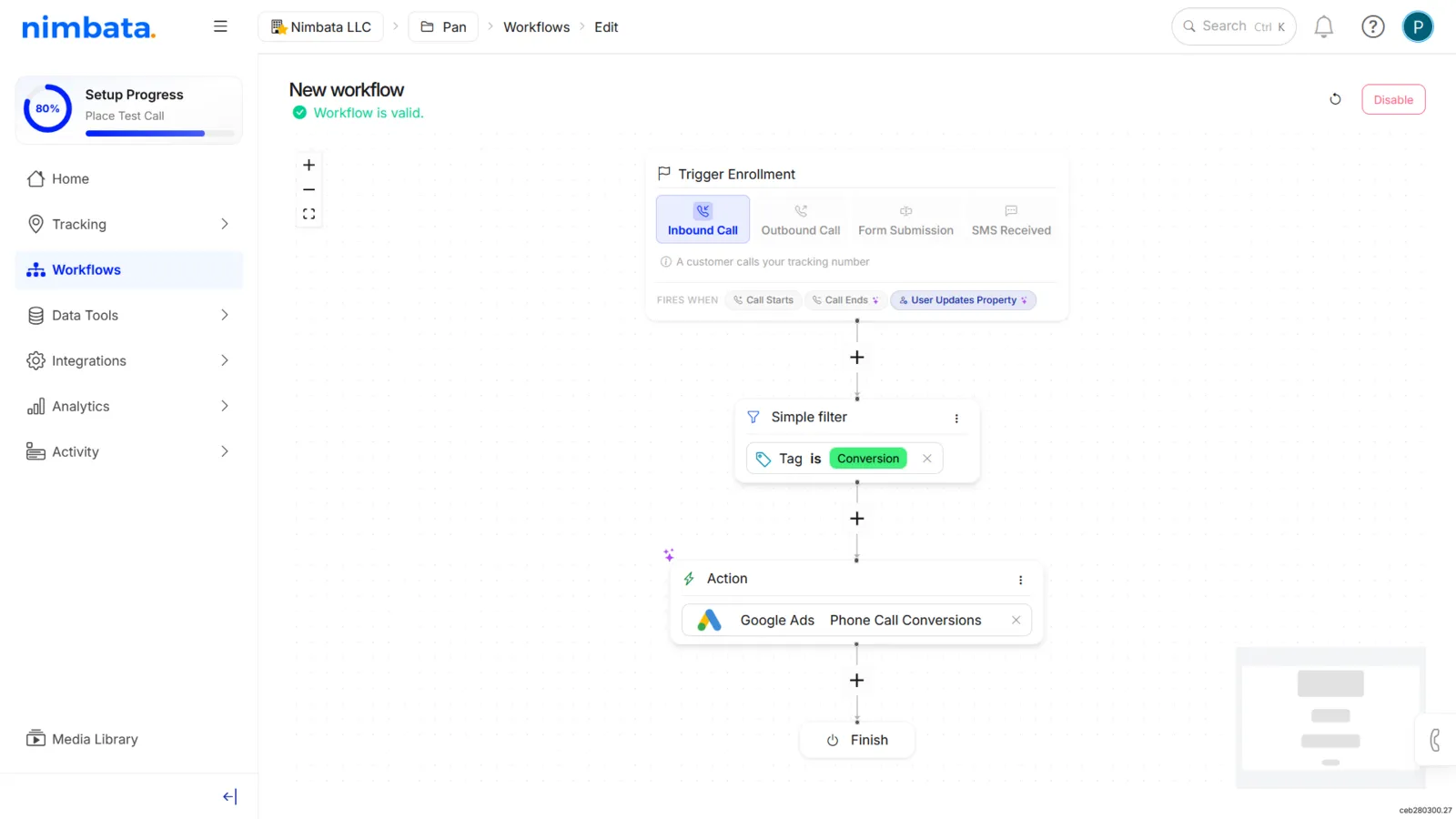
- Click the + icon under the filter.
- Select Perform action.
- Select Google Ads from the integrations list.
- Choose the Conversion Name that matches your Google Ads account.
- Click Save, then Enable the workflow.
Approve conversions manually by tagging calls
- Go to Activity > Calls.
- Review the call: listen to the recording or read the transcript.
- If the call is a valid conversion, click the Tags field.
- Select Call Status > Conversion.
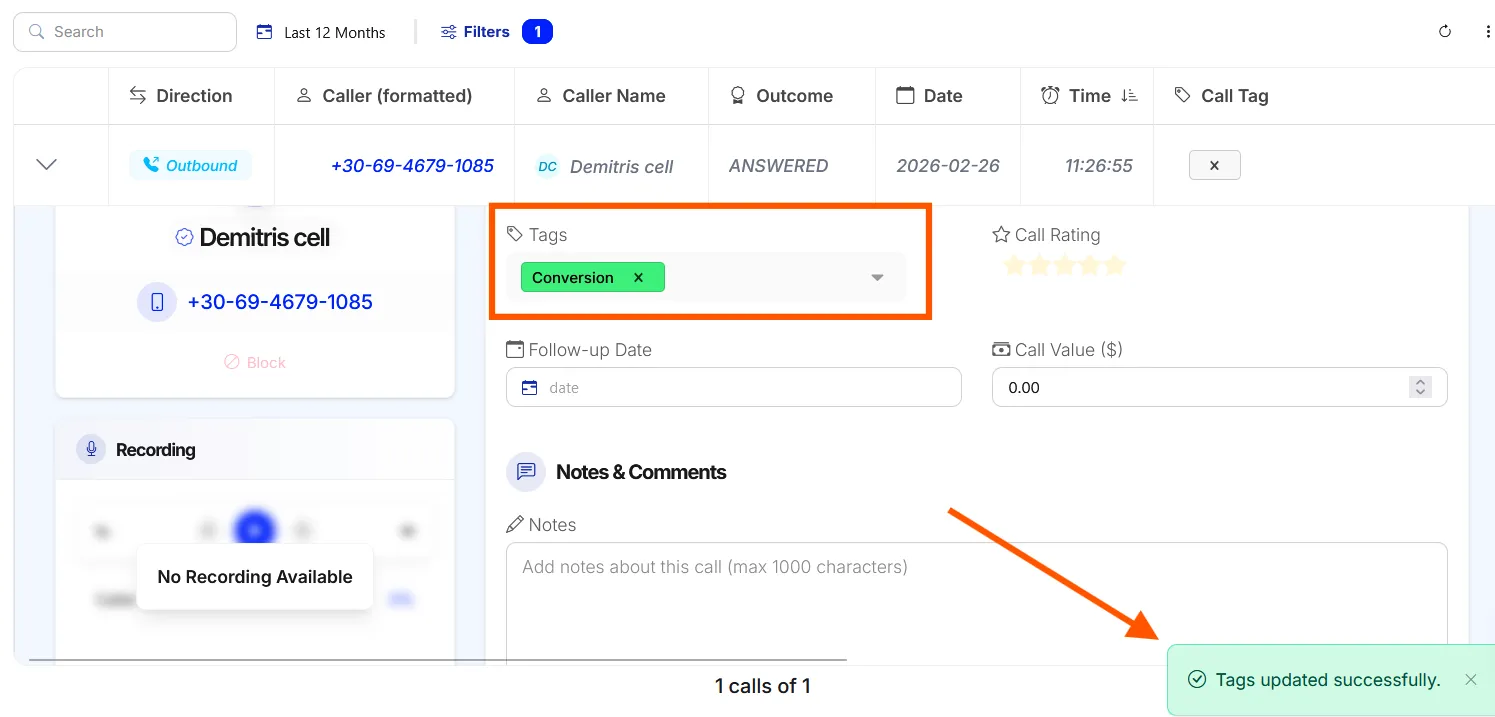
The moment you apply the tag, Nimbata pushes the data to Google Ads via the API.
🎉 Your manual approval workflow is live. Only calls you tag as Conversion are sent to Google Ads.
A note on GCLIDs
For Google to accept a conversion, the call must have a GCLID (Google Click ID). A call without a GCLID means the visitor likely didn’t come from an ad, or their browser stripped the tracking parameter. If you see calls with no GCLID that should be from ads, check that Auto-tagging is enabled in your Google Ads account.
Troubleshooting
Conversions not showing in Google Ads? Google can take up to 24 hours to process API uploads. Check back the next day.
Workflow not firing? Confirm that your tag spelling matches exactly, for example Conversion not conversion.
Detailed guide: Google Ads call conversions
Detailed guide: Connect Google Ads
Detailed guide: Several conversion types
Google Ads form conversions
The Google Ads Form Conversion workflow sends tracked form submissions from Nimbata to Google Ads as conversion actions. This ensures your campaigns measure form leads so you can optimize bids and budget based on what’s generating conversions.
Go to Workflows and click Create
- Go to Workflows.
- Click Create in the top-right corner.
Select From Template
- In the Create a New Workflow menu, select From Template.
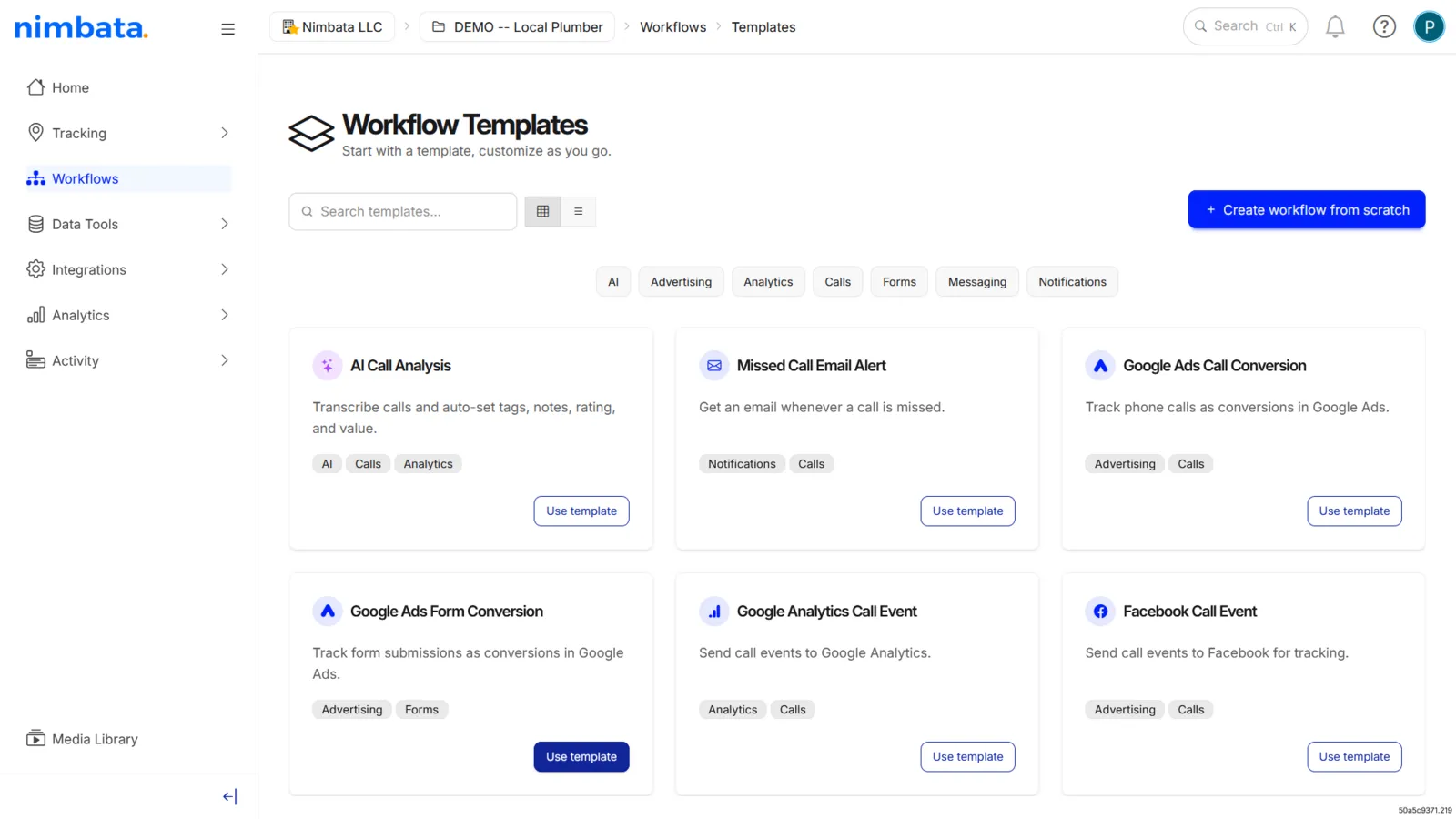
Choose the Google Ads Form Conversion template
- In the Workflow Templates menu, hover over Google Ads Form Conversion.
- Click Use template.
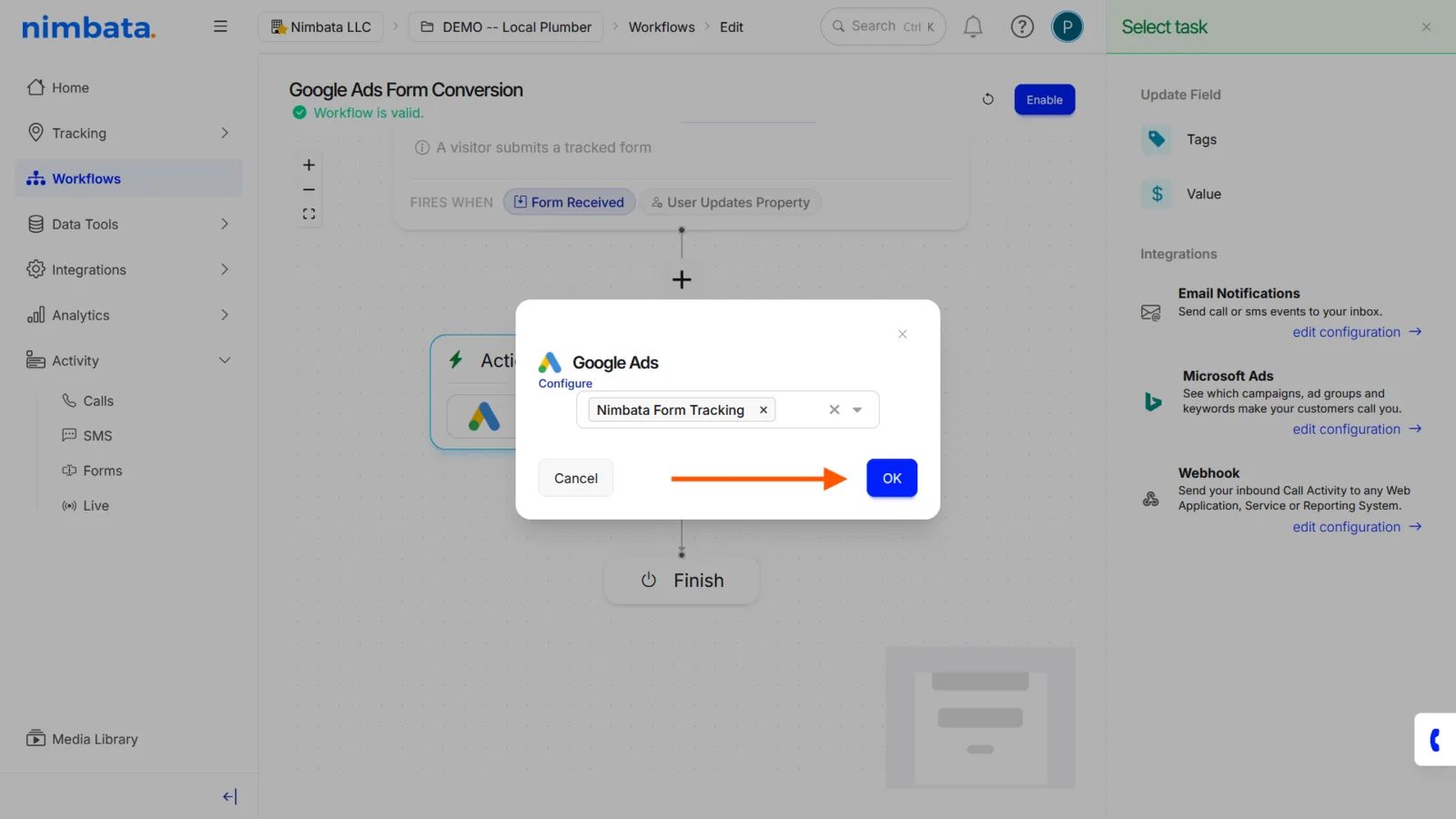
Select your Google Ads configuration
- In the pop-up, create or select the Google Ads configuration you want to associate with this workflow.
- Click OK.
Enable the workflow
- Click Enable in the top-right corner of the workflow builder.
Alternatively, go back to the main Workflows list, find the workflow titled Google Ads Form Conversion, and toggle it on.
🎉 Form submissions are now sent to Google Ads as conversions automatically.
Detailed guide: Connect Google Ads
Detailed guide: Form tracking
GA4 call events
The Google Analytics 4 (GA4) Call Event workflow sends Nimbata calls to Google Analytics as events, so phone leads appear alongside your website and campaign data. When session-based tracking is available, calls can be associated with the originating session, helping you understand what’s driving conversions.
Warning
Make sure your GA4 integration is already connected in Nimbata before enabling this workflow.
Go to Workflows and click Create
- Go to Workflows.
- Click Create in the top-right corner.
Select From Template
- In the Create a New Workflow menu, select From Template.
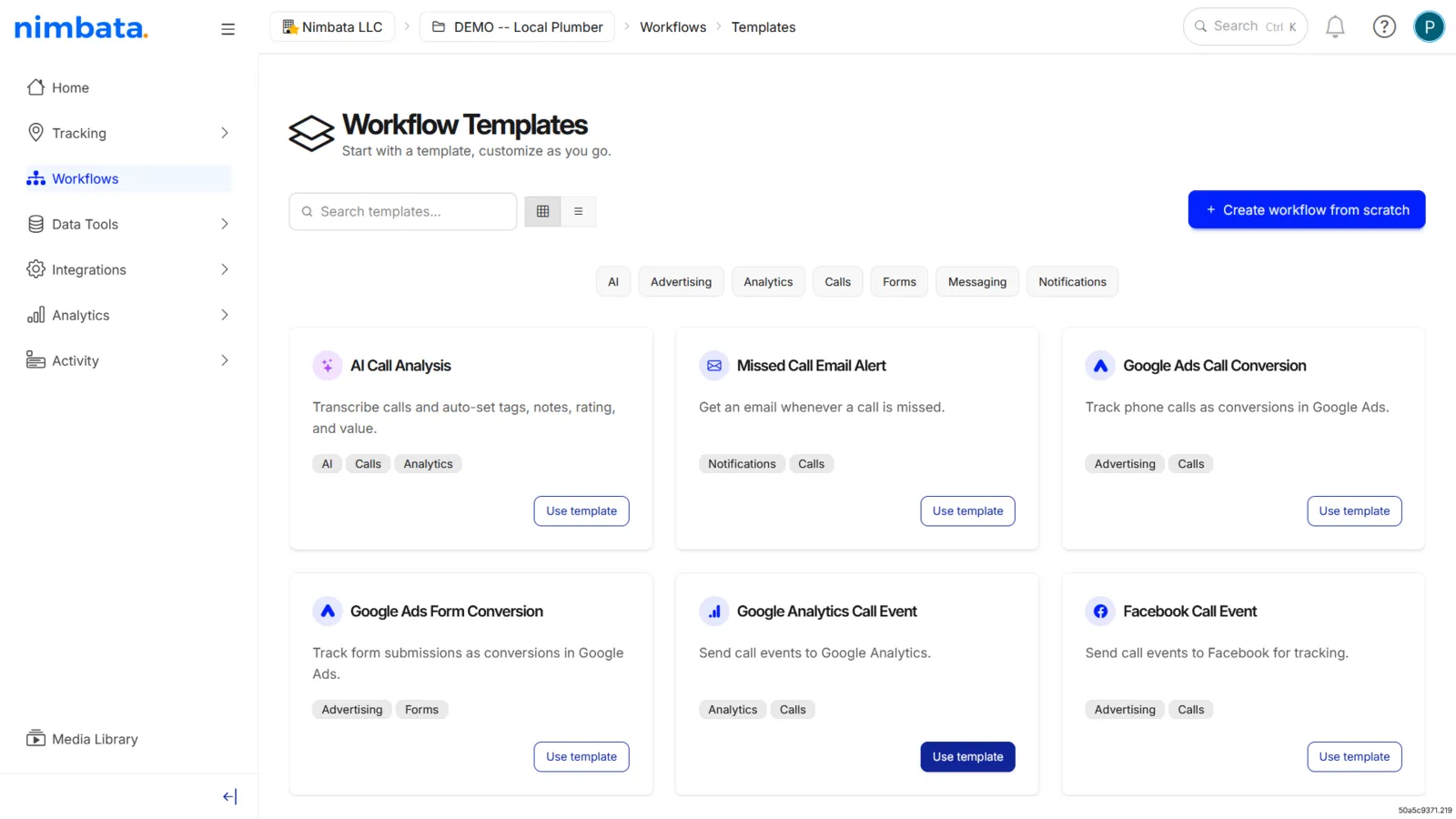
Choose the Google Analytics Call Event template
- In the Workflow Templates menu, hover over Google Analytics Call Event.
- Click Use template.
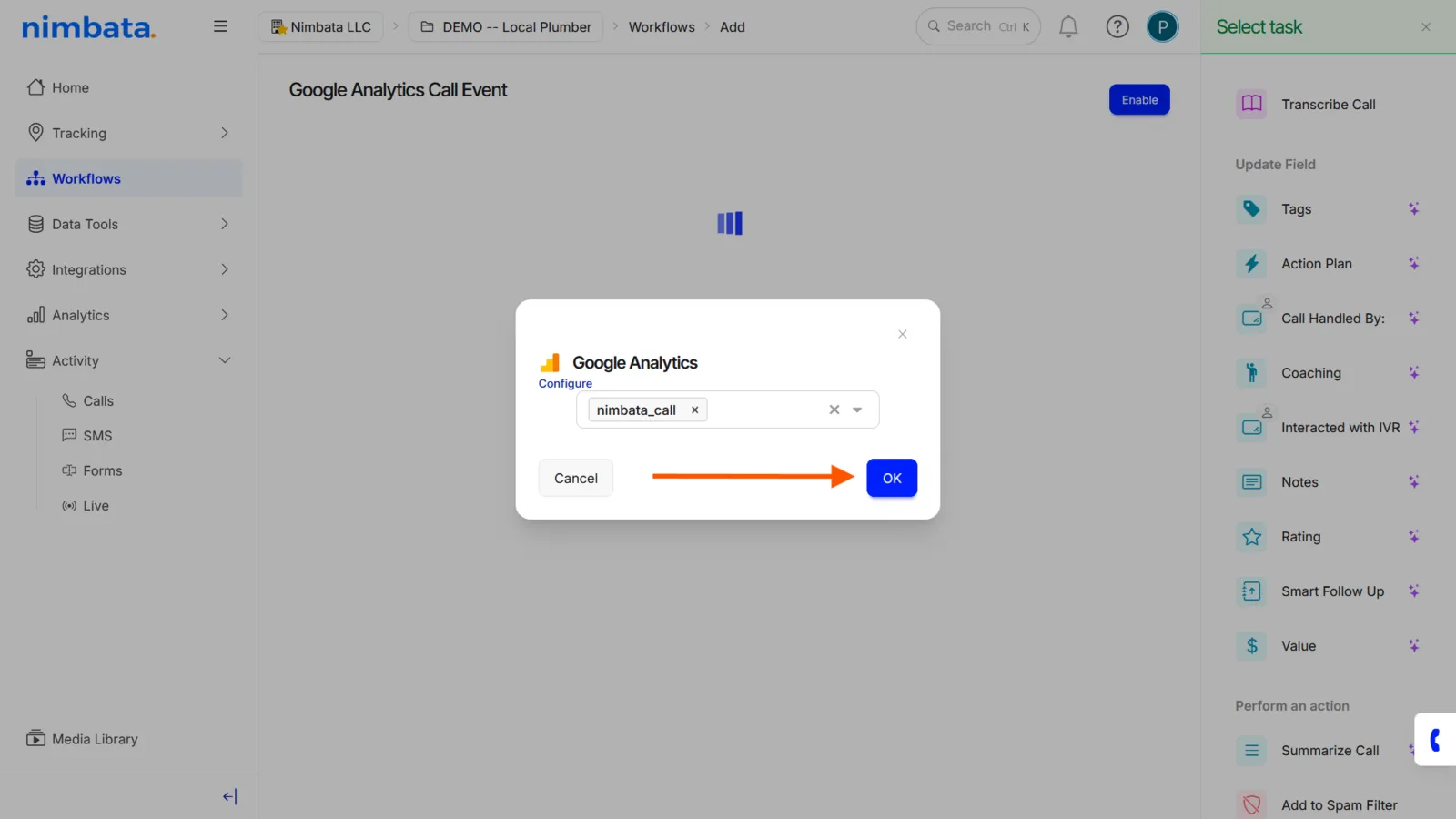
Select your GA4 call event
- In the pop-up, select the Google Analytics call event you want to associate with this workflow.
Enable the workflow
- Click Enable in the top-right corner of the workflow builder.
Alternatively, go back to the main Workflows list, find the workflow titled Google Analytics Call Event, and toggle it on.
🎉 Future calls that meet the trigger conditions are now sent to GA4 as events.
Detailed guide: Connect GA4
Detailed guide: Import call events from GA4
Meta call events
Note
This section covers the templated workflow setup. For the full Facebook integration guide, see: Meta Ads.
The Facebook Call Event workflow sends Nimbata call conversions to Meta Events Manager. You can see which Facebook campaigns actually drive calls, and optimize based on real outcomes.
Go to Workflows and click Create
- Go to Workflows.
- Click Create in the top-right corner.
Select From Template
- In the Create a New Workflow menu, select From Template.
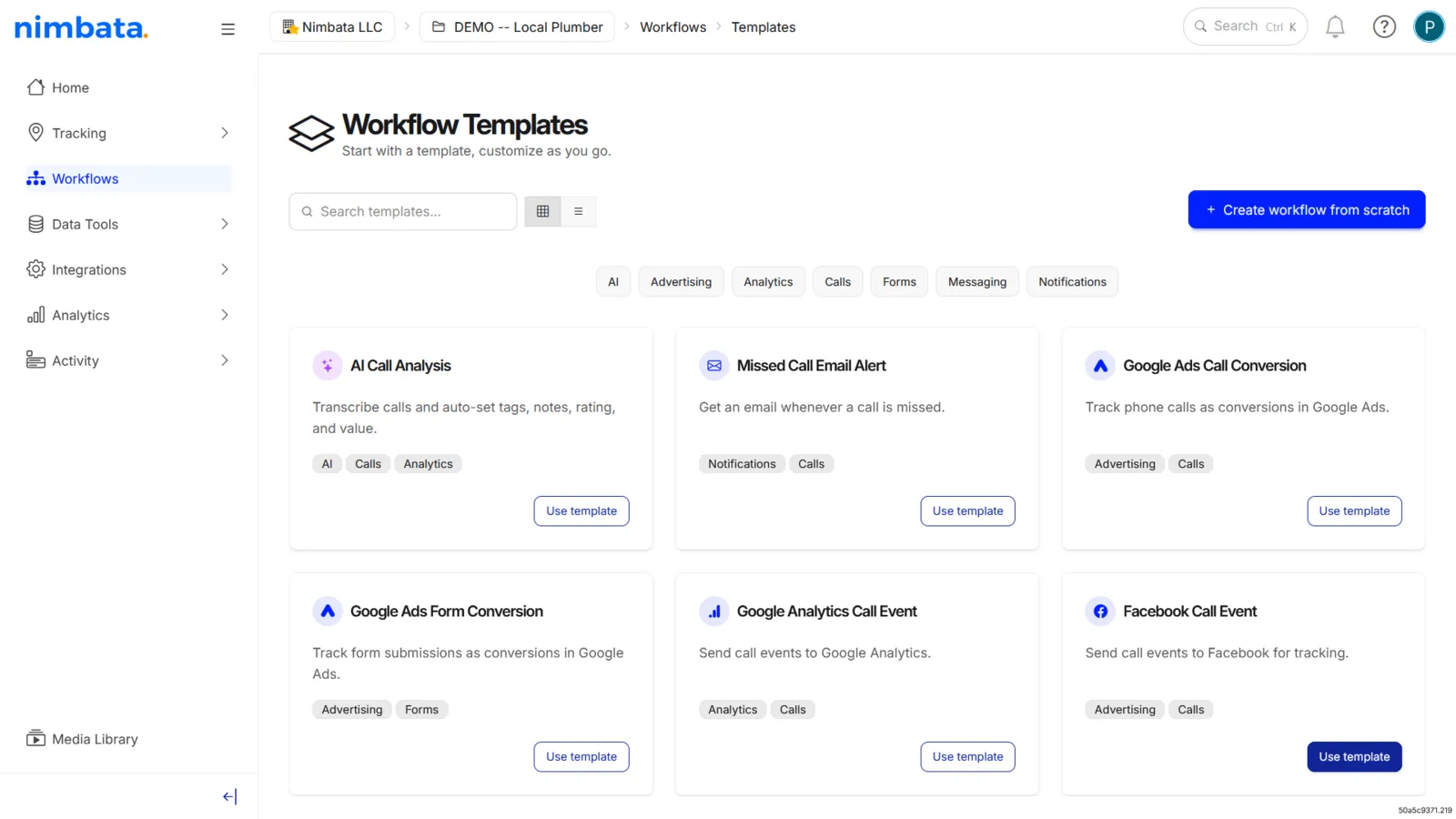
Choose the Facebook Call Event template
- In the Workflow Templates menu, hover over Facebook Call Event.
- Click Use template.
Enable the workflow
- Click Enable in the top-right corner of the workflow builder.
Alternatively, go back to the main Workflows list, find the workflow titled Facebook Call Event, and toggle it on.
🎉 Nimbata now sends call events to Meta Events Manager automatically.
Detailed guide: Meta Ads
Detailed guide: Several conversion types
Several conversion types
Note
For Google Ads, you can pick existing conversion actions or create them from Nimbata: see Create a conversion action in Nimbata. For Microsoft Ads, create the conversion goals in Microsoft Ads first: see Connect Microsoft Ads.
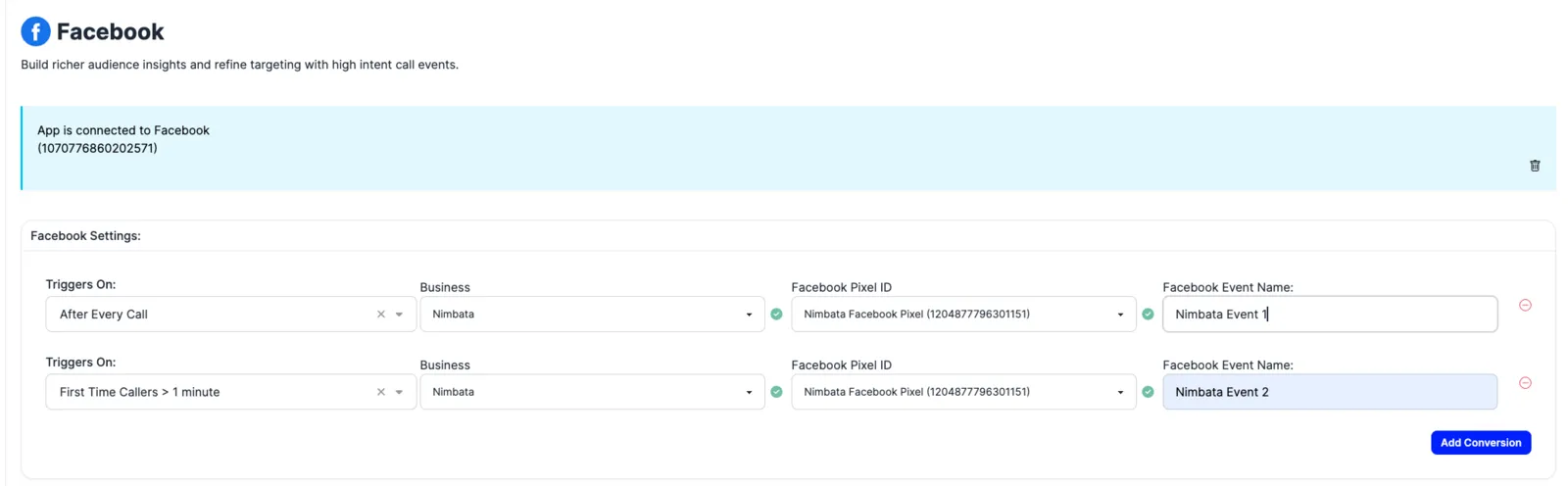
You can send multiple conversion types to Google Ads, Meta, or Microsoft Ads from within a single integration. You add each conversion on the integration’s page, then choose in each workflow which conversions it sends. The setup is the same across all three platforms.
Set up your first conversion
- Go to the integration’s page for Google Ads, Meta (Facebook), or Microsoft Ads in Nimbata.
- Fill in the platform’s fields for your first conversion: Ads Account and Conversion Name for Google Ads, Business, Meta Pixel ID and Meta Event Name for Meta, or Ads Account and Offline Conversion Name for Microsoft Ads.

Add a second conversion
- Click Add conversion (on Meta, Add event).
- Fill in the platform’s fields for the new conversion.
Tip
You can add as many conversions as you need.
Choose which conversions each workflow sends
- Open the workflow that sends the conversion, or create one (see Google Ads call conversions and Meta call events).
- In the workflow’s integration action, pick one or more conversions under Select configuration.
- To send a different conversion for different calls (for example, every call as one conversion and first-time callers over 1 minute as another), use one workflow for each, with its own conditions.
🎉 Multiple conversions are now configured. Each workflow sends the conversions selected in it.
Editing multiple conversions after setup
To change your conversions later, go to Integrations > Browse, choose the Active filter, and open the integration: its conversions are listed on its page. To change which conversions a workflow sends, edit the workflow’s integration action.

Detailed guide: Google Ads call conversions
Detailed guide: Meta call events
Detailed guide: Import call events from GA4
Detailed guide: Connect Microsoft Ads