
The swap target tells the DNI script which number on your page to replace. You can enter the number exactly as it appears in your page source, or wrap it in a span tag so the script has an explicit target.
Formatting rules
The swap target is the phone number string you enter in Nimbata to tell the DNI script which number on your page to replace. If it doesn’t match the number in your page’s HTML exactly, the script finds nothing to replace and does nothing: the number on your site stays static. This is one of the most common causes of numbers not swapping.
How swap target matching works
- When the Nimbata script loads, it looks for your swap target in the page’s text, in
tel:links, and in other HTML attributes. - Every character except spaces must match exactly: dashes, dots, brackets and the
+sign. - Spaces are forgiving. Each space in your swap target matches one space, one non-breaking space, or no space at all. Where your swap target has no space, the page must have none either.
- Nimbata also matches the number’s digits run together, so a link such as
tel:+15551234567is found even when your swap target is(555) 123-4567. - The whole number must sit in one piece of text. A number split across HTML tags is not found.
The rules
Enter the number exactly as it appears in your page source, not as it looks to visitors.
Your website may display (555) 123-4567 to visitors while the underlying HTML actually contains 555.123.4567. The swap target must match the HTML source, not the rendered appearance.
Common format variations Nimbata can match (as long as your swap target matches one of them consistently):
555-123-4567(555) 123-4567555.123.4567+15551234567555 123 4567
Each format needs its own swap target. If your page shows the number as both 555-123-4567 and (555) 123-4567, add both.
Common mistakes
1. Spaces inside the number
Spaces at the start or end of a swap target are removed when you save it, so they don’t matter. Inside the number, each space you type matches one space or none: 555 123 4567 matches 555 123 4567 and 5551234567, but not two spaces in a row. Copy the number directly from your page source rather than typing it manually.
2. Different format in the source vs. the swap target
Your page source might use (555) 123-4567 but your swap target was entered as 555-123-4567. These do not match. Inspect your page source (Ctrl+U in most browsers) and copy the number string exactly.
3. Number rendered by JavaScript after page load
If the number is injected into the page by a page builder, CMS template, or third-party widget after the initial HTML is parsed, the swap target may match fine but the script runs before the number exists in the DOM. In this case, switch to the span tag method or enable SPA mode in Tracking > Tracking Code.
4. Number inside an <iframe>
The Nimbata script runs in the context of your main page and cannot reach content inside an <iframe>. If your number is inside a widget, chat embed, or embedded form that uses an iframe, it cannot be swapped. The number must be placed directly in your main page HTML.
5. Number split across HTML elements
If your number is broken across multiple HTML tags, for example <span>555</span>-<span>123-4567</span>, the script cannot match it as a single string. Place the full number inside a single element or use the span tag method.
The reliable alternative: span tag
If you are seeing swap failures that are hard to diagnose, the span tag method avoids all format-matching issues entirely. Instead of scanning for a number, Nimbata replaces the contents of a specific <span> element by class name:
<span class="nimbata_number">555-555-5555</span>With one swap group the class is nimbata_number; with two or more it is nimbata_number_1, nimbata_number_2 and so on. Put your regular number inside the span: Nimbata replaces it, and an empty span is not swapped.
Detailed guide: Use span tags
Troubleshooting: Numbers not swapping
Detailed guide: Set up swap groups
Use span tags
The span tag method gives Nimbata an explicit target to swap, rather than scanning the page for a matching number. Use it when auto-detection is unreliable, for example when your number is rendered dynamically by JavaScript, a page builder, or a CMS template.
How it works
When Span Tag is selected as the swap type, Nimbata’s script finds <span> elements with the correct class name after the page loads and replaces their contents with the assigned tracking number.
Required span format
Place the span exactly where you want the tracking number to appear:
<p>Call us at <span class="nimbata_number">555-555-5555</span> for more information.</p>The class name depends on how many swap groups you have:
- One swap group:
{prefix}_number, for examplenimbata_number. - Two or more swap groups:
{prefix}_number_plus the swap group number in Nimbata (1, 2, 3 and so on), for examplenimbata_number_1andnimbata_number_2. - Prefix:
nimbatafor standard accounts, or your white-label subdomain for white-label accounts.
Always put your regular number inside the span. Nimbata replaces it with the tracking number, and an empty span is not swapped.
Set up the span tag
Select Span Tag as your swap type
- Go to Tracking > Tracking Code.
- Under Swap Type, select Span Tag.
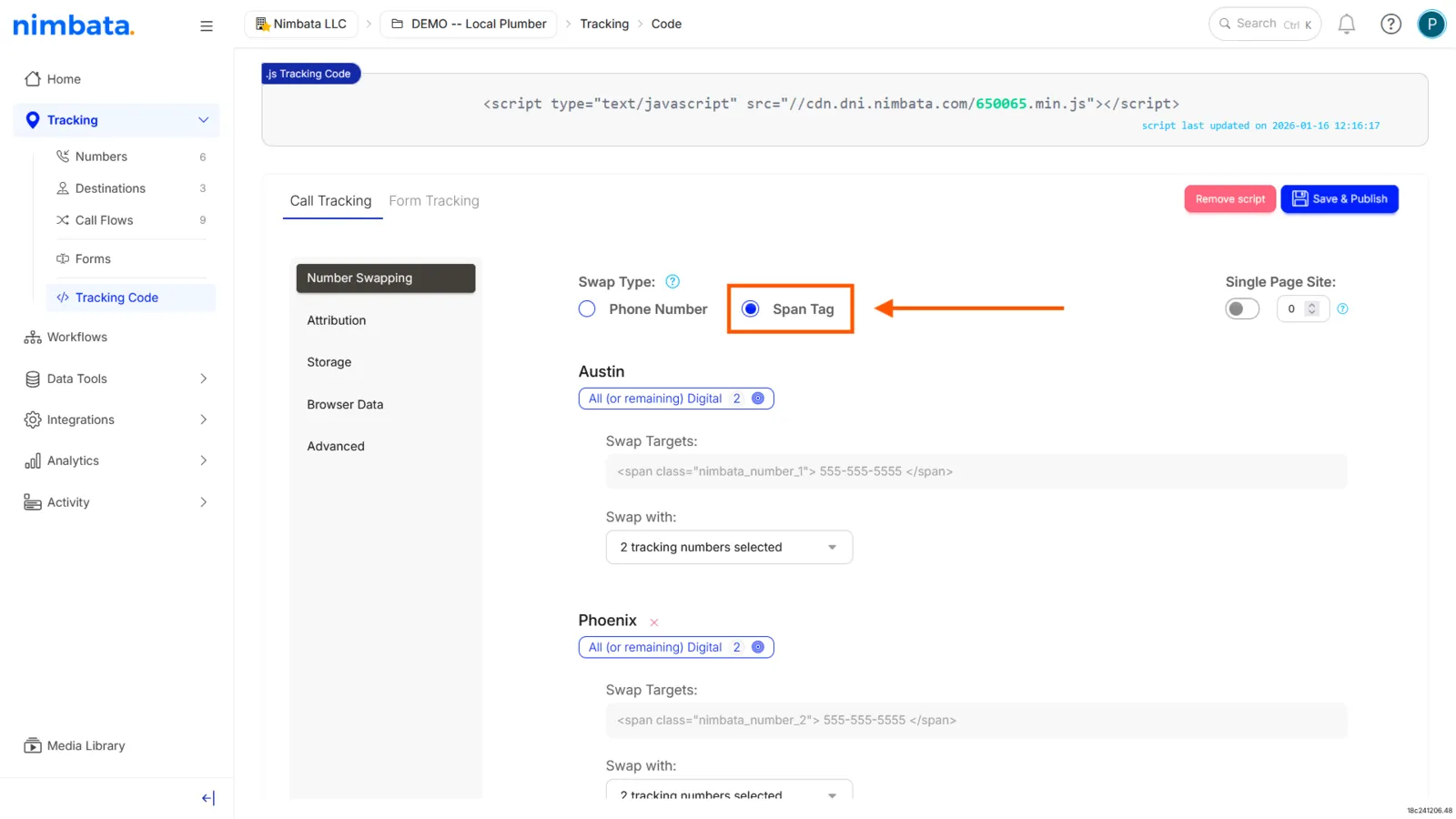
Configure your swap groups
Set up your swap groups and assign a tracking number to each one.
Save & Publish
- Click Save & Publish.
- Add the span tags to your site’s HTML where you want tracking numbers to appear.
Span tag implementation example
- Use the example below as a reference when adding span tags to your website.
- Place the
<span>tag exactly where you want the tracking number to appear. - Once the page loads, Nimbata automatically replaces the span with the correct tracking number based on the assigned swap group:
<p>Call us at <span class="nimbata_number">555-555-5555</span> for more information.</p>🎉 Visit the page to confirm the span is replaced with the correct tracking number.
Detailed guide: Set up swap groups
Troubleshooting: Numbers not swapping