
Custom sources live in Organize > Sources. Use them to assign fixed UTM values to a tracking number, or to capture custom parameters from a visitor’s page URL and attach them to tracked calls.
Assign UTM values to a number
Manually assign UTM values to a tracking number so that every call to that number is attributed to the correct source in your reports. This approach is best suited for static or source-level tracking, for example offline campaigns, print placements, or any situation where calls are not linked to website visits.
Note
If you use Dynamic Number Insertion (DNI) for session-based tracking, UTM values are captured automatically from each visit and do not need to be assigned manually. Session-based UTM values also take precedence over any manually assigned source if both are present.
Create a custom parameter source
- Go to Organize > Sources.
- Click + Add custom source.
- Select Custom Parameters from the tracking source type menu.
- Click Next.
- Enter a name for this source.
- Fill in whichever fields apply:
utm_source,utm_medium,utm_campaignand Referrer Domain, plus a field for each custom URL parameter you capture (see Capture custom URL parameters). - You do not need to fill in every field; only the parameters you define here are populated for calls using this source.
- Make sure the values match exactly what you want to see in reports (for example, consistent use of lowercase).
- Click Save.
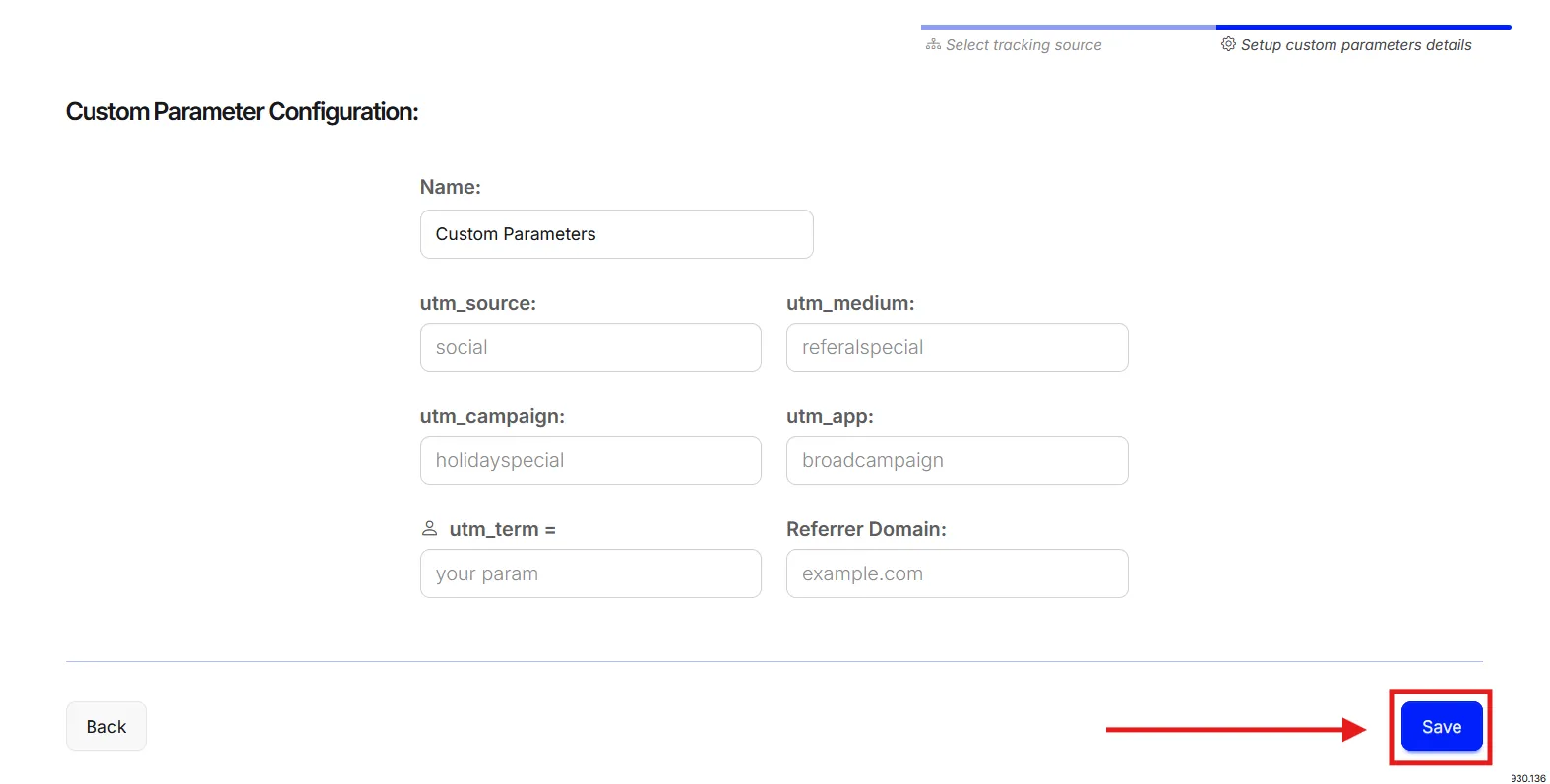
Assign the custom source to a tracking number
- Go to Tracking > Numbers.
- Find the number you want to assign the source to.
- Click the Source dropdown for that number.
- Select your new custom parameter source.
Once assigned, all calls to this tracking number report the selected UTM values until the source is changed or removed.
Edit a custom parameter source
- Go to Organize > Sources.
- Find your custom parameter.
- Click to edit it.
- Make your changes.
- Click Save.
Note
Changes to UTM parameters apply only to future calls. Historical call data is not updated.
🎉 Your tracking number is now set up to report calls with your chosen UTM values.
Detailed guide: How Nimbata fills UTM values
Detailed guide: Set up DNI step by step
Capture custom URL parameters
Custom URL parameters let Nimbata capture additional context from a visitor’s page URL and attach it to tracked calls. This is useful when standard attribution (source, campaign, medium) isn’t enough and you need to pass extra data, such as ad variant IDs, internal campaign codes, or product categories, through to your call records.
When a visitor lands on a page containing a Nimbata tracking number and the URL includes parameters you’ve configured, Nimbata stores those parameter values with the call record at the moment the call is placed. The data then appears in call details and exports.
Create the custom URL parameter
- Go to Organize > Sources.
- Click the Custom tab.
- Click the { } custom url parameter button.
- Enter a name for your custom URL parameter.
- Click the check mark button to save it.
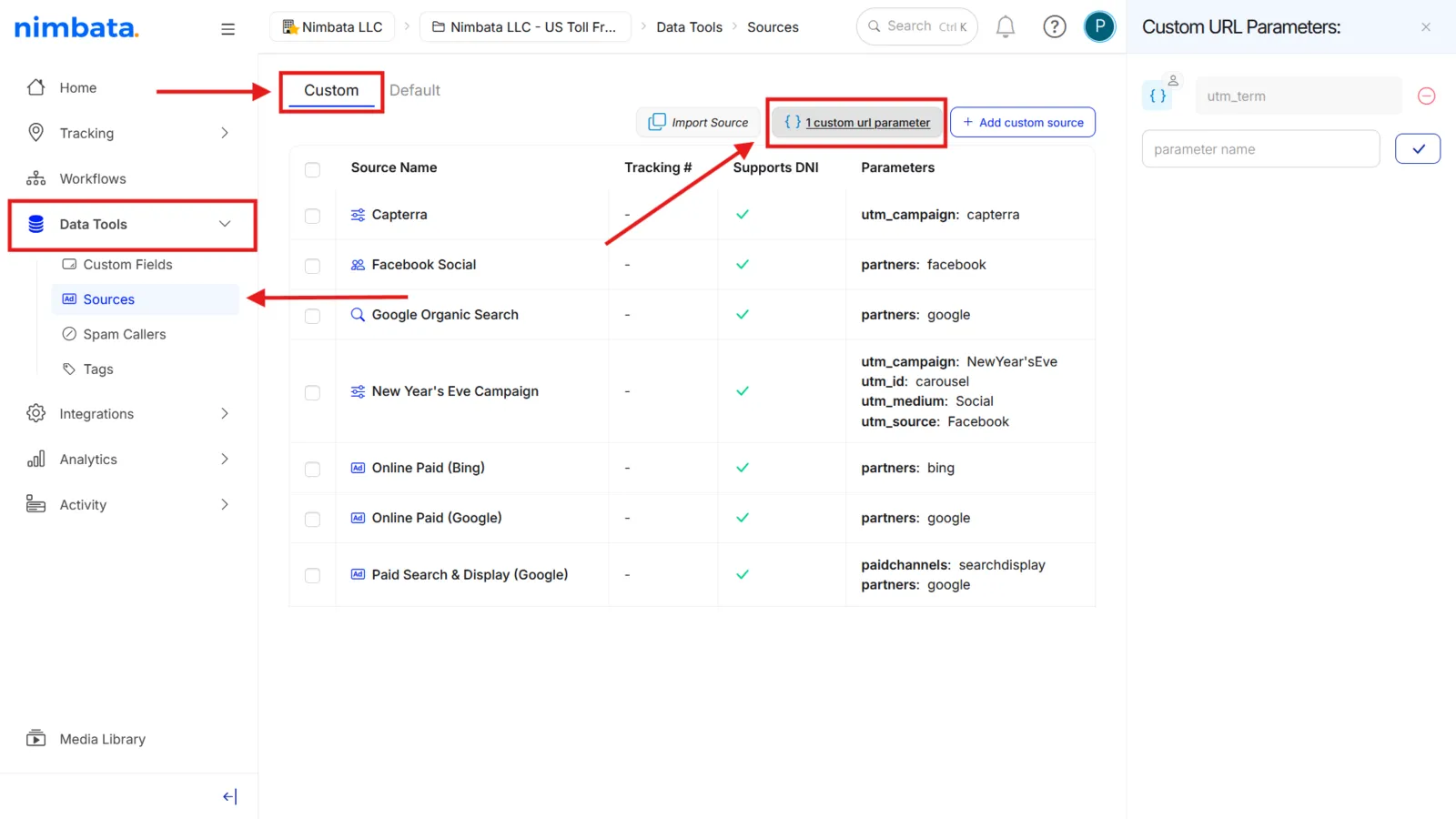
A confirmation message appears and your new parameter is listed above the button.
Add the parameter as a column in your calls view
- Go to Activity > Calls.
- Click the three-dotted menu.
- Select Edit columns.
- Find your custom URL parameter in the Available column of the Edit columns for completed calls panel.
- Click the blue arrow to move it to the Selected column.
- Close the panel.
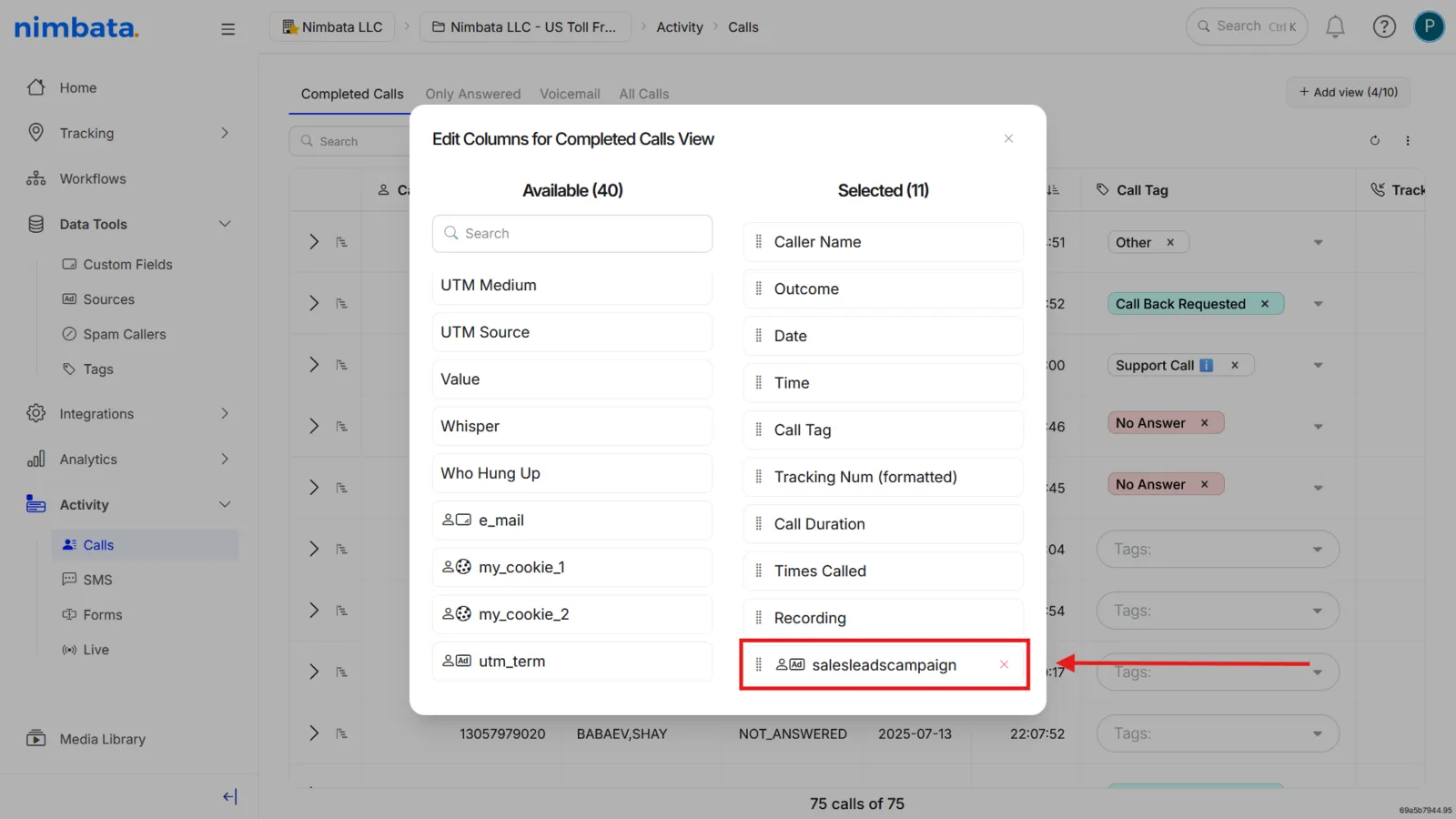
🎉 Your custom URL parameter now appears as a column in Activity > Calls. Whenever Nimbata tracks a call from a URL containing that parameter, its value is visible there.
Detailed guide: How Nimbata fills UTM values
Detailed guide: Assign UTM values to a number