
Nimbata’s GA4 integration sends call data as events directly to your GA4 property via the Measurement Protocol, helping you understand which traffic sources and campaigns drive phone leads. It can also send the form submissions Nimbata captures with form tracking. Server-side tracking sends Nimbata call events from a secure server (your Google Tag Manager Server container) to GA4, bypassing ad-blockers and browser privacy restrictions.
Connect GA4
Tip
This section assumes you have a working GA4 property and a web data stream configured. If not, review Google’s GA4 setup guide before proceeding.
Note
The integration is configured at the project level. Make sure you’re editing the correct project before proceeding.
Connect Nimbata to GA4
- Go to Integrations > Google Analytics.
- Select your Tracking Method.
For Client-Side tracking, enter your Measurement ID and GA4 Measurement Protocol API secret. Both are found in your GA4 account under Admin > Data collection and modification > Data Streams > [your stream] > Web Stream Details:
- Measurement ID: listed under Stream Details (format:
G-XXXXXXXXXX). - API secret: found under Events > Measurement Protocol API secrets. Click Create if you don’t already have one.
For Server-Side tracking (sGTM), enter your sGTM Server URL, sGTM Activation Path, and Measurement ID:
- sGTM Server URL: the custom domain mapped to your sGTM container (for example,
https://sgtm.yourdomain.com). Find it in Google Tag Manager under your Server container > Admin > Container Settings > Server container URLs. - sGTM Activation Path: the endpoint path you configured on your GA4 Measurement Protocol client inside the sGTM container (commonly
/mp/collect). Find it in your Server container > Clients > [your GA4 MP client] > Request path. - Measurement ID: same as above, from your GA4 web stream under Admin > Data Streams > [your stream] > Stream Details.
Select the call events to send
- Make sure your credentials are saved.
- Choose which call events Nimbata should send to GA4.
- Click Add Row to add multiple events, for example All Calls, Answered Calls, or First-time Callers.
Tip
Use a distinct event name for each to avoid duplicate or overlapping data in GA4.
- To send form submissions instead of calls, add an event and set Type of data to send to Form. A Form event is sent by workflows that start on a form trigger, such as Form submitted.
- You can optionally attach extra parameters to each event (for example Start Time, Campaign, Recording Link) by selecting them and assigning a name.
- These appear as event parameters in GA4 and may need to be registered there before they show in reports.
Detailed guide: Full list of available call event parameters
Activate the integration
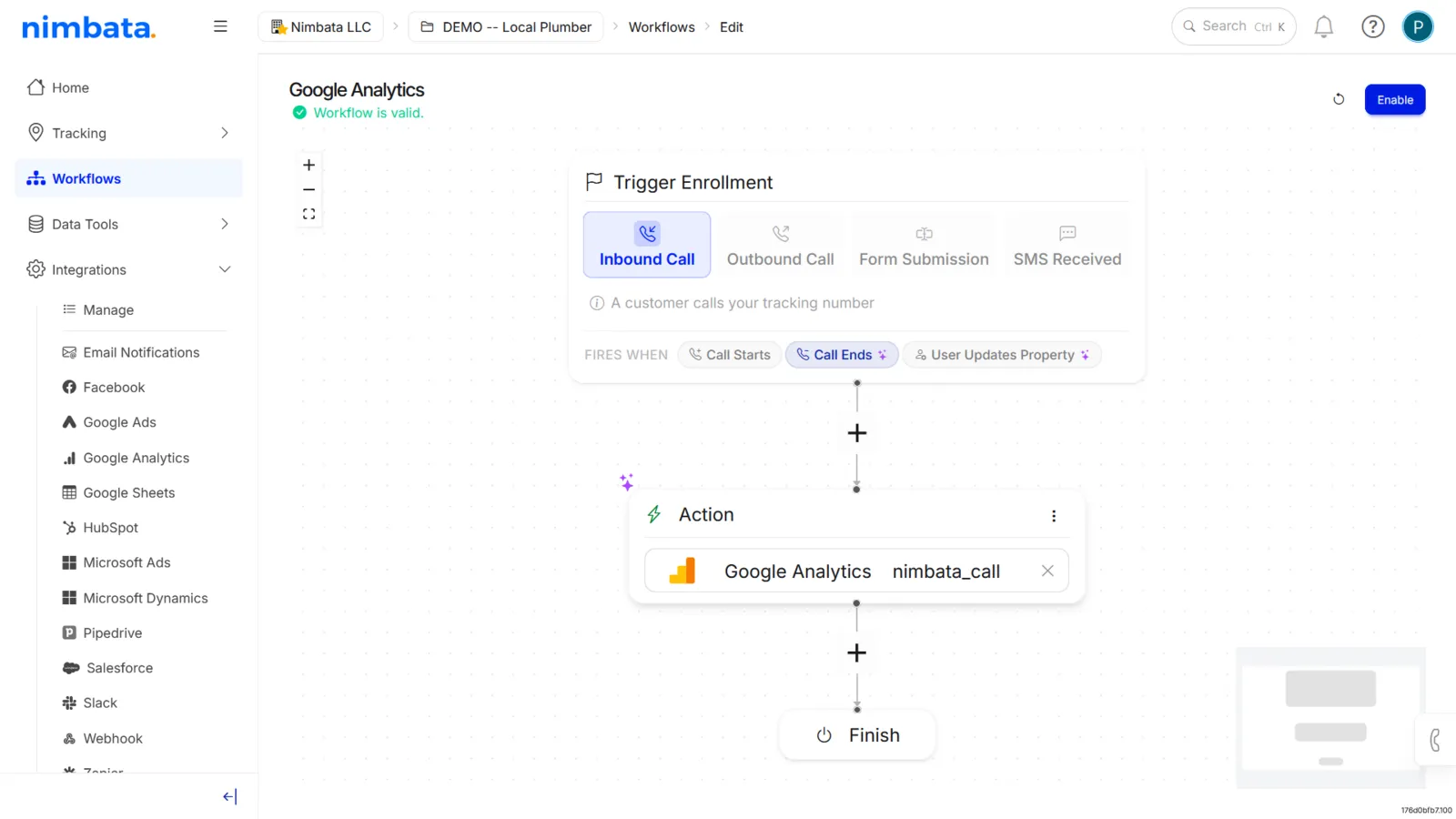
- Once your Measurement ID and API secret are in place, Nimbata prompts you to create a workflow.
- Click Create new workflow; Nimbata sets it up automatically.
Confirm the integration is live
- Return to the GA4 integration page.
- You should see: “This integration is running in 1 workflow: Google Analytics (running)”.

🎉 That’s it! Your call events appear in GA4 under Events or Conversions, depending on how they are configured. Allow some time for GA4 to process incoming data after the integration goes live.
Detailed guide: Import call events from GA4
Server-side tracking
Note
This section assumes you already have a Google Tag Manager Server container (sGTM) provisioned and running. If you haven’t set that up yet, follow Google’s official sGTM setup guide before continuing.
Server-side tracking sends Nimbata call events directly from a secure server to Google Analytics 4, bypassing ad-blockers and browser privacy restrictions that would otherwise intercept or drop the data. This section walks through the full configuration in both Nimbata and Google Tag Manager.
Configure Nimbata
Open the Google Analytics integration
- Go to Integrations in the left-hand menu.
- Under Tracking Method, select Server-Side (sGTM).
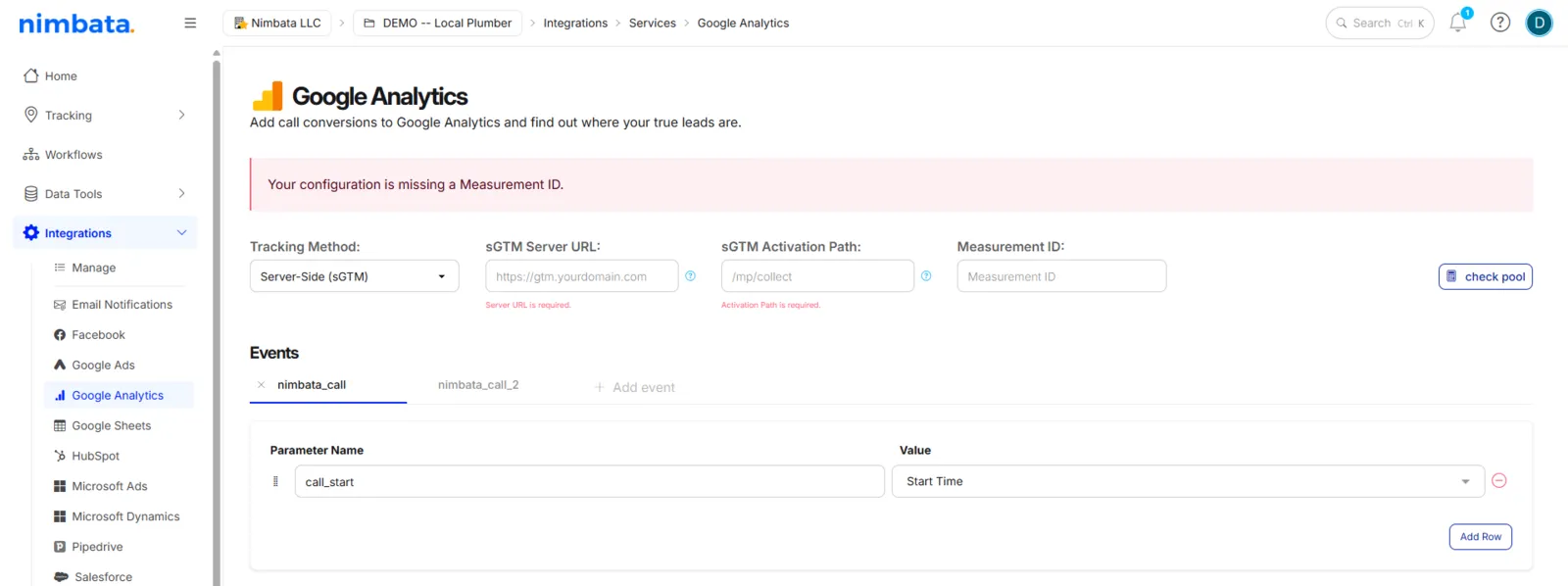
Enter your sGTM Server URL
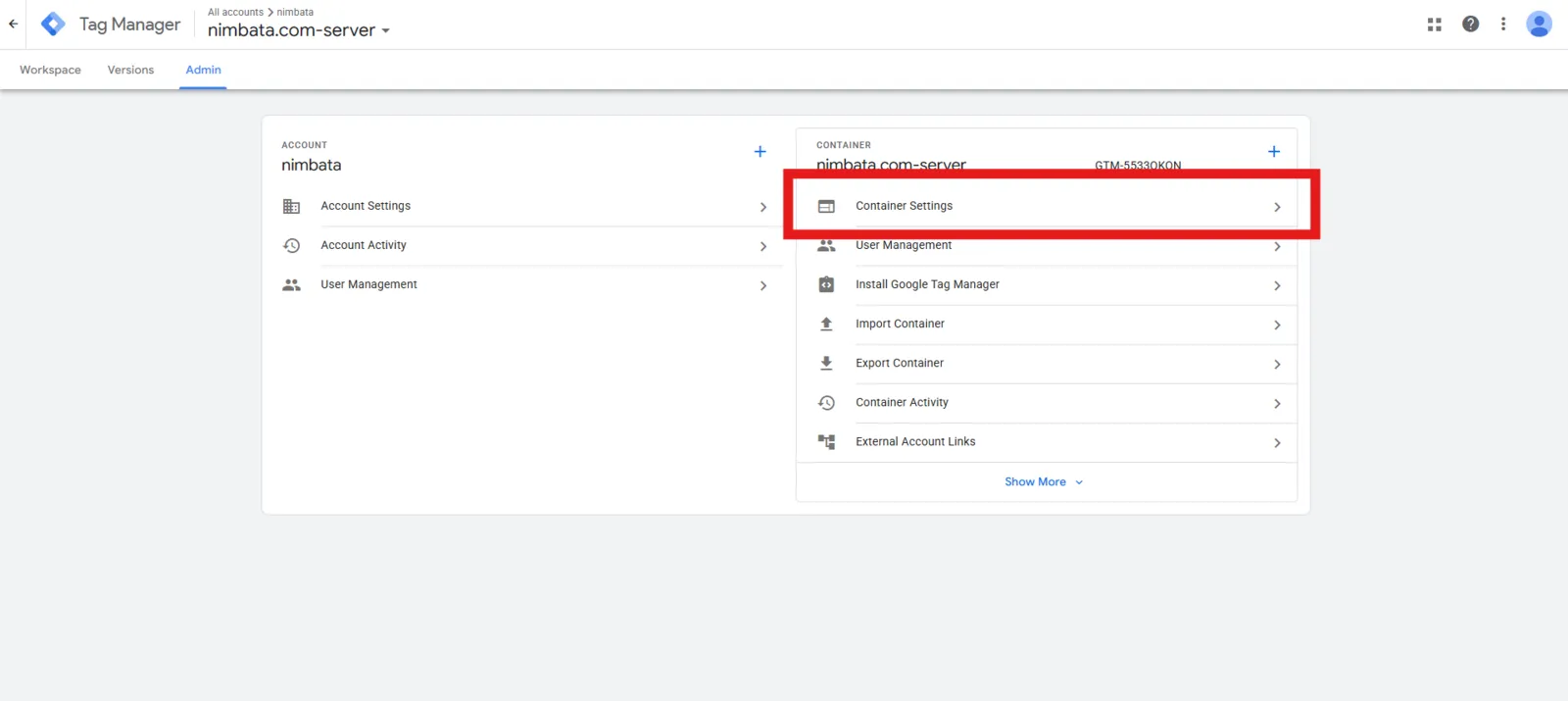
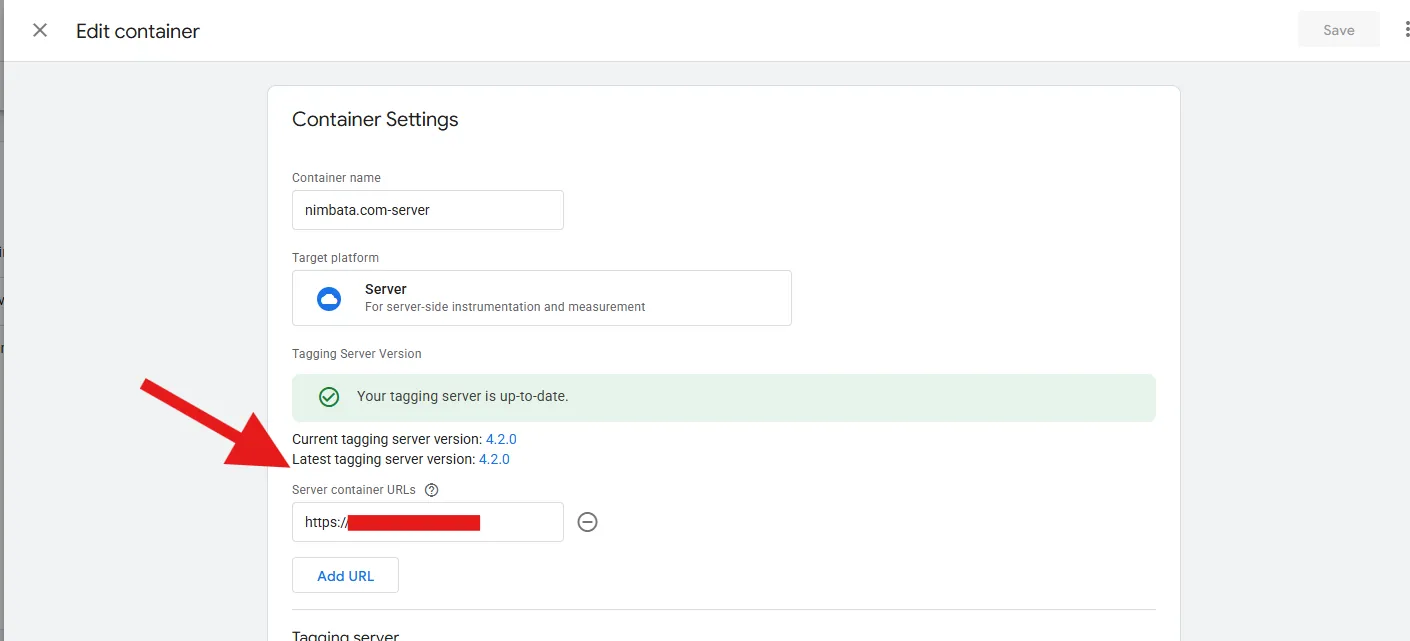
- In Google Tag Manager, go to Admin > Container Settings.
- Copy the Server container URL.
- Paste it into the sGTM Server URL field in Nimbata.
Enter your Measurement ID
- In Google Analytics 4, go to Admin > Data Streams and select your stream.
- Copy the Measurement ID (format:
G-XXXXXXXXXX). - Paste it into the Measurement ID field in Nimbata.
Tip
Leave the sGTM Activation Path field empty for now. You fill it in when you set the Activation Path, in the next part.
Create the GA4 Measurement Protocol client in sGTM
This client is the entry point for Nimbata’s server-side requests into your sGTM container.
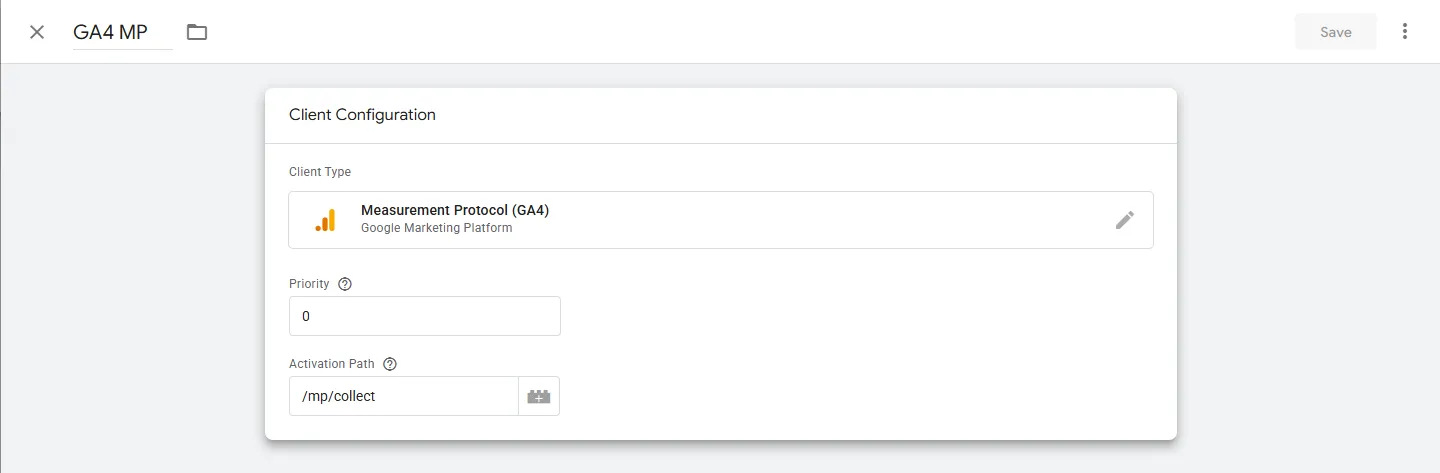
Create a new client
- In Google Tag Manager, go to Clients and click New.
- Set the client type to Measurement Protocol (GA4).
Set the Activation Path
- Add an Activation Path (for example:
/nimbata). - Copy the value.
- Paste it into the sGTM Activation Path field in Nimbata.
- Add an Activation Path (for example:
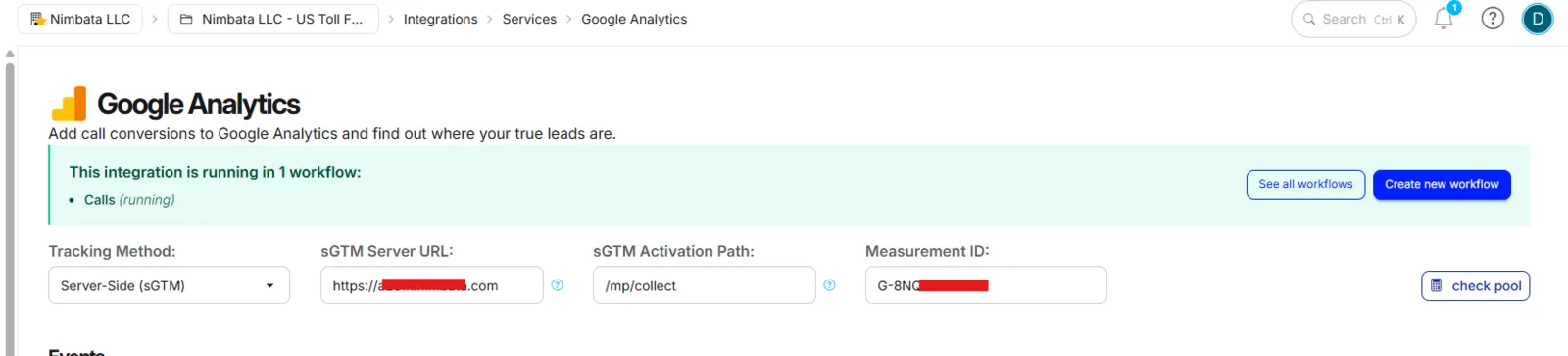
Your Nimbata setup should now look like this:
Warning
The Activation Path must match exactly between Nimbata and your GTM client, including any leading slash.
Create the fpid transformation
This transformation adds a first-party client ID to incoming events, ensuring accurate user stitching across sessions.
Note
The transformation’s Value uses the v - Incoming Client ID variable, which you create in Create four user-defined variables below. Create that variable first, or come back to this step once it exists.
Add a new transformation
- In your sGTM container, go to Transformations and click New.
- Configure it as follows:
Field Value Transformation Name fpid_transformationTransformation Type Augment event Name first_party_idValue {{v - Incoming Client ID}}Matching condition {{Client Name}}equalsGA4 MP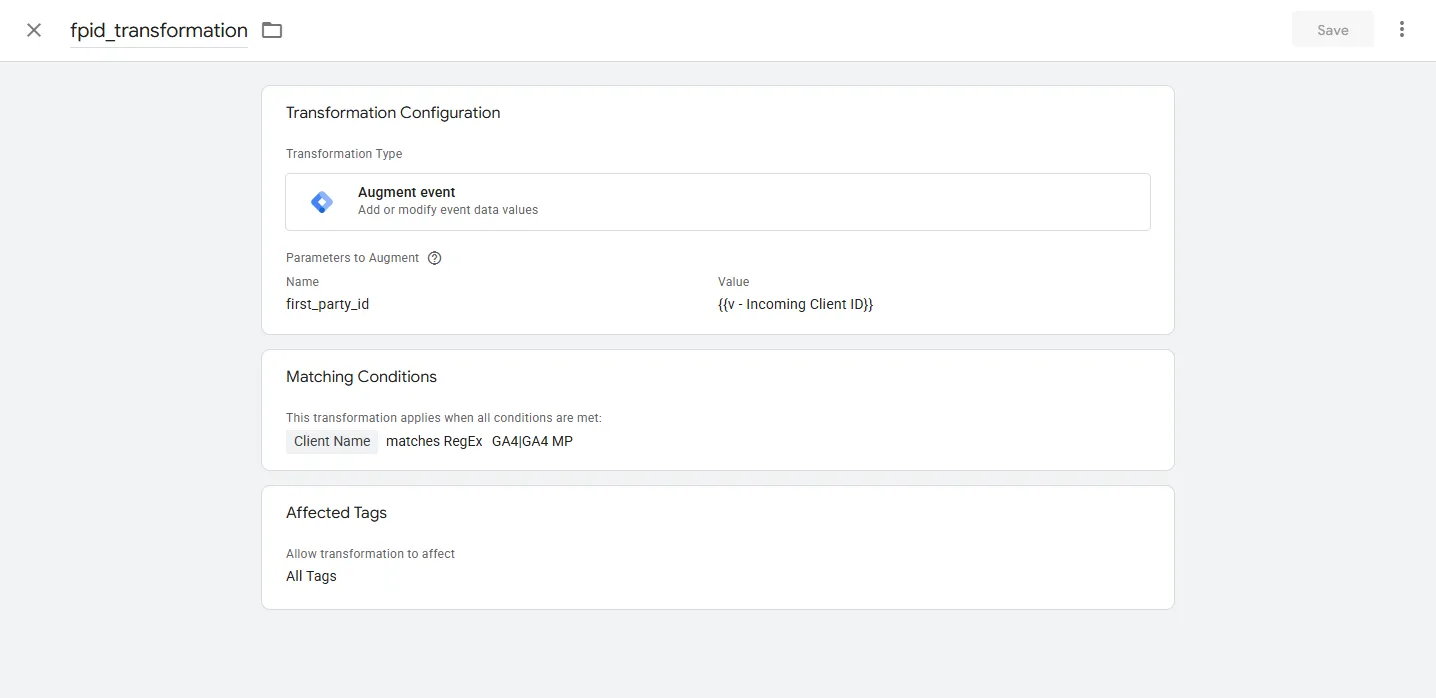
Tip
Use whatever name you gave your client (in Create a new client) as the matching condition value. The screenshot uses matches RegEx
GA4|GA4 MPinstead, which also covers a standard GA4 client; either works for the Nimbata client.
Create a custom variable template
Before creating your variables, you need a custom template to cleanly extract the real visitor IP from the X-Forwarded-For header.
Create the template
- In Google Tag Manager, go to Templates and click New Variable Template.
- Name it:
Clean X-Forwarded-For. - Add a field named
headerValue. - Paste the following into the code editor:
const headerValue = data.headerValue; if (!headerValue) { return undefined; } let raw = headerValue.trim(); if (!raw) { return undefined; } let first = raw.split(',')[0]; if (!first) { return undefined; } first = first.trim(); if (first.charAt(0) === '[') { const closingBracket = first.indexOf(']'); if (closingBracket > 0) { first = first.substring(1, closingBracket); } } else { const colonCount = first.split(':').length - 1; if (colonCount === 1 && first.indexOf('.') > -1) { first = first.split(':')[0].trim(); } } first = first.trim(); return first || undefined;- Save the template.
Create four user-defined variables
Create these variables in the order listed. Variable 4 (clean - ip_override from xff) uses the template from the previous part and reads variable 3 (h - X-Forwarded-For), so create it last.
v - Incoming Client ID
- Go to Variables and click New under User-Defined Variables.
- Configure as follows:
Field Value Variable Type Event Data Key path client_id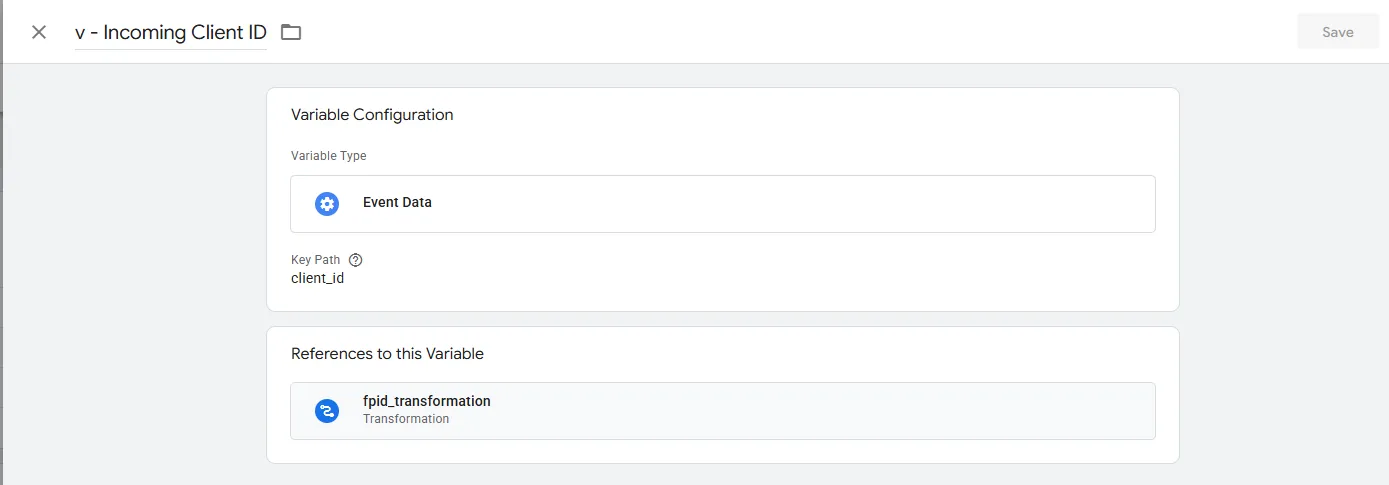
h - User-Agent
- Click New and configure as follows:
Field Value Variable Type Request Header Name User-Agent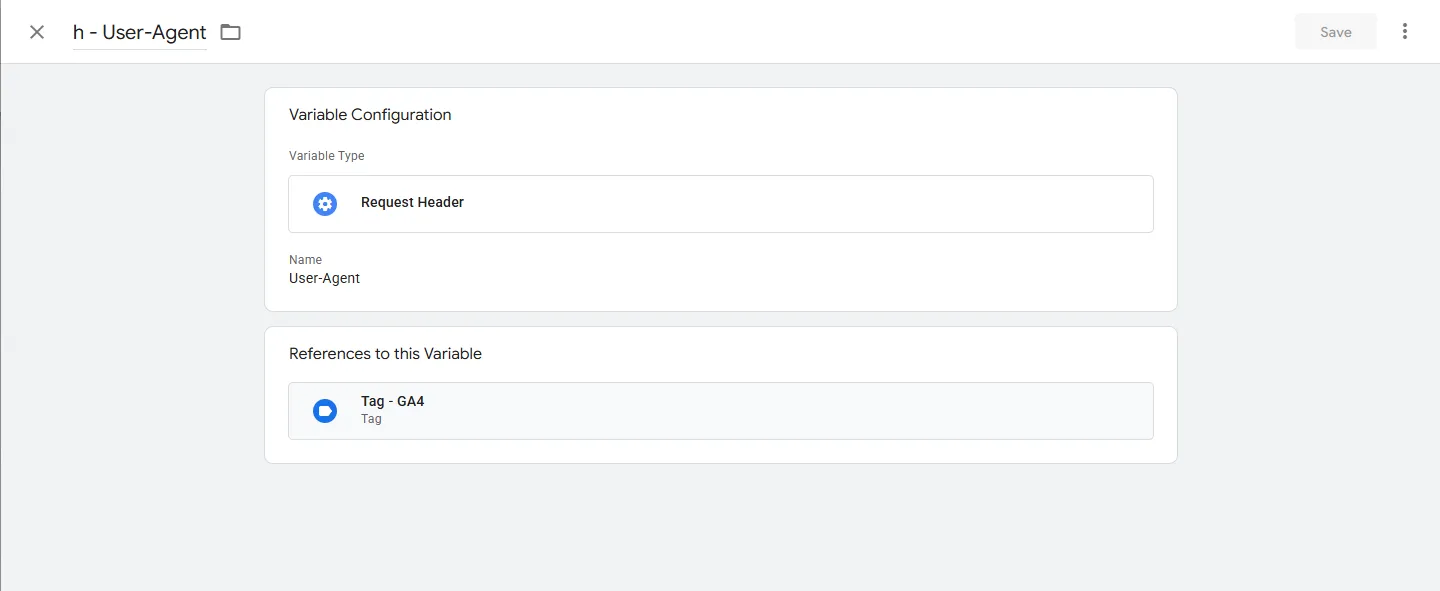
h - X-Forwarded-For
- Click New and configure as follows:
Field Value Variable Type Request Header Name X-Forwarded-For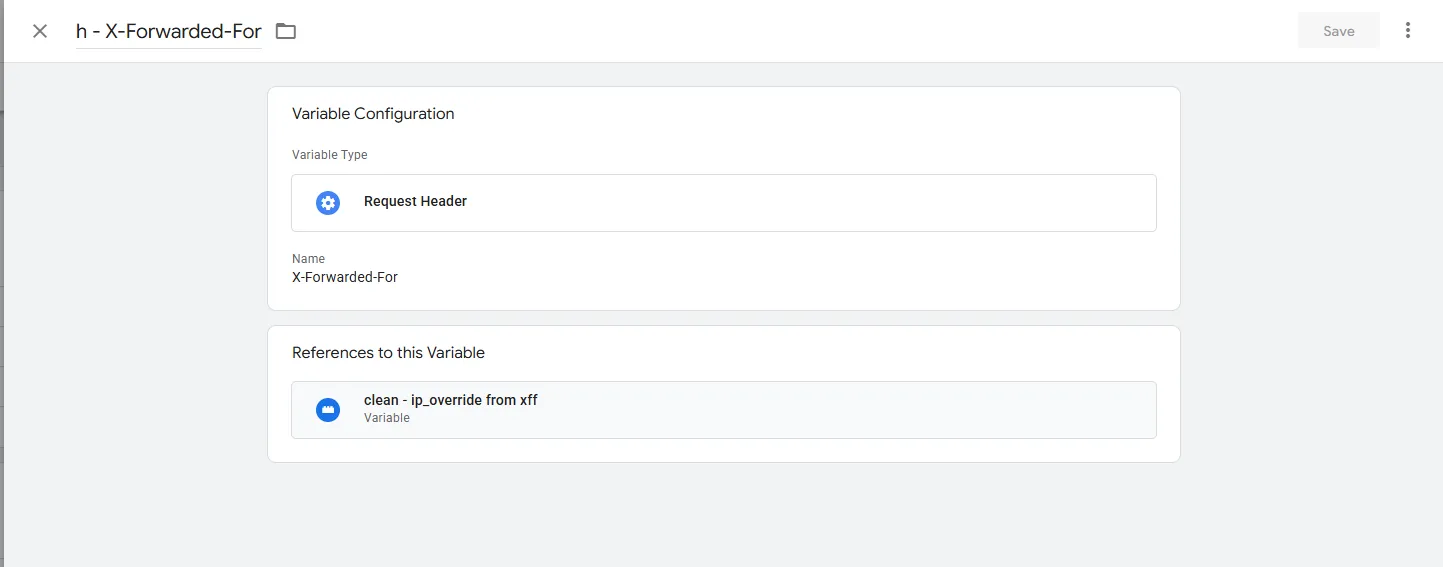
clean - ip_override from xff
- Click New and configure as follows:
Field Value Variable Type Clean X-Forwarded-For headerValue {{h - X-Forwarded-For}}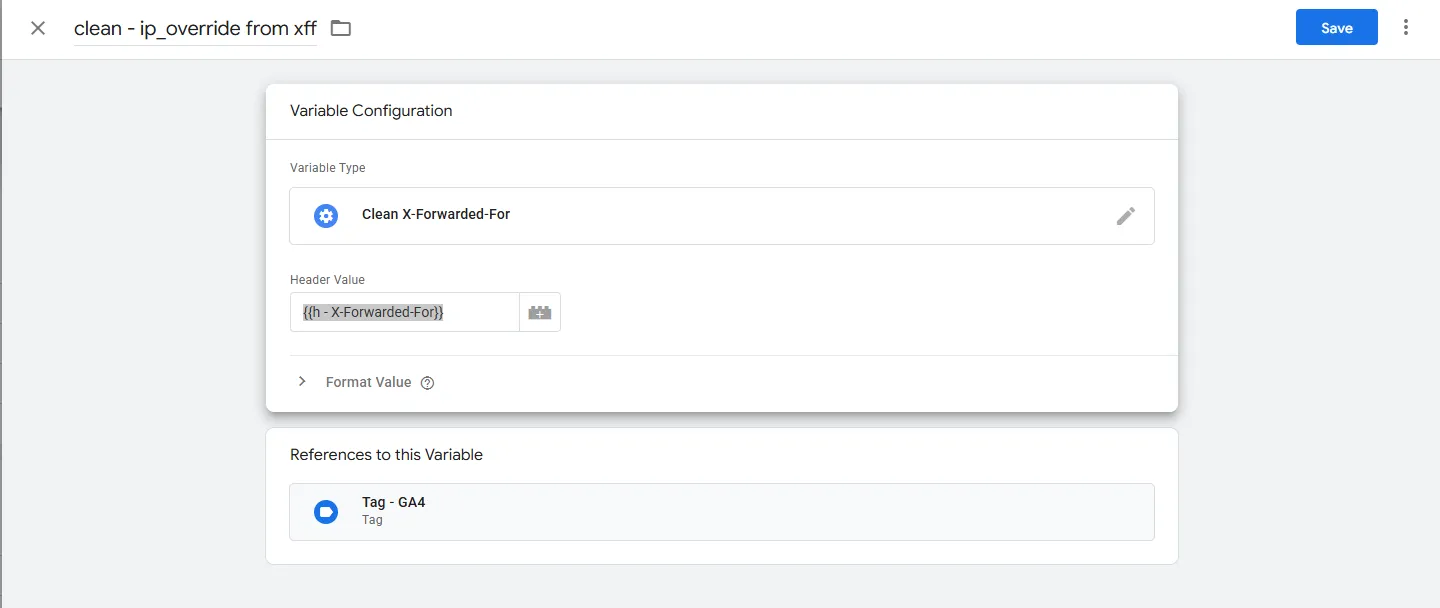
Update your GA4 tag
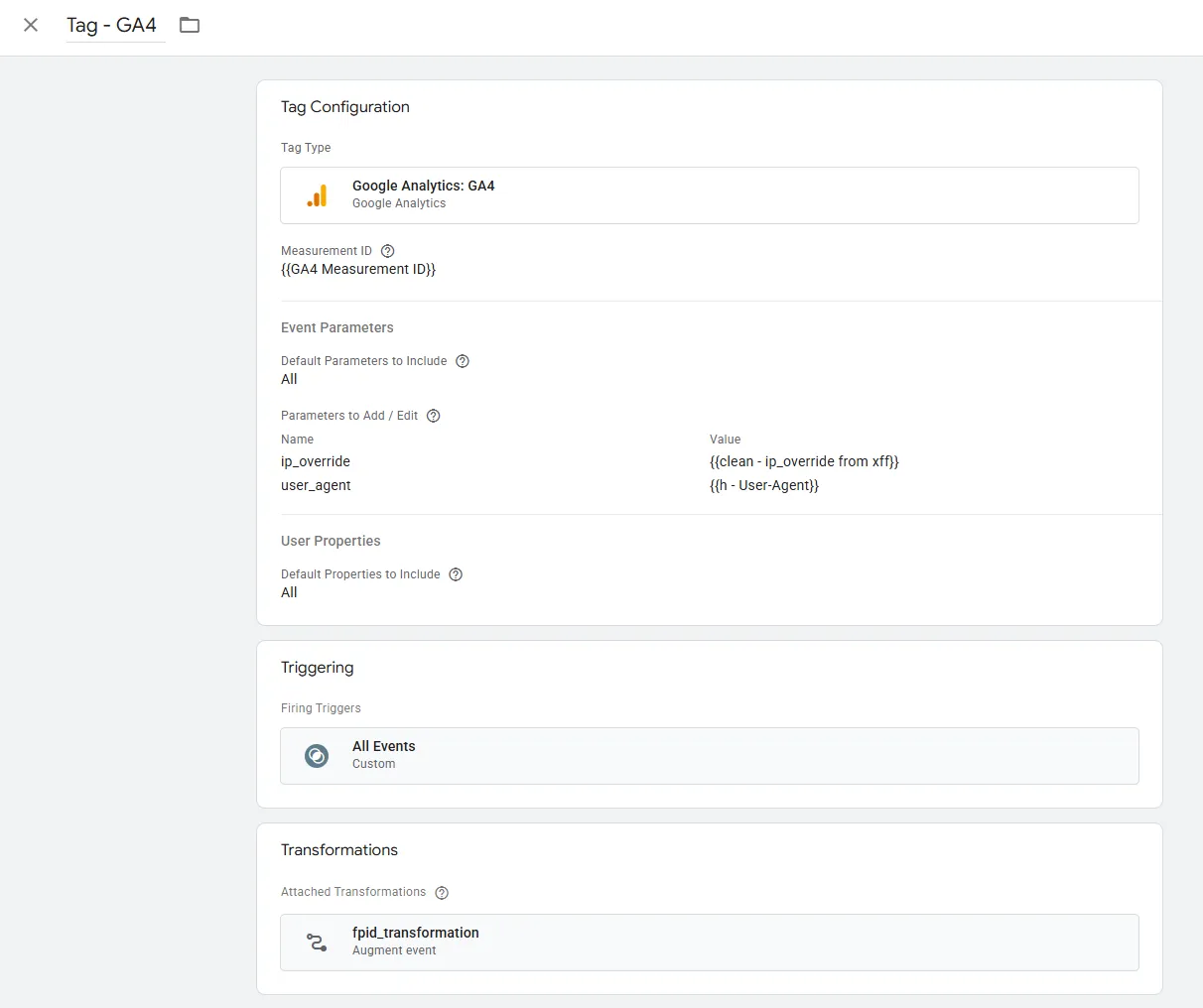
Add parameters and apply the transformation
- In your sGTM container, open your existing GA4 tag.
- Under Parameters, add the following:
Parameter Name Value ip_override{{clean - ip_override from xff}}user_agent{{h - User-Agent}}- Under Transformations, apply fpid_transformation.
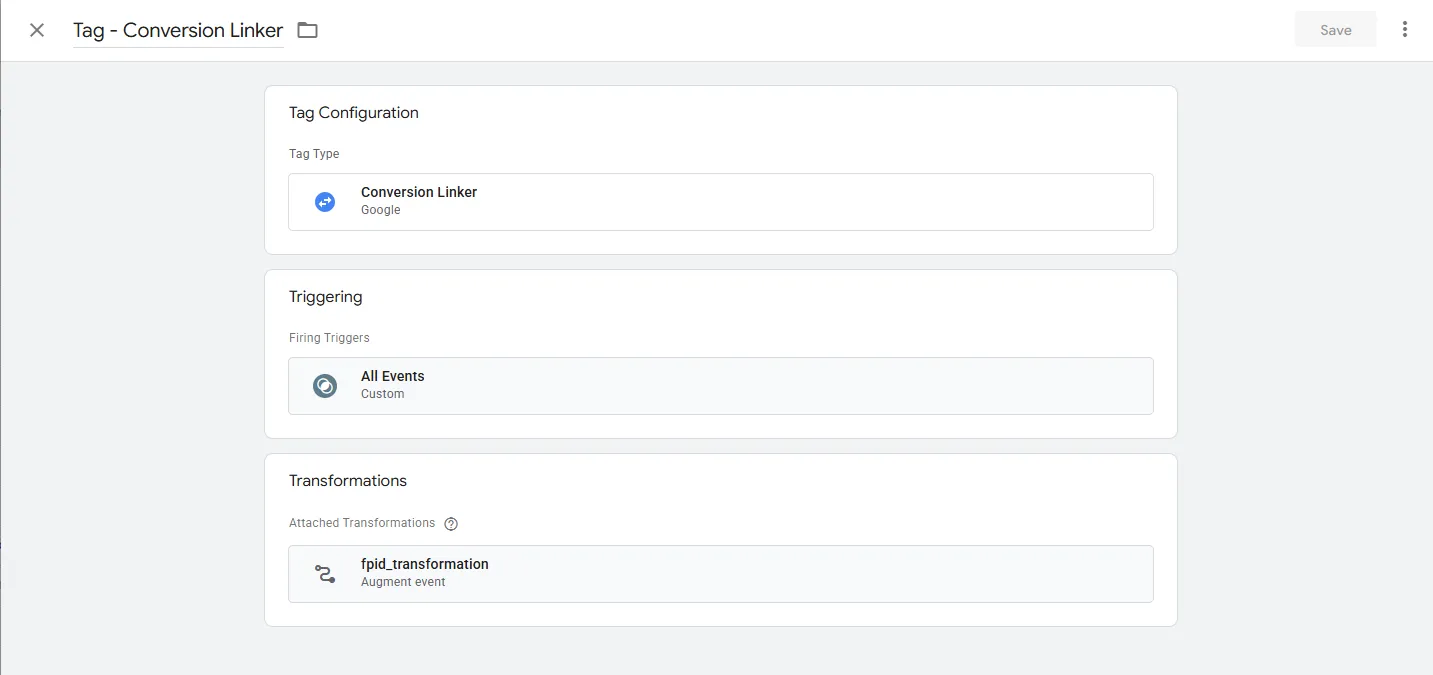
Configure the Conversion Linker tag
Edit or create the Conversion Linker tag
- Open or create the Conversion Linker tag in your sGTM container.
- Set the trigger to fire on all events (or all pages, depending on your setup).
- Save and publish your container.
🎉 Nimbata now sends call events directly to your sGTM container. Each event is enriched with first-party ID and device data, then forwarded to GA4, bypassing ad-blockers and browser restrictions entirely. Make a test call to confirm the event appears in your GA4 real-time view.
Detailed guide: Number types and channels
Detailed guide: How to connect Nimbata to Google Analytics 4
Fix low attribution in GA4
If fewer calls than expected are showing source, medium, or campaign data in GA4, you have one of two problems:
Capture gap
- Nimbata swapped the number but couldn’t read the visitor’s session data.
- Usually a cookie consent manager.
Integration gap
- Nimbata captured full session data, but it never reached GA4.
- Usually a Client ID or workflow misconfiguration.
They look the same on the surface but require different fixes. Diagnose which one you have first.
Check Nimbata’s attribution data
- Go to Activity > Calls.
- Open an unattributed call.
- Check the Attribution section of the call record.
Source and medium are populated: data was captured but didn’t reach GA4.
This is an integration gap. Go to Section A.
Source and medium are empty: session data was never captured.
This is a capture gap. Go to Section B.
Section A. Integration gap: call data not reaching GA4
A1. Verify your GA4 credentials
- Go to Integrations > Google Analytics in Nimbata.
- Confirm the Measurement ID (format:
G-XXXXXXXXXX) matches exactly the one in GA4 under Admin > Data collection and modification > Data streams > [your stream] > Stream details. - Confirm the API secret comes from Measurement Protocol API secrets on that same screen, not a Tag Manager token or any other credential.
- Confirm the integration status shows running in 1 workflow.
Tip
A single mismatched character in either field silently blocks all events from sending.
A2. Check whether the Google Client ID is being transmitted
Nimbata links call events to GA4 sessions using the visitor’s _ga cookie. If it isn’t captured at call time, GA4 can’t match the event to a session, even if source and medium are correct in Nimbata.
- In a call record, check for a Client ID field in the attribution data.
- If it’s blank on calls that do have source and medium, the Client ID handshake is broken.
Common causes: the Nimbata script loads before GA4’s gtag.js initializes, the _ga cookie is blocked by a consent manager, or a GTM error is preventing the GA4 tag from firing.
Fix: in GTM, set your GA4 configuration tag to fire on All Pages with no conditions, and ensure the Nimbata tag fires after it.
A3. Check your workflow configuration
- Go to Workflows.
- Open the workflow driving your GA4 integration.
- Trigger: must be set to Call ends, not Call starts. At call start, duration is 0, so any duration filter fails.
- Filters: check every condition. A common silent blocker is Recording = Yes: if a caller presses the privacy opt-out digit, recording stops and this filter fails. Replace it with Duration > X seconds instead.
- Status: confirm the workflow is enabled and showing as running.
A4. Check for GA4-side data filters
- In GA4, go to Admin > Data filters.
- Confirm no filter is excluding events sent via the Measurement Protocol.
Section B. Capture gap: session data missing at the point of the call
B1. Check whether a consent manager is blocking the script
This is the most common cause, especially in markets with low opt-in rates (Germany, Sweden, France, Poland). The pattern: DNI is working and numbers swap when tested, but a high percentage of calls from a specific market show no attribution.
To confirm:
- Open the affected site in a fresh browser session without accepting the cookie banner.
- Call the tracking number and check the resulting call record in Nimbata.
- If source and medium are blank, repeat the test after accepting cookies.
- If attribution appears after accepting, the consent manager is the cause.
Fix: review how your consent manager categorizes the Nimbata script and GA4 tag. If compliant with your privacy policy, moving Nimbata to a Functional or Necessary category resolves this. Ensure the GA4 tag fires before Nimbata even in consent-pending mode, so the _ga cookie is set first.
Warning
Consult your legal team before changing cookie categorization.
B2. Check the script load order
Even without a consent manager, if Nimbata fires before GA4 it cannot read the _ga cookie.
- Open F12 > Network.
- Reload the page.
- Confirm the GA4 tag fires before the Nimbata script.
- In GTM, add a trigger dependency or sequence the Nimbata tag after GA4.
- In manual installs, place the Nimbata script tag below the GA4 tag.
B3. Check that your swap group source matches your traffic
- A Google Ads swap group only swaps for visitors with a
gclidparameter. Calls from other channels won’t have campaign attribution. - An All Visitors swap group swaps for everyone but shows many calls as direct or organic.
Confirm your swap group sources match your attribution expectations.
Realistic attribution benchmarks
- 60 to 80% is typical for single-market setups with moderate consent rates.
- Below 50% usually indicates a fixable technical issue covered in this section.
- Near 0% in one market with a working setup elsewhere is almost always a consent manager or script load order issue.
Detailed guide: Connect GA4
Detailed guide: Import call events from GA4
Detailed guide: Create a workflow
Troubleshooting: Numbers not swapping