
Missing a call can mean losing a lead. Alert workflows send an email the moment a call is missed, or when specific call or SMS events happen, so you can act without logging into Nimbata or running reports.
Missed call alerts
Note
The fastest way to set this up is with the pre-built template. See: Start from a template.
This section shows you how to build a missed call workflow from scratch. The workflow triggers the moment a call goes unanswered and sends an alert to your email or phone.
Open the workflow builder
- Go to Workflows.
- Click + Create in the top-right corner.
Choose From Scratch
- In the Create a New Workflow menu, select From Scratch.
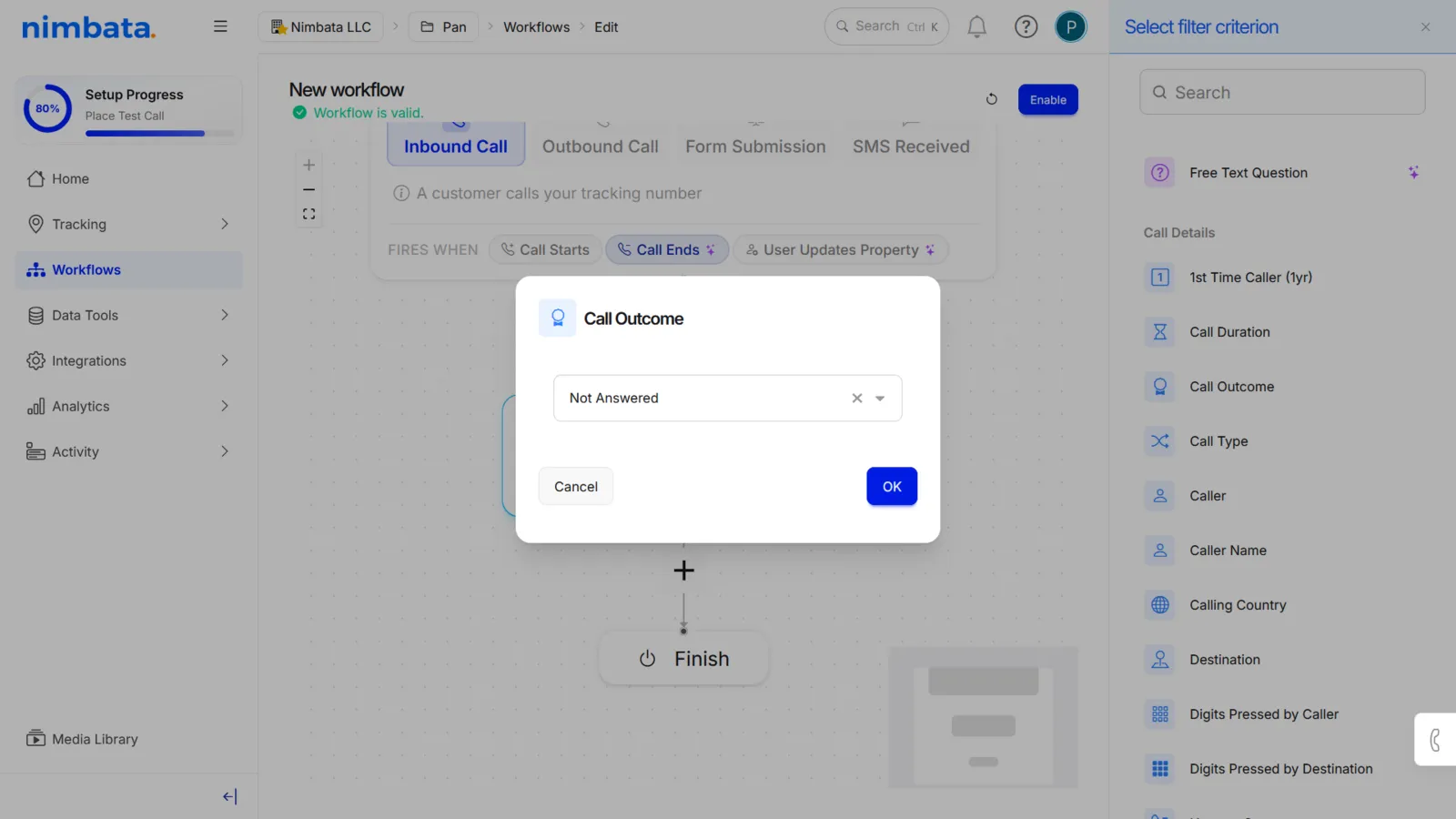
Add a Call Outcome filter
- Inside the workflow builder, click the + plus sign.
- Select Add filter.
- Under the Call Details sub-menu, select Call Outcome.
- Set the value to Not Answered.
- Click OK.
Add an Email Notifications action
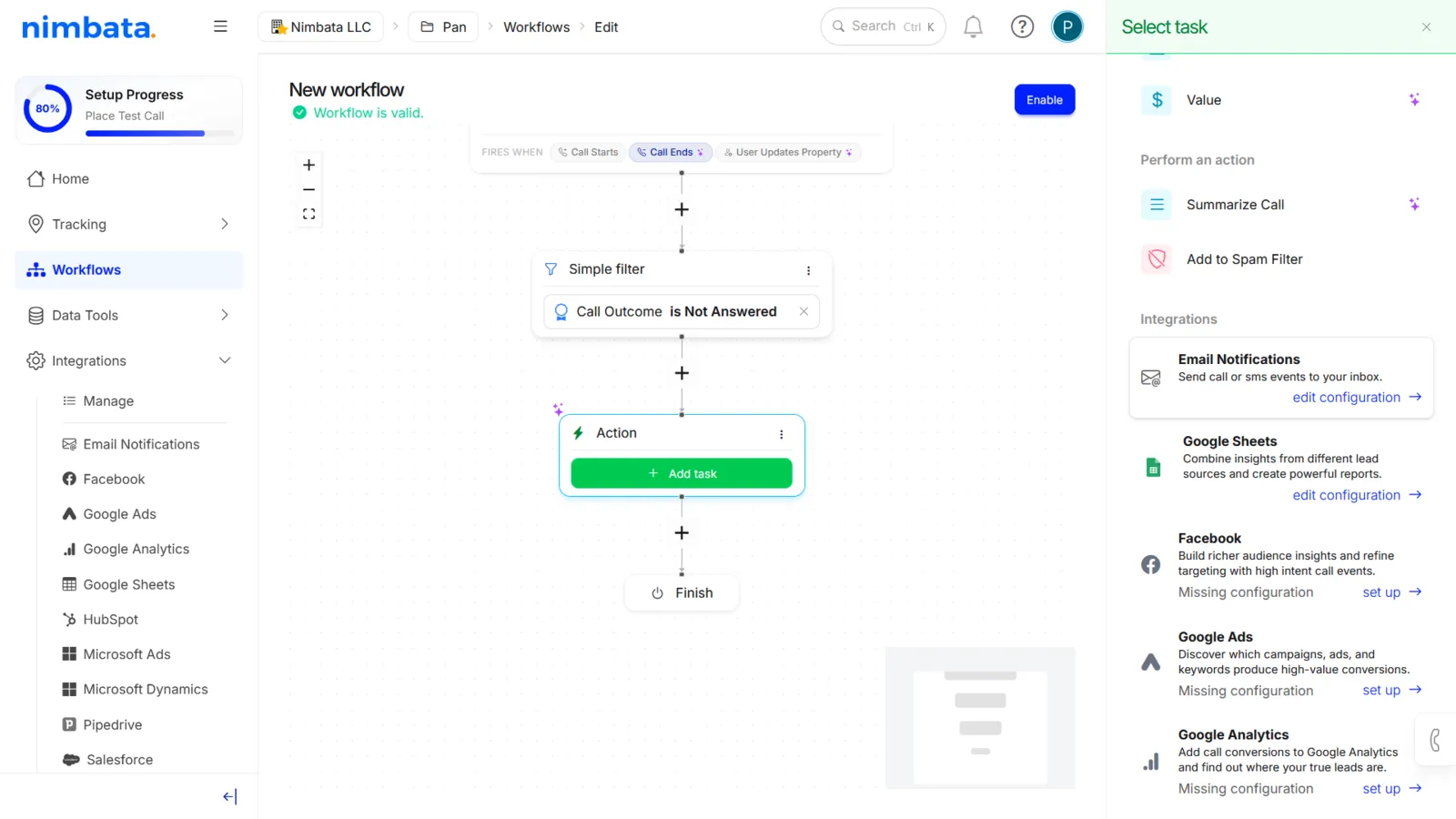
- Click the + plus sign again.
- Select Perform action.
- Under the Integrations sub-menu, select Email Notifications.
Tip
Need to set up Email Notifications first? See: Email notifications.
Enable the workflow
- Click Enable in the top-right corner of the workflow builder.
🎉 Your missed call workflow is live. Every unanswered call now triggers an email alert instantly.
Detailed guide: Start from a template
Detailed guide: Email notifications
Detailed guide: Create a workflow
Start from a template
A Missed Call Email Alert workflow notifies you the moment a call is missed. It triggers when a call ends unanswered and sends an email to your connected recipient(s). You can also add filters to make alerts fire only under the conditions that matter to you: by source, time of day, caller type, and more.
Go to Workflows and click Create
- Go to Workflows.
- Click Create in the top-right corner.
Select From Template
- In the Create a New Workflow menu, select From Template.
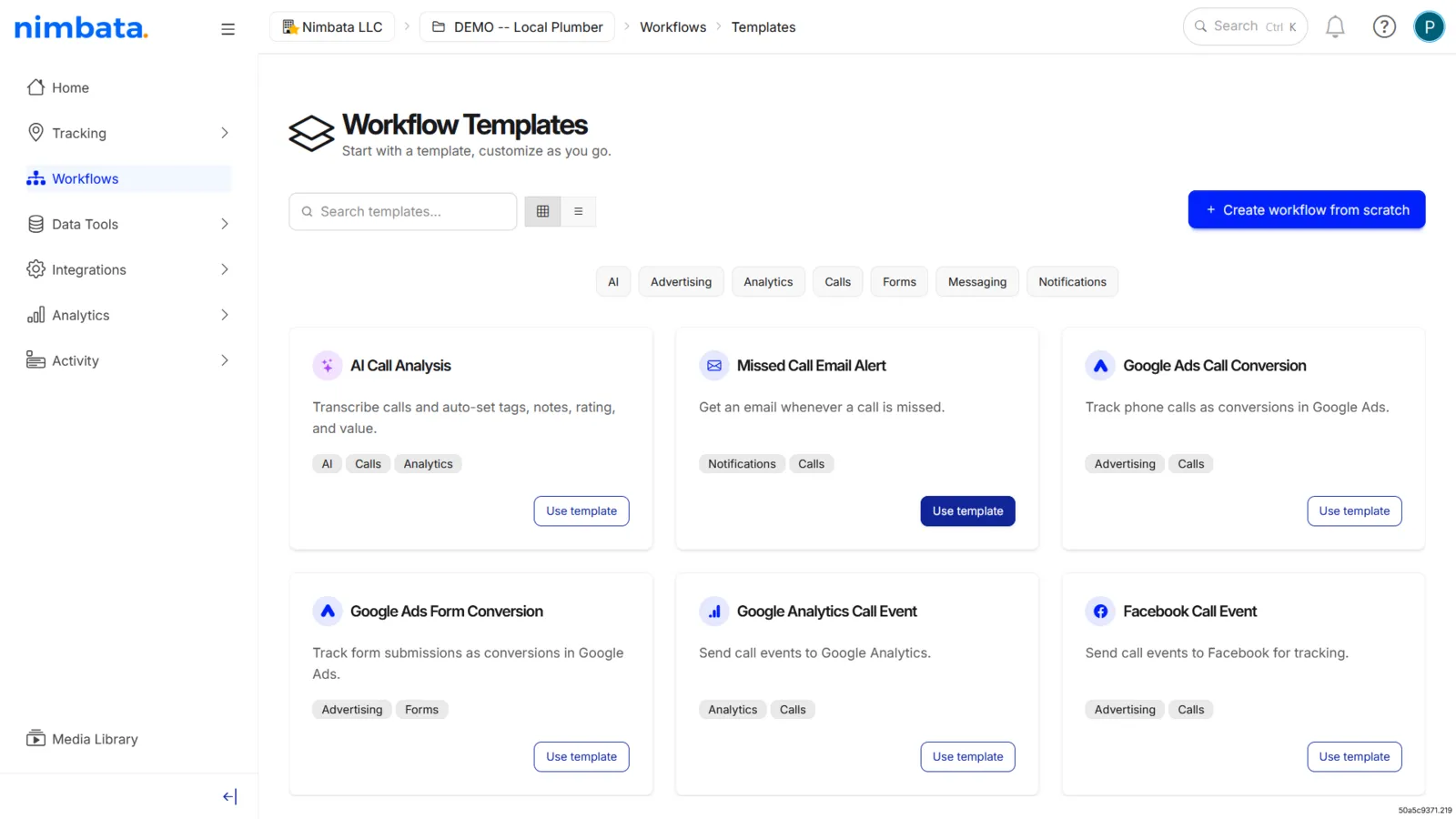
Choose the Missed Call Email Alert template
- In the Workflow Templates menu, hover over Missed Call Email Alert.
- Click Use template.
Configure your email notification
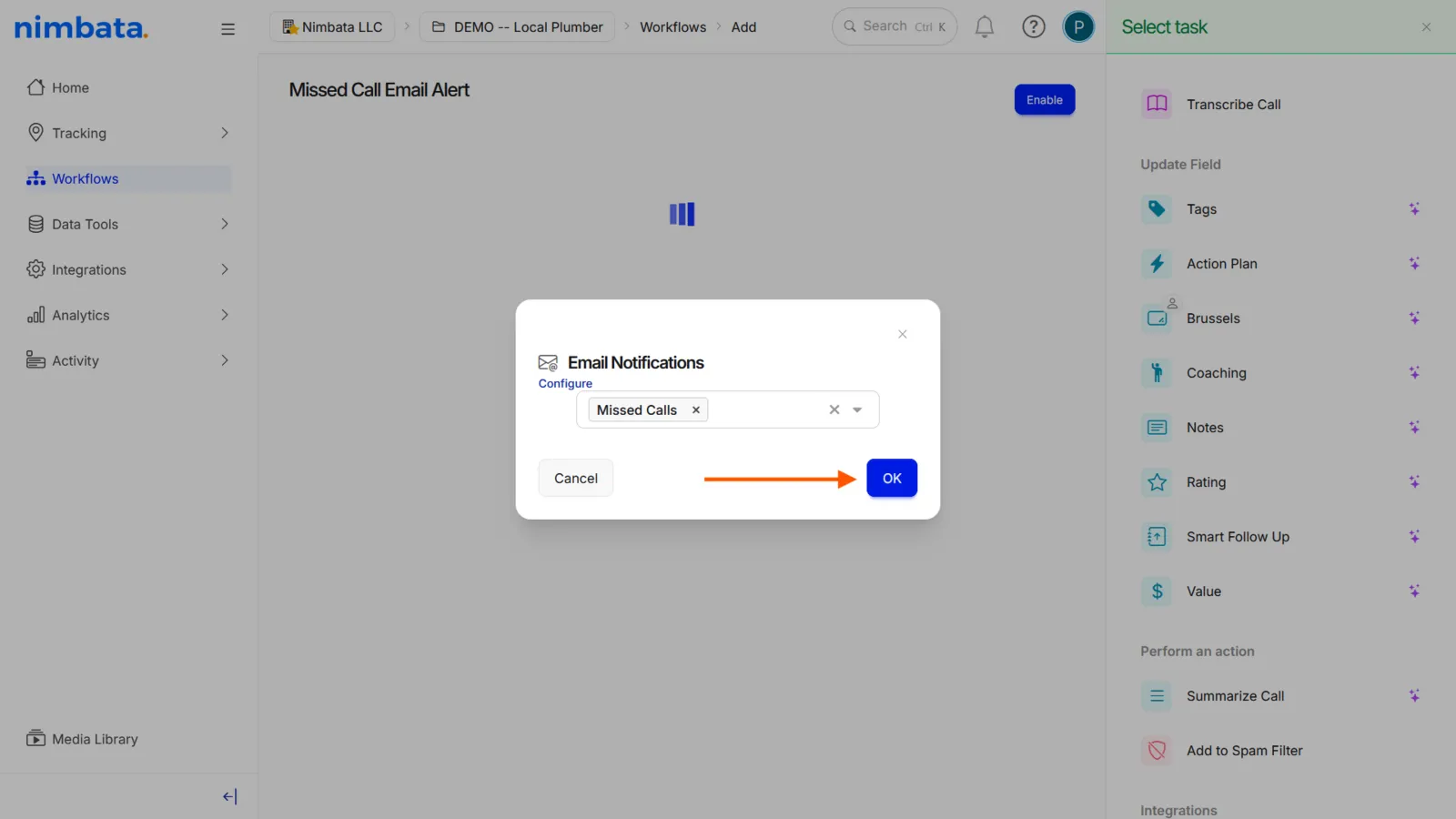
- In the Email Notifications pop-up, create or select the email configuration you want to use.
- Click OK.
Enable the workflow
- Click Enable in the top-right corner of the workflow builder.
Alternatively, go back to the main Workflows list, find the workflow titled Missed Call Email Alert, and toggle it on.
🎉 Every missed call now triggers an immediate email alert.
Detailed guide: Missed call alerts
Detailed guide: Email notifications
Call and SMS alerts
An SMS Email Alert workflow sends real-time notifications when specific call or SMS events happen. Use it to alert yourself, your team, or your clients instantly without logging into Nimbata or running reports.
Go to Workflows and click Create
- Go to Workflows.
- Click Create in the top-right corner.
Select From Template
- In the Create a New Workflow menu, select From Template.
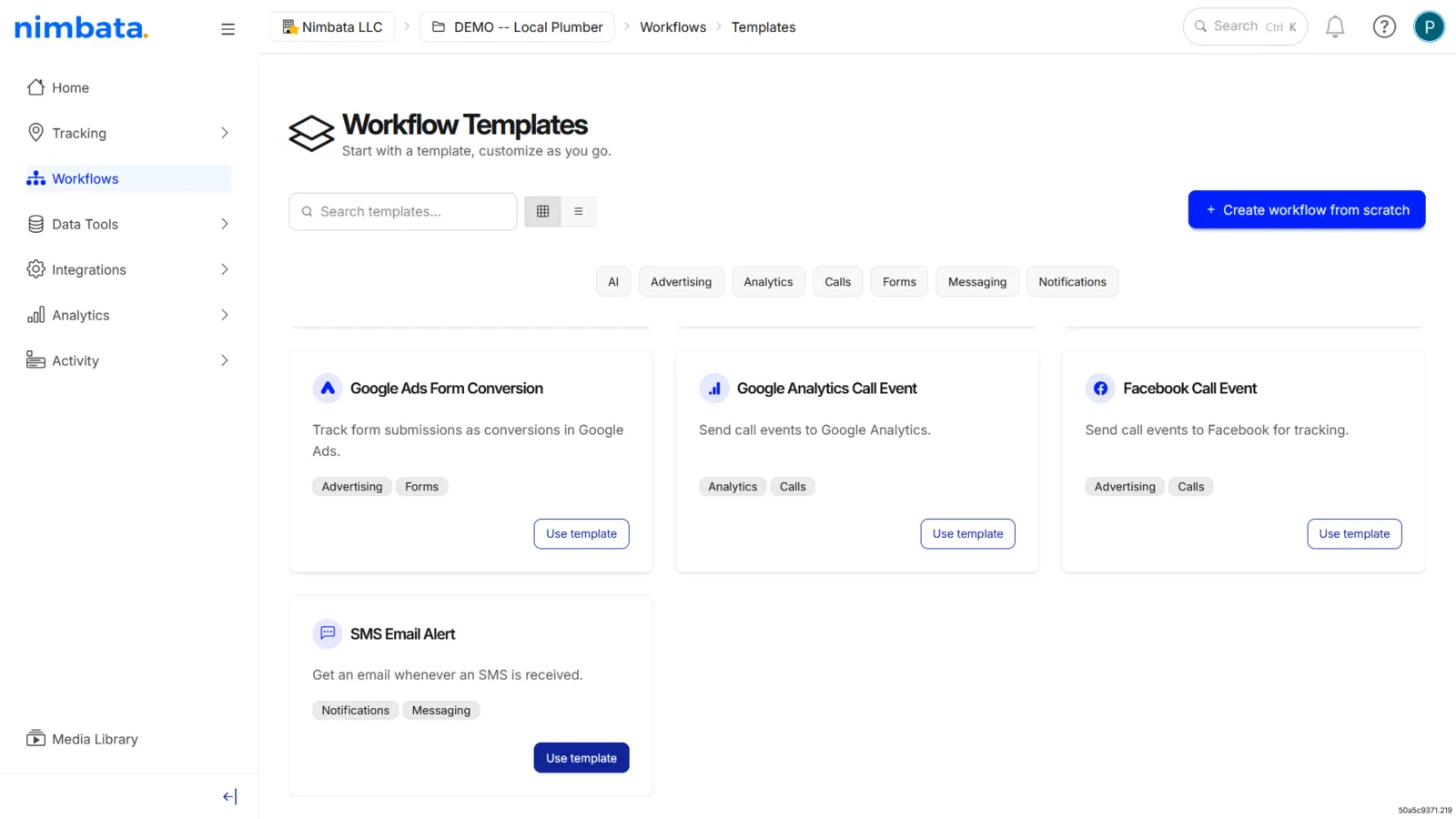
Choose the SMS Email Alert template
- In the Workflow Templates menu, hover over SMS Email Alert.
- Click Use template.
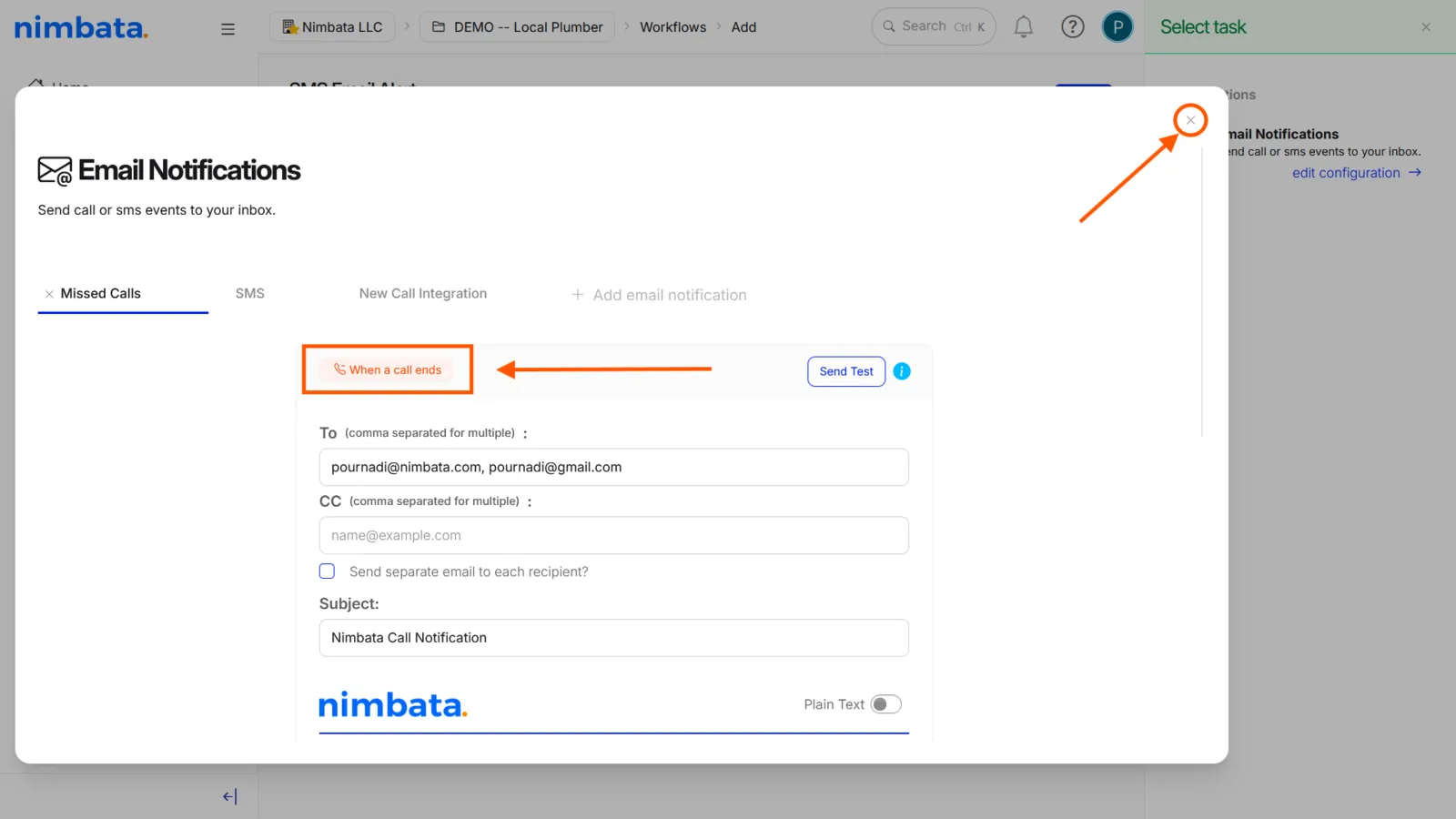
Configure your email notification and choose a trigger
- In the Email Notifications pop-up, create or select the email configuration you want to use.
- Click the orange trigger button to select when the alert fires: When a call ends or When an SMS arrives.
- Click the × button to close the pop-up and view your completed workflow.
Enable the workflow
- Click Enable in the top-right corner of the workflow builder.
Alternatively, go back to the main Workflows list, find the workflow titled SMS Email Alert, and toggle it on.
🎉 You now receive an instant notification every time the trigger condition is met.
Detailed guide: Email notifications
Detailed guide: SMS