
Tracking numbers are unique phone numbers assigned to specific marketing sources like Google Ads, Facebook, or print. They tell you where your calls come from, capture rich call data, and route calls to your business without disrupting your normal workflow. This page is for anyone getting numbers in Nimbata, whether it is your first set or more for a new campaign.
Number types and channels
The different types of tracking numbers
Local tracking numbers
- They carry a local area code and are best for campaigns targeting a specific region.
- Callers are more likely to trust and engage with a number that looks local to them.
Toll-free tracking numbers
- They use prefixes like 800, 888, or 877 and are free for callers to dial.
- They suit national campaigns and customer service lines.
Tip
For local campaigns, always use local tracking numbers. A familiar area code improves credibility and response rates.
Channels you can place tracking numbers on
- Google Ads call extensions to measure calls driven directly by your ads
- Your website to capture every call and tie it back to the session that drove it
- Facebook call ads to track call volume per campaign or ad set
- Print media to measure response rates from direct mail, billboards, or radio
- Directories and listings to assign a unique number to each listing
Set up call tracking numbers
Go to Tracking > Numbers
Log into the app and click Tracking > Numbers. Select the type of channel(s) you wish to track.
Select your number type and calculate your pool
- Select your preferred number type (Toll Free or Local & National).
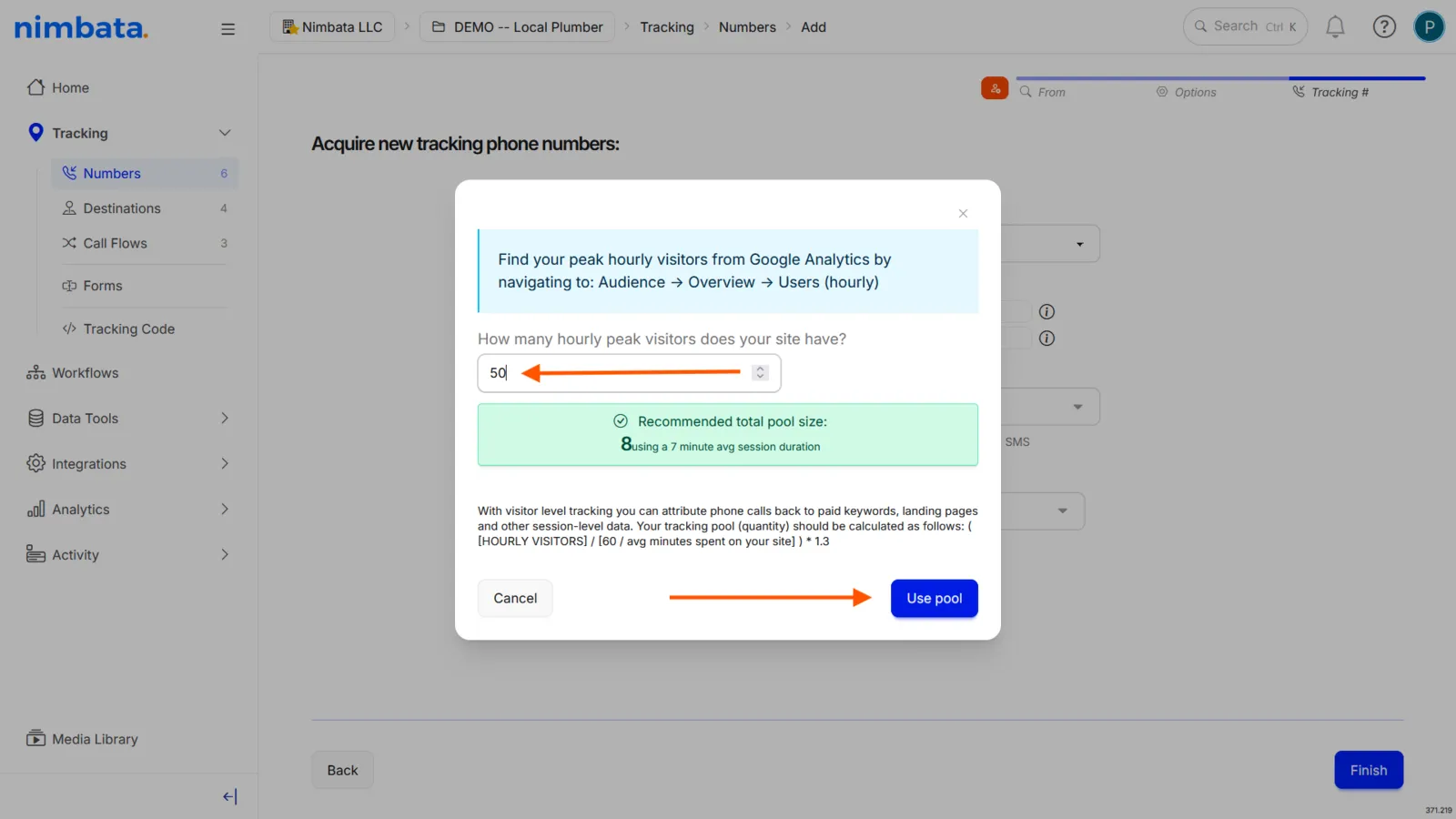
- Click Get from calculator.
- Insert your peak hourly visitors.
- Let Nimbata generate your recommended pool size.
- Click Use pool to apply it.
Finalise and order your numbers
Confirm the recommended pool size is shown next to Quantity. Fill out the rest of your number preferences and click Finish.
Your tracking numbers are now ready to be assigned to a call flow.
Detailed guide: Number pools: Calculate your pool size
Detailed guide: Managing numbers: Assign a call flow
Tracking and destination numbers
Nimbata uses two different types of phone numbers to power call tracking. Understanding the difference helps you set up tracking correctly and avoid routing issues.
Tracking numbers
Tracking numbers are the numbers your customers see and call. They are provisioned by Nimbata and used exclusively for tracking. They:
- Are assigned to pages, listings, campaigns, or sources
- Capture attribution data like source, medium, and campaign
- Forward calls to one or more destination numbers
- Appear in call logs, analytics, and reports
Destination numbers
Destination numbers are your actual business phone numbers. They receive calls forwarded from tracking numbers. They:
- Can be mobile, landline, VoIP, or call center numbers
- Do not track attribution on their own
- Can be reused across multiple tracking numbers
- Control where calls are routed
How they work together
Tip
Every tracked call in Nimbata follows the same path: Caller > Tracking Number > Destination Number
This separation lets Nimbata track performance correctly while still delivering calls to your existing setup.
Detailed guide: Number types and channels
Detailed guide: Destination numbers: Add a destination
Add your first numbers
A tracking number is a unique phone number used to attribute calls to specific marketing campaigns, channels, or activities. These steps walk you through acquiring your first number and connecting it to your business.
Tip
Best for: New users setting up their Nimbata account for the first time.
Start the setup
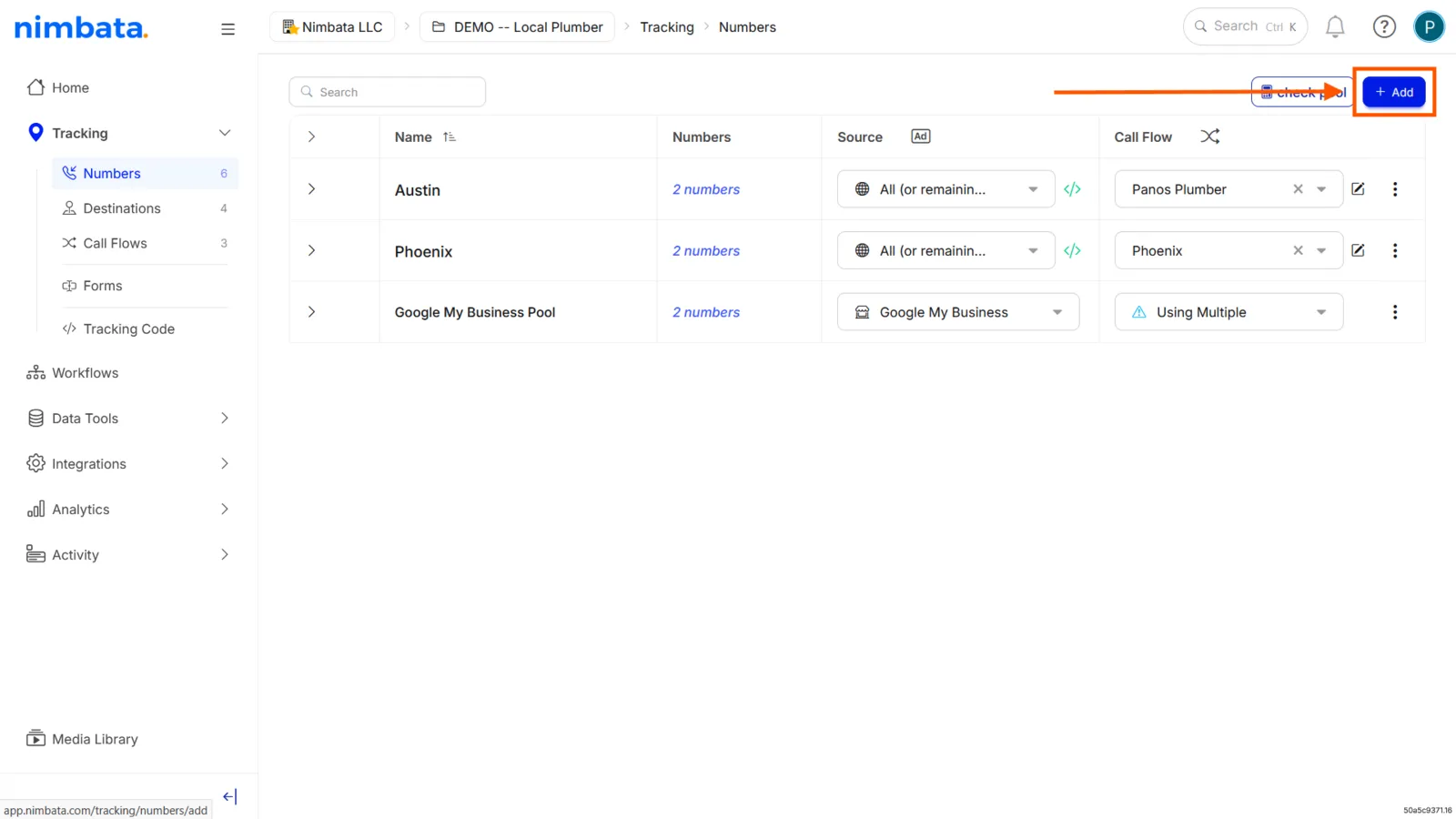
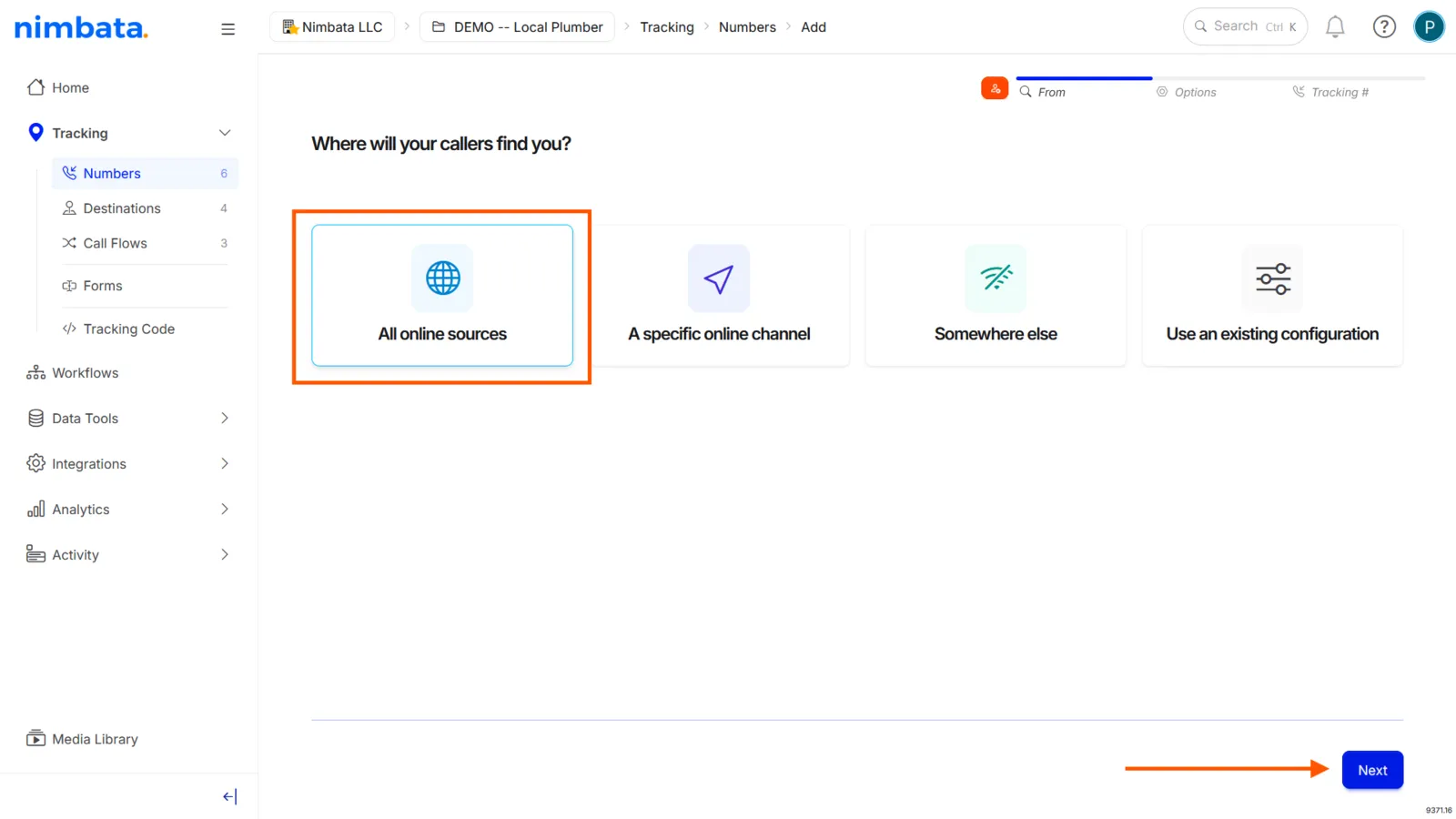
Go to Tracking > Numbers and click + Add.
Choose your source
Select where you want to place your tracking number:
- All online sources: tracks calls across multiple channels (Google Ads, Organic, Referral, etc.) using dynamic number insertion. Nimbata asks you to determine a pool size in the next step.
- Specific Online Channel: a single number dedicated to one source, such as Google Business Profile or a landing page.
- Somewhere Else: for offline sources like billboards, print ads, or business cards.
Click Next on the channel configuration page to continue.
Pick your numbers
Choose your prefix (State/City for US; City for EU/UK/AU), select the numbers you want from the list, and click Finish.
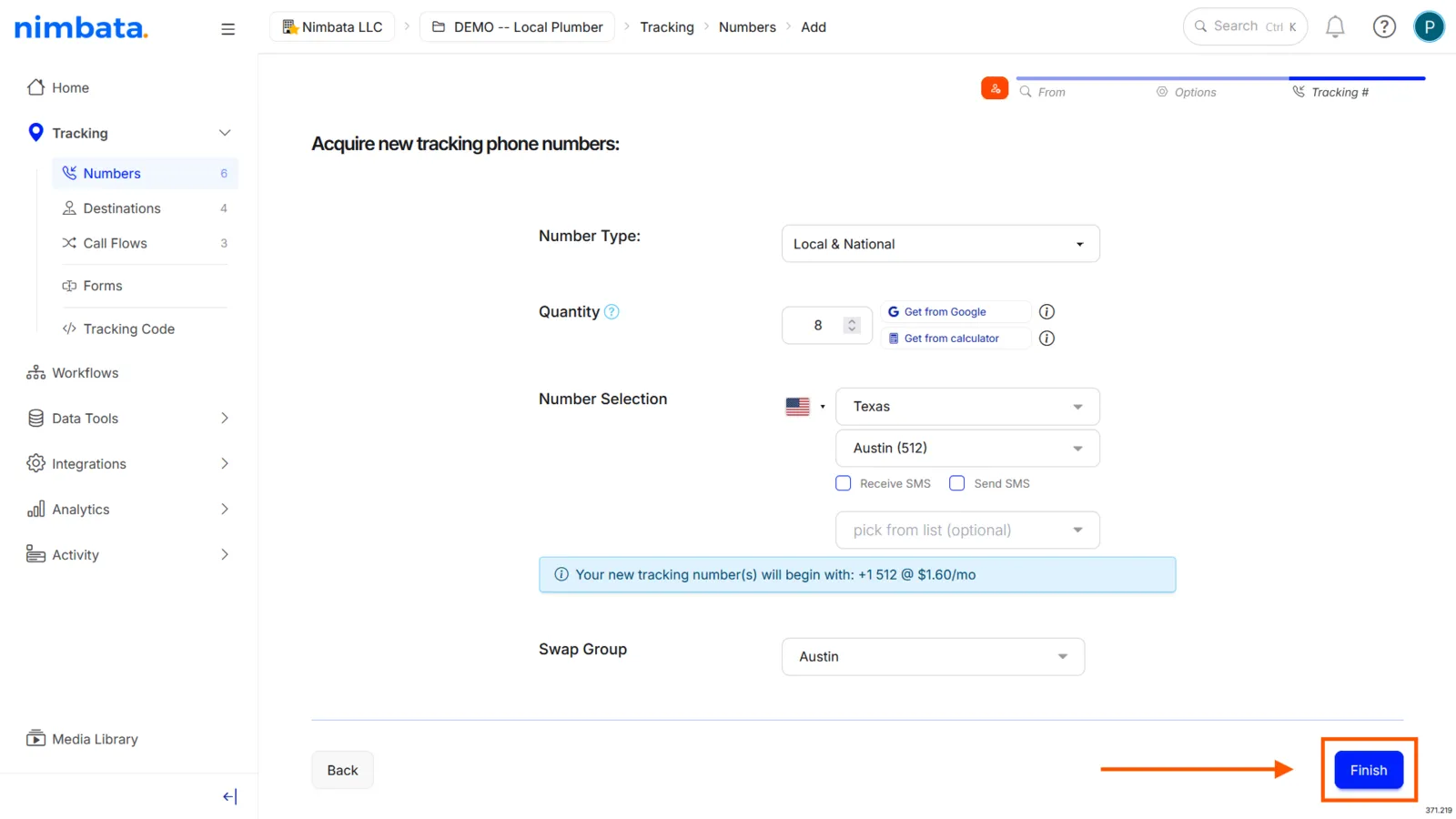
Choosing a pool size (All online sources only): Nimbata prompts you to set a pool, the collection of numbers assigned to website visitors. Click Get from Google to let Nimbata sync with your analytics and recommend a size automatically, or use the built-in calculator if you’d prefer to enter your peak hourly visitors manually.
Add a destination number
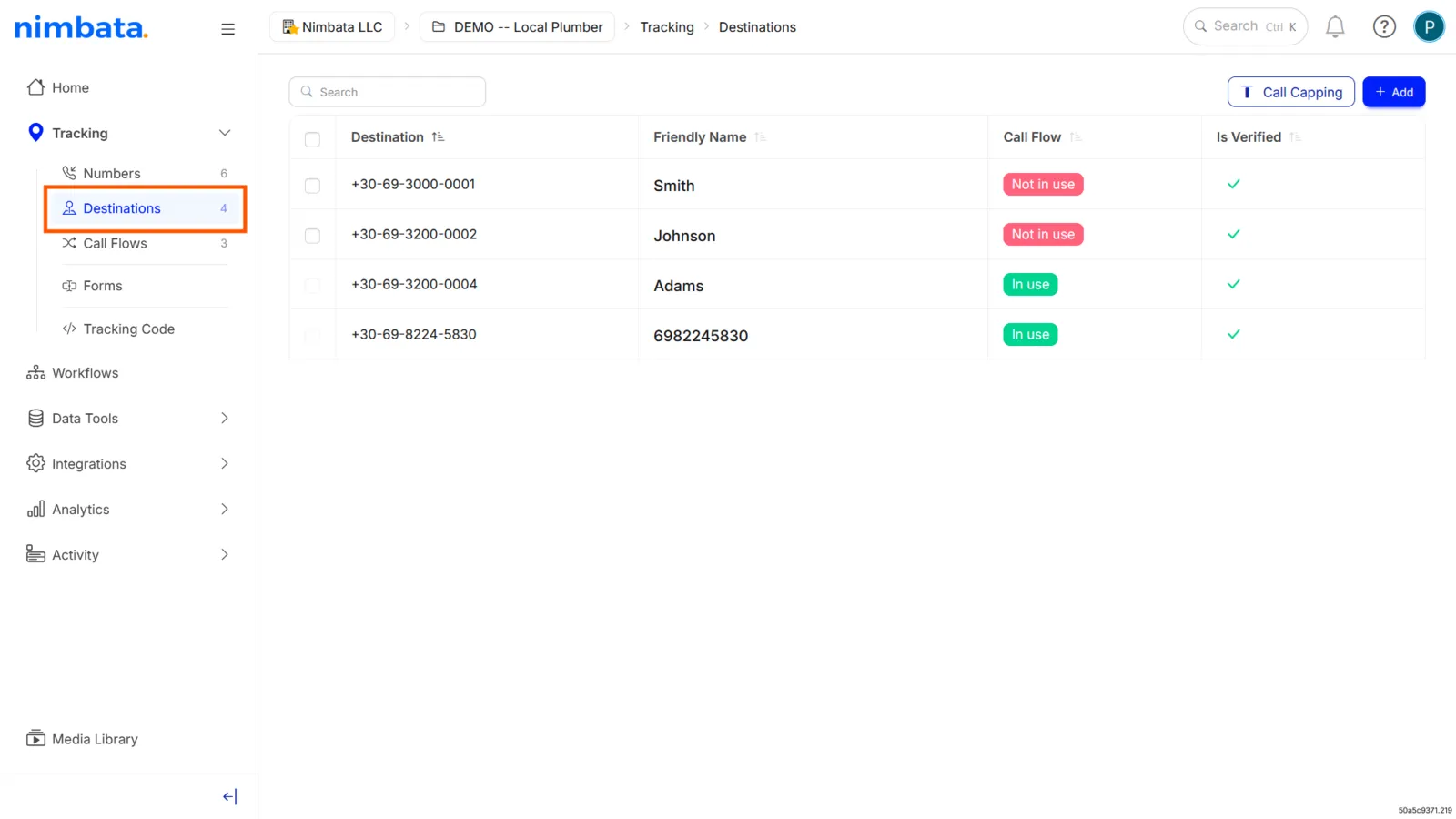
Go to Tracking > Destinations and click + Add. Select your country, enter the phone number where calls should ring, give it a name, and click Add Destination.
Note
SHORTCUT: Tick Create call flow during this step to automatically set up call routing for your new numbers at the same time.
Your tracking numbers are ready. To start receiving calls, make sure your numbers are assigned to a call flow.
Detailed guide: Build a call flow
Add more numbers
Once your initial setup is running, you may need to add more numbers to handle traffic spikes or to track a new marketing source. There are two ways to do this.
Tip
If you’re setting up your first tracking numbers, start with Number types and channels instead.
Option A: add numbers to an existing pool
Use this when you need to expand an existing pool, for example during a traffic spike that requires more numbers to maintain accurate attribution.
Find the pool
Go to Tracking > Numbers and locate the pool you want to expand.
Open the pool's menu
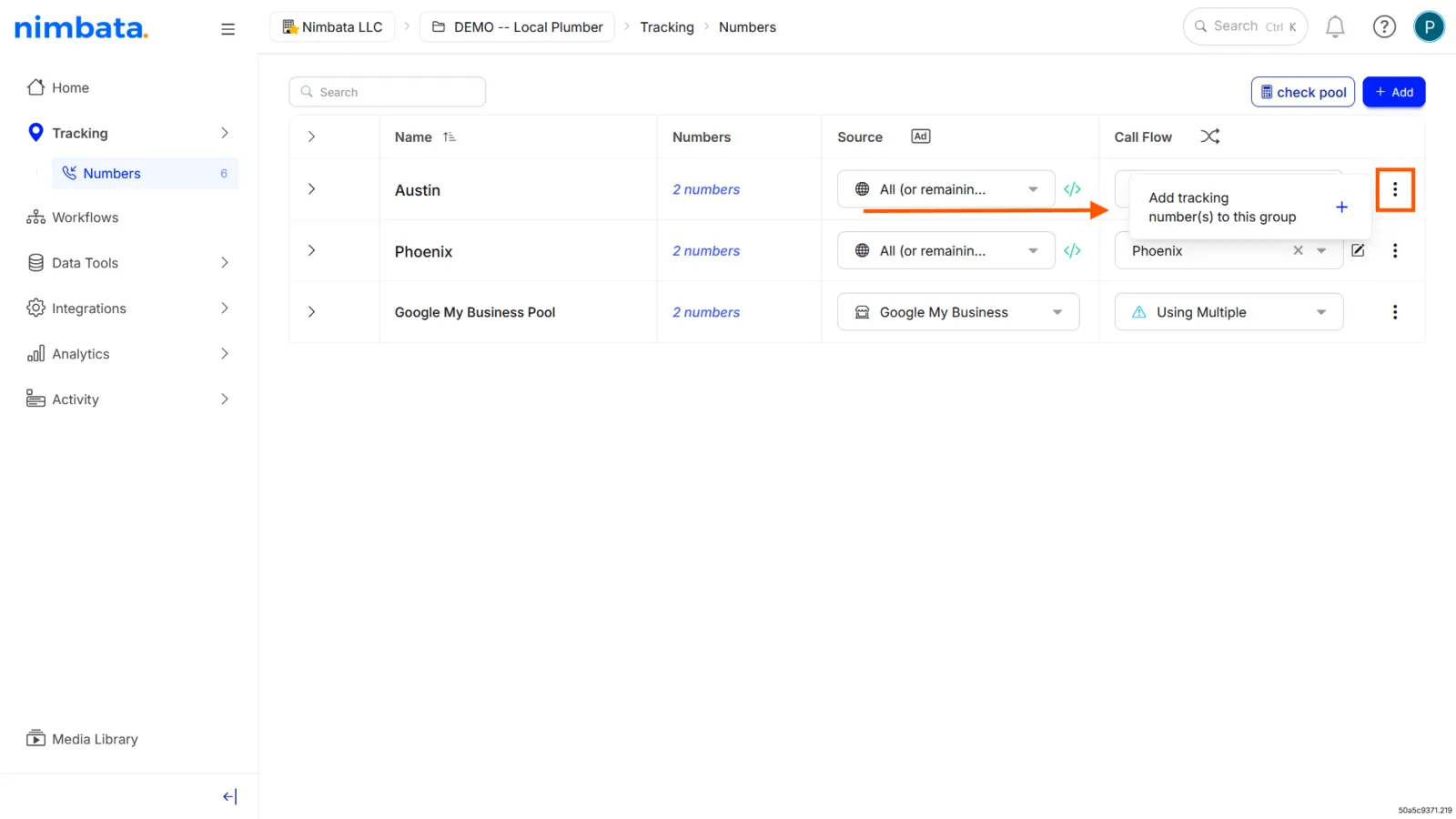
Click the three-dot menu (⋮) to the far right of the pool.
Add numbers to the group
Select Add tracking number(s) to this group and follow the prompts.
Option B: create a new tracking source
Use this when you’re launching a new campaign or want to track a brand-new source separately.
Start the setup
- Go to Tracking > Numbers.
- Click + Add.
- Choose where you want to place your tracking numbers.
- Click Next.
Calculate your pool size
- Click Get from calculator and enter your peak hourly visitors, OR
- Click Get from Google to pull the data automatically from GA4.
Then click Use pool to apply the recommended size.
Choose your numbers and finish
Select your preferred area code, pick numbers from the list, and click Finish.
Name your numbers
Click a number’s name to edit it inline, then click the green check icon to save.
To rename multiple numbers at once, tick their checkboxes and click Modify number name.
Your new tracking numbers are ready. Assign them to a call flow to start receiving calls.
Detailed guide: Managing numbers: Assign a call flow
Detailed guide: Number pools: Calculate your pool size
Request numbers that are not listed
Request numbers from the Nimbata team when the tracking numbers you need aren’t available in the app: for example, if a specific area code is unavailable or you need help provisioning numbers for a new project.
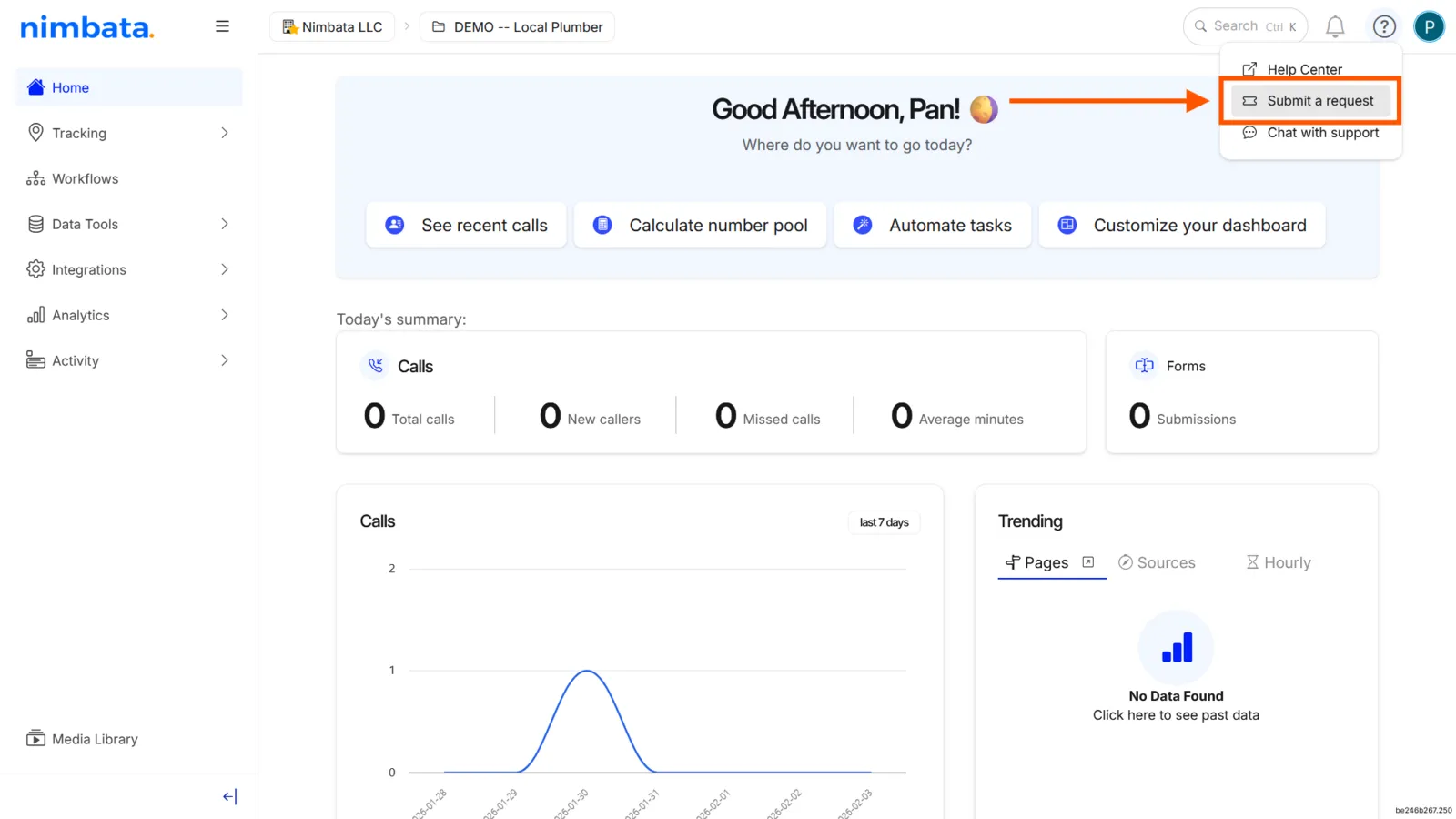
Open the request form
Click the question mark icon in the top-right corner of the Nimbata app, then select Submit a request.
Fill in the request details
- Subject line: include the number of numbers needed, the area name, area code, and project name.
- Request type: always select Tracking number not available.
- Priority: Low, Normal, High, or Urgent.
- Description: add any specifics not covered by the subject line.
- Attachments: optional.
Submit the request
Click Submit, or press Enter while in the Description field. You receive both an in-app notification and an email confirming your request has been received.
The Nimbata team takes care of the rest, and you are notified once your numbers are ready.
When you cannot get a number
If you’re unable to add new tracking numbers, there are two common reasons to check.
Outstanding payments
- Go to Account > Plans and Billing.
- Check if there are any outstanding payments on your account.
- Resolve them and try again.
Location mismatch
- You can only request tracking numbers from the same country or region where your business (or your client’s business) is registered.
- Confirm that the location you’re requesting numbers for matches your account’s registered location.
Once both are confirmed, you should be able to add new tracking numbers without any issue.
Detailed guide: Request numbers that are not listed