
A workflow fires when a call, form submission, or SMS event matches its trigger and passes all its filters. This page explains when and in what order workflows fire, how to combine conditions, branches and split paths in one workflow, and how to re-run a workflow on a past call.
Firing order
Understanding when and how workflows fire helps you predict exactly which calls are processed, in which order, and what happens when multiple workflows apply to the same call.
When a workflow fires
- A workflow fires when a call, form submission, or SMS event matches its trigger and passes all its filters.
- Nimbata evaluates workflows at the moment the trigger event occurs: for example, at call end for a Call ends trigger, or at the moment a form is submitted for a Form submitted trigger.
- Each workflow is independent.
- If a call matches multiple workflows, all matching workflows fire.
- There is no automatic exclusivity between them unless you build it in using filters.
Workflow evaluation order
When multiple workflows are enabled and a call qualifies for more than one, Nimbata evaluates them in the order they appear in your Workflows list, from top to bottom.
Tip
The order workflows appear in your list determines the sequence in which they are evaluated. If the order matters for your setup, for example when one workflow sets a tag that another workflow reads, arrange them accordingly.
To reorder your workflows:
- Go to Workflows.
- Drag a workflow’s row by the handle at its start to move it up or down. The Priority column shows its place in the order; Priority 1 is evaluated first.
If one workflow runs into an error, the workflows after it still run for that event.
Trigger timing options
Each trigger has sub-options that control exactly when in the call lifecycle the workflow fires:
Inbound call / Outbound call:
- Call starts: fires as soon as the call begins, before it is answered or ended.
- Call ends: fires after the call has fully completed. Use this for transcription, summarization, conversion sending, or any action that needs the full call data.
- User updates property: fires when a user manually changes a field, tag, rating, or value on a call record. Use this for manual approval workflows.
Form submitted:
- On submission: fires immediately when a form lead is received.
- On property update: fires when a field on a form record is updated manually.
SMS received:
- Fires as soon as an inbound SMS arrives on a tracking number.
Filters and how they affect firing
- Filters narrow which calls within a trigger actually proceed to the action steps.
- A call that matches the trigger but fails a filter condition stops at that filter and no actions are executed for it.
- If you use multiple filter blocks in the same workflow, the call must pass every block to proceed (AND logic between blocks).
- Inside one block, the rules match ALL by default; switch the block to ANY for OR logic (see AND/OR logic in filters).
- There is no OR logic between separate filter blocks. To get OR behavior, put the conditions in one block set to ANY, or create two separate workflows.
Actions and execution
- Actions run in the order they are stacked in the workflow builder, from top to bottom.
- If an action fails, subsequent actions in the same workflow still run.
- A failed action does not halt the rest of the workflow.
Re-running and manual triggers
Workflows do not re-run automatically on historical calls. If you need to apply a workflow to a past call, see Re-run a workflow.
Detailed guide: Rules and tasks
Detailed guide: Create a workflow
Branches, conditions and examples
The workflow builder supports more than simple one-trigger, one-action rules. By combining conditional logic, split paths, and multi-step sequences, you can build workflows that mirror the full complexity of how your business qualifies and acts on leads. This section shows how the advanced builder features work and provides real examples of what you can build with them.
AND/OR logic in filters
By default, every rule you add to a filter block uses AND logic: all conditions must be true for the call to proceed. You can switch any filter block to OR logic, so the call proceeds if any of the conditions are met.
To switch a filter block from AND to OR:
- Click the + button in the workflow builder.
- Select Add filter.
- Click the three-dot menu on the filter block.
- Select Set condition.
- Click + Add rule and add your criteria.
- Once the block has two or more rules, click the Match ALL of button next to them.
- It toggles to Match ANY of.
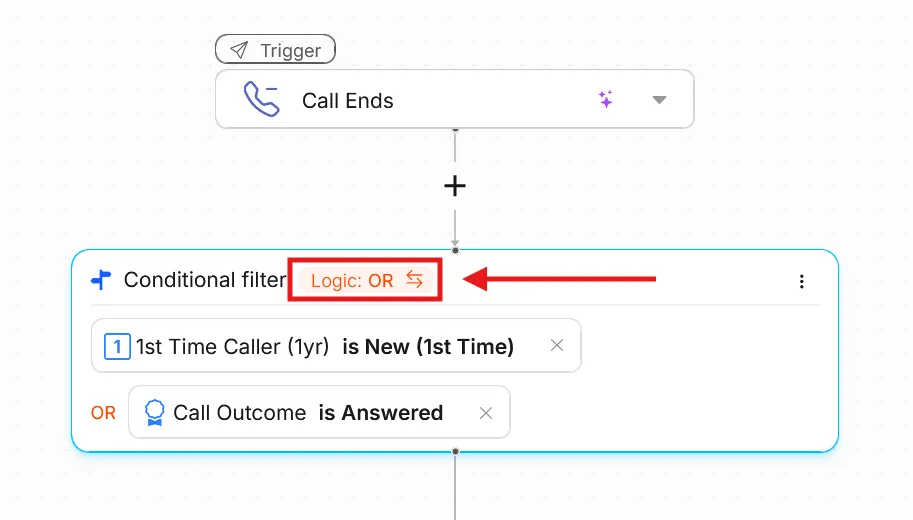
This is useful when you want a workflow to fire for calls from multiple sources without creating two separate workflows.
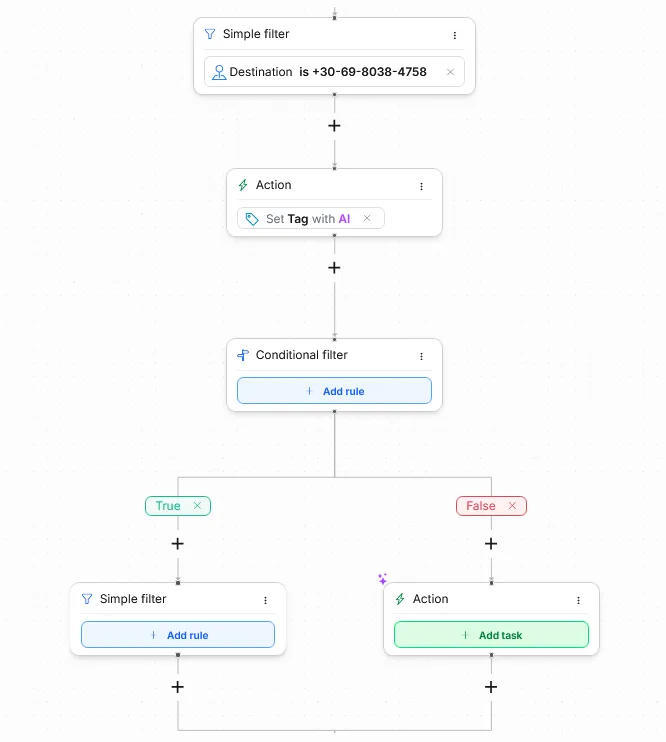
True/false branching
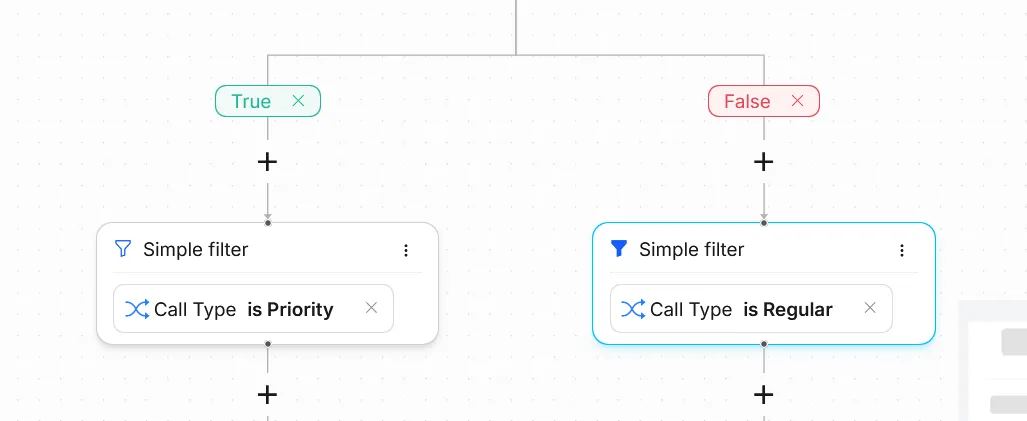
True/false logic lets you define two separate paths in a single workflow: one path for when a condition is met, and another for when it isn’t. This replaces the need for two separate workflows that cover opposite outcomes.
To add a true/false branch:
- Click the + button in the workflow builder.
- Select Add filter.
- Click the three-dot menu on the filter block.
- Select Set condition.
- Use the + buttons under the True and False branches to add the filters and actions for each outcome.
Split paths
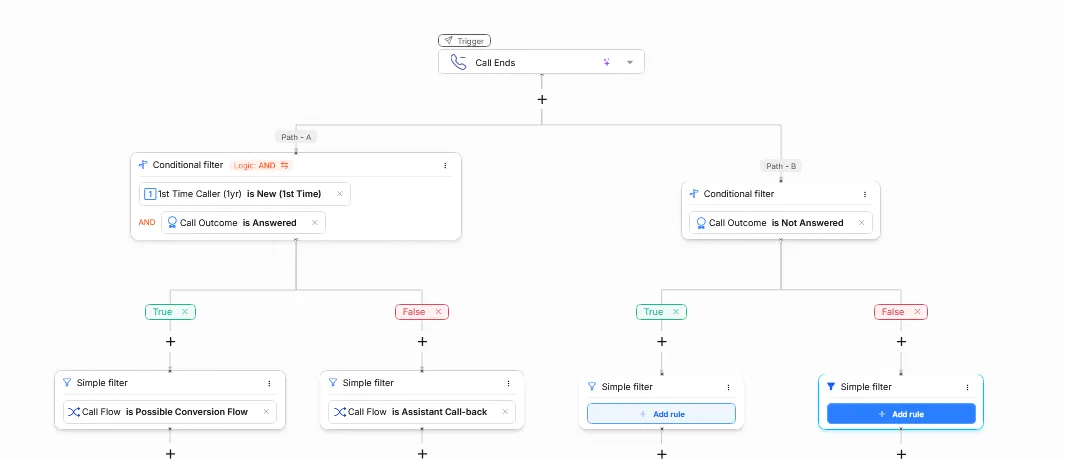
Split paths let you run multiple independent action sequences from the same trigger, without creating separate workflows. Each path can have its own filters and actions.
To add a split path:
- Click the + button directly under the Trigger block.
- Select Add path.
- Build out each path with its own filters and actions.
Multi-step sequences
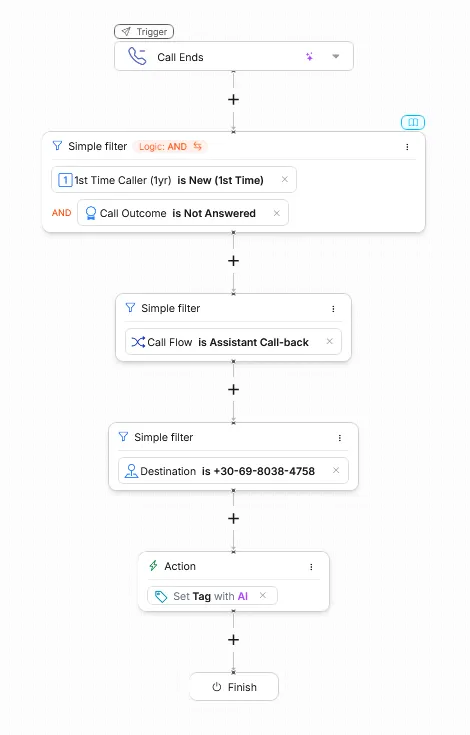
You can chain as many filter and action steps as you need within a single path. Each step runs in order after the previous one completes. There is no limit on the number of filters, AI actions, or integration tasks you can stack.
AI orchestration
With AI orchestration, you can pair multiple AI workflows with other actions, all under a single workflow. This lets you combine transcription, summarization, AI tagging, and integration actions in one flow without managing them separately.
Example workflows
Example 1. Qualify leads and route to Google Ads automatically
Scenario: you want to send a conversion to Google Ads, but only for answered calls longer than 60 seconds from first-time callers. All other calls should still be transcribed for review.
Setup:
- Trigger: Inbound call > Call ends
Path 1. Qualified lead:
- Filter: Call outcome = Answered
- Filter: Call duration > 60 seconds
- Filter: 1st time caller = Yes
- Action: Google Ads (send conversion)
- Action: Transcribe call
Path 2. All other calls:
- Action: Transcribe call
Using split paths keeps both sequences in one workflow and ensures every call is transcribed regardless of whether it qualifies as a conversion.
Example 2. Handle missed first-time callers with a callback tag
Scenario: whenever a first-time caller doesn’t get through, you want to flag them for follow-up by tagging the call and sending a Slack alert to your team.
Setup:
- Trigger: Inbound call > Call ends
- Filter: 1st time caller = Yes
True/false branch on Call outcome = Answered:
- True (call was answered): no further action needed
- False (call was not answered):
- Action: Update field > Tag > Call Back Requested
- Action: Slack (send alert)
This uses a single true/false branch to act only on the missed leg while keeping the workflow compact.
Example 3. AI-powered lead scoring with CRM sync
Scenario: after every inbound call over 30 seconds, you want Nimbata AI to transcribe the call, generate a summary, assign a sentiment tag, and then push the record to HubSpot, but only if the AI tags the call as a qualified lead.
Setup:
- Trigger: Inbound call > Call ends
- Filter: Call duration > 30 seconds
- Action: Transcribe call
- Action: Summarize call
- Action: Update field > Tag > Fill with AI (instruct AI to apply Qualified Lead if the caller expressed buying intent)
True/false branch on Tag = Qualified Lead:
- True: Action: HubSpot (create or update contact)
- False: no further action
The AI tagging step runs first, and the HubSpot sync only fires if the AI confirms the call qualifies. This keeps your CRM clean without requiring manual review of every call.
Example 4. Multi-platform attribution with per-source conversion routing
Scenario: you run campaigns across Google Ads and Meta. You want each platform to receive only its own conversions, and all calls should be transcribed.
Setup:
- Trigger: Inbound call > Call ends
- Filter: Call duration > 45 seconds
Split into three paths:
Path 1. Google Ads:
- Filter: UTM medium = cpc AND UTM source = google
- Action: Google Ads (send conversion)
- Action: Transcribe call
Path 2. Meta:
- Filter: UTM source = facebook_ads OR UTM source = instagram
- Action: Facebook (send call event)
- Action: Transcribe call
Path 3. Everything else:
- Action: Transcribe call
Using AND/OR logic within the filter blocks lets you match each platform’s UTM patterns precisely. The split path structure ensures a call attributed to Google Ads never accidentally fires the Meta action.
Example 5. Escalation workflow for repeat missed callers
Scenario: if the same caller has been missed more than once, you want Nimbata to tag them as a high-priority follow-up and notify a specific team member by email.
Setup:
- Trigger: Inbound call > Call ends
- Filter: Call outcome = Not answered
- Filter: Times called > 1
- Action: Update field > Tag > Call Back Requested
- Action: Email notification (send alert to team member)
The Times called filter counts how many times that caller’s number has called within the look-back window. Combined with the not-answered filter, this workflow only fires when a caller has genuinely tried multiple times and been missed each time.
A combined example
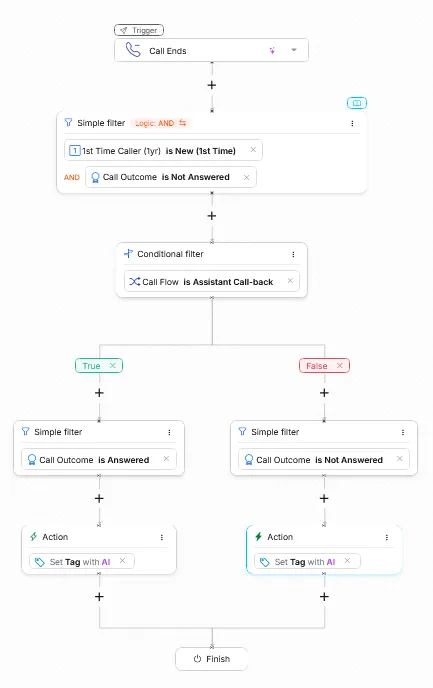
The workflow below combines AND/OR logic, true/false branching, multi-step sequences, and AI orchestration in a single flow. Whenever a first-time caller is not answered, a callback call flow is activated. If the callback is answered, AI tags the call as a conversion. If it is not answered, AI tags the caller as churned.
Detailed guide: Create a workflow
Detailed guide: Rules and tasks
Detailed guide: Firing order
Re-run a workflow
Workflows run automatically when a trigger event occurs. They do not re-run automatically on past calls. If you need to apply a workflow action to a call that has already happened, for example to send a missed conversion or manually push a tag, you can trigger the relevant action directly from the call record.
Re-run an action on a single past call
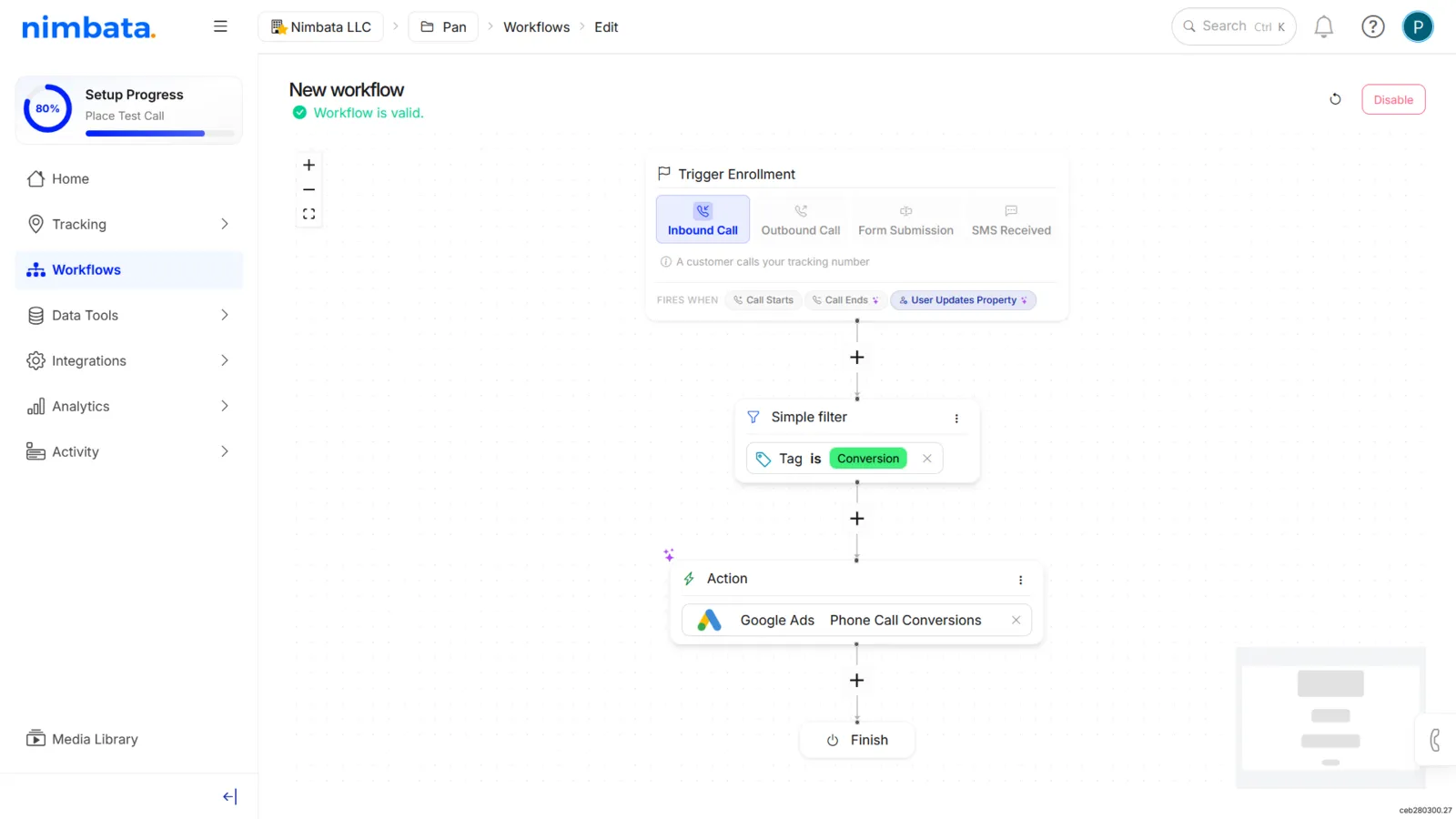
The most reliable way to re-run a workflow action on a past call is to use the User updates property trigger pattern. Update a field on the call record that your workflow is listening for. This causes the workflow to fire for that call.
Create or edit a workflow with a User updates property trigger
If your existing workflow does not already use a User updates property trigger, create a companion workflow:
- Go to Workflows.
- Click + Create and select From Scratch.
- Set the trigger to Inbound Call > User updates property (or Outbound Call, depending on the call type).
- Click + and select Add filter.
- Add a filter, for example Tag > Conversion, so the workflow only fires when you apply that specific value.
- Click + and select Perform action.
- Add the action you want to re-run, for example Google Ads, Transcribe Call, or Summarize Call.
- Click Enable.
Trigger the workflow on the past call
- Go to Activity > Calls.
- Find the call you want to reprocess.
- Apply the property update your workflow is listening for, for example add the Conversion tag to the call.
The workflow fires immediately when the property is updated.
Re-run transcription or summarization on a past call
If a call was not transcribed or summarized at the time, for example because the workflow was not yet enabled, you can trigger these actions directly from the call record.
- Go to Activity > Calls.
- Open the call record by clicking the expand arrow on the call row.
- In the call detail panel, use the Transcribe or Summarize option if available.
Note
Transcription requires a call recording to be present. If no recording exists for that call, a transcript cannot be generated retroactively.
Bulk reprocessing
There is no bulk re-run option for workflows across multiple historical calls. If you need to reprocess a large number of past calls, contact Nimbata support to discuss your options.
Detailed guide: Firing order
Detailed guide: Approve conversions by tagging
Detailed guide: Rules and tasks