
Routing filters split a call flow into paths, so each call goes to the destination that fits when it arrives or where it comes from. This page covers the Time of Day, Day of Week and Caller ID Prefix filters.
Warning
The Time of Day, Day of Week and Caller ID Prefix filters are available on Marketing and Agency plans only.
Route by time of day
Note
To route calls based on day of week instead, see: Route by day of week.
The Time of Day filter lets you route calls to different destinations depending on when they arrive. For example, business-hours calls to your sales team and after-hours calls to voicemail or an on-call mobile.
Open the Call Flow Builder
- Go to Call handling > Call Flows.
- Click + Create.
Add the Time of Day filter
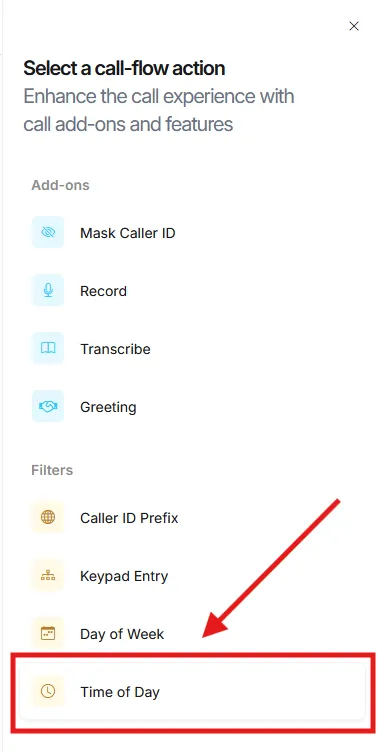
- Click the + button on the canvas.
- Select Time of Day from the Filters menu.
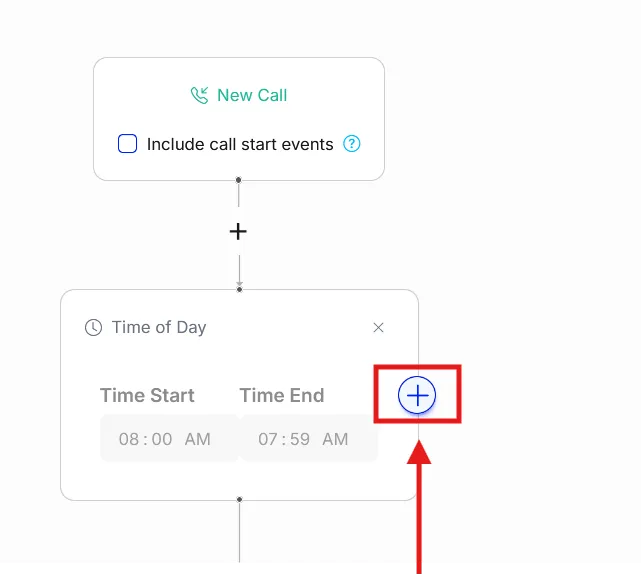
Duplicate the Time of Day block
Click the blue + button next to the first Time of Day block to duplicate it.
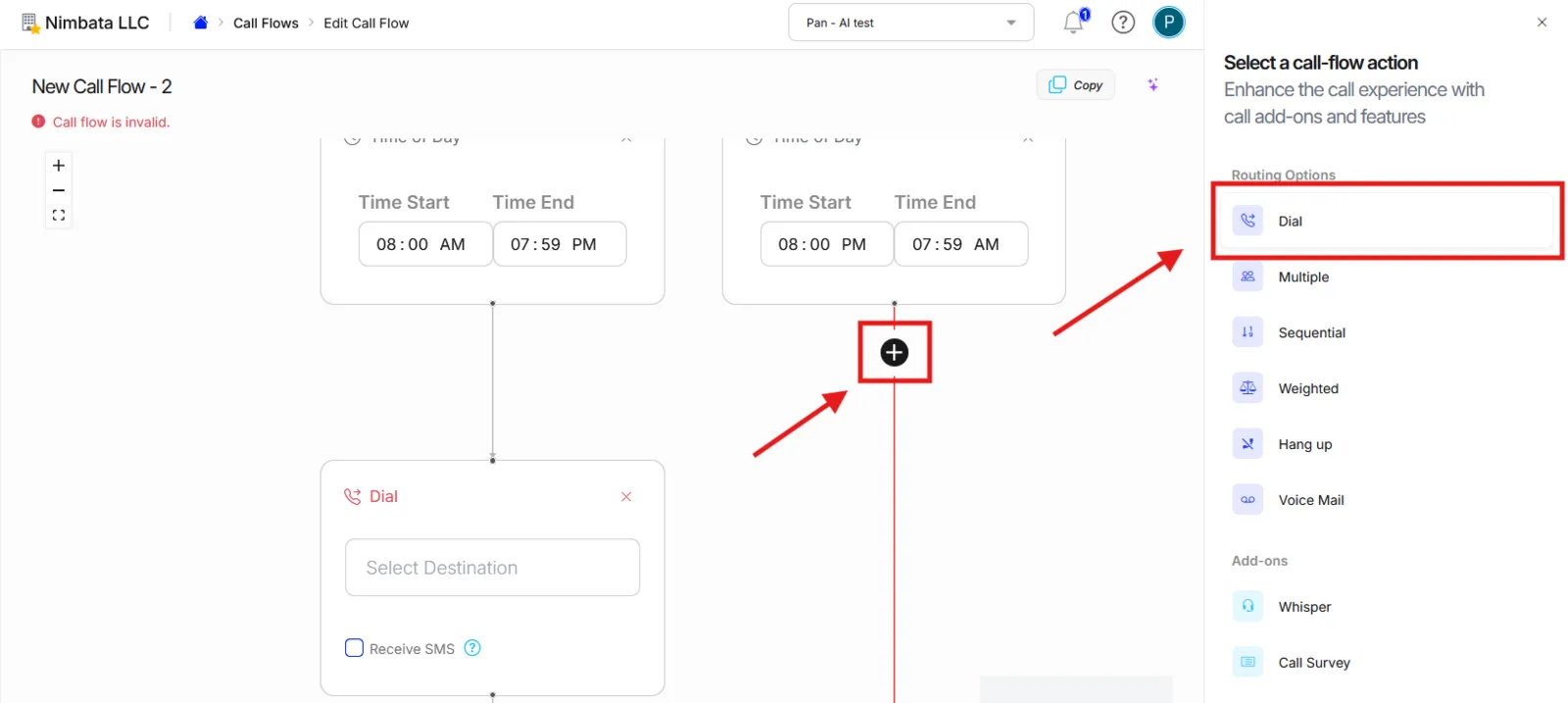
Add a Dial action to the second branch
- Click the + on the red line of the duplicate branch.
- Select Dial.
Configure time ranges and destinations
- On each Time of Day block, set the start and end time for that branch (for example, 09:00 to 18:00 for business hours, 18:00 to 09:00 for after hours).
- On each Dial action, select the destination number for that time window.
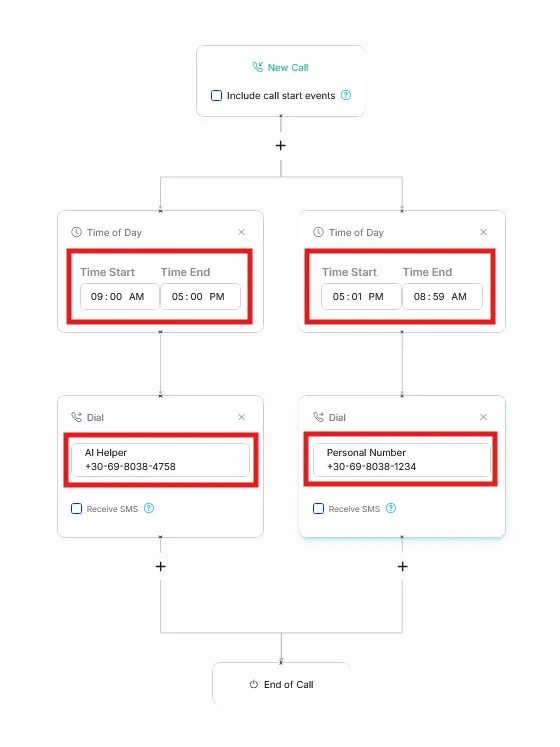
🎉 Done. Calls will now be forwarded to the correct destination based on the time they arrive.
Detailed guide: Route by day of week
Detailed guide: Assign a call flow
Route by day of week
Note
To route calls based on time of day instead, see: Route by time of day.
The Day of Week filter lets you route calls to different destinations depending on which day they arrive. For example, weekday calls to your sales team and weekend calls to a duty mobile or voicemail.
Open the Call Flow Builder
- Go to Call handling > Call Flows.
- Click + Create.
Add the Day of Week filter
- Click the + button on the canvas.
- Select Day of Week from the Filters menu.
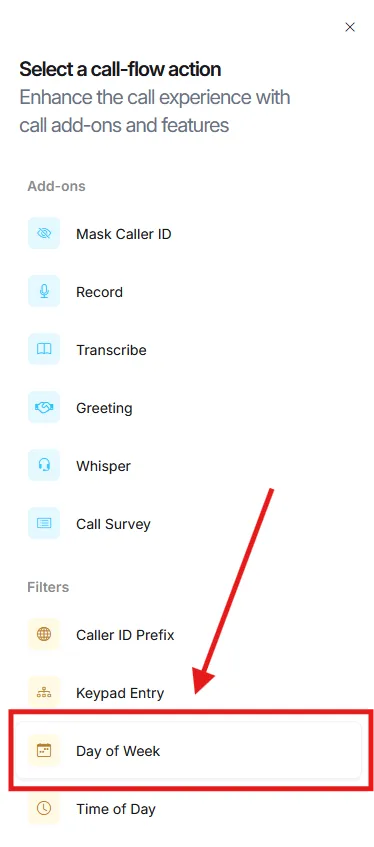
Duplicate the Day of Week block
Click the blue + button next to the first Day of Week block to duplicate it.
Tip
The first Day of Week instance has all days of the week pre-selected. You will adjust the day selections in step 5.
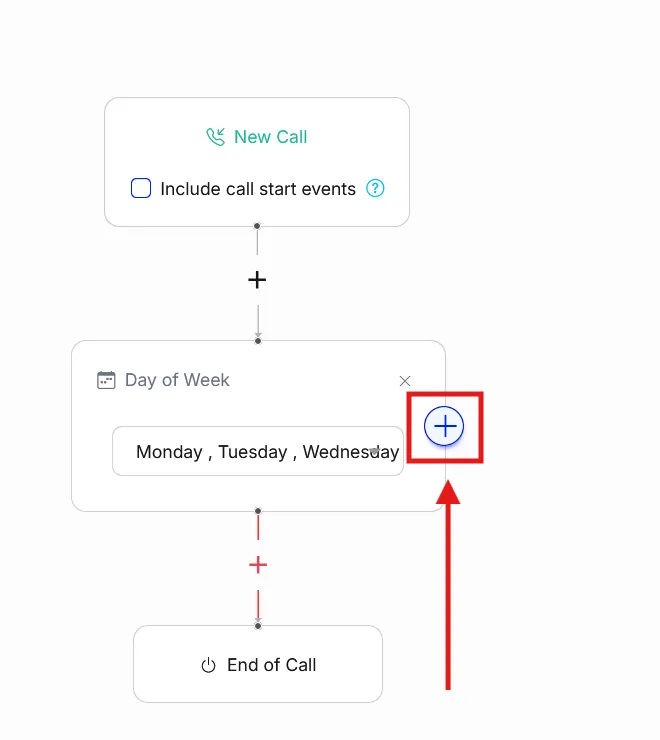
Add a Dial action to each branch
- Click the + on the red line of the first branch and select Dial.
- Repeat for the second branch.
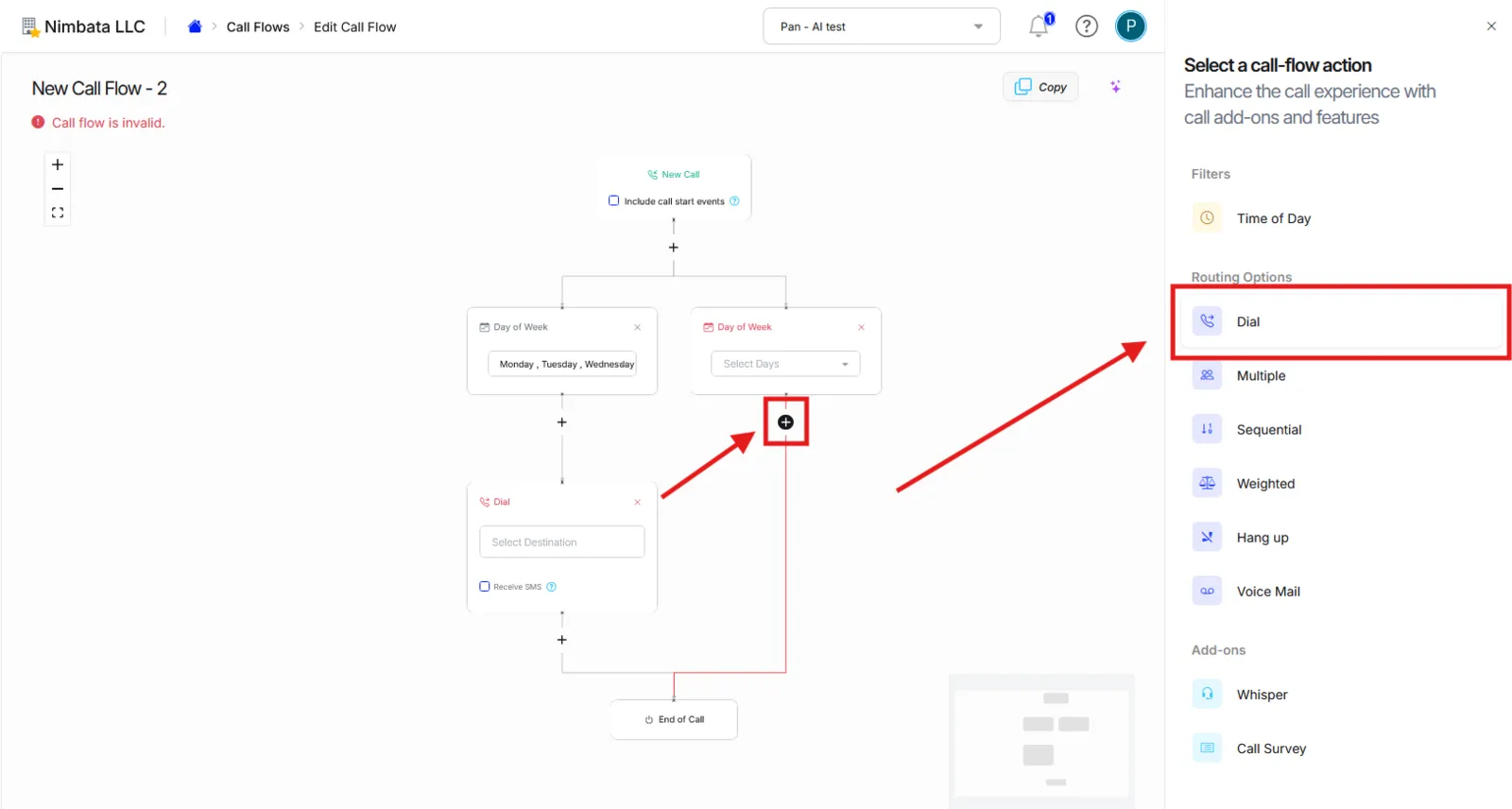
Configure days and destinations
- On each Day of Week block, select the days that apply to that branch (for example, Mon to Fri on one, Sat to Sun on the other).
- On each Dial action, select the destination number for that day group.
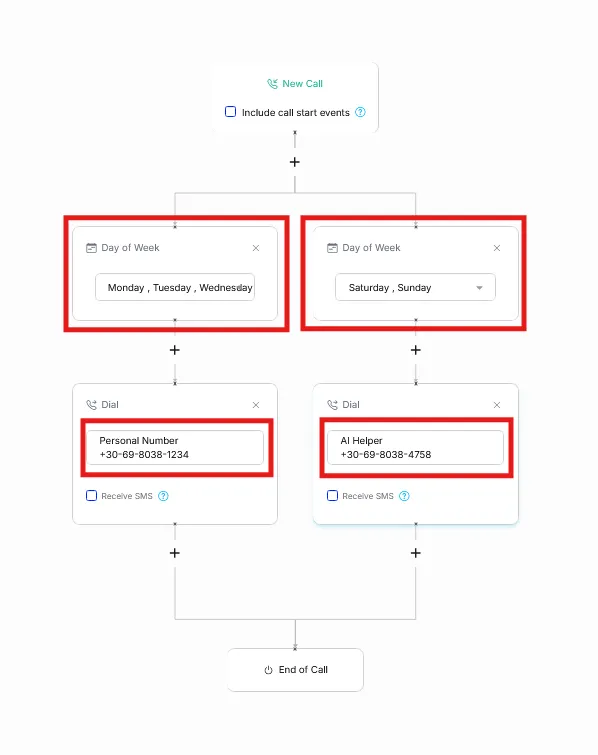
🎉 Done. Calls will now be forwarded to the correct destination based on the day they arrive.
Detailed guide: Route by time of day
Detailed guide: Assign a call flow
Route by caller location
The Caller ID Prefix filter reads the first digits of an incoming caller’s number (country code or area code). Then, it routes the call to the destination you assign to that prefix.
This powers Geo-routing: the ability to send callers to a local office, regional team, or franchise branch based purely on where they’re calling from.
Common use cases include:
- Routing Chicago-area calls (312) to a Midwest sales team.
- Sending UK callers (+44) to an international support line.
- Blocking entire country codes from reaching your numbers at all.
How geo-routing with Caller ID Prefix works
When a call arrives, Nimbata checks the caller’s number against the prefixes you’ve configured. If there’s a match, the call follows the path you defined for that prefix. Any number that doesn’t match a configured prefix follows the default “remaining” path, which you also define.
Tip
You can configure as many prefix routes as you need. Prefixes can also be used to route anonymous calls, send certain regions straight to voicemail, or hang up immediately.
Set up geo-routing
Open the Call Flow Builder
- Go to Call handling > Call Flows.
- Click + Create to create a new call flow.
Add the Caller ID Prefix filter
- Click the + button on the canvas.
- Select Caller ID Prefix from the Filters menu.
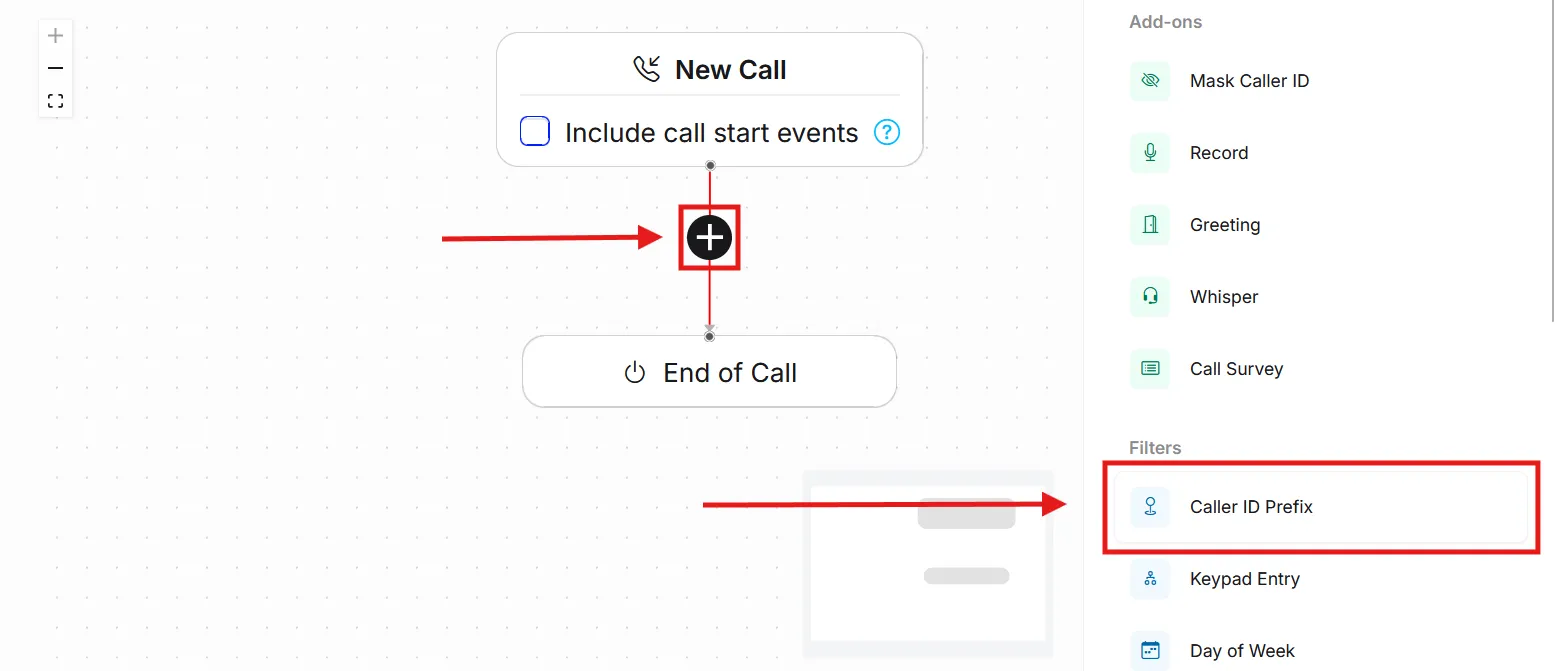
Enter the prefixes you want to isolate and define what happens to them
- Type the country codes or area codes you want to handle differently into the prefix field.
- Click the + below that branch and select the routing action for those callers (for example, Hang Up, Voicemail, or Dial to a specific destination).
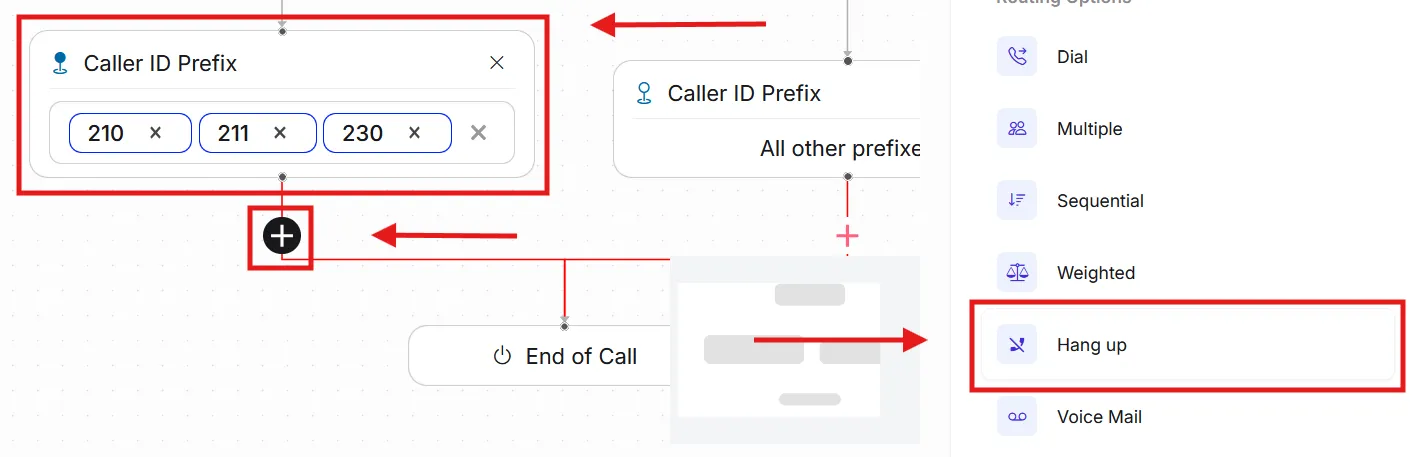
Define what happens to all other callers
- Click the + button on the remaining-callers branch.
- Select the routing action for everyone who doesn’t match a defined prefix.
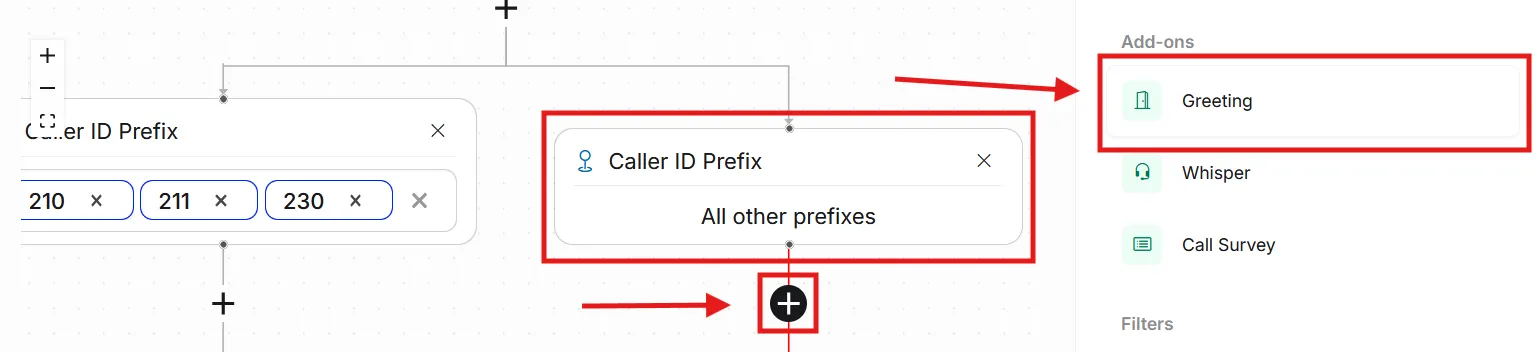
Add additional prefix routes as needed
- Repeat steps 3 and 4 for each additional region or country you want to handle differently.
- Connect each new prefix branch to its appropriate routing action.
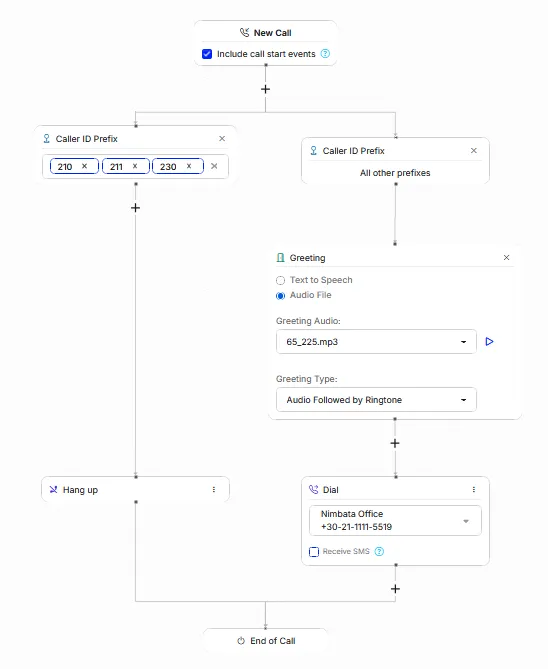
🎉 Your geo-routing call flow is set up. Assign it to tracking numbers under Tracking > Numbers to go live.
Detailed guide: Block countries
Detailed guide: Handle anonymous calls
Detailed guide: Assign a call flow