
Nimbata’s Google Ads integration sends call conversions directly to Google Ads, so you can see which campaigns, ad groups, and keywords drive phone leads. You can also send a value with each conversion, and send enhanced conversions with hashed caller ID data.
Connect Google Ads
Note
This section covers the full Google Ads call conversion setup in Nimbata. Before you start, make sure the DNI script is installed on your website so that Nimbata can capture GCLIDs. See: Set up DNI step by step.
Tip
The integration connects Google Ads directly from within Nimbata, without using Google Analytics as an intermediary. You need an active Google Ads account with permission to create conversion actions.
Nimbata sends call conversions directly to Google Ads, letting you see which campaigns, ad groups, and keywords are driving phone leads, with optional AI-driven values for Smart Bidding.
Connect and map a conversion action from Google Ads
Open the Google Ads integration
- Go to Integrations in the left-hand menu.
- On the Google Ads tile, click Go to integration, then click Continue with Google.
- Sign in with the Google account that has Admin or Standard access to the Google Ads account you want to link. Google Ads needs one of these access levels to create conversion actions and receive conversions.
Select your Customer ID
- Choose the Customer ID you want to link from the drop-down menu.
- If you manage multiple accounts, select the specific child account, not the manager (MCC) account.
Optional: create the conversion action in Google Ads
You can map a conversion action that already exists in Google Ads, or create a new one from Nimbata without opening Google Ads: see Create a conversion action in Nimbata. To create it in Google Ads instead:
- In Google Ads, go to Goals > Summary and click + New Conversion Action.
- Select Import > Other data sources or CRMs > Track conversions from clicks.
- Name the action clearly, for example
Nimbata - All Calls. - Click Save and continue, then Finish.
If the setup interface looks different, set the data source to Offline and select Connect data source later before saving.
Map the conversion in Nimbata
Back in the Google Ads integration settings in Nimbata:
- In the Conversion Name field, pick the conversion action, or type a new name to create it.
- Set a Trigger: a condition that determines which calls get sent as conversions.
- Nimbata saves automatically.
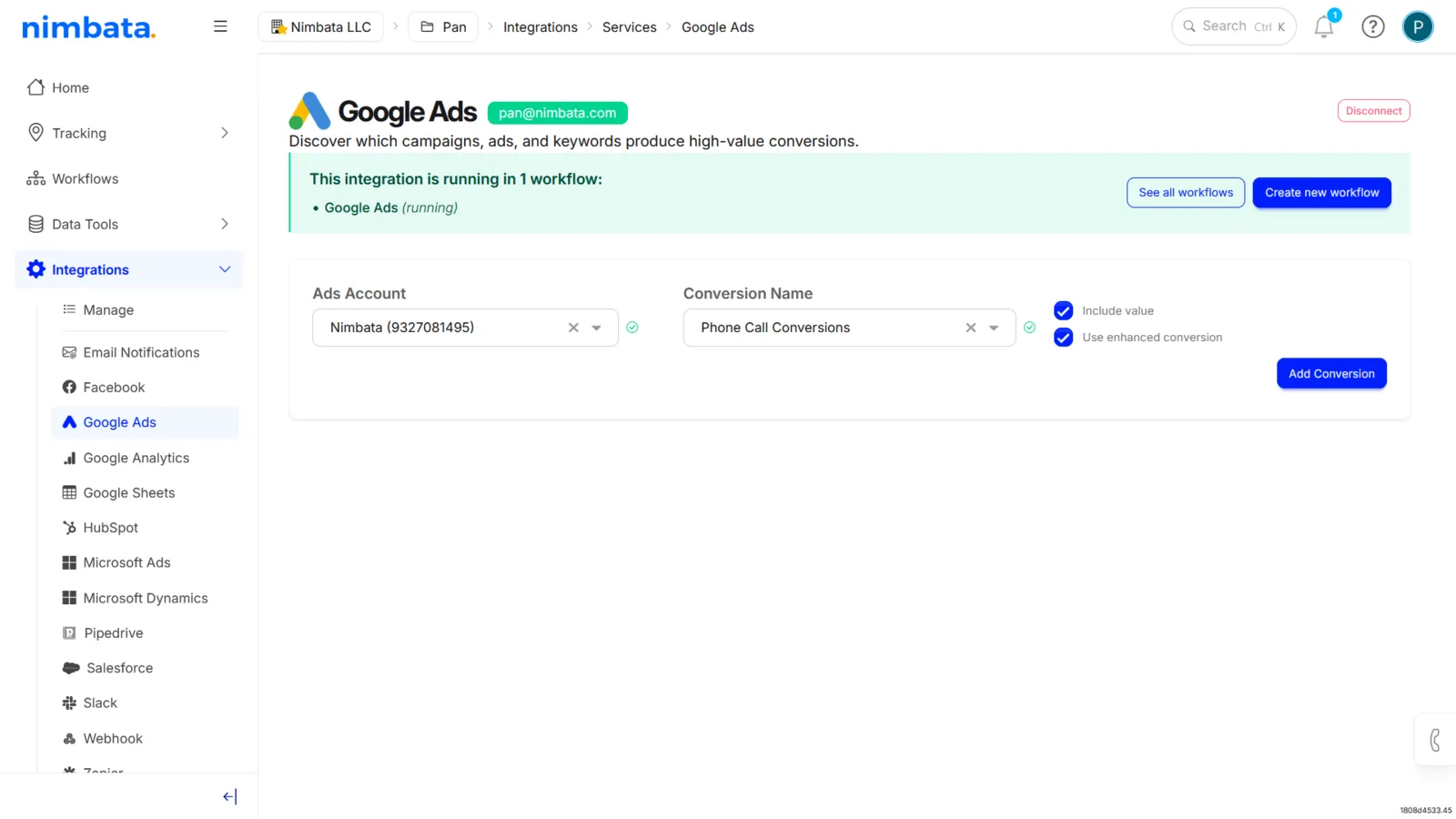
Connect with Continue with Google
Connect your Google Ads account
- In Nimbata, go to Integrations > Browse.
- On the Google Ads tile, click Go to integration, then click Continue with Google.
- If you have connected a Google account before, a Connect Google Ads window opens first: pick that account, or click Sign in with Google to use another.
- Sign in with the Google account linked to your Google Ads account.
- Then click Continue and Allow.
- Your Gmail address appears right next to the Google Ads logo on the left side of the page.
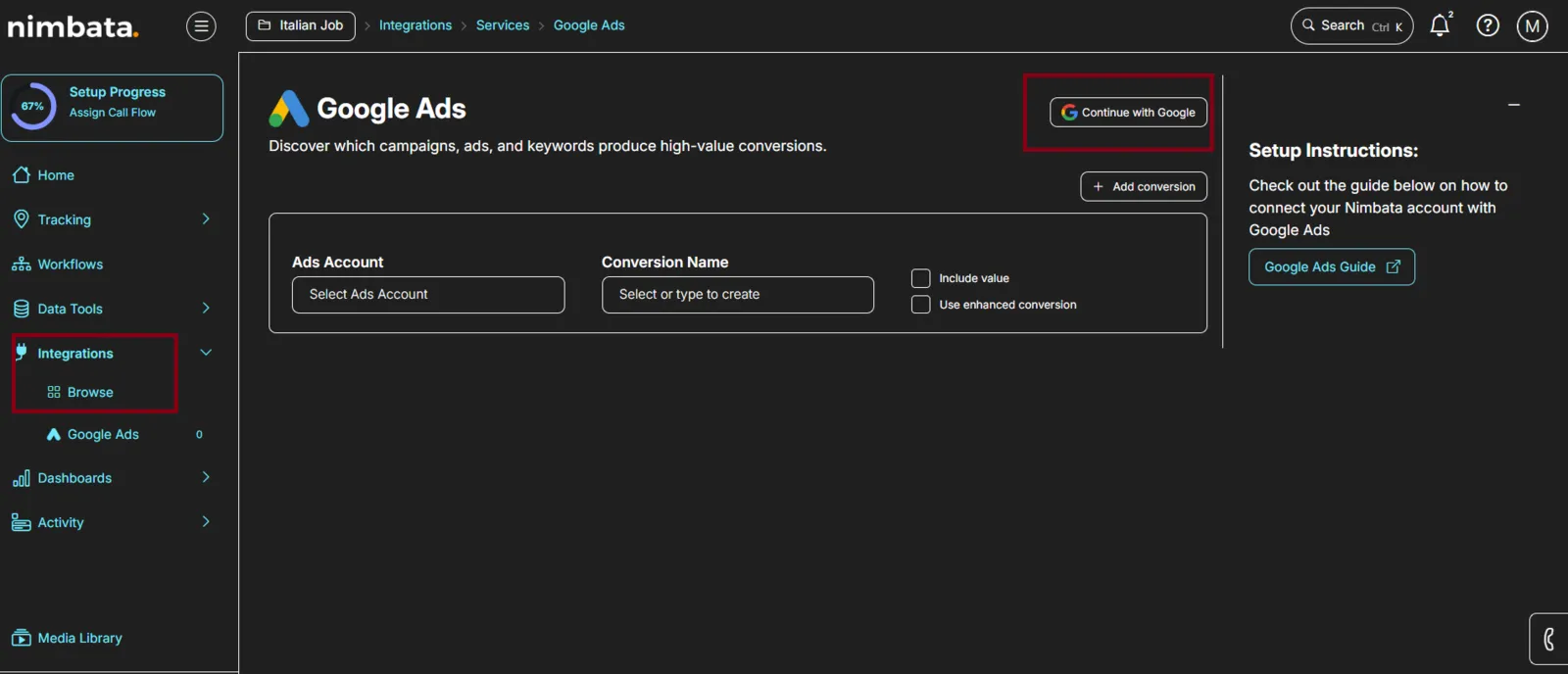
Add a conversion
You don’t need to create the conversion in Google Ads. You can do so directly in Nimbata.
- Click + Add conversion (on the right side of the page).
- Select the Ads account for this conversion.
- Select a conversion from the drop-down menu, or create one from scratch.
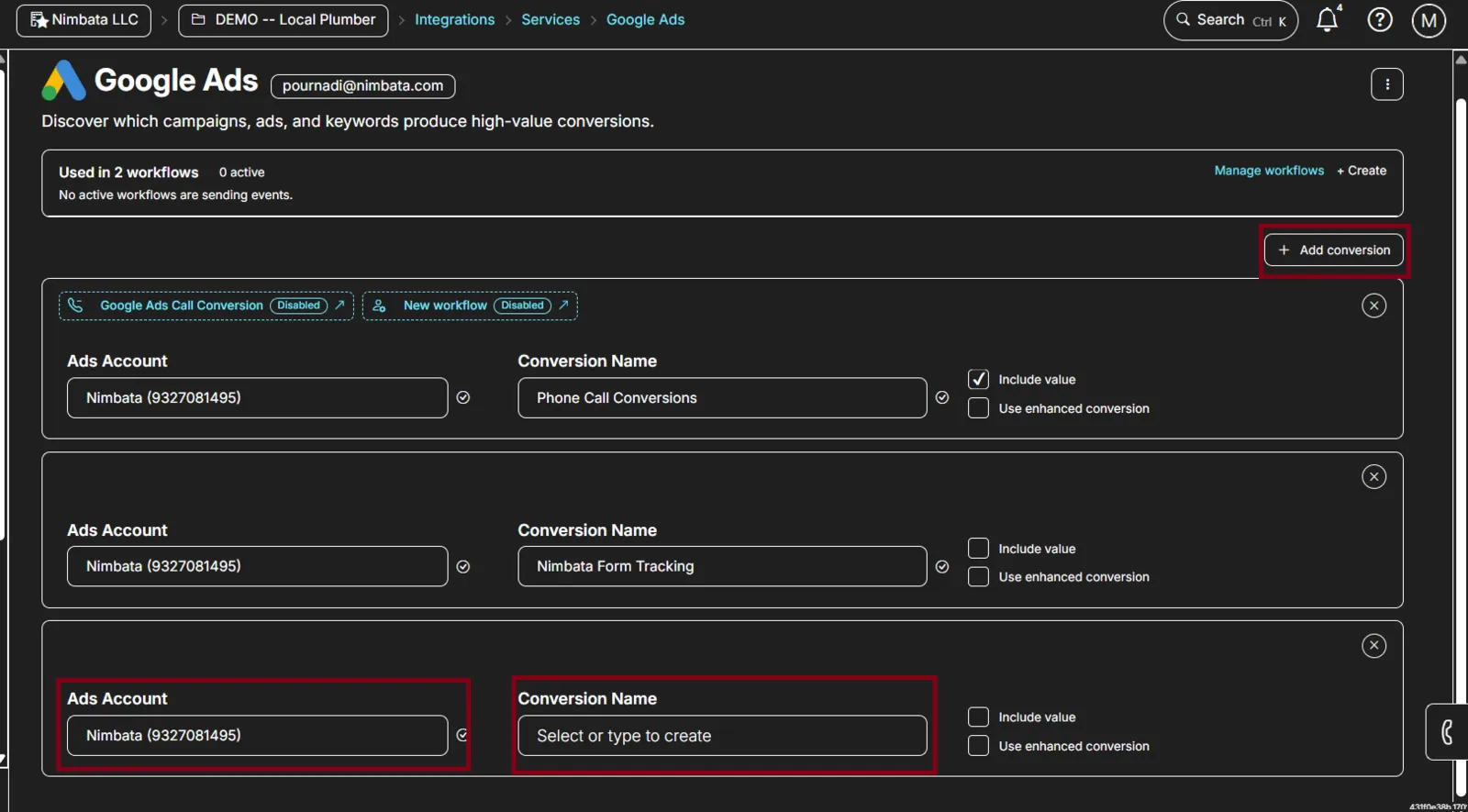
Tip
If you create one from scratch, make sure to click + Add xx_your_custom_conversion name_xx
🎉 Done! Call conversions are sent to Google Ads whenever a call matches your workflow conditions.
Set up multiple call conversion types
You can send different conversion types to Google Ads from within the same integration. Add each conversion with Add conversion on the Google Ads integration page, then choose in each workflow which conversions it sends.
Detailed guide: Several conversion types
Add AI-driven conversion values
Assigning values to conversions lets Google Ads Smart Bidding optimize toward the outcomes that matter most.
Enable AI call analysis
AI value assignment requires call transcriptions to be active.
- Go to Workflows and click + Create.
- Select From Template.
- Choose AI Call Analysis and click Use template.
- Click Enable.
Detailed guide: Start from a template
Assign a value to each conversion
- Open the Google Ads integration settings in Nimbata.
- For each conversion, enable Include Value and enter the amount that reflects what that outcome is worth to your business.
The AI analyzes each call and assigns tags, such as Qualified Lead, Appointment Booked, or Sale Confirmed, which your triggers reference. Each conversion action in Google Ads receives only the calls that match its outcome, along with the value you’ve defined. For calls that fall outside any of your defined conversions, no data is sent to Google Ads.
Send conversions through server-side tracking (sGTM)
Nimbata sends Google Ads call conversions straight to Google Ads through its API, from Nimbata’s servers, so ad-blockers and browser privacy restrictions don’t affect them. The Google Ads integration has no server-side (sGTM) setting: in Nimbata, sGTM is an option of the Google Analytics 4 integration. If you run a Google Tag Manager Server container, you can send Nimbata’s call events to GA4 through it, and use them in your container as you choose.
Switch the Google Analytics integration to server-side tracking
- Go to Integrations > Google Analytics.
- Under Tracking Method, select Server-Side (sGTM).
- Enter your sGTM Server URL, sGTM Activation Path and Measurement ID.
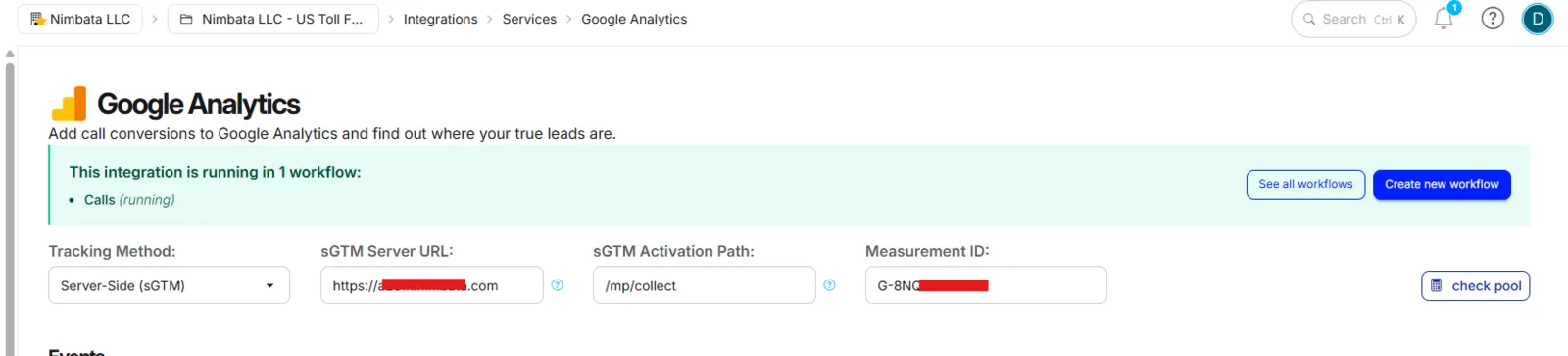
Configure your sGTM container
Follow the full setup guide to create the required GA4 Measurement Protocol client, variables, transformations, and tags inside your sGTM container.
Detailed guide: Server-side tracking
A note on GCLIDs
For Google to accept a conversion, the call must have a GCLID (Google Click ID). Nimbata captures it automatically when the DNI script is installed. The GCLID is stored in a first-party cookie when a visitor lands from a Google Ads click, so delayed calls are still attributed correctly to the original click.
If calls are arriving without a GCLID, confirm that:
- Auto-tagging is enabled in your Google Ads account settings.
- The DNI script is correctly installed and firing on all pages.
🎉 Call conversions are now sent to Google Ads whenever a call matches your workflow conditions.
Detailed guide: Google Ads call conversions
Detailed guide: Approve conversions by tagging
Detailed guide: Set up AI call analysis
Detailed guide: Server-side tracking
Detailed guide: Several conversion types
Detailed guide: Set up DNI step by step
Detailed guide: Create a workflow
Detailed guide: The integration shows “Inactive” status
Create a conversion action in Nimbata
Instead of digging through Google Ads to create a new conversion action, you can do it directly from Nimbata.
Note
Prerequisite: your Google Ads account must be connected to Nimbata, with an active status.
Go to your Google Ads integration
Go to Project > Integrations > Google Ads.
Add your new conversion
- Click + Add conversion and select the ads account you want to connect with this conversion.
- Type your Conversion Name in the relevant field and press Enter.
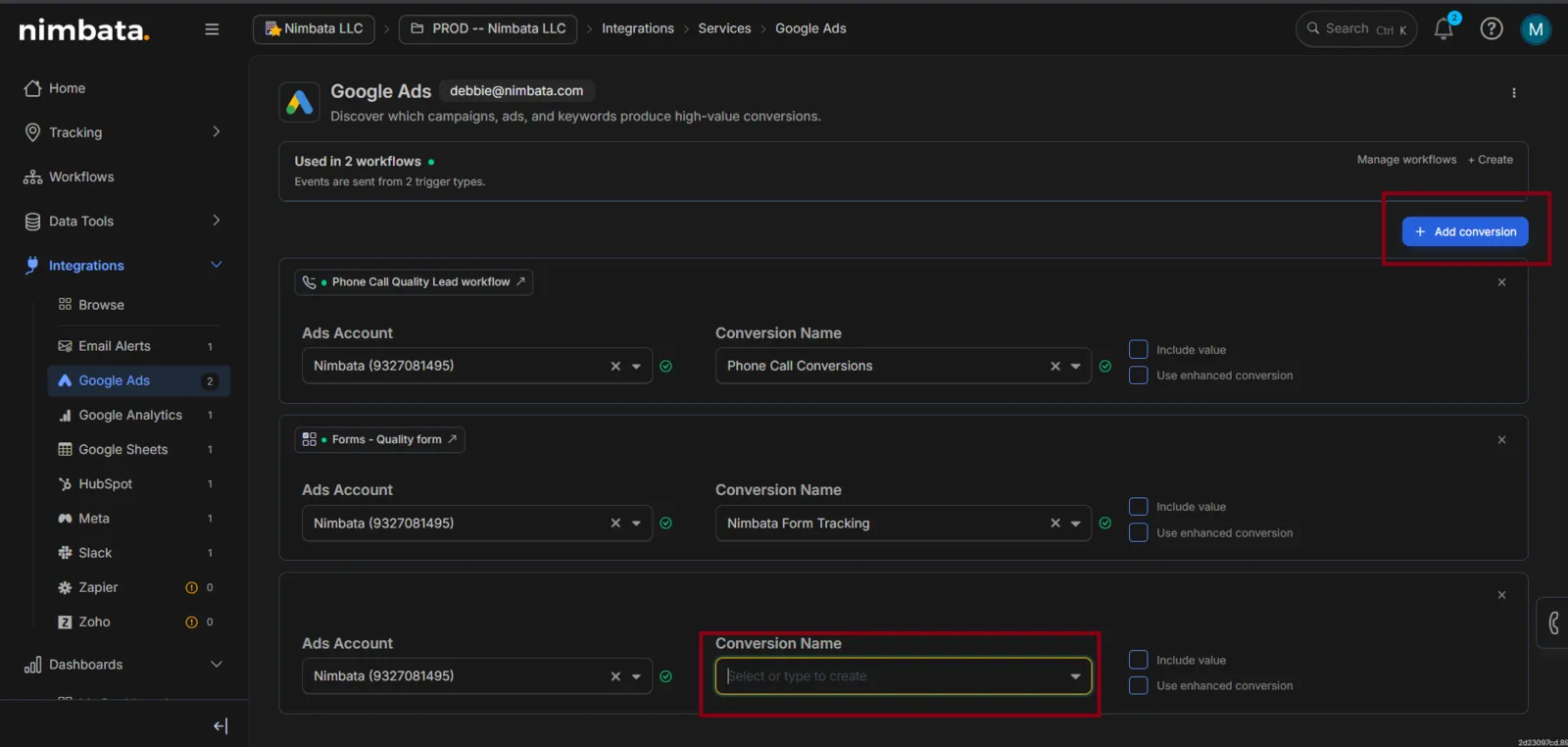
Create your new conversion action
- Select the category of your newly named conversion from the drop-down menu (Phone call lead, Imported lead, Submitted lead form and so on).
- Refine your Counting: choose One (one conversion per click) or Every (every conversion counted per click).
- Adjust the time period (days) for your Click-through lookback window.
- Click Create.
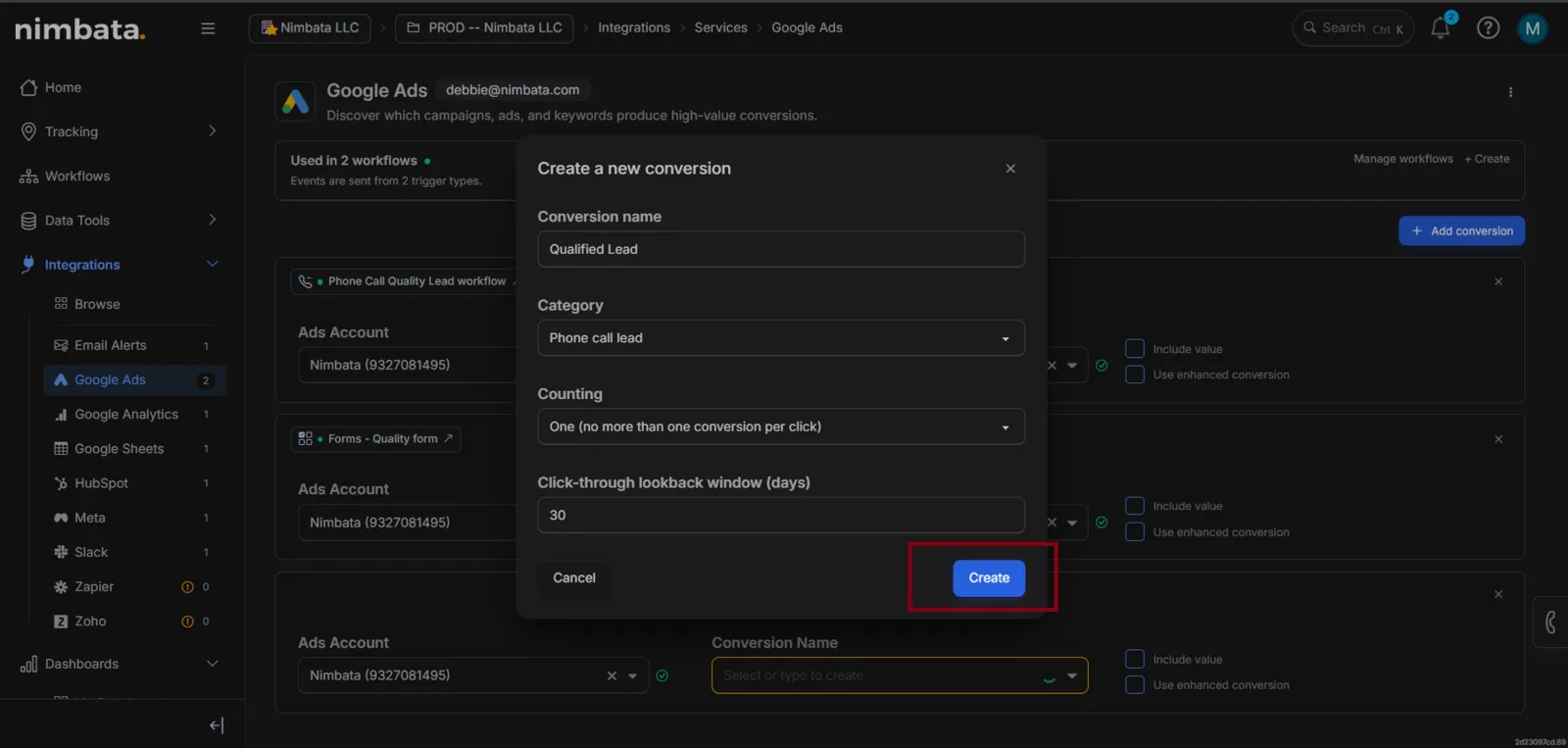
🎉 Your new conversion action is all set!
Detailed guide: Create a workflow
Detailed guide: The integration shows “Inactive” status
Send conversion values
Sending value back to Google Ads from your call tracking makes your campaigns more effective:
- Optimizing campaigns better: shift your budget so the best-performing campaigns get a constant boost.
- Measuring ROI: traditional methods often miss phone call conversions. Send call value to see the full impact of your Google Ads investment.
- Creating smarter bidding strategies: send call value to optimize bids based on the potential value of each call.
Tip
For any of this to work, you need to connect Nimbata with your Google Ads account first: Connect Google Ads
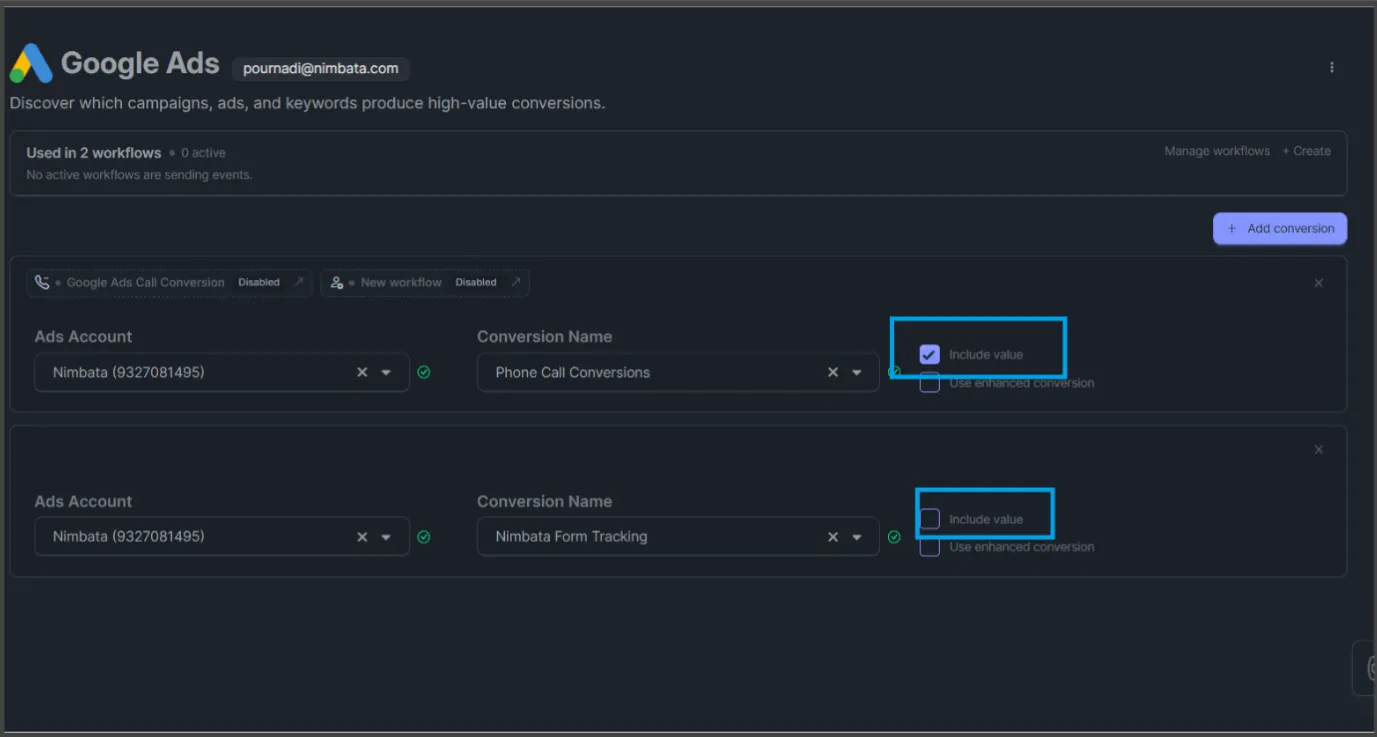
There are three ways to send value to Google Ads: by hand, with a quality calls workflow, or with a keyword spotting workflow. First, go to Integrations > Google Ads and check the Include value box. Nimbata displays a message confirming the change.
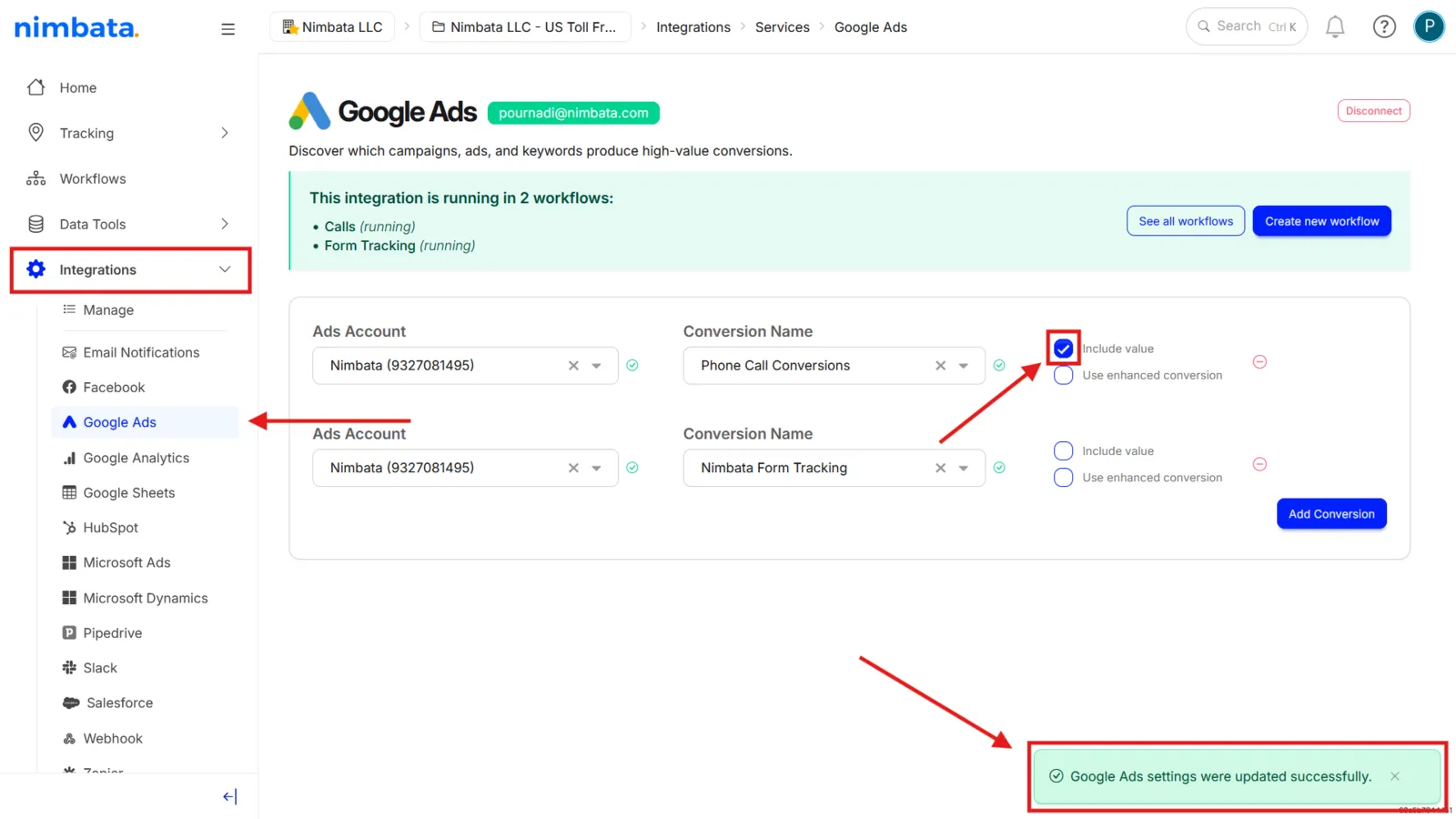
Send values by hand
If your sales team or client manually tracks actual closed revenue per call, you can configure Nimbata to automatically push these dollar values back to Google Ads as Offline Conversion Tracking (OCT) events.
Note
Prerequisites: to create Offline Conversion Tracking events, an active Google Ads integration must be connected in your Nimbata account, and the user must have access to the Activity > Calls dashboard.
Find the call
- Go to Activity > Calls.
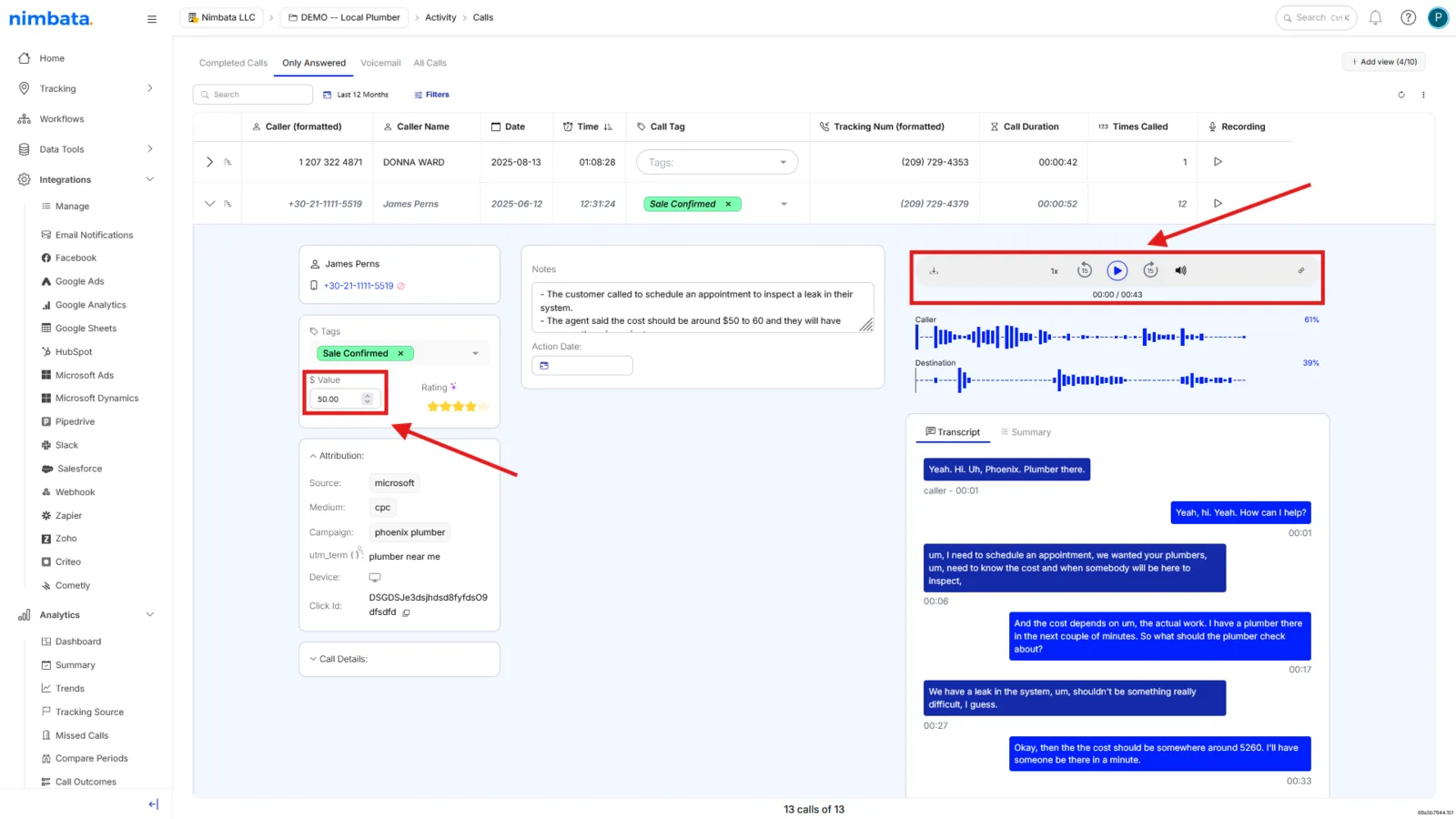
- Find the calls that came from your Google Ads campaigns. Use the Only Answered filter.
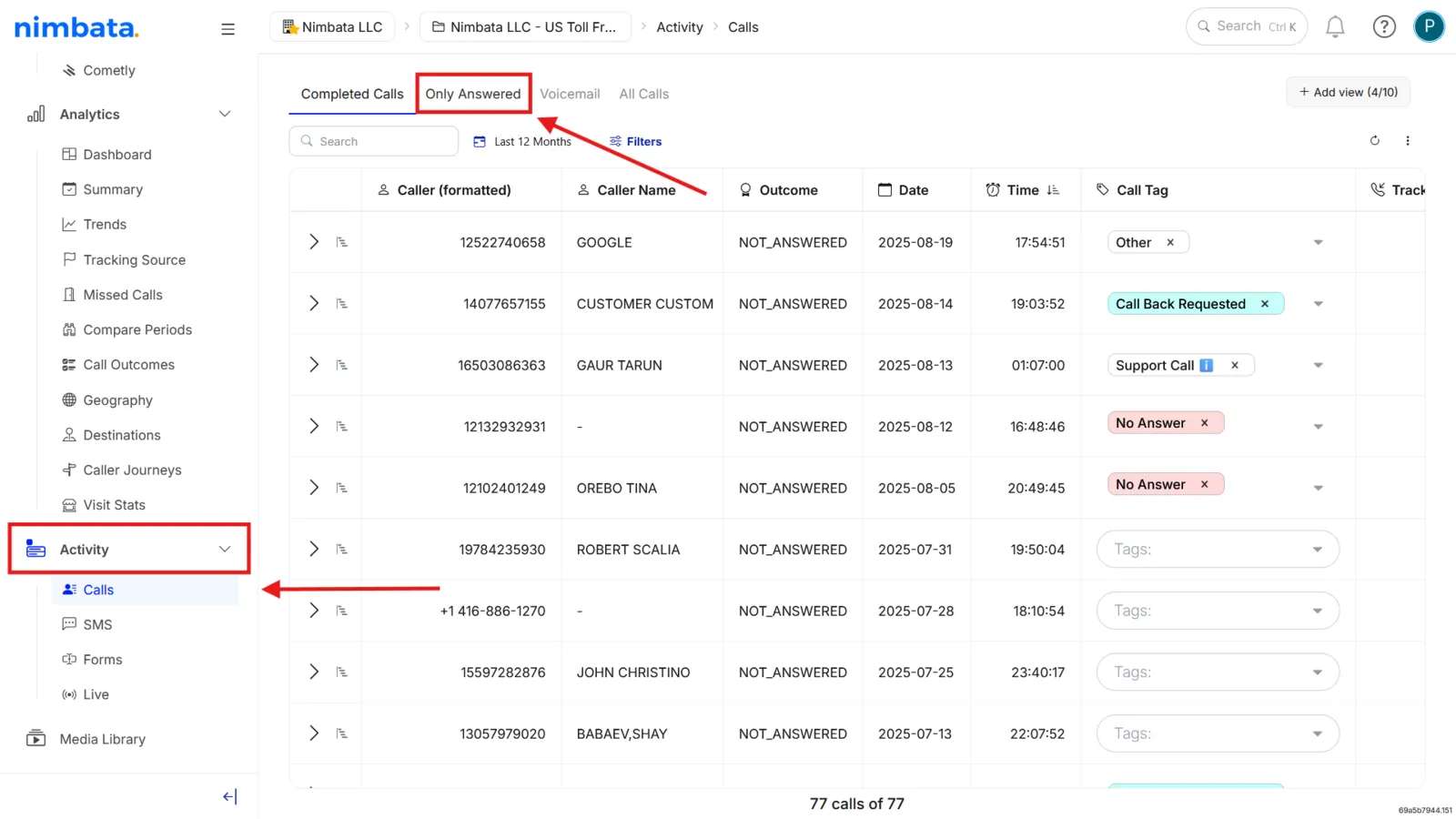
Record the sale value
- Open the call you want. Here you can listen to the recording.
- Edit the call details and enter the monetary sale amount in the Value field.
Create the workflow that sends the value
Entering a value doesn’t send anything by itself: a workflow with a Google Ads action sends the conversion, with the call’s value.
- Go to Workflows in the Nimbata menu.
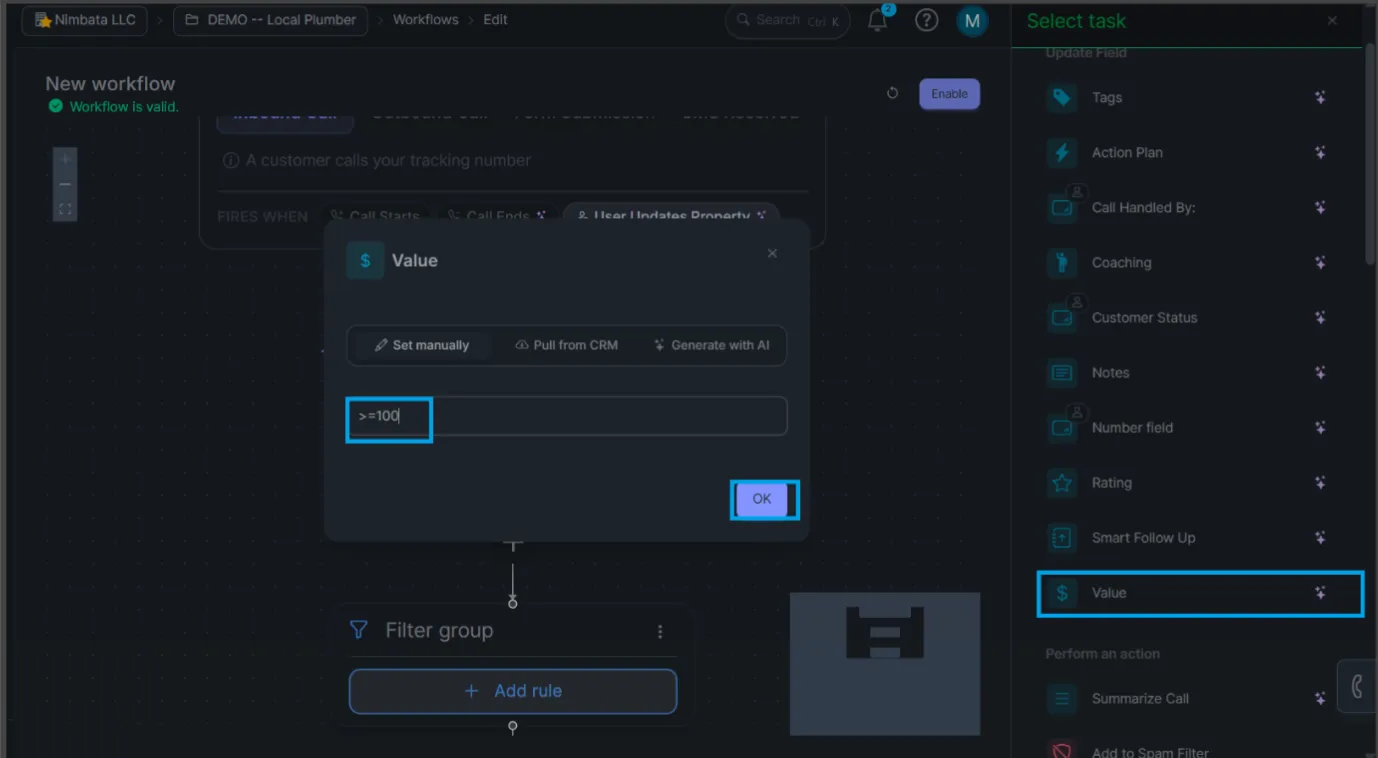
- Create a new workflow and set the trigger to User performs action on a call.
- Click +, select Add filter, and add a Value rule with your threshold (for example, Value is greater than or equal to 1).
- Click + below the filter, select Perform an action, choose Google Ads, and pick your conversion under Select configuration.
Enable values in the Google Ads integration
- Go to Integrations > Google Ads.
- Check the Include value box next to the conversion. Your changes are saved automatically.
Behind the scenes: whenever a user updates a call record’s Value field to an amount that passes your workflow’s Value filter ($1 or higher in the example), Nimbata triggers your workflow and transmits the associated Google Click ID (GCLID) along with the exact revenue value directly back to your Google Ads conversion reports.
Send values with a quality calls workflow
This workflow automatically assigns a value to calls based on criteria you decide. It requires some experience and intuition from running your business.
Add a workflow
- Go to Workflows and click + Create in the top-right corner.

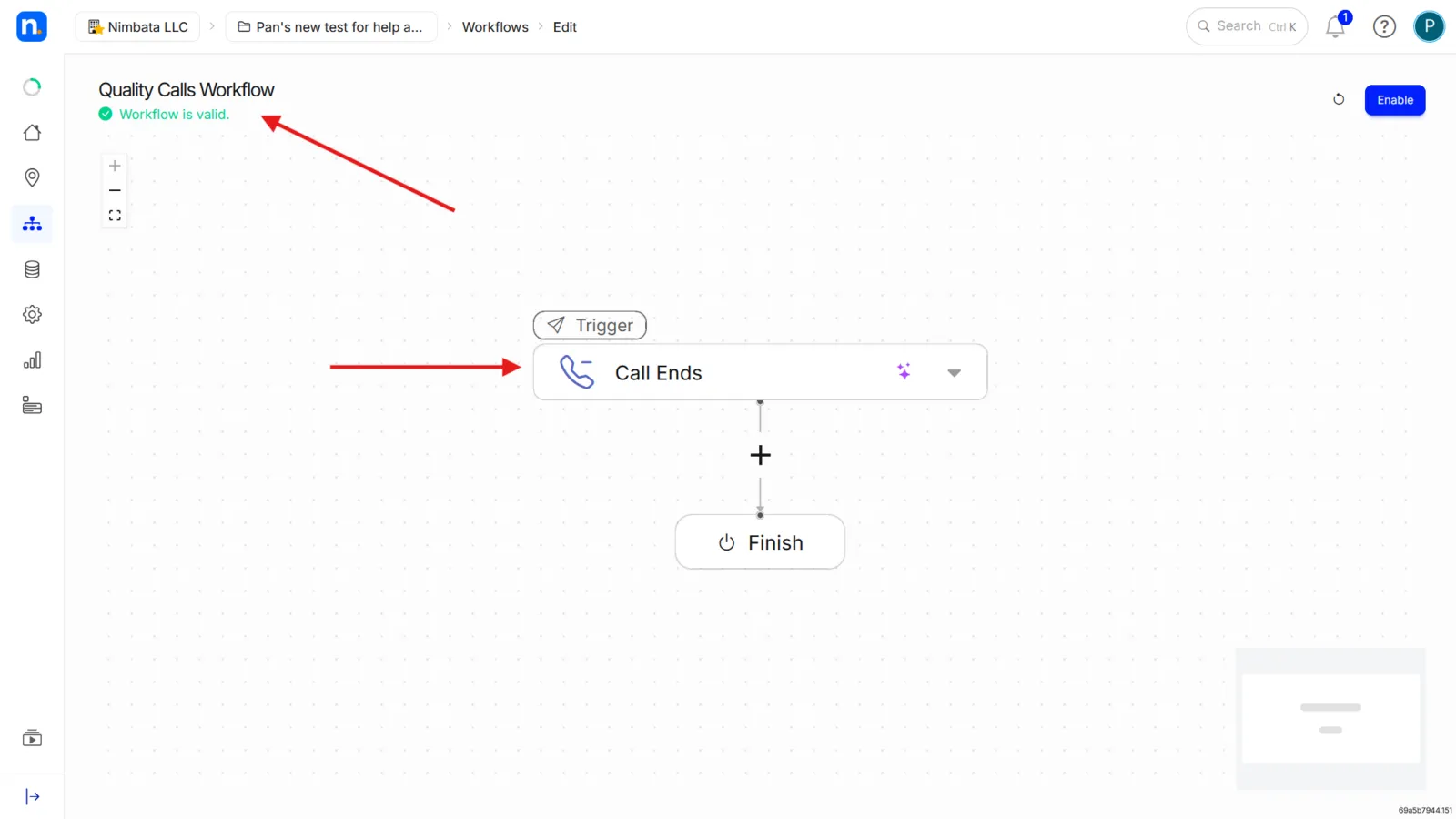
Trigger on Call Ends
- Make sure your workflow triggers when Call Ends.
- Optionally, nickname your workflow.
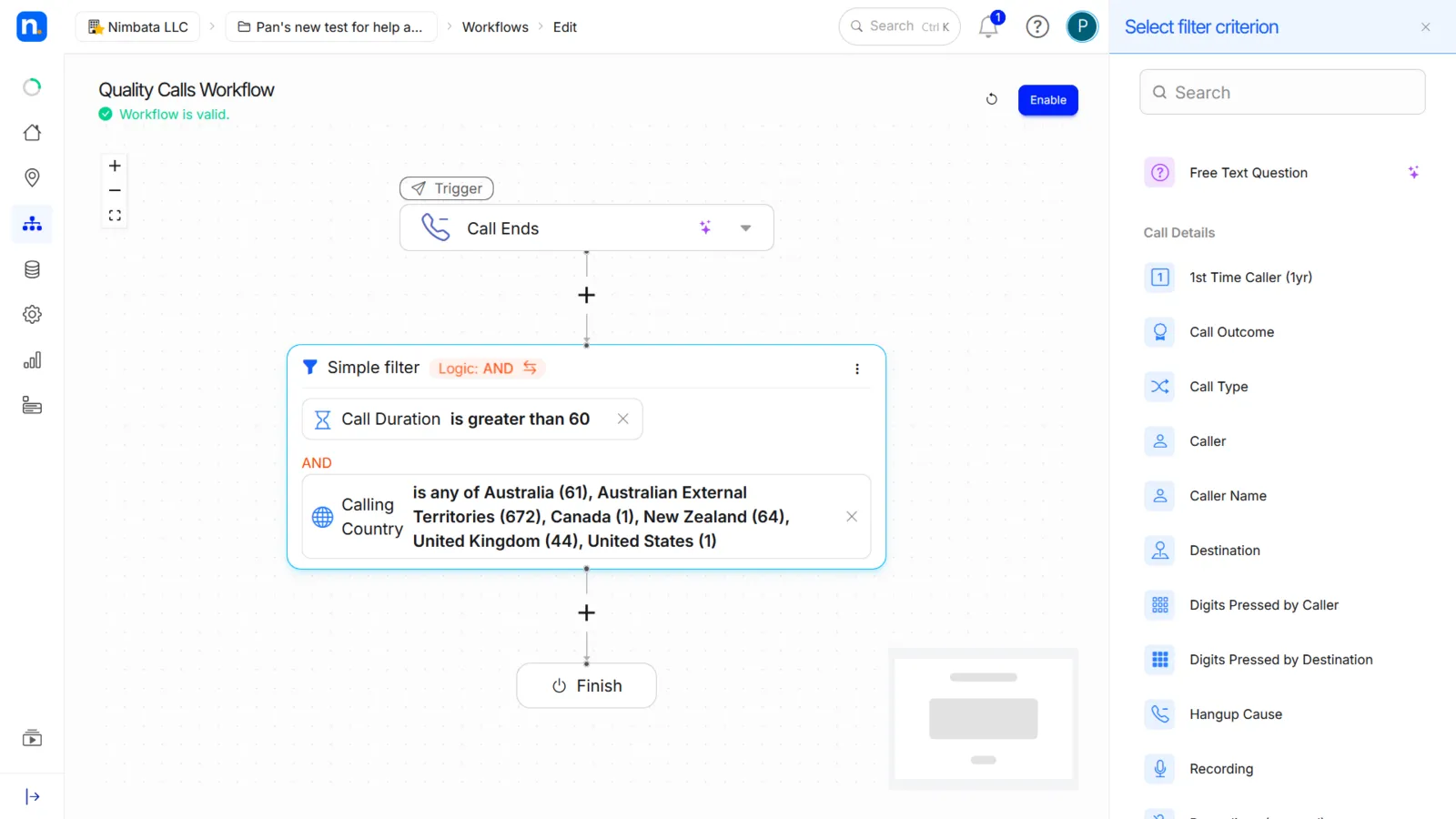
Add your filters
- Click the + plus sign and select Add filter to add the filter criteria for this workflow.
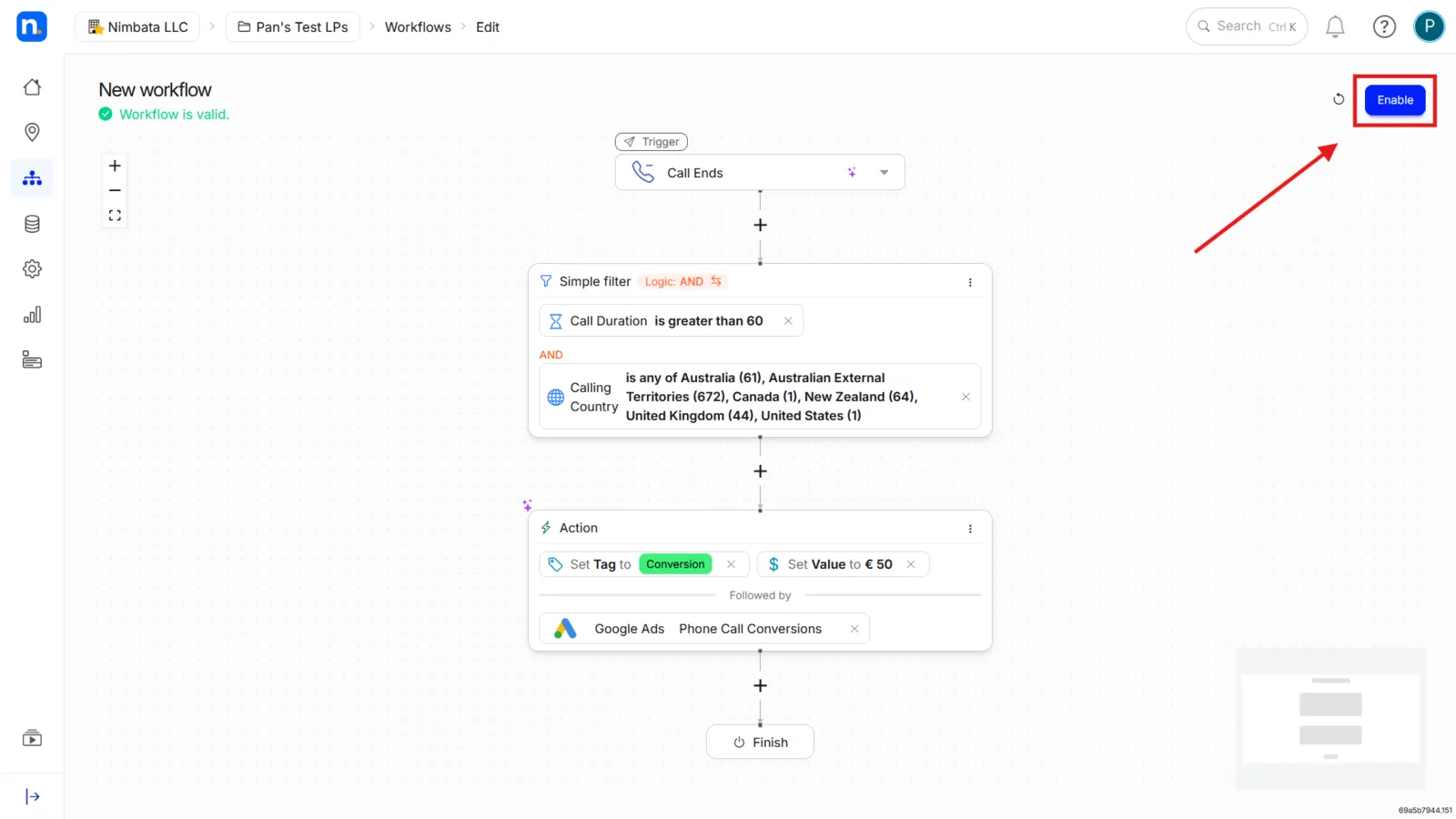
- Select when you want a call to be assigned a value and sent to Google Ads. This example uses callers from English-speaking countries and a call duration greater than 60 seconds.
Add an action
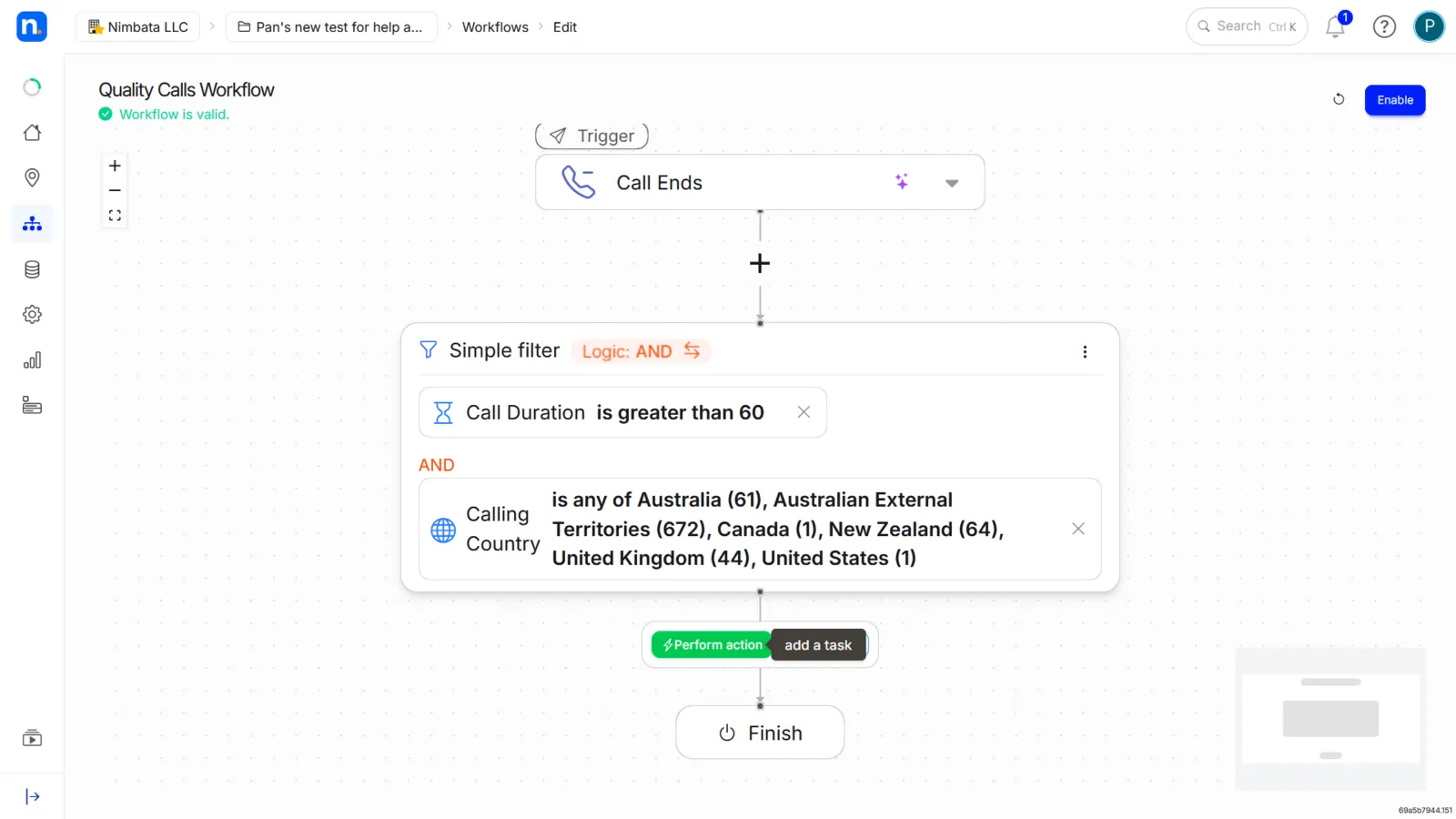
- Click the + plus sign below your simple filters and select Perform action.
Set the tag and value
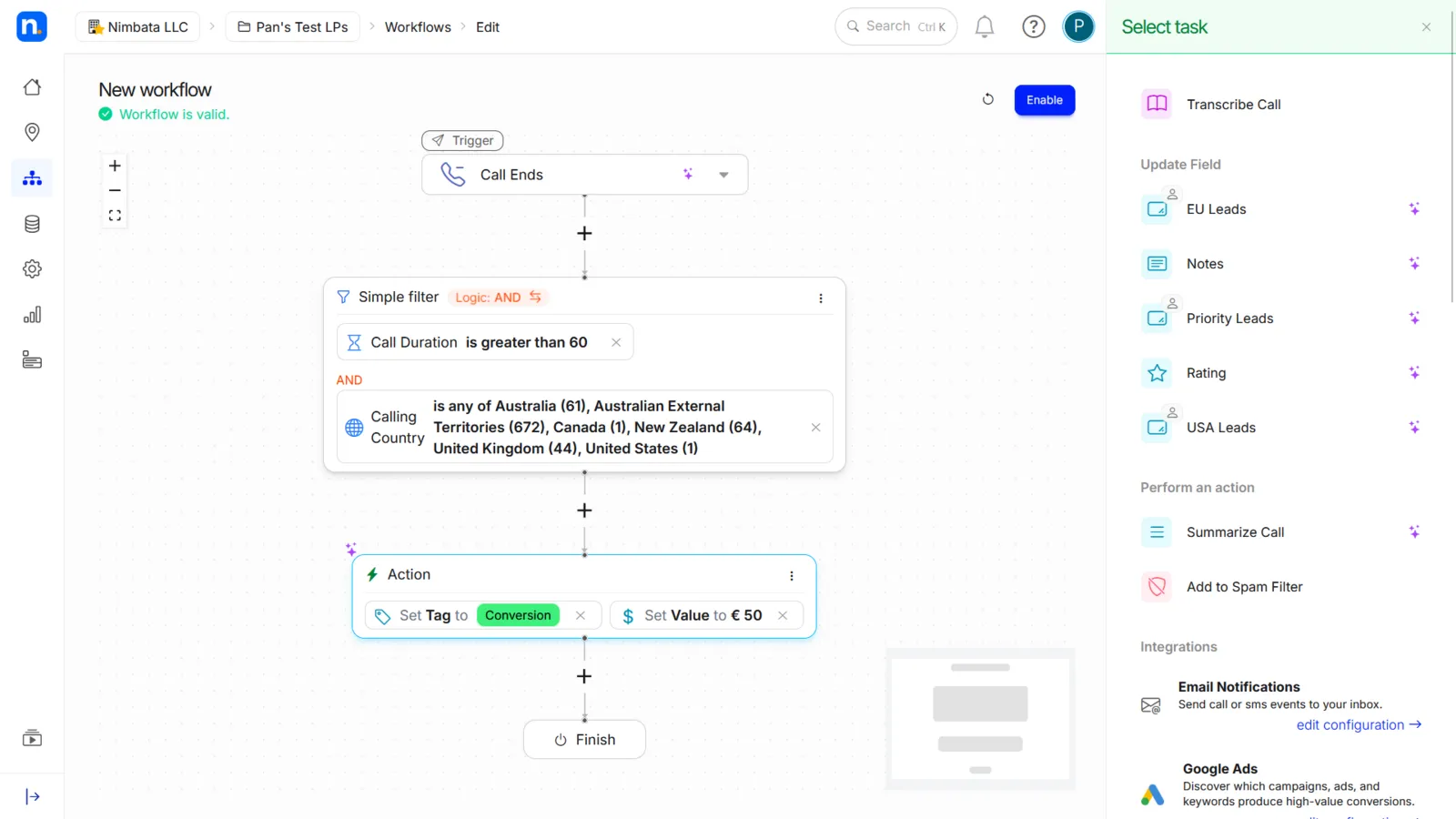
- Select the Tag task and assign the Conversion tag to the calls that meet these criteria.
- Then select the Value task and assign the value you wish to the calls.
Send the conversion to Google Ads
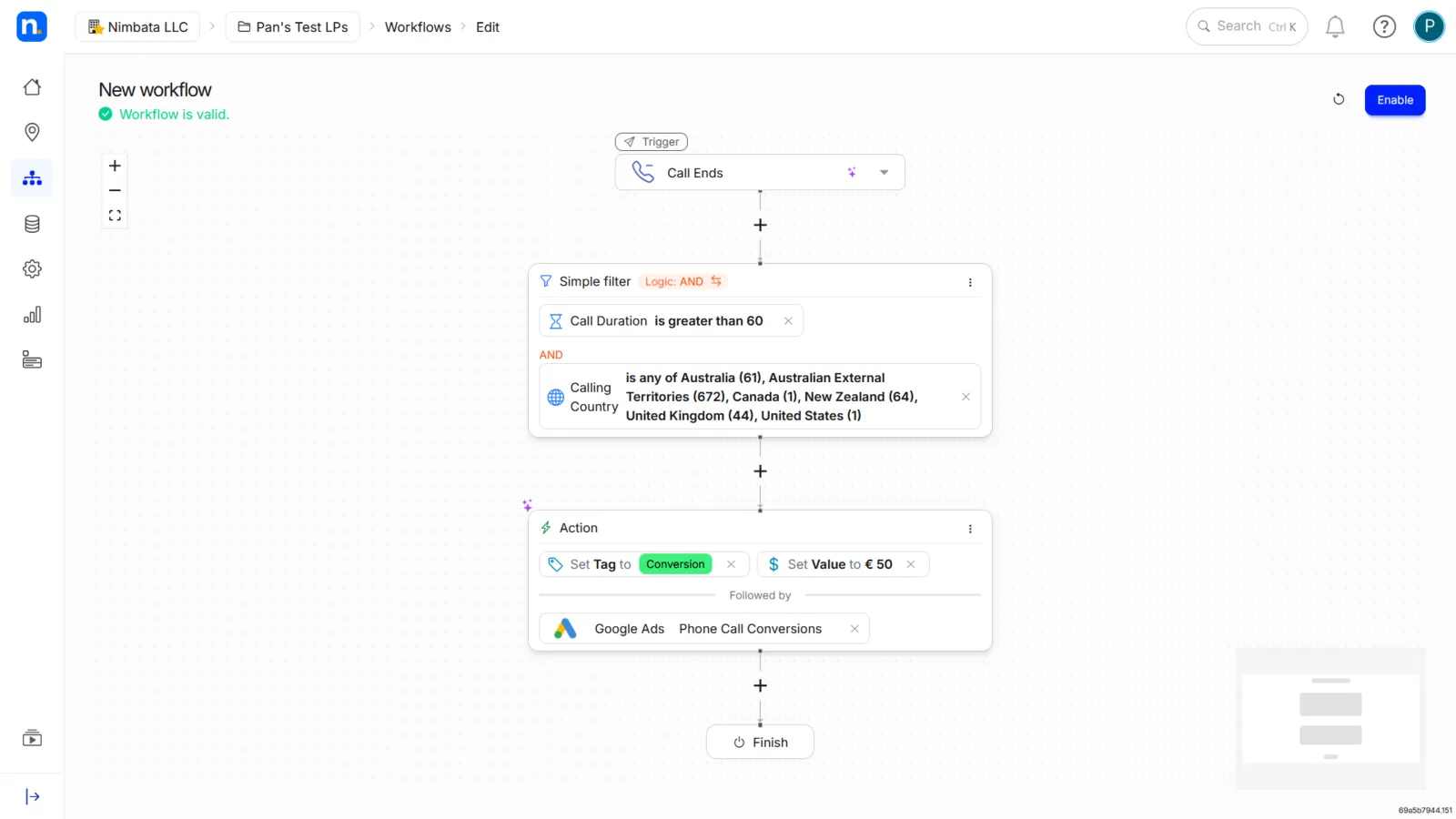
- Click the + plus sign below the Actions you’ve just selected.
- Click Google Ads under Integrations to send your conversions to your Google Ads account.
Enable the workflow
- Click Enable to activate the workflow.
Send values with a keyword spotting workflow
This workflow is similar to the quality calls workflow, but uses keyword spotting instead. Follow its first two steps (add a workflow, trigger on Call Ends), then return here.
Add a Word & Phrase Spotting filter
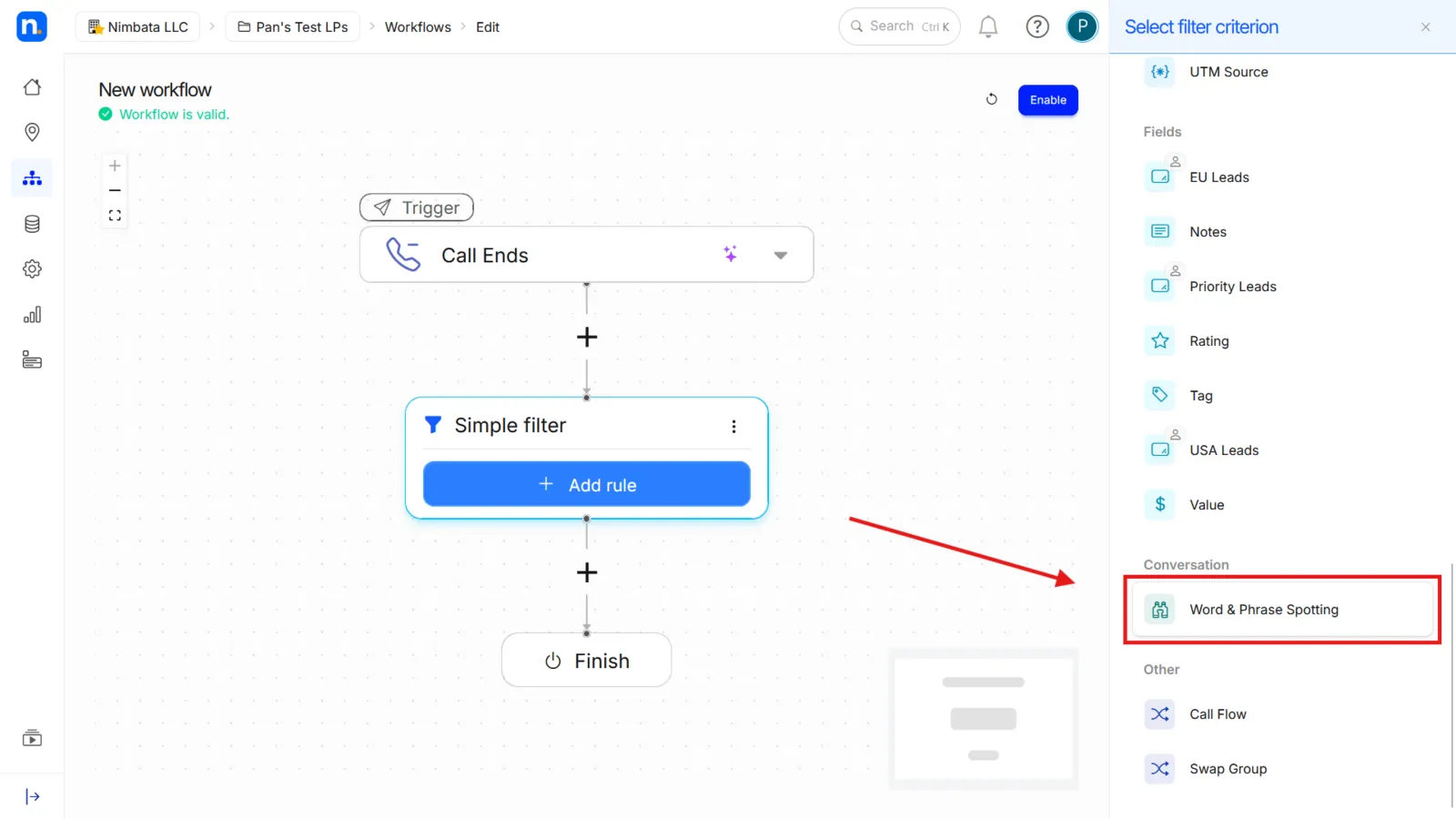
- Click the + plus sign and select Add filter.
- Scroll down to the Conversation section of the filter criterion menu.
- Select Word & Phrase Spotting.
Type your keywords and phrases
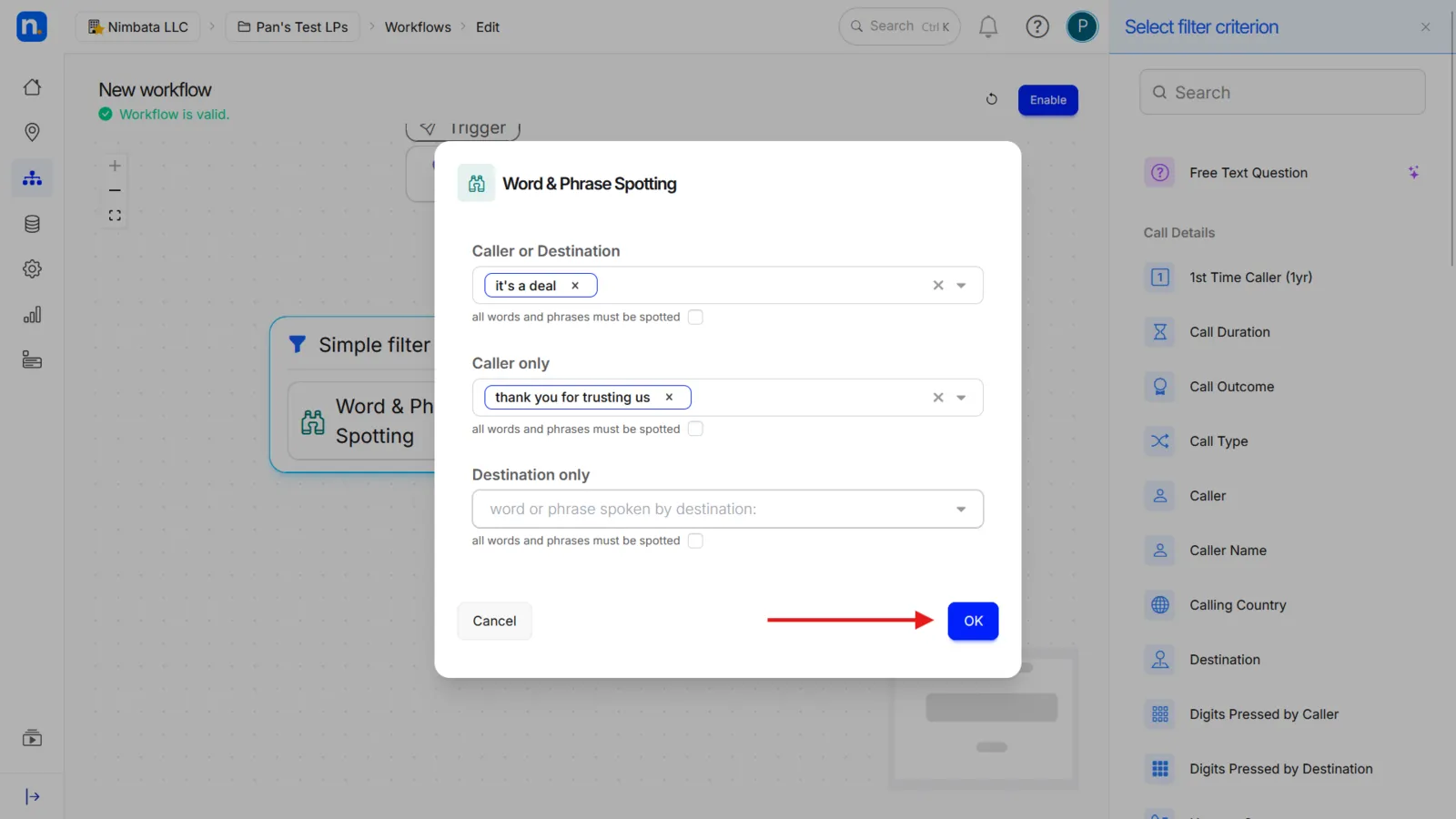
- Type the keywords or phrases that you believe indicate a conversion or help indicate the value of a call. You can ask your team for specific keywords used in closed deals, for example Thank you for trusting us.
- In this menu, the caller is the one who calls your business and the destination is the one picking up the phone.
Finish the workflow
- When your keyword and phrase list is complete, click OK.
- Finish setting up the workflow with the last four steps of the quality calls workflow (add an action, set the tag and value, send the conversion to Google Ads, enable the workflow).
Those are the three ways of sending value back to Google Ads. The manual way might be the most accurate, but it is also the most time consuming. The other two rely more on your experience and business acumen, but we believe they are also pretty safe to use.
Enhanced conversions
Google Ads Enhanced Conversions is a feature that improves conversion measurement by sending hashed, first-party customer data to Google in a privacy-safe way. Google Ads uses this data to help match conversions that may not be attributed through standard tracking alone. This can be useful in cases where standard conversion tracking is limited.
How Nimbata sends enhanced conversions
Nimbata supports Enhanced Conversions by sending caller ID data in hashed form through the Google Ads API, in accordance with Google Ads requirements. Google Ads uses the hashed data to help match conversions where applicable.
Turn on enhanced conversions
Tip
Make sure the Google Ads integration is already set up before following the steps below: Connect Google Ads
Open the Google Ads integration
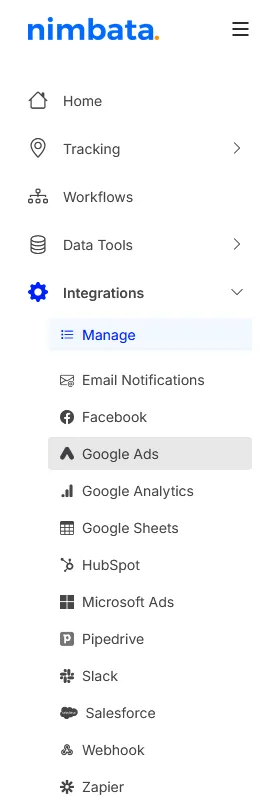
- Go to Integrations > Google Ads.
Check Use enhanced conversion
- Check the Use enhanced conversion box to enable the setting. Nimbata displays a confirmation message once the setting is saved.
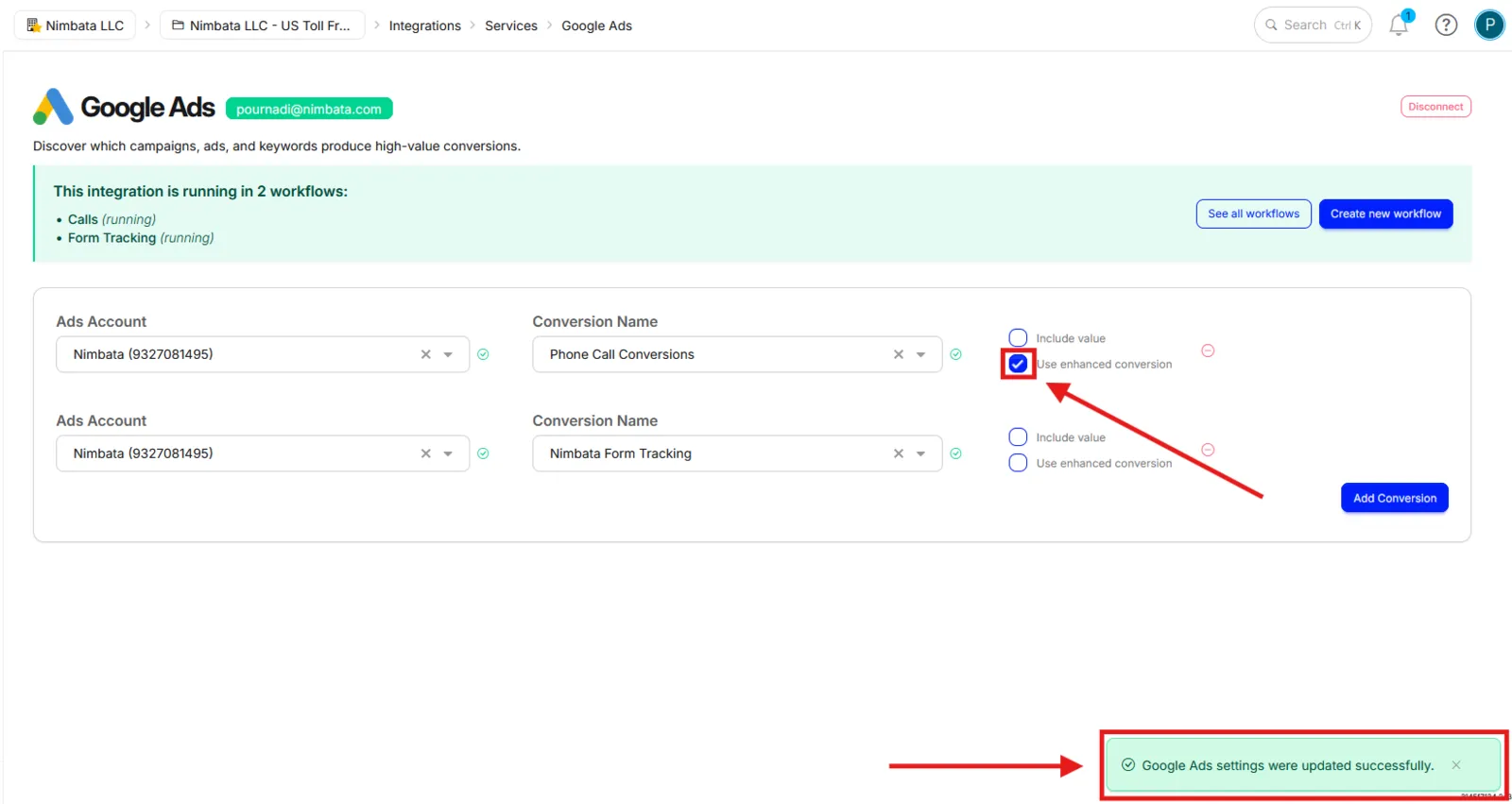
Once enabled, Enhanced Conversions are included when call conversions are sent to Google Ads.
Note
Nimbata currently supports Enhanced Conversions using hashed caller ID data.
Import call events from GA4
Import Nimbata call events from GA4 into Google Ads as conversion actions, so calls recorded by Nimbata and sent to GA4 are visible directly in your Google Ads campaigns.
Before you start, make sure you have:
- Nimbata integrated with GA4
- Google Ads linked to your GA4 property
- Your call event appearing in GA4 under Events
- Your event toggled as a Conversion in GA4.
Tip
Once the above steps are complete, you can import your GA4 call events into Google Ads.
Start a new conversion action in Google Ads
In Google Ads:
- Go to Goals > Conversions > Summary.
- Click + Create conversion action.
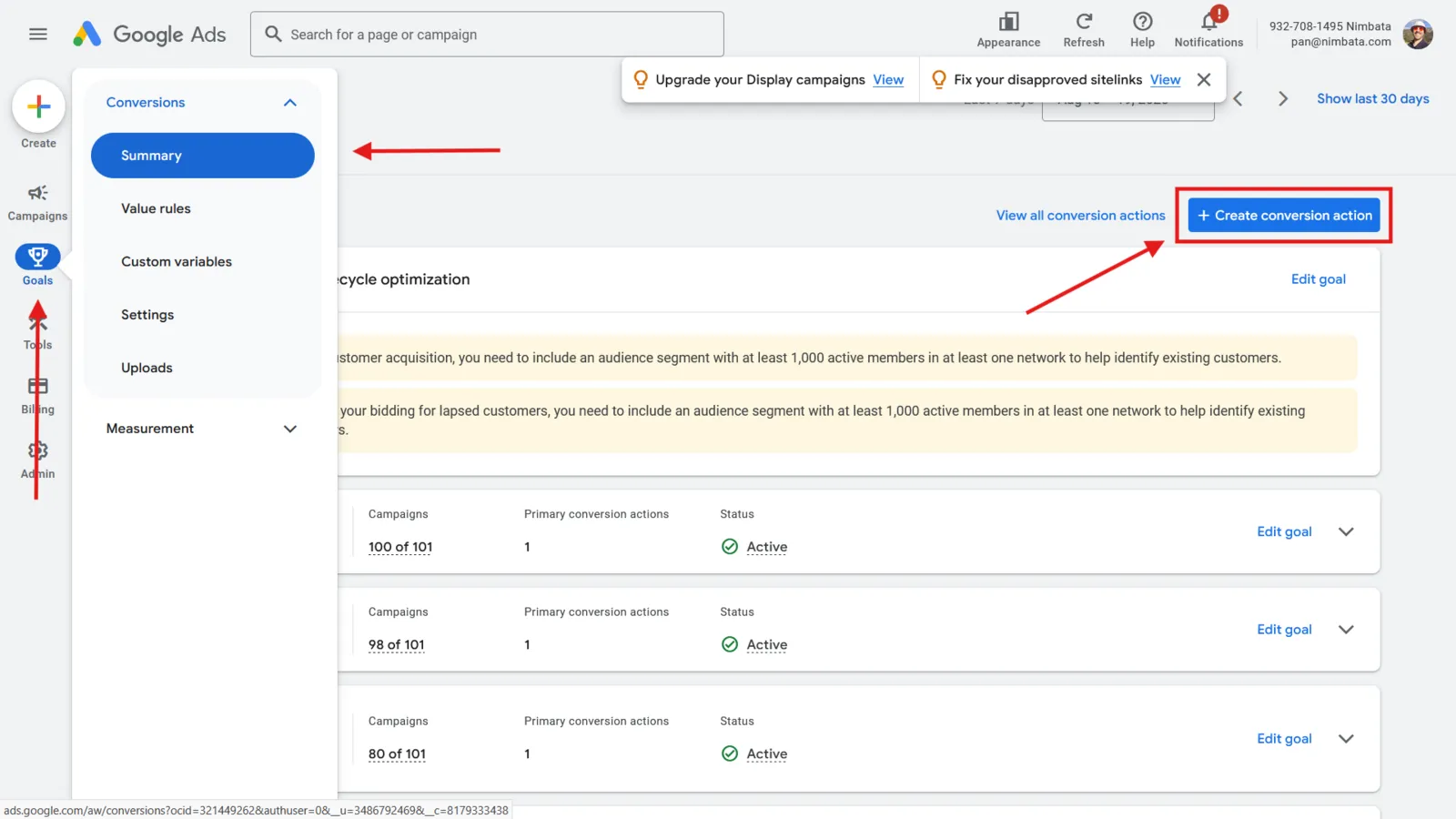
Select Import as the conversion source
- On the Start tracking conversions screen, select Import.
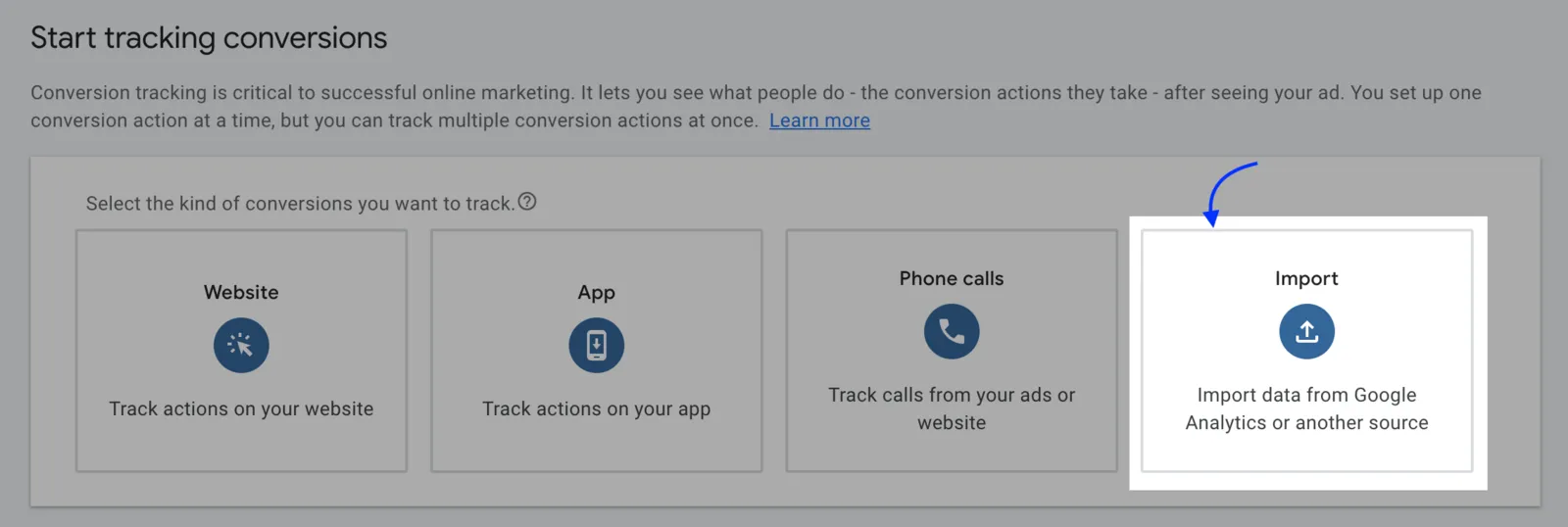
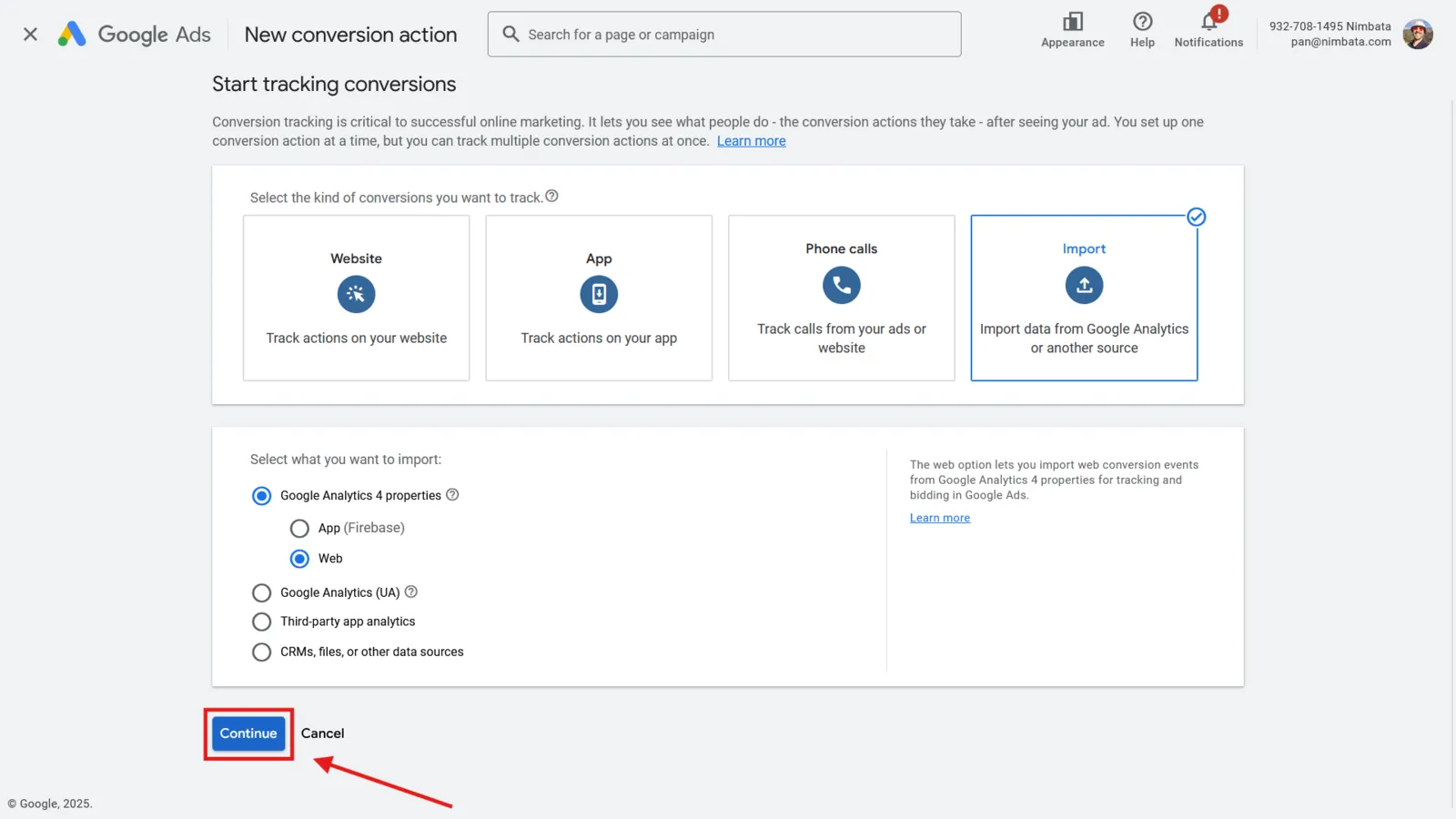
Choose your GA4 property
- Select Google Analytics 4 properties > Web from the options that appear.
- Click Continue.
Select and import your call events
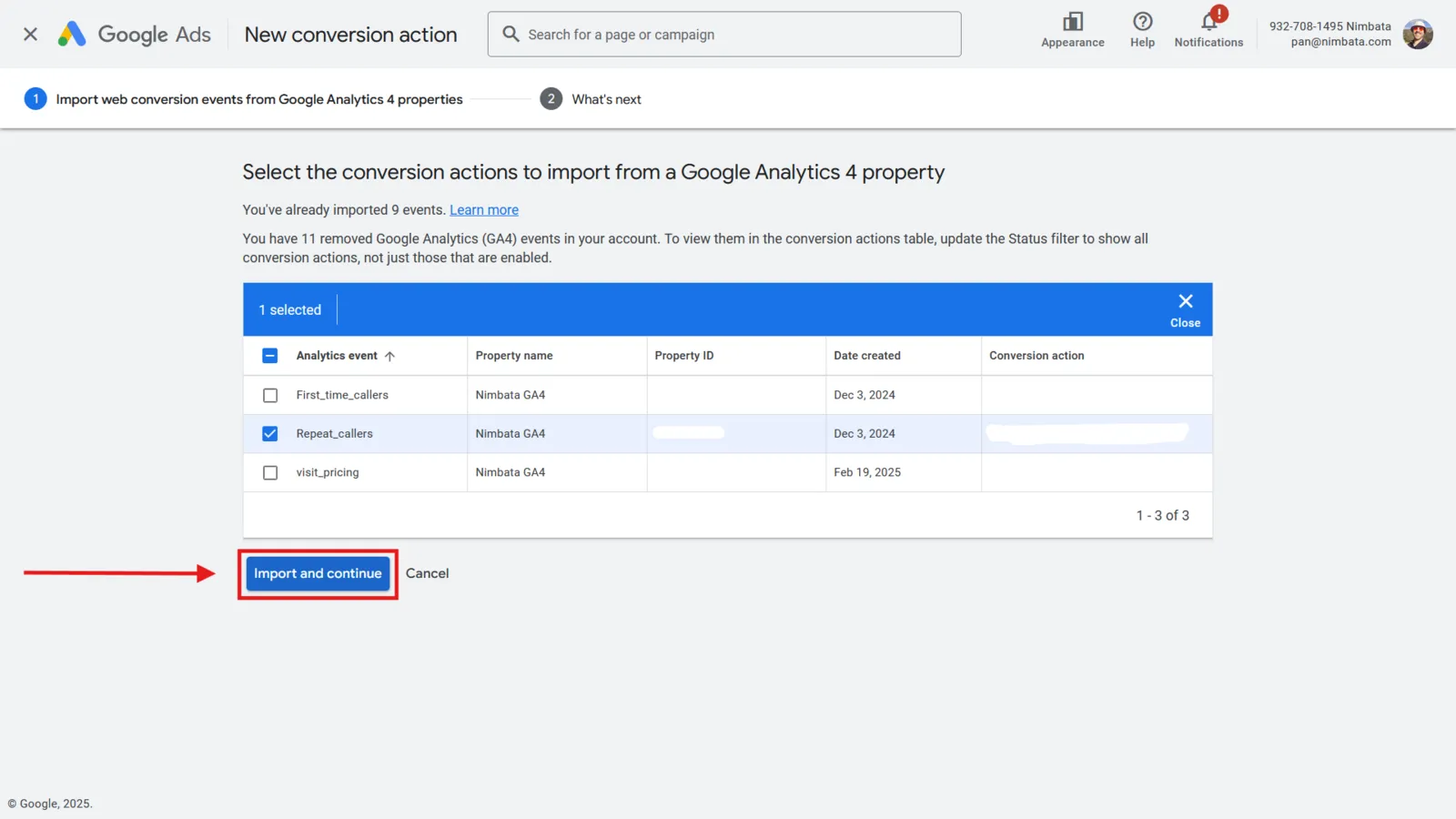
- Select the conversion actions to import from your GA4 property.
- Click Import and continue.
Review and adjust your conversion settings
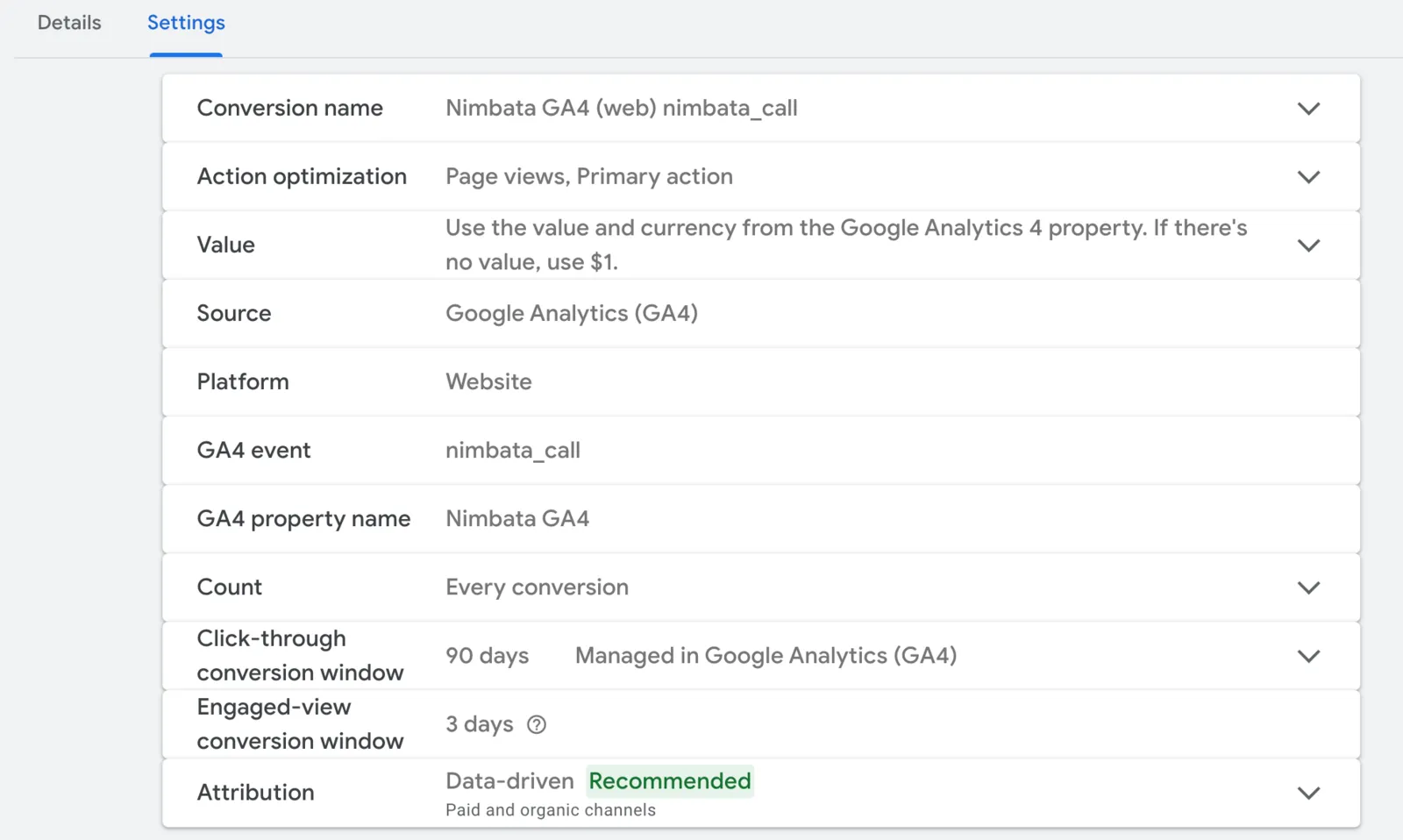
Once imported, your GA4 call events appear as conversion actions in Google Ads. To adjust conversion settings later:
- Return to the Summary view.
- Select the conversion.
- Edit its settings as needed.
🎉 That’s it! Imported conversions may take some time to appear in Google Ads, depending on GA4 and Google Ads processing.