
Create a separate project for each client domain to ensure correct attribution. You manage your projects from the Projects page in Account Settings.
Create or duplicate a project
You can reach the project creation screen from two places in the app:
- Via the project menu: click the project name in the top navigation to open the project menu, then click Create Project.
- Via Account Settings: click your user avatar in the top-right corner, select Projects from the drop-down menu, then click + Add in the upper-right corner.
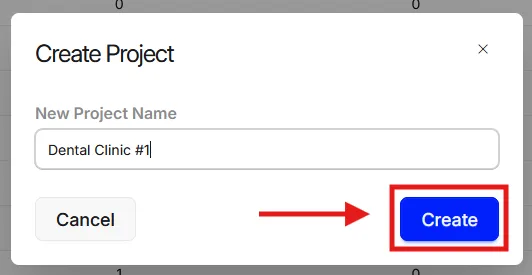
Name the project
- Enter a name for the project.
- Click Create.
Add more projects if needed
To add another project for the same client, choose one of two options:
Option A: Add from scratch:
- Click Add.
- Name the new project.
- Click Create.
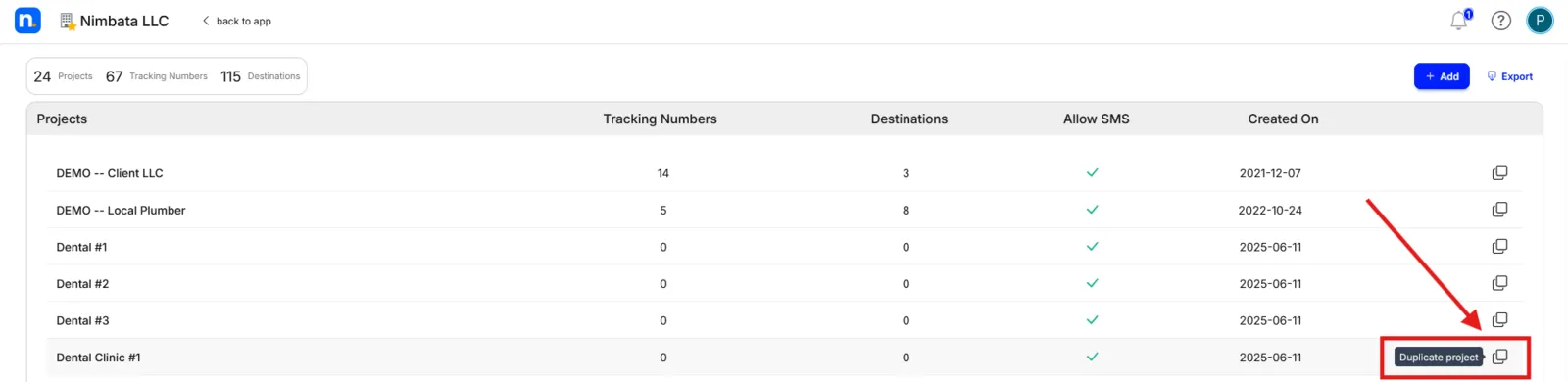
Option B: Duplicate an existing project:
- Click Duplicate project next to the project you want to copy.
- Name the new project.
- Click Copy.
Configure the project details
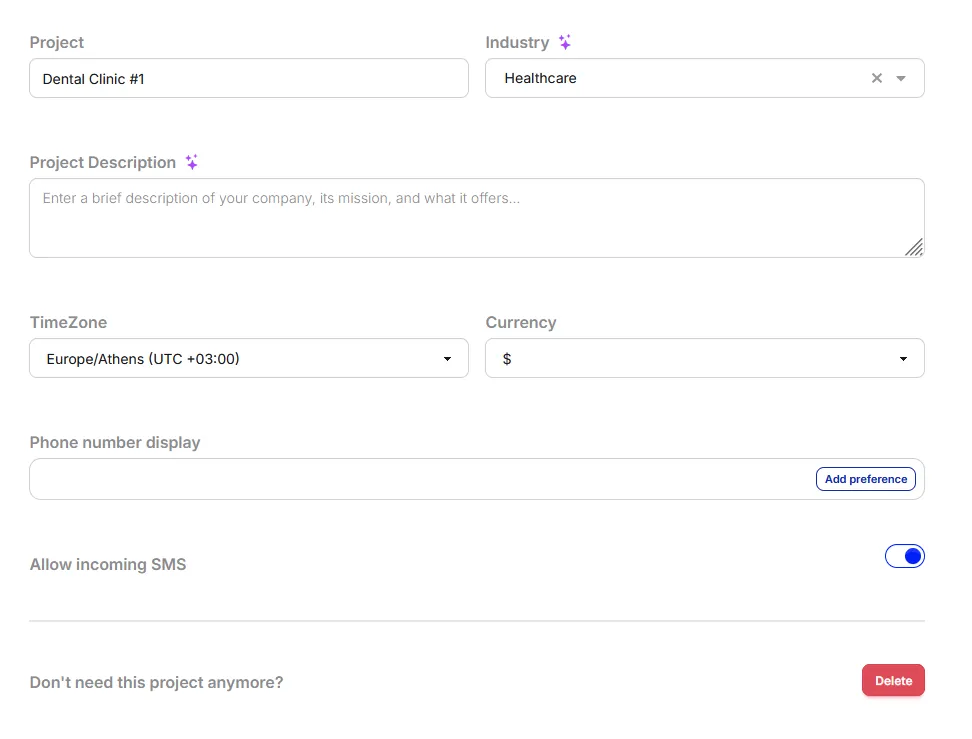
- Click the project to open its settings.
- Fill in the Project name, and optionally the Industry and Project description.
- Set the Timezone and Currency.
- Optionally, click Add preference to set your preferred phone number display format for this project.
🎉 Your new project is ready and visible in the project list under your account.
Detailed guide: Edit a project
Detailed guide: Delete a project
Edit a project
Open Projects
- Click your user avatar in the top-right corner.
- Select Projects.
Open the project
- Click the name of the project you want to edit.
Make your changes
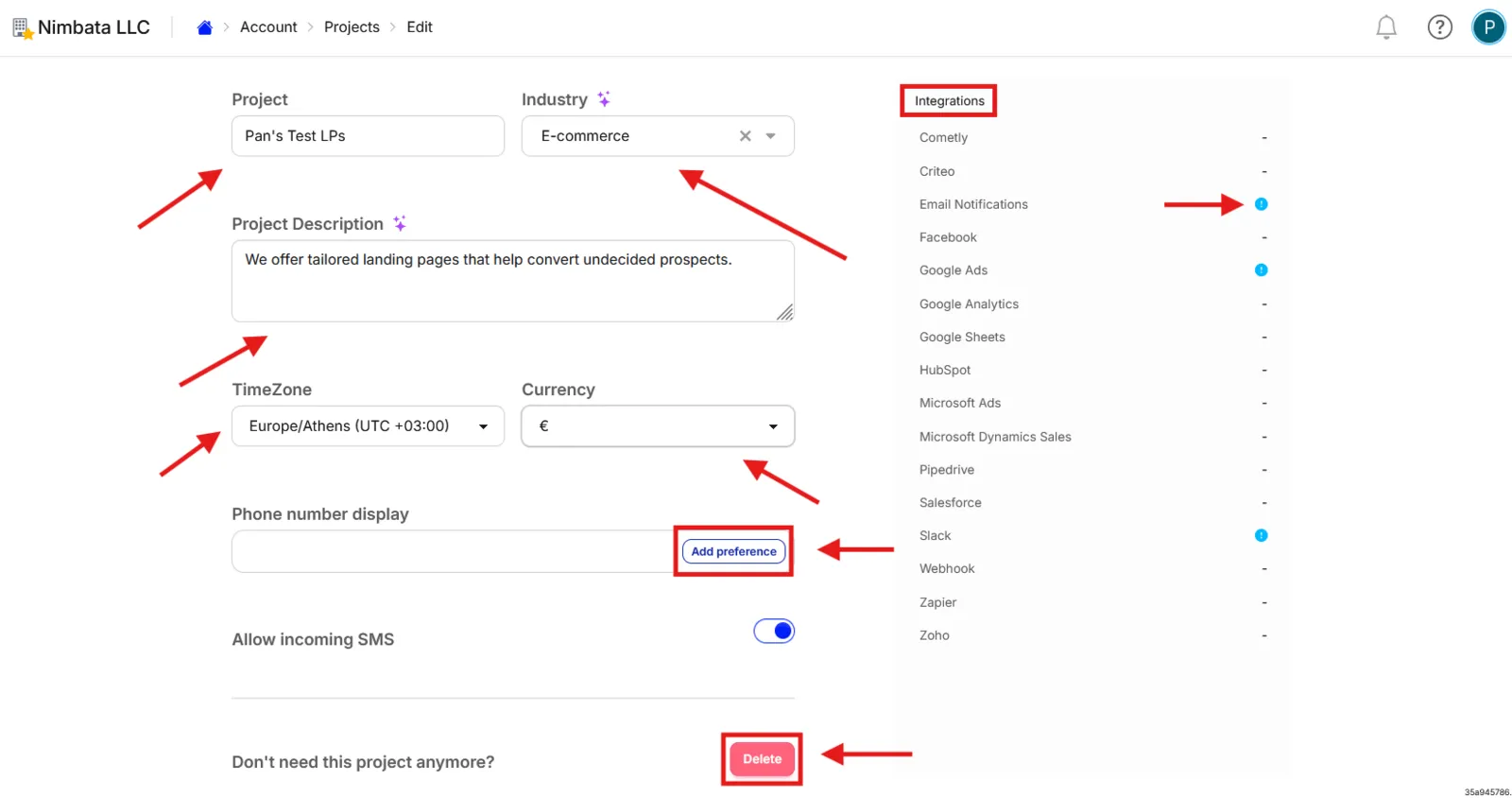
From the project settings page you can update any of the following. All changes save automatically.
- Project name
- Industry (optional)
- Project description (optional)
- Timezone
- Currency
- Phone number display preference
- View which integrations and add-ons are enabled
- Delete the project
🎉 Your changes have been saved. A confirmation message will appear at the top of the screen.
Detailed guide: Create or duplicate a project
Detailed guide: Delete a project
Export a project
Exporting a project is useful when you want to share data with someone who doesn’t have access to your Nimbata account.
Open Projects
- Click your user avatar in the top-right corner.
- Select Projects.
Export the project
- Click the Export button in the upper-right corner of the Projects page.
- Choose your preferred format: Excel or CSV.
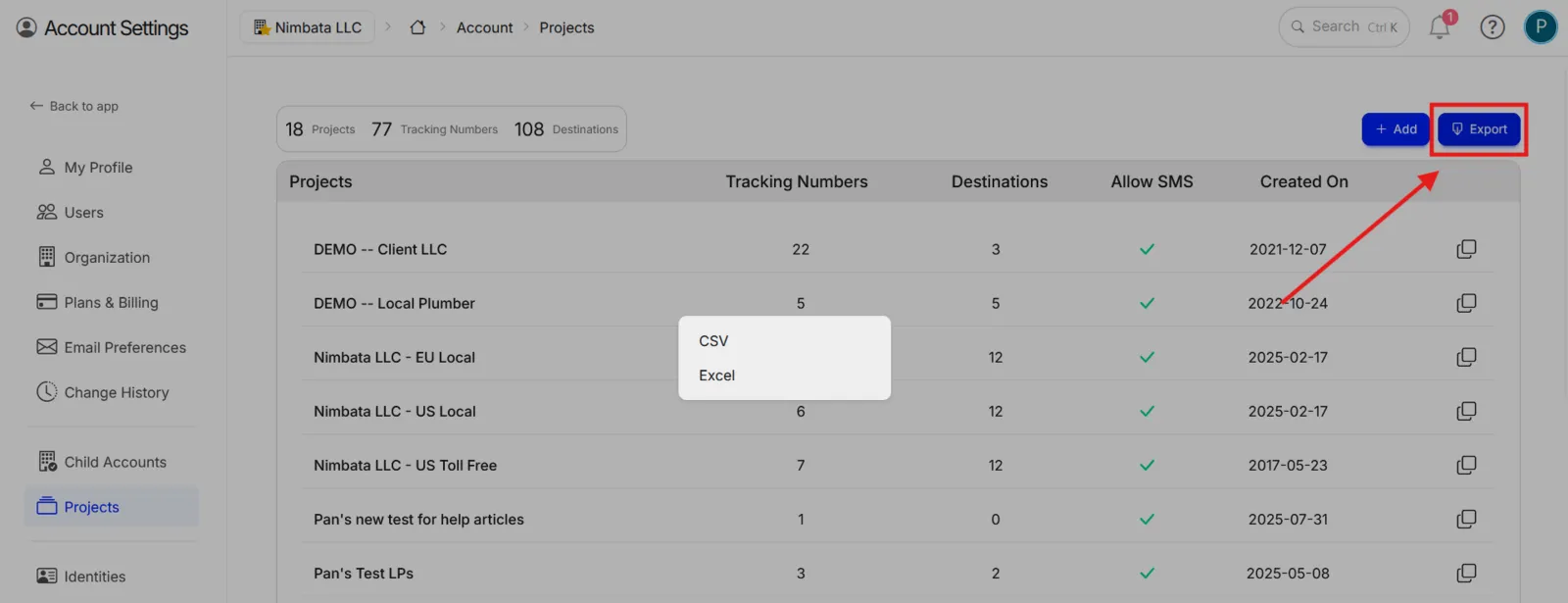
🎉 The file will download to your device immediately.
Detailed guide: Create or duplicate a project
Pause a project
Nimbata has no pause option for a project or a subscription. If you or the client may want to resume later, you have two choices:
- Stop paying for the numbers: delete the project’s tracking numbers. You stop being charged for them, but a deleted number is released and can’t be recovered, so you add new numbers when you resume. Your plan’s own fee continues until you downgrade or cancel it.
- Keep the numbers: they stay in your account and you keep paying for them. Removing a number from its call flow stops calls from routing, but not the charge for the number.
Either way, the project itself, with its call flows, forms and integrations, stays in your account for when you resume.
Note
To delete your tracking numbers, see: Delete a number.
Detailed guide: Delete a number
Detailed guide: Change your plan
Delete a project
Warning
Deleting a project is permanent. Before proceeding, make sure the project has no tracking numbers or destination numbers still assigned to it.
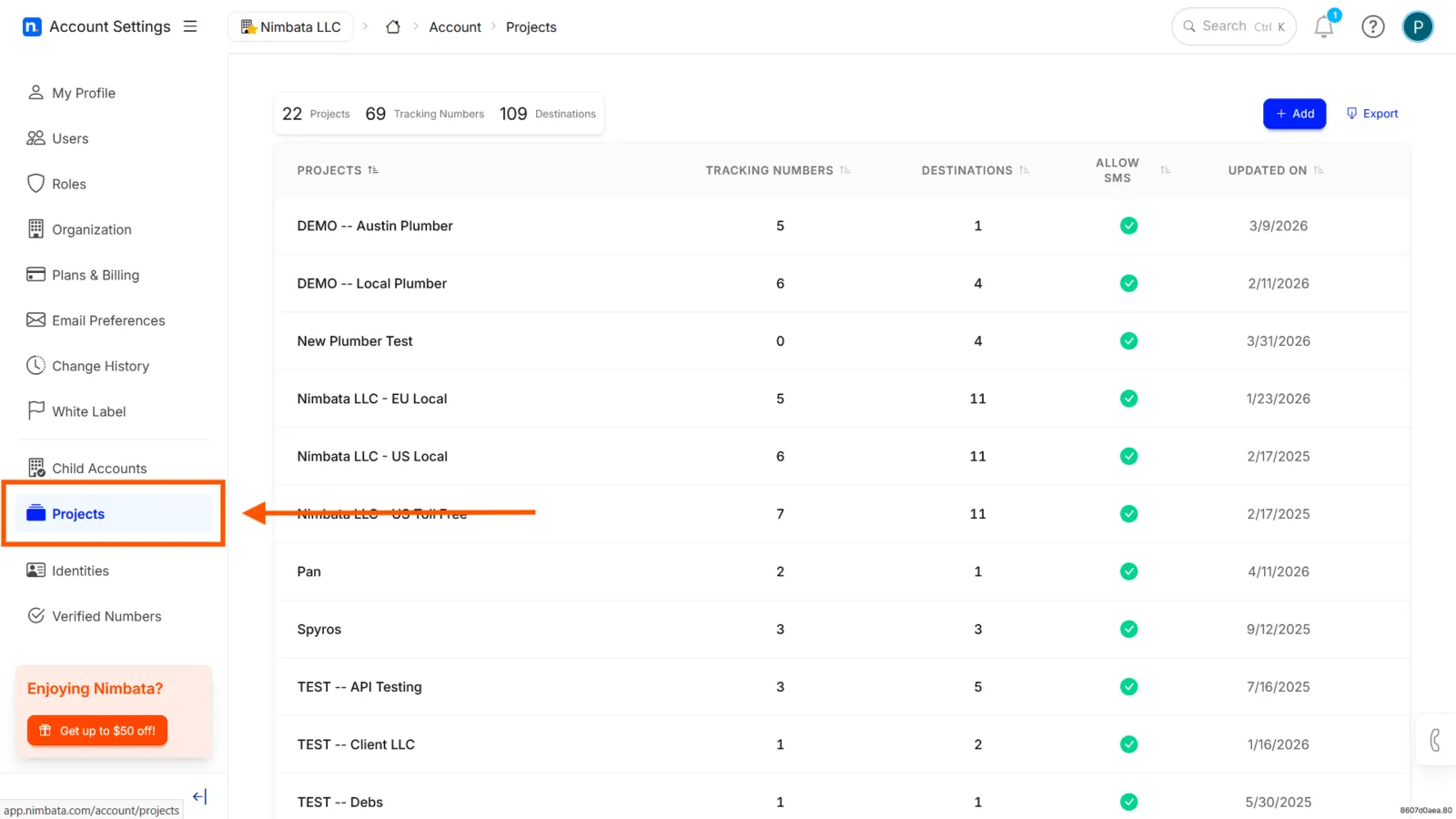
Open Projects
- Click your user avatar in the top-right corner.
- Select Projects.
Open the project
- Click the name of the project you want to delete.
Click Delete
- Scroll to the bottom of the project settings page.
- Click the Delete button.
Confirm deletion
- Click Remove in the confirmation pop-up.
🎉 The project has been deleted. A confirmation message will appear at the top of the screen.
If deletion fails
If a red error message appears, the project is still tied to one or more tracking numbers or destination numbers. Remove or reassign those numbers first, then try again.
Detailed guide: Delete a number
Detailed guide: Edit a project