
Add teammates to your Nimbata account and control exactly which projects and features each person can access. Organization roles control access across the account; project roles control it one project at a time.
Add users
Warning
Before proceeding, make sure you are logged in with an admin account.
Go to Users
- Go to Account > Users.
Open the invite form
- Click Invite user in the upper-right corner of the screen.
Fill in the user details and set permissions
Under User Details:
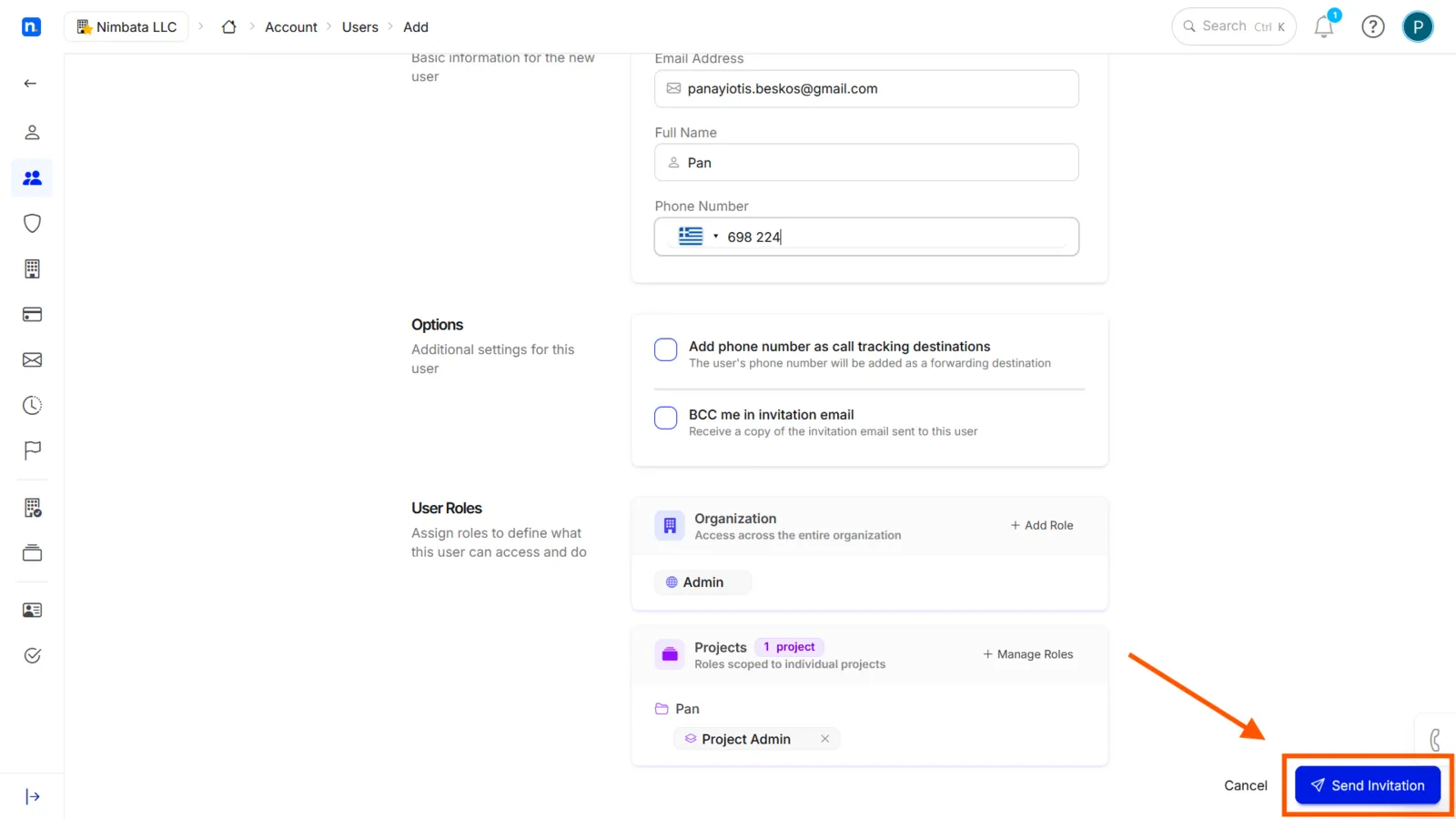
- Enter the user’s Email Address. This will be their username. They will receive their password in their inbox.
- Enter their Full Name.
- Optionally, enter their Phone Number with country prefix.
Under Options (Optional):
- Check Add phone number as call tracking destinations to add the user’s phone number as a forwarding destination.
Under User Roles:
- Under Organization (access across the entire organization), click + Add Role to grant an organization role.
- Under Projects, click + Manage Roles to grant the user a role in one or more projects.
- The roles you can grant are your account’s organization roles and project roles: see Organization roles and Project roles.
List of roles:
Role Access Admin Full administrative access; can add tracking numbers, set up call flows, manage users, and more Power Can create and view users, but does not have full admin privileges User Access to Analytics, Integrations, and Tagging Analytics & Integrations Access to Analytics and Integrations only Analytics & Tagging Only Access to Analytics and Tagging only Analytics Only Access to Analytics only Tip
Hover over the ? icon next to each role for a detailed breakdown of its permissions.
Save the new user
- Click Send Invitation at the bottom-right of the form.
- This will invite your user to join the account.
🎉 The user has been created. They will receive an invitation email with their login credentials.
Detailed guide: Organization roles
Detailed guide: Project roles
Detailed guide: Remove a user
Edit a user
You can edit a user account’s general and security information.
Open Account Settings
- Click your user avatar in the top-right corner.
- Select Account Settings.
Go to the Users tab
- Click the Users tab.
Open the user
- Click the name of the user you want to edit.
Make your changes
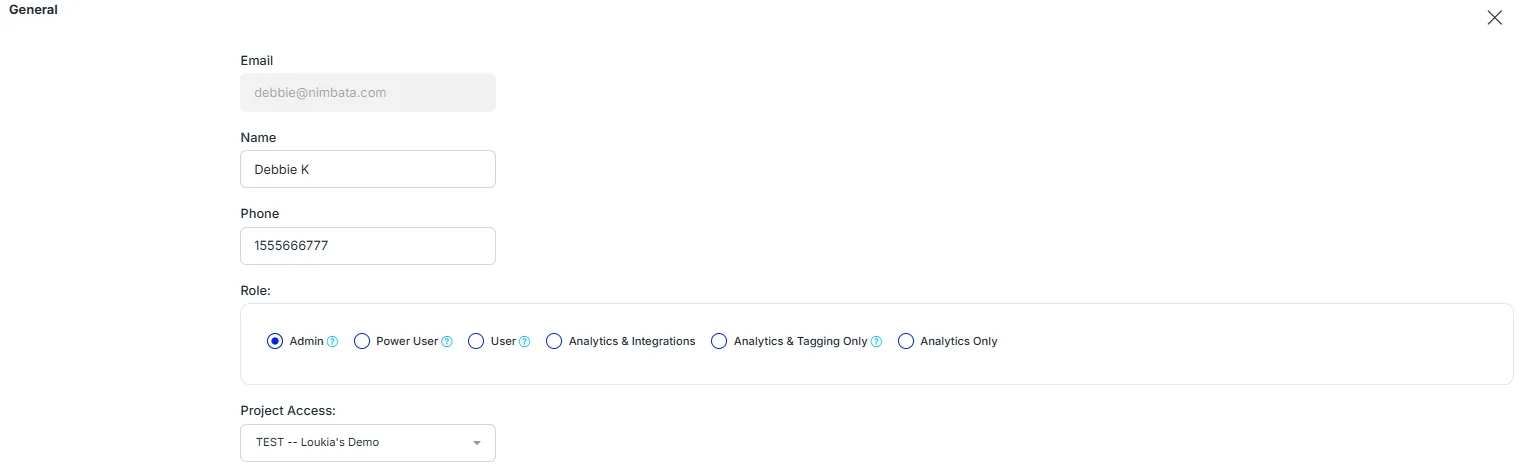
In the General section you can update the user’s information, access rights, and project access.
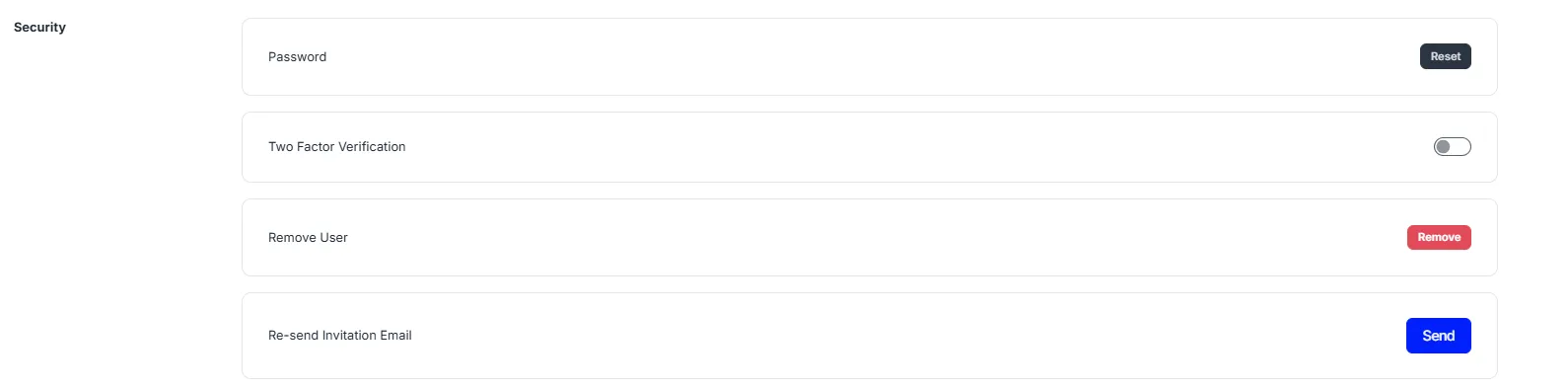
In the Security section you can enable or disable two-factor authentication, reset the user’s password, or remove the user from the account.
🎉 The user’s settings have been updated successfully.
Detailed guide: Add users
Detailed guide: Remove a user
Remove a user
Warning
Before proceeding, make sure you are logged in with an admin account.
Open Account Settings
- Click your user avatar in the top-right corner.
- Select Account Settings.
Go to the Users tab
- Click the Users tab in the Account Settings menu.
Open the user
- Click the name of the user you want to delete.
Click Remove
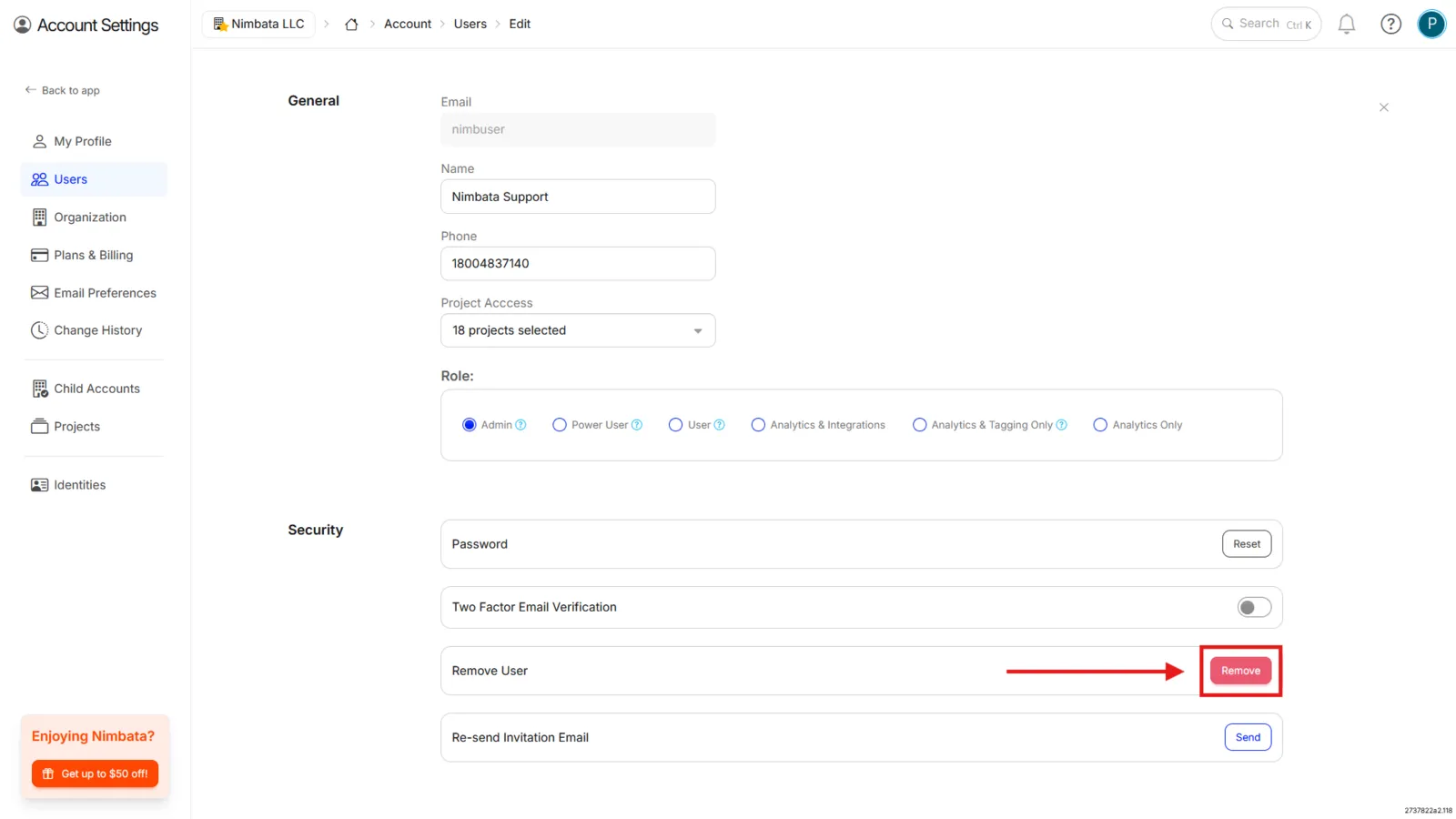
- Scroll to the Security section.
- Click the Remove button.
Confirm deletion
- Click Remove again in the confirmation pop-up.
🎉 The user has been permanently removed from your account.
Detailed guide: Add users
Detailed guide: Edit a user
Organization roles
Organization roles define what users can see and do inside a Nimbata account. They control access to settings, data, and features, so each team member has the right level of visibility and responsibility.
What an organization role can include
When creating an organization role, you can grant or restrict access to any of the following features and settings.
Account: API Access, Billing, Manager Accounts, Organization, Roles, Users, White Label
Project: Audit Log, Core, Scheduled Emails, Identities, Media Library, Roles, Users
Tracking: Call Flows, Destinations, Forms, Tracking Code, Tracking Numbers
Workflows: Workflows
Data Tools: Fields, Sources, Spam Callers, Tags
Integrations: Cometly, Criteo, Email, Facebook, Google Ads, Google Analytics, Google Sheets, HubSpot, Microsoft Ads, Microsoft Dynamics, Pipedrive, Salesforce, Slack, Webhook, Zapier, Zoho
Activity & Dashboards: Dashboards Views, Calls, Recordings & Transcriptions, Forms, Live, SMS Log
Each item can be configured with Read, Create, Update, and Delete permissions independently.
Create an organization role
Open Roles
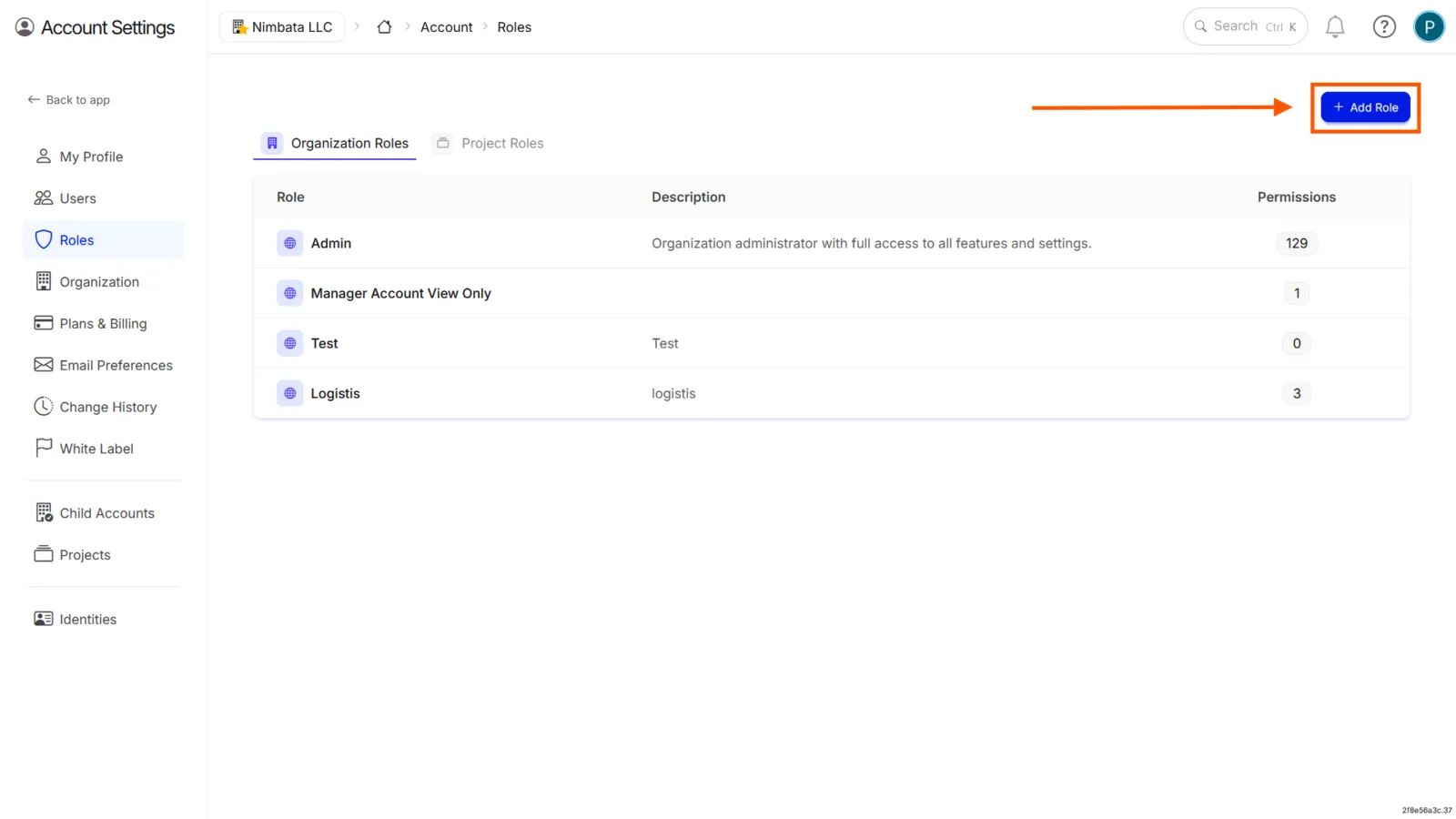
- Go to Account > Roles.
- Click + Add Role.
Name and create the role
- Fill in the Role Name and Description fields.
- Click Create.
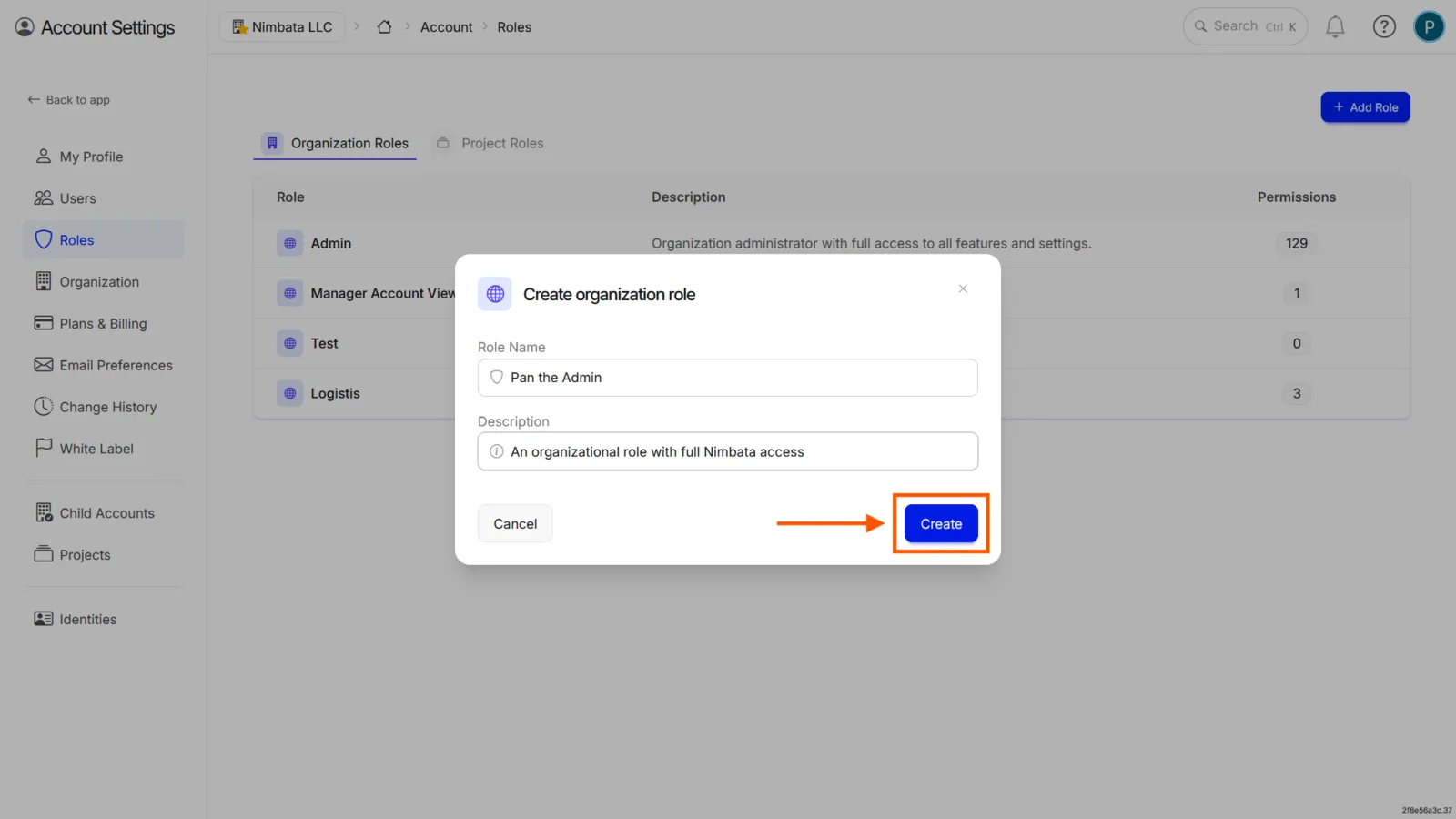
🎉 The role appears in your roles list. You can now open it to configure its permissions.
Edit an organization role
Open the role
- Go to Account > Roles.
- Click the role you want to edit.
Toggle permissions
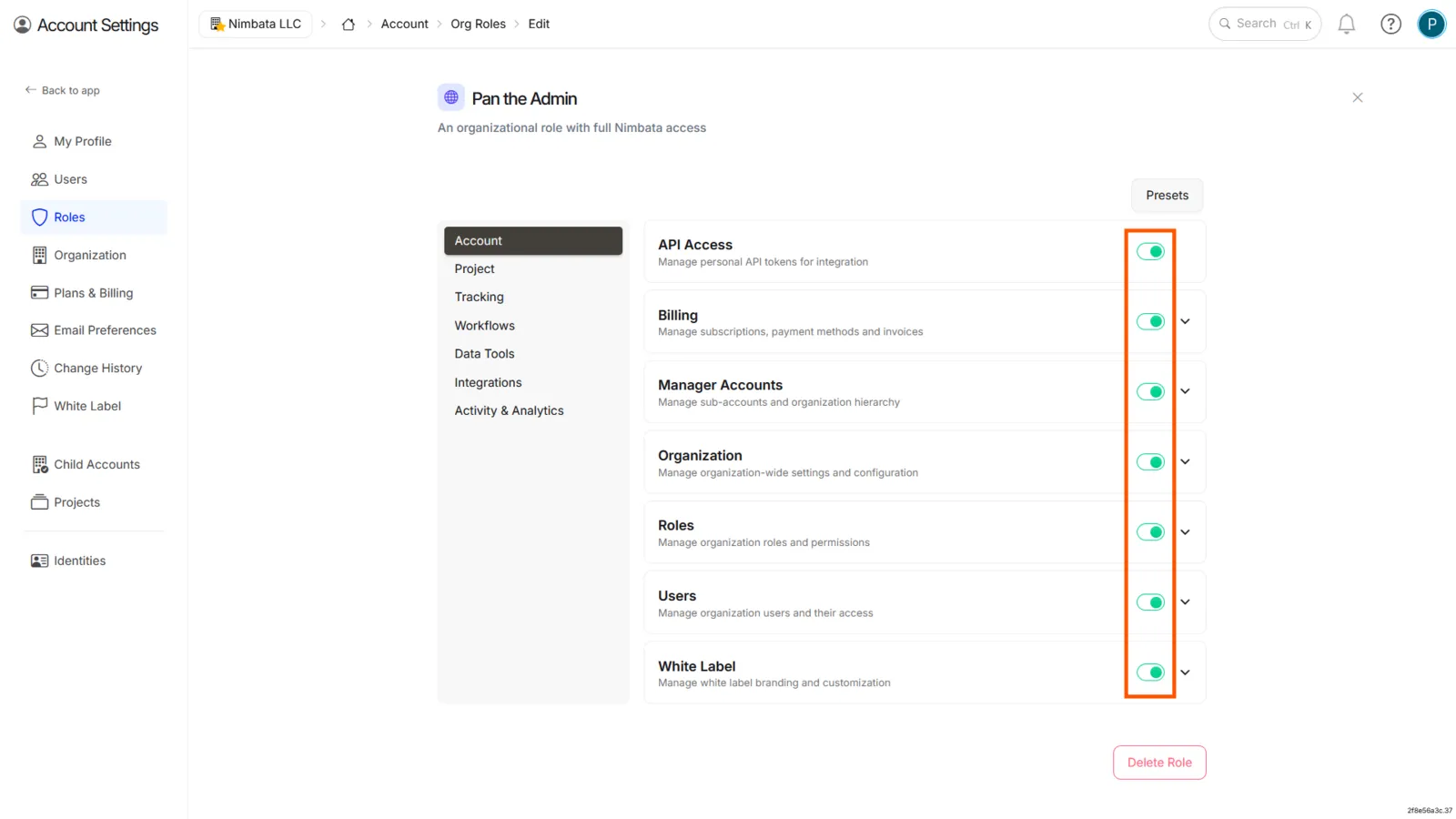
- Toggle each permission on or off as needed.
- Changes save automatically.
Gray = no permissions. Blue = some permissions. Green = all permissions.
Tip
To grant or revoke all permissions at once, click the Presets button at the top of the role and choose All Permissions or No Permissions.
Detailed guide: Project roles
Detailed guide: Add users
Project roles
Project roles define the permissions a user has within one or more Nimbata projects. The same user can have full access to one project and limited or no access to another. Access is controlled at the project level.
Pre-built project roles
New accounts start with two pre-built roles, Project Admin and Analytics Only, so you don’t need to build from scratch for most cases. Older accounts may also have the Power User, Analytics & Integrations and Analytics & Tagging Only roles in the table below.
| Permissions | Project Admin | Analytics Only | Power User | Analytics & Integrations | Analytics & Tagging Only |
|---|---|---|---|---|---|
| Project | |||||
| Audit Log | Full access | No access | No access | No access | No access |
| Core | Full access | Limited access | Limited access | Limited access | Limited access |
| Scheduled Emails | Limited access | No access | Limited access | Limited access | Limited access |
| Identities | Limited access | No access | Limited access | Limited access | No access |
| Media Library | Limited access | No access | Limited access | Limited access | No access |
| Roles | Full access | No access | Limited access | No access | No access |
| Users | Full access | No access | Limited access | No access | No access |
| Tracking | |||||
| Call Flows | Full access | No access | Limited access | Limited access | No access |
| Destinations | Full access | No access | Limited access | Limited access | No access |
| Forms | Full access | No access | Limited access | Limited access | No access |
| Tracking Code | Full access | No access | Limited access | Limited access | No access |
| Tracking Numbers | Full access | No access | Limited access | Limited access | Limited access |
| Workflows | |||||
| Workflows | Full access | No access | Limited access | Limited access | No access |
| Data Tools | |||||
| Fields | Full access | No access | Limited access | Limited access | Limited access |
| Sources | Full access | No access | Full access | Limited access | No access |
| Spam Callers | Full access | No access | Full access | Limited access | Full access |
| Tags | Full access | No access | Full access | Limited access | Limited access |
| Integrations | |||||
| Cometly | Full access | No access | Full access | Full access | No access |
| Criteo | Full access | No access | Full access | Full access | No access |
| Full access | No access | Full access | Full access | No access | |
| Full access | No access | Full access | Full access | No access | |
| Google Ads | Full access | No access | Full access | Full access | No access |
| Google Analytics | Full access | No access | Full access | Full access | No access |
| Google Sheets | Full access | No access | Full access | Full access | No access |
| HubSpot | Full access | No access | Full access | Full access | No access |
| Microsoft Ads | Full access | No access | Full access | Full access | No access |
| Microsoft Dynamics | Full access | No access | Full access | Full access | No access |
| Pipedrive | Full access | No access | Full access | Full access | No access |
| Salesforce | Full access | No access | Full access | Full access | No access |
| Slack | Full access | No access | Full access | Full access | No access |
| Webhook | Full access | No access | Full access | Full access | No access |
| Zapier | Full access | No access | Full access | Full access | No access |
| Zoho | Full access | No access | Full access | Full access | No access |
| Activity & Dashboards | |||||
| Dashboards Views | Full access | Full access | Full access | Full access | Full access |
| Calls | Full access | Full access | Full access | Full access | Full access |
| Recordings & Transcriptions | Full access | Full access | Full access | Full access | Full access |
| Forms | Full access | Full access | Full access | Full access | Full access |
| Live | Full access | Full access | Full access | Full access | Full access |
| SMS Log | Full access | Full access | Full access | Full access | Full access |
Create a project role
Open Project Roles
- Go to Account > Roles.
- Click the Project Roles tab.
- Click + Add Role.
Name and create the role
- In the Create project role pop-up, fill in the Role Name and Description fields.
- Click Create.
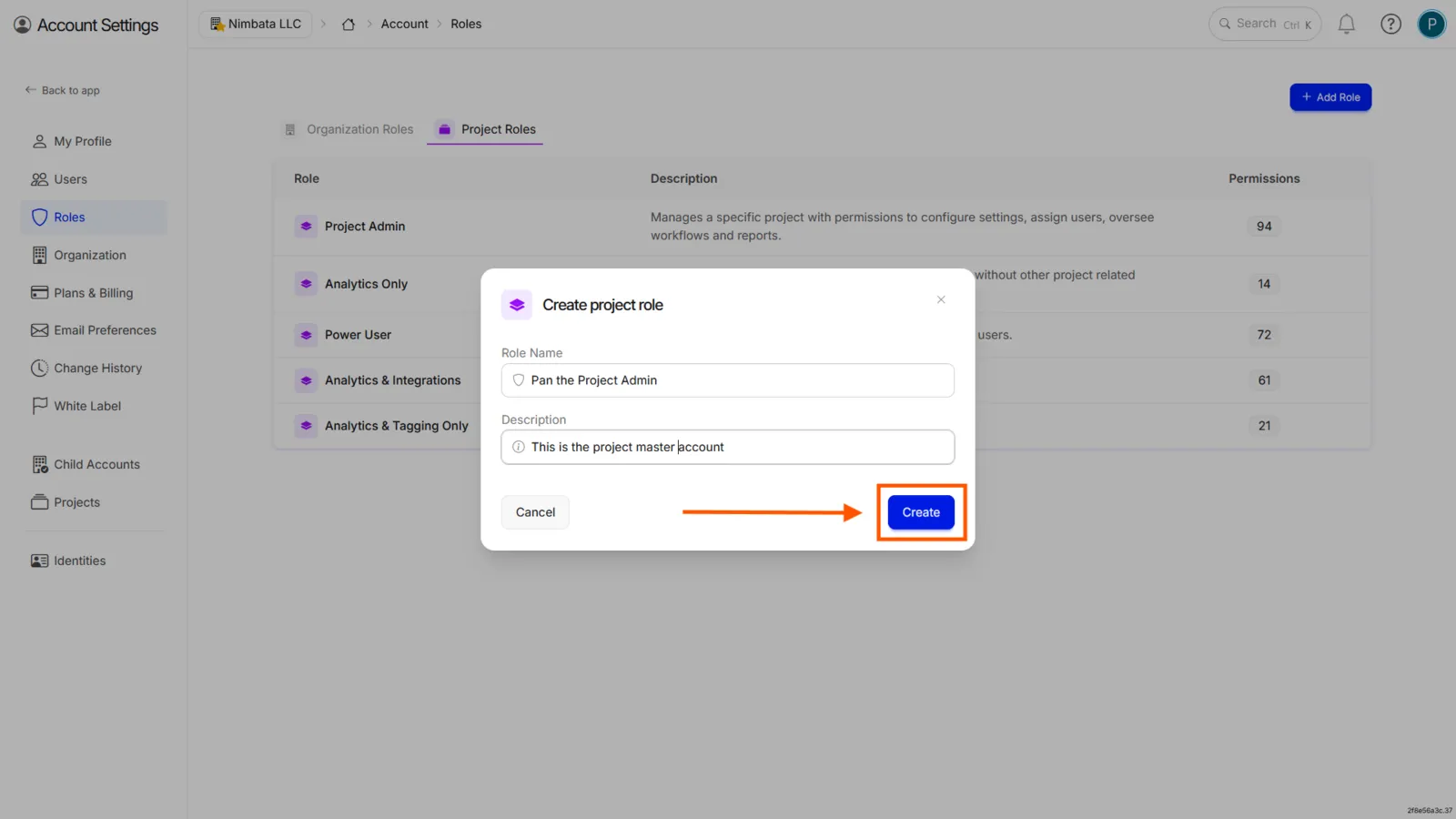
🎉 Your new project role appears in the list. Open it to configure its permissions.
Detailed guide: Organization roles
Detailed guide: Add users