
Call tags let you label inbound calls so you can quickly understand lead quality, filter reports, and prioritize follow-up. You create tags in groups, let AI apply them from call transcripts, and give them colors so you can assess call quality at a glance.
Create tags and tag with AI
Listening to call recordings to manually figure out who called and why takes long. AI Tags can automatically analyze call transcripts the moment a call wraps up. The AI evaluates the conversation against your specific instructions (prompts) and instantly assigns tags, sorting real leads from wrong numbers, support requests, or spam.
Create tags
Tags are grouped into categories. Your account comes with a default category and a starter set of tags; you can keep, edit, or replace them.
Go to Organize > Tags
Go to Organize > Tags.
Set up your tag group
If you want to add tags to an existing group, select it. If you want a new group (for example, Call Status or Sentiment), click + Add group.
You can rename your new group by simply clicking on it, or you can double-click its name, type the new name, and click Update.
Add a tag to the group
With the target group selected, click + Add tag. Enter a tag name, such as Qualified Lead, Appointment Booked, Existing Customer, or SPAM.
Click Add, then click Save at the top of the screen.
Note: To add more tags to the same group, click + Add tag again and repeat the process.
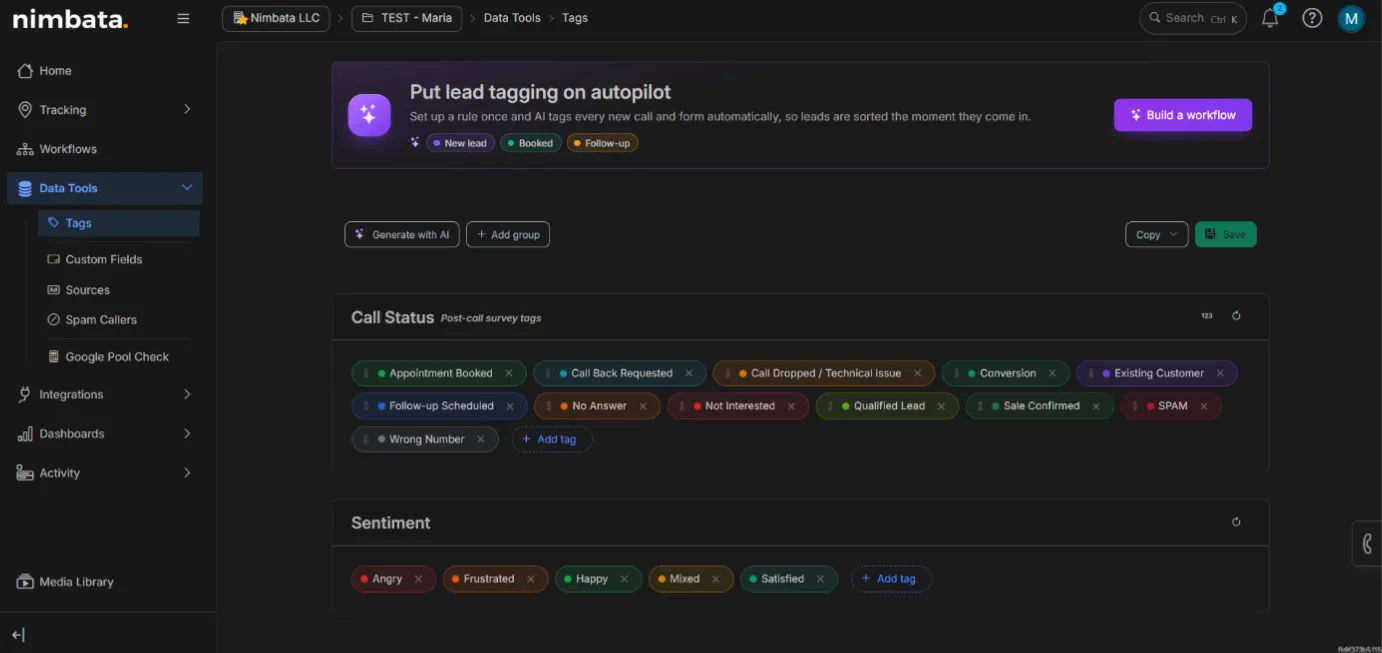
Your new tags are ready to use across call records, reports, and workflow filters.
Tag calls with AI
Now that your tag library is set up, you can either assign tags manually or let AI do the heavy lifting. Here is how to automate your tagging with AI prompts.
Click Generate with AI
Click the + Generate with AI button at the top of the Tags screen.
Write your AI prompt
Enter the instructions that tell the AI how to read the transcript and select the correct tag. Prompts run automatically on all incoming calls as soon as they are transcribed. Data collected via AI Tags starts from the moment the prompt is enabled going forward.
- Give a fixed menu: Explicitly list the tags the AI is allowed to choose from.
- Define edge cases and lookalikes: Spend most of your prompt defining what does not count (for example, existing tenants, job applicants, support requests, or wrong numbers).
- Ban guessing: Always tell the AI to return “No Tag” or “Unknown” if the transcript is vague, incomplete, or missing clear intent.
Ready-to-use prompt templates
Template 1: Simple lead categorization
Determine what the call was about and tag it accordingly using the set of tags I’ve created.
Template 2: Advanced lead qualification (strict edge cases)
Return ONLY ONE label: “Qualified Lead”, “Appointment Booked”, or “No Tag”.
It IS a Qualified Lead if the caller asks about new pricing, availability, service options, or wants to book a service.
It is NOT a Qualified Lead if they ask about an existing invoice, gate/access issues, billing, job inquiries, or are a vendor/spam.
For voicemails: only tag if the message explicitly states an intent to purchase or book.
When uncertain or if the transcript is unclear, return “No Tag”.
Once your AI Tags are running, you can use those tags as automation triggers in Workflows to push qualified leads directly to Google Ads or your CRM.
Manage your tags
Editing a tag: Click the tag on the Tags page. In the Edit Tag pop-up, change the Tag Name (and, if you like, its Description and color), click Update, then click Save at the top of the screen.
Copying tags between projects: Click Copy next to Save. Choose From and select a project to replace this project’s tags and groups with that project’s tag setup, then confirm with Replace All Tags. Or choose To, select the projects to copy this tag setup to, and click Apply.
Automating tags with post-call surveys: The Post-call survey tags section lets you map dial-pad keys (0 to 9) to specific tags. When you or an agent presses a key at the end of a call, Nimbata automatically applies the corresponding tag. For example, pressing 1 tags the call as Conversion. To reorder tags on the dial pad, hover over the drag handle (four-line icon) next to a tag and drag it up or down. Changes are saved automatically.
🎉 Your new tags are ready to use across call records, reports, and workflow filters.
Detailed guide: Tag calls automatically or by hand
Detailed guide: Score calls with surveys
Color-code tags
Colored tags let you assess call quality at a glance. For example, you could use green for high-quality leads, yellow for medium, and red for low. Brighter shades can indicate higher priority; lighter shades can indicate lower priority.
Edit an existing tag
Go to Tags
- Go to Organize > Tags.
Open the tag you want to edit
- Under Call Status, click the tag you want to change.
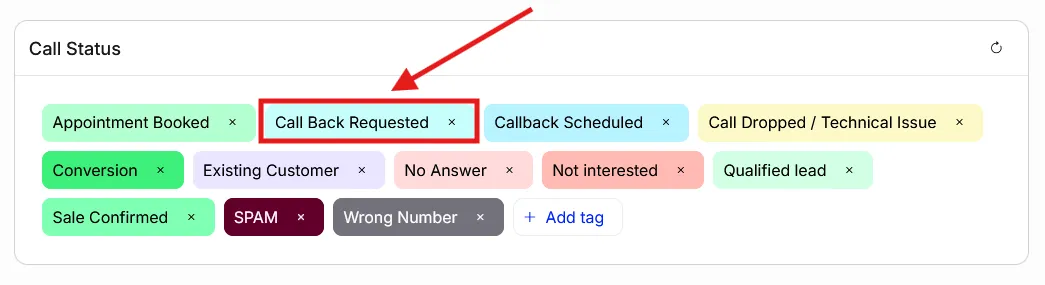
Change the color and save
- In the Edit Tag pop-up, optionally update the tag name and description.
- Click the color swatch next to Tag color and pick a color.
- Optionally, drag Background tint between Subtle and Solid.
- Click Update, then click Save at the top of the screen.
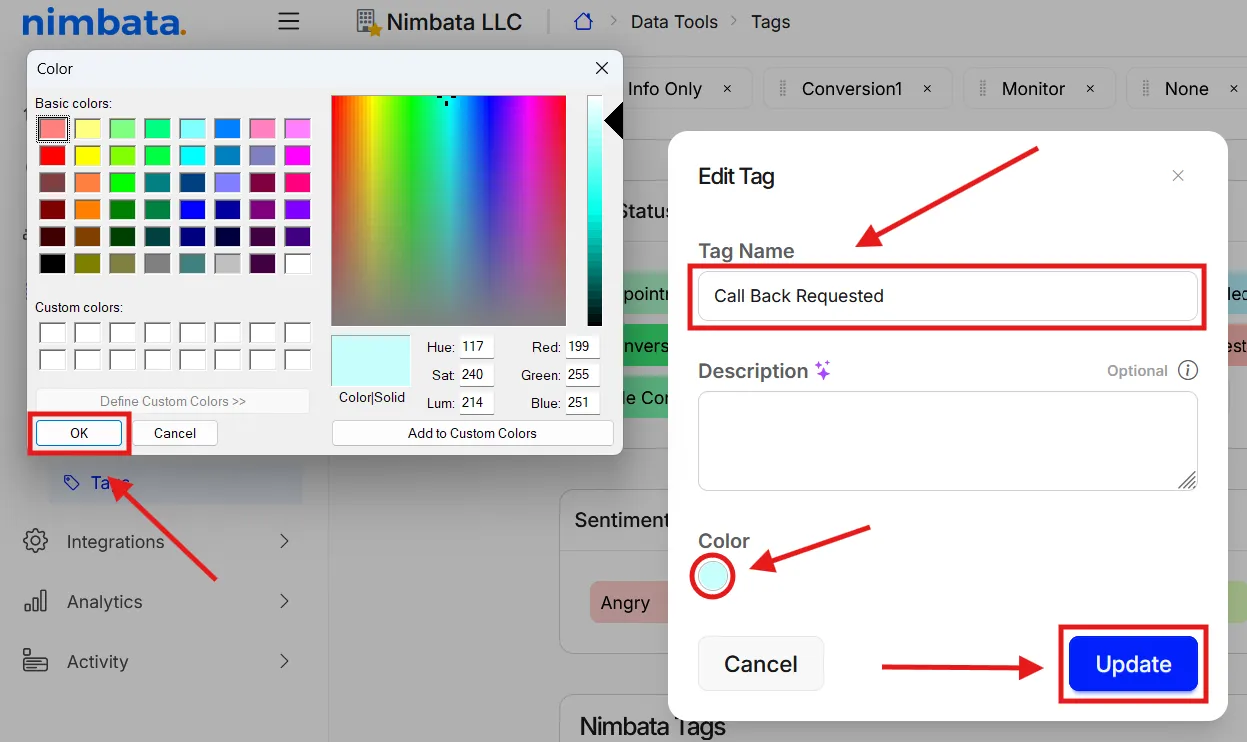
Create a new tag with a color
Go to Tags
- Go to Organize > Tags.
Open the Add Tag form
- Under the tag group the tag belongs to (for example Call Status or Sentiment), click + Add tag.
- Older accounts may also have a Legacy group; new accounts don’t get one.
Name, describe, and color the tag
- Enter a name for the tag.
- Optionally, add a description. A clear description helps Nimbata AI apply the tag more accurately.
- Click the color swatch next to Tag color and pick a color.
- Click Add to create the tag, then click Save at the top of the screen.
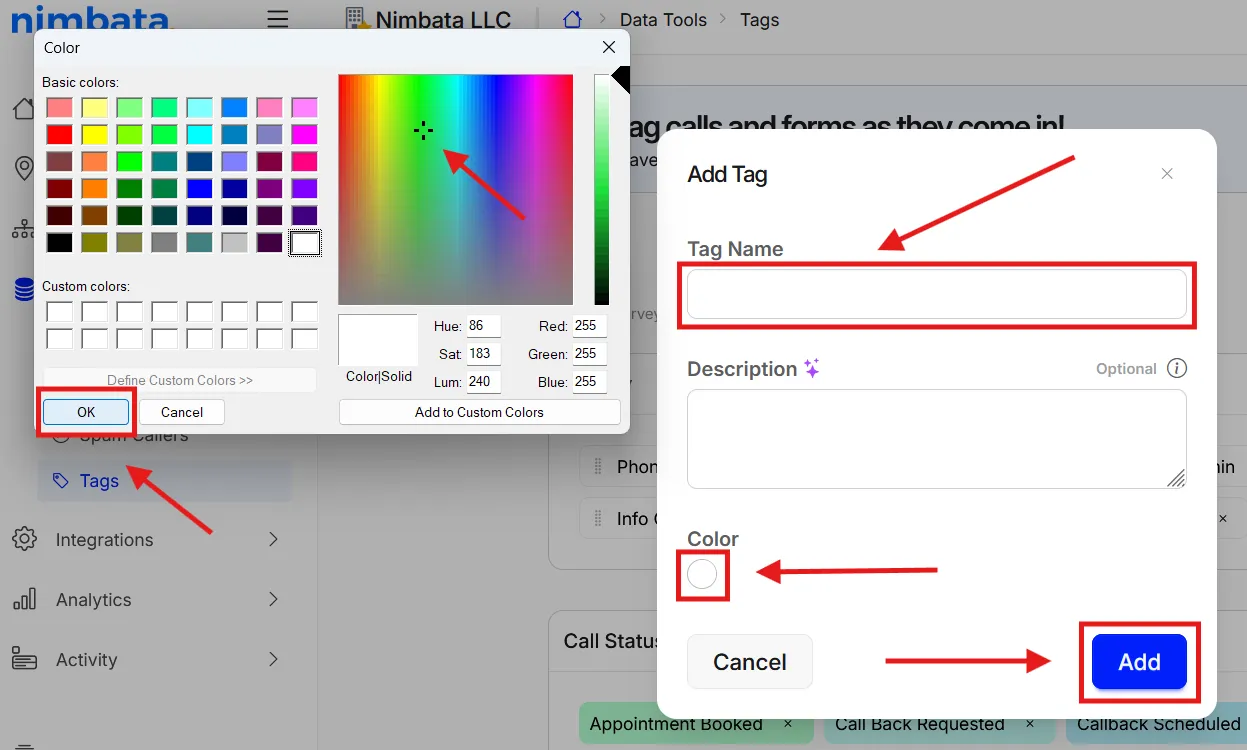
🎉 Your tags now display colors in the call list and dashboard, making it faster to read quality at a glance.
Detailed guide: Create tags and tag with AI
Detailed guide: Tag calls automatically or by hand