
Most installs work fine with the default script settings. This page explains each optional setting in Tracking > Tracking Code, and how to capture values from your own cookies on call records.
Script settings
The advanced settings in Tracking > Tracking Code let you control how the DNI script behaves on your website. Most installs work fine with the defaults. Use these settings when your site has specific technical requirements.
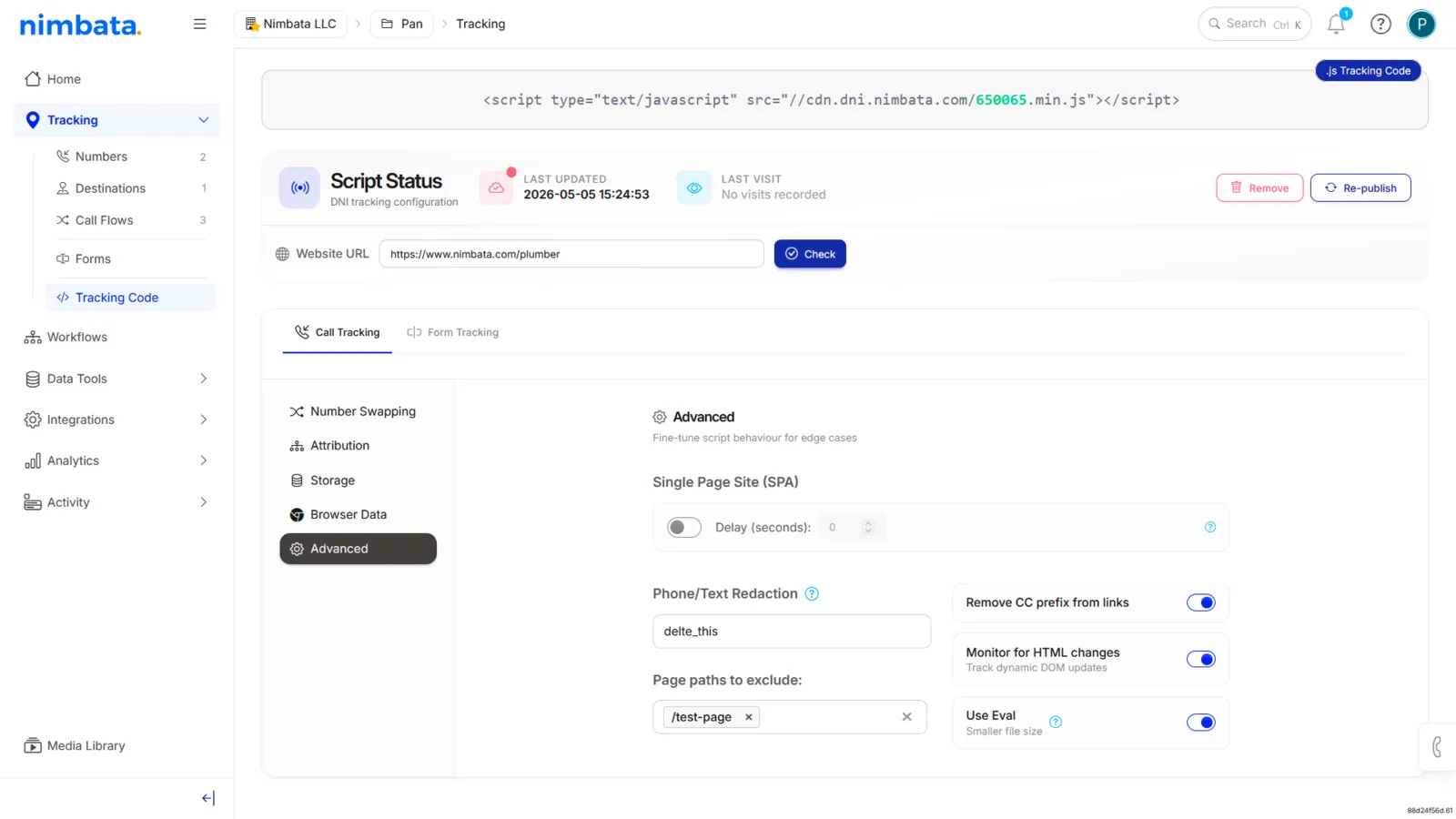
1. Single Page Application (SPA) mode
What it does
Re-runs the number swap logic every time the page content changes without a full browser reload. Standard websites reload the entire page when a visitor navigates. Single Page Applications (SPAs), sites built with React, Vue, Angular, or similar frameworks, update the DOM dynamically without a full reload.
When this happens, the DNI script may run before the phone number exists in the DOM, leaving the number unswapped. Enabling SPA mode tells Nimbata to watch for DOM changes and re-trigger the swap logic whenever new content is rendered.
When to turn it on
Your website is built on a JavaScript framework, or your phone number disappears after navigating between pages.
2. Phone number redaction
What it does
Removes the caller’s phone number from call logs and replaces it with a redacted placeholder. When enabled, the caller ID is not stored in your call activity. This is useful when you need to limit the personal data your account retains, for example to comply with a data minimization requirement or a client’s privacy policy.
When to turn it on
You have been asked to avoid storing caller phone numbers, or your compliance setup requires it.
3. Text redaction
What it does
Removes the content of SMS messages from your account logs. If your tracking numbers receive inbound SMS messages, enabling text redaction prevents the message body from being stored. The SMS event is still recorded (sender, time, tracking number), but the text itself is not.
When to turn it on
You are tracking SMS but do not need or are not permitted to store message content.
4. Remove country code prefix from links
What it does
Strips the country code from tel: links when the DNI script swaps in a tracking number. Some websites use tel:+1-555-123-4567 as the href on click-to-call links. If your tracking numbers are stored with a country code prefix but your website’s tel: links use a different format, this setting normalizes the output so the swapped link dials correctly.
When to turn it on
Click-to-call links on your site are not dialing correctly after the swap, and your tracking numbers include a country code prefix.
5. Page paths to exclude
What it does
Prevents the DNI script from running on specific pages of your website. Enter one path per line. The script will load on all other pages but will not perform any number swaps on the paths you list.
Where to use this
Thank-you pages, checkout pages, admin paths, or any page where you do not want number swapping to occur.
For example, entering /thank-you will stop swapping on yoursite.com/thank-you.
6. Monitor for HTML changes
What it does
Keeps watching the page for new instances of your swap target after the initial load, and swaps them as they appear. This is similar to SPA mode but operates at a lower level. Rather than re-running the full swap logic on navigation, it uses a MutationObserver to detect any new phone number strings being added to the DOM and replaces them immediately.
When to turn it on
Your phone number appears in content that loads after the initial page render (for example, inside a lazy-loaded section, a chat widget, or a dynamically populated footer), and SPA mode alone has not resolved the issue.
7. Use Eval
What it does
Changes how the DNI script is executed in the browser. By default, Nimbata’s script runs in strict mode. Some older or custom JavaScript environments do not support this and throw errors that prevent the script from loading. Enabling Use Eval wraps the script execution in a way that is compatible with those environments.
When to turn it on
You are seeing JavaScript errors related to the Nimbata script in your browser console, and your site uses a non-standard or legacy JavaScript setup. In all other cases, leave this off.
Detailed guide: Set up DNI step by step
Detailed guide: Set up swap groups
Troubleshooting: Numbers not swapping
Cookie capture
Custom cookie capture lets Nimbata read values from your site’s first-party cookies and attach them to call records. This is useful when you store attribution data, CRM IDs, or other session signals in cookies that you want to correlate with calls.
Before you start:
- The DNI script must already be published on your site.
- Cookie capture relies on the script being present to read cookies at session time.
Select the right project
Use the project selector in the top-right corner to confirm you’re in the correct project.
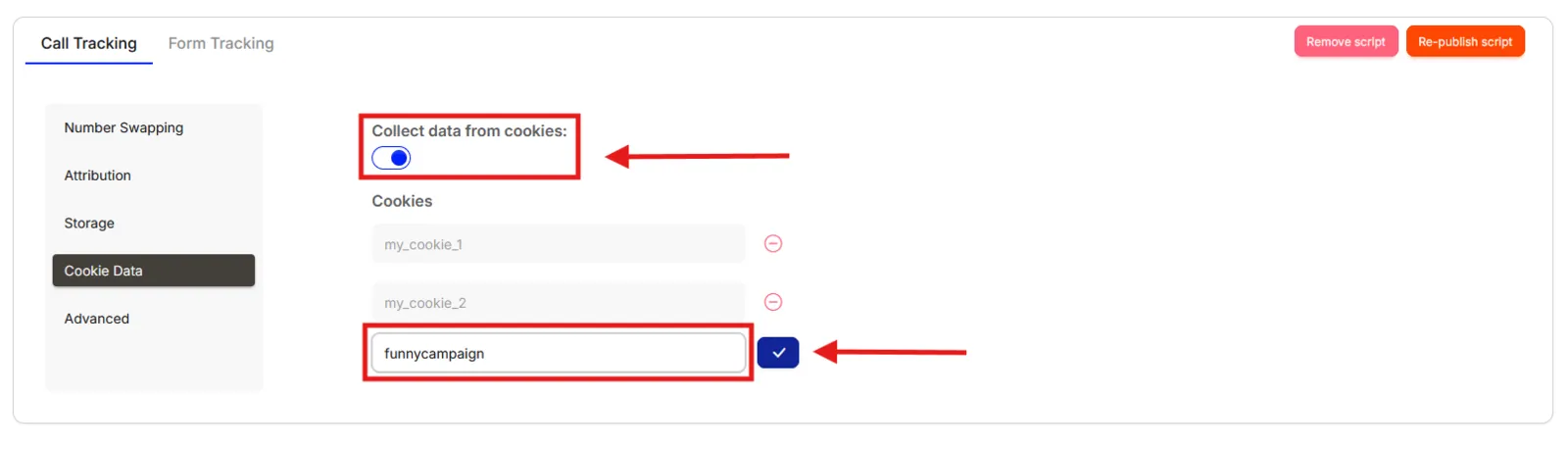
Enable cookie capture and add cookie names
- Go to Tracking > Tracking Code.
- Click Cookie Data.
- Toggle Collect data from cookies on.
- Type the name of each cookie you want to capture.
- Click the blue tick button to add it.
Save & Publish
Click Save & Publish to update the script with your new cookie settings.
🎉 Captured cookie values will now appear on call records and can be used as filters in Workflows and Dashboards & Reports.
Tip
To remove a cookie, click the red button next to it and save again. To stop capturing cookies entirely, toggle Collect data from cookies off.