
Welcome to Nimbata 👋 This guide walks you through your whole setup, from your first tracking number to launch.
- Steps 1 to 5, the essentials (usually your first day): you get your tracking numbers, add the number calls should ring, build a call flow, put the DNI script on your website and check that everything works.
- Steps 6 to 9, the advanced setup (usually your second day): you connect your tools, create and enable workflows, measure what works and check everything before launch.
If you hit a wall and need some guidance, our support team is always here to help.
Before you start
- The phone number where you want calls to ring (your destination number).
- The number of peak visitors on your website, for the pool calculator in Step 1.
- Access to your website’s pages, your WordPress admin or your Google Tag Manager container, for the DNI script in Step 4.
- A separate phone for the test call in Step 5.
Step 1. Set up your tracking numbers
Choose what to track
Go to Tracking › Numbers. Select the type of channel(s) you wish to track, then your preferred number type (Toll Free or Local & National).
Note
It is better to use local call tracking numbers for local campaigns. Using local numbers can enhance the credibility and relevance of your business within a specific community or region.
Calculate the amount of numbers you need
On the pop-up window, insert the number of peak visitors on your website. Let the calculator generate the size of your A collection of unique phone numbers that rotate across your website visitors, so Nimbata can tie each call back to the session, source and campaign that drove it..
1Click Use pool
Once your pool size is calculated, click .
Find your peak hourly visitors from Google Analytics by navigating to: Audience → Overview → Users (hourly)How many hourly peak visitors does your site have?50Recommended total pool size:With visitor level tracking you can attribute phone calls back to paid keywords, landing pages and other session-level data. Your tracking pool (quantity) should be calculated as follows: ( [HOURLY VISITORS] / [60 / avg minutes spent on your site] ) * 1.3
8 using a 7 minute avg session durationThe pool calculator on the Add Tracking Number page: enter your peak hourly visitors, check the recommended pool size, then click Use pool (1). Finish your number preferences
Make sure the recommended tracking number pool is displayed next to Quantity. Fill out the rest of your number preferences and click .
Detailed guide: Calculate your pool size
Step 2. Set up your destination number(s)
Your destination number is the number where calls will be routed. You can set one or multiple destinations.
Open Destinations
Go to Tracking › Destinations and click the button.
Fill in the destination
On the Add Destination page, select your target country, then fill in the destination number and name.
1Click Add Destination
Click .
Add Destination
The phone number that should receive calls from your tracking numbers.
US +1(415) 555-0110Destination NameMain officeCreate a simple call flow for 14155550110The Add Destination page: pick the country, enter the number and its name, then click Add Destination (1).
Detailed guide: Add a destination
Step 3. Build and assign your call flow(s)
The Call Flow Builder lets you define what happens when someone dials a tracking number.
Build your call flow
Open the builder
Go to Call handling › Call Flows and click to open the builder.
Name your flow and add actions
Give your flow a name and use the + icon to add actions.
Incoming callGreetingWelcome messageThanks for calling Harbor & Pine PlumbingDialMain office(415) 555-0110VoicemailWhen no one answersDefault system audioAn example flow: a Greeting plays, Dial rings your destination, and Voicemail below it captures a message when no one answers.
Assign your call flow
Go back to Tracking Numbers
Go back to Tracking › Numbers.
1Pick your call flow
Click on the Select a call flow field next to your tracking number and pick your flow. Do this for each tracking number you want to follow this specific flow. Your selection is saved automatically.
(415) 555-0142No call flowGoogle AdsSelect a call flow1A tracking number without a call flow: click Select a call flow (1) and pick the flow you built.
Detailed guide: Build a call flow
Step 4. Enable the DNI script
Dynamic Number Insertion (DNI) is key to matching calls with online sessions. You manage it in Tracking › Tracking Code.
1Copy the script
Copy the script at the top of the page. You paste it into your site for a manual installation or in Google Tag Manager.
Tracking Code
The script that swaps numbers on your website and attributes visitors to calls.
Attribution scriptJavaScript1<script type="text/javascript" src="//cdn.dni.nimbata.com/hp-415-demo.min.js"></script>Paste this as the last item before the closing </body> tag on every page you want calls and forms tracked from.Your script sits at the top of Tracking Code. Click Copy (1) to copy it. Install the script
Pick the option that fits your site.
- Paste the script as the last item before the closing
</body>tag of your page. - Do this on every page you want calls tracked from.
- Download the Nimbata WordPress plugin and activate it.
- Enter your API key in the settings to enable DNI without coding.
- Create a Custom HTML tag in GTM.
- Paste your script.
- Set the trigger to All Pages.
- Paste the script as the last item before the closing
Configure Number Swapping
Under the Number Swapping menu, choose your Swap Type:
- Phone Number: matches and replaces the exact phone number text on your site.
- Span Tag: replaces numbers based on a specific CSS class.
Monitor Script Status
Use the Script Status section to see when the configuration was last updated and when the last visit was detected on your site.
Detailed guide: Set up DNI step by step
Step 5. Check that your calls are tracked
Use the Website URL Checker
In Tracking › Tracking Code, enter your website URL in the Website URL field and click . Nimbata automatically verifies if the script is active and working correctly.
Test your routing
Call your tracking number from a separate phone to confirm it rings your destination number.
Review activity
Check your Nimbata Activity › Calls log to see if your test call was captured.
Step 6. Connect your tools
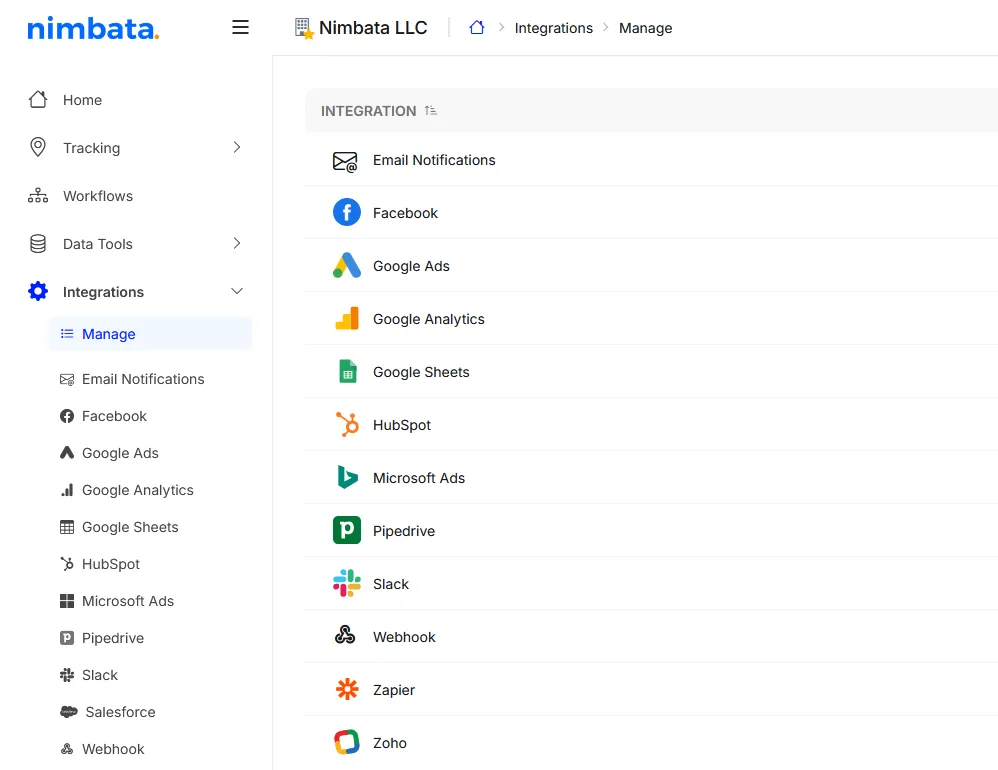
- Go to Integrations and show your active integrations.
- Explore our list of integrations and connect Nimbata to the tools you already use.
- Click the tool you want to integrate and follow its setup instructions.
- For our integration setup guides, visit our integrations category in the help center.
Step 7. Create and enable your workflows
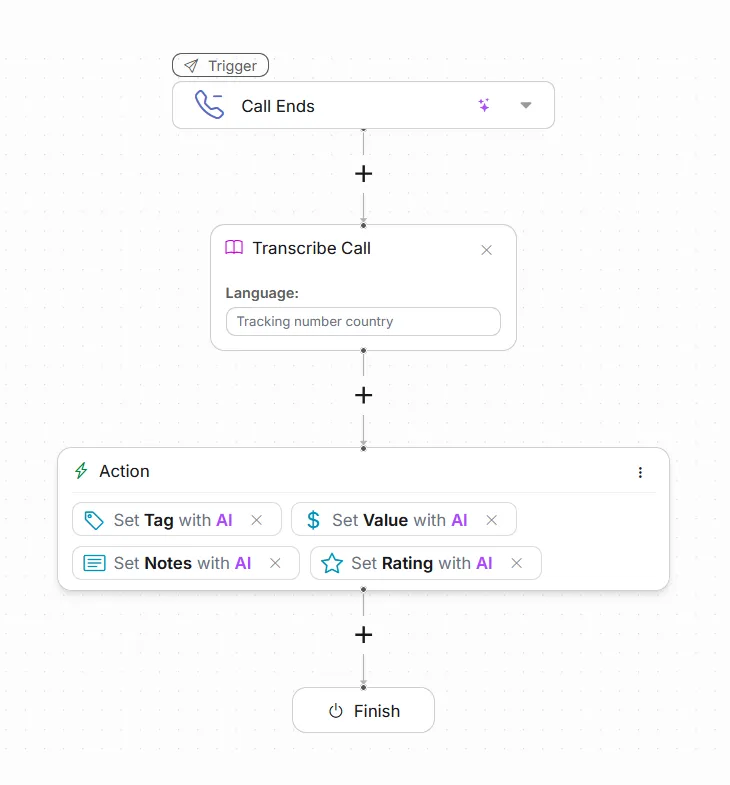
- Go to Workflows in the left-hand menu.
- Then read our guide on how to set up your first workflow(s).
- Manual workflows too complicated? Browse our list of workflow templates instead.
Use the Workflow Builder to set rules like:
- If a call is marked as high-value, send a Slack alert.
- If AI detects a sales opportunity, notify your CRM.
- If a call includes a complaint, tag it for follow-up.
Step 8. Analyze and optimize
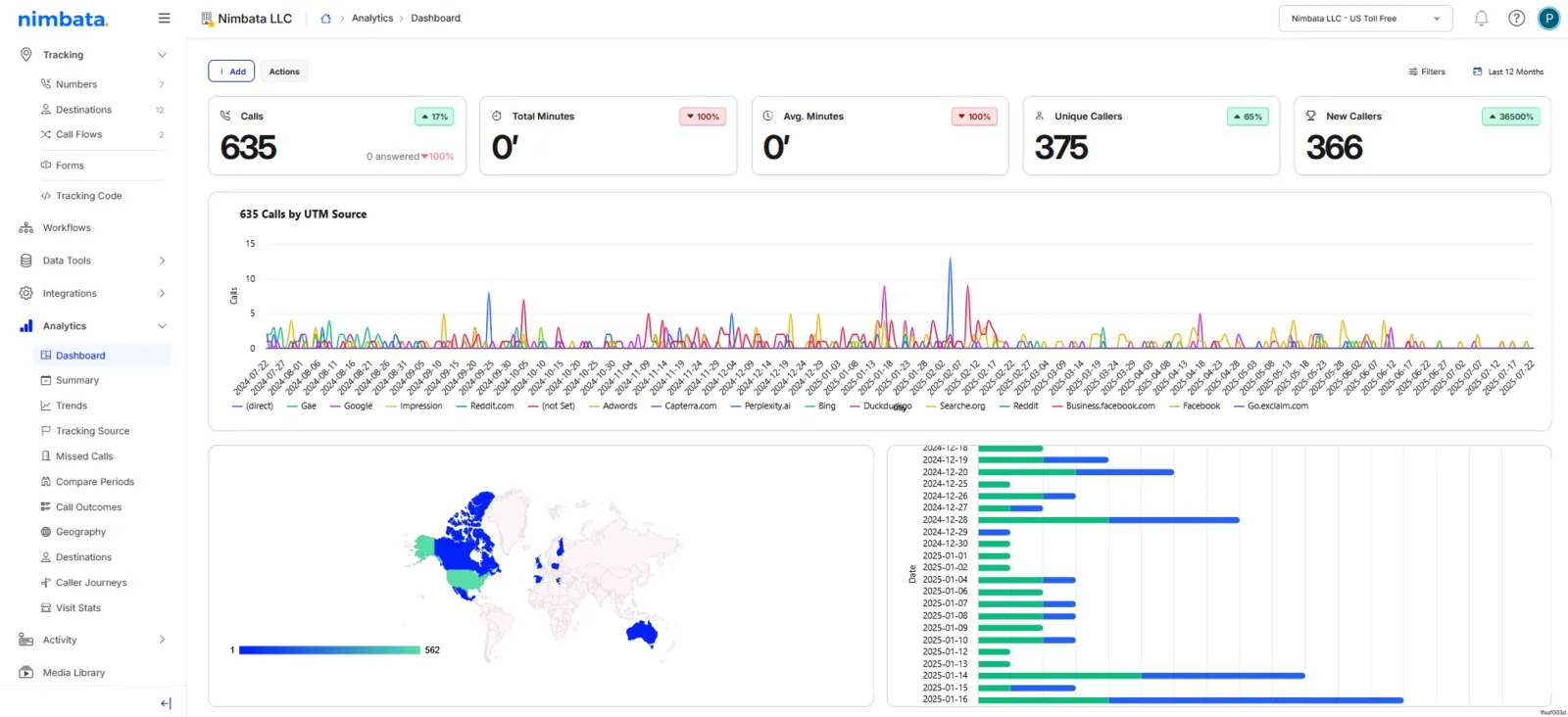
Once your calls are flowing, it’s time to measure what’s working. Go to Dashboards > My Dashboard and use Nimbata’s reports to:
- View which channels deliver the most valuable calls.
- Analyze call intent and sentiment.
- Track revenue impact by keyword, ad or campaign.
- Create clean dashboards to share performance.
Step 9. Check everything works before launch
- Test your integrations. Go to Integrations, show your active integrations, and confirm your connected tools show an active status.
- Trigger a test workflow. Place a test call and verify the expected action fires: for example, a Slack alert arrives or a CRM record is created.
- Review your data. Check Activity > Calls. Confirm the call was captured, and that tags, conversions and/or field values were applied correctly.
🎉 That’s it. Always remember to place test calls to ensure that everything works fine!
Check it worked
Your setup works when the test call rings your destination number and shows up in Activity › Calls, with the tracking number you called and its source.
Call Activity
| Recording | Direction | Caller Name | Tracking Num | Source Type | Call Duration |
|---|---|---|---|---|---|
| inbound | MCMaya Chen | (415) 555-0142 | Google Ads | 00:48 |
🎉 That’s it. Always remember to place test calls to ensure that everything works fine!
Troubleshooting
Your test call does not ring your destination
- Check that the tracking number has a call flow. A number without one shows Select a call flow in Tracking › Numbers; pick your flow as in Step 3.
- Check the call’s disposition status in Activity › Calls. If calls fail at the network level, you see statuses such as User Busy, No Answer, Call Rejected, Service Unavailable or Invalid Number Format. These are standard telephony codes and do not always mean an error. If the status points to a network or provider issue rather than your setup, contact Nimbata support and include the call logs and timestamps.
Troubleshooting: Calls not getting through
The number on your website does not swap
- Visit your website with
?gclid=testadded to the end of the URL. If the number swaps, the script is working. If it does not swap, the script itself is the problem. - Make sure the script is on every page you want calls tracked from, and confirm it with the Website URL Checker in Tracking › Tracking Code.
- If you installed it with Google Tag Manager, confirm the tag’s trigger is set to All Pages.
Troubleshooting: Numbers not swapping
Frequently asked questions
How many tracking numbers do I need?
It depends on your peak traffic and your average session duration. The pool size is your peak hourly visitors divided by (60 / average session duration in minutes), times 1.3. For example, 200 peak visitors with a 3 minute average session need 13 numbers. The pool calculator in Step 1 does this for you.
What is the difference between a tracking number and a destination number?
Tracking numbers are the numbers your customers see and call. Nimbata provisions them and uses them only for tracking. Destination numbers are your actual business phone numbers, which receive the calls forwarded from your tracking numbers. Every tracked call follows the same path: caller, tracking number, destination number.