
Call transcriptions convert your recorded calls into searchable text, and call summaries are shorter overviews derived from the transcript. This page shows how to turn them on, how the two compare, how calls in more than one language are transcribed, and how to spot keywords and phrases in calls.
Turn on transcriptions and summaries
Call transcriptions convert your recorded calls into searchable text. They make it easier to review conversations, identify patterns, assess agent performance, and extract marketing insights.
Warning
Transcriptions are not retroactive. Once enabled, only future calls are transcribed.
Create a new workflow
- Go to Workflows in the left-hand menu.
- Click + Create.
- Select From Scratch.
Add the Transcribe Call action
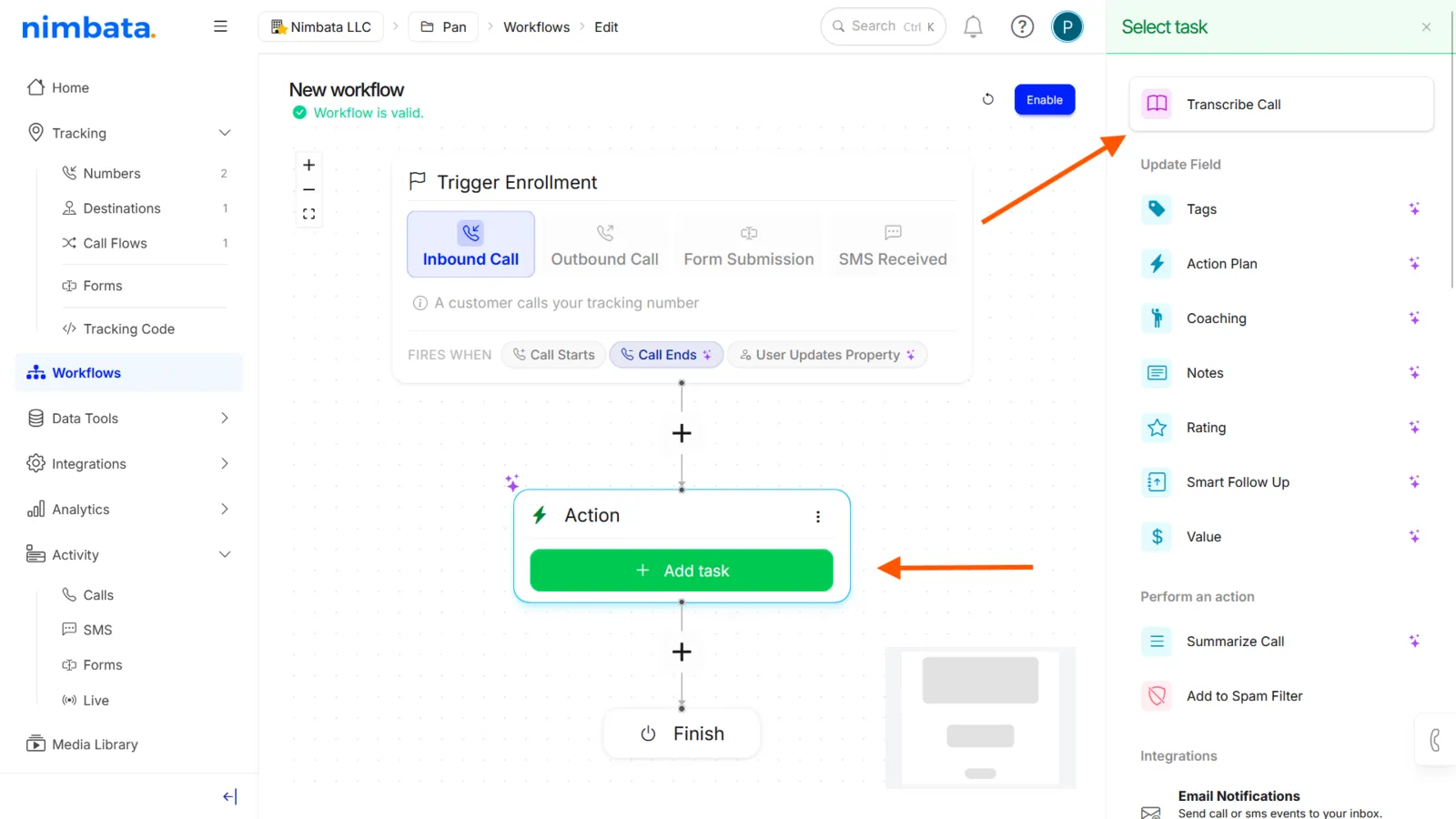
- In the Workflow Builder, confirm the trigger is set to Inbound Call > Call Ends.
- Click + and select Perform action > Transcribe Call.
- Accept the consent prompt when it appears.
Tip
Want summaries too? Click + again and add Perform action > Summarize Call. Both actions can run in the same workflow.
Enable the workflow
- Confirm both actions are visible in the builder.
- Click Enable in the top-right corner.
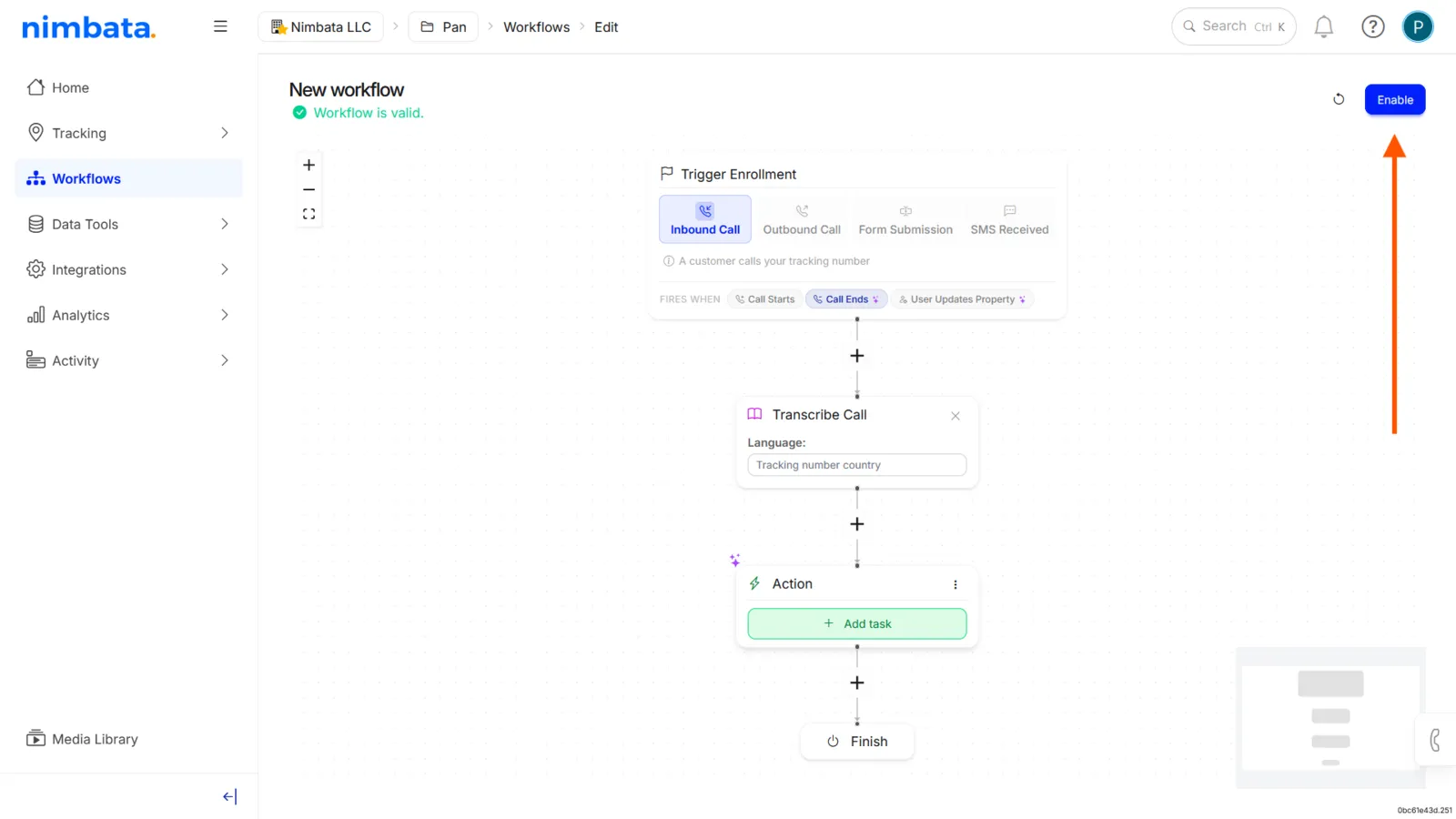
🎉 Transcriptions and summaries are now generated automatically for all future inbound calls.
Detailed guide: Play and download recordings
Detailed guide: Set up AI call analysis
Transcripts and summaries compared
When you enable call transcriptions in Nimbata, each processed call has two ways to review what was said: a transcript and a summary. They serve different purposes.
- Call transcripts are the full text of the conversation, word for word.
- Call summaries are shorter overviews derived from the transcript.
- Both let you understand calls without replaying the audio.
Warning
Both transcripts and summaries are generated only after you enable the call transcriptions feature. They are not retroactive. See: Turn on transcriptions and summaries.
Call transcripts
A call transcript is the full written version of a conversation. Nimbata converts the spoken words from the call recording into readable text.
Use transcripts when you need:
- The complete wording of a conversation
- To perform a deep review or audit
- To search for specific words or phrases
Tip
Transcripts are generated directly from the call audio recording.
You can access transcripts from Activity > Calls by opening any call’s details.
Call summaries
A call summary is a brief overview generated from the full transcript. It highlights the key points of the conversation.
Use summaries when you need:
- A quick read of what happened without reviewing the full transcript
- To scan large volumes of calls efficiently
- A high-level view of intent, outcome, or follow-up required
Tip
Summaries are derived from transcripts, which in turn come from the audio recording.
You can access summaries from Activity > Calls by opening any call’s details.
When to use each
Use transcripts when you need exact wording, want to audit a call, or are searching for specific language. Use summaries when you just need to understand what happened without reading every line.
Detailed guide: Turn on transcriptions and summaries
Detailed guide: Play and download recordings
Detailed guide: Set up AI call analysis
Calls in more than one language
Nimbata’s transcription engine processes the audio of a call and converts it to text. When a single call contains more than one language, there are a few things worth understanding about how that is handled.
Language detection
Nimbata transcribes each call in one language, set in the Language field of the Transcribe Call action. The default, Tracking number country, uses the language of the tracking number’s country (outbound workflows default to Destination number country). You can also choose Caller number country, or Specify to pick a language from a list. That language is used for the entire transcription.
What happens when languages switch mid-call
If the conversation switches languages partway through, for example starting in English and moving to Spanish, the transcription engine continues applying the chosen language to the rest of the audio. This means that sections spoken in a different language may be transcribed inaccurately or appear as garbled text, because the engine is attempting to interpret sounds using the wrong language model.
The result is a transcript that is reliable for the dominant language and unreliable for any secondary language segments.
What this means in practice
- The overall transcript is most accurate when a single language is spoken throughout.
- Short phrases or single words in another language are often handled reasonably well.
- Extended segments in a different language will likely produce low-quality transcription output for those portions.
- AI summaries and keyword spotting derived from the transcript reflect the same limitations; accuracy drops for content that was not correctly transcribed.
Recommendations
If your calls regularly involve two languages, consider the following:
- Review transcripts manually for calls where a language switch is likely, particularly before using the transcript for coaching, compliance, or reporting.
- Use the AI summary as a cross-check: if the summary seems inconsistent with what you know the call covered, the transcript may have degraded in a multi-language segment.
- Keyword spotting rules work best when configured for the primary language of the call.
Detailed guide: Turn on transcriptions and summaries
Detailed guide: Set up AI call analysis
Detailed guide: Keyword and phrase spotting
Keyword and phrase spotting
Keyword and phrase spotting lets Nimbata detect specific words or phrases spoken during a call and trigger workflow actions when they appear. This turns conversation content into a conversion signal, for example sending a Google Ads conversion only when a caller mentions a booking or a price.
Tip
This setup requires changes to both a Call Flow and a Workflow. Complete both parts for spotting to work correctly.
Call flow setup
Open or create a call flow
- Go to Call handling > Call Flows.
- Click + Create to create a new call flow, or open an existing one.
Select From Scratch
- In the Create a New Call Flow menu, select From Scratch.
Add a Record action
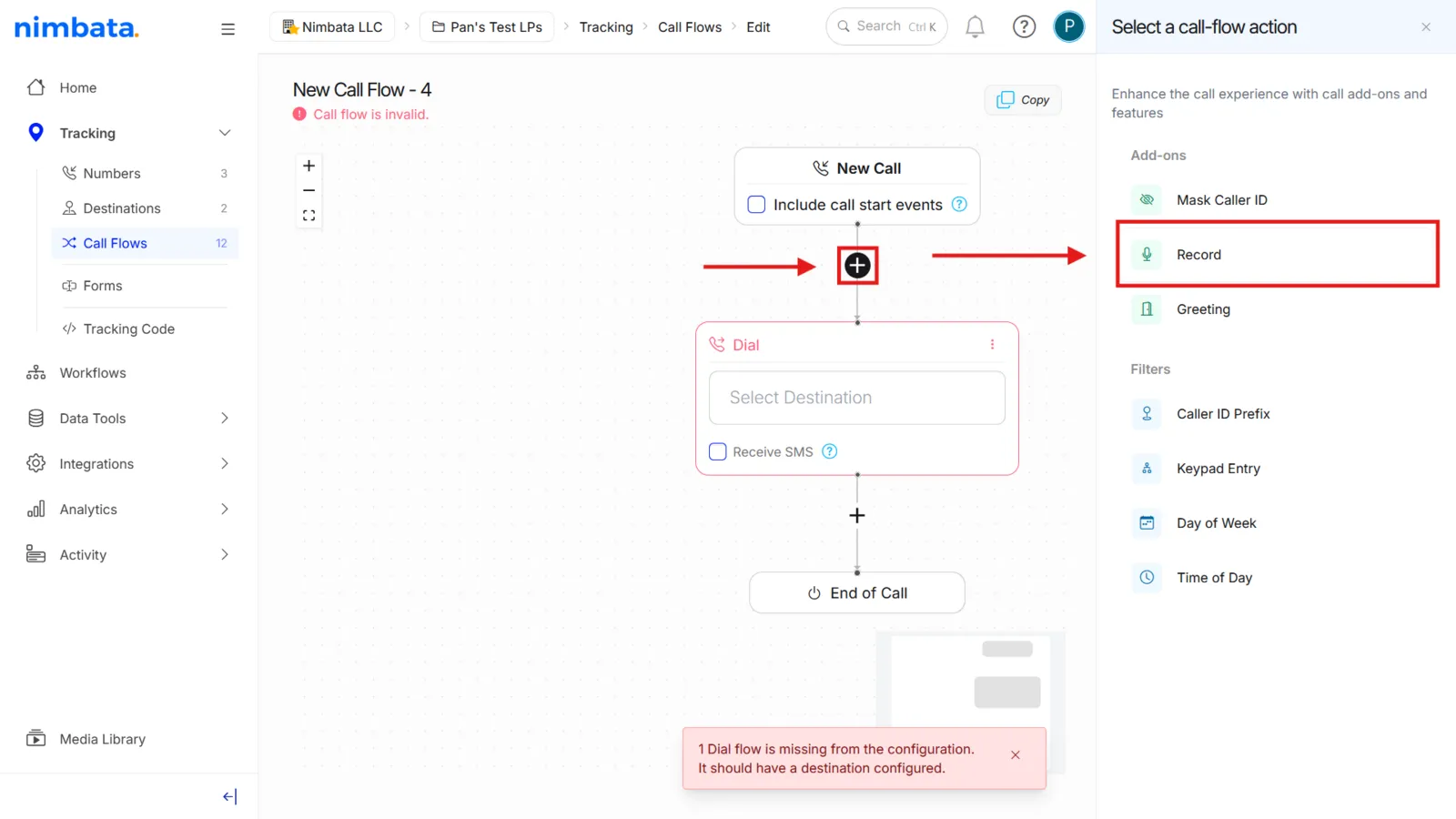
- Click the + plus sign at the start of the call flow.
- Select Record from the add-ons menu.
Recording is required for transcription, which is required for keyword spotting.
Add a Dial destination
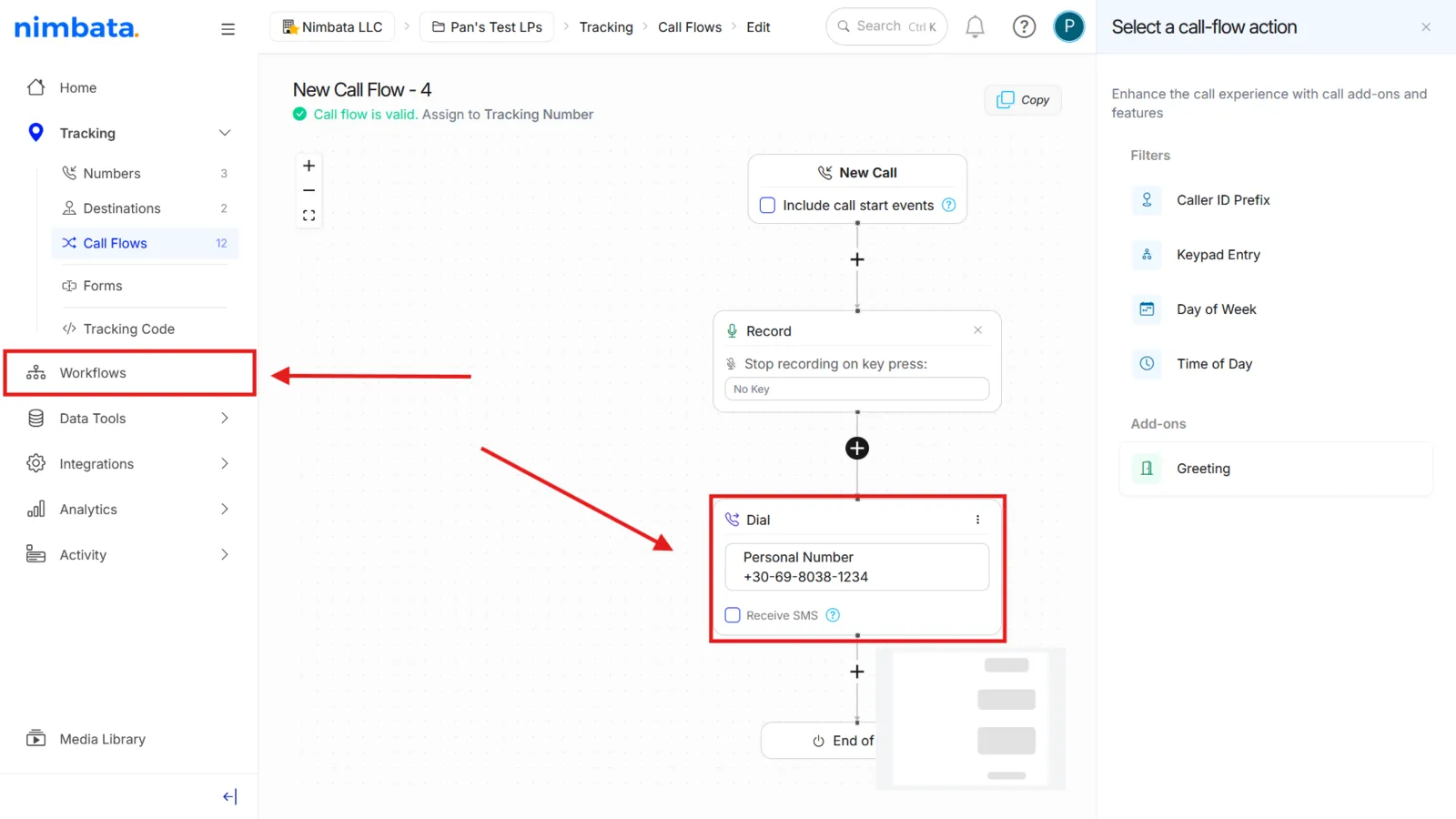
- Click + again.
- Select Dial.
- Enter the destination number.
Workflow setup
Create a new workflow
- Go to Workflows.
- Click + Create.
- Select From Scratch.
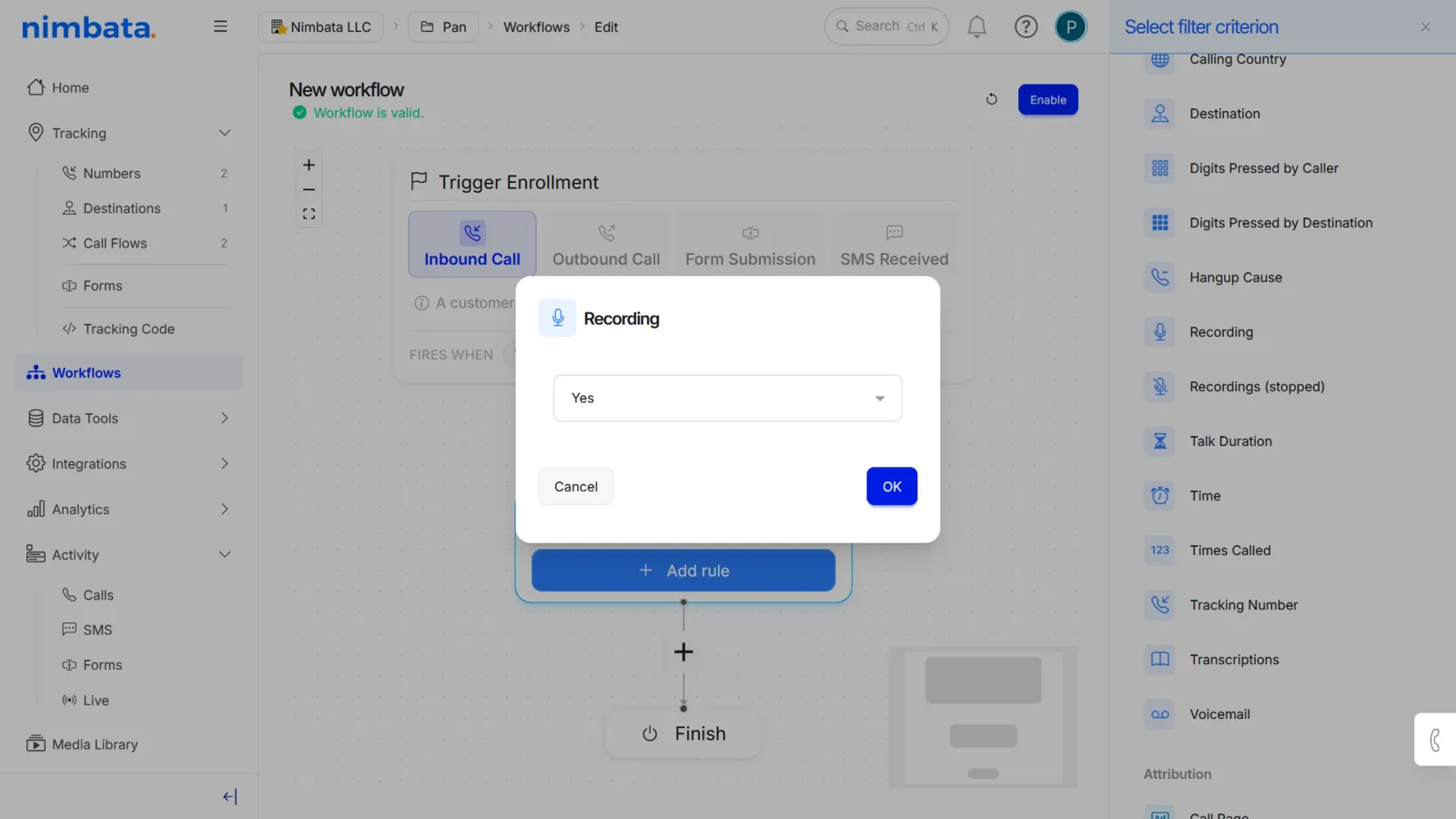
Add a Recording filter
- Click the + plus sign.
- Select Add filter.
- Select Recording from the filter menu.
- Set the value to Yes.
- Click OK.
Add the Transcribe Call action
- Click + and select Perform action > Transcribe Call.
- Accept the consent prompt when it appears.
The Word & Phrase Spotting filter reads the call’s transcript, so the Transcribe Call action must come before it in the workflow. Without it, the builder marks the filter in red.
Add a Word & Phrase Spotting filter
- Click + again.
- Select Add filter.
- Scroll to the Conversation sub-menu.
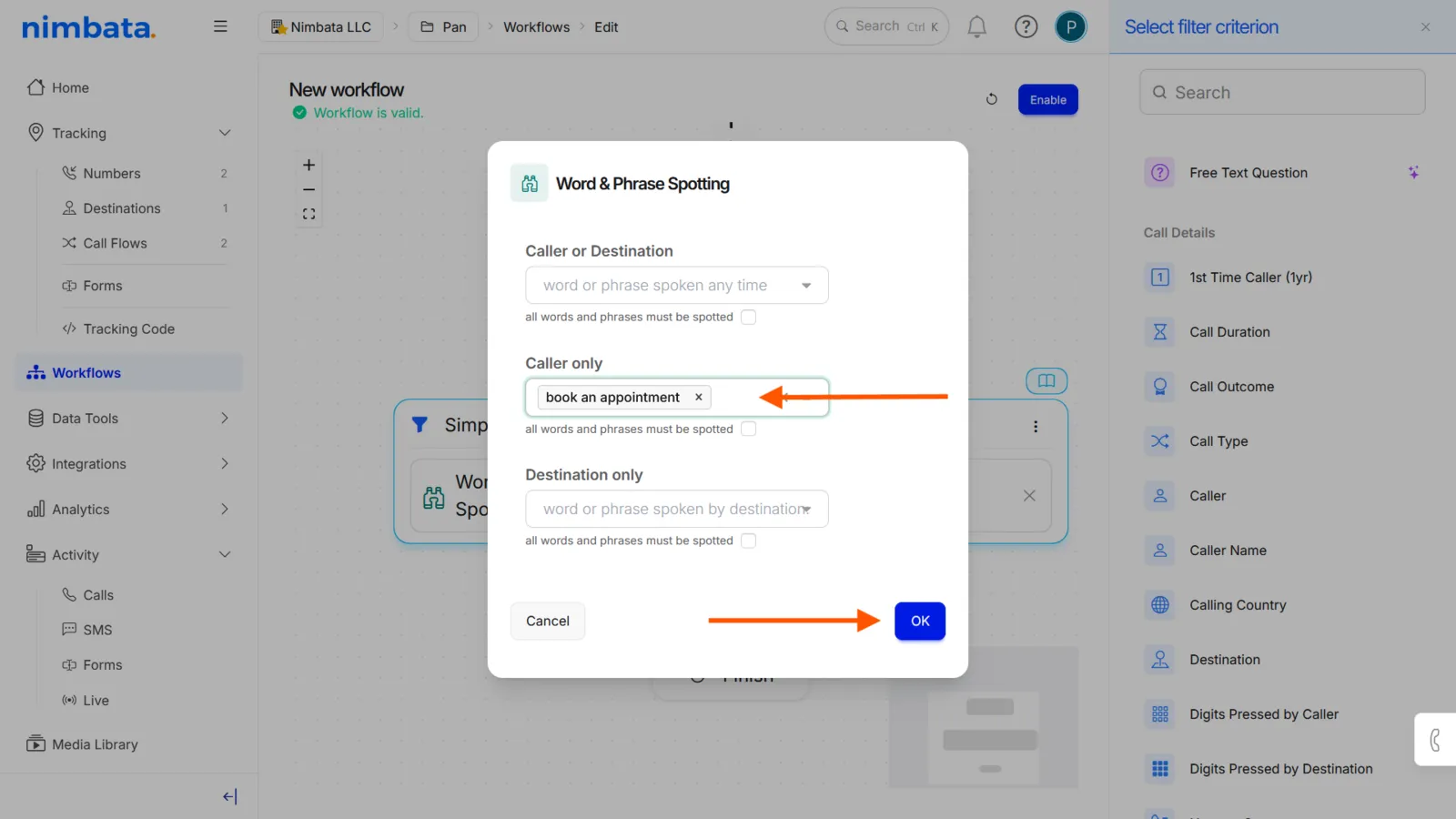
- Select Word & Phrase Spotting.
Enter your keywords and phrases
- Add the words and phrases that should trigger the workflow when spoken during a call.
- Consult your team on which terms to include; think about what customers say when they’re ready to convert.
- Click OK.
Add a Google Ads action
- Click + and select Perform action.
- Select Google Ads under the Integrations sub-menu.
- Choose the correct Google Ads configuration.
- Click OK.
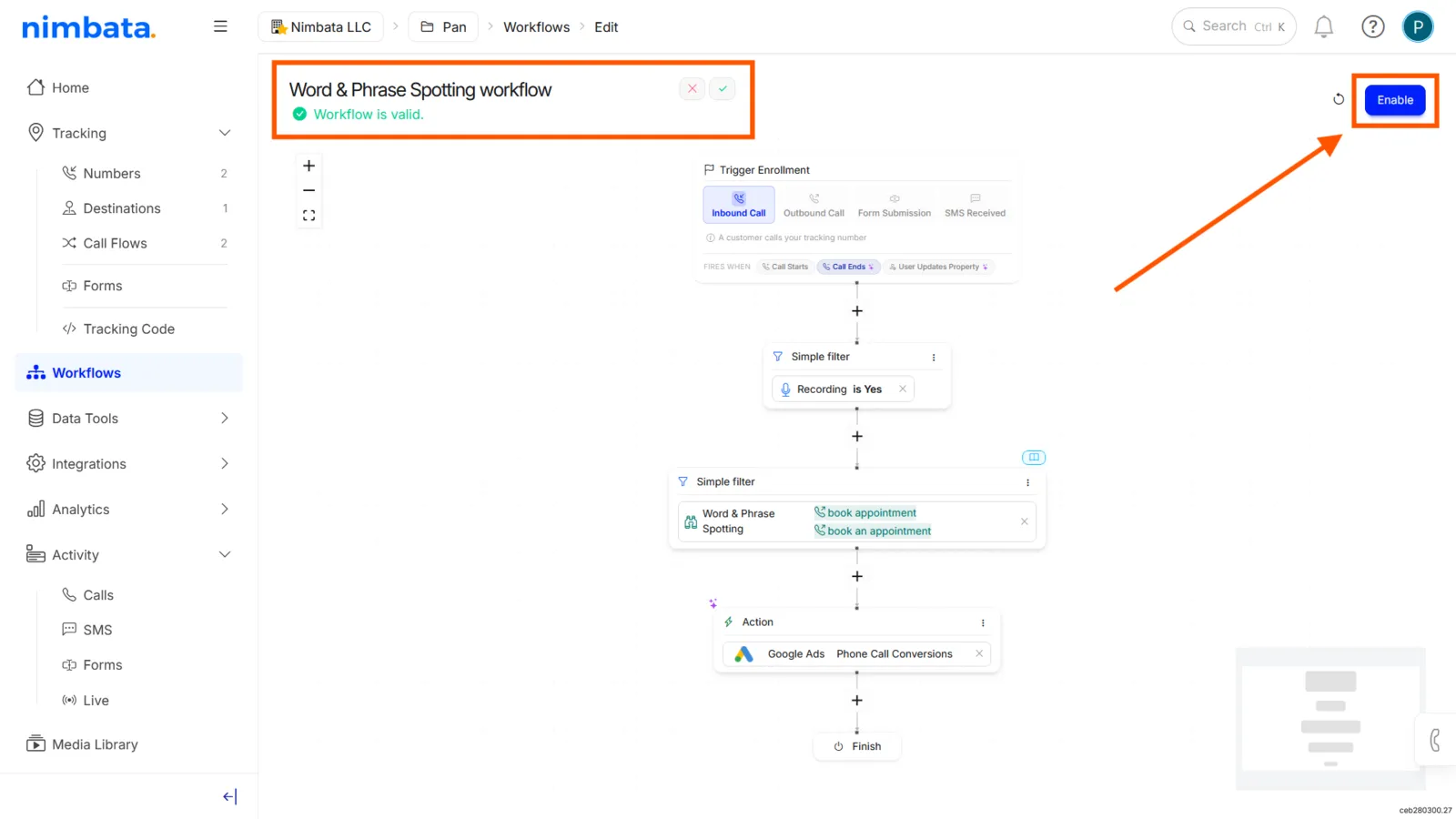
Enable the workflow
- Click Enable in the top-right corner.
- Optionally, give the workflow a name that reflects its purpose.
Tracking number setup
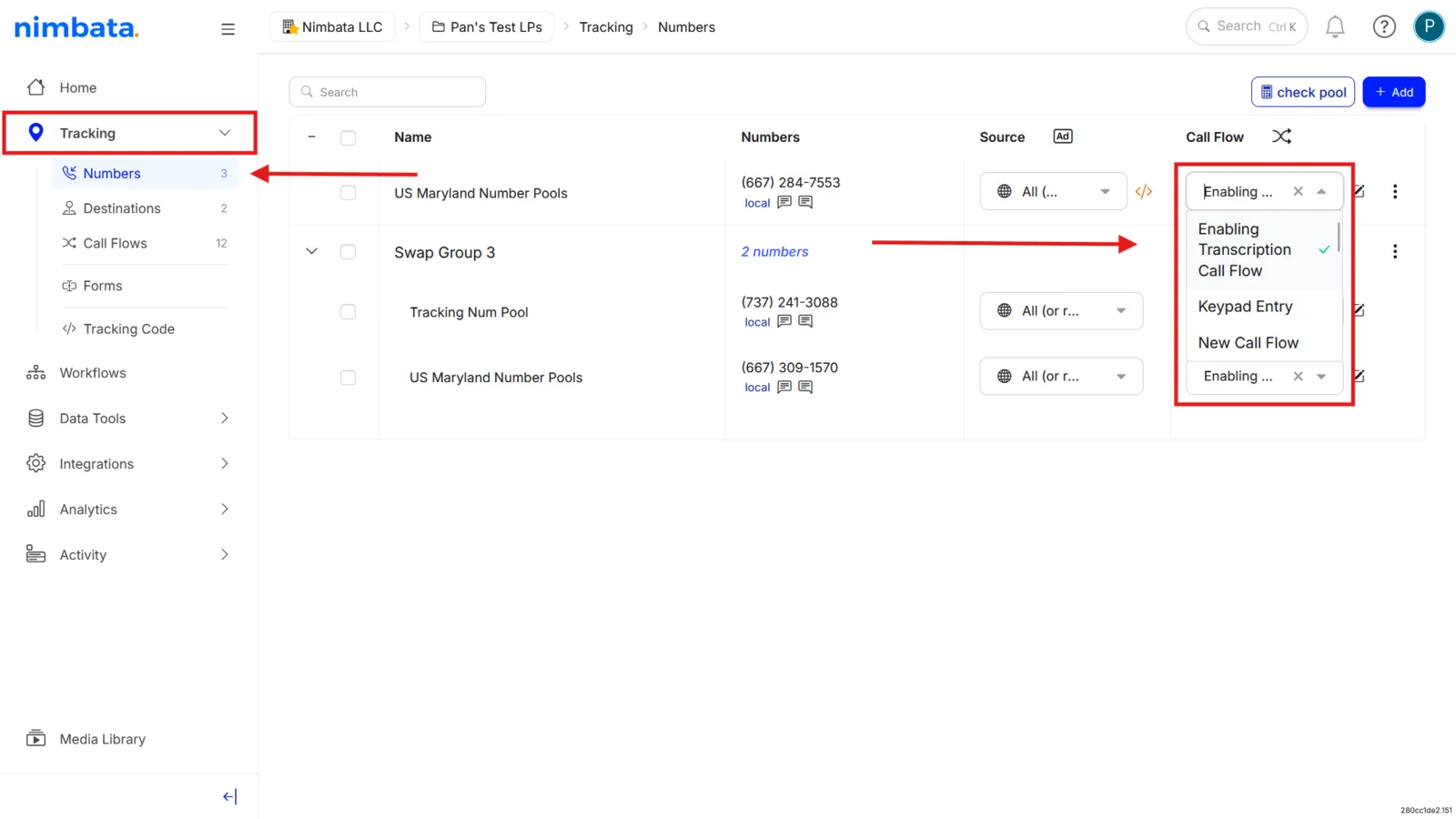
Assign the call flow to a tracking number
- Go to Tracking > Numbers.
- Assign the call flow you created to at least one tracking number.
🎉 Keyword and phrase spotting is now active. When a spotted phrase appears in a call, Nimbata fires the workflow action automatically.
Detailed guide: Turn on transcriptions and summaries
Detailed guide: Build a call flow
Detailed guide: Connect Google Ads