
Voicemail captures a message from callers when no one answers. This page shows how to add it to a call flow, listen to the messages later, and start from the Voicemail template.
Set up and listen to voicemail
Note
To use the templated setup instead, see: Start from a template.
Voicemail captures a message from callers when no one answers. You define a custom audio greeting the caller hears, choose whether voicemail activates immediately or only after a timeout, and access all recordings from your activity log.
Set up voicemail
Open the Call Flow Builder
- Go to Call handling > Call Flows.
- Click Create to start a new call flow, or click an existing call flow to add voicemail to it.
Add the Voicemail routing action
- Click the + button below the Dial destination.
- Select Voicemail from the Routing Options menu.
Note
You must add a Dial destination first; the Voicemail option only appears below an existing Dial action.
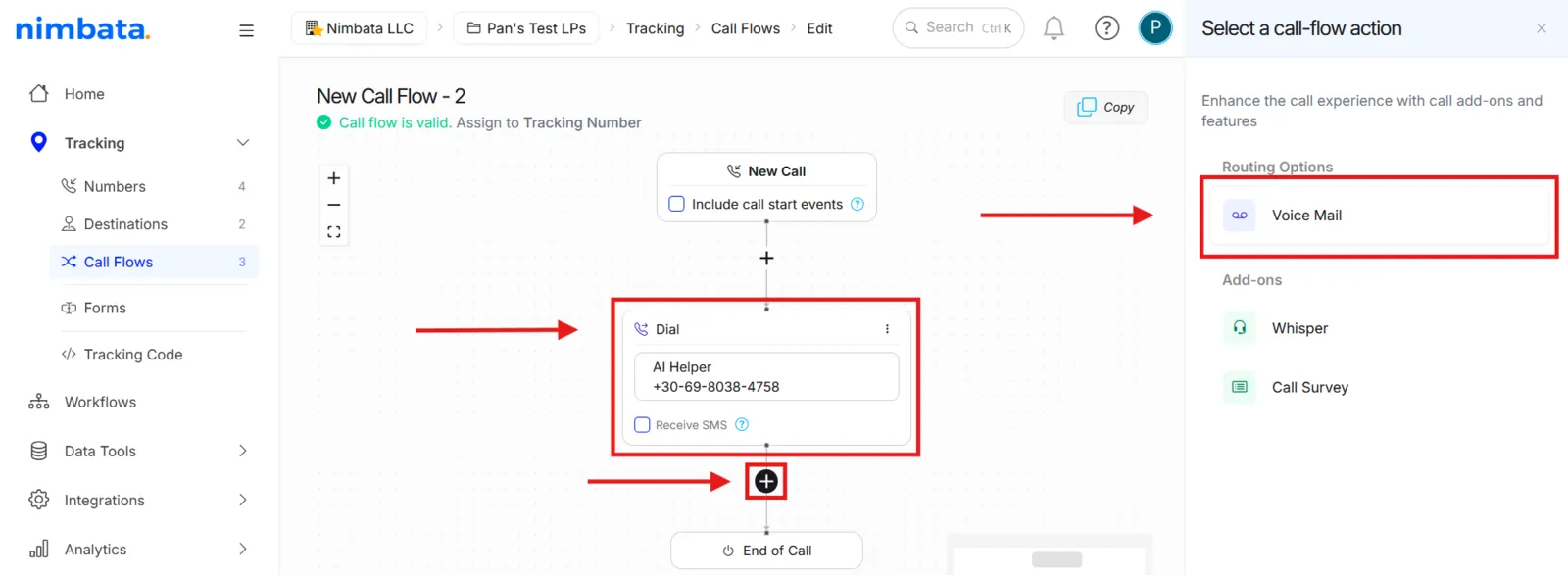
Configure the voicemail greeting
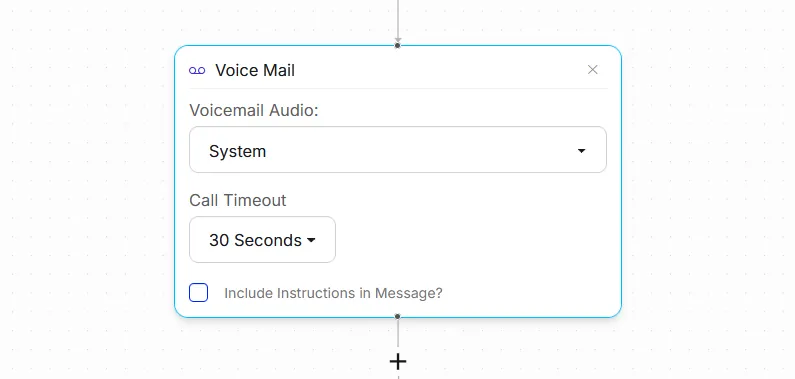
- Choose Default system audio or upload your own file via the Media Library.
- Optionally adjust the Call Timeout: how long the Dial rings before voicemail picks up (default: 30 seconds; range: 10 to 60 seconds in 5-second increments).
Listen to voicemails
Open the Calls activity log
Go to Activity > Calls.
Play a voicemail recording
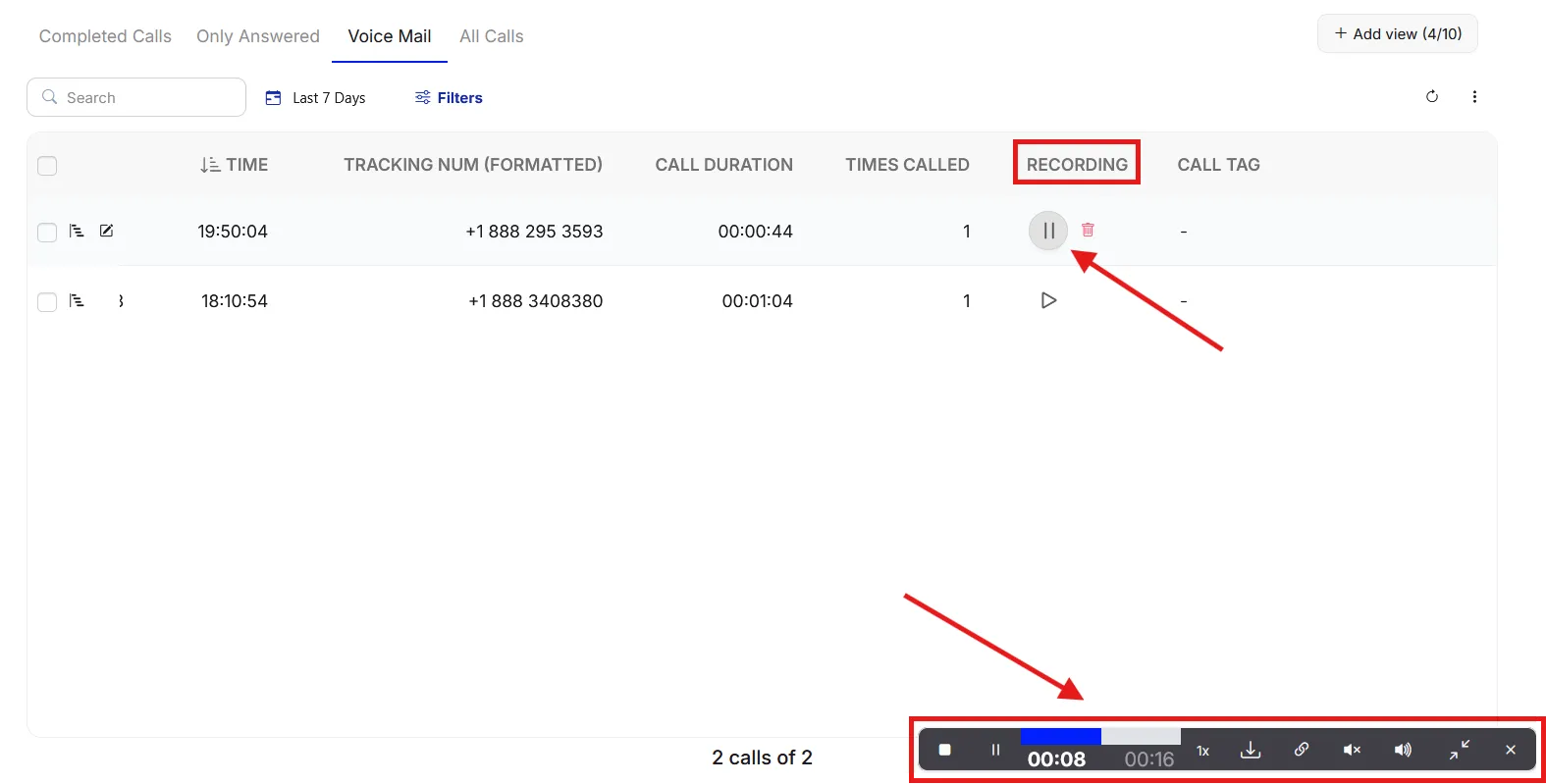
- Find the call in the list and locate the Recording column.
- Use the recording player at the bottom right of the screen to play, download, copy a link, or adjust playback speed.
Optional: create a saved Voicemail view
If you receive voicemails regularly, save a filtered view for quick access.
Filter your All Calls view and save it
- In Activity > Calls, apply a filter for voicemail recordings.
- Click Save as and name the view (for example, “Voicemail Recordings”).
- Click Save.
🎉 Done. Voicemails are captured automatically whenever a call goes unanswered and will appear in your Calls log.
Detailed guide: Start from a template
Detailed guide: Manage audio files
Detailed guide: Assign a call flow
Start from a template
Note
To build this call flow manually using the full Call Flow Builder instead, see: Set up and listen to voicemail.
Voicemail captures a message from callers. The Voicemail Call Flow template sends every call straight to voicemail with a recorded message (“Send calls directly to voicemail with a recorded message”): it has no Dial action, so it needs no destination number. To ring a destination first and send unanswered calls to voicemail, build the call flow by hand instead (see Set up and listen to voicemail).
Open the template picker
- Go to Call handling > Call Flows.
- Click Create.
- Select From Template.
Choose the Voicemail Call Flow template
- Hover over Voicemail Call Flow.
- Click Use template.
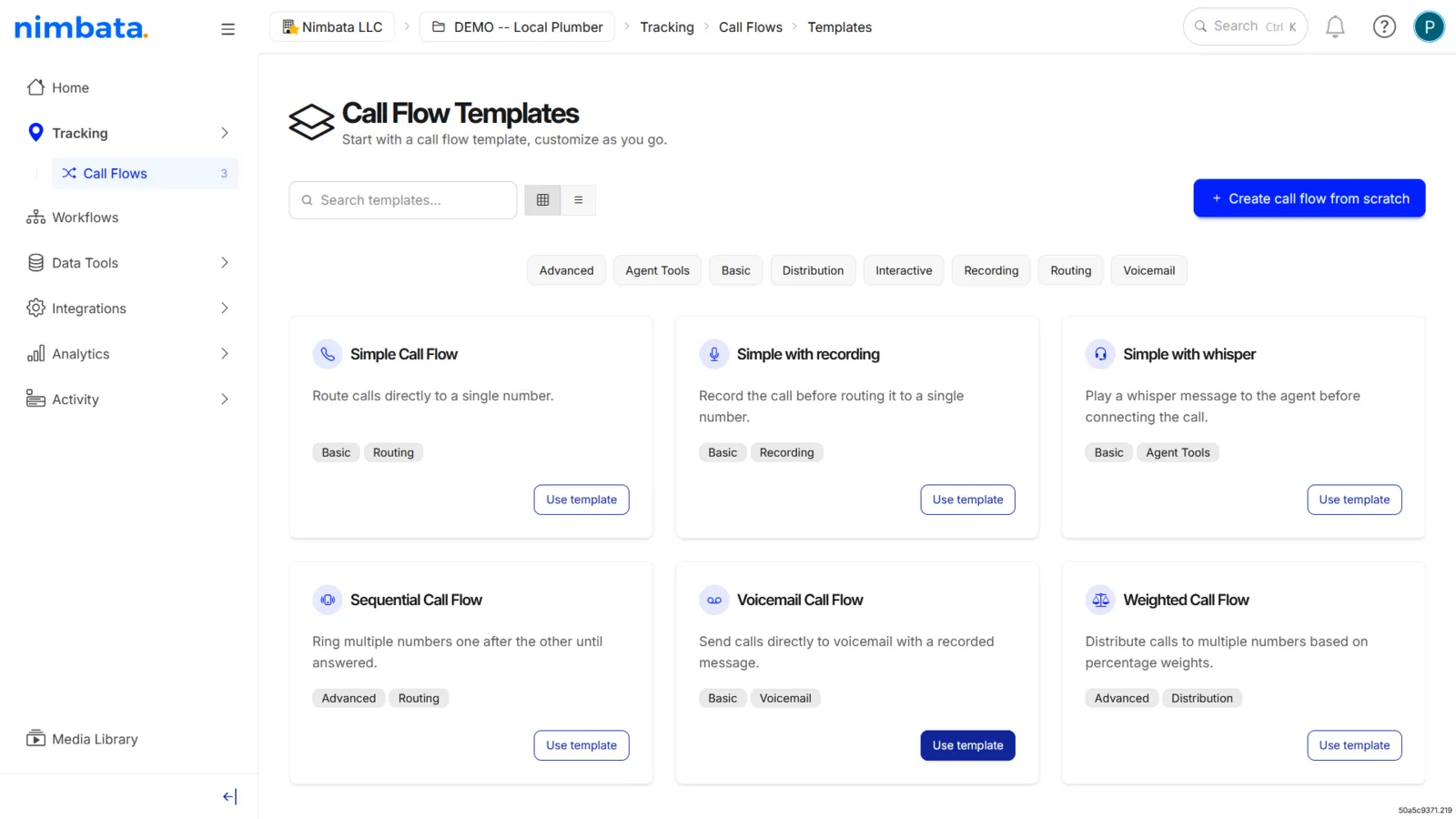
Check the voicemail message
- The template is created and named automatically: New Call, a Voicemail block (with Voicemail Audio set to System), then End of Call.
- Click the Voicemail block to change the message callers hear, if you want your own.
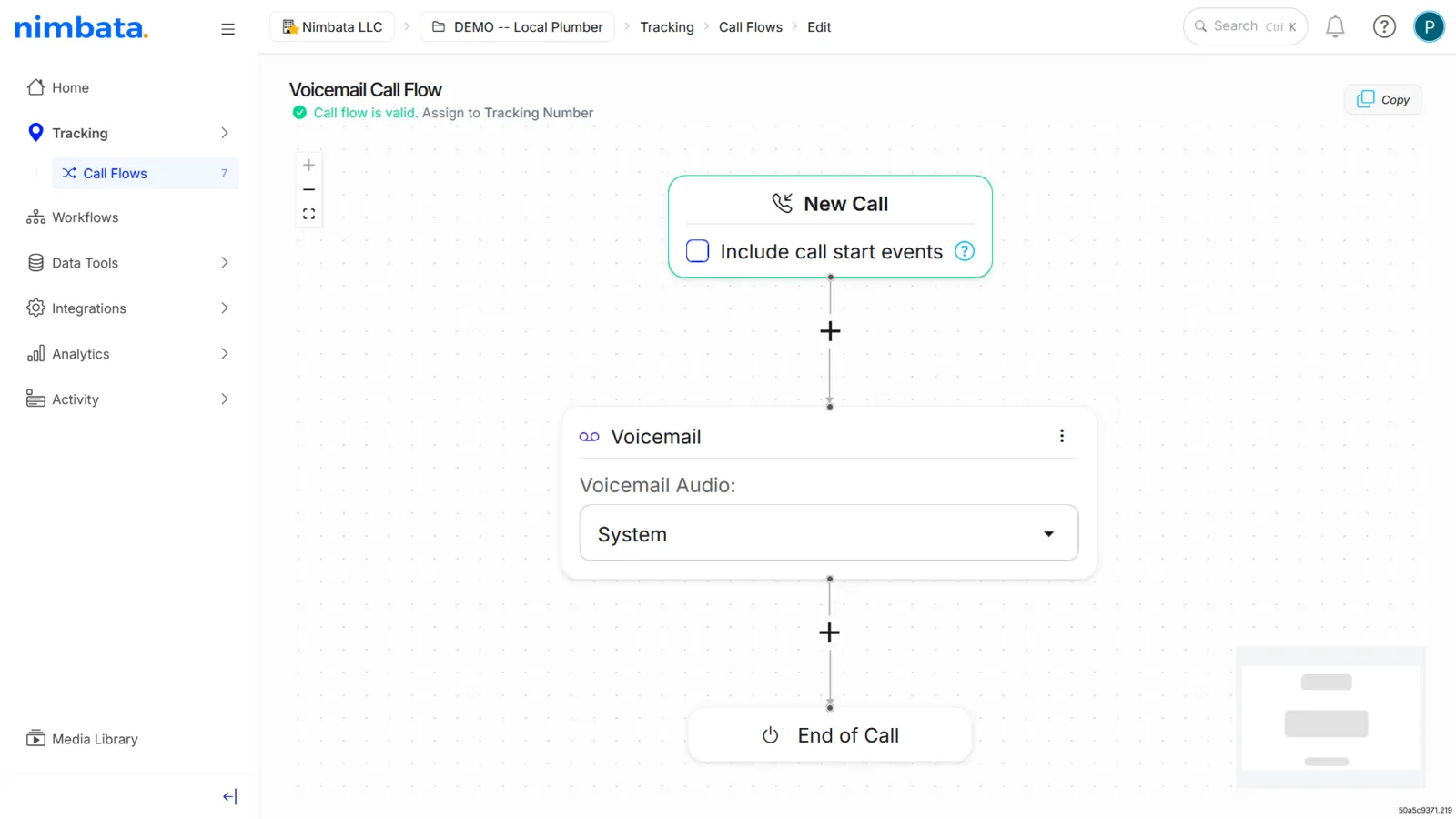
🎉 Your Voicemail Call Flow is ready. Assign it to a tracking number under Tracking > Numbers to go live.
Detailed guide: Assign a call flow
Detailed guide: Manage audio files