
Tags turn raw call data into actionable intelligence. This page shows how to tag calls with a workflow or by hand, and how agents score and tag calls from the dial pad with a post-call survey.
Tag calls automatically or by hand
This section covers two methods: setting up a workflow to tag future calls automatically, and manually tagging existing calls in your call list.
Tag calls automatically with a workflow
Open the workflow builder
- Go to Workflows.
- Click + Create in the top-right corner.
Select From Scratch
- In the Create a New Workflow menu, select From Scratch.
Confirm the trigger and add a filter
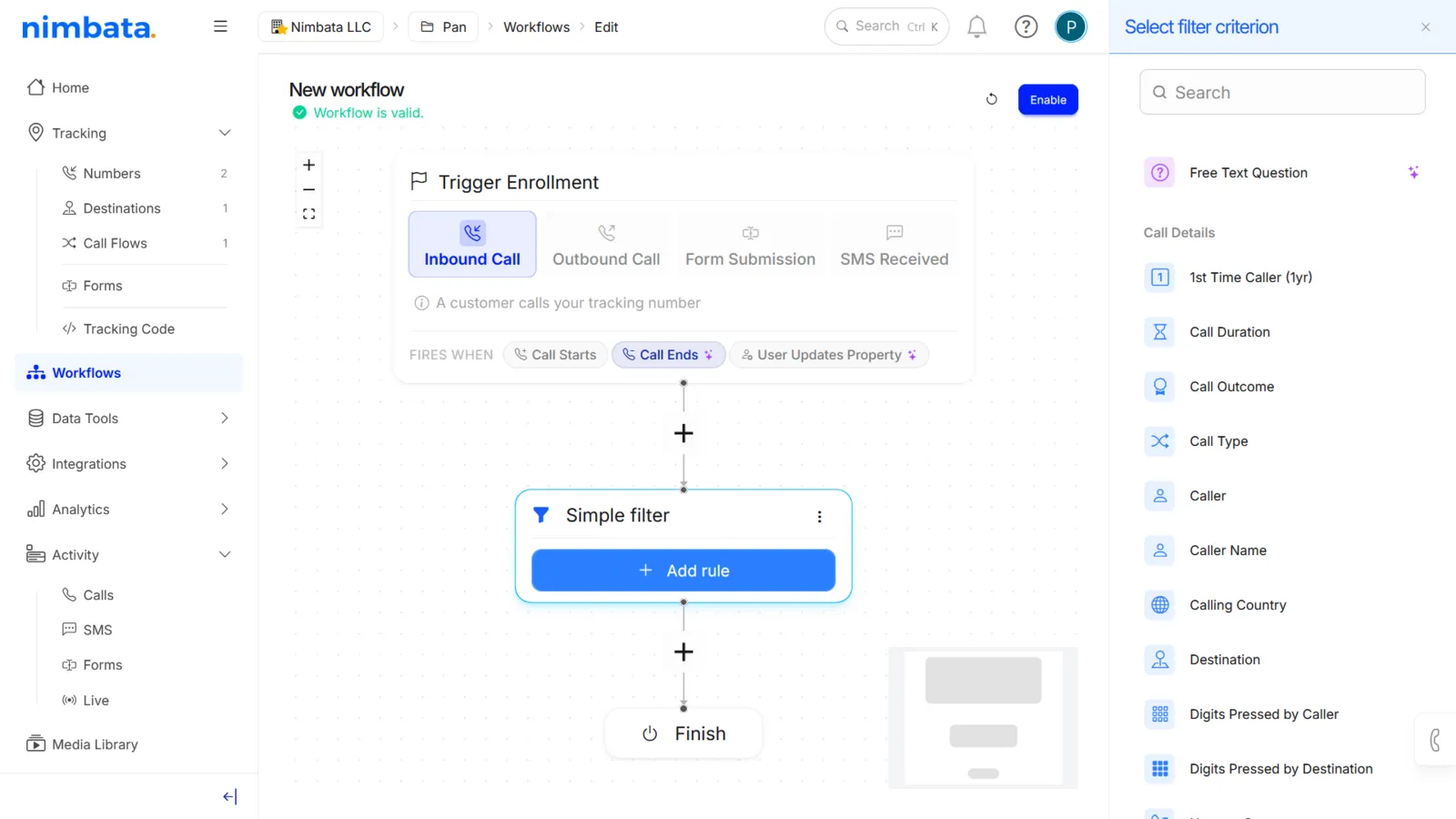
- Check that Trigger Enrollment is set to Inbound Call > Call Ends.
- Click the + plus sign below the trigger.
- Select Add filter.
Choose your filter criteria
Select the criteria that calls must meet to receive the tag. Options include call duration, call outcome, call type, voicemail presence, UTM campaign, source of call, and keywords or phrases from the conversation.
Add a Tags action
- Click the + plus sign below your filter.
- Select Perform action.
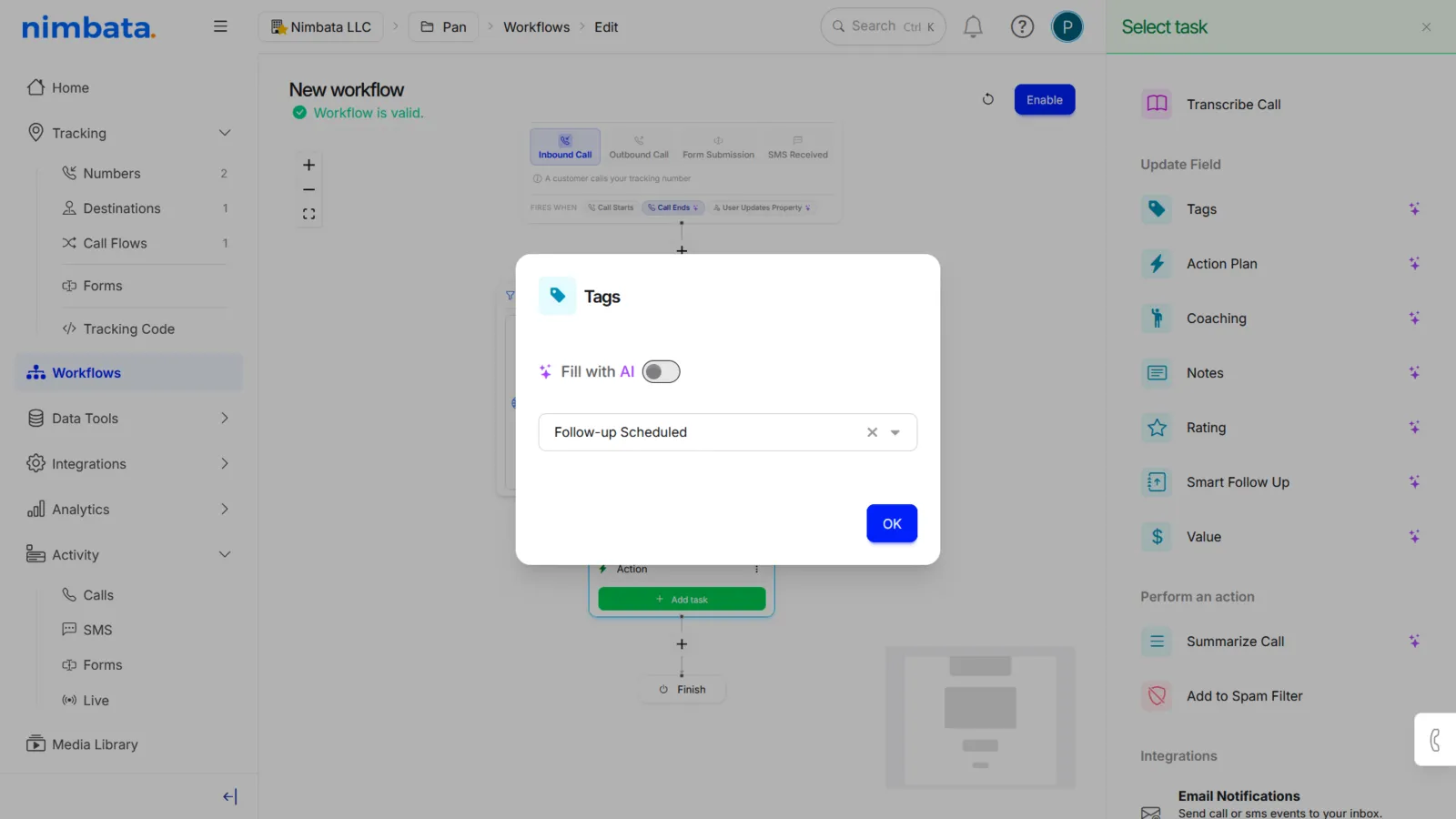
- From the task menu on the right, select Tags.
Choose how to apply the tags
Option A: Manual selection:
- Choose tags directly from the Call Status and Sentiment sub-menus.
- Tags you select carry across sub-menu views so you can keep track of what you’ve already chosen.
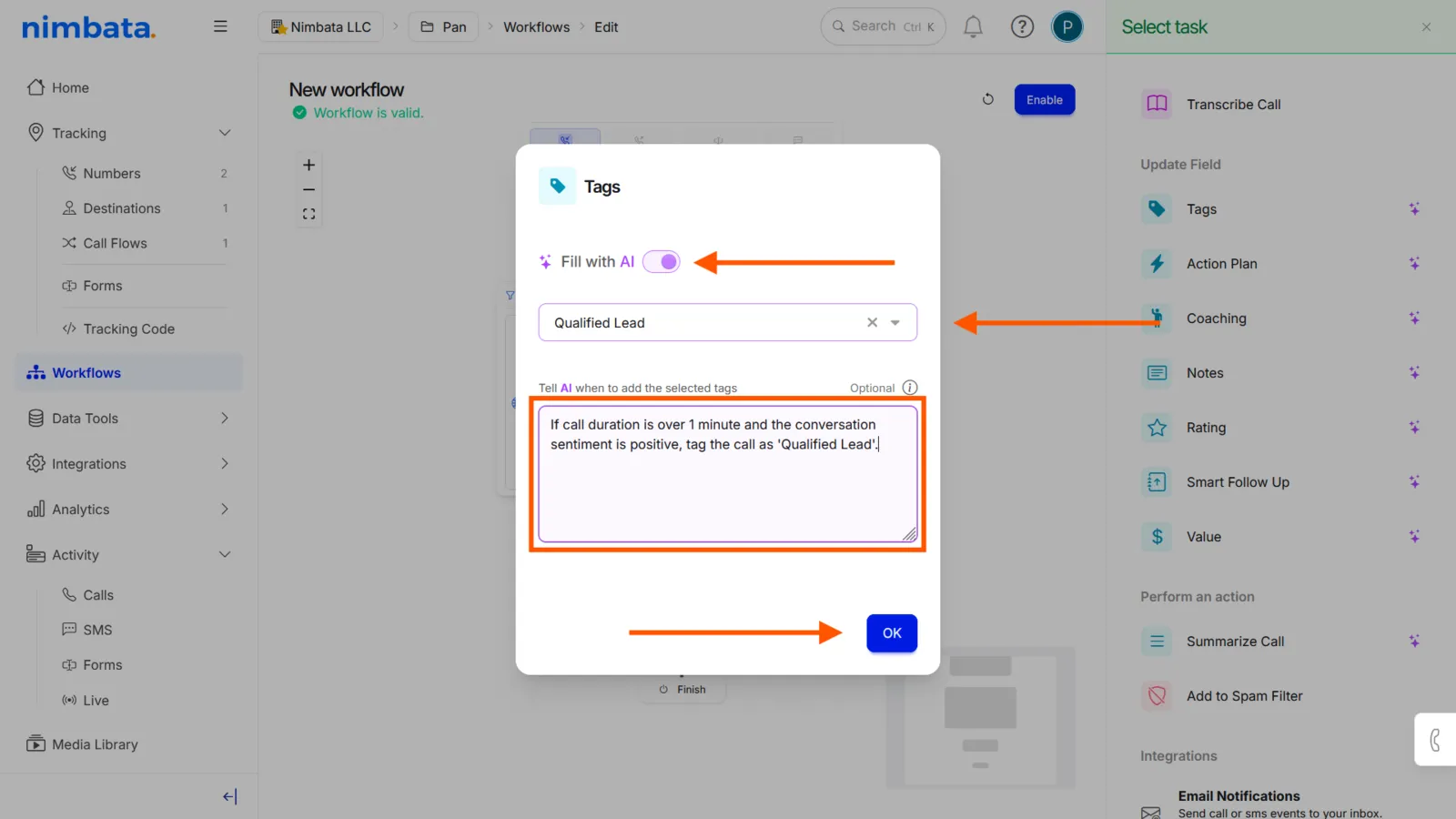
Option B: Fill with AI:
- Toggle on Fill with AI.
- Write an instruction telling Nimbata AI how to tag qualifying calls.
- Optionally, restrict which tags the AI can apply to improve accuracy.
- Click OK.
Enable the workflow
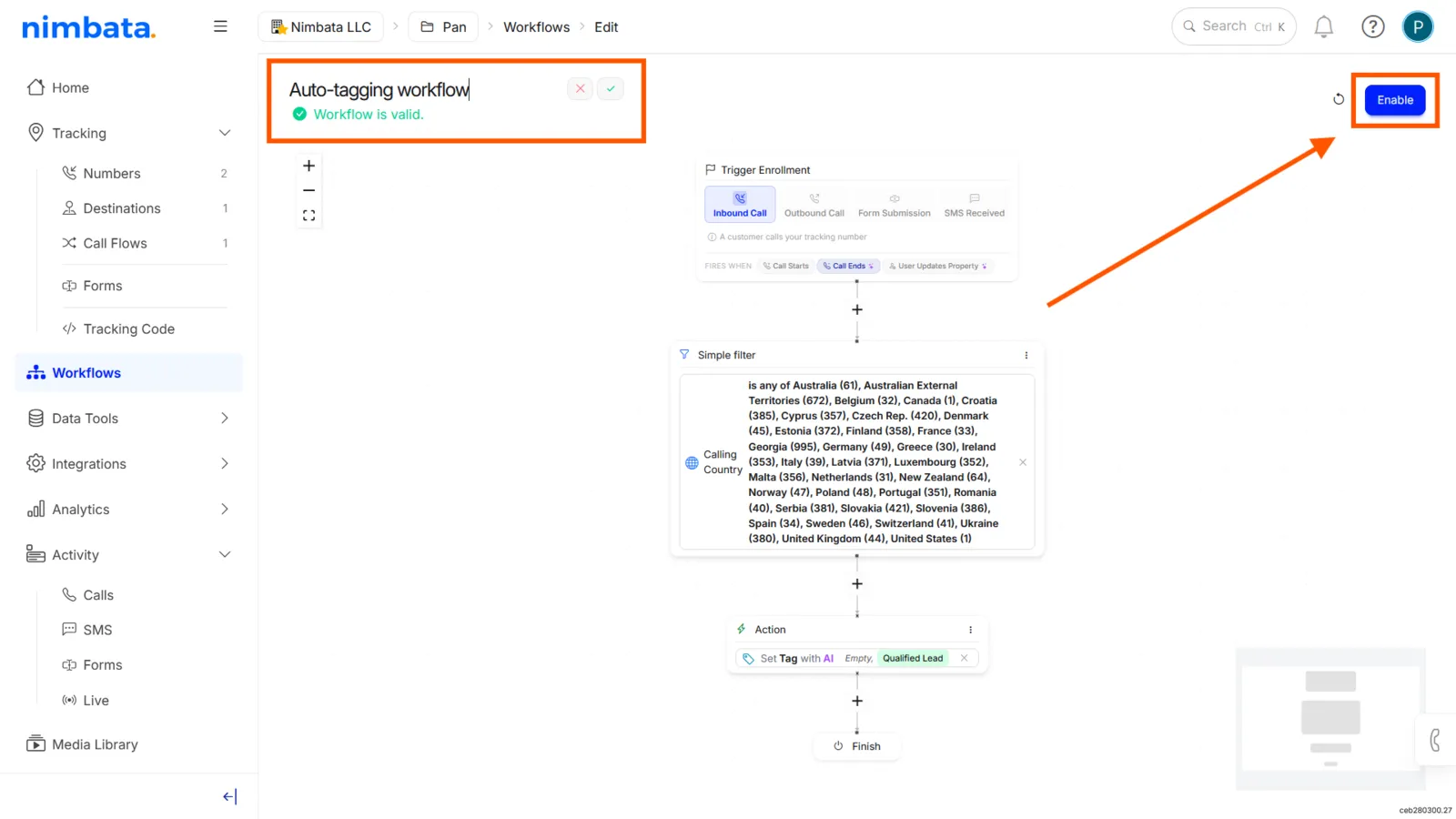
- Click Enable in the top-right corner.
- Optionally, rename the workflow to make it easy to identify.
Tag calls manually
Enable inline tag editing
- Go to Activity > Calls.
- Click the three-dot menu on the right side of the call list.
- Select Edit settings.
- Check Edit Tags In-line.
Apply a tag
- Click the Call Tag field on any call row.
- Select the desired tag from the menu.
Changes save automatically.
Tip
Make sure your date range is set correctly so the calls you want to tag appear in the list.
🎉 Calls tagged by workflow are processed automatically from now on. Manually tagged calls update immediately.
Workflow tagging example
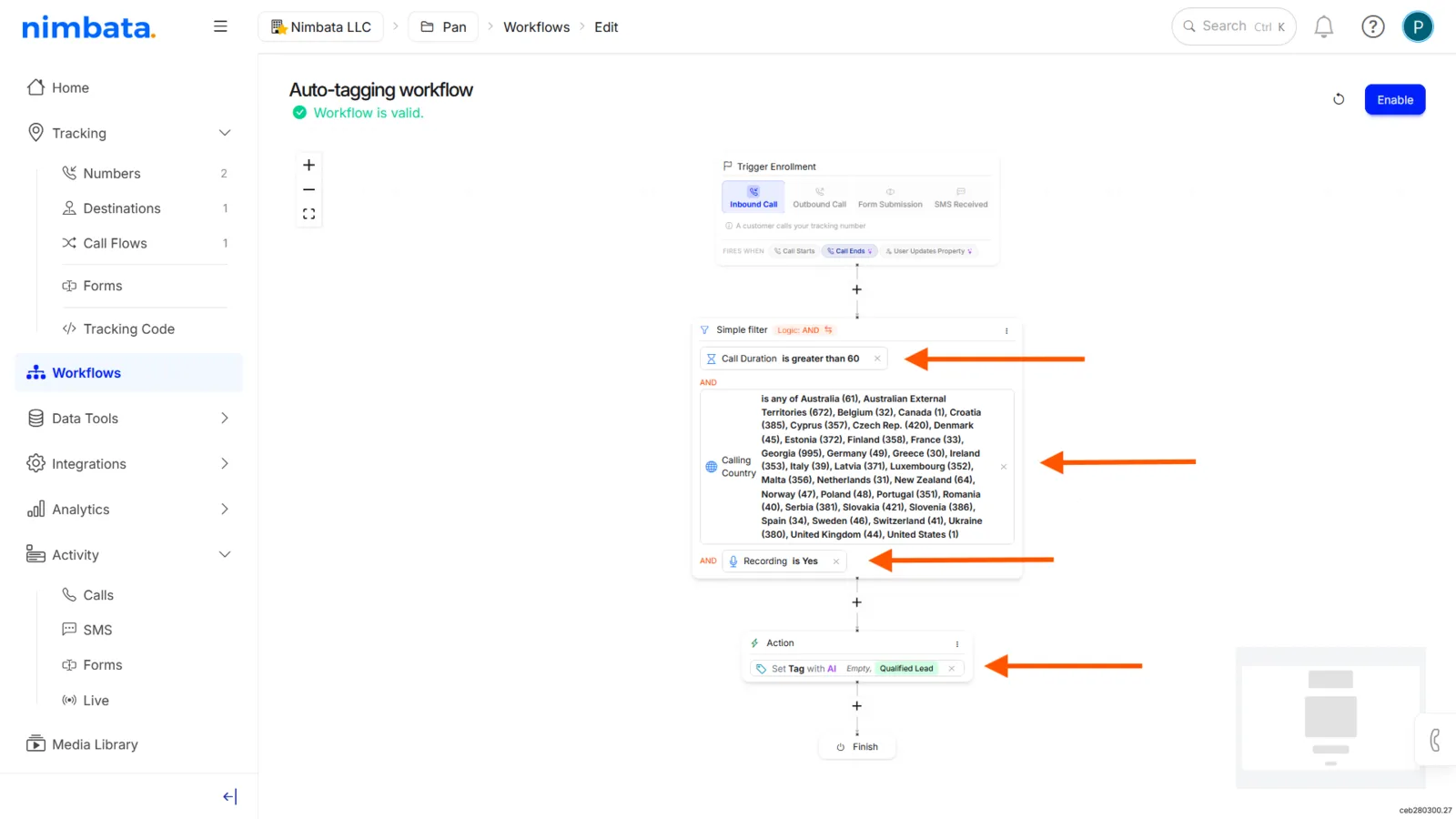
The example below tags future calls as Qualified Lead when they meet all three conditions: the call comes from a selected list of countries, a recording is present, and the call duration is greater than 60 seconds.
Detailed guide: Create tags and tag with AI
Detailed guide: Color-code tags
Detailed guide: Rules and tasks
Score calls with surveys
Post-call surveys let agents score, tag, and classify calls directly from the dial pad after a call ends. The caller hangs up, the agent hears the survey prompt, and pressing a digit triggers an action in Nimbata, such as applying a tag, assigning a rating, or recording a value.
Warning
Always assign the call flow you create to at least one tracking number for the survey to fire.
Go to Call Flows
- Go to Call handling > Call Flows.
- Click + Create to start a new call flow, or open an existing one you want to add a survey to.
Select From Scratch
- In the Create a New Call Flow menu, select From Scratch.
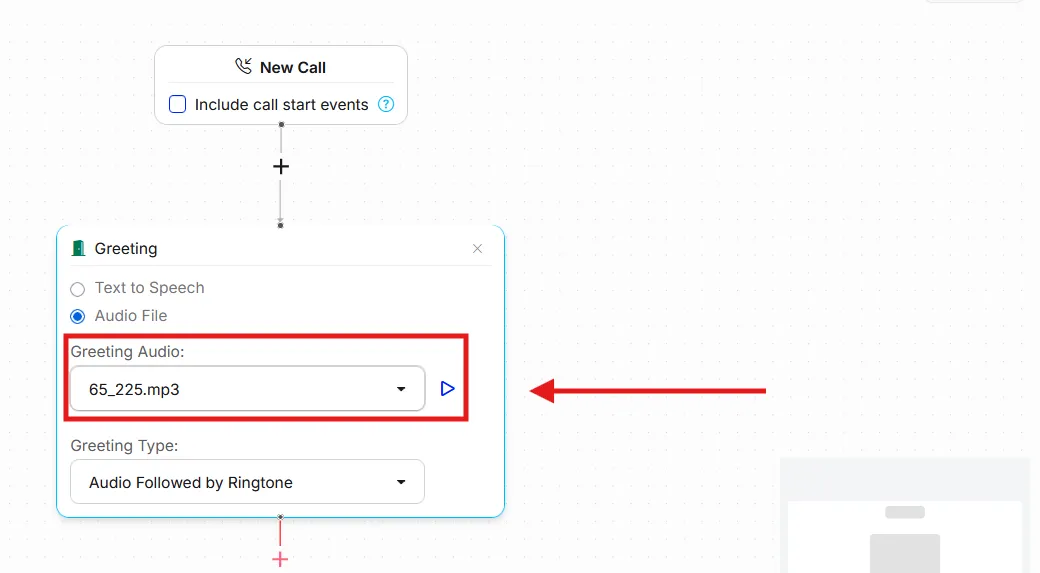
Add a Greeting
- Click the + plus sign in the call flow builder.
- Select Greeting.
- Choose Text to Speech or Audio File for your greeting message.
Add a Dial destination
- Click the + plus sign again.
- Select Dial.
- Choose your preferred destination number.
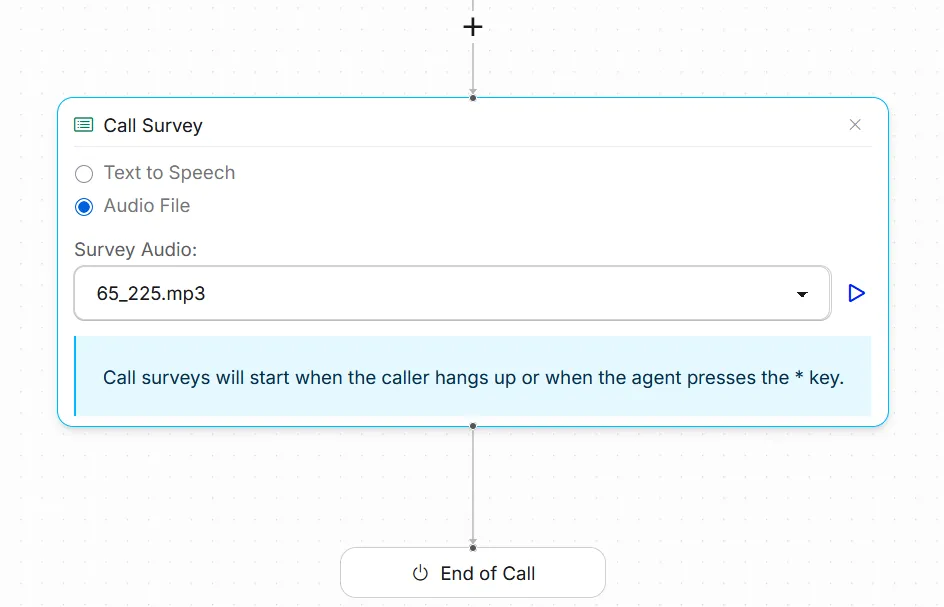
Add a Call Survey
- Click the + plus sign a third time.
- Select Call Survey from the menu.
Configure the survey message
- Choose Audio File to play a pre-recorded prompt, or Text to Speech to type your message.
🎉 Your call survey is set up. After each call ends, agents hear the survey prompt and can respond by pressing a digit.
How the survey is triggered
- The survey starts automatically when the caller hangs up.
- The agent can also trigger it early by pressing the * key on the dial pad.
- Pressing * immediately ends the call and starts the survey.
Automating tagging with call surveys
To assign tags, ratings, or values to the digits agents press, set up a workflow that listens for the Digits Pressed by Destination rule.
Detailed guide: Create tags and tag with AI
Detailed guide: Tag calls automatically or by hand
Detailed guide: Build a call flow