
Blocking keeps spam and unwanted callers away from your team, and capping limits how many calls a destination number receives. This page covers both, and how to handle anonymous callers without losing real leads.
Block spam callers
Note
Methods 1 and 2 (the Blocked Callers list and blocking from the Calls log) work on every plan, Entry included. Methods 3 and 4 use the Caller ID Prefix filter and Keypad Entry in a call flow, which are available on Marketing and Agency plans only.
Nimbata gives you four ways to block unwanted or spam callers. Use whichever method best fits the type of spam you’re dealing with.
Method 1. Block a specific number from the Blocked Callers list
Use this to block a single caller ID you’ve already identified as spam.
- Go to Call handling > Blocked Callers.
- Click the + button.
- Enter the caller ID and click Add.
The number is now blocked and will appear in your blocked callers list.
Method 2. Block a number directly from the Calls log
Use this when you spot a spam number in your activity log.
- Go to Activity > Calls.
- Search for the caller ID in the search bar and select the correct date range.
- Click the arrow to expand the call details.
- Click Add to call spam numbers.
Method 3. Block entire caller ID prefixes using a call flow
Use this to block all calls from a specific area code, country code, or number pattern.
Create a new call flow
- Go to Call handling > Call Flows.
- Click + Create.
Add the Caller ID Prefix filter
- Click the + button on the canvas.
- Select Caller ID Prefix from the Filters menu.
Enter the prefix and route it to Hang Up
- Type the prefix you want to block.
- Click the + below that branch and select Hang Up.
Route all remaining callers normally
On the remaining-callers branch, add a Dial action to your destination number.
Method 4. Use Greeting + Keypad Entry to filter spam naturally
Use this to silently deter robocalls without blocking legitimate callers. Any caller who doesn’t press a key is hung up on, while real callers proceed.
Create a new call flow and add a Greeting
- Go to Call handling > Call Flows.
- Click + Create.
- Add a Greeting that instructs callers to press a key to continue. For example, “Press 1 to connect.”
Add the Keypad Entry action
- Click the + below the Greeting.
- Select Keypad Entry from the Filters menu.
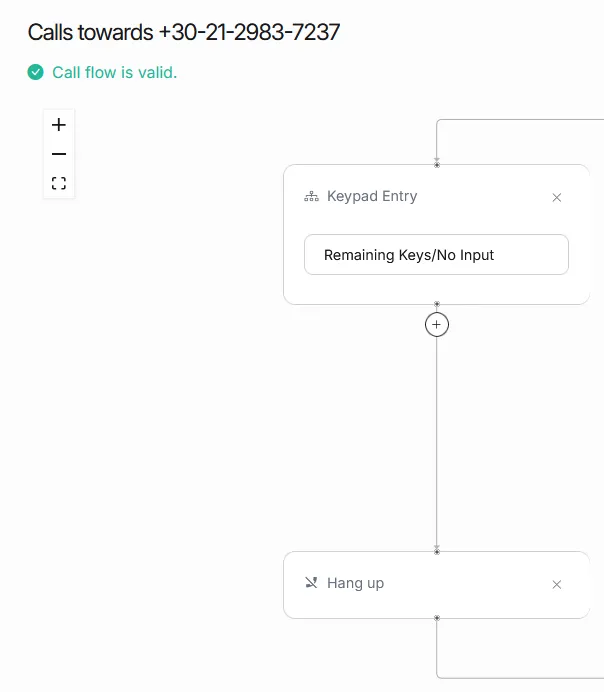
Route the matching key to Dial, and Remaining Keys / No Input to Hang Up
- On the branch for the correct key press (for example, 1), add a Dial action.
- On the Remaining Keys / No Input branch, add Hang Up.
Remove a number from the block list
- Go to Call handling > Blocked Callers.
- Select the number.
- Click the red bin icon and confirm.
Detailed guide: Route by caller location
Detailed guide: Block countries
Detailed guide: Build a keypad menu
Block countries
You can block all calls originating from one or more countries by adding their country code prefixes to a Caller ID Prefix filter in a call flow, then routing those prefixes to Hang Up. All other callers continue through the flow normally.
Open the Call Flow Builder
- Go to Call handling > Call Flows.
- Click Create to build a new call flow, or click an existing one to edit it.
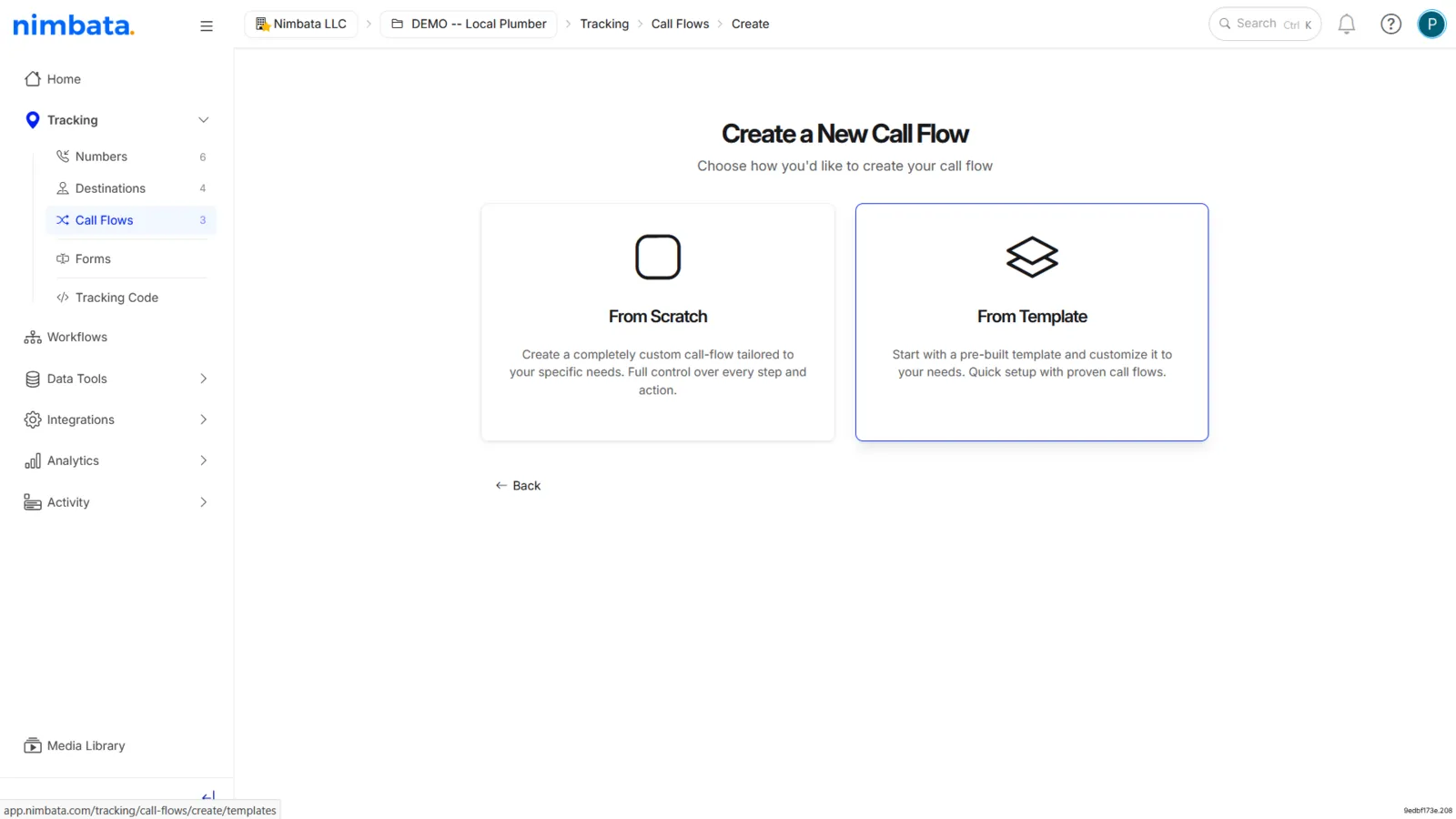
Choose how to start (new flows only)
- Select From Scratch or From Template.
- If using a template, pick Simple Call Flow as the base and delete the pre-existing Dial action before continuing.
Add the Caller ID Prefix filter
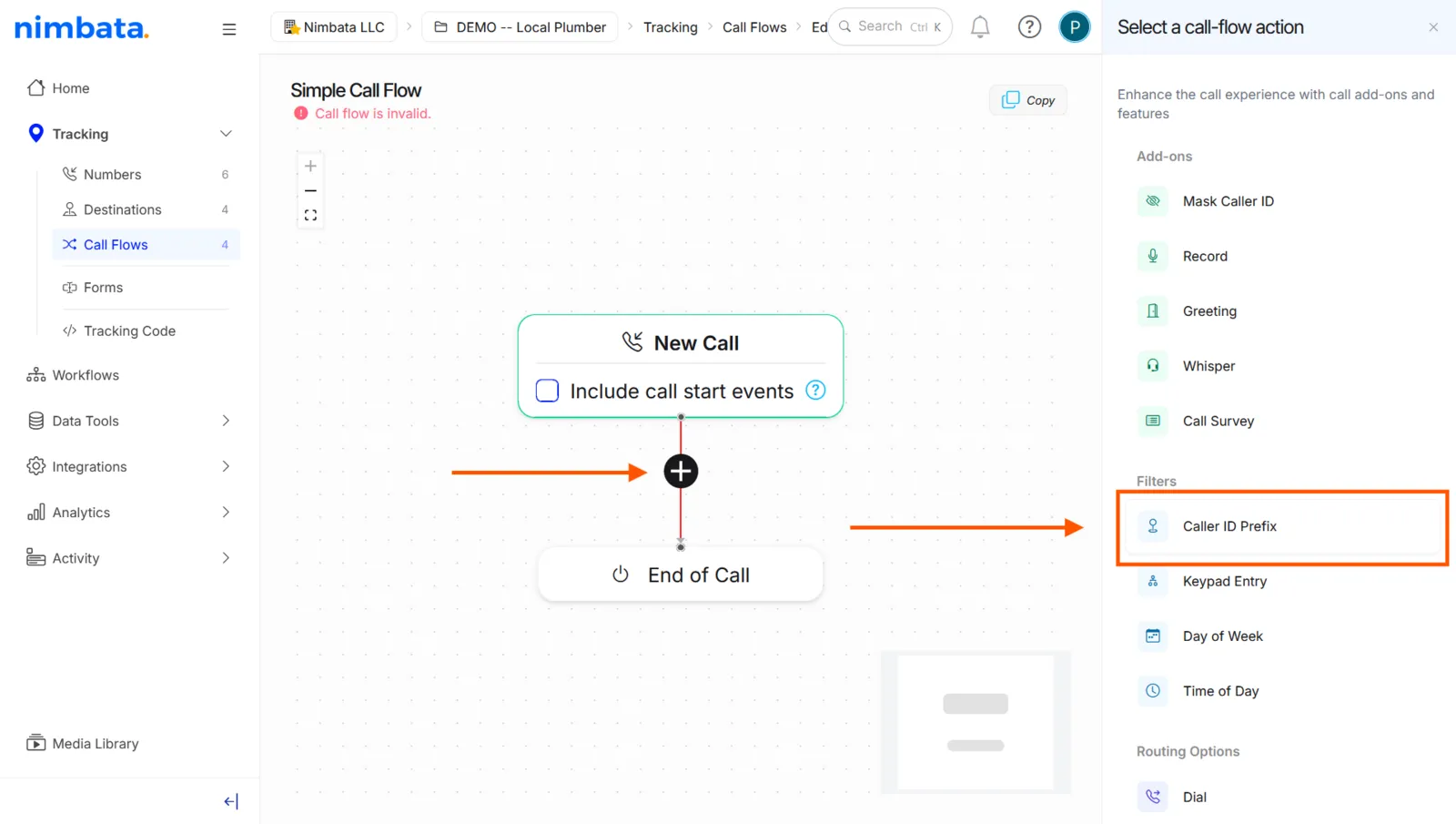
- Click the + button on the canvas.
- Select Caller ID Prefix from the Filters menu.
Enter the country codes to block
Type the international dialling prefix for each country you want to block (for example,
+44for the UK,+49for Germany).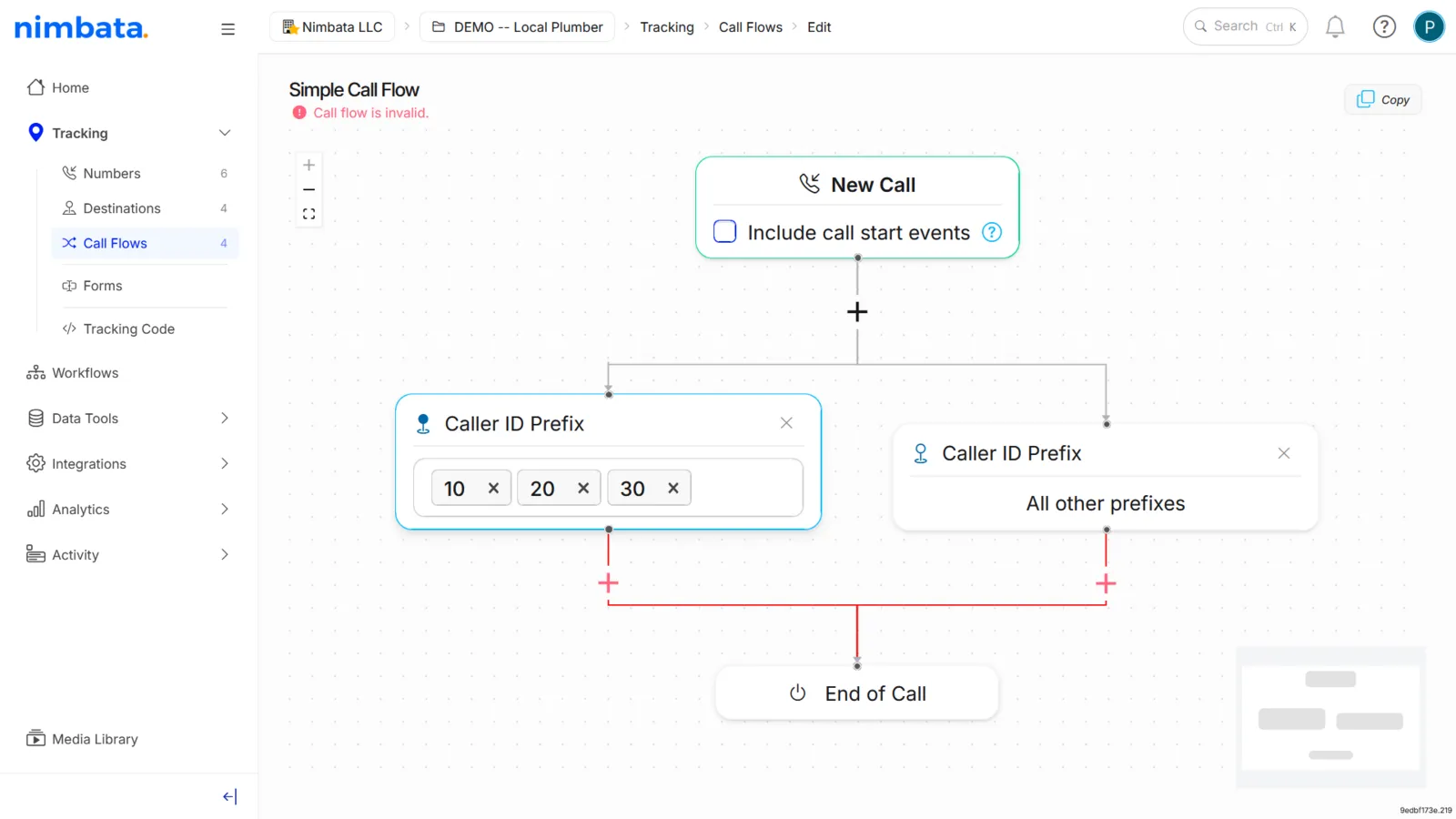
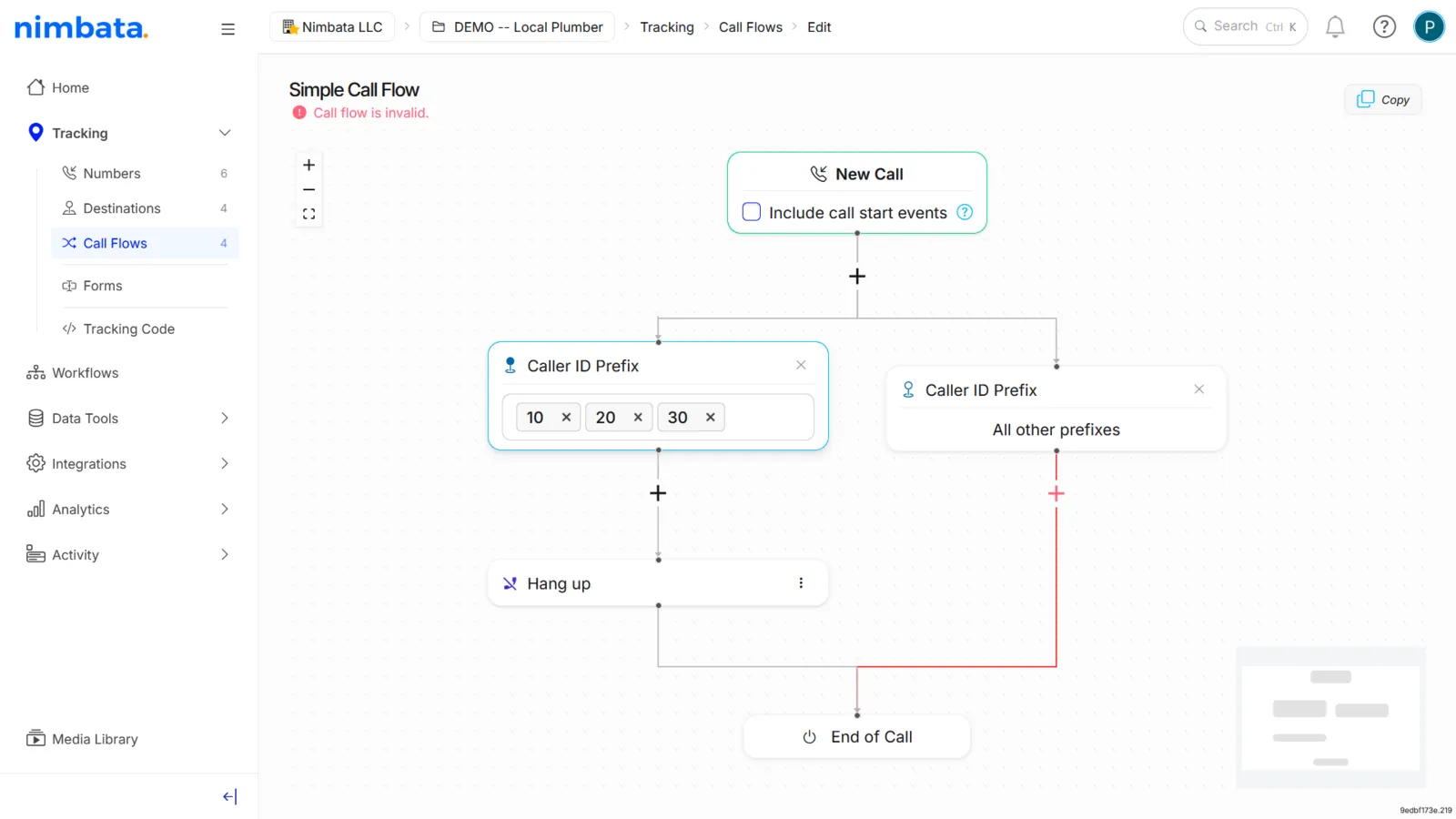
Route the blocked prefixes to Hang Up
- Click the + on the branch for the prefixes you entered.
- Select Hang Up.
Route all remaining callers to a destination
- Click the + on the remaining-callers branch.
- Select Dial and choose the destination number.
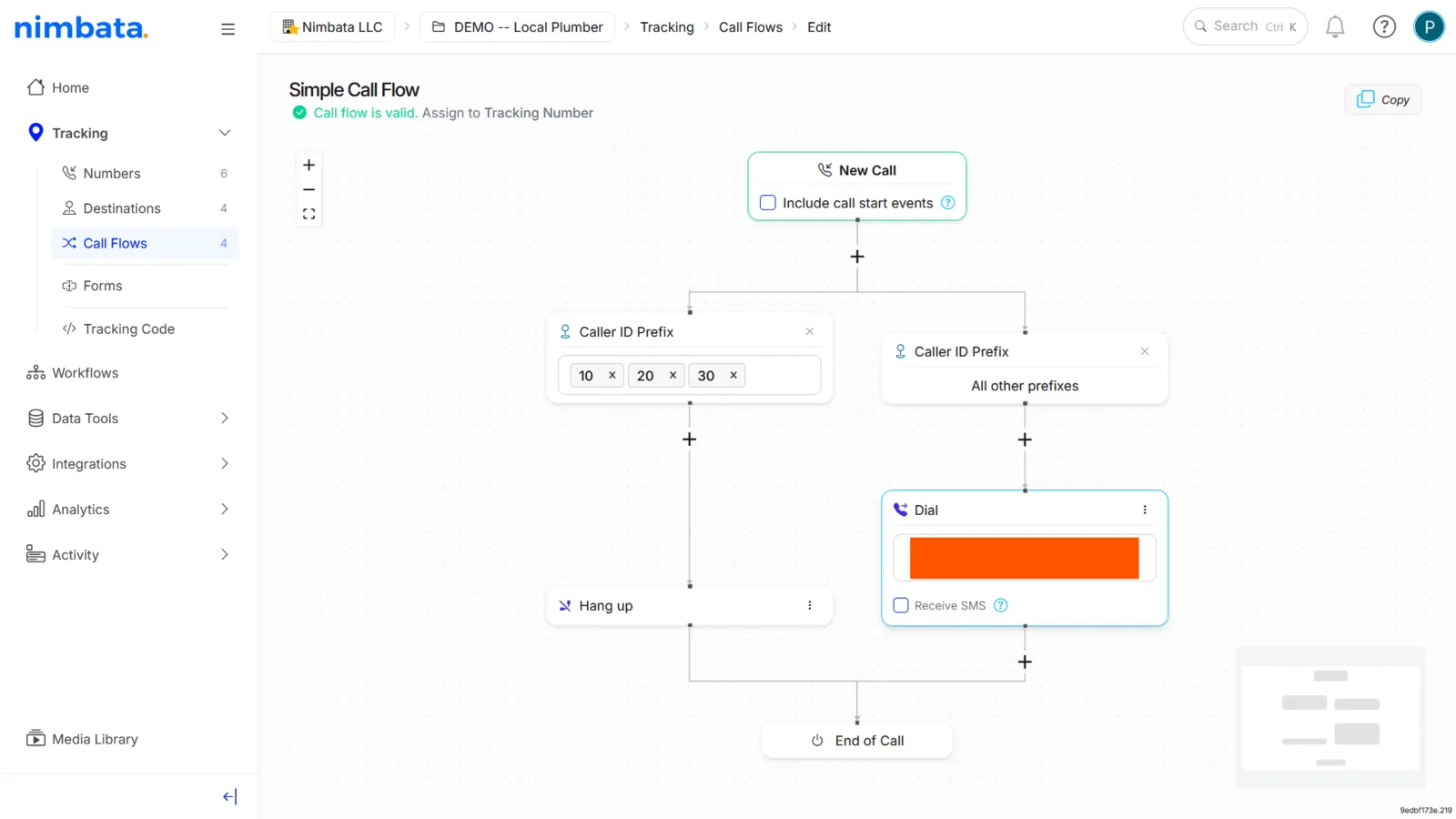
🎉 Done. Callers from the blocked countries will hear a hang-up immediately, while everyone else connects normally.
Detailed guide: Route by caller location
Detailed guide: Block spam callers
Detailed guide: Assign a call flow
Handle anonymous calls
Anonymous calls present a dilemma: most are spam or robocalls, but some are genuine leads who simply prefer not to share their number. Blocking all anonymous calls is easy, but it costs you those real leads. The best approach is to route anonymous callers to a voicemail that asks them to call back with their number visible. Legitimate prospects will call back; robocalls and spam will not.
Open the Call Flow Builder
- Go to Call handling > Call Flows.
- Click + Create to create a new call flow.
Add the Caller ID Prefix filter
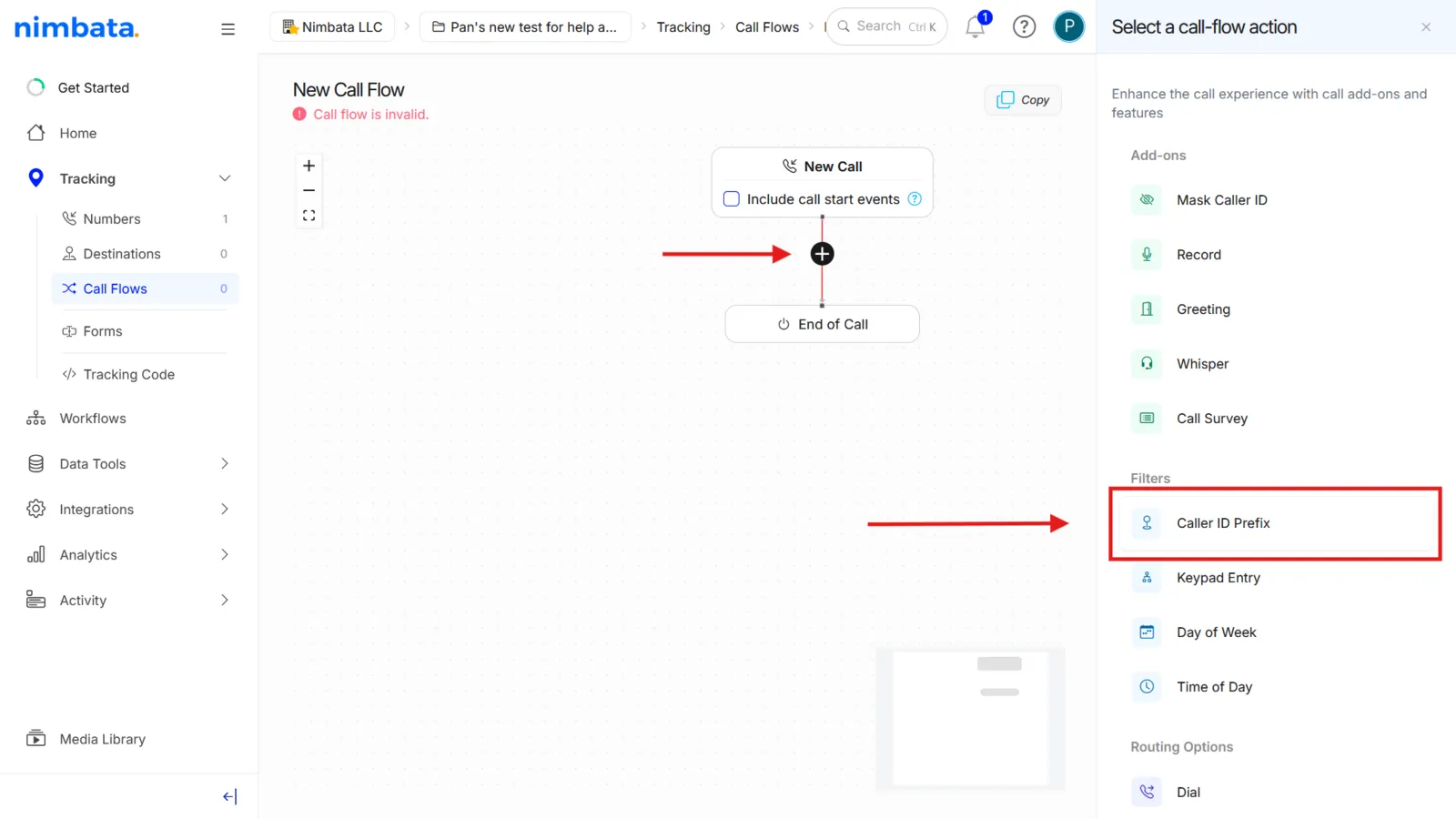
- Click the + button on the canvas.
- Select Caller ID Prefix from the Filters menu.
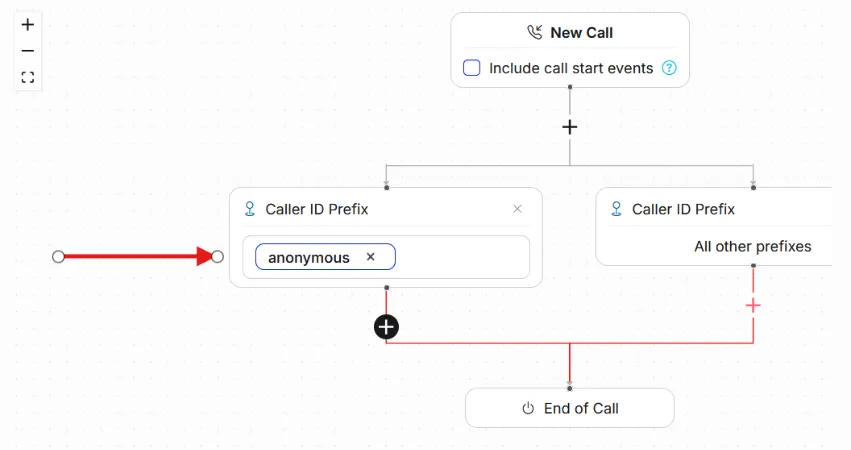
This creates two branches: one for the prefixes you define, and one for all remaining callers.
Set one branch to catch anonymous callers
- In one of the two Caller ID Prefix path boxes, type anonymous.
- Leave the other path empty; it will handle all identified callers.
Route anonymous callers to Voicemail
- Click the + below the anonymous branch.
- Select Voicemail.
- Configure the voicemail greeting to ask the caller to call back with their number visible. For example, “We’re unable to answer calls from withheld numbers. Please call again with your caller ID enabled.”
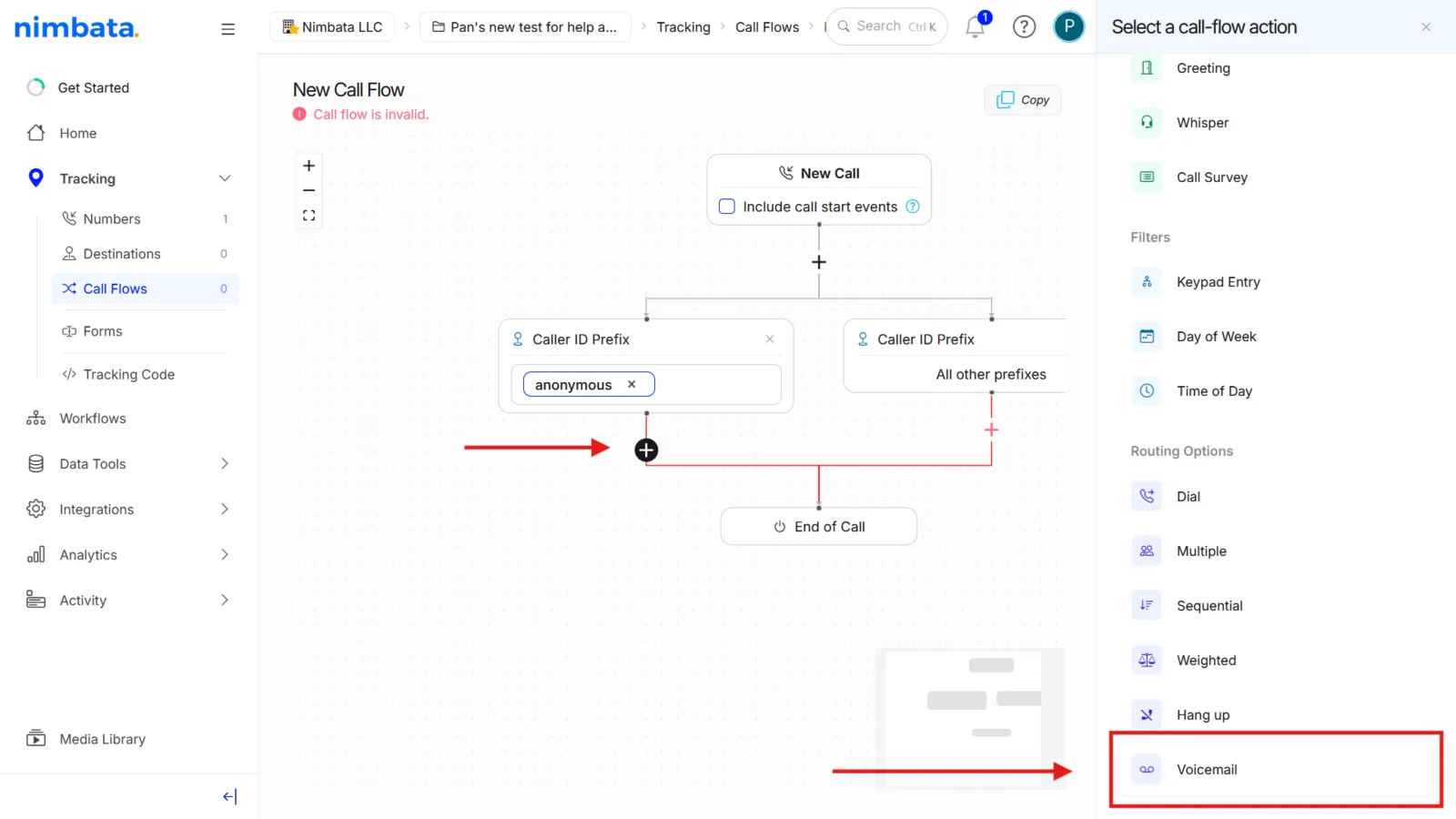
Route all other callers to your destination(s)
- Click the + below the remaining-callers branch.
- Select Dial and choose the destination number(s) for identified callers.
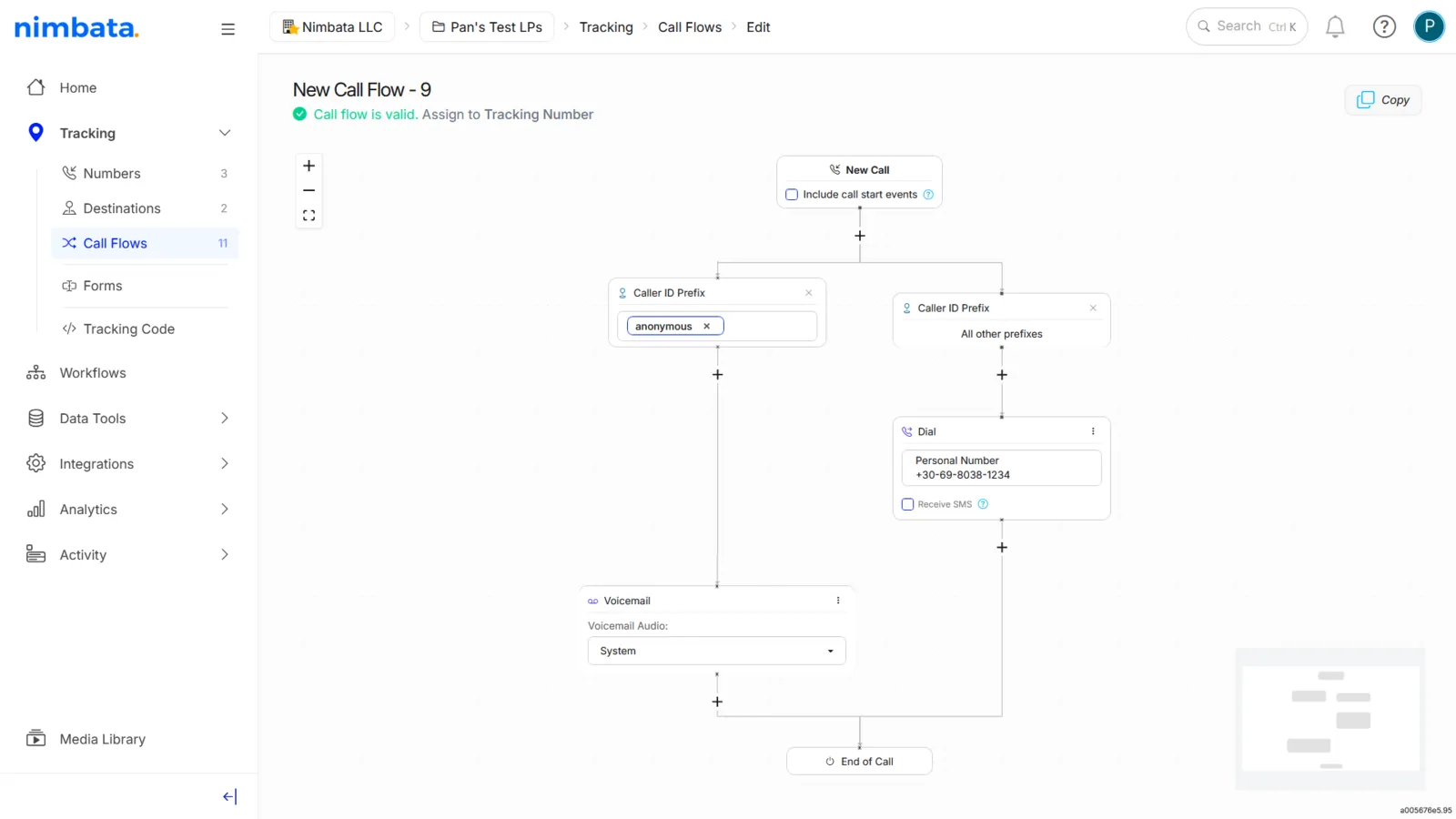
🎉 Done. Anonymous callers hear a polite voicemail asking them to call back; genuine leads will, spam won’t.
Detailed guide: Route by caller location
Detailed guide: Block spam callers
Detailed guide: Set up and listen to voicemail
Detailed guide: Assign a call flow
Cap calls per destination
Tip
Call capping is most effective when combined with Sequential or Weighted call distribution. See: Ring numbers in order and Split calls by percentage.
Call capping sets a maximum number of answered calls a destination number can take, counted from a start date you choose. Each caller counts once, however many times they call; anonymous callers count on every call. The cap does not reset by itself: once reached, it stays reached until you raise the cap, reset the counter, or turn capping off and on again. Use it to protect agent capacity, control advertising spend, or enforce fair-distribution SLAs.
What happens to a call once its destination reaches the cap depends on the call flow. If the call flow dials only that one number, the call is rejected and ends with the hangup cause Capped. If it routes to several destinations (Multiple, Sequential or Weighted routing), the call goes to the next destination.
Open the Call Capping panel
- Go to Tracking > Destinations.
- If the Capping column isn’t showing, click Call Capping in the top-right corner. The button disappears once a destination has a cap.
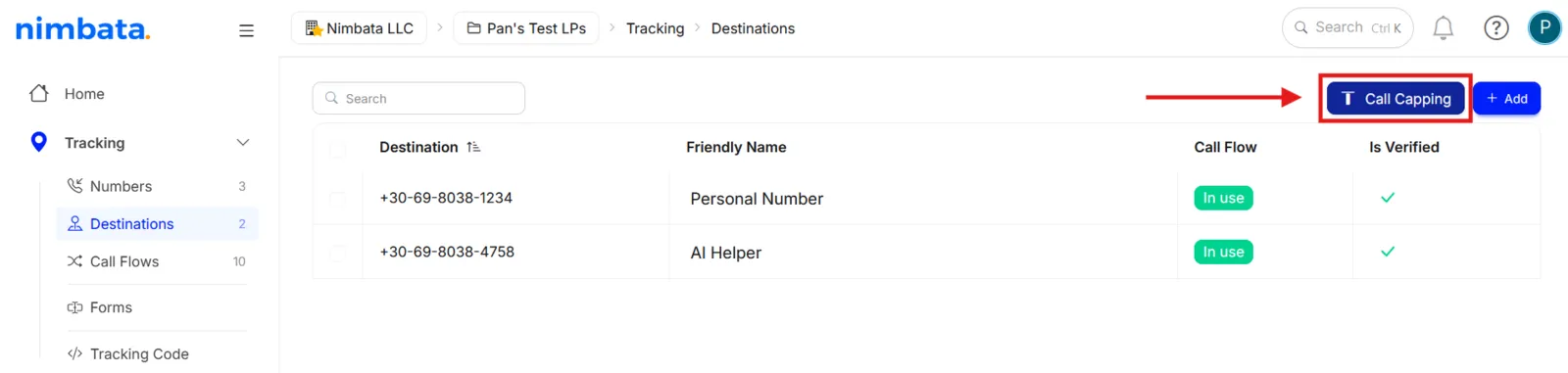
Enable call capping for a destination number
Toggle on the switch next to the destination number(s) you want to cap.
Tip
The default cap is 10 calls, counted from today.
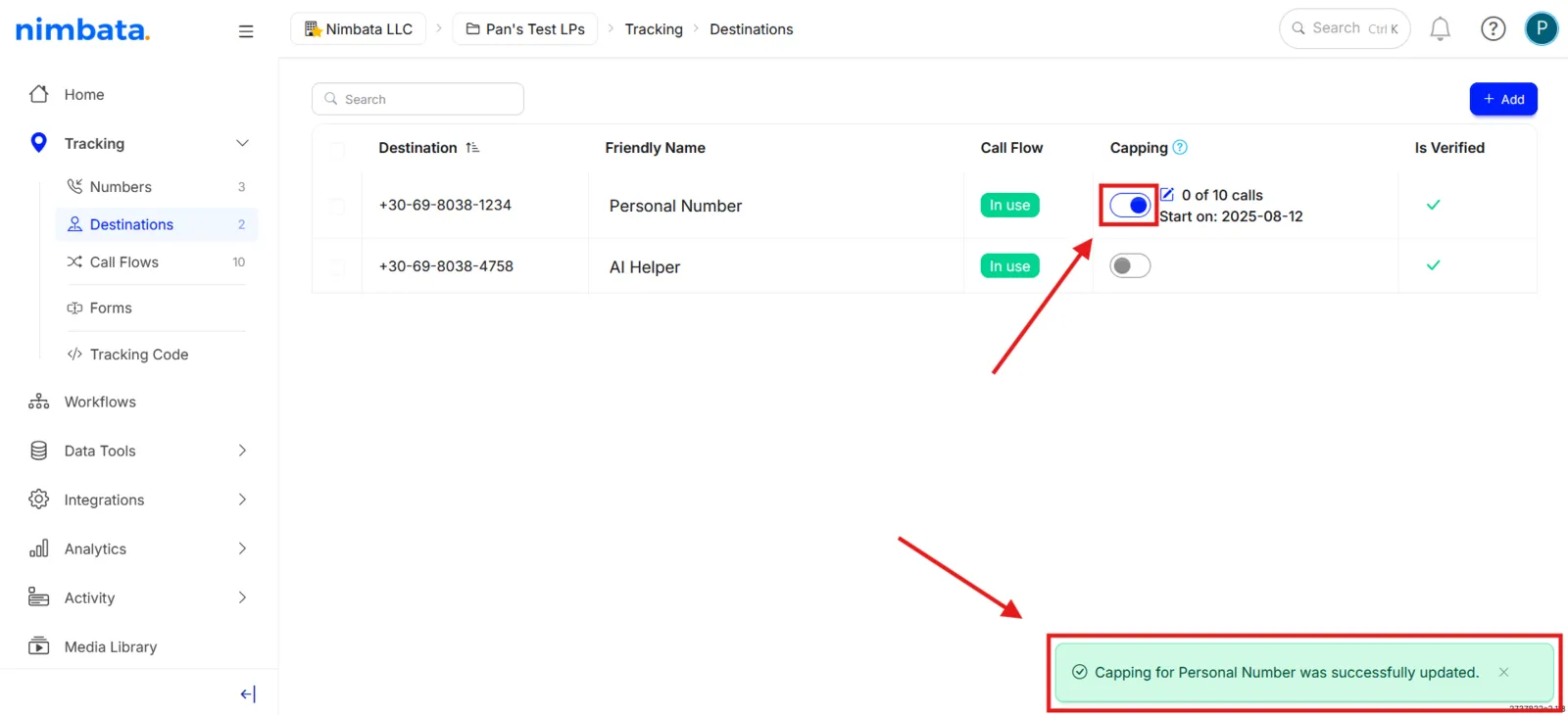
Customize the cap settings
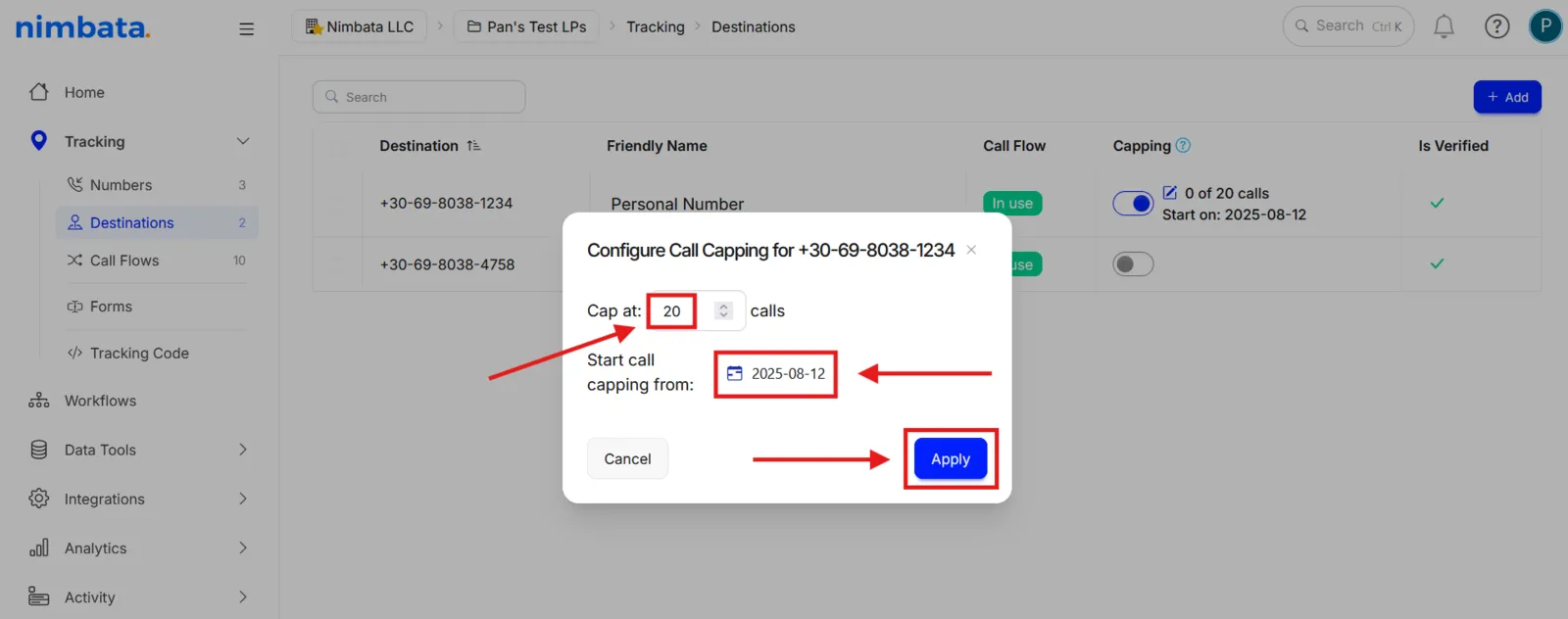
Click the pencil icon next to the destination. Its tooltip reads Change Call Capping settings.

Set the call limit and start date
- In Cap at, enter the maximum number of answered calls (1 to 9999).
- In Start call capping from:, pick the date counting starts.
- Click Apply.
🎉 Call capping is now active. When you build a call flow using a capped destination, Nimbata will display a notice in the builder as a reminder.
Detailed guide: Change the cap
Detailed guide: Ring numbers in order
Detailed guide: Split calls by percentage
Change the cap
Change a cap, or start counting again, from the same Configure Call Capping dialog. A cap never resets by itself, so resetting the counter is how you reopen a destination that has reached its cap.
Tip
You can combine call capping with Sequential or Weighted routing to distribute capped calls across your team. See Ring numbers in order and Split calls by percentage.
Open the Call Capping panel
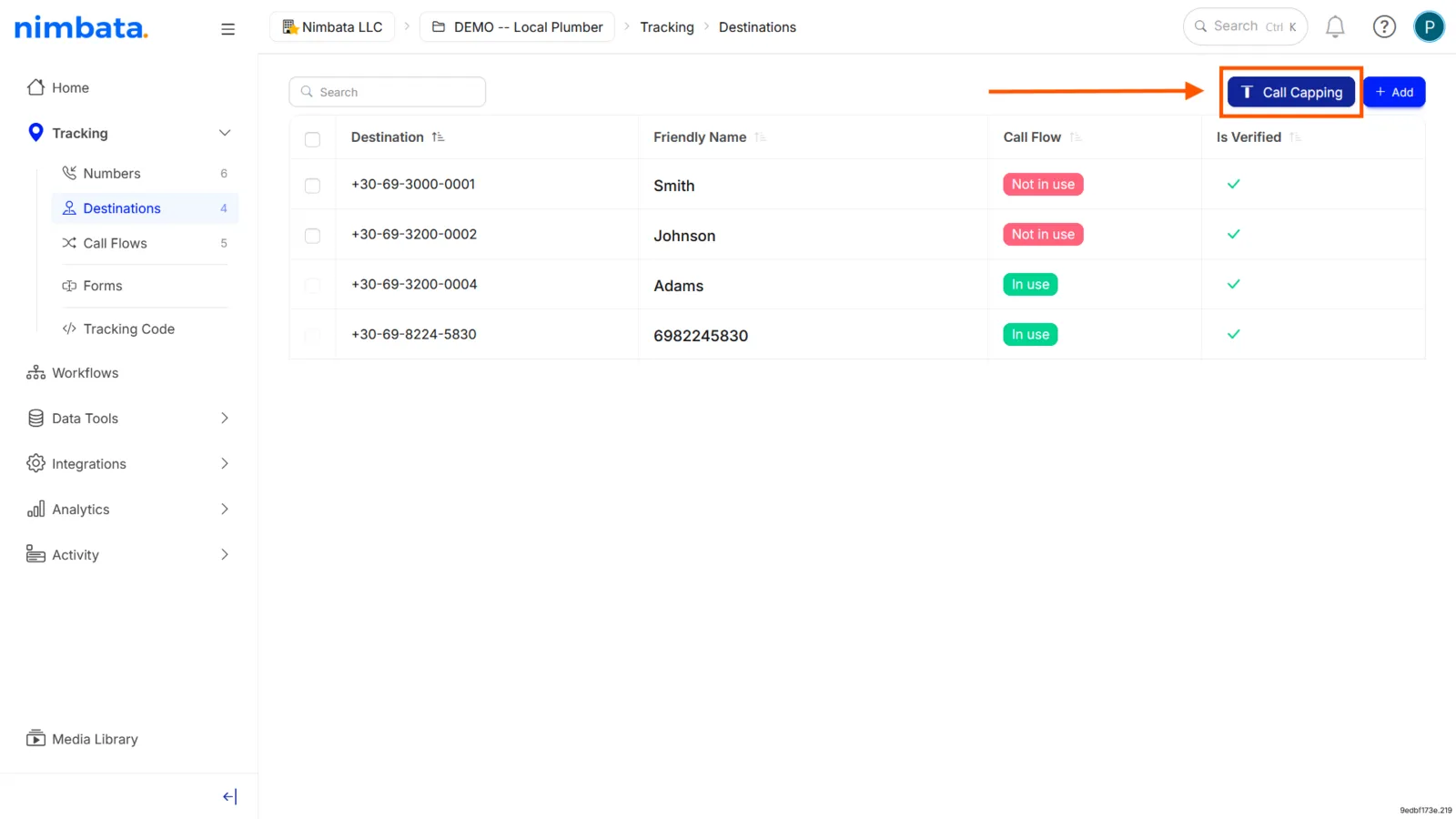
- Go to Tracking > Destinations.
- If the Capping column isn’t showing, click Call Capping in the top-right corner.
Enable capping for the destination number
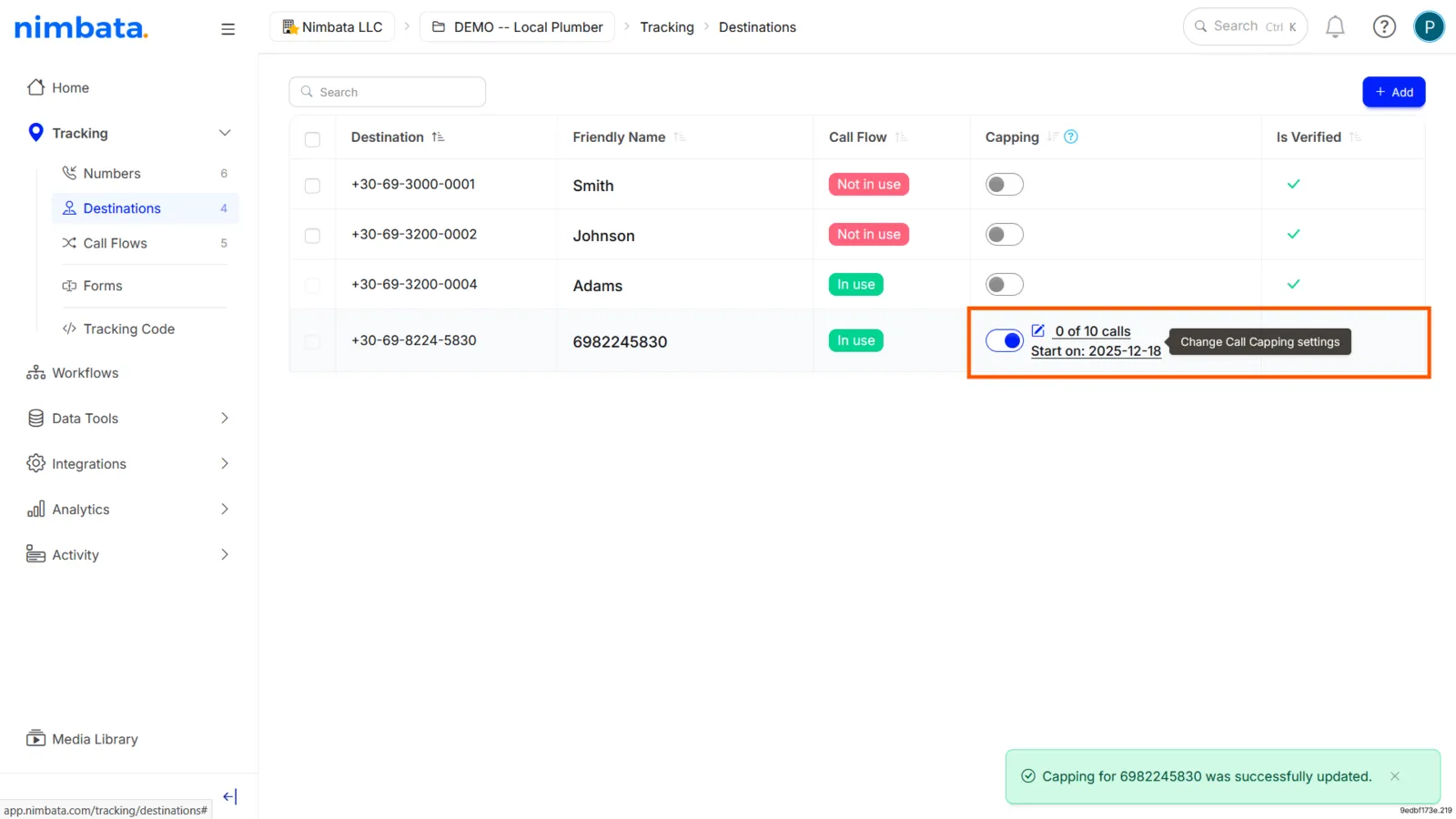
Toggle the Capping switch on for the destination number(s) you want to cap.
Set the call limit
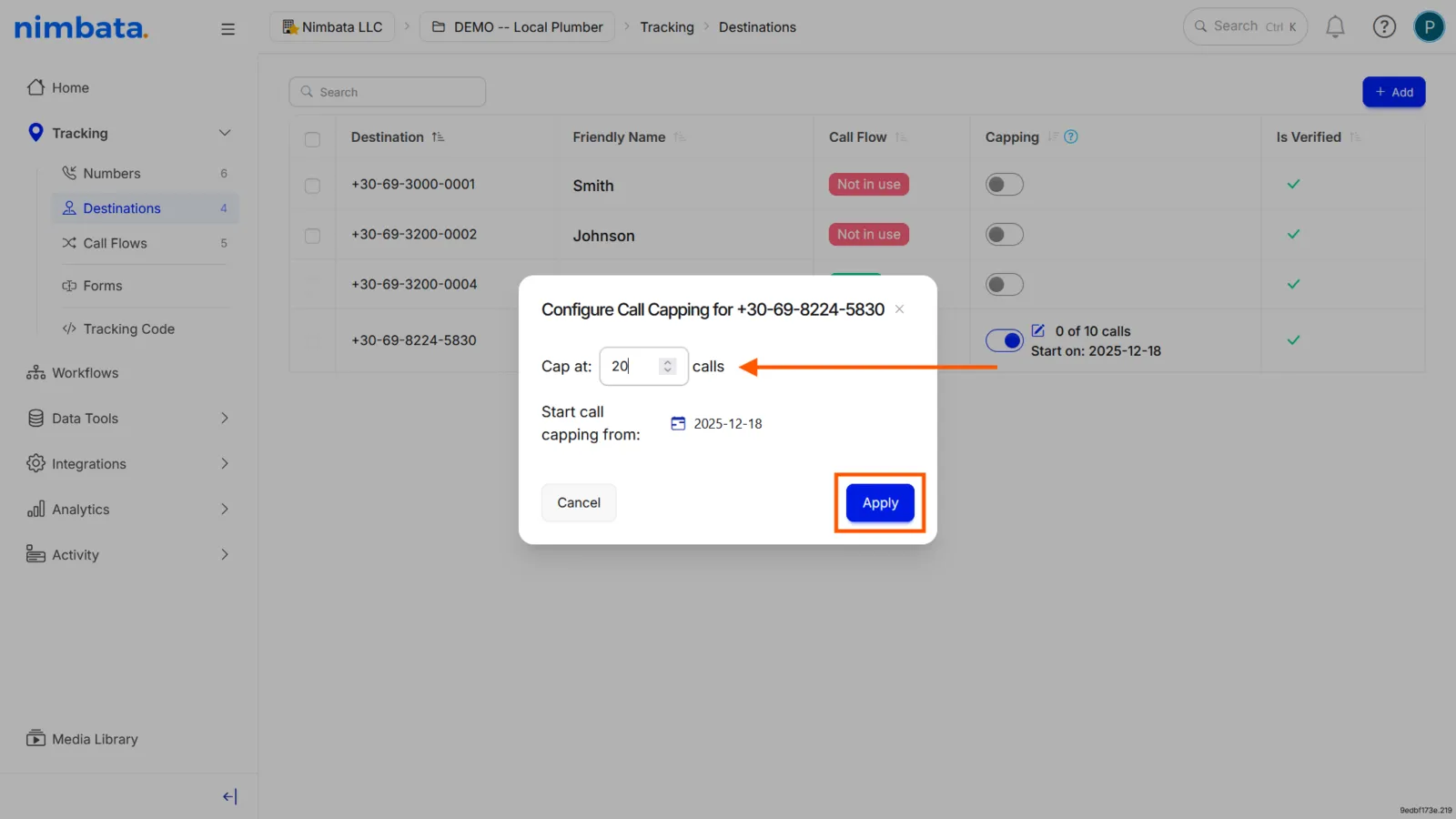
- Click the pencil icon next to the destination.
- In Cap at, enter the new maximum number of answered calls.
- To start counting again, click empty next to calls reached (it shows once at least one call has counted). Moving the start date to a future date also resets the counter.
- Click Apply.
🎉 Done. You can return here at any time to change the cap, reset the counter, or turn capping off with the Capping switch.
Detailed guide: Cap calls per destination
Detailed guide: Ring numbers in order
Detailed guide: Split calls by percentage