
Nimbata tracks form submissions the same way it tracks phone calls, by capturing source, visitor, and campaign data alongside every form submission event.
Tip
Before you start: Make sure the Nimbata script is already installed on your website. If you haven’t done that yet, follow the DNI script installation guide first.
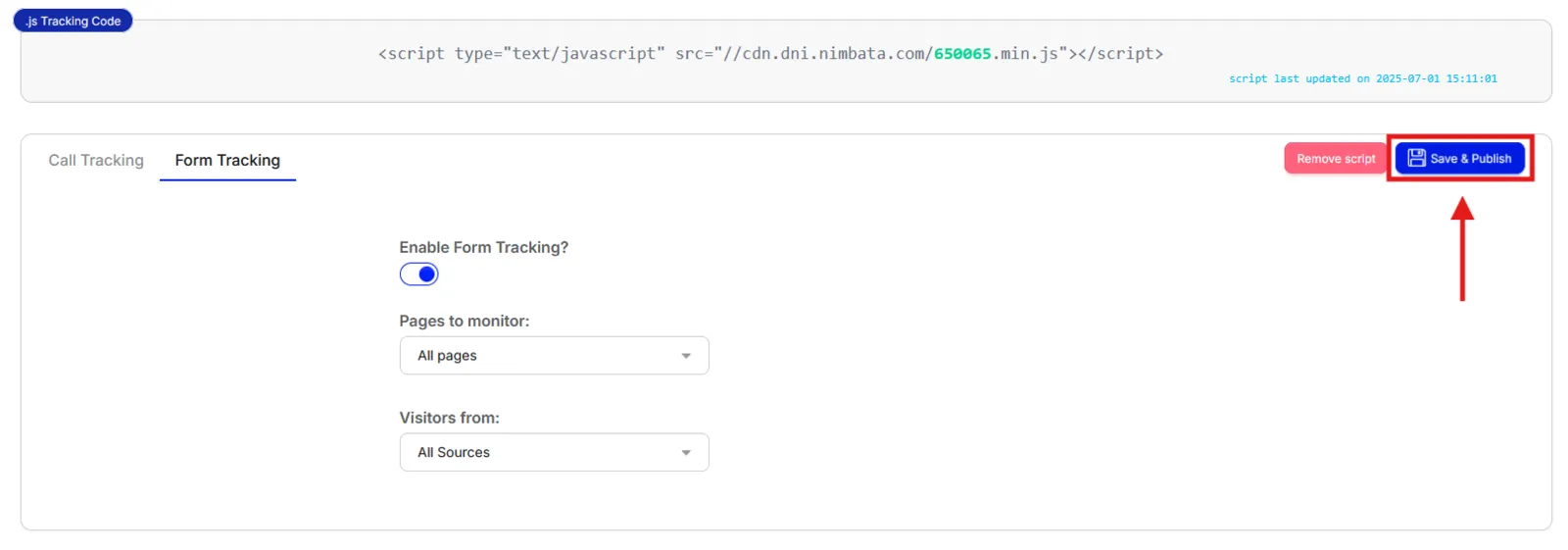
Step 1. Enable form tracking in the tracking code settings
- Go to Tracking > Tracking Code.
- Toggle on Enable Form Tracking?
- Select which pages you want to monitor and which visitor sources to track.
- Click Save & Publish.
Note
If you are tracking forms only (no call tracking), Nimbata shows a No DNI tracking numbers message and a Tracking script currently not published notice when you first toggle on form tracking. Click Save & Publish and the tracking code is generated.
Step 2. Deploy the tracking script on your website
- Copy the line of code at the top of the Tracking > Tracking Code page.
- Deploy it via Google Tag Manager or add it directly to your website’s HTML.
🎉 Form tracking is now active.
After the first form submission is received, you can view and manage form data under Tracking > Form Tracking and Activity > Forms.
View form submission details
- Go to Tracking > Form Tracking.
- Click the Form Details cogwheel button next to any form.
- Review submission details in the right-side panel that appears.
Edit form details
- Go to Activity > Forms.
- Click the right-pointing arrow on any row to expand it.
- From the expanded view you can:
- Switch between forms using the form name field
- Refresh to view trend data
- Export data
- Edit field names
- Manage columns
- Delete the form (bin icon)
- Copy the landing page URL
- Set a monetary value for the form submission
HubSpot form tracking
If you use HubSpot forms, you need to convert them to raw HTML before Nimbata can track them:
- Log into HubSpot.
- Go to Marketing > Lead Capture > Forms.
- Find the form you want to track.
- Click Edit Form.
- Select Style & Preview at the top.
- Turn on Set as raw HTML form.
- Click Publish.
Troubleshooting: forms not showing in Nimbata
Nimbata monitors for form submission events. If submissions are not appearing, the most likely cause is a vanilla JavaScript form implementation. Vanilla JS submit() does not raise a submit event, it only triggers a button click, so Nimbata’s script cannot detect it.
Fix: Use one of the following instead:
- jQuery’s built-in
submit()method, which raises the correct events. - Vanilla JS
HTMLFormElement.requestSubmit(), which also fires the submit event correctly.
Detailed guide: Set up DNI step by step