# Exports and email reports
Nimbata gives you two ways to export your data: you can export your call activity as a spreadsheet, or download individual charts from any dashboard report. You can also receive recurring summaries of your call activity by email.
> **Note:** If you want your call data updated automatically without manual exports, use the native [Google Sheets integration](https://help.nimbata.com/integrations/sheets-and-looker-studio#google-sheets) instead.
## Export call activity
You can export your Nimbata call activity as an Excel or CSV file for offline analysis, reporting, or sharing with your team. The export reflects exactly what is visible in your current view, including any filters, date range, and columns you have configured.
1. **Open the calls view you want to export**
- Go to [Activity > Calls](https://app.nimbata.com/activity/calls).
- Select the view you want to export from the tabs at the top (for example, **Completed calls**, **Only answered calls**, or a custom view).
2. **Set your date range and filters**
- Use the date range picker to select the period you want to export.
- Apply any additional filters if you only want a subset of calls.
3. **Configure the columns you want included**
- Click the **three-dot menu** in the upper right.
- Select **Edit columns**.
- Add or remove columns as needed; only the columns in your **Selected** list appear in the export.
- Close the panel.
4. **Export the data**
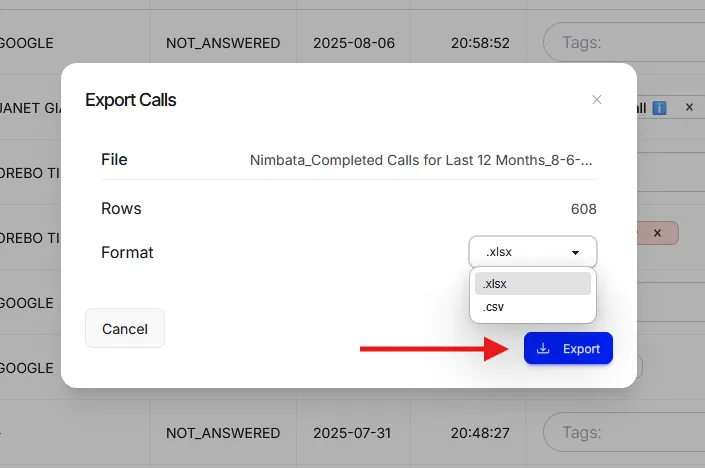
- Click the **three-dot menu** above the list and select **Export data**.
- In the **Export Calls** dialog, pick **.xlsx** or **.csv** under **Format**, then click **Export**.
- If every row is already loaded on screen, or you ticked the rows you want, the file downloads straight away (unless it includes the **Transcription** column). Otherwise Nimbata prepares it on the server and gives you a download link, in the app and by email. The link works once and expires after 24 hours.
### Export the dataset from the Trends report
You can also export your full call activity as Excel or CSV from the Trends report.
1. **Go to the Trends report**
- Go to [Dashboards > Trends](https://app.nimbata.com/dashboard/trends).
2. **Set the date range**
- Click the date range picker.
- Select the period you want to export.
- Click **Apply**.
3. **Download the dataset**
- Click the **three-dot menu** in the chart's top-right corner.
- Under **Download**, pick **CSV** or **XLSX**.
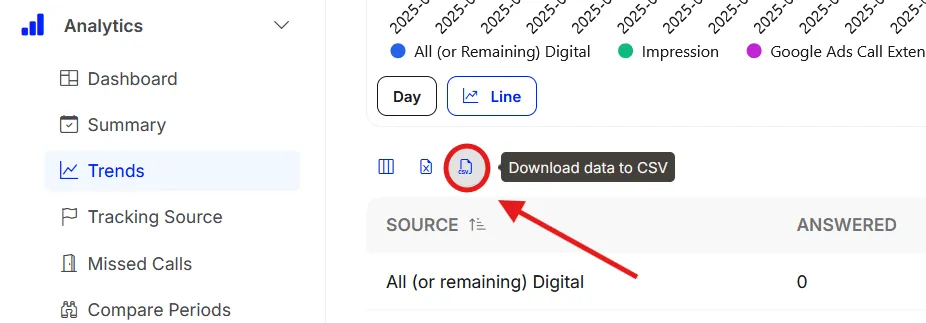
The file downloads automatically to your browser's default download folder.
🎉 Your call activity is exported and ready to open in Excel, Google Sheets, or any data tool.
Detailed guide: [Call views](https://help.nimbata.com/activity/call-log#call-views)\
Detailed guide: [Filter call views](https://help.nimbata.com/activity/call-log#filter-call-views)\
Detailed guide: [Google Sheets](https://help.nimbata.com/integrations/sheets-and-looker-studio#google-sheets)
## Download charts
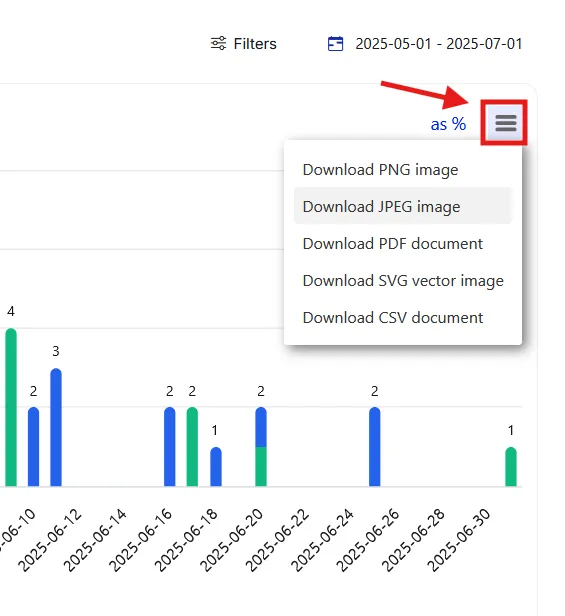
You can download any chart from a dashboard report as PNG, JPEG, PDF, SVG, CSV, or XLSX.
1. **Open a dashboard report**
- Go to [Dashboards > Trends](https://app.nimbata.com/dashboard/trends) or any other dashboard report.
2. **Set the date range**
- Click the date range picker.
- Select the period you want to analyze.
- Click **Apply**.
3. **Download the chart**
- Click the **three-dot menu** in the top-right corner of any chart.
- Under **Download**, pick your format: PNG, JPEG, PDF, SVG, CSV, or XLSX. Table widgets offer CSV.
🎉 Your data is exported and ready for analysis.
Detailed guide: [Export call activity](https://help.nimbata.com/activity/exports#export-call-activity)\
Detailed guide: [Google Sheets](https://help.nimbata.com/integrations/sheets-and-looker-studio#google-sheets)
## Scheduled email reports
Scheduled Email Alerts automatically send you recurring summaries of your call activity (inbound call and form submission summaries, missed call reports, GA pool status) directly to your inbox. Use them to configure, schedule, and send automated email reports to your team.
1. **Go to Scheduled Emails**
- Go to [Workspace > Scheduled Emails](https://app.nimbata.com/workspace/scheduled-emails/add).
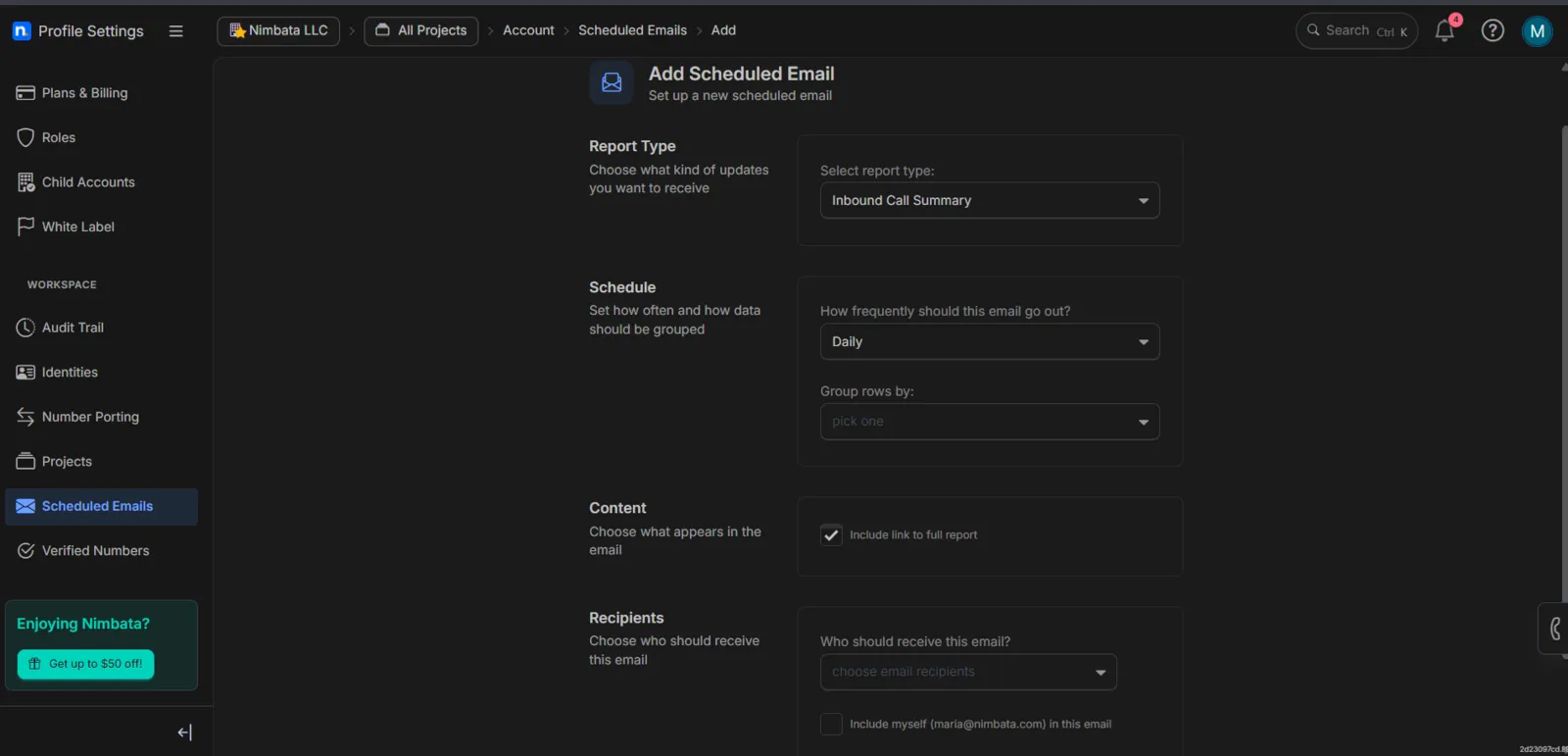
2. **Configure your scheduled email report**
- **Choose your Report Type:** Inbound Call Summary or Inbound Missed Calls Report. Form Submission Summary is offered for projects with form tracking, and GA Pool Status for projects with Google Analytics connected. GA Pool Status asks for the **Google Analytics Account** and **Google Analytics Property**, a **Lookback Days** period and a **Threshold (%)**, and alerts you when GA's recommended pool exceeds that percentage of your current pool.
- **Schedule** your report (daily, weekly, or monthly) and **Group** your report's rows by one of the options in the drop-down menu (project, tracking number, channel, UTM, or tags).
- **Select view content:** tick this option if you want to include a link to your full report.
- **Select your recipients:** select the users who receive the report. You can also include yourself in that list with the option below the selection drop-down menu.
- Click **Send Test** and you are set!
3. **Add more scheduled email reports (optional)**
- Once the first scheduled email has been created, you can edit it, or create more from the Scheduled Emails dashboard by clicking **+ Add** at the top right of the page.
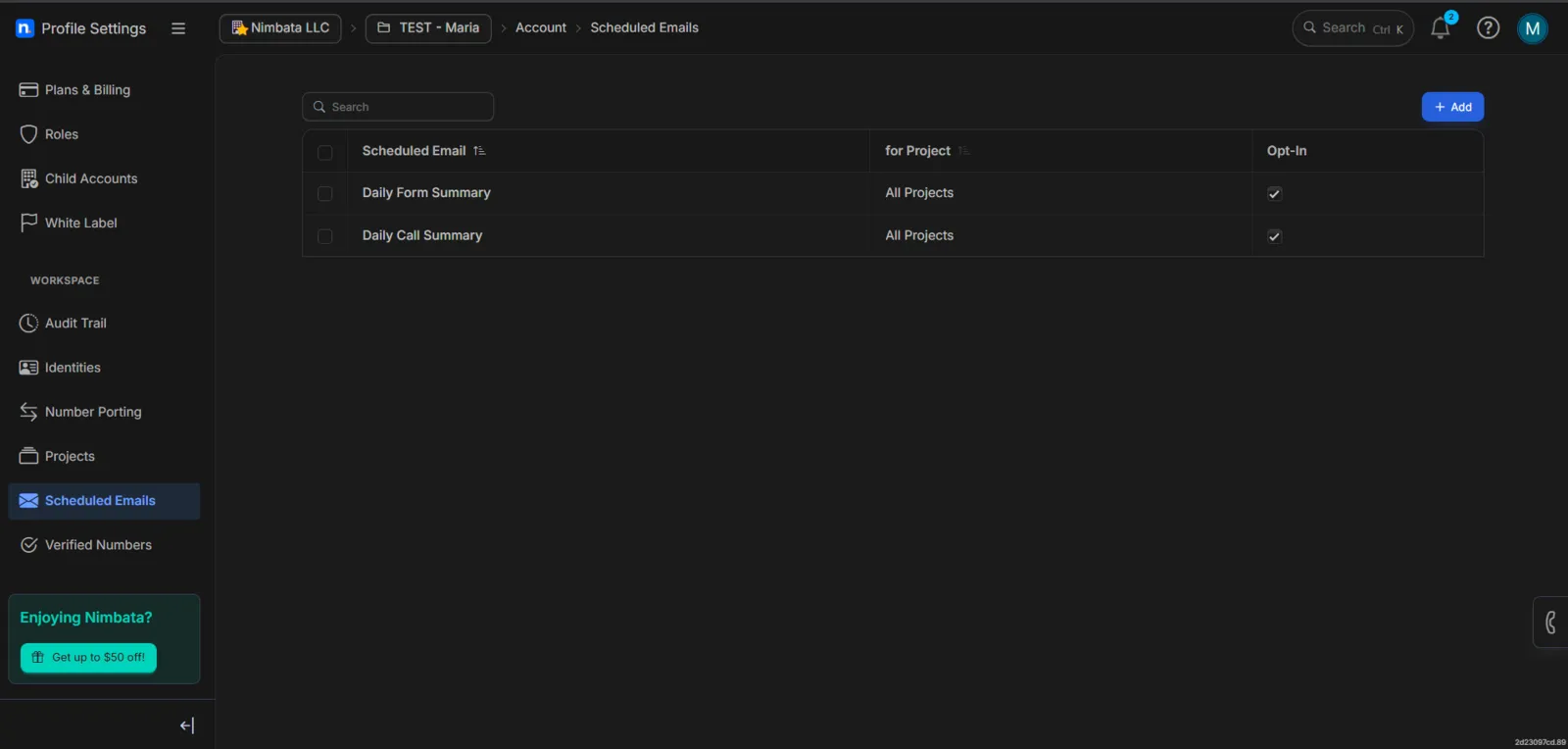
- You can also delete a scheduled email by selecting it and clicking the red bin icon.
🎉 All set! Your scheduled emails are sent on your selected schedule.
## Email summaries
Email summaries and Scheduled Emails are the same feature. The old **Account Settings > Email Preferences** page now opens [Workspace > Scheduled Emails](https://app.nimbata.com/workspace/scheduled-emails), and you set up a daily, weekly or monthly summary there: see [Scheduled email reports](#scheduled-email-reports) above.
> **Tip:** For real-time emails about individual calls or texts instead of a periodic summary, see [Email notifications](https://help.nimbata.com/integrations/notifications#email-notifications).
Updated September 11, 2026
Nimbata gives you two ways to export your data: you can export your call activity as a spreadsheet, or download individual charts from any dashboard report. You can also receive recurring summaries of your call activity by email.
Note
If you want your call data updated automatically without manual exports, use the native Google Sheets integration instead.
Export call activity
You can export your Nimbata call activity as an Excel or CSV file for offline analysis, reporting, or sharing with your team. The export reflects exactly what is visible in your current view, including any filters, date range, and columns you have configured.
Select the view you want to export from the tabs at the top (for example, Completed calls, Only answered calls, or a custom view).
Set your date range and filters
Use the date range picker to select the period you want to export.
Apply any additional filters if you only want a subset of calls.
Configure the columns you want included
Click the three-dot menu in the upper right.
Select Edit columns.
Add or remove columns as needed; only the columns in your Selected list appear in the export.
Close the panel.
Export the data
Click the three-dot menu above the list and select Export data.
In the Export Calls dialog, pick .xlsx or .csv under Format, then click Export.
If every row is already loaded on screen, or you ticked the rows you want, the file downloads straight away (unless it includes the Transcription column). Otherwise Nimbata prepares it on the server and gives you a download link, in the app and by email. The link works once and expires after 24 hours.
Export the dataset from the Trends report
You can also export your full call activity as Excel or CSV from the Trends report.
Scheduled Email Alerts automatically send you recurring summaries of your call activity (inbound call and form submission summaries, missed call reports, GA pool status) directly to your inbox. Use them to configure, schedule, and send automated email reports to your team.
Choose your Report Type: Inbound Call Summary or Inbound Missed Calls Report. Form Submission Summary is offered for projects with form tracking, and GA Pool Status for projects with Google Analytics connected. GA Pool Status asks for the Google Analytics Account and Google Analytics Property, a Lookback Days period and a Threshold (%), and alerts you when GA’s recommended pool exceeds that percentage of your current pool.
Schedule your report (daily, weekly, or monthly) and Group your report’s rows by one of the options in the drop-down menu (project, tracking number, channel, UTM, or tags).
Select view content: tick this option if you want to include a link to your full report.
Select your recipients: select the users who receive the report. You can also include yourself in that list with the option below the selection drop-down menu.
Click Send Test and you are set!
Add more scheduled email reports (optional)
Once the first scheduled email has been created, you can edit it, or create more from the Scheduled Emails dashboard by clicking + Add at the top right of the page.
You can also delete a scheduled email by selecting it and clicking the red bin icon.
🎉 All set! Your scheduled emails are sent on your selected schedule.
Email summaries
Email summaries and Scheduled Emails are the same feature. The old Account Settings > Email Preferences page now opens Workspace > Scheduled Emails, and you set up a daily, weekly or monthly summary there: see Scheduled email reports above.
Tip
For real-time emails about individual calls or texts instead of a periodic summary, see Email notifications.





