
Your plan sets a base subscription, and usage such as numbers, answered calls, SMS and add-ons is charged on top of it. You manage the subscription, your billing details and your invoices from Account > Plans & Billing.
Pricing and extra charges
If you’re reviewing your invoice and have questions about charges beyond your base subscription, this section explains what each charge covers.
Note
The rates below apply to the United States. For other countries, visit nimbata.com/pricing and select your country.
Local number usage
Local numbers are charged based on your plan and usage.
| Plan | Local Number (per month) | Answered Call (per call) |
|---|---|---|
| Agency | $1.60 | $0.03 |
| Marketing | $2.30 | $0.04 |
| Pro | $3.20 | $0.06 |
| Entry | $4.60 | $0.10 |
Note: These charges apply per number and per answered call.
Toll-free number usage
| Plan | Toll-Free Number (per month) | Answered Call (per call) |
|---|---|---|
| Agency | $1.80 | $0.13 |
| Marketing | $2.50 | $0.18 |
| Pro | $3.50 | $0.28 |
| Entry | $5.00 | $0.48 |
Note: These apply if you’re using toll-free numbers for your campaigns.
SMS charges
| Plan | Inbound SMS | Outbound SMS |
|---|---|---|
| Agency | Included | Included |
| Marketing | Included | Included |
| Pro | Included | Not included |
| Entry | Not included | Not included |
Not every country supports SMS, so SMS rates and availability depend on the country of the number. Select your country on nimbata.com/pricing to see them.
Pre-call automations
Tip
Billed at $0.01 per triggered call.
Conversation intelligence
| Feature | Charge |
|---|---|
| Call Transcriptions | $0.02 per minute, on Agency, Marketing & Pro plans |
| AI Call Summaries | Included on Agency, Marketing & Pro plans |
| Keyword Spotting | Included on Agency & Marketing plans |
Add-ons
| Add-On | Charge |
|---|---|
| Extra Project (beyond plan limit) | $15 per month, per project |
| Extra Seat (beyond plan limit) | $5 per month, per seat |
| Whitelabel Account | $55 per month, on Agency, Marketing & Pro plans |
Note
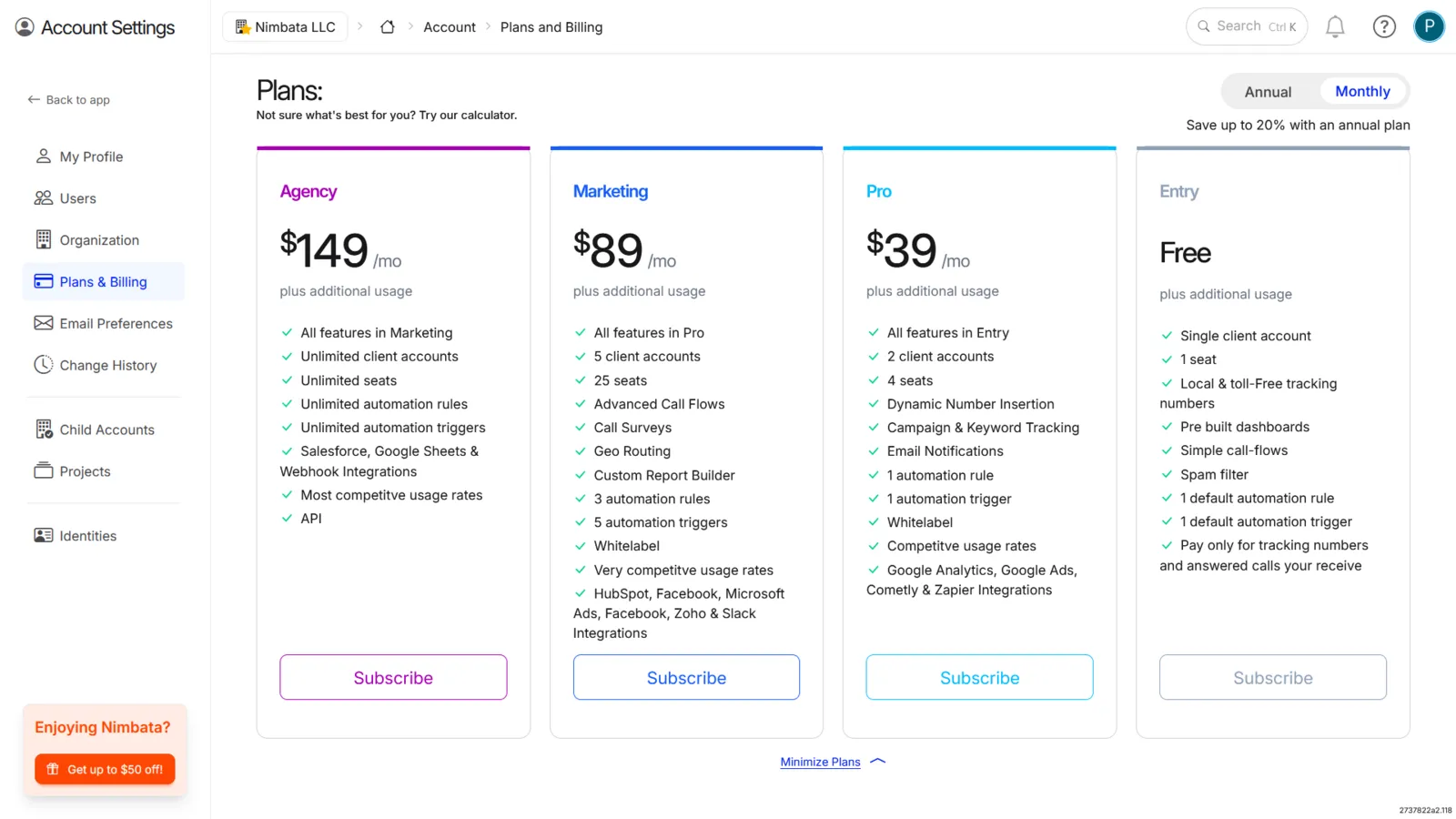
Agency plan includes unlimited projects and seats. Marketing plan includes 5 projects and 25 seats. Pro plan includes 2 projects and 4 seats. Entry plan includes 1 project and 1 seat.
Detailed guide: Subscribe to a plan
Detailed guide: Change your plan
Detailed guide: Invoices
Subscribe to a plan
Note
If you’re unsure which plan is right for you, reach out via the in-app chat or schedule a 1:1 demo.
Open Account Settings
- Click your user avatar in the top-right corner.
- Select Account Settings.
Go to Plans & Billing
- Click Plans & Billing in the Account Settings menu.
Choose a plan
- Review the available plans and select the one that fits your needs.
Complete billing and subscribe
- Fill in your billing details in the pop-up.
- Click Subscribe to [Plan Name].
🎉 Your subscription is now active.
Detailed guide: Pricing and extra charges
Detailed guide: Change your plan
Change your plan
You can upgrade, downgrade or update your subscription plan.
Note
If you’re unsure which plan best fits your needs, reach out via the in-app chat or schedule a 1:1 demo.
Open Account Settings
- Click your user avatar in the top-right corner.
- Select Account Settings.
Go to Plans & Billing
- Click Plans & Billing in the Account Settings menu.
Choose a billing cycle
- Select Monthly or Annual billing.
Tip
Switching to an annual plan saves up to 20%.
Select your new plan and confirm
- Click Upgrade, Downgrade, or Update on the plan you want to move to.
- Click Yes in the confirmation pop-up.
🎉 Your subscription plan has been updated.
Detailed guide: Pricing and extra charges
Detailed guide: Cancel your subscription
Billing details
Update your company information, Tax ID, billing address, or payment method directly from your Nimbata account.
Open Plans & Billing
- Go to Account > Plans & Billing.
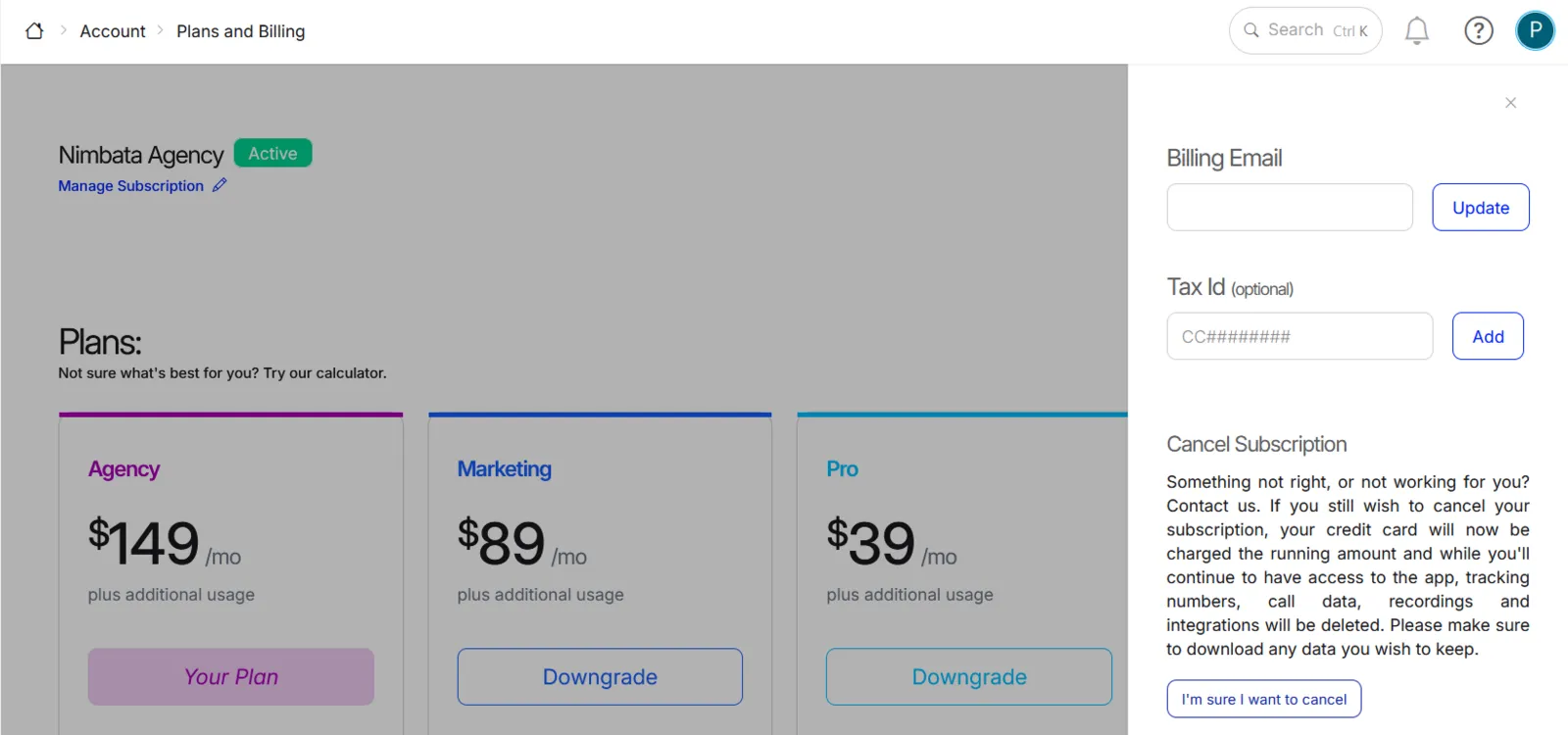
Open Manage Subscription
- Click Manage Subscription.
Add or update your Tax ID
- Enter your Tax ID in the field provided.
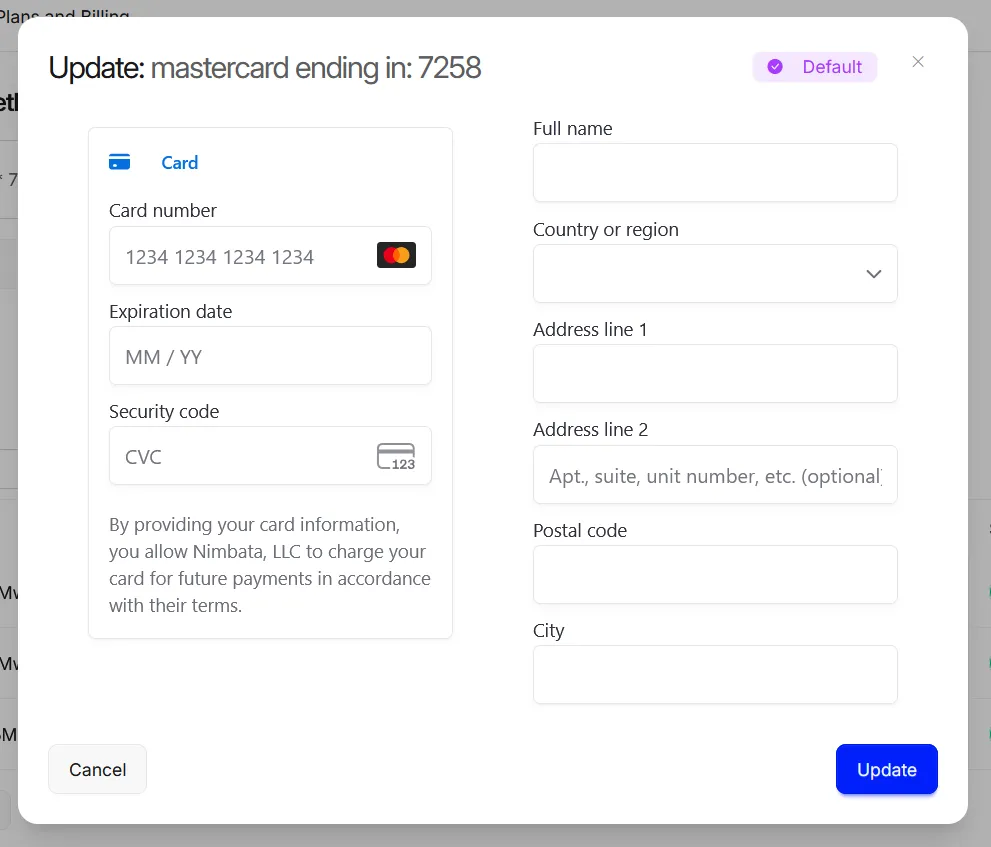
Update your payment method
- Scroll down to your current payment method.
- Click the edit button next to it.
Enter new payment details
- Fill in your new billing details.
- Click Update.
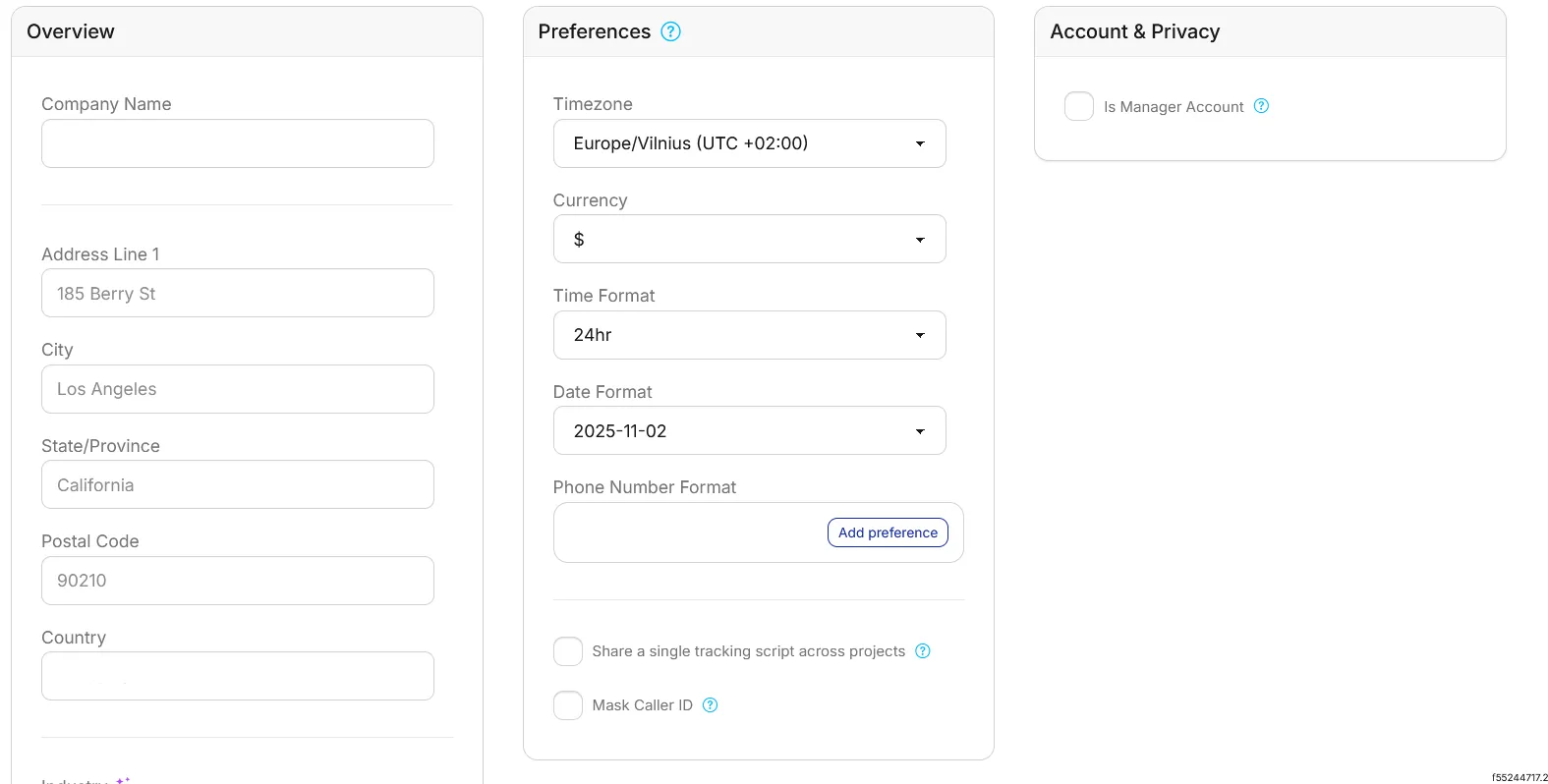
Update your business information
- Go to Account > Organization.
- Update your details in the Overview and Preferences sections.
🎉 Your billing details have been updated and will be reflected on future invoices.
Detailed guide: Invoices
Invoices
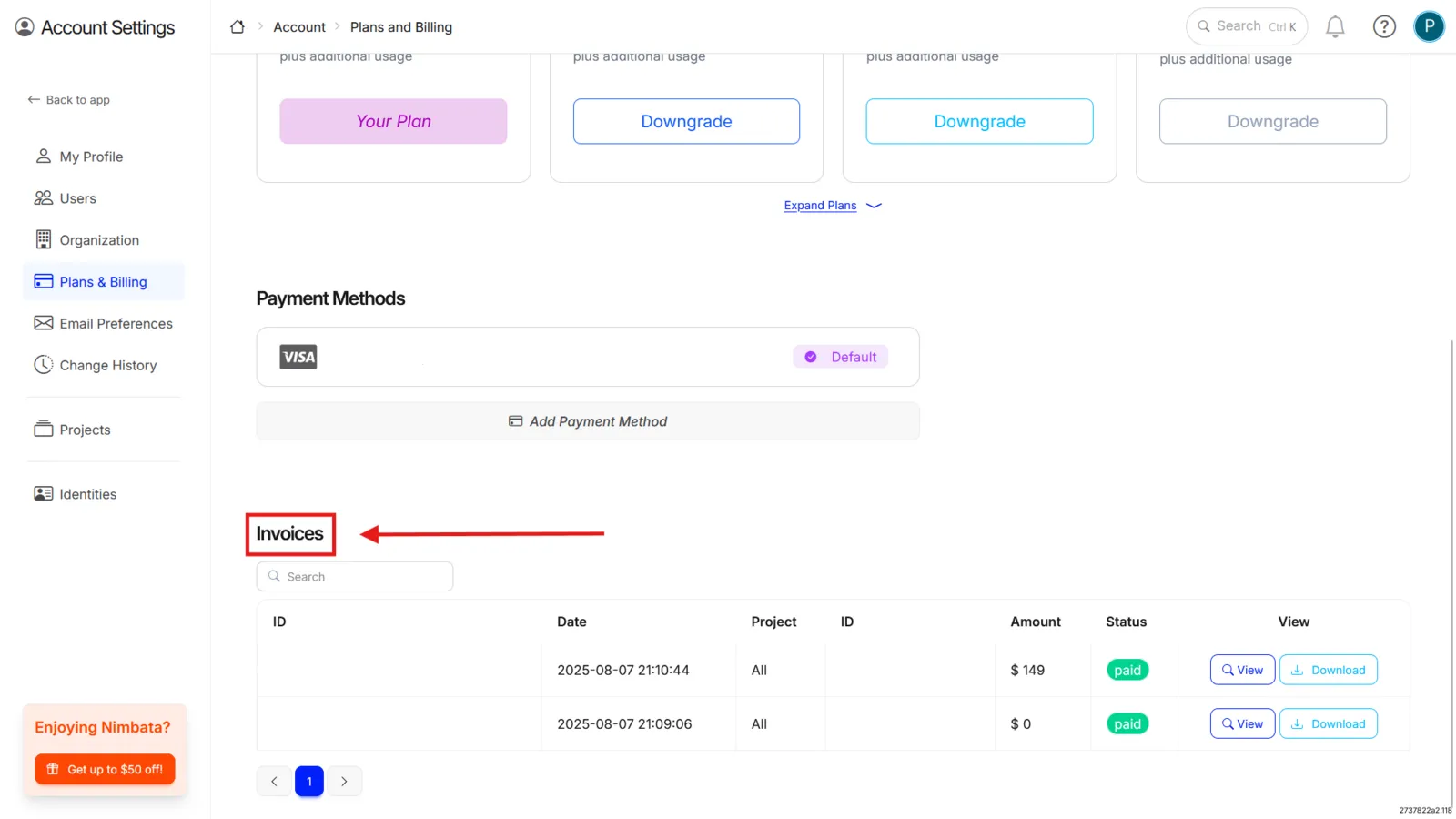
Nimbata sends your invoice by email after every successful payment. You can also access and download all past invoices directly from your account.
Open Plans & Billing
- Go to Account > Plans & Billing.
Find your invoices
- Scroll down to the Invoices section.
View or download an invoice
- Click View to open a specific invoice in your browser.
- Click Download to save it to your device.
🎉 Your invoice will open or download immediately.
Detailed guide: Billing details
Detailed guide: Pricing and extra charges
Cancel your subscription
Go to Plans & Billing
- Go to Account > Plans & Billing.
Open Manage Subscription
- Click Manage Subscription.
Open Cancel Subscription
- Expand Cancel Subscription at the bottom of the panel.
- Read the warning: if you cancel, you’re charged the running amount, and while you keep app access, your tracking numbers, call data, recordings and integrations are deleted.
- If you have open invoices, settle them first; the cancel button stays disabled until you do.
- Click I understand, proceed to cancel.
Answer the exit survey and confirm
- Optionally, under What made you decide to leave?, pick your reasons and add any feedback. Your feedback helps Nimbata improve.
- Click Cancel plan to finalize the cancellation, or Keep my plan to go back.
🎉 Your subscription has been cancelled. A confirmation message will appear on screen.
Detailed guide: Change your plan
Detailed guide: Pause a project