
Every recorded call in Nimbata has an audio recording, a transcript, and an AI-generated summary, all accessible from the same place: Activity > Calls. This page shows how to play and download recordings, read transcripts and summaries, download transcripts, and share calls to train your team.
Play and download recordings
Note
To enable call recordings, see: Turn on recording. Recording must be enabled on the call flow associated with the call. To enable transcriptions, see: Turn on transcriptions and summaries.
The calls log lets you replay any recorded conversation, download it, and review the call’s details, including tags, attribution, AI notes, transcripts, and summaries. Recordings are downloaded individually.
Open the calls log
- Go to Activity > Calls.
- You land on the Completed Calls tab by default.
Play the recording
- Locate the call in the list.
- Click the Play button on the call row to open the audio player.
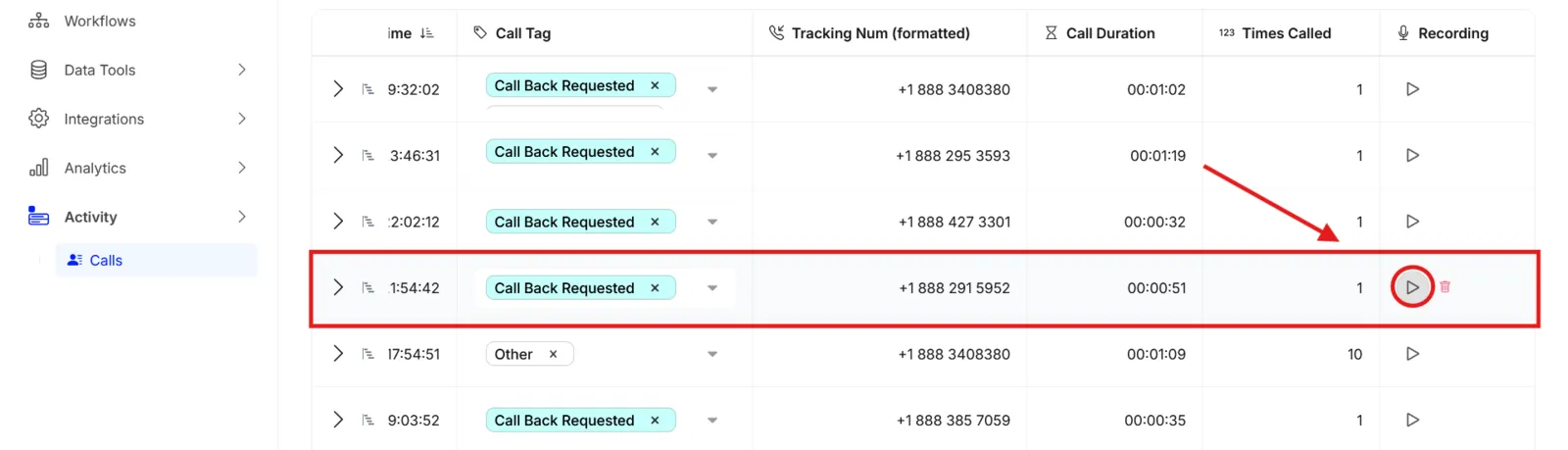
Download the recording (optional)
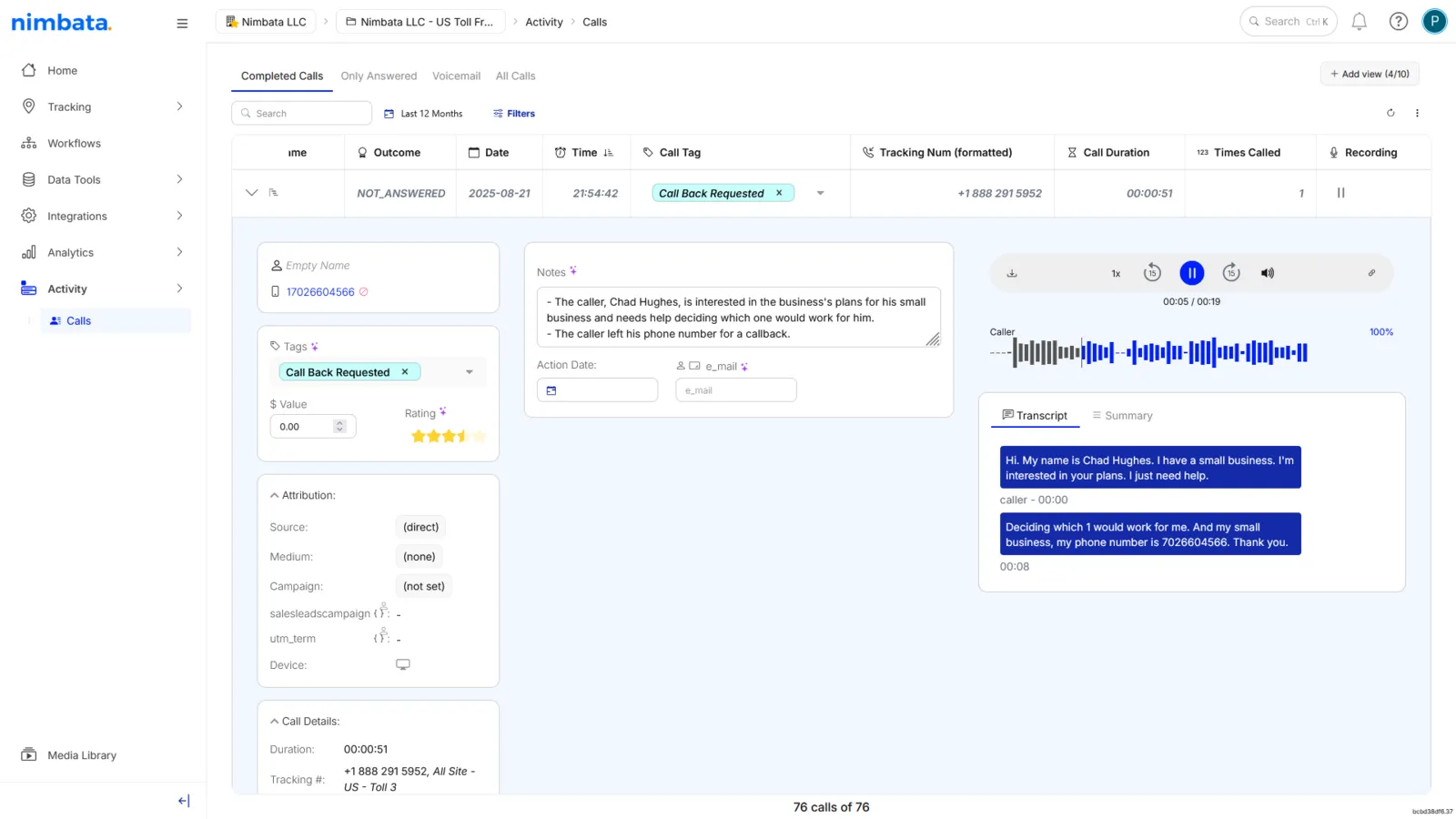
- Click the download icon in the audio player to save the recording to your device.
Review call details (optional)
- Click the expand arrow on the call row to open the full call detail panel.
- Check the Tags, Attribution, and Call Details tabs for context.
- Open AI notes for anything you may have missed.
- Open the Transcript and Summary tabs for a full written record of the conversation.
Note
Recordings are only available for calls where recording was active at the time of the call. If no Play button appears on a call row, recording was not enabled for that call.
🎉 You can now play any recording and download what you need, all from Activity > Calls. A downloaded recording is ready to review, share, or archive. Use the transcript and AI notes alongside the audio for maximum insight.
Detailed guide: Read transcripts and summaries
Detailed guide: Share calls for training
Detailed guide: Turn on recording
Detailed guide: Turn on transcriptions and summaries
Detailed guide: Transcripts and summaries compared
Read transcripts and summaries
Note
To learn how to activate transcriptions first, read: Turn on transcriptions and summaries.
Call transcriptions let you quickly find what your phone leads are talking about, without listening to the full recording. Nimbata gives you access to the transcript and the AI-generated summary of every recorded call. There are two ways to read them: use the Transcriptions column when you want to scan quickly across many calls, and the expanded call panel when you want to read a specific transcript in full or switch to the AI summary.
Transcriptions column
Open the calls log
- Go to Activity > Calls.
Open the column editor
- Click the three-dot menu in the upper right of the calls list.
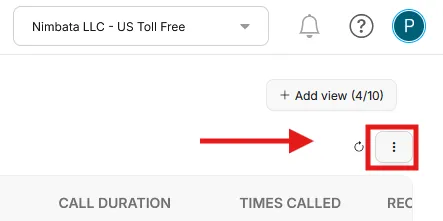
- Select Edit Columns from the pop-up menu.
Add the Transcriptions column
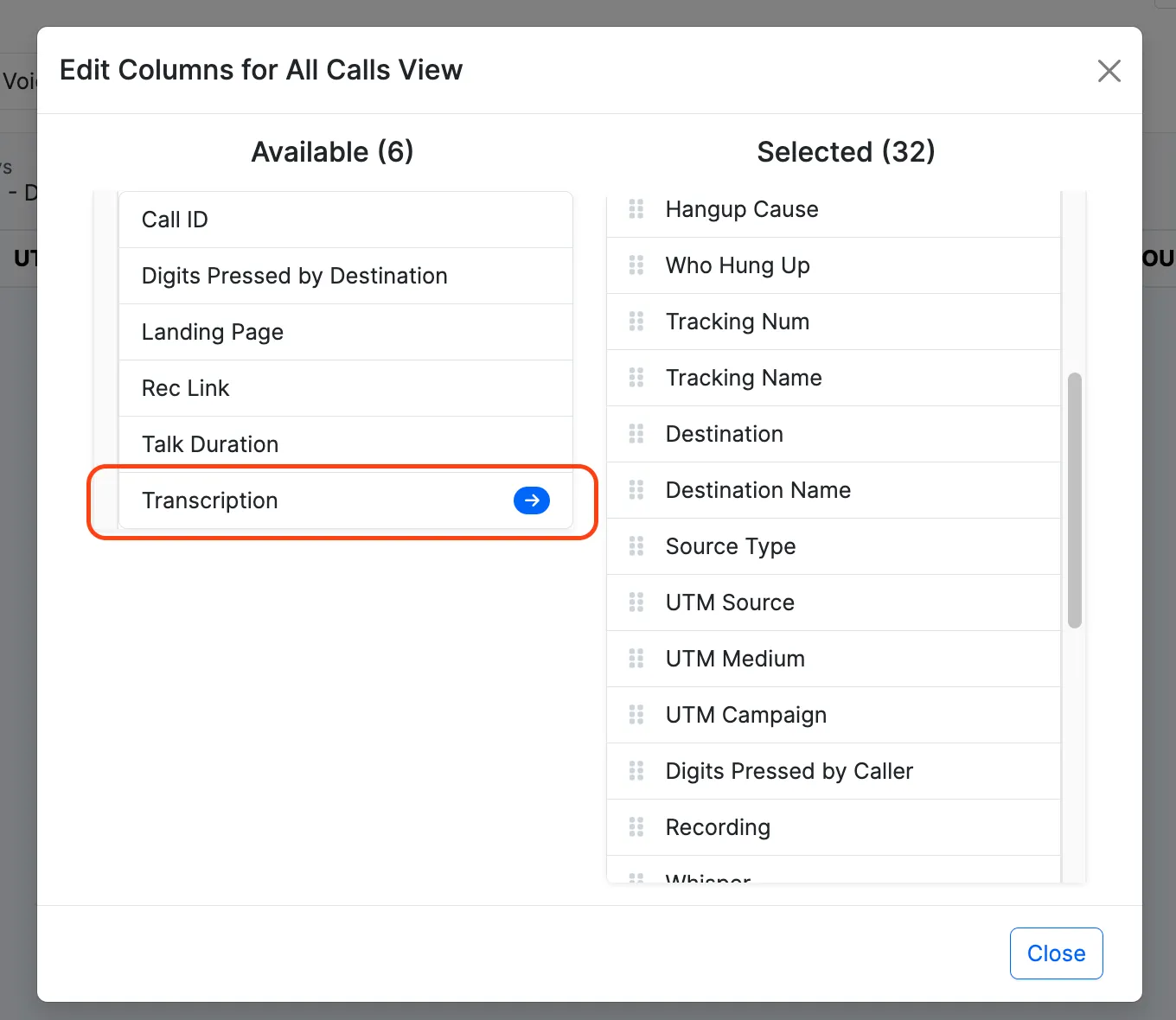
- Find Transcriptions in the available columns list.
- Click the arrow to move it to your Selected Columns.
- Click Close.
Open a transcript
- The Transcriptions column now appears in your call list.
- Click the transcript icon on any call row to read that call’s transcription.
Tip
Transcriptions are processed after the call ends. Allow a few minutes before they appear.
Expanded call panel
Open the calls log
- Go to Activity > Calls.
Filter to calls with recordings (optional)
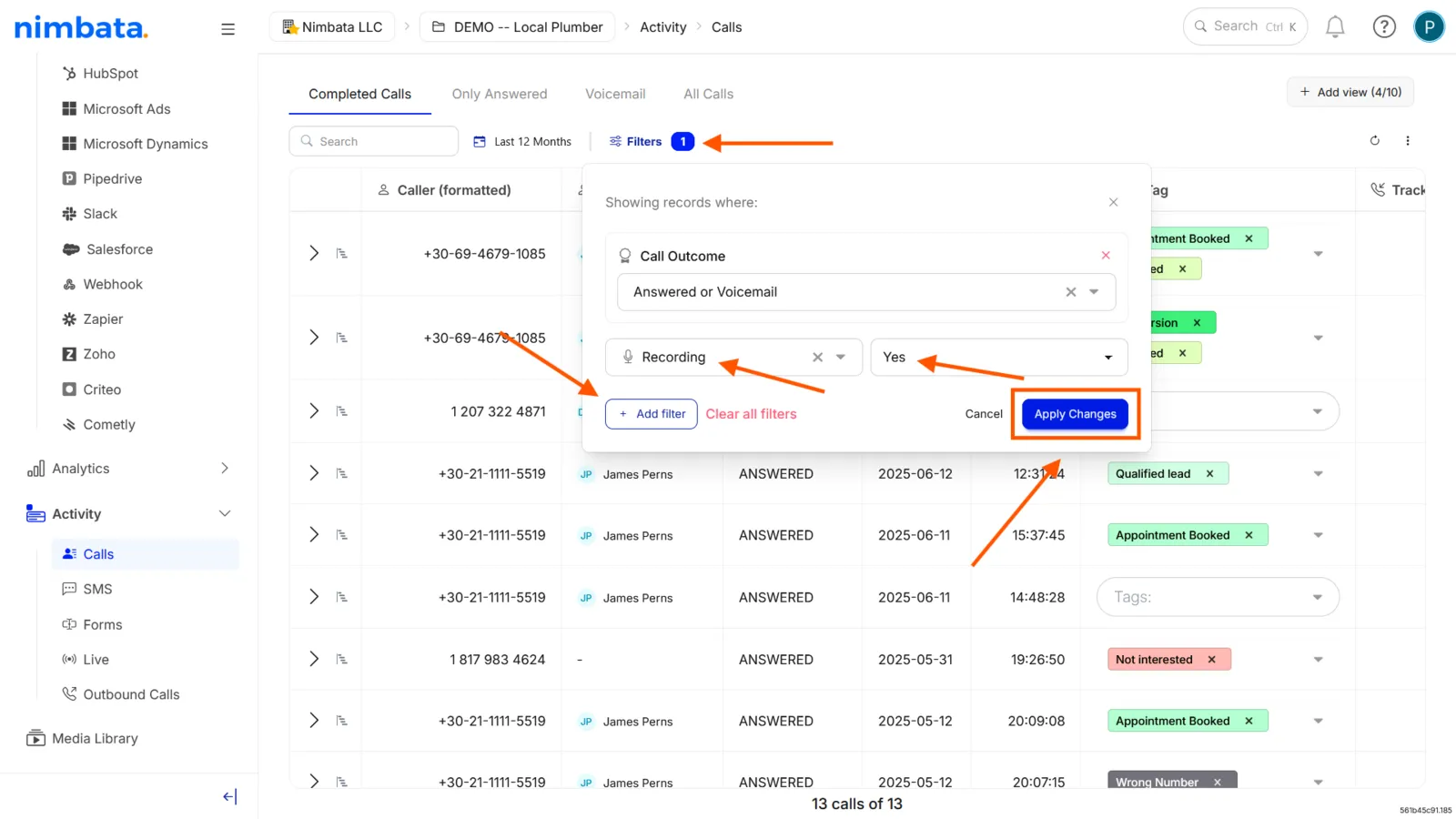
- Click Filters, then + Add filter.
- Select Recording and set the value to Yes.
- Click Apply changes.
This limits the list to calls that have recordings and, therefore, transcripts and summaries.
Expand the call
- Find the call whose transcript or summary you want to read.
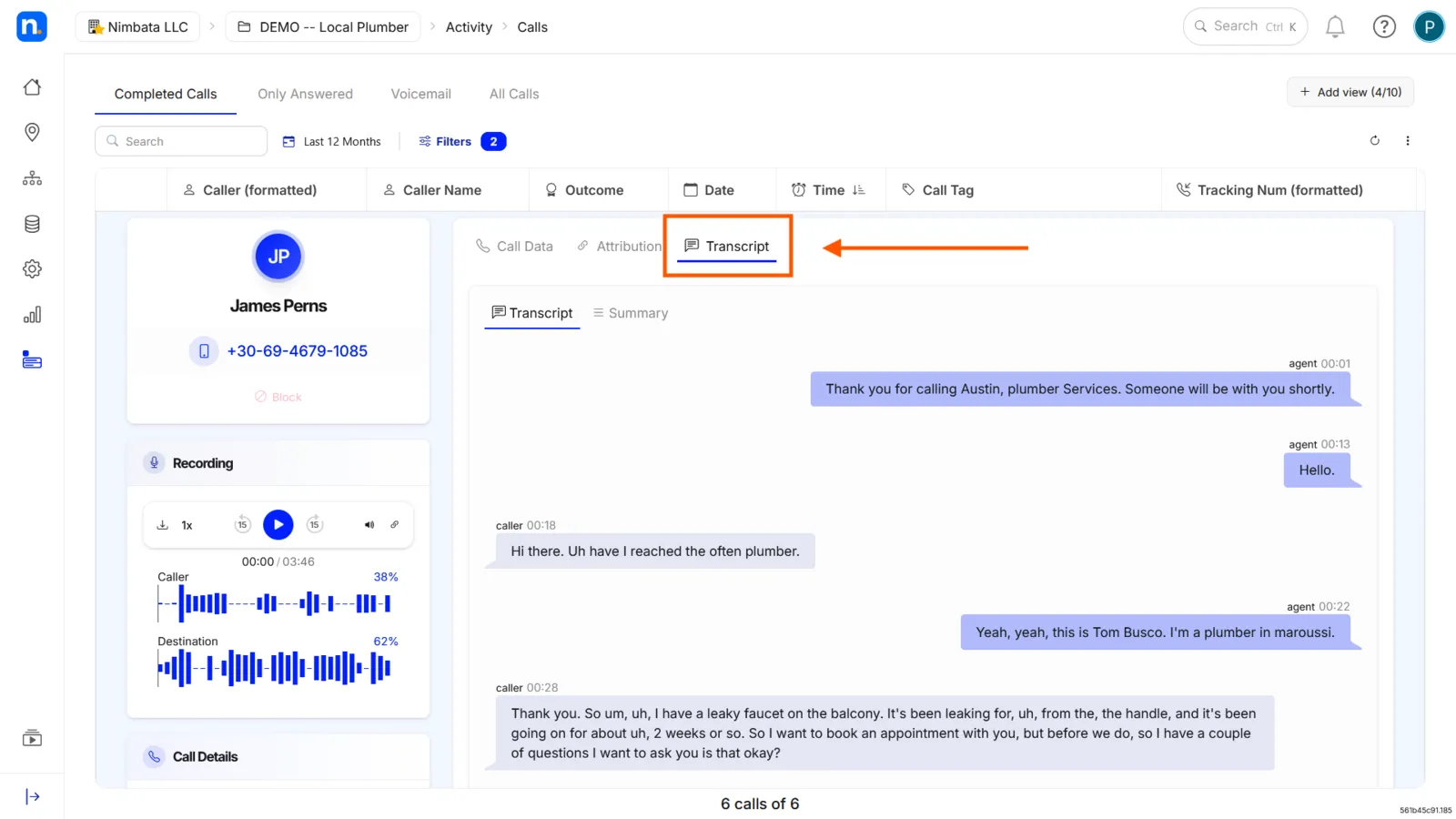
- Click the downward arrow on that call row to open the call detail panel.
Open the transcript
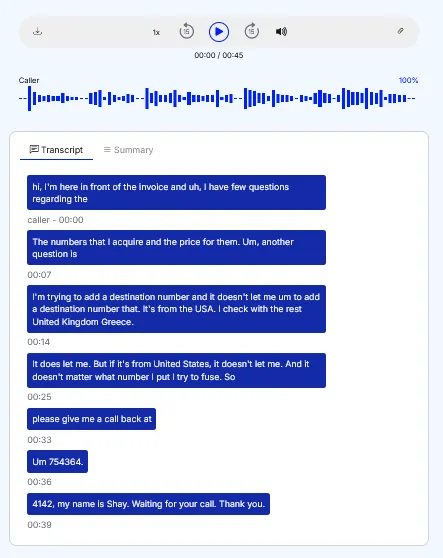
- In the call detail panel, click Transcript to read the full written record of the conversation.
- Nimbata displays the full transcript by default.
- The call summary is derived from the transcript, so both are accessed from the same panel.
Switch to the summary
- Click Summary to read the AI-generated overview of the call.
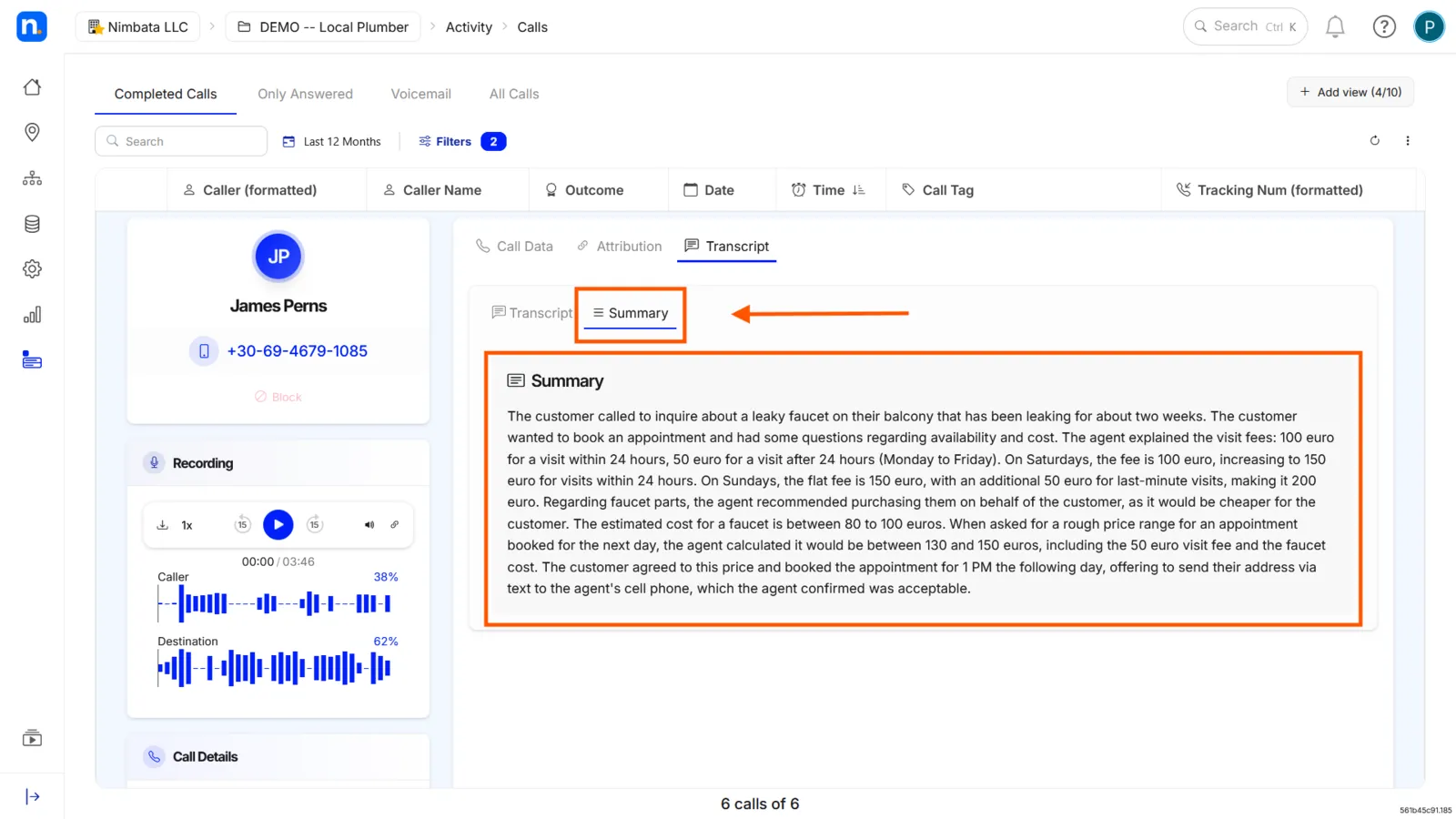
🎉 You can now read transcripts directly in your call list or from the expanded call panel, and the transcript or summary you opened is ready to review.
Detailed guide: Turn on transcriptions and summaries
Detailed guide: Transcripts and summaries compared
Detailed guide: Download transcripts
Download transcripts
Tip
Before you start: transcriptions must be enabled and the call must already have been processed. If you haven’t set up transcriptions yet, follow: Turn on transcriptions and summaries.
Transcripts can be downloaded individually from a call record, or in bulk by exporting your call activity data.
Download a single transcript
Open the call record
- Go to Activity > Calls.
- Find the call whose transcript you want to download.
- Click the expand arrow on the call row to open the call detail panel.
Download the transcript
- In the call detail panel, locate the Transcript section.
- Click the download icon to save the transcript as a text file.
Download transcripts in bulk
Transcripts are included in a full call data export as a column alongside other call fields.
Open the calls view
- Go to Activity > Calls.
- Apply any date range or filters to narrow the calls you want to export.
Add the Transcriptions column
- Click the three-dot menu in the upper right.
- Select Edit columns.
- Find Transcriptions in the Available list.
- Click the arrow to move it to the Selected list.
- Close the panel.
Export the data
- Click the three-dot menu above the list and select Export data.
- In the Export Calls dialog, pick .xlsx or .csv under Format, then click Export.
- If every row is already loaded on screen, or you ticked the rows you want, the file downloads straight away (unless it includes the Transcription column). Otherwise Nimbata prepares it on the server and gives you a download link, in the app and by email. The link works once and expires after 24 hours.
Note
Transcripts exported in bulk appear as plain text within the spreadsheet column. For the full formatted transcript view, open the individual call record.
🎉 Your transcript is downloaded and ready to review or share.
Detailed guide: Turn on transcriptions and summaries
Detailed guide: Download charts
Share calls for training
Note
Recordings require call recording to be enabled on your call flow. Transcripts require the transcription workflow to be active. See: Turn on recording and Turn on transcriptions and summaries.
Nimbata captures a full record of every call: audio, transcript, AI summary, tags, rating, and notes. Filter your call list down to the calls worth reviewing, then play, download, or export what you need to bring to your team for coaching and training.
Find the right calls
Open the calls log
- Go to Activity > Calls.
Filter to calls with recordings
- Click Filters, then + Add filter.
- Select Recording and set the value to Yes.
- Click Apply changes.
This removes calls without audio from the list.
Narrow by the signals that matter for training
Add further filters to surface the most instructive calls. Useful combinations include:
- Call Duration: filter for calls above a minimum threshold to focus on substantive conversations.
- Tag: filter by a specific Call Status tag (such as Sale Confirmed or Call Back Requested) to find calls worth replicating or reviewing.
- Rating: filter by star rating to find either high-quality model calls or low-quality calls that need coaching.
- Talk Duration: focus on calls where significant conversation occurred.
Tip
You can stack multiple filters. All conditions must be met for a call to appear in the results.
Review a call before sharing
Open the call detail panel
- Find the call in the filtered list.
- Click the expand arrow on the call row to open the call detail panel.
Review the call content
- Click Play on the call row to listen to the recording.
- Click the Transcript tab in the detail panel to read the full conversation.
- Click the Summary tab to read the AI-generated summary.
- Check AI Notes for key moments the AI flagged during the conversation.
Share with your team
Download the recording
- Click the Play button on the call row to open the audio player.
- Click the download icon in the player to save the audio file to your device.
- Share the file by email, Slack, or your team’s preferred channel.
Download the transcript
- In the call detail panel, locate the Transcript section.
- Click the download icon to save the transcript as a text file.
- Share the file alongside the recording for full context.
Tip
To share multiple transcripts at once, export them in bulk. Go to Activity > Calls, apply your filters, add the Transcriptions column via the three-dot menu, then click Excel or CSV at the bottom of the call list. Each transcript appears as a column in the export.
🎉 You now have the recordings and transcripts ready to use in your training sessions.
Detailed guide: Play and download recordings
Detailed guide: Set up AI call analysis
Detailed guide: Post-call actions
Detailed guide: Tag calls automatically or by hand