Connect your OpenAI Ads account to Nimbata with an API key, then create a call conversion event, test it, and create a workflow to enable the integration.

Connect your account

  1. Open the OpenAI Ads integration

    • Go to Integrations > Browse > OpenAI Ads.
    • Click Go to integration.

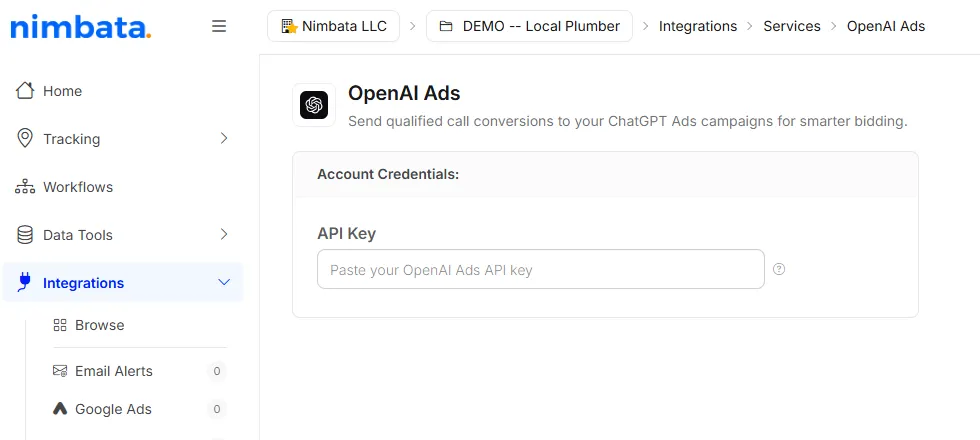
    The OpenAI Ads integration in Nimbata, with an empty API Key field under Account Credentials.

  2. Open the API keys in OpenAI Ads

    • Open your OpenAI Ads account in a new tab.
    • Click Settings > General > API Keys.

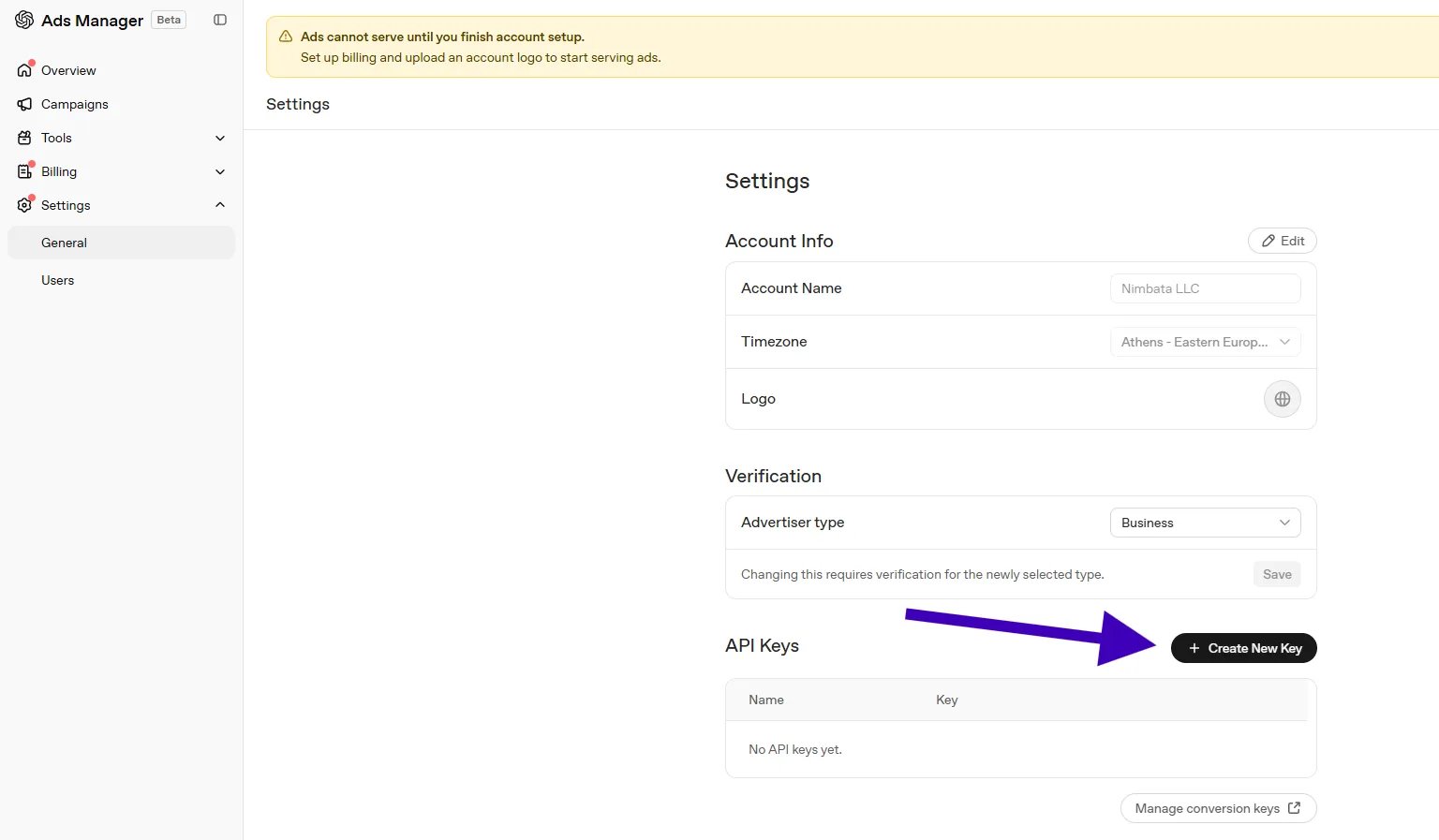
    OpenAI Ads Manager Settings > General, with the Create New Key button under API Keys marked.

  3. Create an API key

    • Give your new API key a name (for example, Nimbata) and click Create.
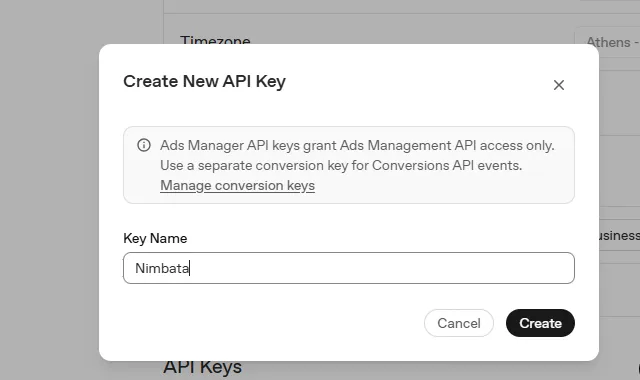
    The Create New API Key dialog with the Key Name Nimbata and Create.

  4. Paste the key in Nimbata

    • Copy the key and paste it in the API Key field in your Nimbata account.
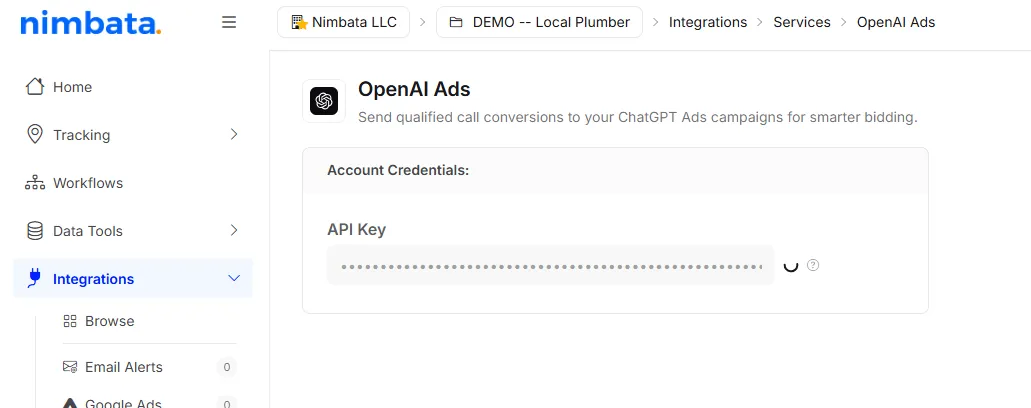
    The OpenAI Ads integration in Nimbata with the API key pasted in the API Key field.

Your account is now connected.

Create a conversion

  1. Open the OpenAI Ads integration

    • Go to Integrations > Browse > OpenAI Ads.
    • Click Go to integration.
  2. Select your conversion pixel

    • Select your conversion pixel from the list.
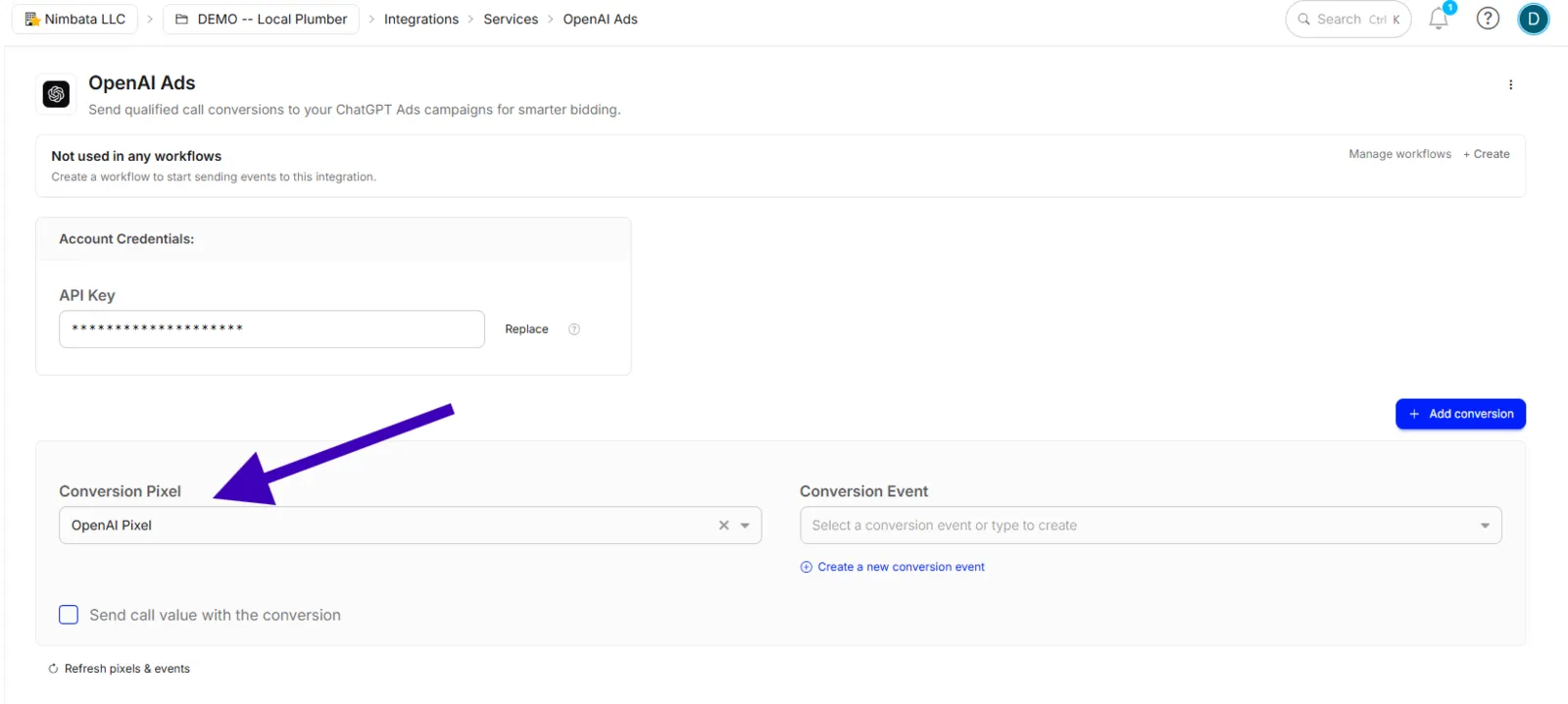
    The OpenAI Ads integration with OpenAI Pixel selected as the Conversion Pixel, an empty Conversion Event field, and Create a new conversion event below it.

  3. Create a conversion event

    • Click Create a new conversion event.

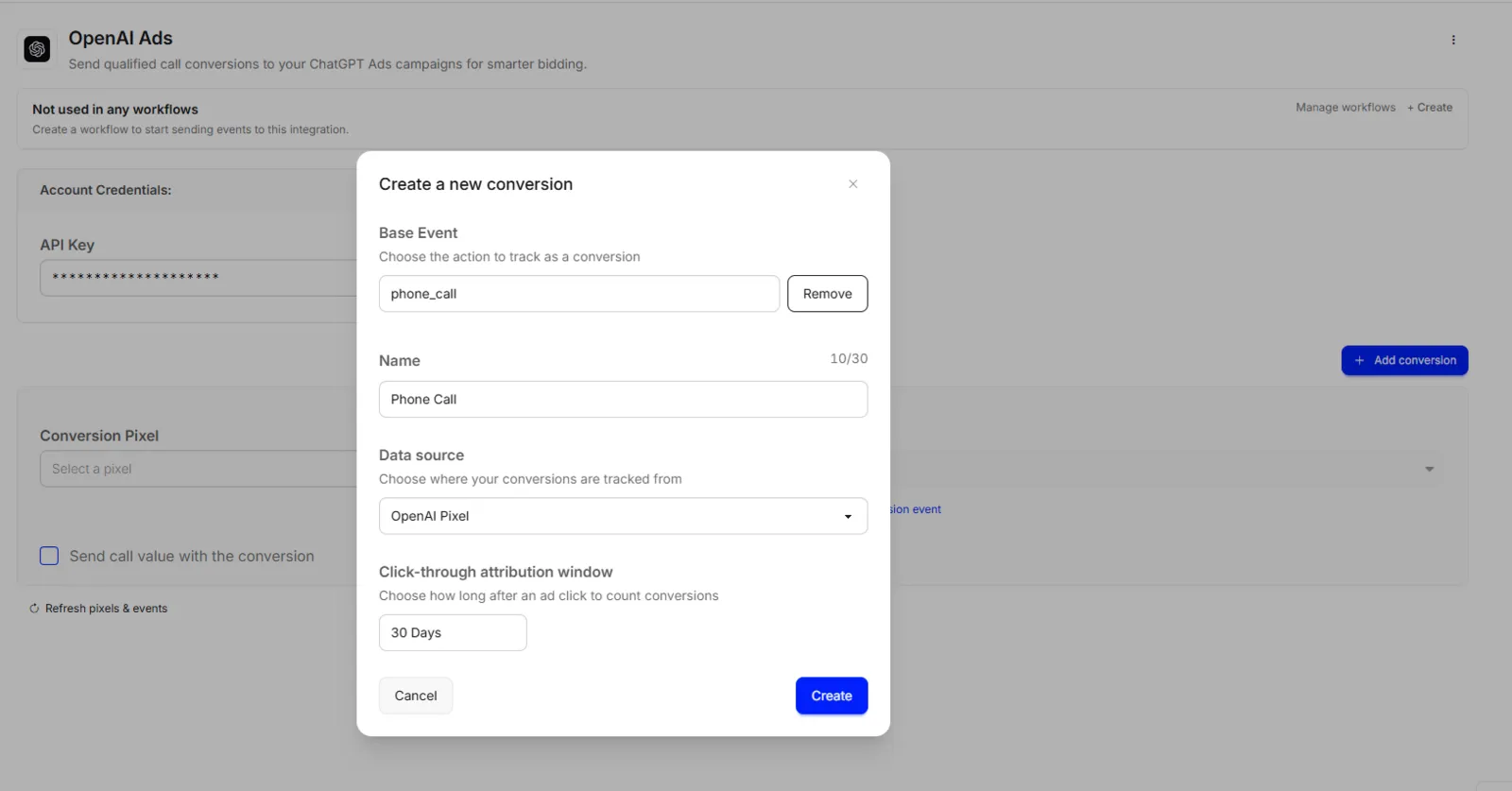
    The Create a new conversion dialog with Base Event phone_call, Name Phone Call, Data source OpenAI Pixel, a 30-day click-through attribution window, and Create.

  4. Create and test the event

    • Click Create.
    • Click Test event.

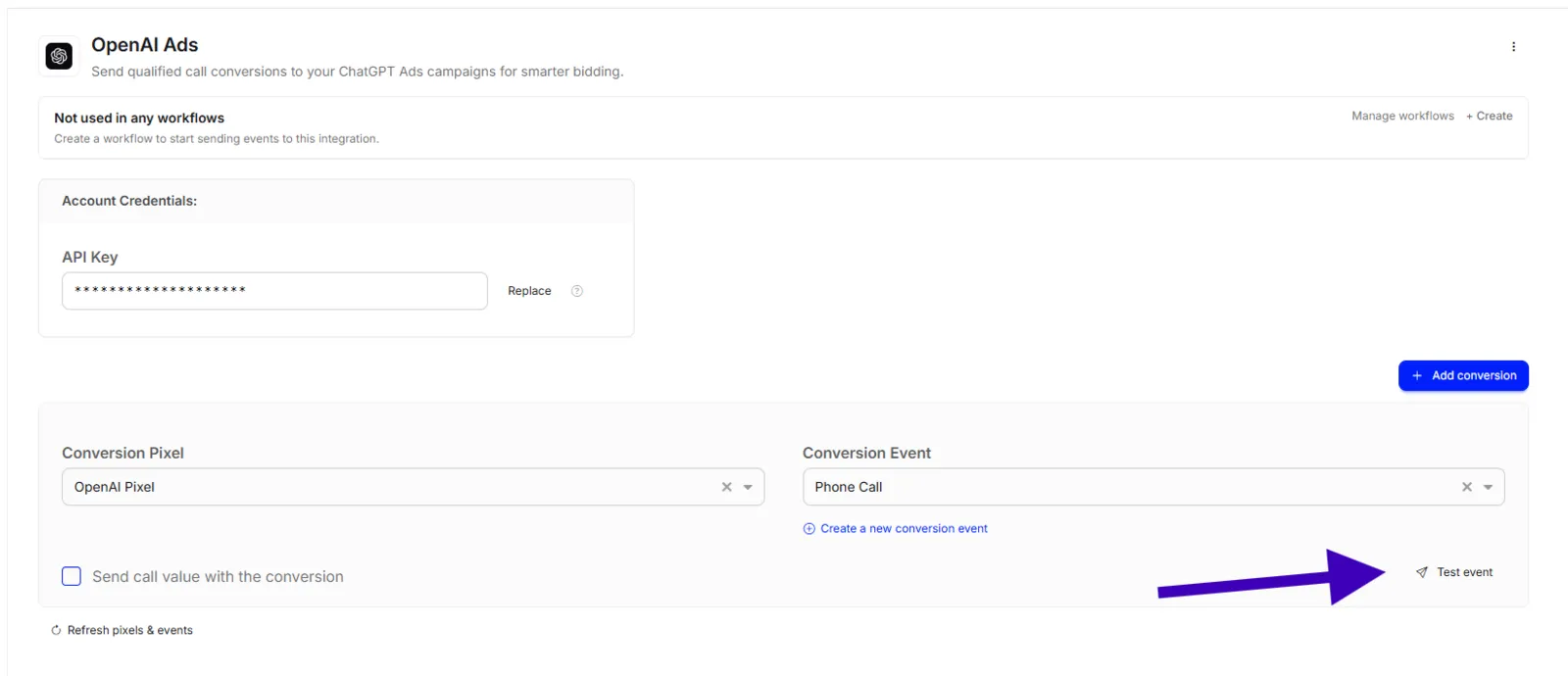
    The OpenAI Ads integration with Phone Call as the Conversion Event and the Test event link marked.

  5. Run the test

    • Select Validate only and click Run test.
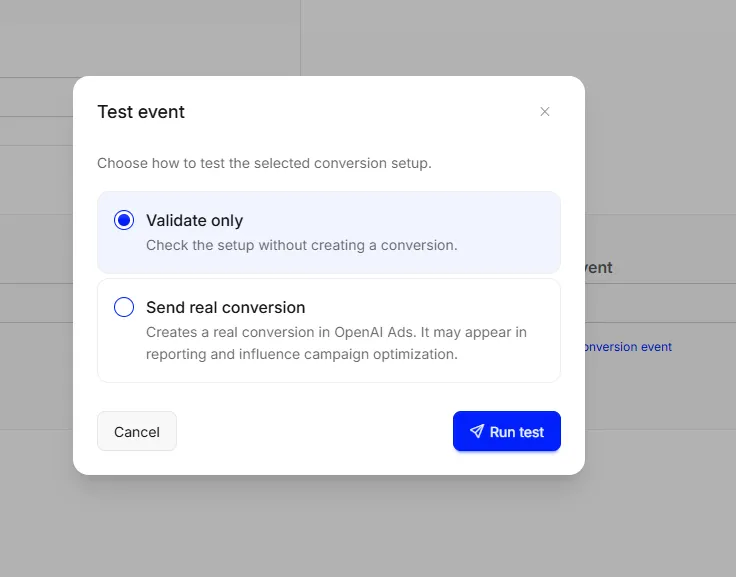
    The Test event dialog with Validate only selected and Run test.

  6. Create a workflow

    If the test is successful, you can create a workflow to enable the integration.
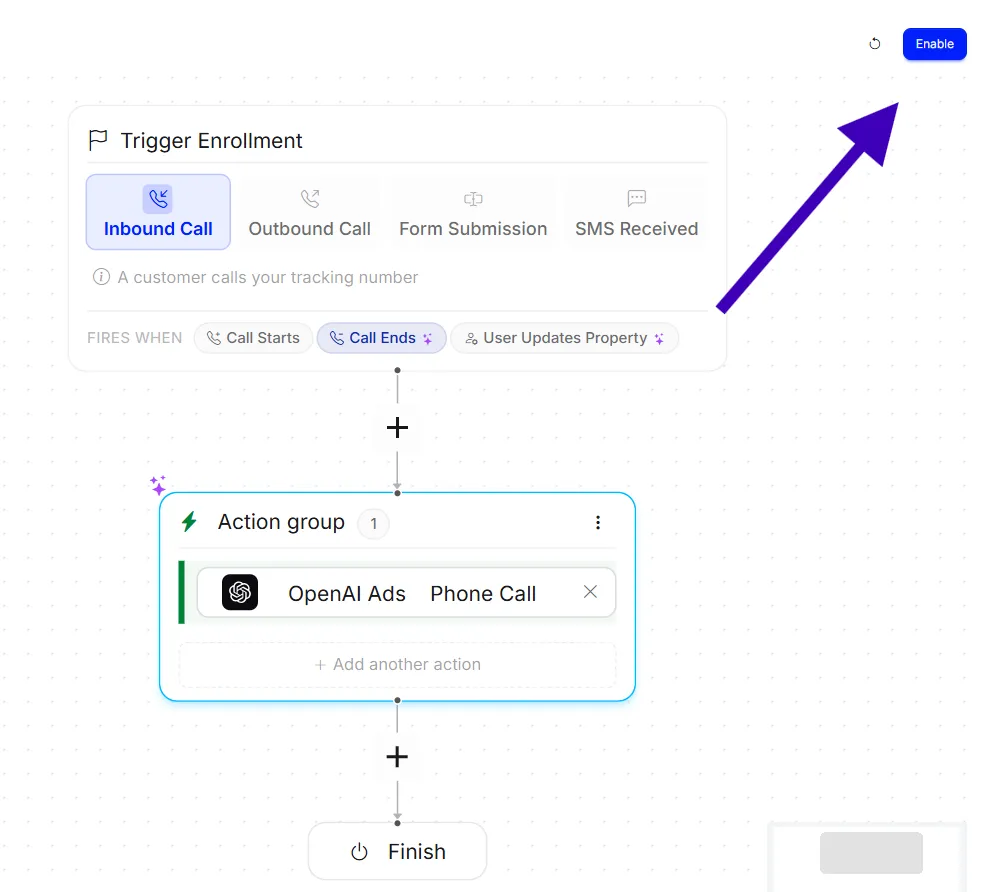
    A workflow firing on Inbound Call, Call Ends, with an OpenAI Ads Phone Call action, and the Enable button marked.

Your account is now set up to send call conversions to OpenAI Ads.
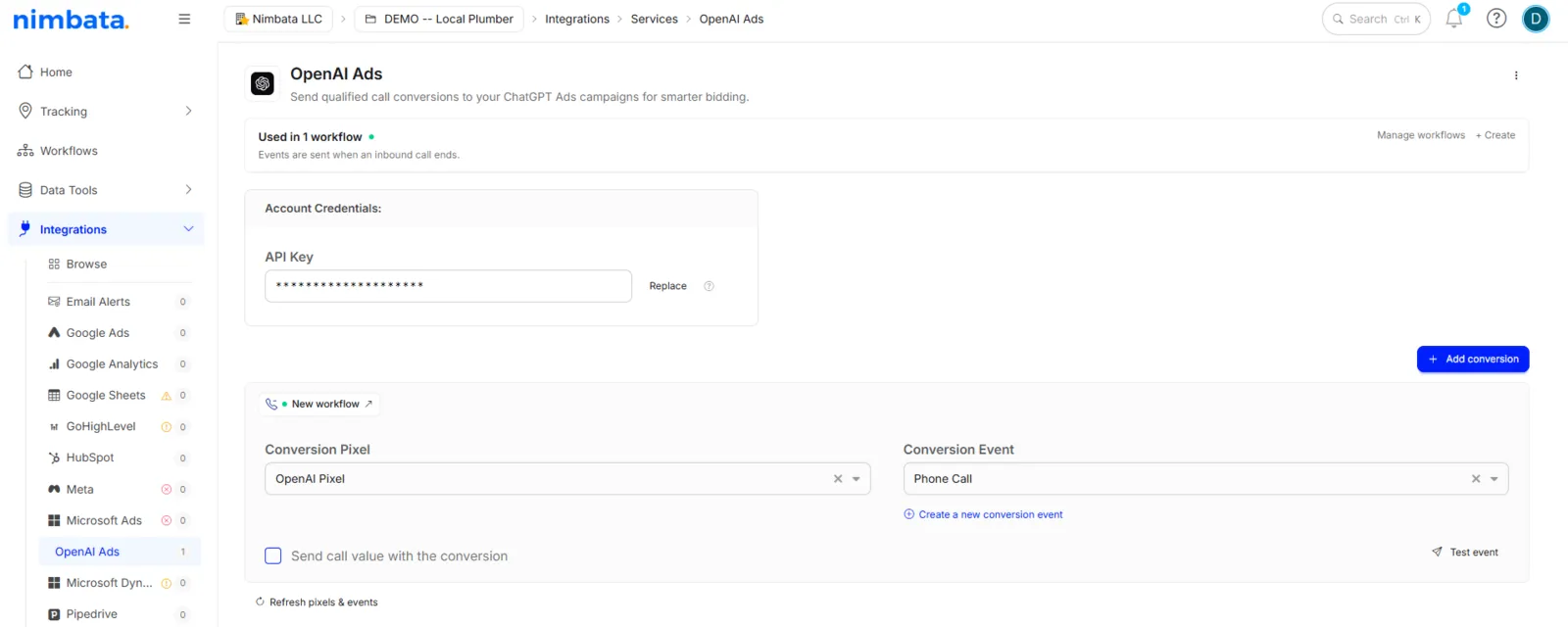
The OpenAI Ads integration used in 1 workflow, with events sent when an inbound call ends, and the OpenAI Pixel and Phone Call conversion.