
The dashboard reports break your call data down by the channel of your choice. This page covers the Trends report by tracking number, reports by UTM source and medium or by call tag (from a report or from the dashboard), and the Geography report.
Tip
You can download the data from any chart as PNG, JPG, PDF, SVG, or CSV by clicking the arrows in the top-right corner of the chart.
Trends report
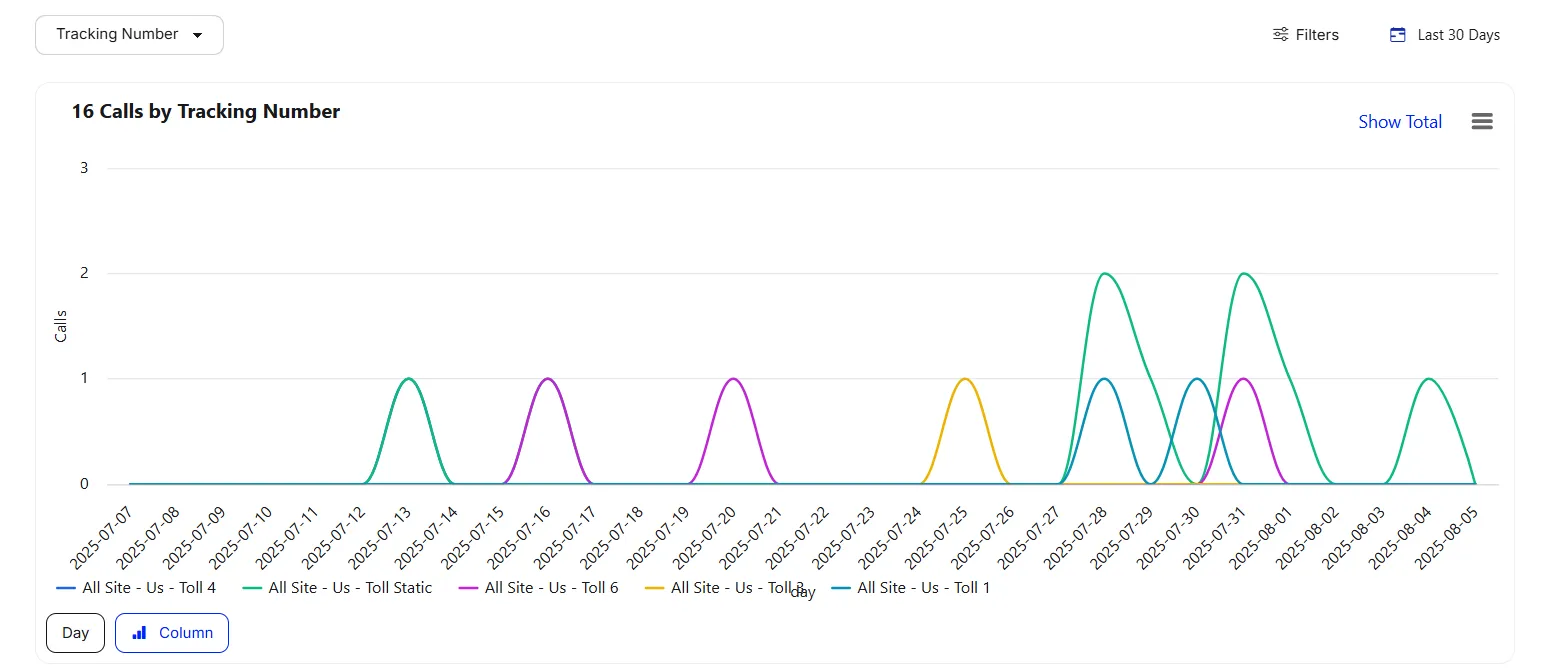
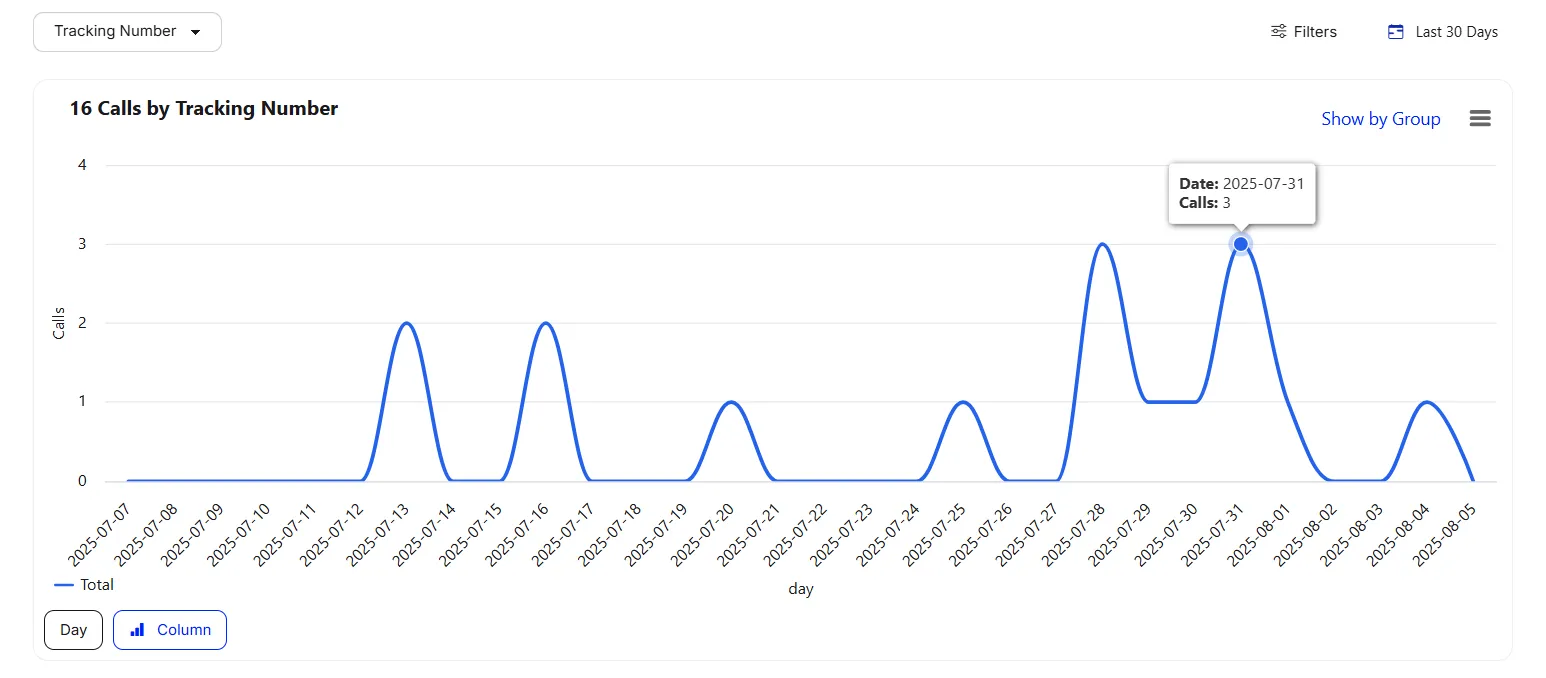
The Trends report lets you monitor call performance over time, broken down by the channel of your choice. These steps use it with a Tracking Number breakdown.
Open the Trends report
- Go to Dashboards > Trends.
Group the chart by tracking number
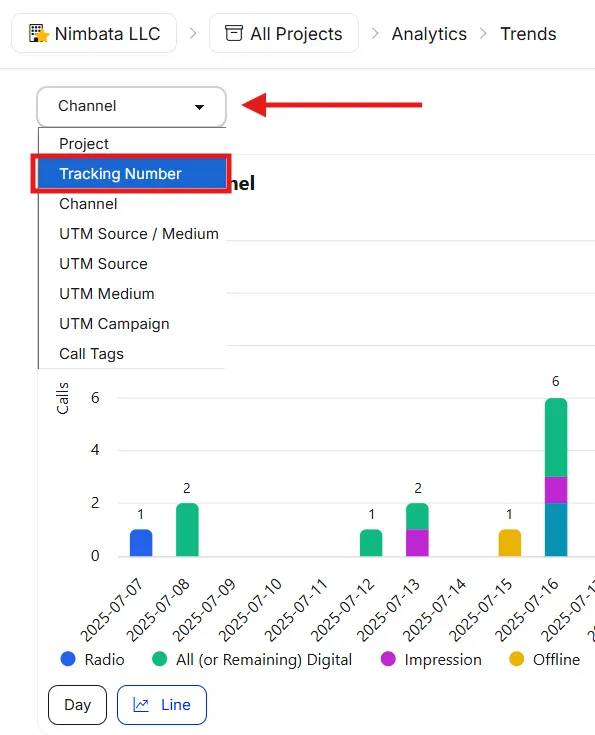
- Click the grouping menu at the top right of the chart. It shows the current grouping.
- Select Tracking Number.
Set the date range
- Click the date range picker.
- Select the time period you want to view.
- Click Apply.
Apply filters (optional)
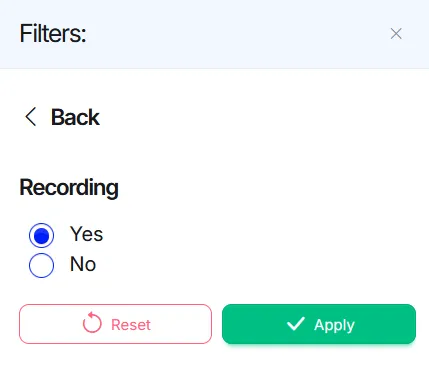
- Click Filters.
- Select the filters you want from the right-side panel, for example Recording to limit data to recorded calls.
- Click Apply for each filter.
- Add as many as you need.
Switch between percentages and numbers
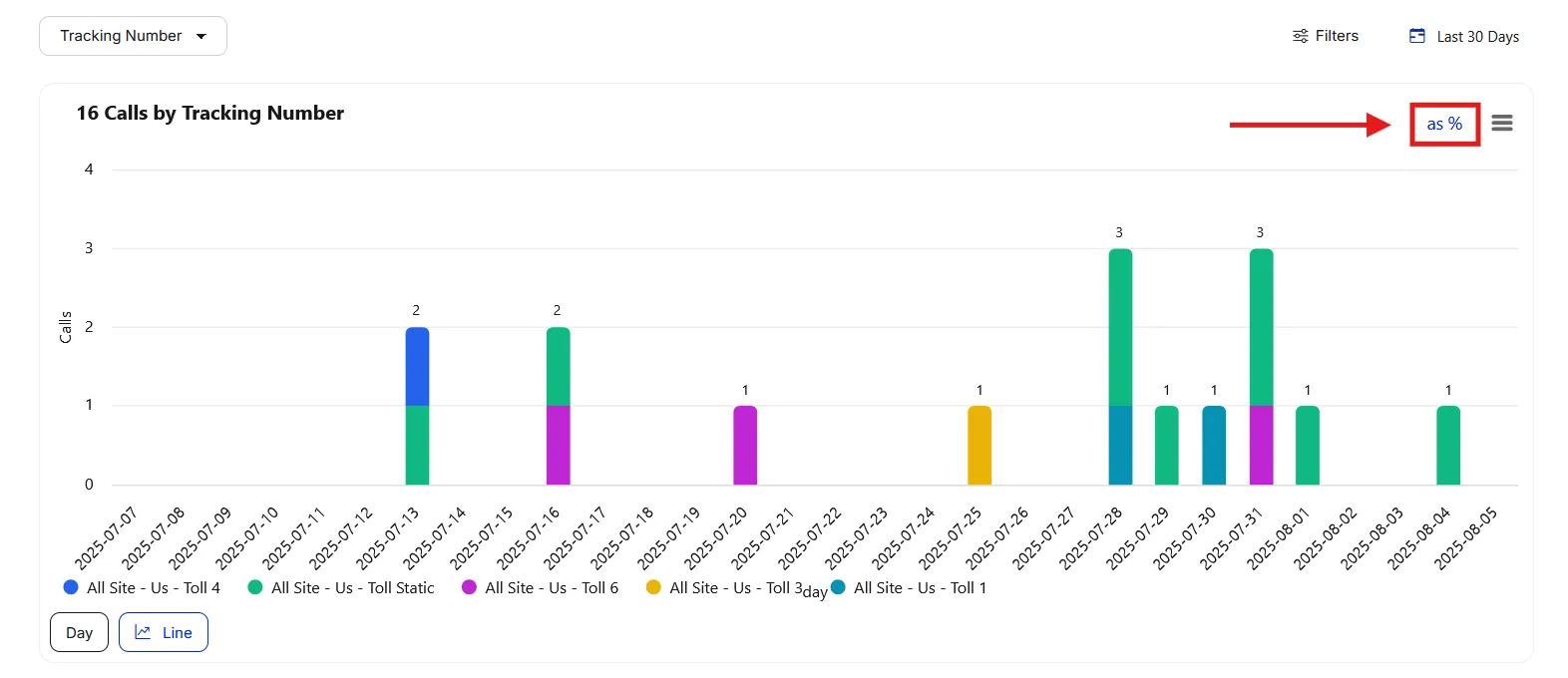
- In Column view, click the as % link (shown in blue) to view the data as percentages, and as # to go back to absolute numbers.
Switch the chart type
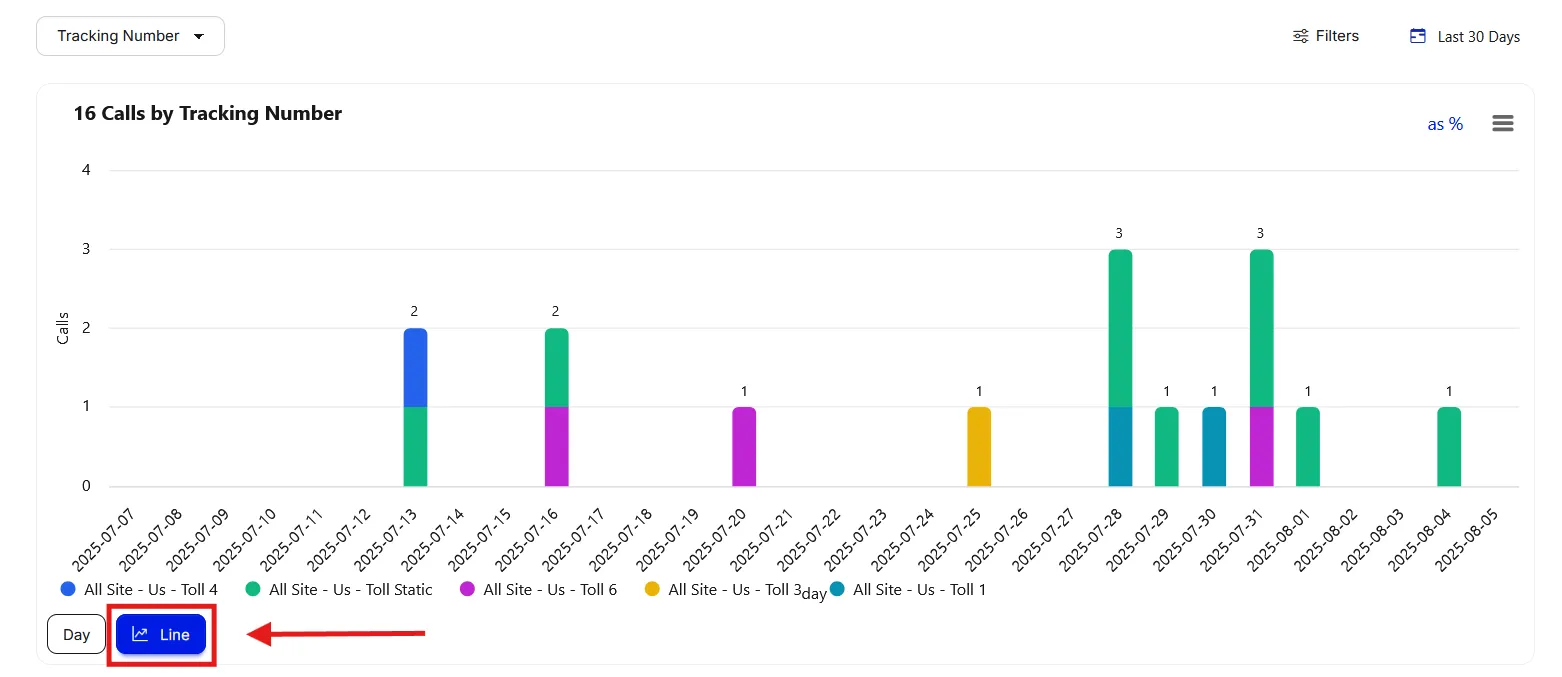
- The chart opens as columns. Click Line at the top left of the chart to switch to a line chart, and Column to switch back.
Show one total instead of groups
- In the grouping menu, select None (Total) to show a single combined total per time period.
- Select Tracking Number again to split the chart by tracking number.
Change the time grouping
- Open the time menu at the top left of the chart and select Day, Week, or Month to control how the data is summarized along the time axis.
Export the underlying data (optional)
- Click the three-dot menu in the chart’s top-right corner and, under Download, pick CSV or XLSX to download the data for your selected period and filters.
🎉 Your Trends report is configured and ready to analyze.
Detailed guide: Filter charts and reports
Detailed guide: Download charts
Reports by UTM source
You can analyze call attribution by UTM source and medium in two ways: in the Tracking Source report or on the Dashboard.
From the Tracking Source report
Open the Tracking Source report
- Go to Dashboards > Tracking Source.
Set the date range
- Click the date range picker.
- Select the period you want to view.
- Click Apply.
Group the report by UTM Source/Medium
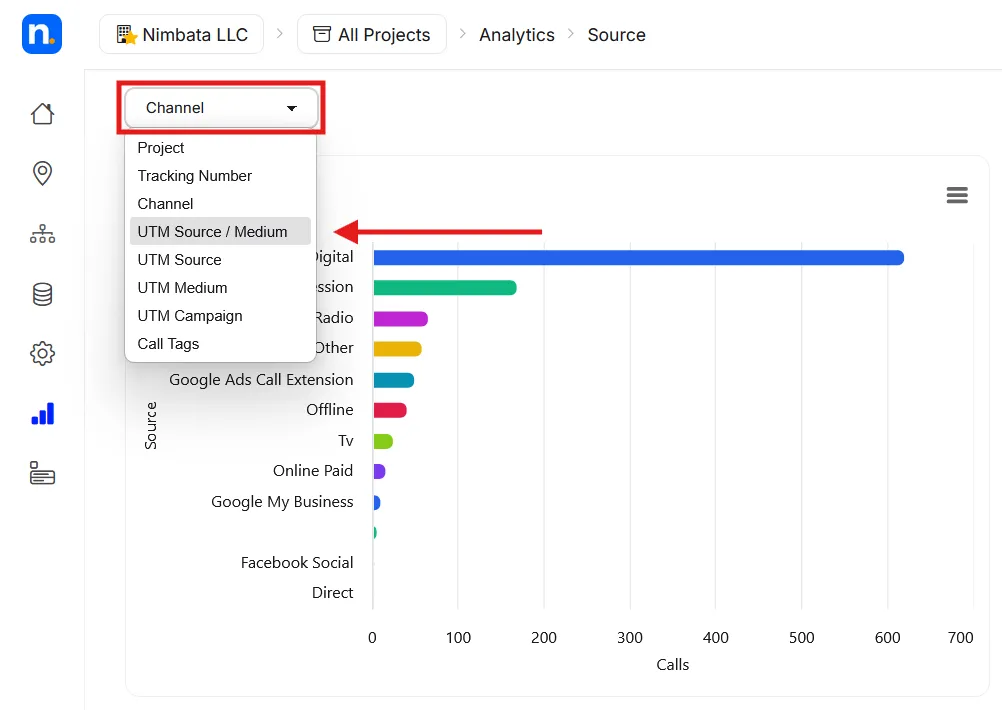
- Click the grouping menu at the top right of the chart. It shows the current grouping.
- Select UTM Source/Medium.
Apply filters (optional)
- Click Filters and select any filters you want, for example Recording.
- Click Apply.
Your report now shows call data broken down by UTM source and medium.
From the dashboard
Open the dashboard and add a chart
- Go to Dashboards > My Dashboard.
- Click + Add at the top right, next to Actions.
- Select the Calls chart category.
Search for UTM reports
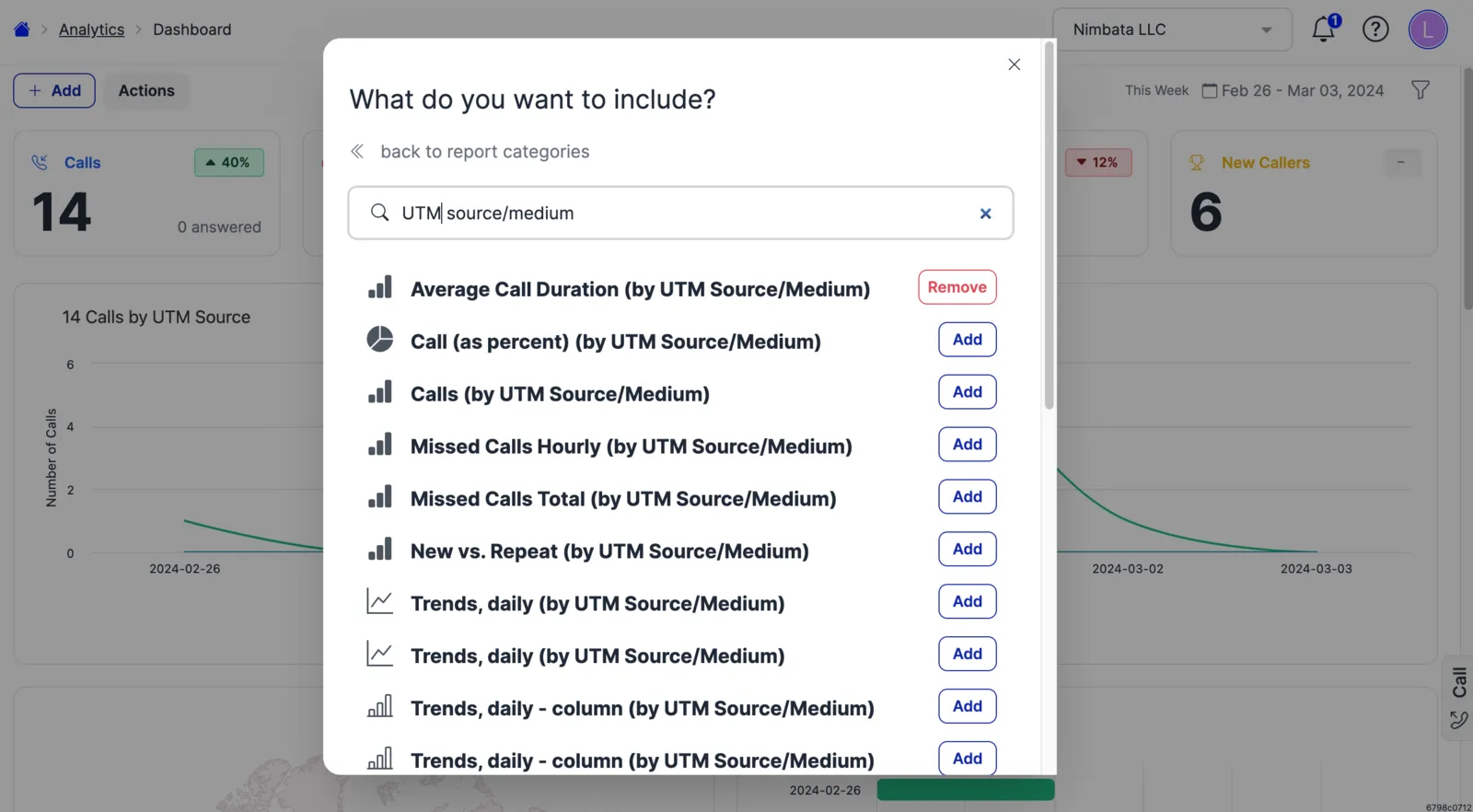
- Type UTM source/medium in the search bar.
- Click Add next to the report or reports you want.
- Close the menu.
Set the date range
- Click the date range picker.
- Select your time frame.
- Click Apply.
🎉 Your UTM source and medium reports are ready to analyze.
Detailed guide: How Nimbata fills UTM values
Detailed guide: Customize the dashboard
Detailed guide: Filter charts and reports
Reports by call tag
You can analyze call quality and volume broken down by call tag in two ways: in a dashboard report or on the Dashboard.
From a dashboard report
Open a dashboard report
Go to any of the following:
Set the date range
- Click the date range picker.
- Select the period you want to view.
- Click Apply.
Group the report by tags
- Click the grouping menu at the top right of the chart. It shows the current grouping.
- Select Tags, or Tags By Category to group by tag category.
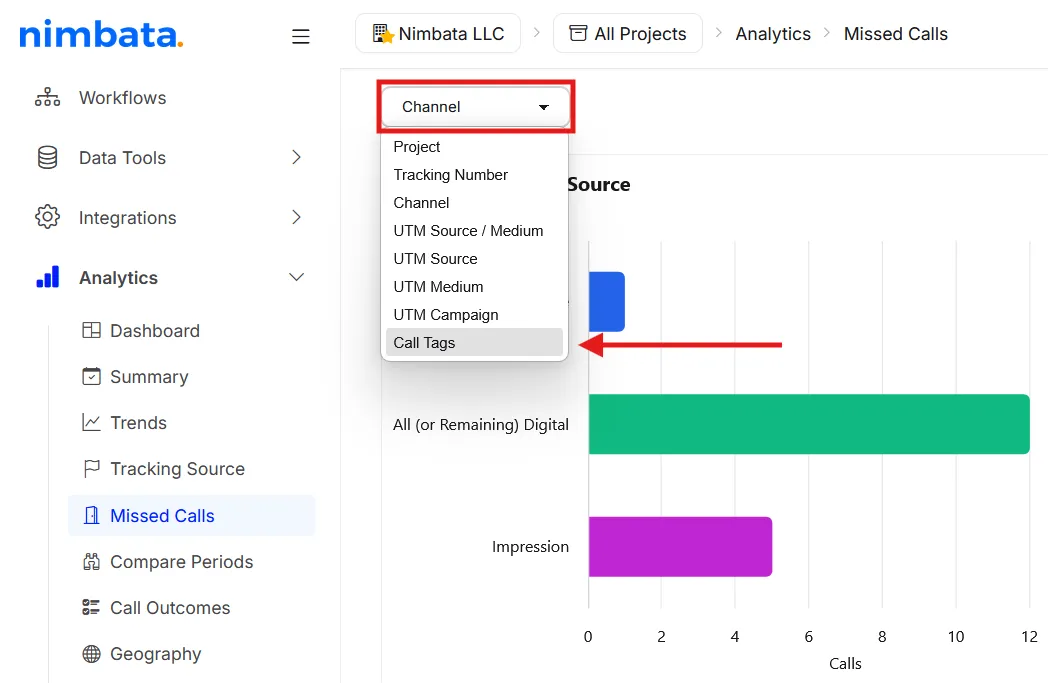
Your report now displays data broken down by call tag.
From the dashboard
Open the dashboard and add a chart
- Go to Dashboards > My Dashboard.
- Click + Add at the top right, next to Actions.
- Select the Calls chart category.
Search for tag reports
- Type tag in the search bar.
- Click Add next to the report or reports you want to include.
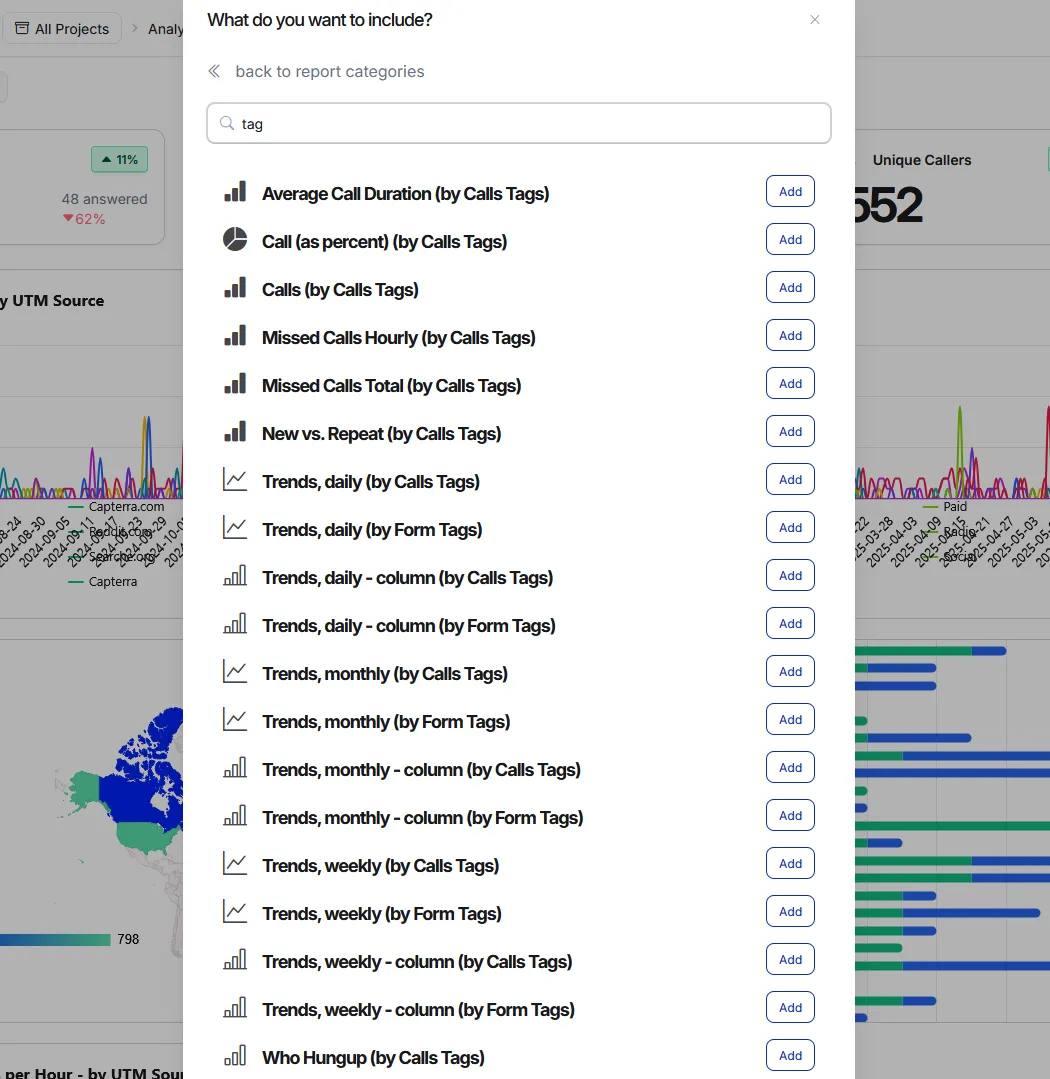
- Close the menu.
Set the date range and filters
- Click the date range picker and select your time frame.
- Click Apply.
- Optionally, click Filters to narrow the data further.
🎉 Your tag-based reports are ready to review.
Detailed guide: Create tags and tag with AI
Detailed guide: Customize the dashboard
Detailed guide: Filter charts and reports
Geography report
The Geography report shows where your callers are calling from. Use it to identify which countries and territories generate the most calls, and to spot new markets worth targeting.
Open the Geography report
- Go to Dashboards > Geography.
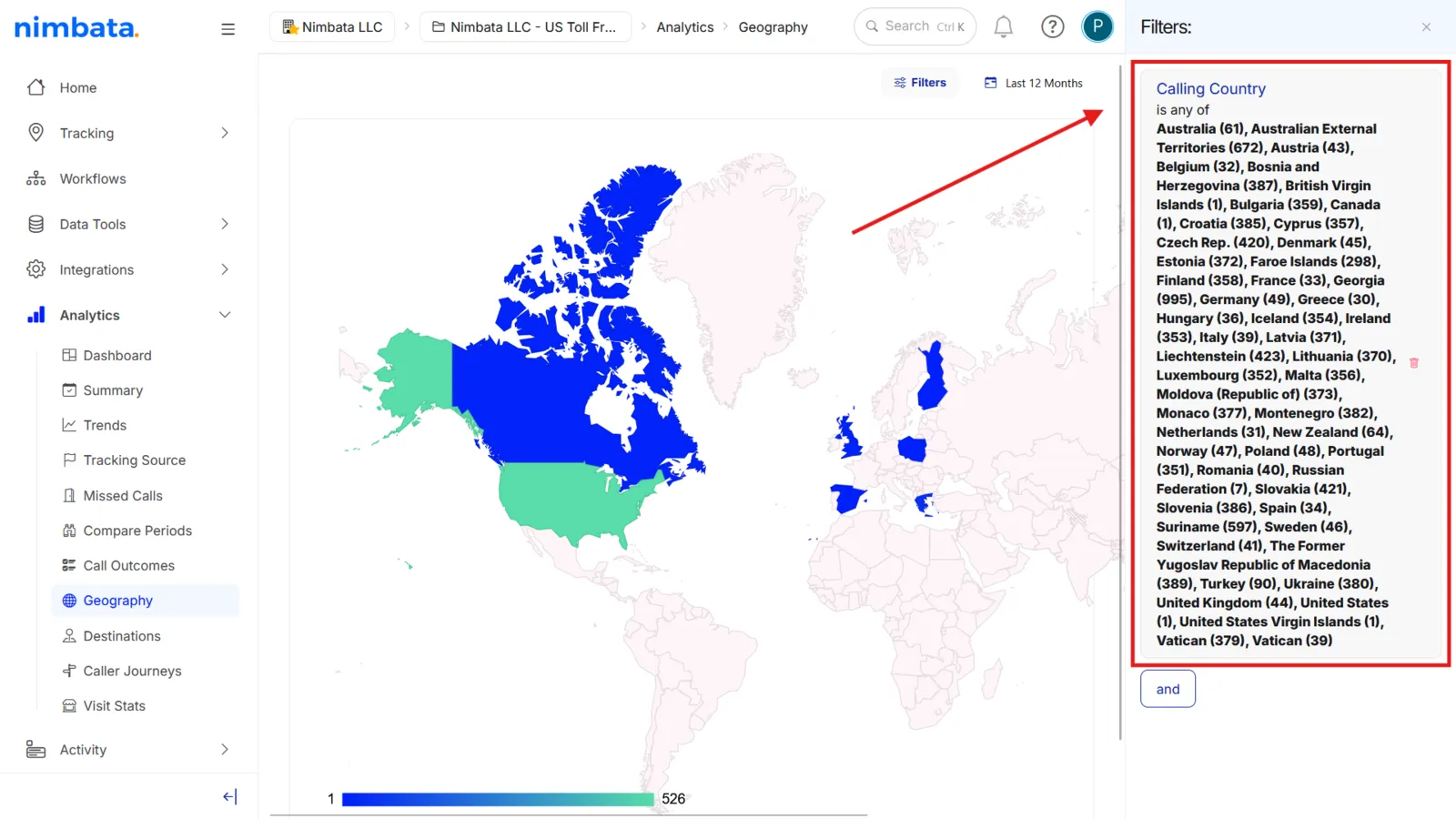
Apply filters
- Click Filters.
- Select the filters you need, for example Calling Country.
- Click Apply.
Set the date range
- Click the date range button next to the Filters button.
- Select the period you want to view data for.
- Click Apply.
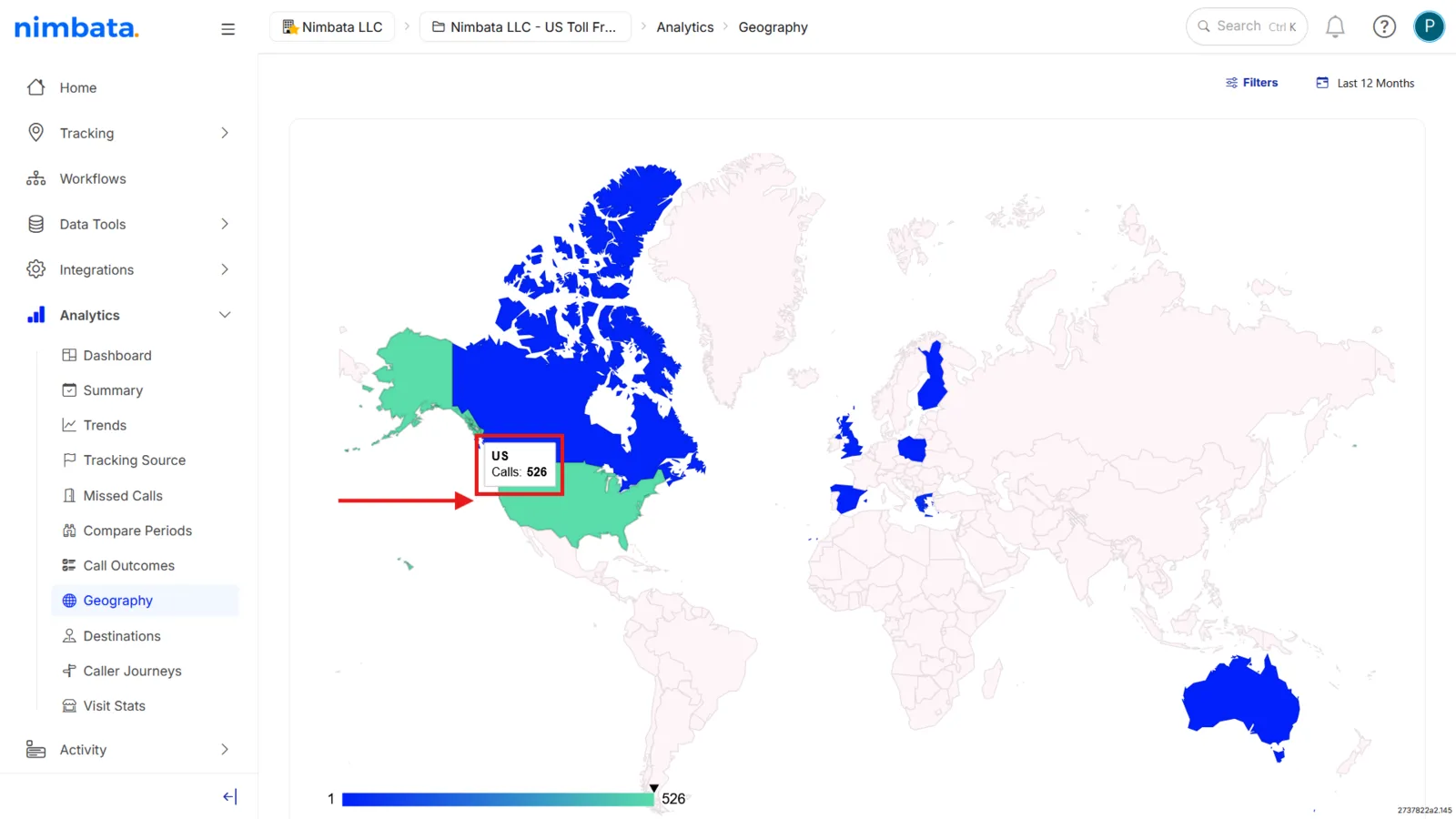
Explore by country
- Hover over any country on the map to see the total number of calls received from that territory for your selected date range and filters.
Drill into a country
- Click a country to zoom in.
- View a breakdown of calls by region or territory within that country.
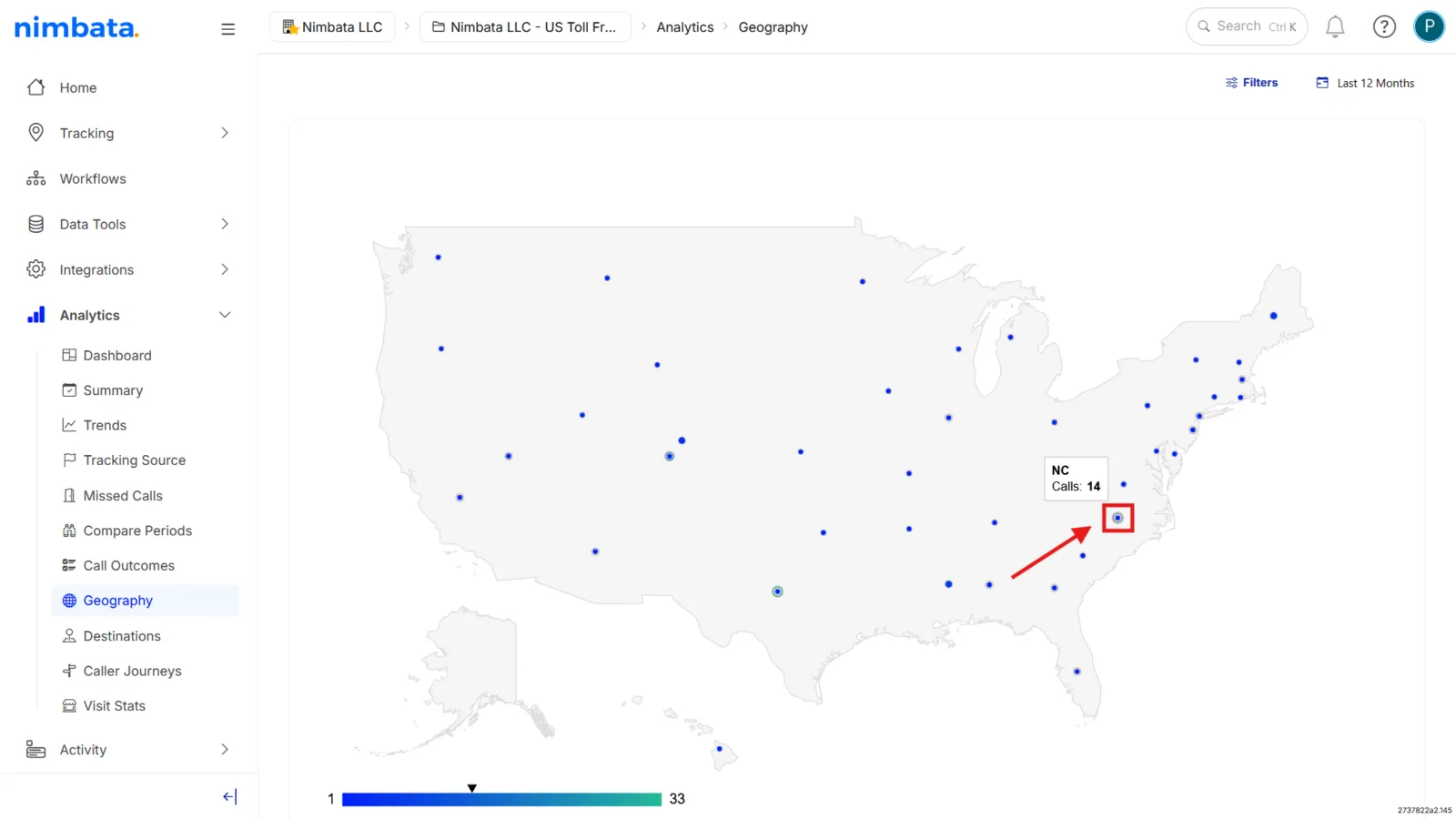
🎉 You can now see exactly where your callers are located and drill down to regional level.
Detailed guide: Filter charts and reports
Detailed guide: Route by caller location