
Your calls are listed in Activity > Calls, the call activity report. This page shows how to create and delete views of that list, and how to filter any view by date or by value.
Call views
Nimbata’s call activity report comes with four predefined views: Completed Calls, Only Answered Calls, Voicemail, and All Calls. If none of these match what you need, you can create a custom view.
- Completed Calls: Calls where all call flow actions were completed.
- Only Answered Calls: Calls that were answered.
- Voicemail: Calls where the caller left a voicemail.
- All Calls: All raw call data with no filters applied.
Note
You can create up to 10 views in total, including the 4 predefined ones.
Create a view
Start creating a new view
- Go to Activity > Calls.
- Click + Add view.
- Select Create new from the drop-down menu.
Name the view
- Enter a name for your new view.
- Click Next.
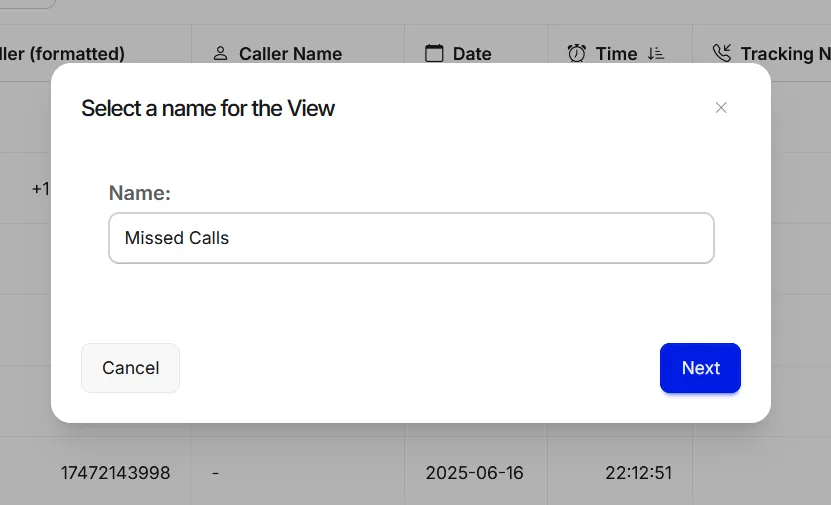
Choose your columns
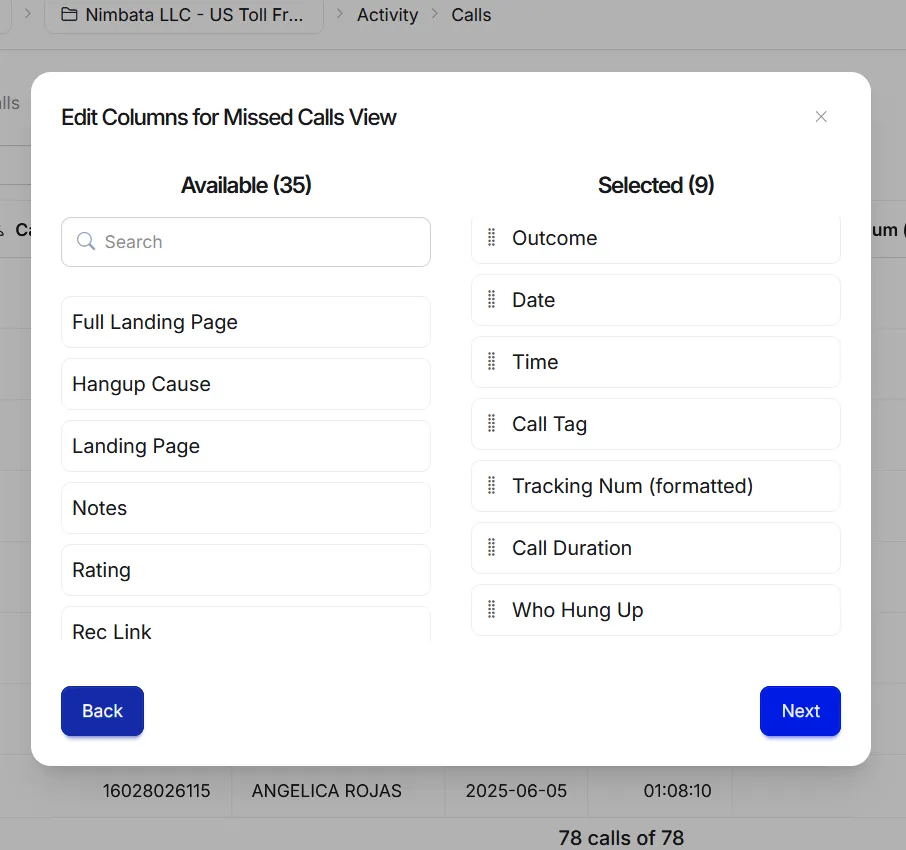
- The left column lists all available data fields.
- The right column shows what is included in the view by default.
- To remove a field, hover over it in the right column and click the red X that appears.
- To change the column order, drag a field by its handle.
- Click a field in the left column to add it.
- Click Next when done.
Configure view options
- Review and set the options below, then click Finish.
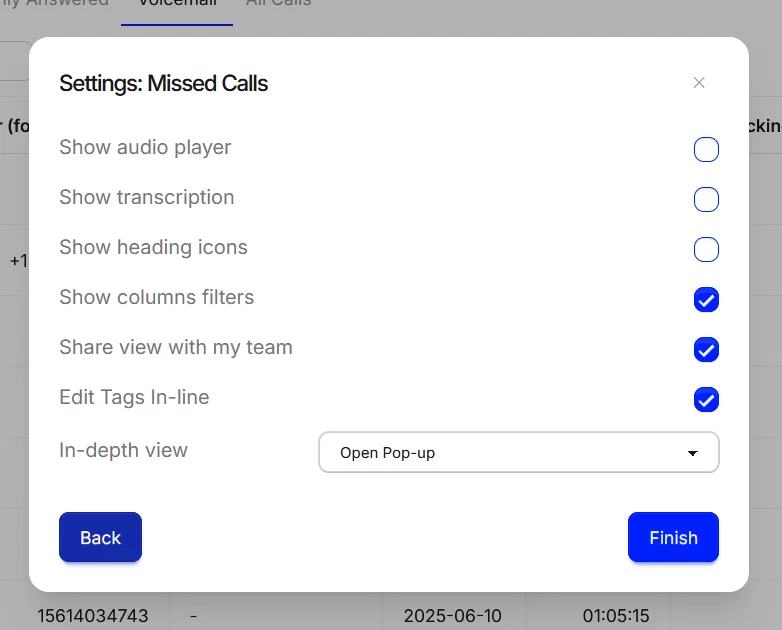
- Show audio player: a play button appears next to each call that has a recording.
- Show transcription: you get the option to access conversations under the Transcription column.
- Show heading icons: each column displays its icon, so the columns are even easier to identify.
- Show column filters: you can filter the data within each column.
- Share view with my team: select it if you want your new view to be visible to your team’s members.
- Edit tags in-line: add tags to each call on the spot.
- In-depth view: select whether you prefer expanding your rows or having your data show in pop-ups.
Save the view
- Click your view’s name tab.
- Select Save view to store your settings.
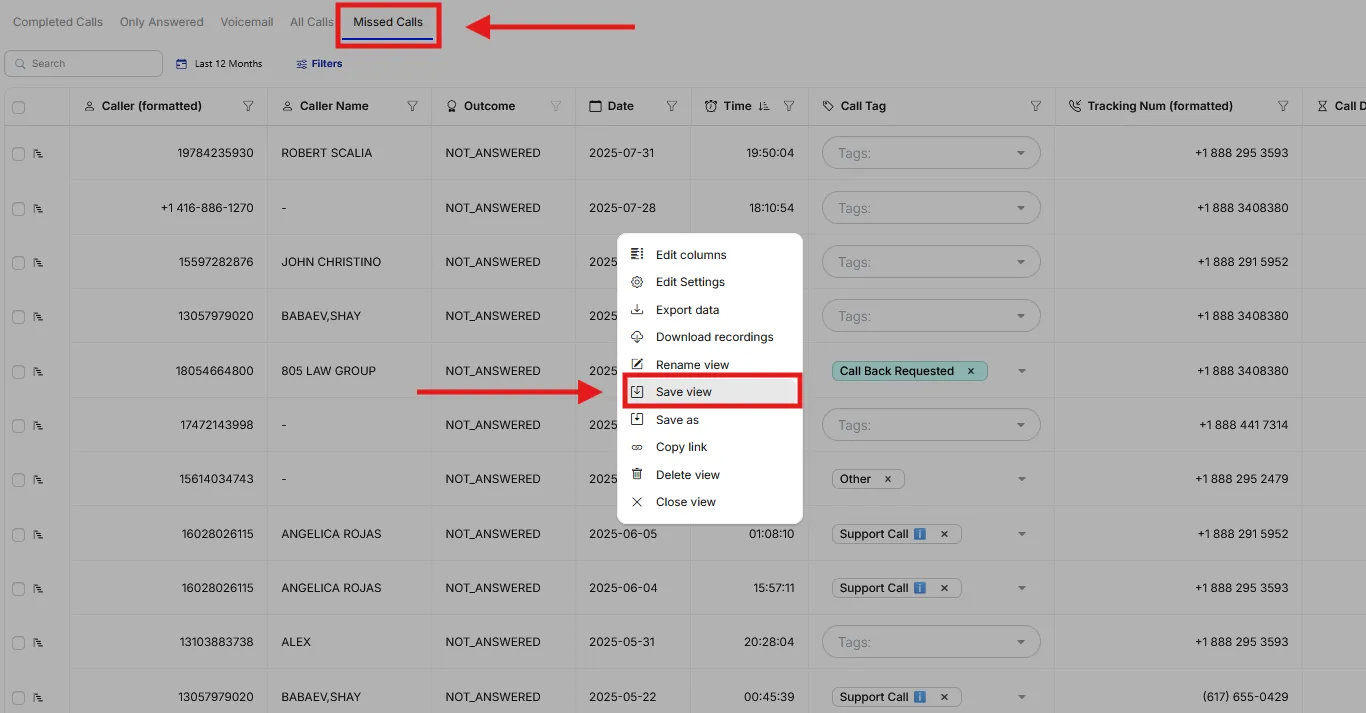
🎉 Your custom view is ready. It appears as a tab alongside the default views in your calls log.
Delete a view
- Click the view’s name tab.
- Select Delete view from the menu.
- Confirm by clicking Delete.
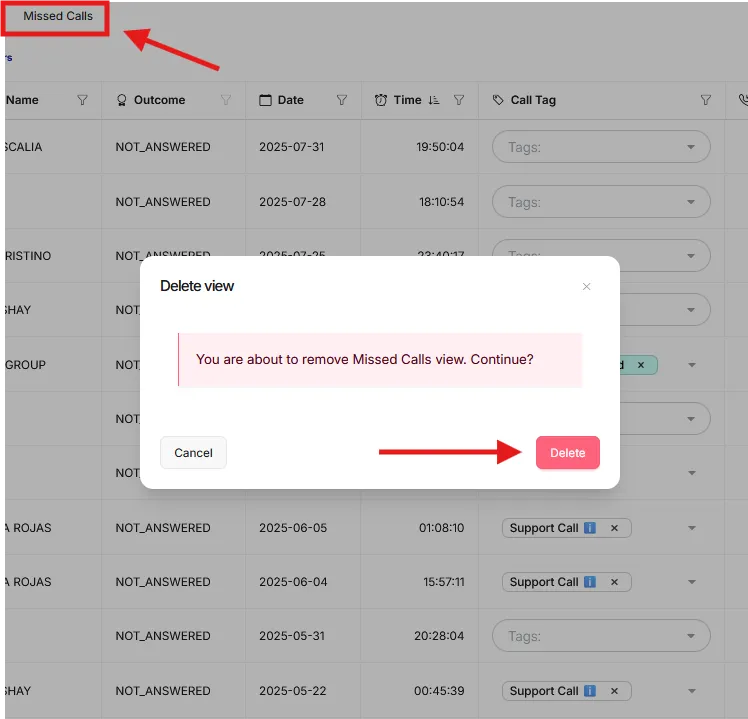
Detailed guide: Filter call views
Detailed guide: Export call activity
Filter call views
Filters narrow your call data to exactly what you need. You can apply them to any view: the four default views and any custom views you have created. There are two types, date filters and value-based filters, and you can use them independently or together.
Date filters
Open the calls view
- Go to Activity > Calls.
- Select the view you want to filter.
Apply the date range
- Click the date range picker next to the Filters button.
- Select the date range you want to view data for.
- Click Apply.
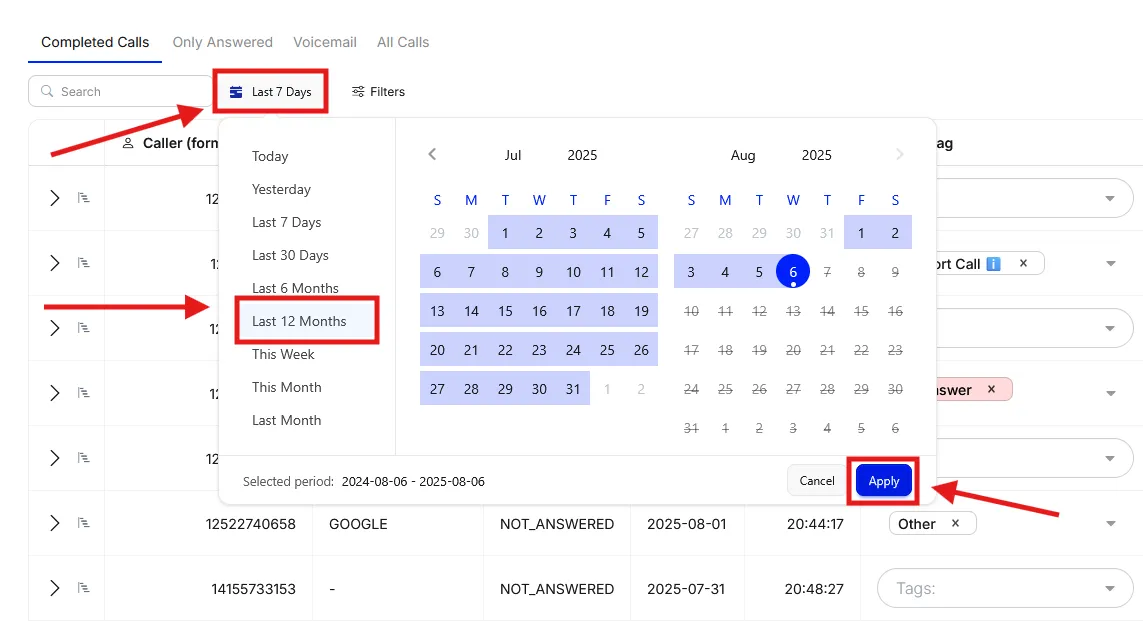
Save or export the filtered view (optional)
To save the view:
- Click the three-dot menu next to + Add view.
- Select Save as.
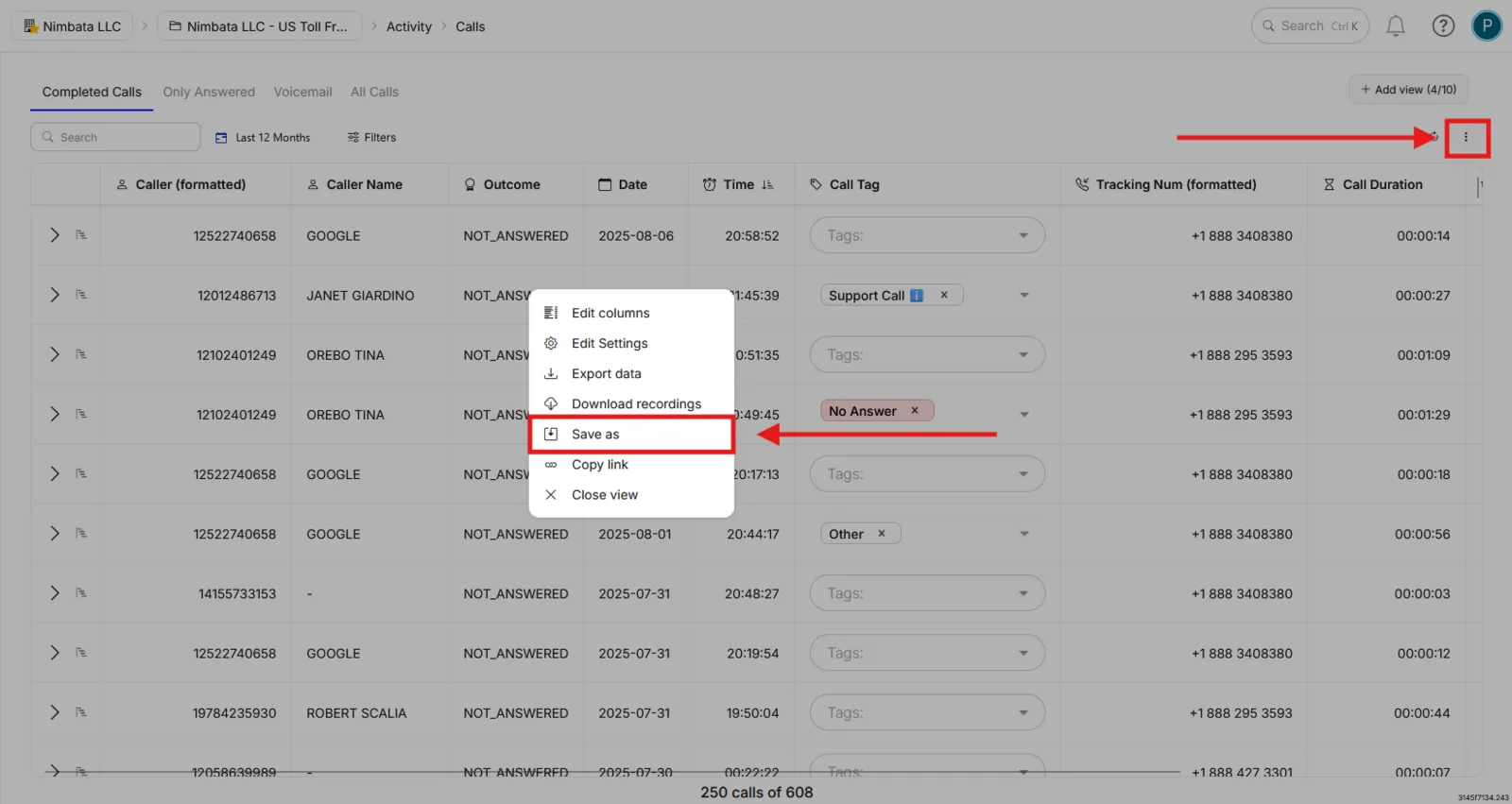
- Enter a name for the view and click Save.
To export the view:
- Click the three-dot menu and select Export data.
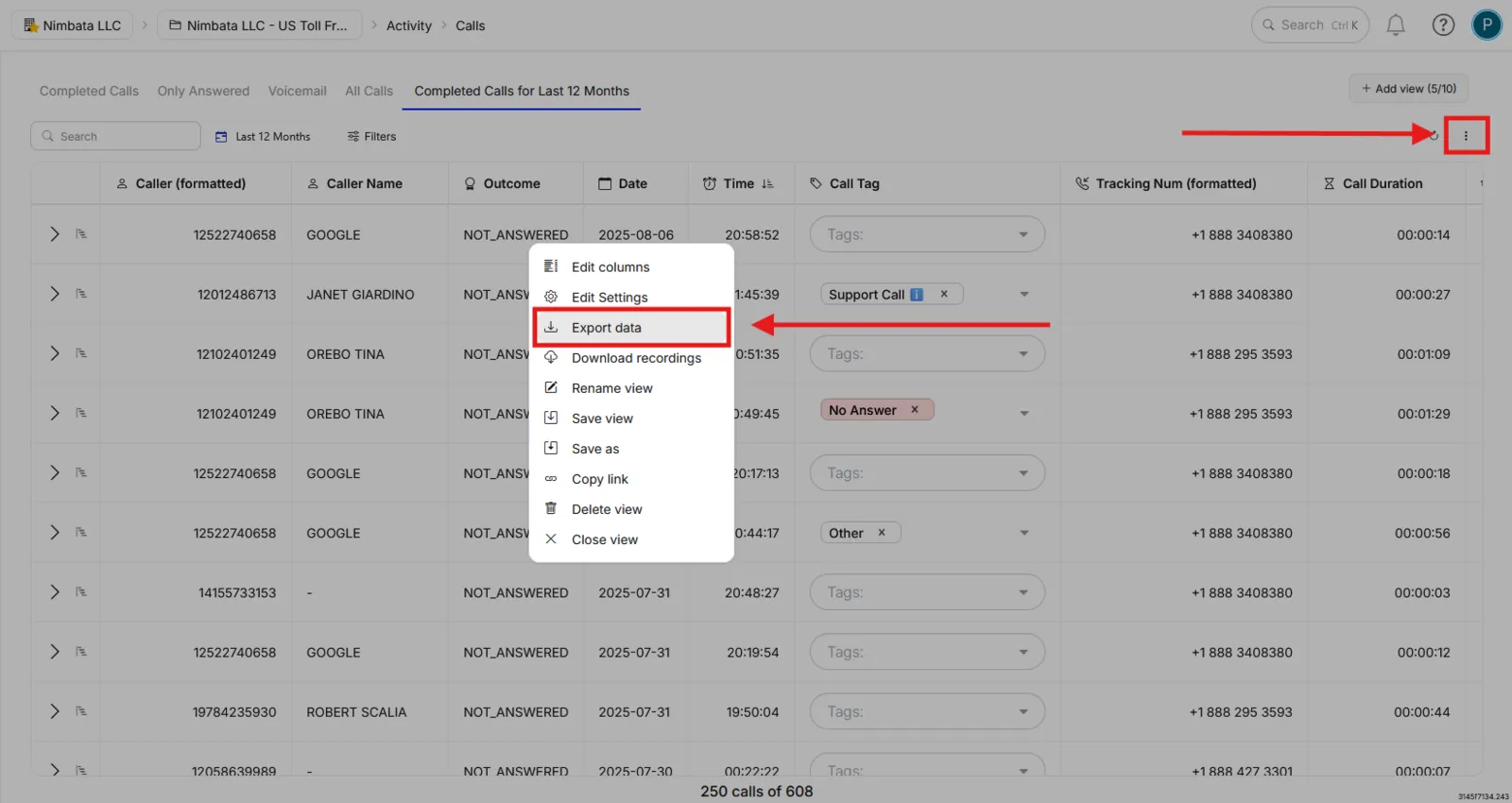
- Choose .xlsx or .csv and click Export.
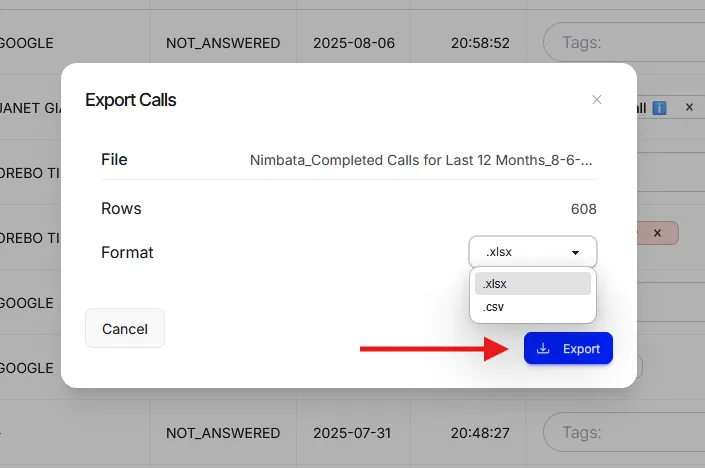
- A blue notification confirms that the file is being prepared.
- A bell notification appears when the file is ready.
- Click the link to download.
- You also receive a download link by email. The link works once and expires after 24 hours.
Value-based filters
Open the calls view
- Go to Activity > Calls.
- Select the view you want to filter.
Open the filters panel and select a filter
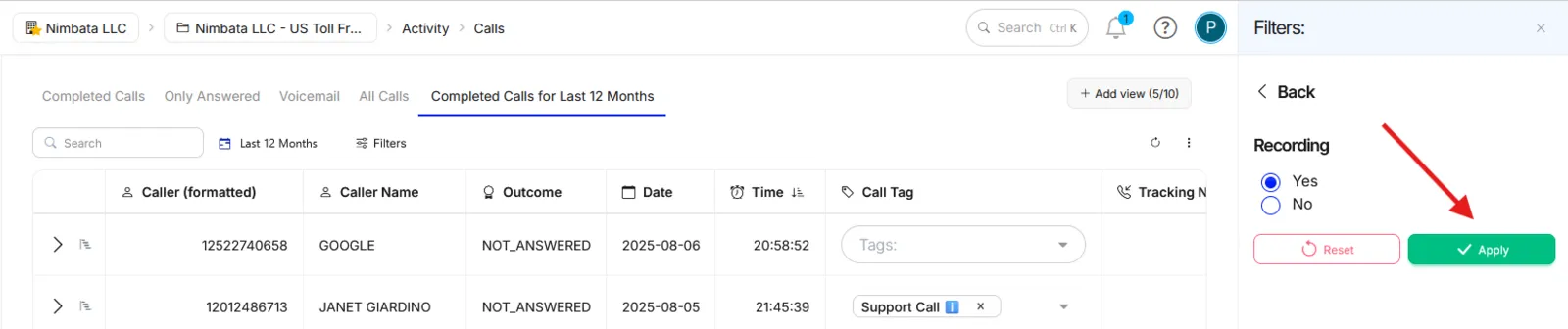
- Click Filters on the upper-left of the report.
- Choose the filter you want, for example Recording to show only calls that include a recording.
- Click Apply.
Save or export (optional)
- Follow the same save or export steps as in the date filters above.
🎉 Your view is now filtered to show exactly the calls you need.
Detailed guide: Call views
Detailed guide: Export call activity