
Send form submission conversions directly from Nimbata to your Google Ads or Microsoft Ads account, so you can measure campaign performance accurately and optimize bids using real form lead data.
Send to Google Ads
Tip
Before you start: You need an active Google Ads integration in Nimbata and form tracking already enabled on your website.
Create a conversion action in Google Ads
- Follow the Google Ads integration guide to create the conversion action in your Google Ads account.
Enable form tracking in Nimbata
- Follow the Form tracking setup guide to activate form tracking on your website.
Create a new workflow
- Go to Workflows.
- Click + Create.
Set the trigger
- Select Form submitted from the trigger menu.
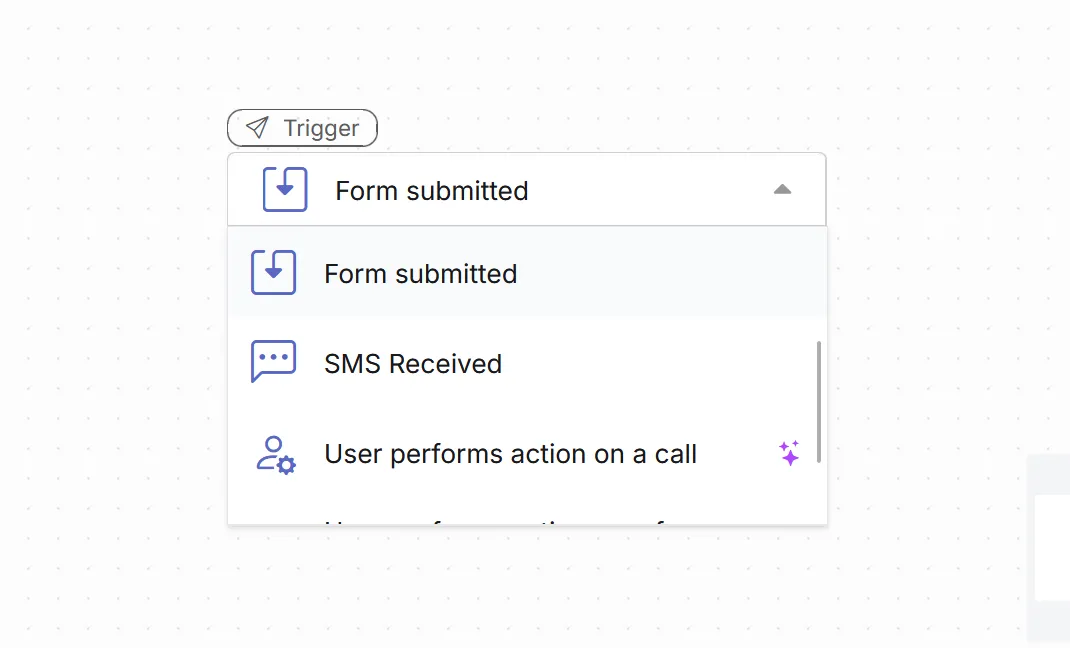
Choose whether to send all form submissions or only specific ones
Click the + button. You have two paths:
Option A. Send all form submissions:
- Click Perform action.
- Click + Add task.
- Select Google Ads from the Integrations menu.
- Select Nimbata Form Tracking from the configuration menu.
- Click OK.
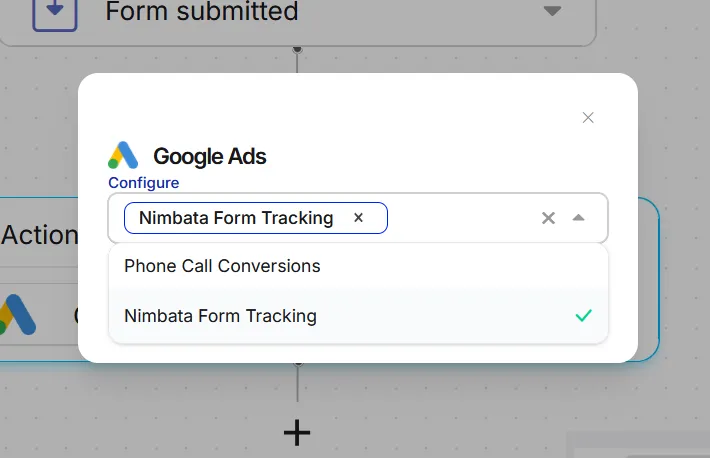
Skip to the next step.
Option B. Send only specific forms:
- Click Add filter.
- Under Simple filter, click + Add rule.
- Select Form from the forms menu.
- Select the form you want to track on the pop-up.
- Click OK.
- Click +.
- Select Perform action.
- Click + Add task.
- Select Google Ads from the Integrations menu.
- Select Nimbata Form Tracking.
- Click OK.
Link the conversion action in the Google Ads integration
- Go to Integrations > Google Ads.
- Click Add conversion.
- Select your Ads account.
- Pick Nimbata Form Tracking from the conversion name menu.
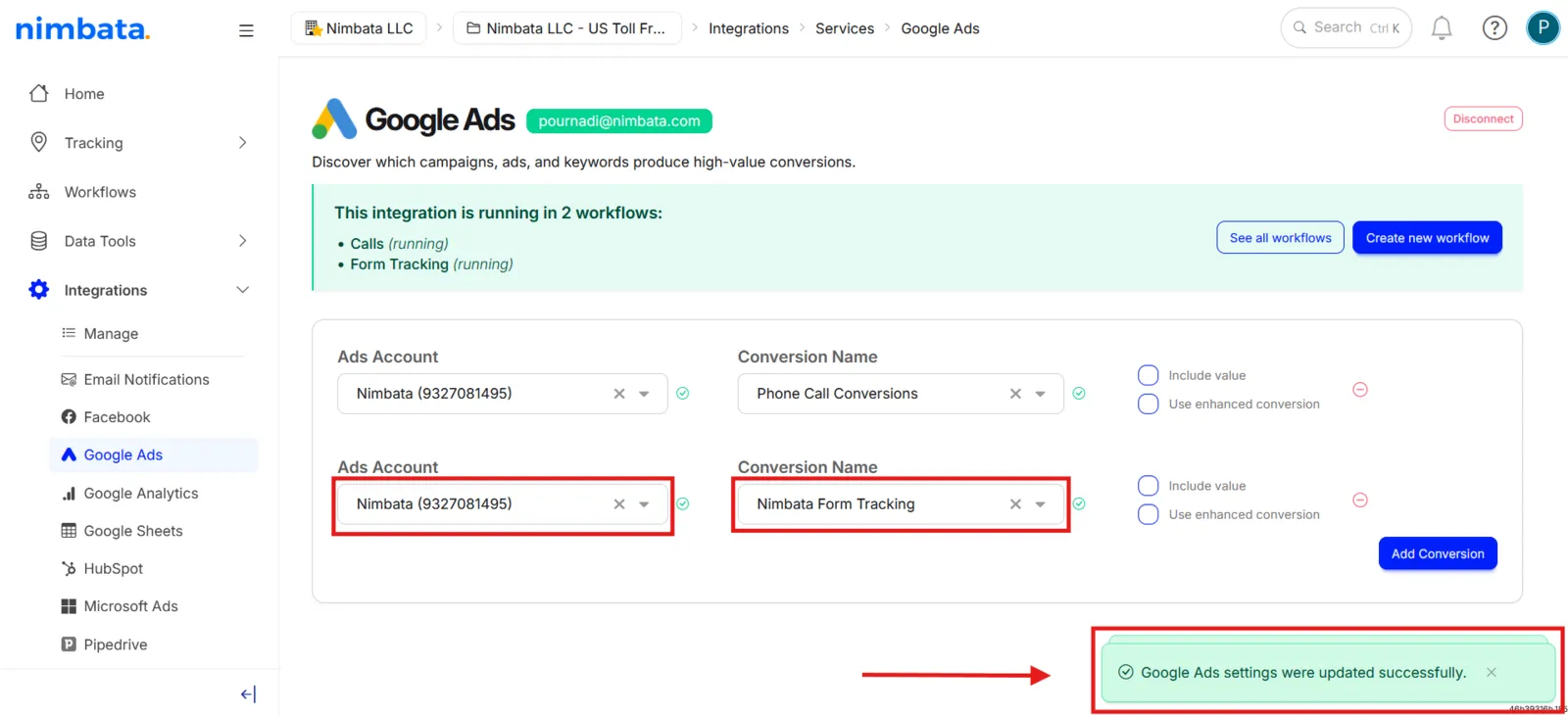
Nimbata saves your Google Ads settings automatically.
🎉 Every form submission that meets your workflow conditions is now sent to Google Ads as a conversion.
Detailed guide: Connect Google Ads
Detailed guide: Form tracking
Send to Microsoft Ads
Tip
Before you start: You need an active Microsoft Ads integration in Nimbata and form tracking already enabled on your website.
Create a conversion action in Microsoft Ads
- Follow the Microsoft Ads integration guide to create the conversion action in your Microsoft Ads account.
Enable form tracking in Nimbata
- Follow the Form tracking setup guide to activate form tracking on your website.
Create a new workflow
- Go to Workflows.
- Click + Create.
Set the trigger
- Select Form submitted from the trigger menu.
Choose whether to send all form submissions or only specific ones
Click the + button. You have two paths:
Option A. Send all form submissions:
- Click Perform action.
- Click + Add task.
- Select Microsoft Ads from the Integrations menu.
- Select your form conversion goal (for example Nimbata Form Tracking) from the configuration menu.
- Click OK.
Skip to the next step.
Option B. Send only specific forms:
- Click Add filter.
- Under Simple filter, click + Add rule.
- Select Form from the forms menu.
- Select the form you want to track on the pop-up.
- Click OK.
- Click +.
- Select Perform action.
- Click + Add task.
- Select Microsoft Ads from the Integrations menu.
- Select your form conversion goal (for example Nimbata Form Tracking).
- Click OK.
Link the conversion action in the Microsoft Ads integration
- Go to Integrations > Microsoft Ads.
- Click Add conversion.
- Select your Ads account.
- Pick your form conversion goal (for example Nimbata Form Tracking) from the conversion name menu.
Nimbata saves your Microsoft Ads settings automatically.
🎉 Every form submission that meets your workflow conditions is now sent to Microsoft Ads as a conversion.
Detailed guide: Connect Microsoft Ads
Detailed guide: Form tracking