
A call flow’s routing option decides which destination numbers a call rings. This page shows how to ring several numbers at once, ring them in order until someone answers, or split calls between them by percentage.
Ring several numbers at once
Note
There is no call flow template for Multiple routing, so build it with the steps below. Sequential and Weighted routing have templates: see Start from a template.
The Multiple routing option rings several destination numbers at the same time. The first agent to pick up takes the call. This reduces wait times, distributes load automatically, and ensures callers reach a live person without being placed in a queue.
Open the Call Flow Builder
- Go to Call handling > Call Flows.
- Click Create (or open an existing call flow to edit it).
Add the Multiple routing action
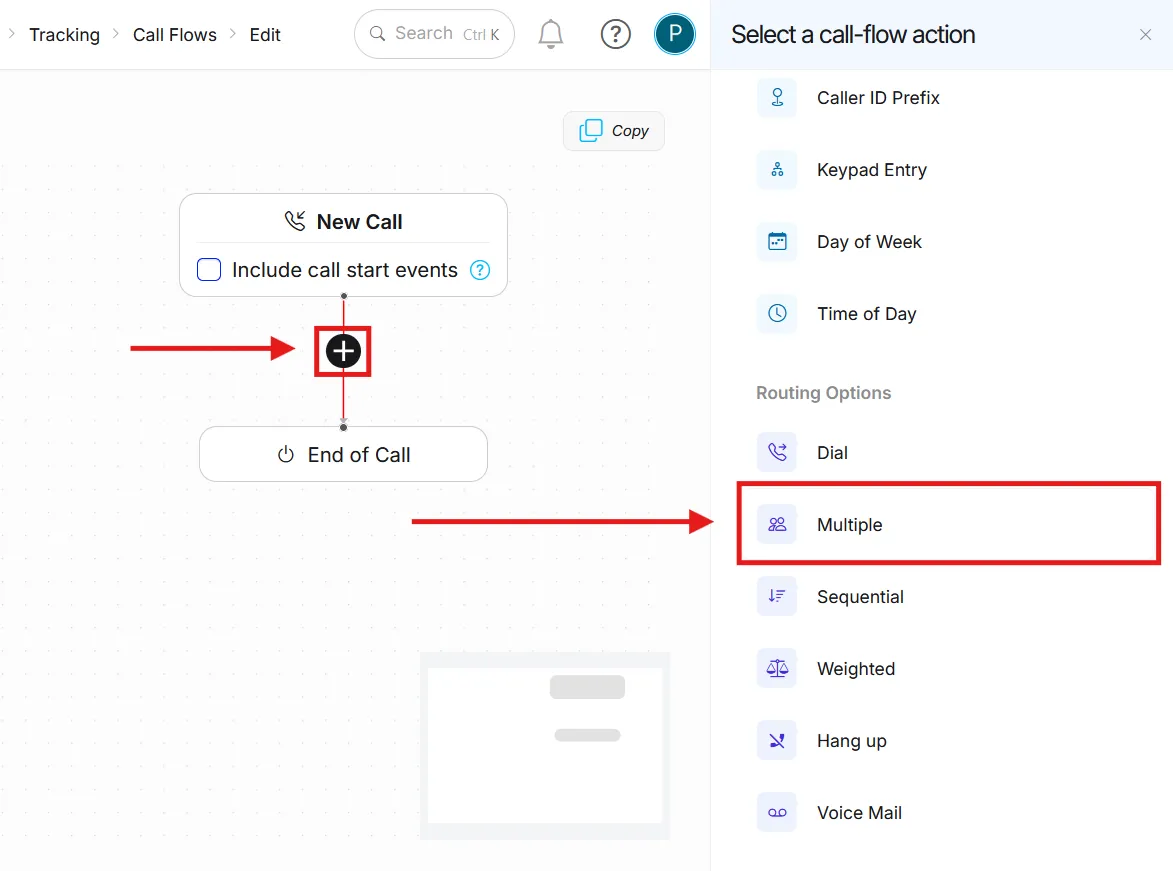
- Click the + button on the canvas.
- Select Multiple from the Routing Options menu.
Add destination numbers
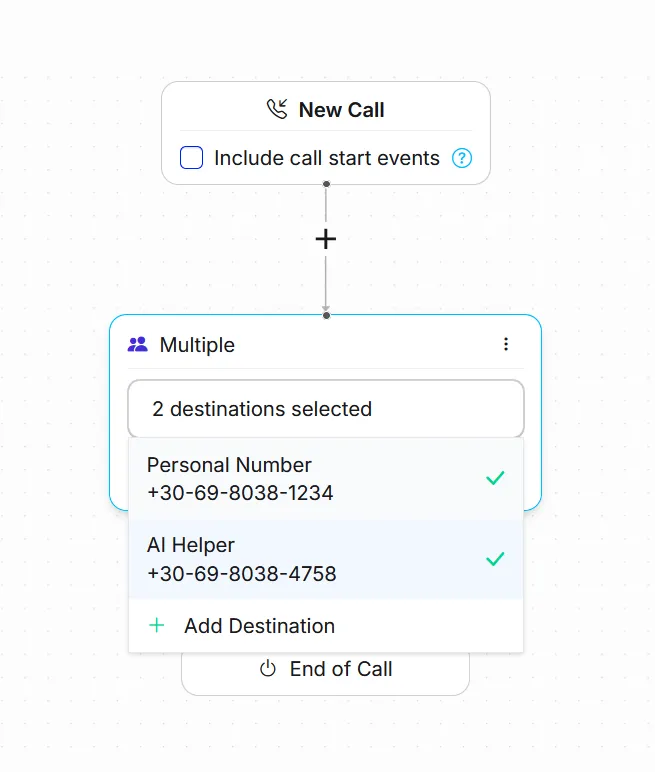
- Click Select Destinations.
- Add as many destination numbers as needed.
Assign the call flow to tracking numbers
- Go to Tracking > Numbers.
- Assign the new call flow to the relevant tracking numbers.
🎉 Done. Every call coming through those tracking numbers will now ring all destinations simultaneously until one answers.
Detailed guide: Assign a call flow
Detailed guide: Ring numbers in order
Detailed guide: Split calls by percentage
Ring numbers in order
Note
To use the templated setup instead, see: Sequential Call Flow template.
Sequential call routing directs incoming calls to your team members one by one, in a defined order. If the first person doesn’t answer, the call automatically moves to the next person on the list, and so on, until someone picks up or the flow reaches its end (for example, voicemail).
Open the Call Flow Builder
- Go to Call handling > Call Flows.
- Click Create.
Add the Sequential routing action
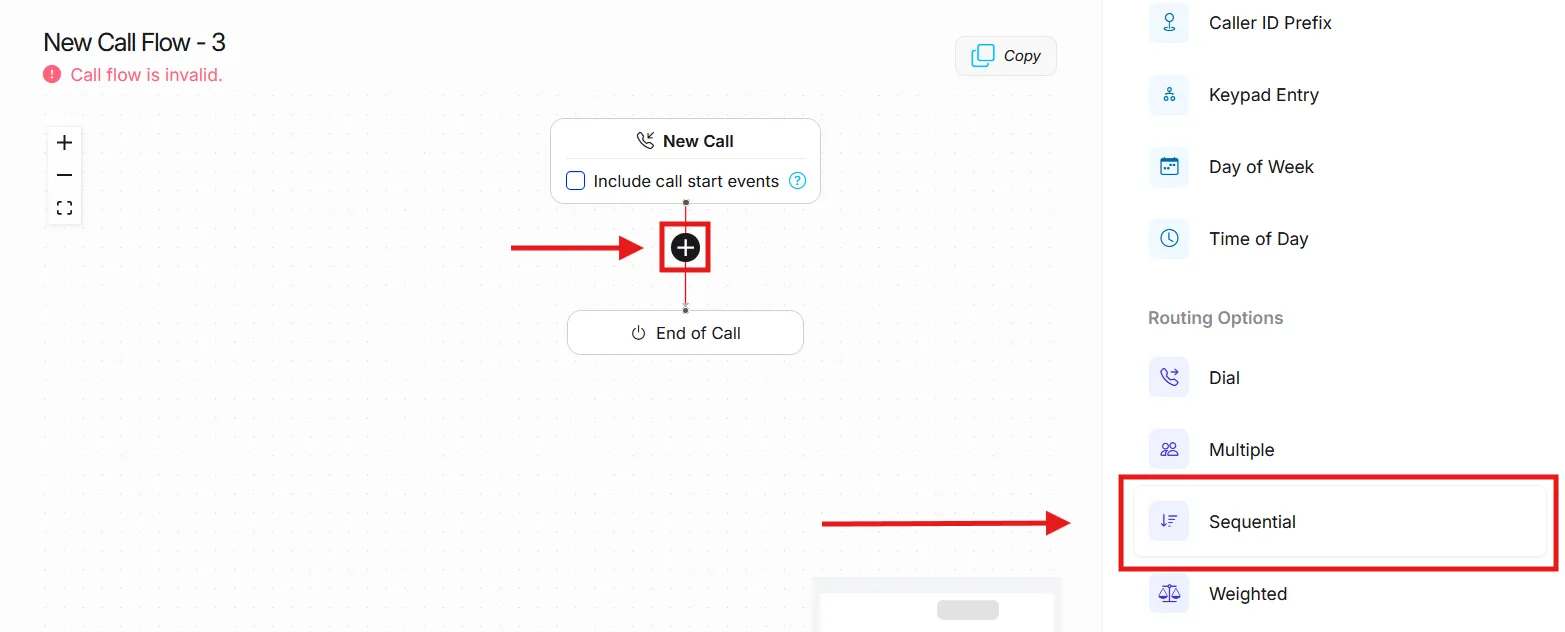
- Click the + button on the canvas.
- Select Sequential from the Routing Options menu.
Add destination numbers
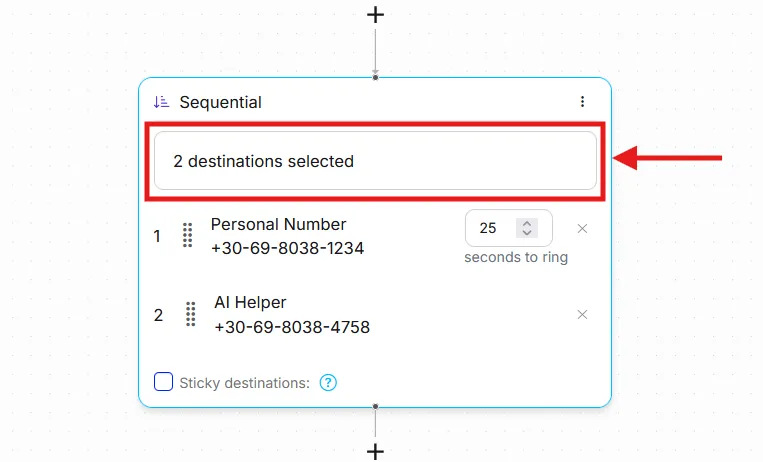
- Click Select Destinations.
- Add at least 2 destination numbers.
Configure ring time and sticky destinations
- Adjust the seconds to ring per destination (default: 25 seconds).
- Optionally enable Sticky Destinations: when active, a returning caller is routed to the same agent who answered their last call.
- If Sticky Destinations are enabled, set how many days back the system should look.
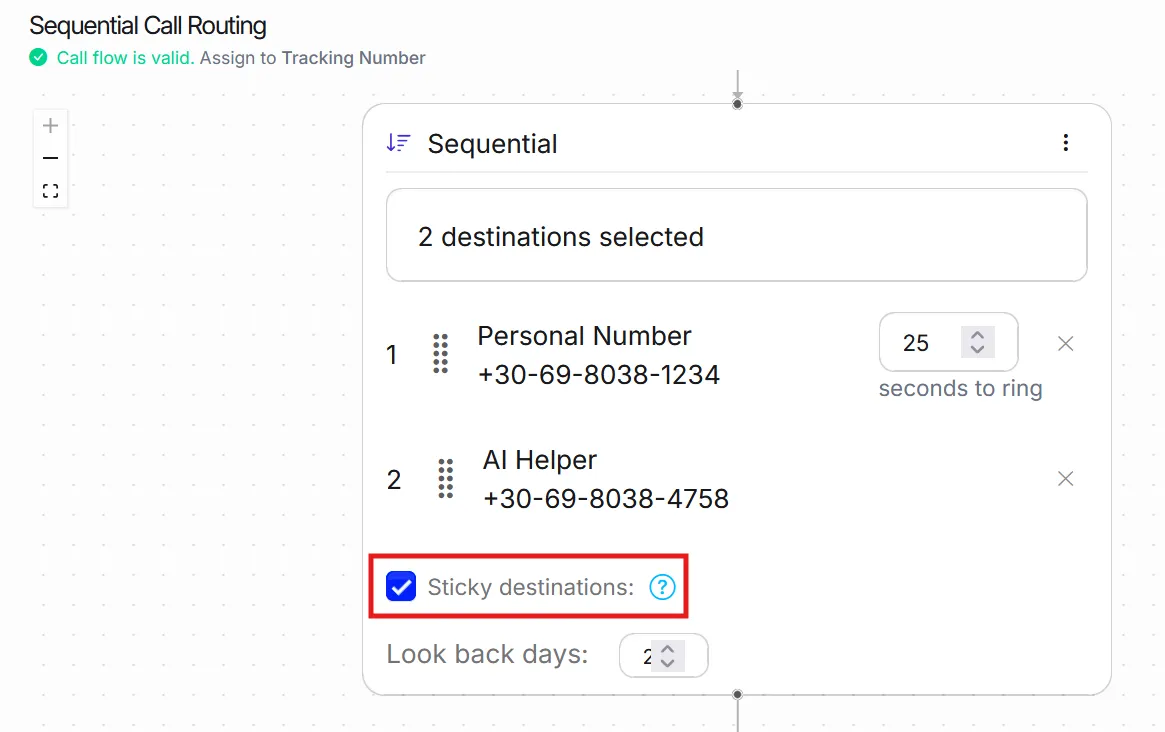
Assign the call flow to tracking numbers
- Go to Tracking > Numbers.
- Assign the call flow to the relevant tracking numbers.
🎉 Done. Calls will now ring each destination in order until someone answers.
Detailed guide: Sequential Call Flow template
Detailed guide: Send unanswered calls onward
Detailed guide: Assign a call flow
Send unanswered calls onward
When a call goes unanswered at the first destination, Sequential routing automatically moves it to the next number on your list. Each destination rings for a defined number of seconds before the call advances, reducing missed calls without requiring any manual intervention.
Open the Call Flow Builder
- Go to Call handling > Call Flows.
- Click + Create to create a new call flow, or click an existing one to edit it.
Switch the Dial action to Sequential
- Click the three-dot menu on the top-right of the Dial block.
- Select Change to Sequential.
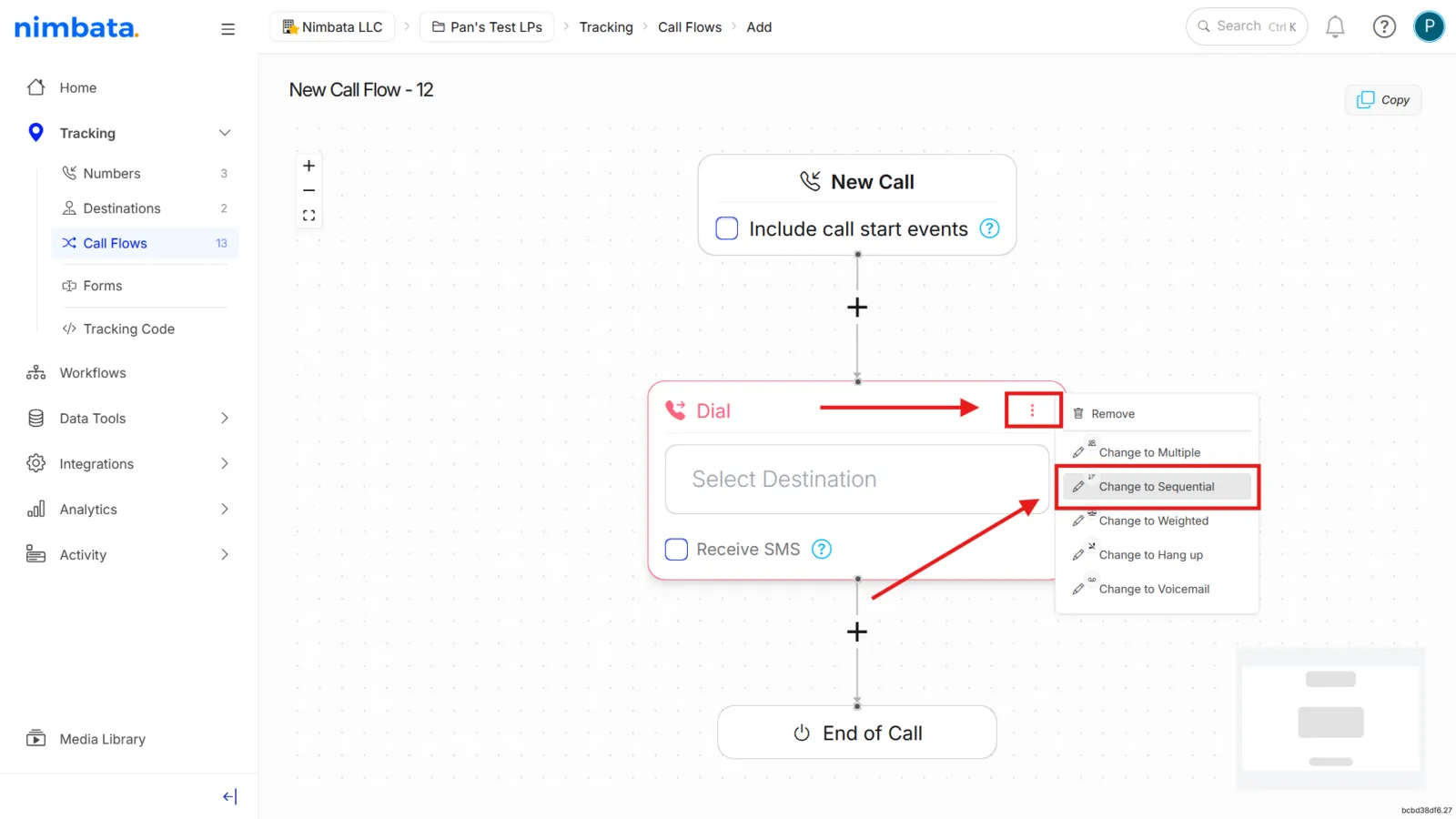
Add your destination numbers
Click Select Destinations and add all the numbers you want calls to try in sequence.
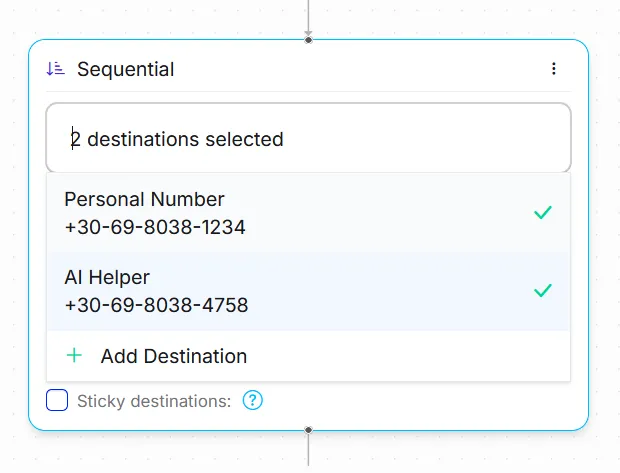
Set the ring time per destination
- Choose how many seconds the call rings at each destination before advancing to the next.
- Optionally rename the call flow for easy identification.
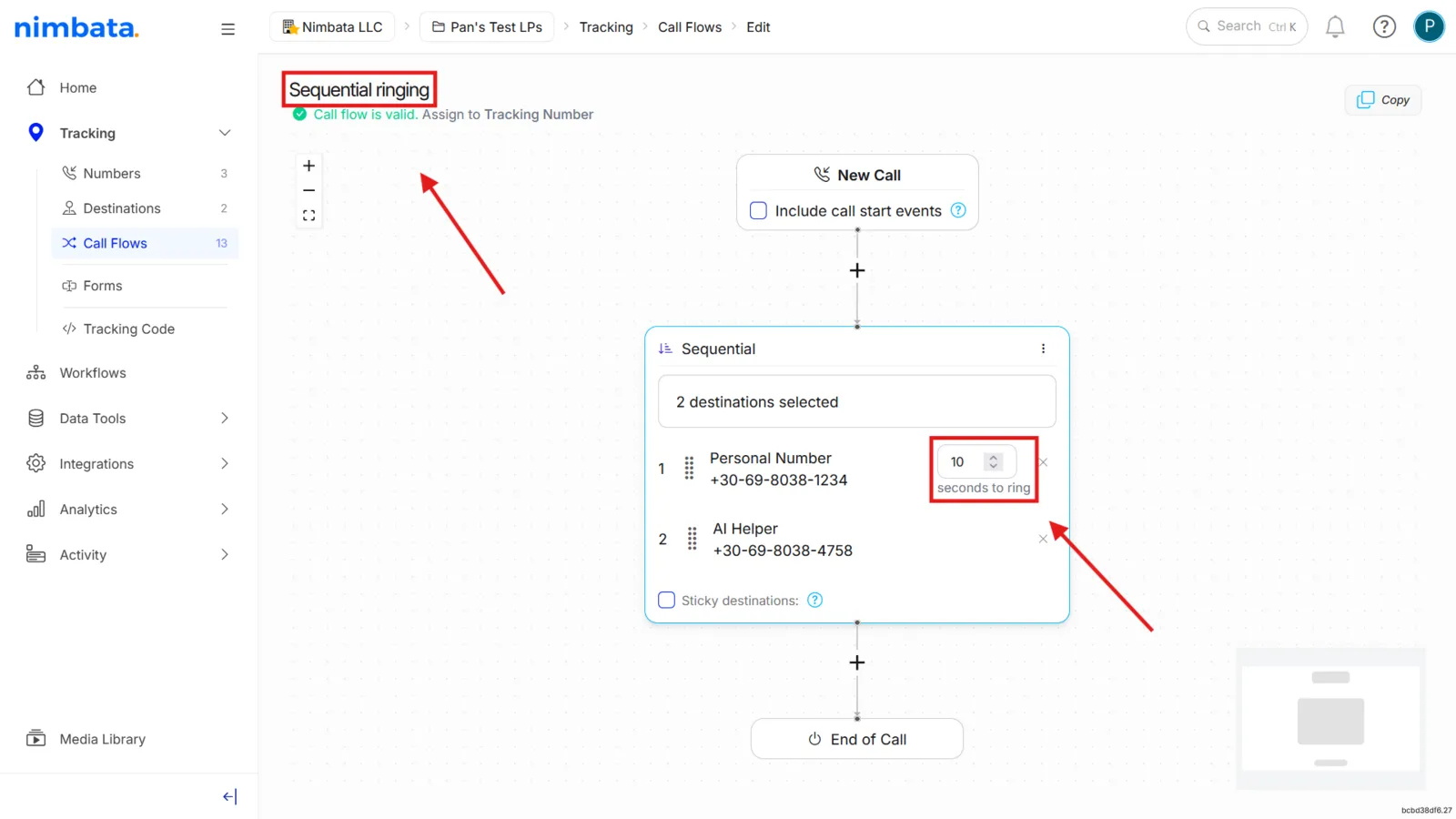
Assign the call flow to tracking numbers
- Go to Tracking > Numbers.
- Assign the call flow to the relevant tracking numbers.
🎉 Done. Unanswered calls will now automatically try the next destination in your sequence.
Detailed guide: Ring numbers in order
Detailed guide: Set up and listen to voicemail
Detailed guide: Assign a call flow
Split calls by percentage
Note
To use the templated setup instead, see: Weighted Call Flow template.
Weighted call routing distributes incoming calls across destination numbers according to percentages you define. Use it to match call volume to agent capacity, route by skill level, or split traffic between departments.
Open the Call Flow Builder
- Go to Call handling > Call Flows.
- Click Create.
Add the Weighted routing action
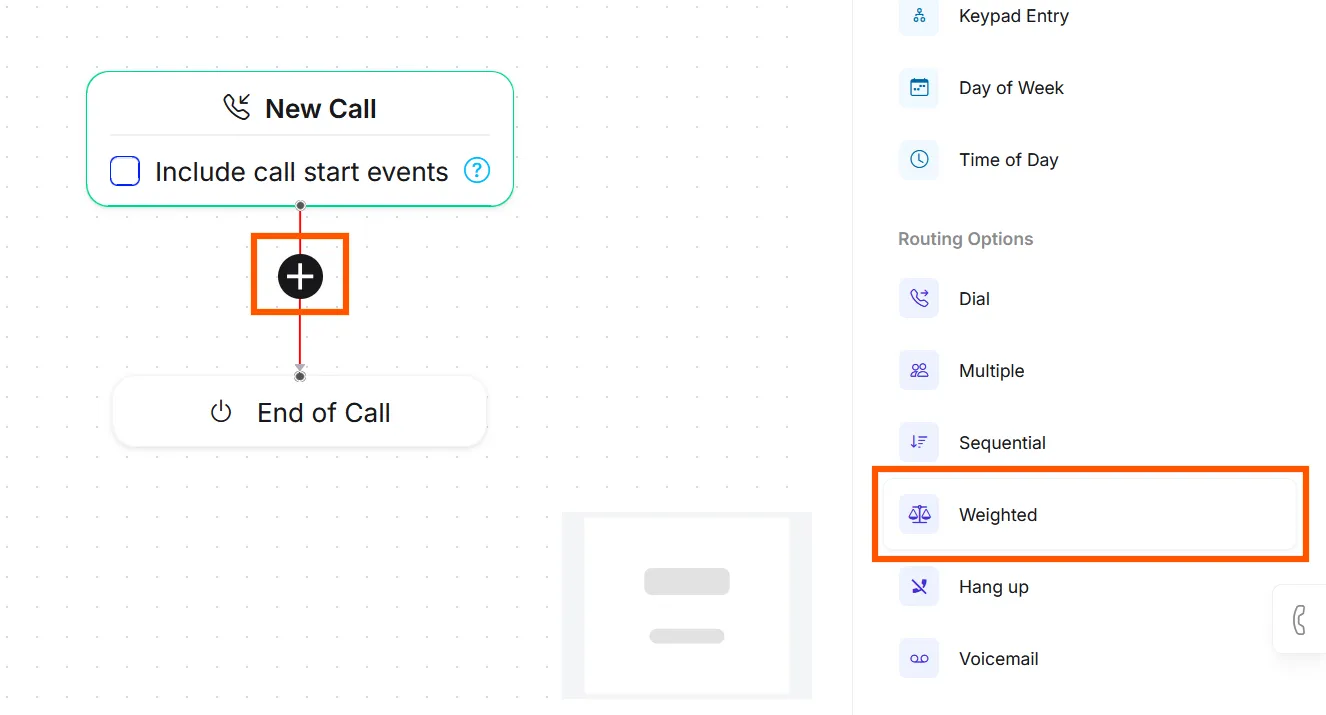
- Click the + button on the canvas.
- Select Weighted from the Routing Options menu.
Add destination numbers
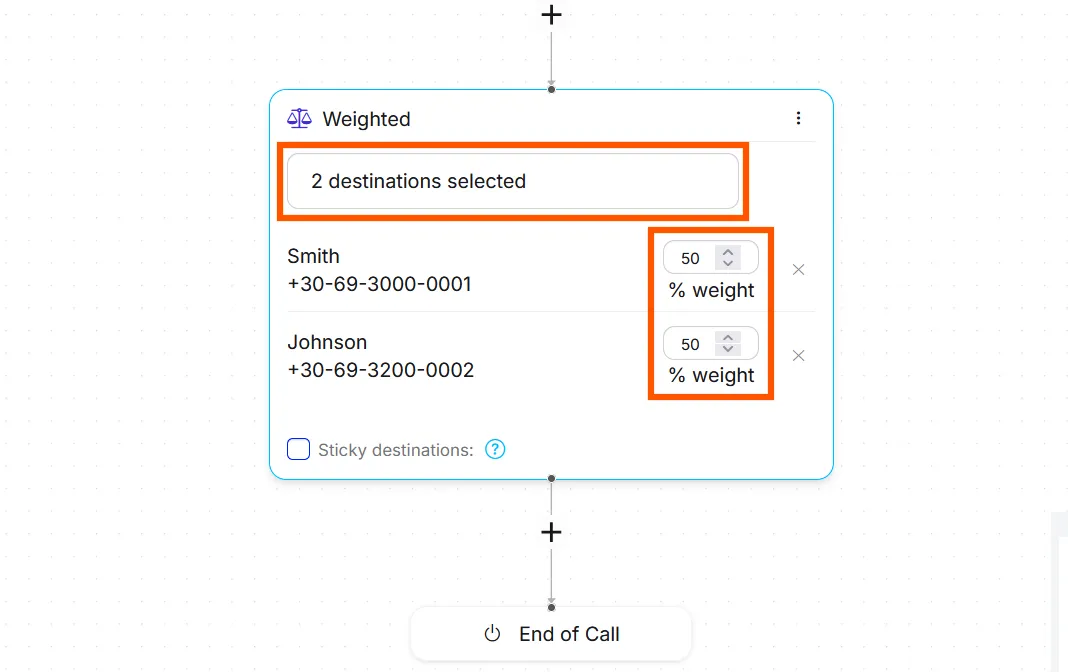
- Click Select Destinations.
- Add the numbers you want calls distributed to.
Set the distribution percentages
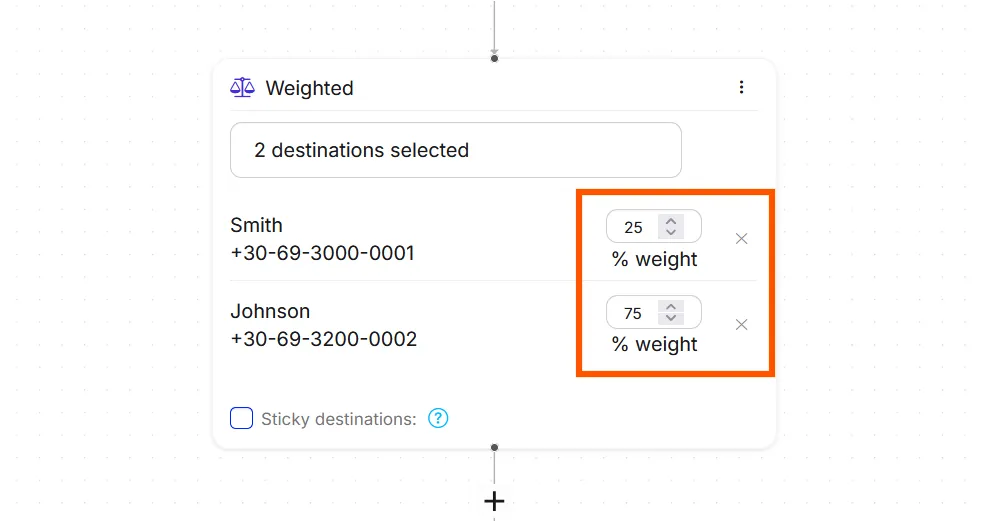
Adjust the percentage slider for each destination so the total equals 100%.
Assign the call flow to tracking numbers
- Go to Tracking > Numbers.
- Assign the call flow to the relevant tracking numbers.
🎉 Done. Calls will now be distributed across your destinations according to the percentages you set.
Detailed guide: Weighted Call Flow template
Detailed guide: Assign a call flow
Start from a template
Two templates create a routing call flow for you, named automatically: you only pick the destinations (and, for Weighted, the percentages).
Sequential Call Flow template
Note
To build this call flow manually using the full Call Flow Builder instead, see: Ring numbers in order.
Sequential call routing directs incoming calls to your team one by one, in a defined order. If the first person doesn’t answer, the call automatically moves to the next, and so on, until someone picks up or the flow reaches its end.
Open the template picker
- Go to Call handling > Call Flows.
- Click Create.
- Select From Template.
Choose the Sequential Call Flow template
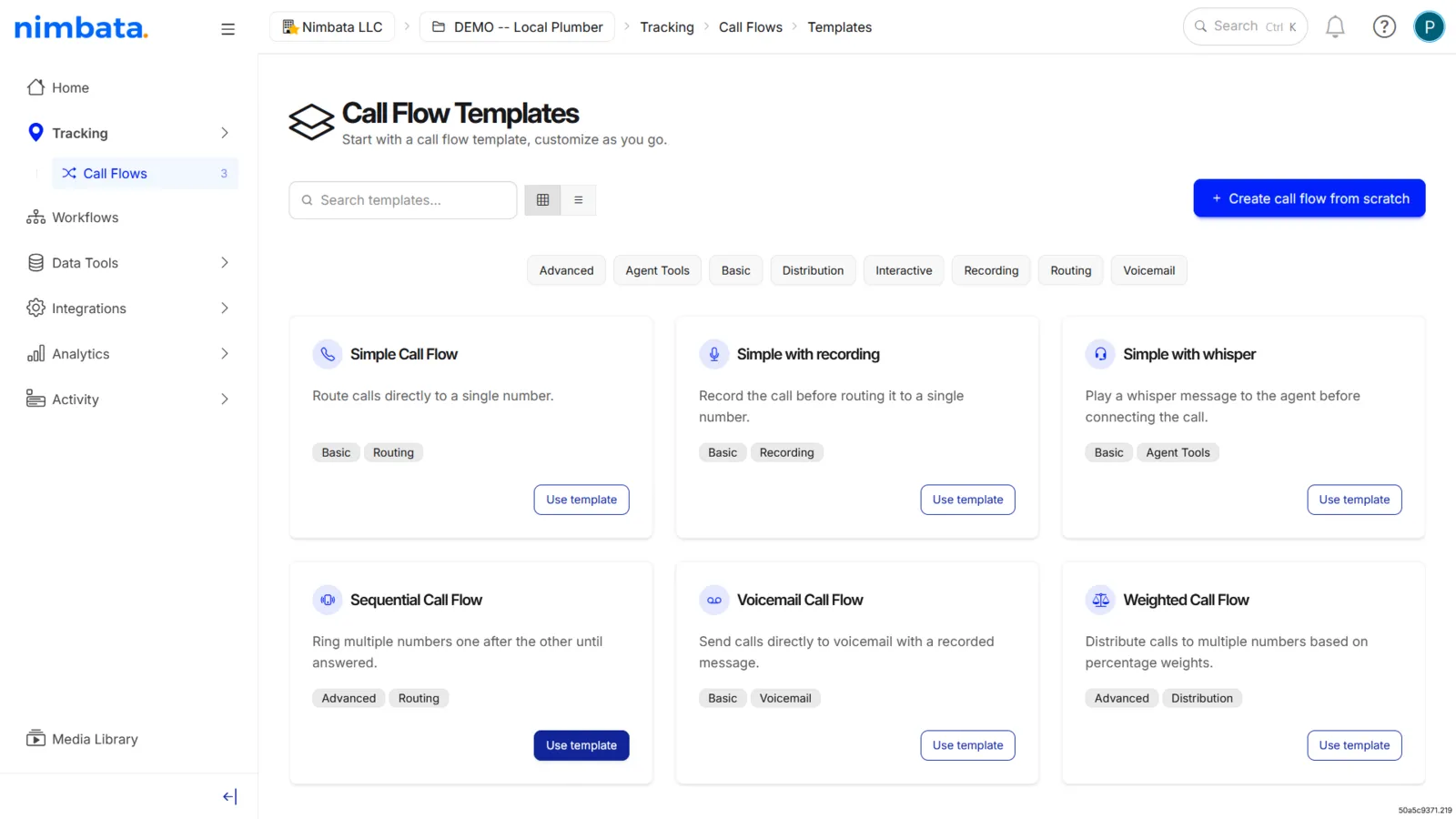
- Hover over Sequential Call Flow.
- Click Use template.
Select your destination numbers
- The template is created and named automatically.
- Click each destination slot and select the numbers you want calls routed to.
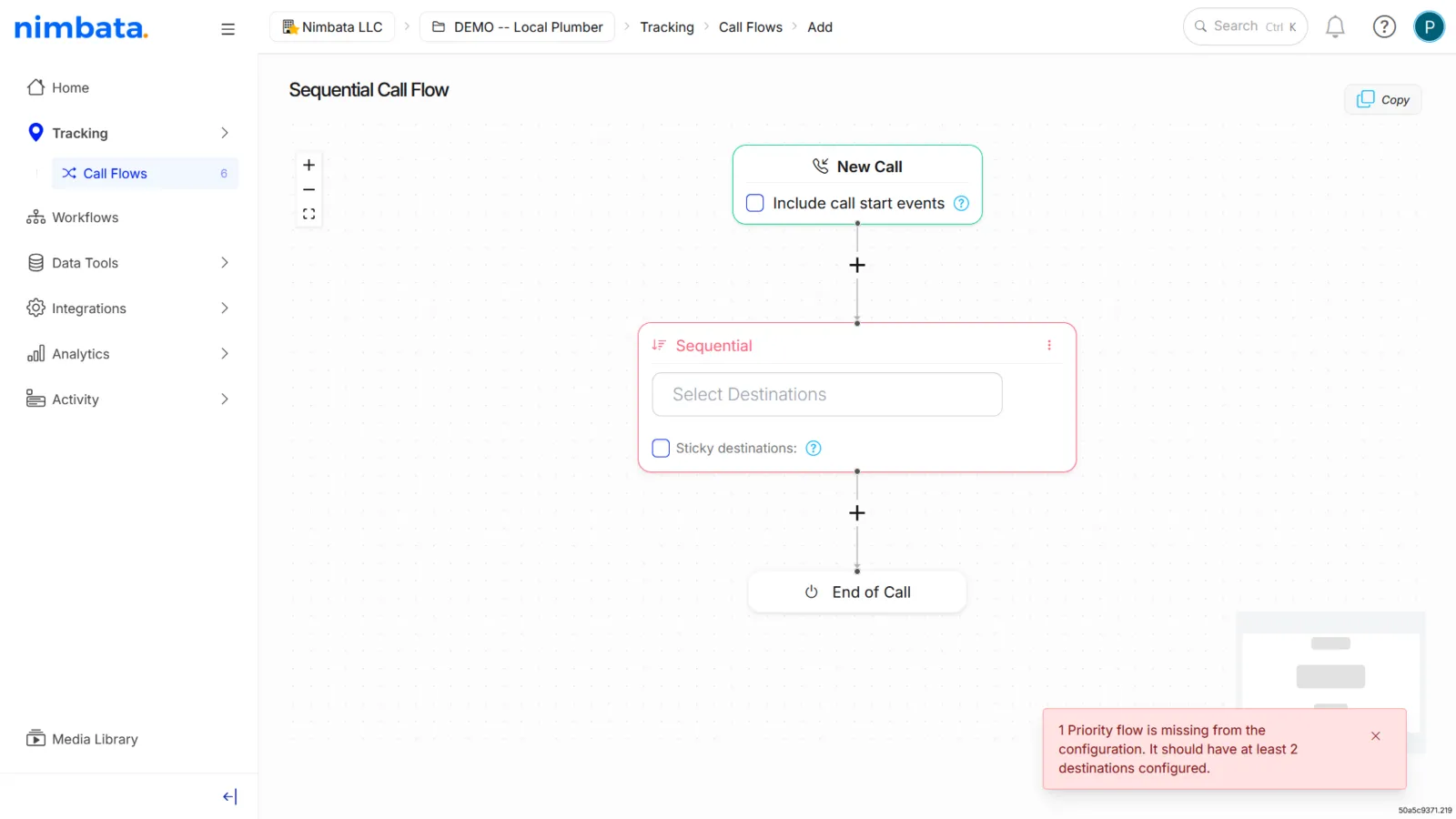
🎉 Your Sequential Call Flow is ready. Assign it to a tracking number under Tracking > Numbers to go live.
Detailed guide: Assign a call flow
Detailed guide: Send unanswered calls onward
Weighted Call Flow template
Note
To build this call flow manually using the full Call Flow Builder instead, see: Split calls by percentage.
Weighted call routing distributes incoming calls across destination numbers according to percentages you define. For example, 70% to Team A and 30% to Team B.
Open the template picker
- Go to Call handling > Call Flows.
- Click Create.
- Select From Template.
Choose the Weighted Call Flow template
- Hover over Weighted Call Flow.
- Click Use template.
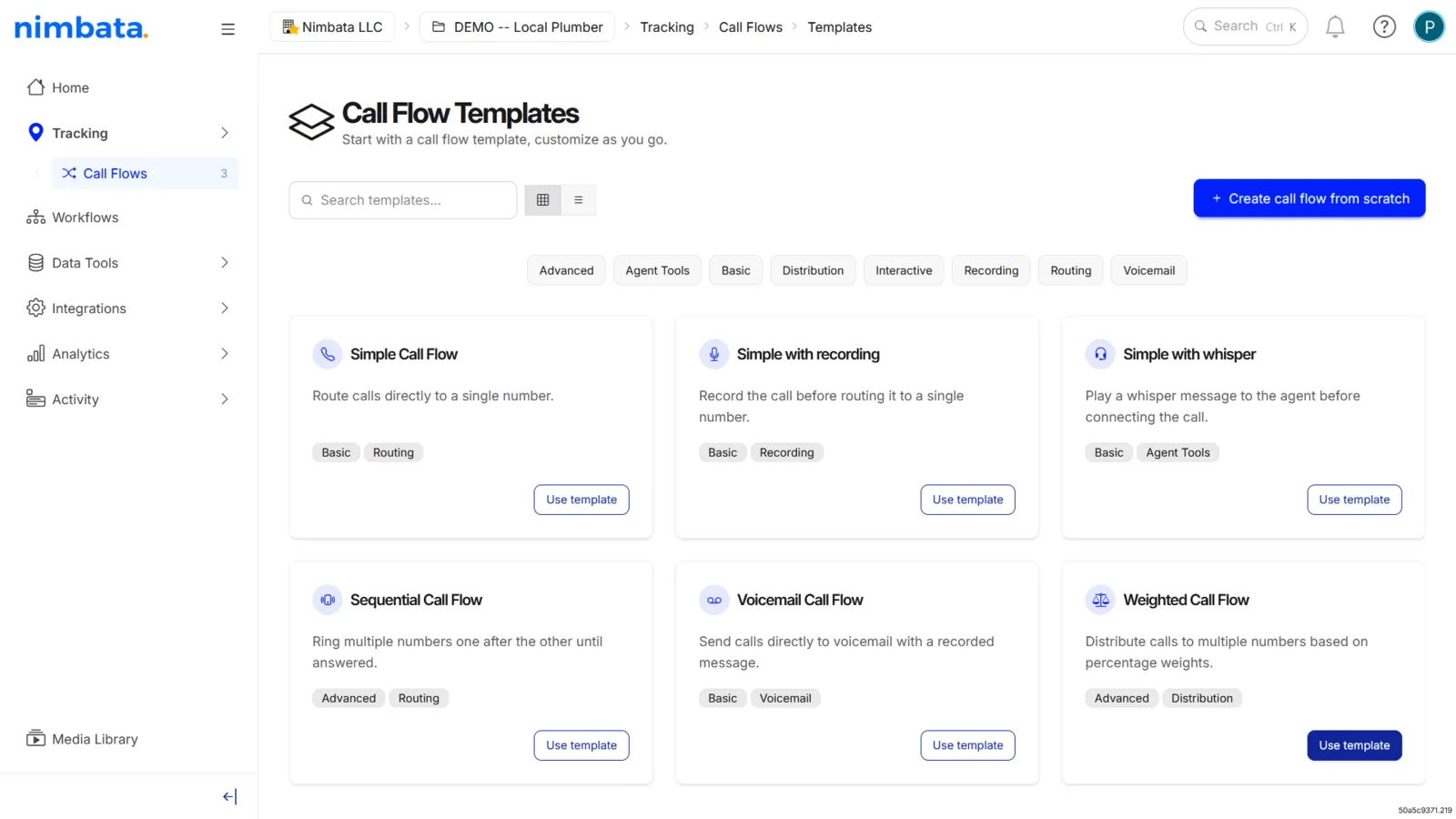
Select destinations and set percentages
- The template is created and named automatically.
- Click each destination slot, select the number, and adjust the percentage so all destinations total 100%.
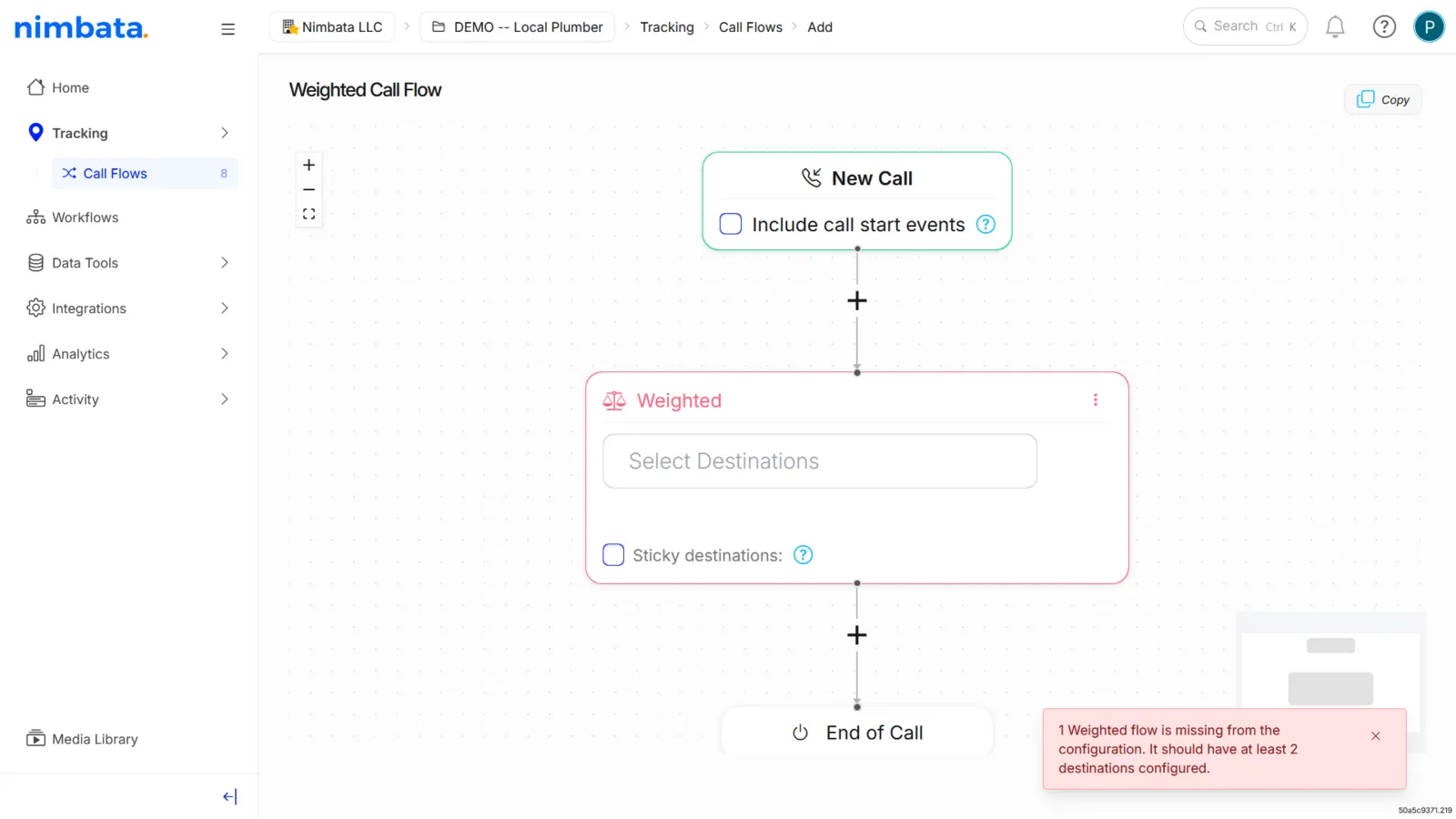
🎉 Your Weighted Call Flow is ready. Assign it to a tracking number under Tracking > Numbers to go live.
Detailed guide: Assign a call flow