
Nimbata’s outbound calling feature lets your team call prospects back using your tracking numbers. It keeps a consistent caller ID while capturing the same recording, attribution, and AI-powered analytics you get on inbound calls.
Connect the softphone
Open the dialer
- Click the floating phone button at the bottom-right of your screen.
Connect the dialer
- Click the blue Connect button in the pop-up.
- Wait for the status to change from Connecting… to Connected (shown in green).
Select your caller ID number
- Click Select number.
- If you have already verified a caller ID, it appears in the list.
- Click it to select it.
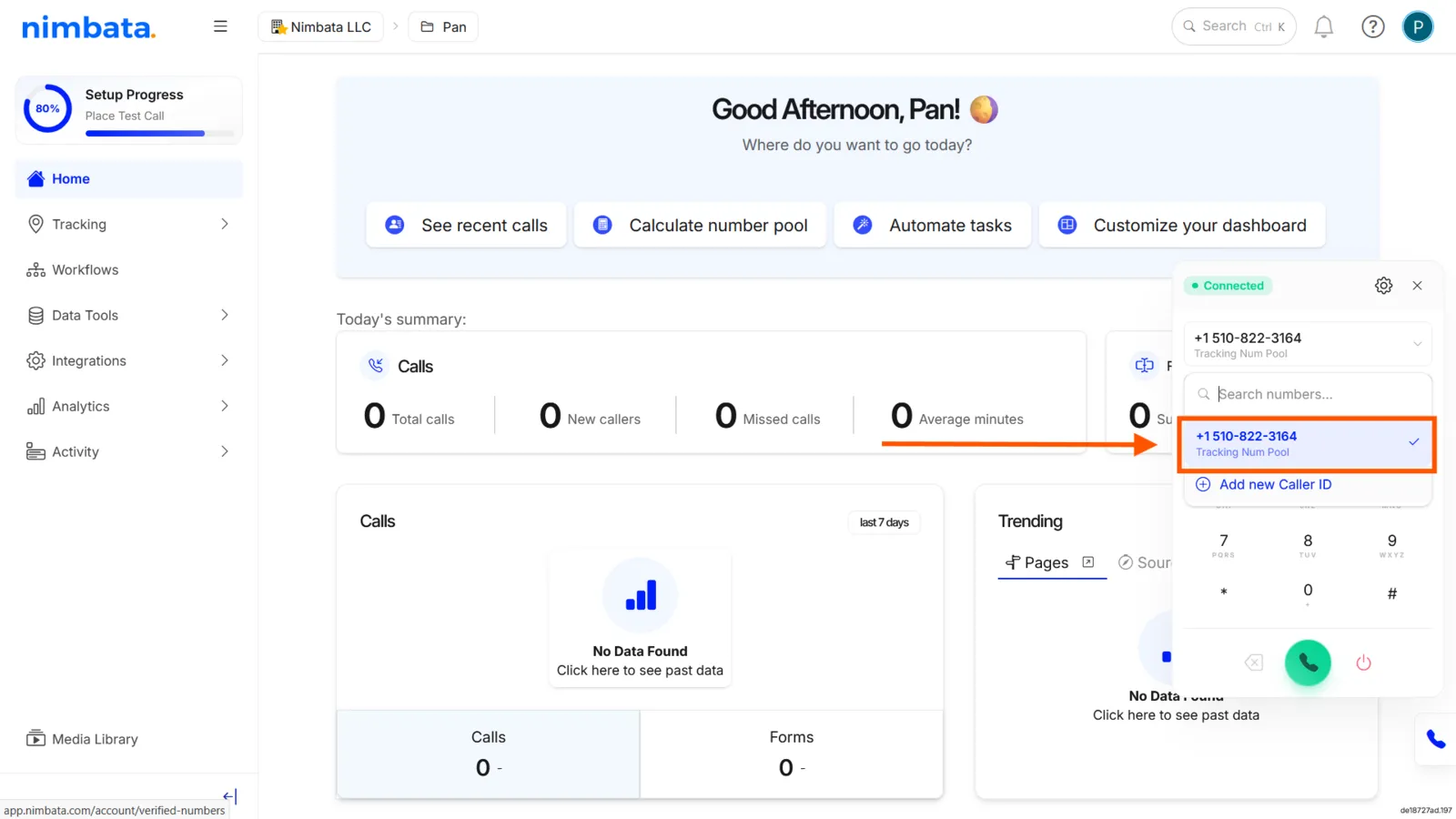
Note
If no verified number appears, complete the verification steps below before continuing.
Verify your caller ID
You must verify at least one number before making outbound calls. This confirms ownership and ensures compliance.
Open the verification prompt
If this is your first number:
- The dialer shows a Verify caller ID prompt automatically.
- Click Verify number.
If you are adding an additional number:
- Click Select number…
- Click + Add new caller ID at the bottom of the drop-down menu.
Enter your number details
- Select your Country.
- Enter your Phone number.
- Optionally enter a Friendly name.
- Click Send code to receive a 5-digit verification code by call or SMS.
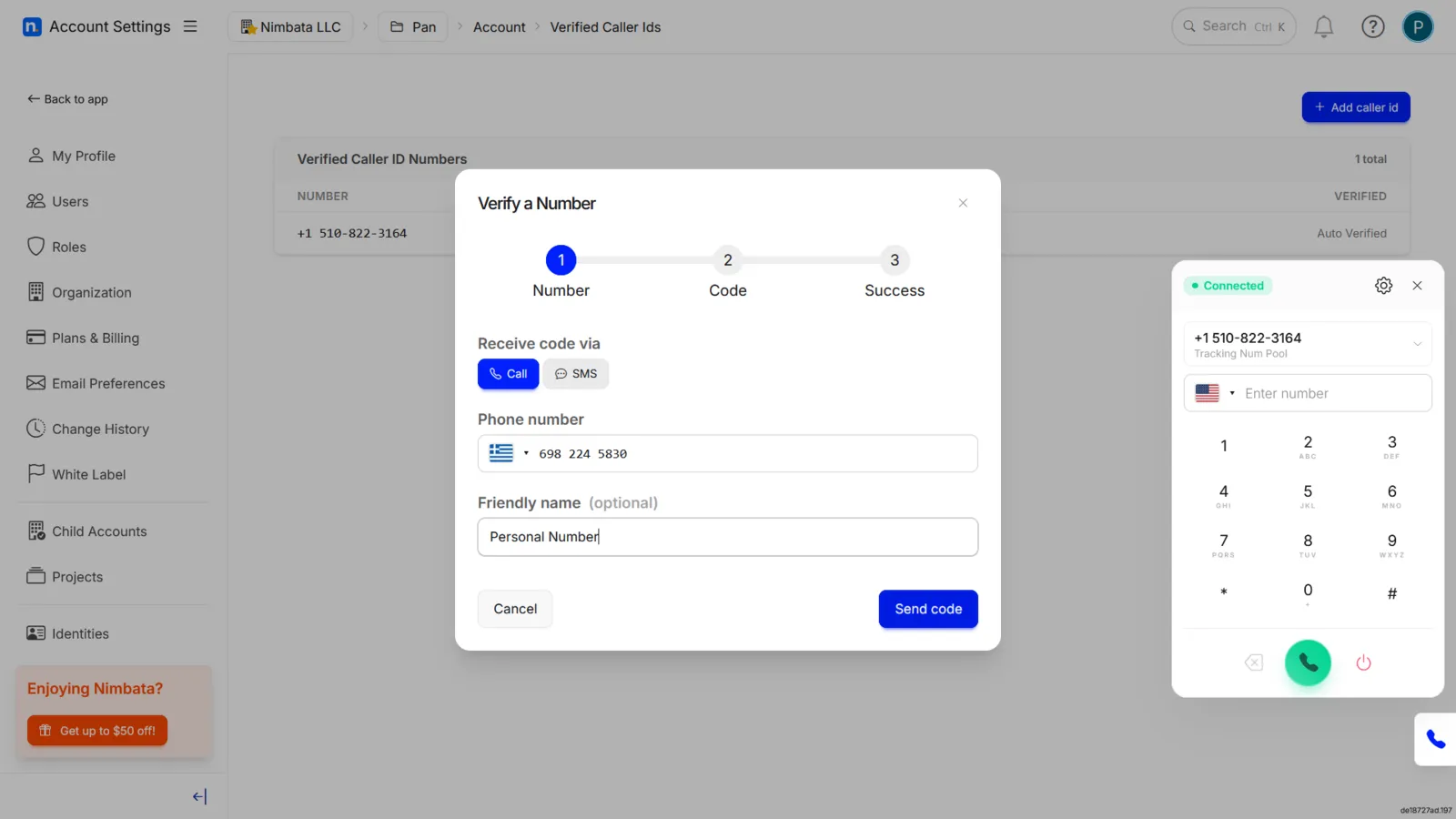
Enter the verification code
- Type the 5-digit code into the Verification code boxes.
- Click Verify.
Finalize and select your number
- Click Done on the confirmation screen.
- Your verified number now appears in the Select number… drop-down menu.
- Click it to select it.
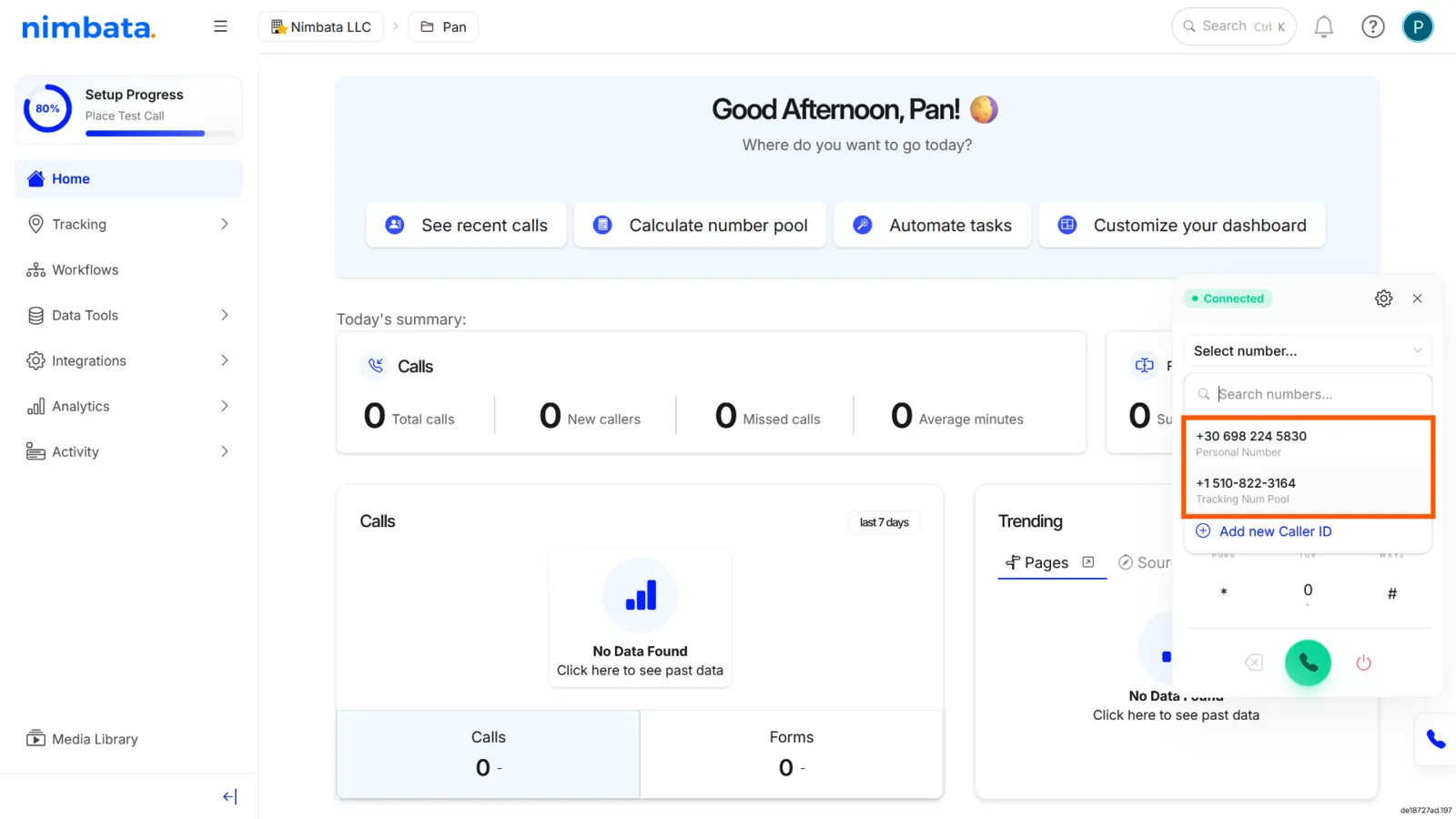
Make your first call
Dial the number
- Enter the destination number on the keypad.
- Click the green phone button to start the call.
🎉 Your outbound call is now live and being tracked in Nimbata.
Quick-dial from the calls log
Instead of typing a number manually, you can dial directly from call activity:
- Go to Activity > Calls.
- Click directly on the caller’s phone number in the log.
- The softphone launches with that number pre-loaded.
- Click the dial button to call them back.
Softphone settings
Click the gear icon in the top-right of the dialer to customize your experience:
- Auto-minimize: automatically hides the softphone when you click outside it.
- Dialpad sound: toggles the tones played when pressing dialpad buttons.
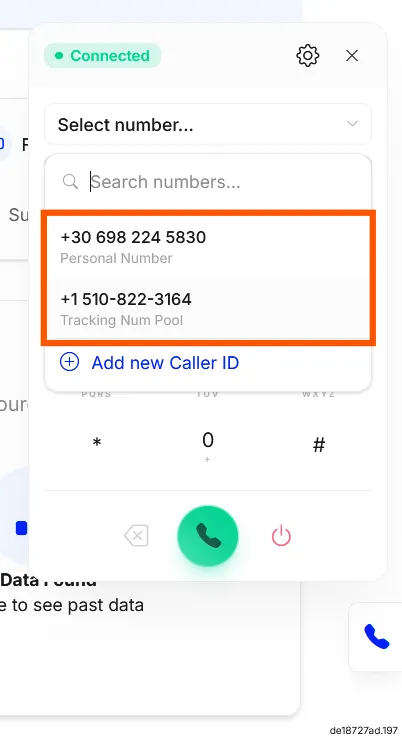
Choose your caller ID
Select which number the recipient sees from the Select number… drop-down menu:
Tracking number (recommended)
- The prospect sees the same number they originally called, keeping your outreach consistent.
Verified business line
- Your own verified business number, if you added one during setup.
Outbound calls in reports
Outbound calls are fully integrated into your Nimbata data alongside inbound calls.
- They appear in your Activity > Calls log.
- They are marked with a blue Outbound tag in the Direction column.
- Attribution and analytics work the same way as for inbound calls.
AI summaries and recordings
On Marketing and Agency plans, outbound calls receive the same automation as inbound calls: call recording, AI transcripts, summaries, sentiment analysis, and post-call workflow actions. You can also add manual notes, values, and tags directly from the activity log.
Important considerations
Pricing
Outbound calls are billed at the same rates as inbound calls for the country being dialed.
Regional support
Outbound dialing is available in every country where Nimbata offers inbound tracking.
Legal compliance
Agents are responsible for informing recipients that the call is being recorded, in line with local telecommunications regulations.
Warning
Users must operate the outbound dialler in compliance with their local recording and privacy laws. Nimbata assumes no liability for users who fail to meet these legal requirements.
Detailed guide: Turn on recording
Detailed guide: Turn on transcriptions and summaries
Detailed guide: Play and download recordings