
Nimbata’s Google Sheets integration automatically sends inbound call data to a spreadsheet, giving you a live call data source you can share with your team or clients. Nimbata has no native Looker Studio integration, but you can build Looker Studio dashboards on top of that Sheet or of your GA4 call events.
Google Sheets
Warning
If you plan to save the spreadsheet inside a folder on My Drive, create that folder in Google Drive before starting.
Connect your Google account
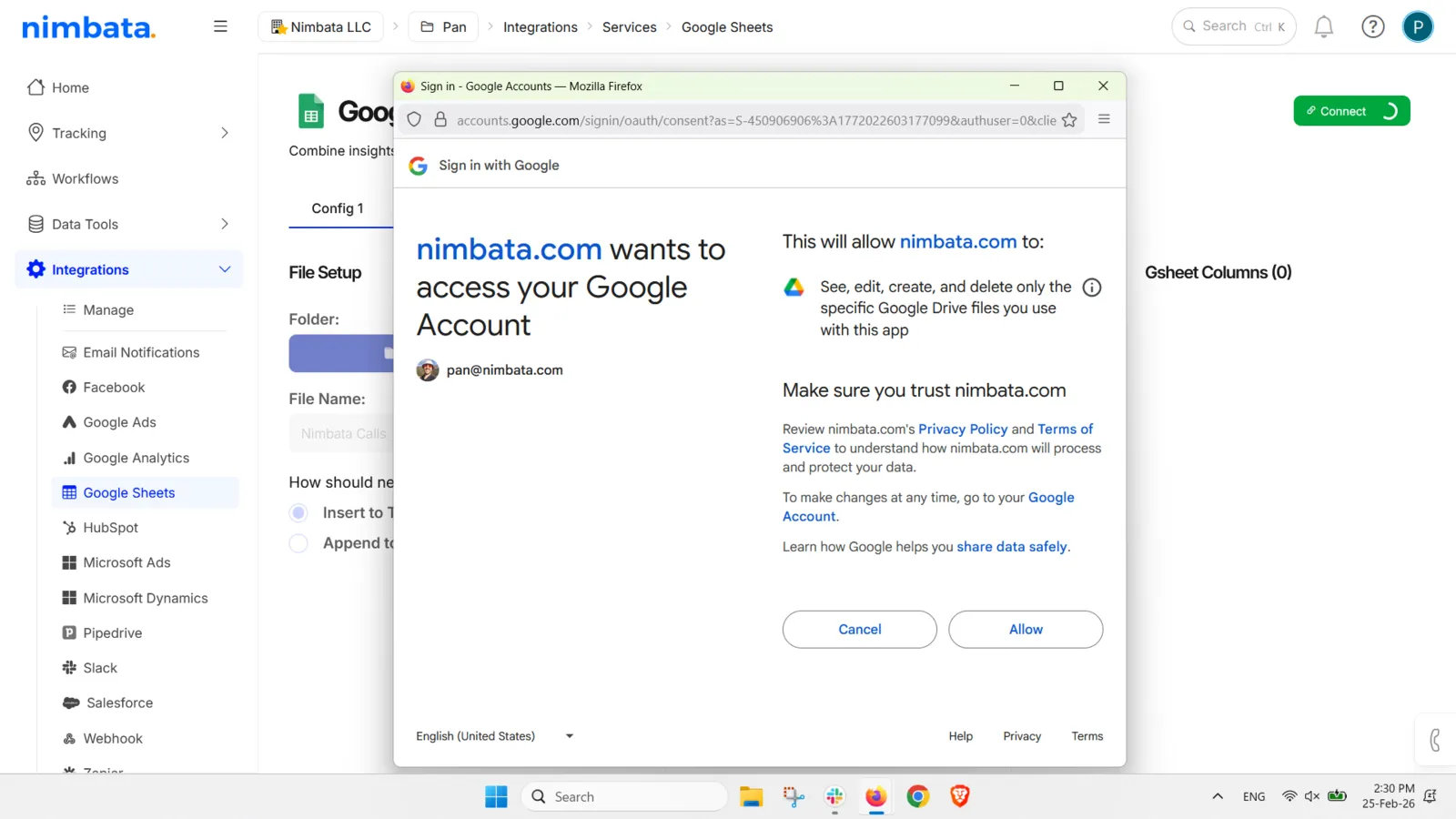
- Go to Integrations > Google Sheets.
- Click Sign in with Google.
- Select your Google account, click Continue, then Allow.
- A confirmation message appears once connected.
Set up a workflow
Workflows control when Google Sheets receives data.
- Click Create new workflow to build one.
- Alternatively, select an existing workflow that already includes a Google Sheets task.
Choose your folder and file settings
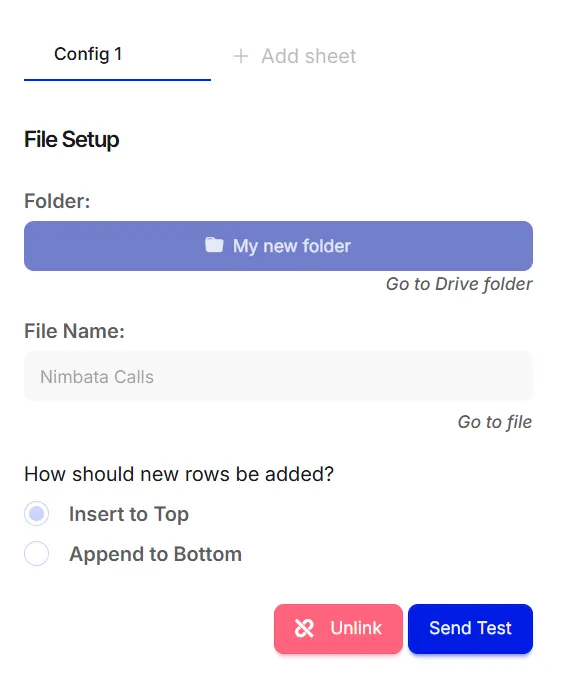
- Go back to the Google Sheets integration page.
- Click Select Drive Folder.
- Choose where Nimbata should create the spreadsheet.
- Enter a file name.
- Then choose whether new rows should be added at the top or bottom.
Select your data fields
- Choose the call data fields to include as columns.
- Drag and drop them to set the column order.
Link and test
- Click Link to activate the connection. Nimbata creates the spreadsheet with your columns.
- Click Send Test, then Send event, to send a test call and confirm data flows correctly.
- To change the fields or their order later, click Unlink, adjust the fields, and click Link again.
Note
After linking, use Go to Drive folder or Go to file to confirm the spreadsheet was created and data is appearing as expected.
🎉 Done! Call data is written to your spreadsheet whenever a call matches your workflow conditions.
Detailed guide: Download charts
Looker Studio
Tip
FYI: Nimbata does not currently offer a native Google Looker Studio integration.
However, you can still build rich Looker Studio dashboards by first sending your call data to:
- Google Sheets, or
- Google Analytics 4 (GA4)
and then using those as data sources inside Looker Studio.
Note
Data availability in Looker Studio depends on the source you use. While Google Sheets data updates as soon as Nimbata pushes new rows (near real-time), GA4 data may take several minutes to several hours to appear in Looker Studio due to Google Analytics processing delays.
What you can do with Looker Studio and Nimbata
Things you can do when using Looker Studio with Nimbata data include:
- View call performance alongside web and campaign metrics (sessions, clicks, conversions).
- Build custom reports and dashboards for your team or clients.
- Analyze which sources, campaigns, and keywords drive not just more calls, but better-quality leads.
- Create a “marketing data lake” by combining call data with other sources in one place.
Available connection methods
You can connect Nimbata data to Looker Studio using one of the following methods:
- Google Sheets > Looker Studio (most flexible). Nimbata can automatically push detailed call logs to a Google Sheet. That Sheet can then act as the “repository” for Looker Studio or any other reporting platform. This method provides the most complete call-level data, including fields that may not be available or practical to use in GA4.
- Google Analytics 4 > Looker Studio (best for performance dashboards). Nimbata sends call events to GA4. You then connect your GA4 property to Looker Studio and use those events in your reports. This method is best suited for aggregated performance analysis, not for deep call-level exports.
You can use either method or even both, depending on your reporting needs.
Method 1. Use Google Sheets as your Looker Studio data source
What the Google Sheets integration does
The Google Sheets integration lets Nimbata push your inbound call activity to a Google Sheet and keep it updated as new phone leads arrive. You can then use that spreadsheet as the source for Looker Studio dashboards.
You can, for example:
- Automatically collect and store call-tracking data in Sheets.
- Share call data with clients or teammates and allow them to add extra info in additional columns (see the note below).
- Choose from many predefined properties or custom ones to include exactly the columns you need.
Warning
Important: avoid editing or renaming columns that are populated by Nimbata. If you want to enrich the data, add new columns instead. Editing existing mapped columns may cause sync issues.
Set up the Google Sheets integration in Nimbata
Tip
Either read the guide to connect Nimbata to Google Sheets: Google Sheets
Or follow these steps to connect Nimbata to Google Sheets:
Go to Integrations > Google Sheets
In Nimbata, go to Integrations > Google Sheets and click Sign in with Google.
Authorize Nimbata
Select the Google account you want to use. Google shows you the access Nimbata needs to create and edit Sheets. Click Continue and then Allow to proceed.
If the connection is successful, you see a confirmation message.
Choose which calls are sent
A workflow decides which calls reach the Sheet: use one with a Google Sheets action, with no filter to send every call, or with filters to send only some (for example, only calls tagged “Sales”). See Create a workflow.
Choose the Drive folder and Sheet
Click Select Drive Folder and pick the folder where Nimbata should create or update your Sheet. Then either:
- Enter a new file name (Nimbata creates it), or
- Choose an existing Sheet from the list.
You can also choose whether new rows are added at the top or the bottom of the Sheet.
Select the fields you want to send
From the list of available fields (caller details, source, campaign, duration, tags, and so on), select the ones you want to push to the Sheet and drag them into the order you prefer.
Link the integration
Click Link to activate the connection.
- If everything is set up correctly, you see a success message.
- If not, Nimbata displays an error explaining what went wrong.
- If you later want to change the list or order of fields, you need to unlink the connection first, adjust the fields, and then link it again so Nimbata can rebuild the Sheet structure.
You can also click Send Test to send a test event and confirm that data is arriving correctly in the Sheet.
Connect your Google Sheet to Looker Studio
Once your Sheet is being populated by Nimbata, add the Sheet as a data source in Looker Studio:
- Open Looker Studio and click Create > Report (or open an existing report).
- Choose Google Sheets as your connector.
- Select the spreadsheet and worksheet/tab that Nimbata is updating.
- Click Add to create the data source, then Add to report.
You can now build charts and tables using fields such as:
- Call date & time
- Caller number
- Tracking number / project
- Source / medium / campaign
- Call duration
- Call tags and custom properties
Method 2. Use GA4 as your Looker Studio data source
What the GA4 integration does
The GA4 integration allows Nimbata to send events to your GA4 property every time a call is placed. This lets you see calls in Analytics alongside sessions, conversions, and other behavioral data. You can then use GA4 as a native data source in Looker Studio.
Keep in mind: calls sent to GA4 are tracked as events, not sessions. This means call data follows GA4’s event-based model and may not behave the same way as website traffic (for example, attribution and timestamps).
Set up the GA4 integration in Nimbata
Tip
Either read the guide to connect Nimbata to Google Analytics 4: Connect GA4
Or follow these steps to connect Nimbata to Google Analytics 4:
Go to Integrations > Google Analytics
In Nimbata, open Integrations > Google Analytics.
Make sure you are editing the correct project, since the integration is set up per project.
Add your GA4 Measurement ID and API secret
In your GA4 property:
- Go to Admin > Data collection and modification > Data Streams.
- Open the relevant web data stream.
- Copy your Measurement ID.
- Under Measurement Protocol API secrets, create or locate your API secret.
Paste both values into the corresponding fields in Nimbata.
Choose your events and create the workflow
Choose which call events Nimbata sends to GA4 (for example “All Calls”, “Answered Calls”, “First-time Callers”), each with a distinct event name. Optionally, add additional parameters (such as start time or call tags).
Then click Create new workflow when Nimbata prompts you. The workflow decides which calls send each event: no filter sends every call, and filters send only some (for example, only answered calls from first-time callers).
Once the workflow runs, Nimbata starts sending events to GA4. Events may not appear instantly in GA4 or Looker Studio. Allow some time for Google Analytics to process the data before validating the setup.
Connect your GA4 property to Looker Studio
Use GA4 as a data source in Looker Studio:
- In Looker Studio, click Create > Report.
- Choose Google Analytics as the connector and select your GA4 property connected to Nimbata.
- Click Add and then Add to report.
You now see your Nimbata call events as part of the GA4 data model and can use them in any chart or table.
Which method should I choose?
Use Google Sheets > Looker Studio if you need:
- Very detailed, column-level call data.
- The ability to manually adjust or enrich data in the Sheet.
- Separate Sheets/tabs per client or project for agency reporting.
Use GA4 > Looker Studio if you want:
- Calls as part of a unified analytics view with sessions, conversions, and other events.
- Standard performance dashboards (for example, which campaigns drive calls and online conversions together).
You can also combine both methods if your reporting needs vary by stakeholder.
If you’re unsure, start with Google Sheets for data completeness, then add GA4 later for performance and attribution reporting.
And you’re all set!