
Agencies manage every client from a single login: each client gets its own project, child accounts sit under a master account, and Nimbata support can transfer an account to a client who wants full ownership.
Projects for clients
In Nimbata, a project is the container for one client’s tracking setup. Each project has its own tracking numbers, call flows, workflows, reports, and integrations. Everything is siloed by project, so data from one client never mixes with another.
One project per client
- The standard agency setup is one project per client.
- If you manage 20 clients, you have 20 projects.
- Each client’s tracking numbers, call data, recordings, and integrations live inside their project and are not visible from other projects.
- You switch between projects using the project switcher in the top navigation.
- You can also view aggregated data across multiple projects at once from the Reports section.
Detailed guide: View several projects
Create a project for a new client
- Click your user avatar in the top-right corner.
- Select Projects from the dropdown.
- Click + Add and give the project a name.
- Click Create.
From there, add tracking numbers, set up call flows, and configure integrations, all within that project’s context.
Detailed guide: Create or duplicate a project
Duplicate a project
If you are setting up a new client with a similar structure to an existing one, you can duplicate a project rather than building from scratch.
- Go to Account > Projects.
- Click Duplicate project next to the project you want to copy.
- Name the new project and click Copy.
The duplicate carries over the project structure. Tracking numbers and call data are not copied; those are provisioned fresh for the new client.
Give clients access to their own project
You can invite a client as a user with a restricted role scoped to their project only. They log in and see only their own data, with no visibility into other clients.
Detailed guide: White label
Detailed guide: Project roles
Transfer a project to a client
When a client is ready to manage their own account, you can transfer the project to them directly without any data loss or reconfiguration.
Detailed guide: Transfer an account to a client
🎉 Each client gets a clean, separate project. You manage them all from a single login.
Detailed guide: Agency partners
Detailed guide: Child accounts
Plan limits for clients
The number of projects and users available to you depends on your plan.
Projects correspond to client accounts or domains.
Users (referred to as seats in plan documentation) are the people who can log in and access those projects.
| Plan | Projects | Users |
|---|---|---|
| Agency | Unlimited | Unlimited |
| Marketing | 5 | 25 |
| Pro | 2 | 4 |
| Entry | 1 | 1 |
If you need more projects than your plan includes, additional projects are available at $15 per month each, and additional users at $5 per month each. On the Agency plan, there is no limit and no additional charge.
Detailed guide: Create or duplicate a project
Detailed guide: Change your plan
Detailed guide: Pricing and extra charges
Child accounts
Warning
Always sign into your master account before creating a child account. If you sign up for a new trial instead, it will create a separate standalone account that cannot be placed under your master account.
Child accounts sit under your master account and can be managed centrally. Each child account is a separate Nimbata account with its own projects, tracking numbers, and billing.
Sign into your master account
- Log in to your master Nimbata account.
Go to Child Accounts
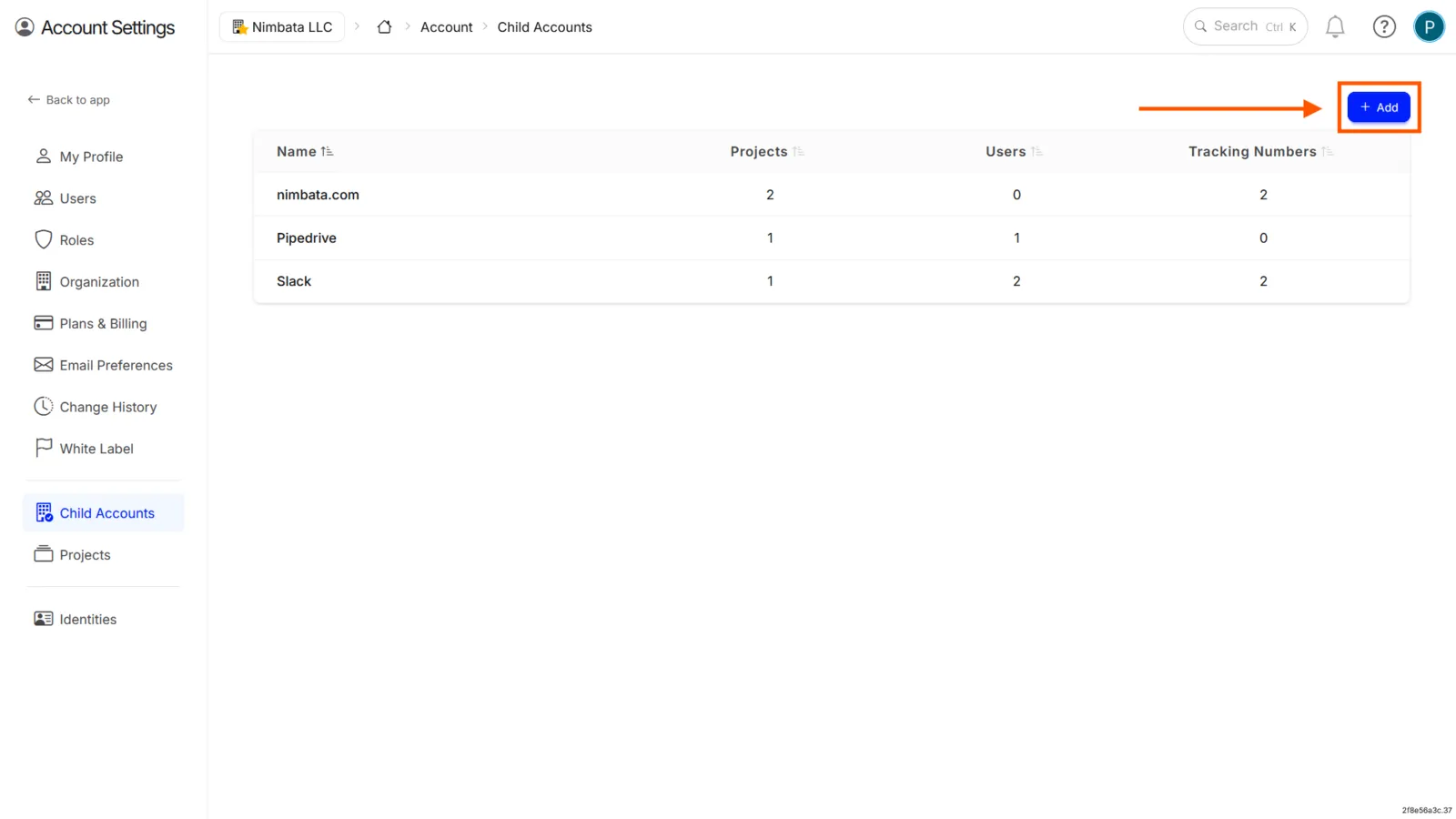
- Go to Account > Child Accounts.
Add a new child account
- Click + Add.
Fill in the account details
- Enter the account details in the form.
- Click Create Account.
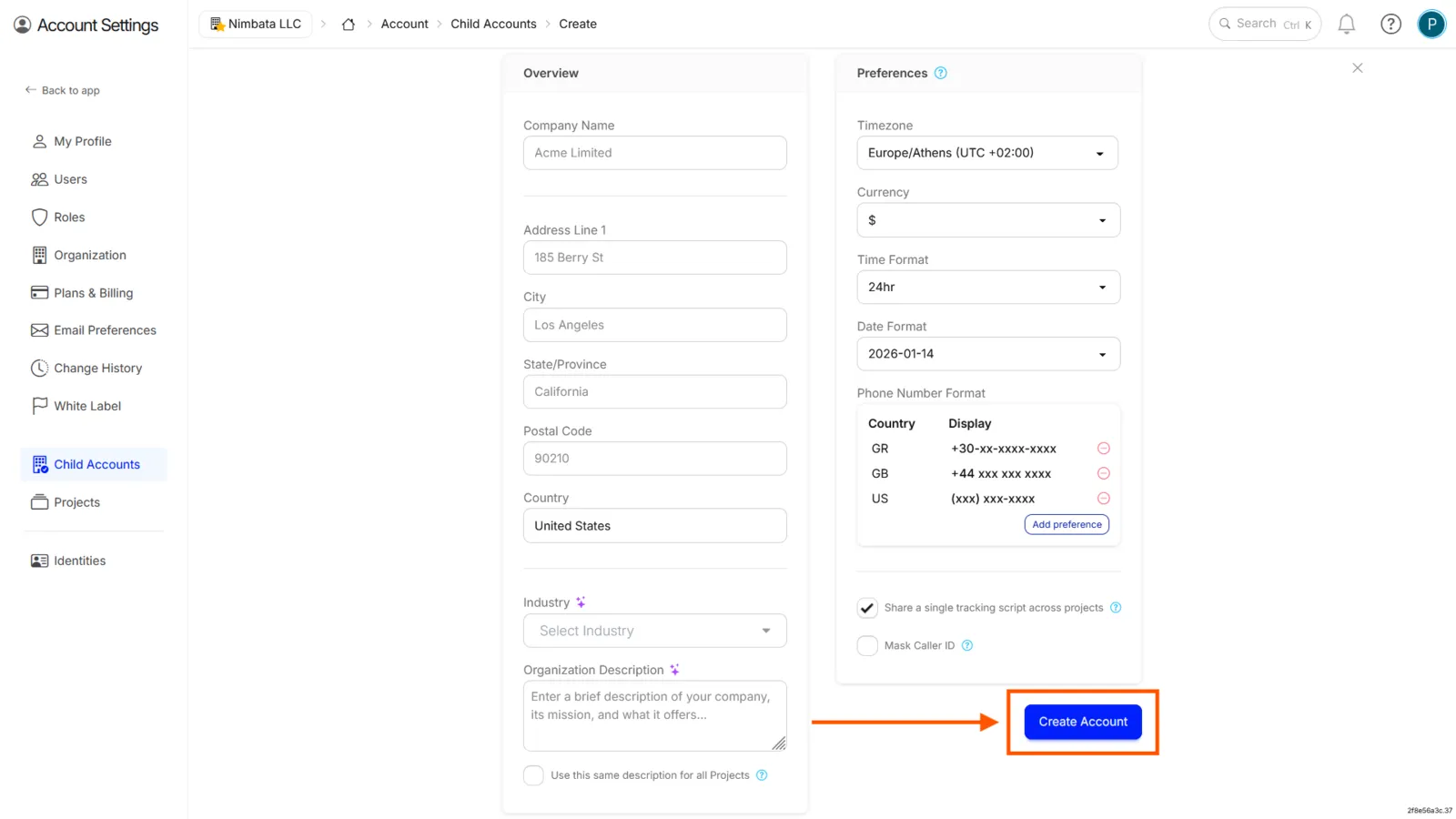
🎉 The child account has been created and is now listed under your master account.
Detailed guide: Agency partners
Detailed guide: Transfer an account to a client
Transfer an account to a client
If you want to give a client full ownership of their account, including billing, follow this three-step process. The transfer is handled by the Nimbata support team.
Contact Nimbata support
- Send a message to the Nimbata support team specifying the project you want to transfer.
Ask your client to create a Nimbata account
- The client should sign up for a new Nimbata account if they don’t already have one.
Wait for the transfer to complete
- The Nimbata team will move the project from your account to the client’s account.
- Once complete, the client will have full ownership, including billing.
🎉 The client now owns the account independently.
Detailed guide: Child accounts
Detailed guide: Agency partners