
This page covers the most common problems with Nimbata’s Google Ads integration and how to resolve each one.
Note
For initial setup instructions, see: Connect Google Ads.
The integration shows “Inactive” status
Inactive is a status Google Ads shows on a conversion action; Nimbata itself never shows it. Google Ads marks a conversion action Inactive when it hasn’t recorded conversions recently, so it is expected right after setup, before the first call conversion arrives. If it stays Inactive after calls should have been sent, run through the checks below before assuming something is broken.
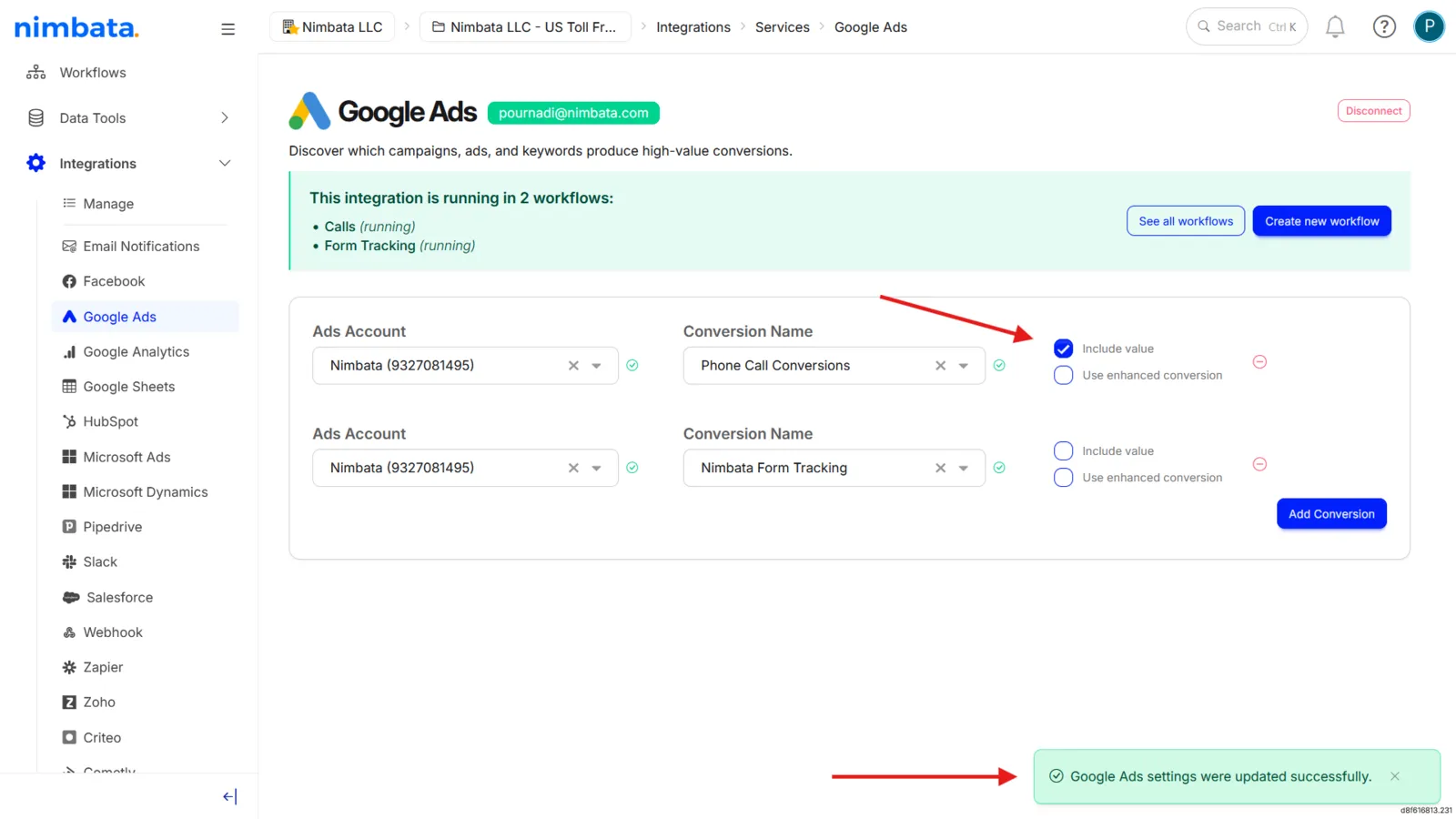
Step 1. Verify your integration settings
- Go to Integrations > Google Ads.
- Confirm that your Ads Account and Conversion Name are both selected.
- If Google Ads can’t find the conversion action, Nimbata pauses that conversion. Check that the action is Active, an Import (offline) conversion action, and created in this ad account rather than the manager account (MCC).
- Include value doesn’t affect the Inactive status. It only decides whether each conversion carries the call’s value (0 when unchecked); conversions are sent either way.
Step 2. Confirm number swapping is working on your website
- Append
?gclid=testto your website URL and visit the page, to simulate a visit from Google Ads. - Verify that your Nimbata tracking number swaps in.
- If it does not, resolve the DNI issue first before troubleshooting the integration.
Tip
Troubleshooting: Numbers not swapping
Step 3. Wait for your first conversion
If both checks above pass, the Inactive status is expected and no further action is needed.
The Inactive status updates automatically once Google Ads receives its first conversion from Nimbata: it changes to active as soon as your first qualifying call is sent.
Note
As per the Google Ads API documentation, Nimbata sends conversions with a 24-hour delay to ensure proper attribution.
The conversion action cannot be found
Nimbata shows a “conversion not found” error when the conversion action you want to use is not visible to Nimbata, even though the Google Ads account is connected. This can happen even when your Nimbata account is set up, your tracking numbers are added, your call flows and workflows are set up, and your Google Ads account is connected to Nimbata.
The list of available conversion actions returned to Nimbata does not include the expected conversion. This usually happens when conversion actions were created, renamed, or modified after the account was first connected, leaving Nimbata working from an outdated snapshot. Common reasons include:
- New conversion actions were created after the integration was set up
- Existing conversions were renamed, removed, or modified
- Permission or access scope changes affected which conversions are visible
To fix it, refresh the list of conversions available to Nimbata:
- Go to Integrations > Google Ads in Nimbata.
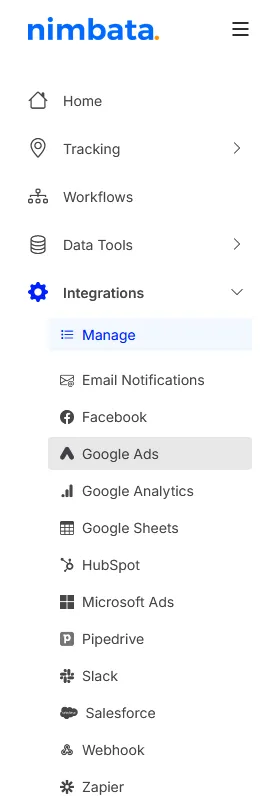
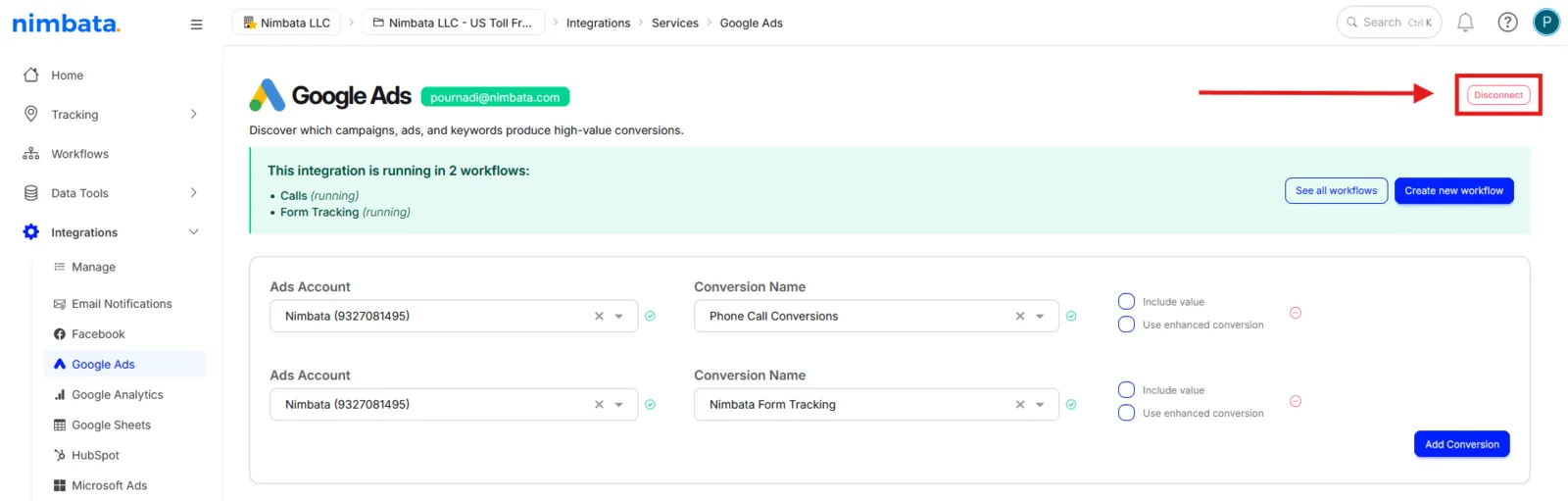
- Click Disconnect to remove the Google Ads account.
- Reconnect the same account following the setup guide: Connect Google Ads.
- After reconnecting, open the conversion drop-down menu; the new or updated conversions now appear.
If the conversion still does not appear after reconnecting, confirm that:
- The Google account used to connect has sufficient permissions in Google Ads.
- The conversion action is active and eligible for use (not removed or paused; for example, included in conversions or available for import, depending on your setup).
Note
If the issue persists after reconnecting and confirming permissions, contact Nimbata support with the name of the conversion action you’re trying to use.
Conversions are not appearing in Google Ads
If the integration is active and calls are being logged in Nimbata, but conversions are not showing up in Google Ads:
Check 1. Confirm the workflow is enabled
- Go to Workflows.
- Locate the workflow linked to your Google Ads integration.
- Confirm its status is Running, not paused or disabled.
Check 2. Check workflow filters
- Open the workflow and review any filter conditions.
- Make sure qualifying calls are not being excluded by a filter (for example minimum call duration, specific tag, or specific tracking number).
Check 3. Confirm auto-tagging is on in Google Ads
Nimbata relies on Google’s gclid parameter to attribute calls to campaigns.
If auto-tagging is disabled in Google Ads, no gclid is appended to ad clicks and Nimbata cannot make the attribution.
- In Google Ads, go to Admin > Account settings > Auto-tagging.
- Confirm the auto-tagging checkbox is enabled.
Check 4. Allow for the 24-hour delay
Nimbata sends conversions to Google Ads with a 24-hour delay.
Conversions from today will not appear in Google Ads until the following day.
The Google Ads account disconnects or loses access
If Nimbata loses access to your Google Ads account, for example after a password change or permission update, the integration stops sending conversions.
- Go to Integrations > Google Ads.
- Disconnect and reconnect the Google account.
- Ensure the Google account used has Admin or Standard access to the Google Ads account (Google Ads has no Editor level).
Still not resolved?
Submit a request via ? > Submit a request in your Nimbata dashboard. Include:
- A description of the issue and when it started.
- The name of the Google Ads conversion action you are trying to use.
- A screenshot of your integration settings from Integrations > Google Ads.
- Whether
?gclid=testproduces a number swap on your website.
Detailed guide: Connect Google Ads
Detailed guide: Create a workflow
Detailed guide: Enhanced conversions
Detailed guide: Track call assets and call ads