
This page explains why some calls show an unknown source and why call counts differ from your ad platforms and from phone number clicks. It also shows how to use the Visit Stats dashboard to check visitors and calls when no calls come in.
Unknown source calls
- Calls labelled unknown source are calls that Nimbata could not attribute to a tracked marketing source or session.
- This classification describes the result of attribution, not the cause.
- Several different scenarios can produce it.
- The most common cause is a caller dialing the tracking number directly, for example entering it manually, calling from a printed list or brochure, or using the number outside of a tracked environment.
Unknown source can also occur whenever attribution data is simply unavailable at the time the call is placed.
Check how the tracking number is displayed
- Make sure your tracking numbers are only shown dynamically via your website or in tagged materials where source data can be captured.
- If the number appears anywhere else, on printed materials, saved in a contact list, or shared outside tracked pages, callers may dial it directly and no source information is sent.
Review your dynamic number insertion setup
- If you expect calls to be attributed to tracked channels (UTM tags, campaign links, ad sources), confirm that the DNI script is installed correctly on every page you want to track.
- An incorrect or incomplete DNI setup results in calls landing without source attribution.
- Calls with an unknown source do not necessarily indicate a problem with your tracking numbers.
- They reflect calls that could not be mapped to a known marketing source based on how the call originated.
- If you’re seeing a higher-than-expected number of unknown source calls, reviewing how and where your tracking numbers are displayed is the right first step.
Detailed guide: Set up DNI step by step
Detailed guide: Numbers not swapping
Troubleshooting: No calls yet
Counts that differ from ad platforms
- It’s normal to see differences between the number of calls reported in Nimbata and the conversions shown in platforms like Google Ads, Meta, or Microsoft Ads.
- Call tracking and ad platforms measure different things in different ways.
Different attribution models
- Nimbata attributes calls by analysing session data (via the DNI script) and captured click IDs.
- Ad platforms use their own attribution logic, for example data-driven, last click, 7-day click, or 1-day view.
- The same call may be attributed to a campaign in Nimbata, attributed differently in the ad platform, or not attributed at all.
Missing click identifiers (for example GCLID)
- For Google Ads offline conversions, a valid GCLID must be present when the visitor lands on your site.
- If auto-tagging is disabled, a redirect removes the
gclidparameter, or a third-party tracking template strips parameters, the call appears in Nimbata but cannot be matched back to a Google Ads click.
Conversion filtering via workflows
- Calls are only sent to ad platforms when your workflow conditions are met.
- You may be sending only answered calls, only calls longer than 60 seconds, or only calls with a specific tag.
- Nimbata may record 100 calls while only 60 meet your workflow criteria and are forwarded as conversions.
Conversion settings inside the ad platform
- Even when calls are successfully sent, the conversion action may not be set to Include in conversions, the reporting date range may differ, or certain columns may exclude specific conversion types.
- Always verify your reporting columns and date filters in the ad platform.
Processing delays
- Ad platforms do not always process offline or API conversions instantly.
- Google Ads can take several hours; other platforms may batch or delay updates.
- Temporary discrepancies are common and usually resolve themselves.
Call and click reporting differences
- Nimbata reports all tracked calls.
- Ad platforms report only attributed conversions tied to eligible ad interactions.
- Not every call is eligible to become a platform conversion.
What to check if you spot a discrepancy
- Confirm your workflow is enabled.
- Check that the call has a valid click ID (for example GCLID).
- Verify conversion settings in your ad platform.
- Confirm date ranges match between Nimbata and the platform.
- Allow time for processing before drawing conclusions.
Tip
Small differences are normal. Large or persistent discrepancies usually relate to missing click IDs or workflow filters. If the issue continues, contact support with example call IDs, the expected conversion name, and the ad platform account used.
Detailed guide: Connect Google Ads
Detailed guide: Rules and tasks
Clicks versus calls
If you notice that your tracking number gets many clicks but relatively few actual calls, this is almost always expected behavior, not a tracking problem.
- Nimbata’s data across more than 10 years of call tracking shows that the conversion rate from phone number clicks to calls sits at around 10 to 20%.
- That means for every 10 clicks on a tracking number, you can expect 1 to 2 calls.
- This ratio varies depending on your industry, target audience, campaign type, marketing strategy, and time of year.
A low click-to-call rate does not on its own indicate that anything is broken.
Note
If you still think something may be wrong, for example you are seeing zero calls despite steady click activity, check your visit stats and call rows using the guide below: No calls yet.
Warning
To confirm your full call tracking setup is correct end-to-end, work through Steps 1 to 5 of the getting-started guide: Setup guide.
Troubleshooting: No calls yet
Detailed guide: Numbers not swapping
Check visitor counts
The Visit Stats dashboard shows how many visitors saw your tracking numbers across each channel, how many of those visitors called, and on how many pages the Nimbata script is active. Reviewing visitor counts is a useful first step when diagnosing attribution gaps or evaluating campaign reach.
Open Visit Stats
- Go to Dashboards > Visit Stats.
Set your date range
- Select the date range you want to review.
- Click Apply.
Review the Visitors row by channel
The dashboard displays visitor data broken down by the following channels. Check the Visitors row in each:
- All (or remaining) Digital: Visitors from digital sources not covered by other specific categories.
- Direct: Visitors who navigated directly to your site.
- Referrers (all): Visitors arriving from another website.
- Unknown: Visitors whose source could not be determined.
- Total: The sum across all channels.
In the same dashboard you can also see how many of those visitors placed a call and on how many pages the Nimbata script is currently active.
🎉 You now have a clear view of how many visitors your campaigns are generating and how they convert into calls.
Detailed guide: Unknown source calls
Troubleshooting: No calls yet
No calls yet
- Have you completed your Nimbata setup, but no calls are appearing in your reports?
- The most likely explanation is simply that no calls have come in yet.
- Nothing may be wrong at all.
- That said, it’s worth confirming everything is working as intended using the Visit Stats dashboard.
Note
Before doing anything else, double-check your full setup is correct end-to-end with Steps 1 to 5 of the Setup guide.
Open Visit Stats
- Go to Dashboards > Visit Stats.
Confirm the date range is correct
- Check the date range selector and make sure it covers the period you expect to see activity for.
- Adjust if needed and click Apply.
Check the Calls row for each channel
- Look at the Calls row across every channel column in the dashboard.
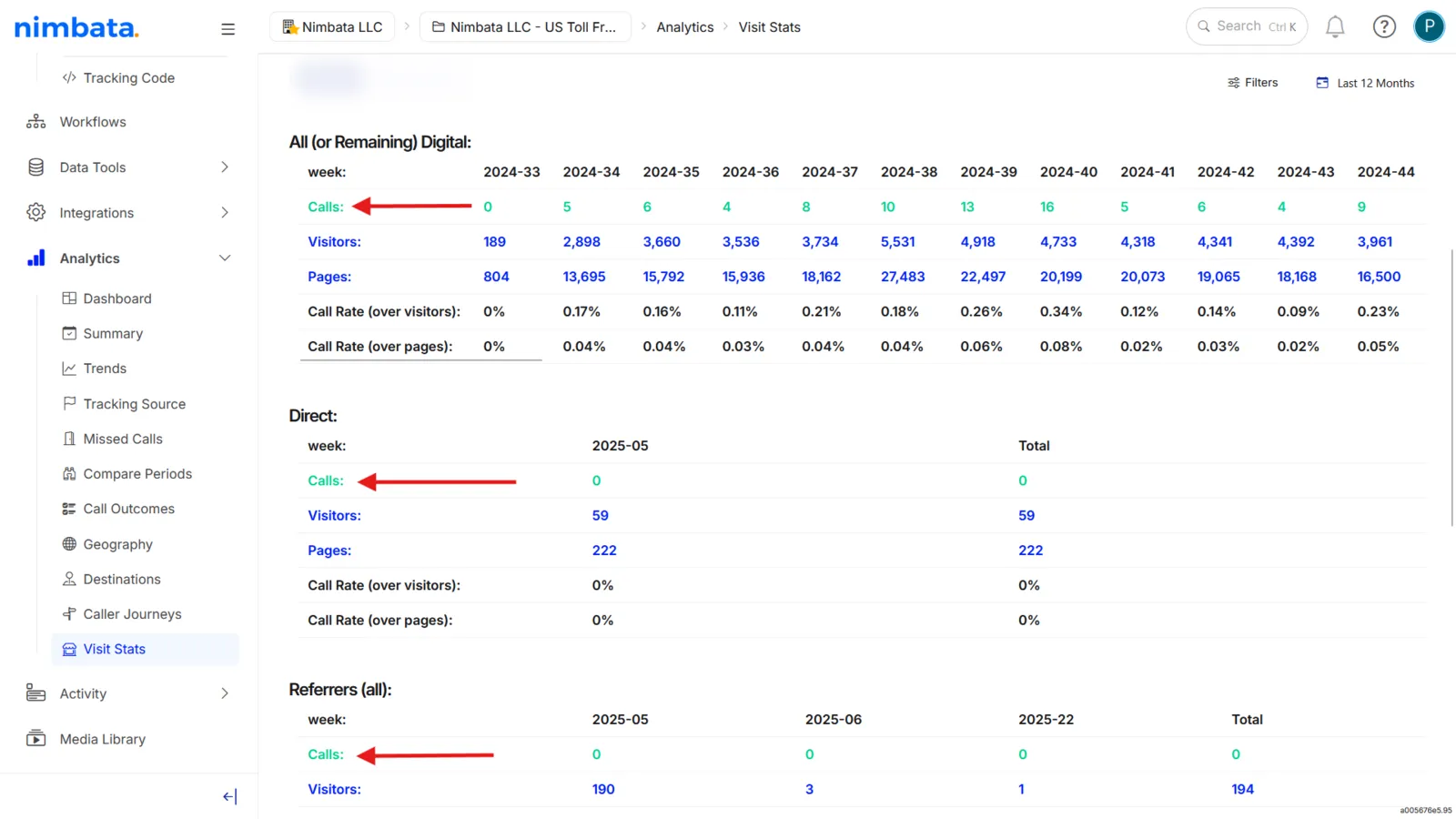
If visitor counts are showing but calls are not and your script is firing correctly, then you are simply waiting for inbound calls. If visitor counts are also zero, the script may not be installed or publishing correctly.
🎉 From this dashboard you can confirm how many calls have been received and whether your tracking numbers are being seen by visitors.
Troubleshooting: Numbers not swapping
Detailed guide: Clicks versus calls
Detailed guide: Check visitor counts