
Dynamic Number Insertion (DNI) shows each website visitor a tracking number, so Nimbata can tie every call to the source, campaign and keyword that brought the visitor in. This page explains how DNI works and walks you through the full setup, from your first tracking number to a published script.
What DNI is
Tip
To set up your Dynamic Number Insertion (DNI) script, follow Set up DNI step by step.
How DNI works
- Dynamic Number Insertion (DNI) is a JavaScript script you install once on your website.
- When a visitor lands, Nimbata shows them a tracking number from your pool. Numbers are served in rotation (round-robin), so the pool never runs out, and a number is not reserved for one visitor: other visitors can be shown it too.
- That number replaces your regular business number while they browse.
- Nimbata remembers it in the visitor’s browser for the Max storage days period (21 days by default), so a returning visitor sees the same number.
- Nimbata can attribute each call to the exact source, campaign, keyword, and landing page that brought the visitor in.
DNI vs. source-based tracking
Source-based tracking
- It assigns one fixed tracking number to a channel (for example, Google Ads).
- Every visitor from that channel sees the same number, so attribution stops at the channel or campaign level.
Dynamic Number Insertion
- It assigns numbers per session, so attribution can reach down to the keyword, ad variation, and landing page.
- It’s the right choice when you need call data at the same granularity as your click data.
How many tracking numbers you need
Pool size depends on your peak concurrent visitors and average session length. Use the Nimbata number pool calculator to get a recommendation.
Detailed guide: Calculate your pool size
🎉 Ready to set it up? Continue with Set up DNI step by step.
Set up DNI step by step
Setting up DNI involves configuring your account first, then publishing the script to your website. Complete the steps below in order.
Configure your account
Before your script can go live, you must complete these five account configuration steps.
Acquire your tracking number
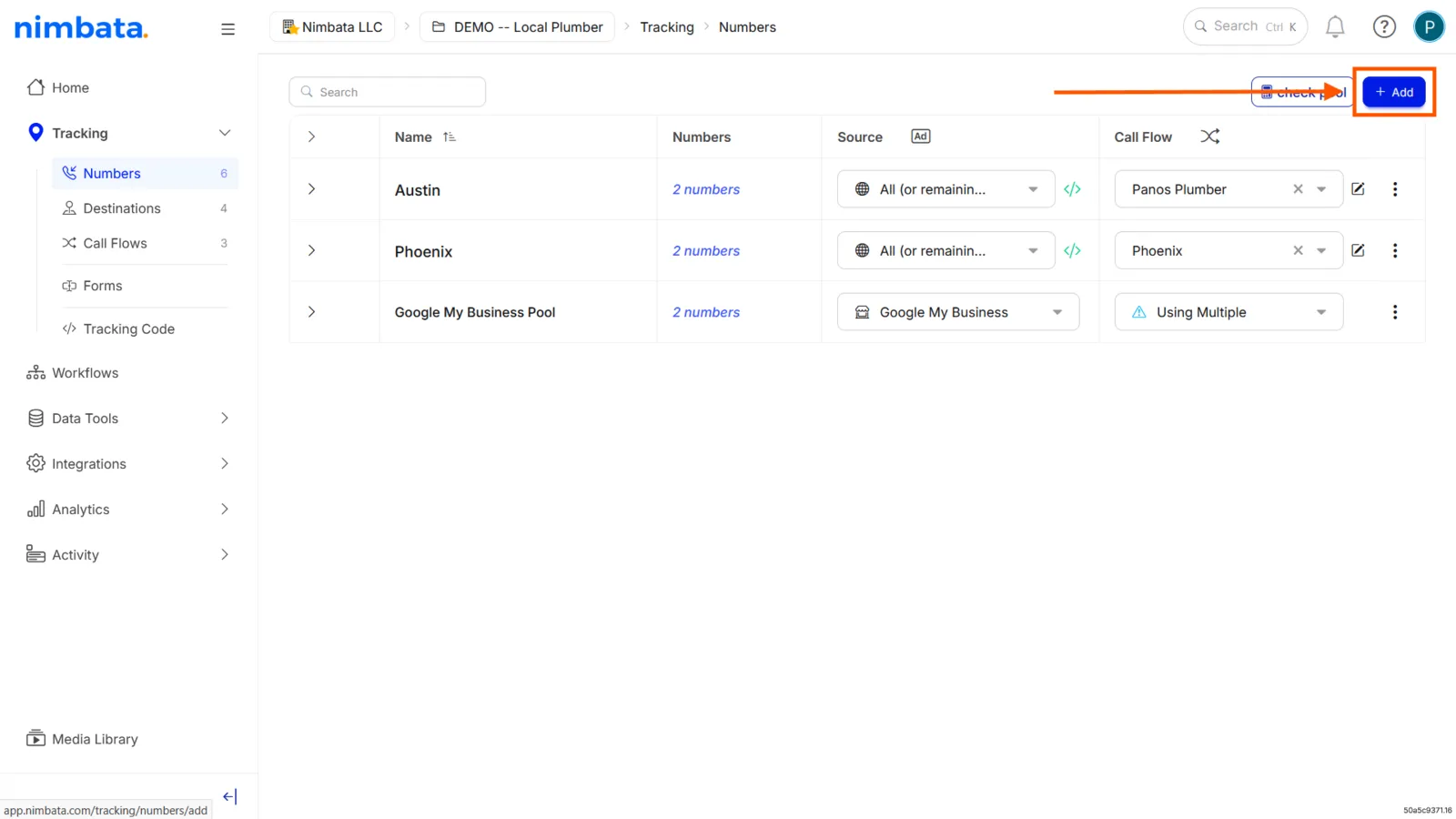
- Go to Tracking > Numbers.
- Click + Add.
- Choose the source you want to track.
- Pick a number type (Local or Toll-Free).
- Select a number from the list.
Tip
Choose a number that matches your real business area code to maintain brand consistency.
Detailed guide: Add your first numbers
Name your tracking number
- Give your number a descriptive name.
- You can set this during setup or later by clicking the edit (pencil) icon next to any number in Tracking > Numbers.
Add a destination number
- Go to Tracking > Destinations.
- Click + Add.
- Enter the phone number where calls should be forwarded.
- This is where your business receives the call.
Detailed guide: Add a destination
Set up a call flow
- Go to Call handling > Call Flows.
- Create a new call flow using the Simple Call Flow template.
- Select your Destination Number and save.
- Then go back to Tracking > Numbers.
- Assign the call flow to your tracking number.
Detailed guide: Build a call flow
Test your setup
- Dial the tracking number from your mobile phone and confirm it rings at your destination.
- Then check Activity > Calls to verify the test call appears in your logs.
Publish the DNI script
Once your account is configured (all five steps above are complete), you’re ready to go live.
Open the script page
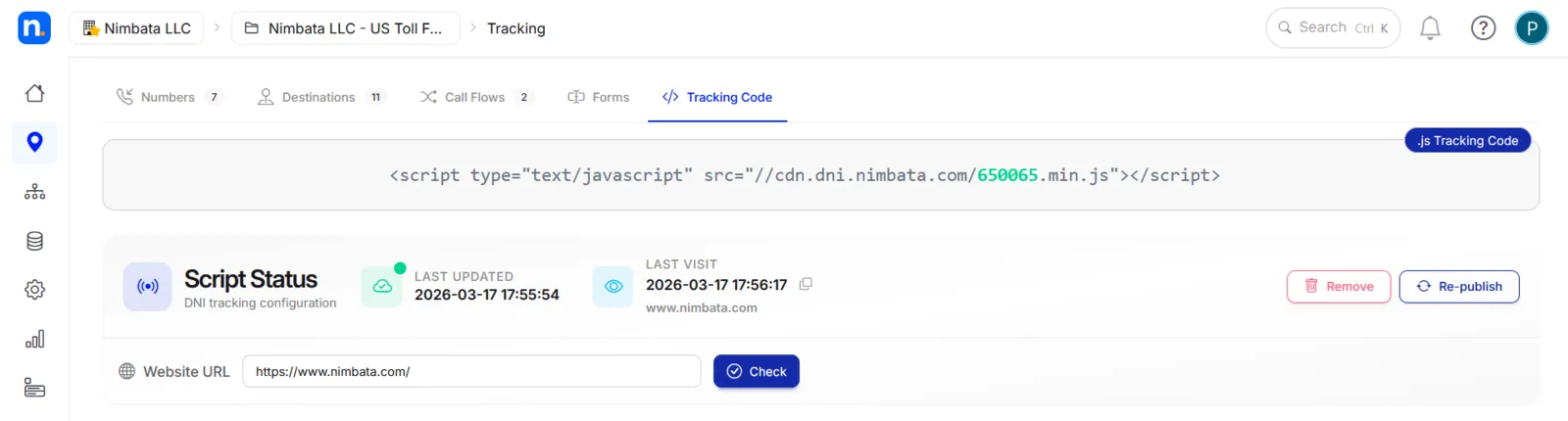
Go to Tracking > Tracking Code in Nimbata.
Configure your swap targets
This is the most critical step. You need to tell Nimbata which phone number on your website to replace.
- Auto-detection: Nimbata can scan your page automatically.
- Span tag (recommended for accuracy): Wrap your website number in a span tag:
<span class="nimbata_number">123-456-7890</span>(with two or more swap groups,nimbata_number_1,nimbata_number_2and so on)
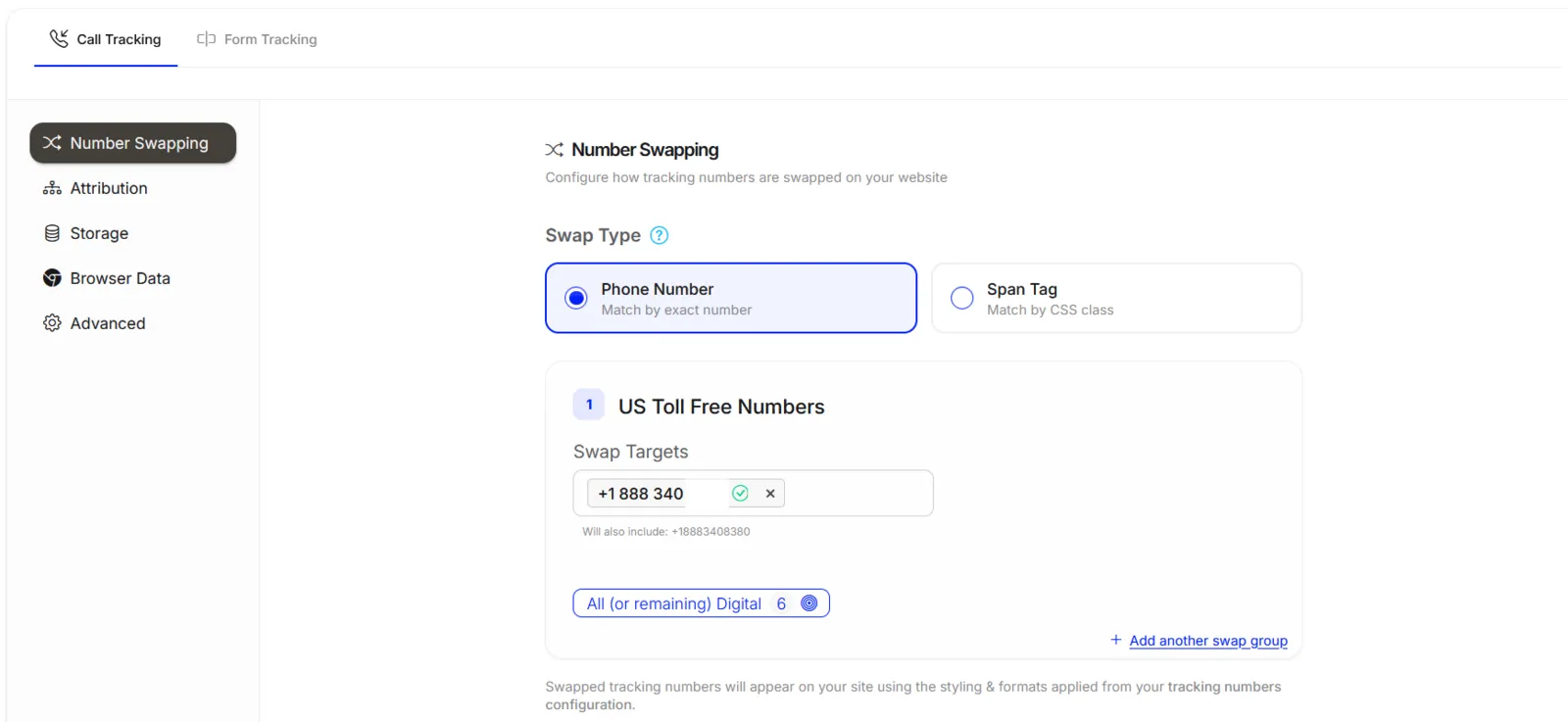
You can also toggle additional options here, such as Single Page Application (SPA) support or how long visitors are remembered (Max storage days, on the Storage tab).
Detailed guide: Use span tags
Publish the script
Click Save & Publish, then add the script to your site using one of these methods:
- Google Tag Manager: Paste the script into a Custom HTML tag. See Install with Google Tag Manager.
- WordPress: Install the Nimbata Plugin. See Install with WordPress.
- Manual HTML: Paste the script as the last item just before the
</body>tag on every page. See Install with HTML.
Verify the installation
- Live test: Visit your site; if you’re tracking all channels, the number should swap immediately.
- Google Ads test: Visit
www.yoursite.com/?gclid=testto force a swap for paid search numbers. - Built-in checker: Use Nimbata’s website URL checker, located just below the DNI script in Tracking > Tracking Code.
🎉 Numbers swapping correctly? You’re live. Next, consider setting up swap groups if you want to track multiple numbers or channels independently.
Detailed guide: Set up swap groups
Troubleshooting: Numbers not swapping
One script per project
Nimbata generates one DNI script per project.
A single script handles any number of swap groups and tracking numbers within that project, so you rarely need more than one.
If you need separate scripts, for example to track two independent websites with their own pools and reports, create an additional project for each one.
Detailed guide: Create or duplicate a project