
Custom fields (also called custom properties) let you add extra data fields to your call records beyond Nimbata’s standard information. Once a field exists, you can populate it automatically with a workflow or manually on a call record.
Create a custom field
You can use custom fields for notes, lead values, classifications, dates, or yes/no flags; and they can be used as filters in reports or as triggers in workflows that send data to integrated apps.
Field types
- Text: A free-text box for comments, notes, or any other information.
- Number: For numeric values or quantities (for example, lead value in currency).
- Yes/No: A yes/no checkbox.
- Date: For logging important dates associated with a call.
- List: A drop-down of predefined options; useful for assigning leads to fixed categories.
Add the field
- Go to Organize > Fields.
- Click Create.
- In the New field pop-up, select the Field type: Text, Number, Yes/No, Date, or List.
- Enter a Field name.
- Optionally add a Description; this helps Nimbata’s AI understand the field’s purpose when used in automated workflows.
- For a List field, add its choices under Options.
- Click Create field.
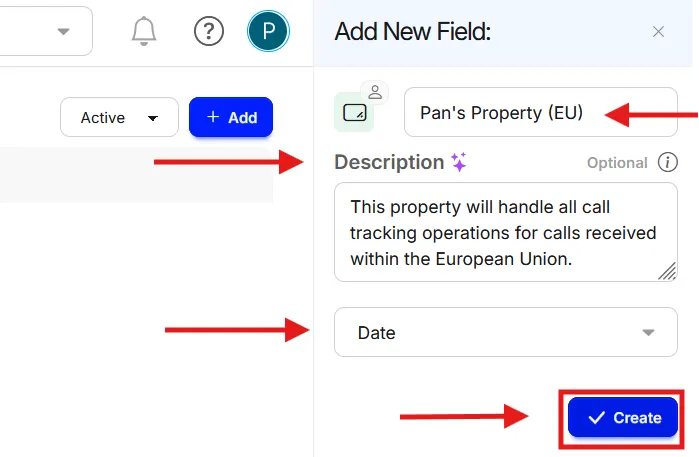
🎉 Your new custom field is now available on all call records and can be populated manually or via a workflow.
Detailed guide: Fill in custom fields
Detailed guide: Rules and tasks
Fill in custom fields
Once custom fields are created, you can populate them in two ways: automatically via a workflow that runs when a call ends, or manually by editing an individual call record.
Tip
Before you start: You need at least one custom field already set up. If you haven’t created one yet, see Create a custom field.
Fill fields automatically with a workflow
Create a new workflow
- Go to Workflows.
- Click + Create in the upper right corner.
Set the trigger
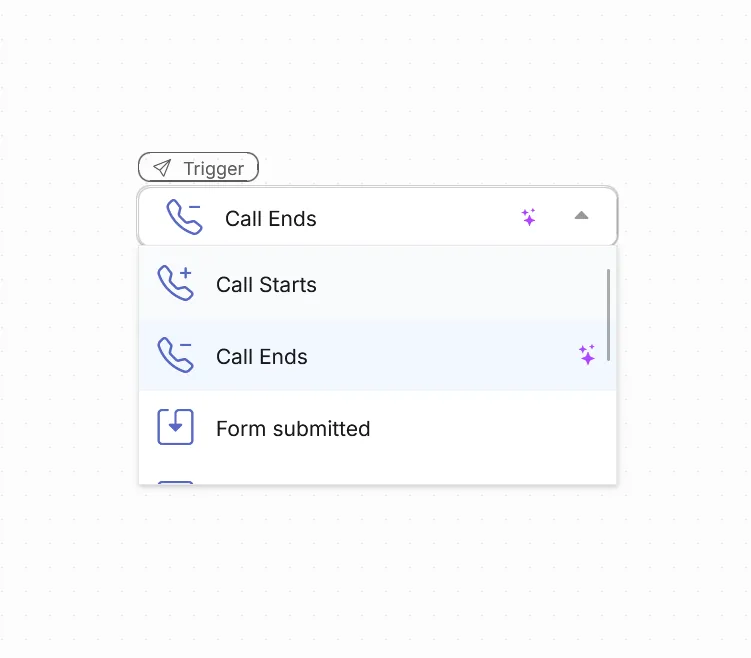
- Select Call ends as the workflow trigger.
Add a filter
- Click the + button.
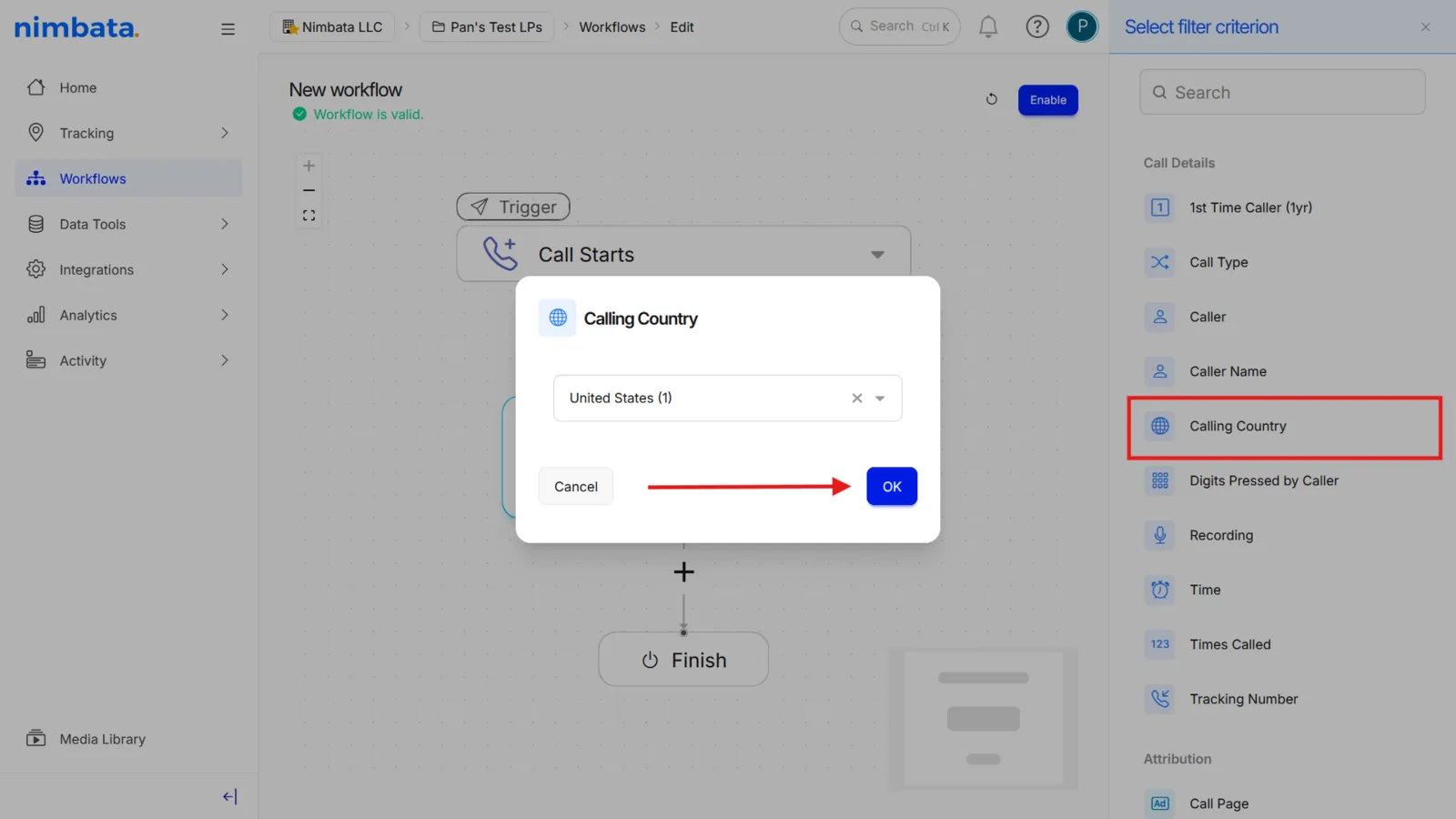
- Select Add filter.
- Add the criteria that should be met before the custom field is populated.
- For example, Calling country = United States to target only US calls.
Tip
Depending on the nature of your custom field, you can apply it through the filter criteria or as a standalone action at the end of the workflow.
Add a perform action step
- Click +.
- Select Perform action.
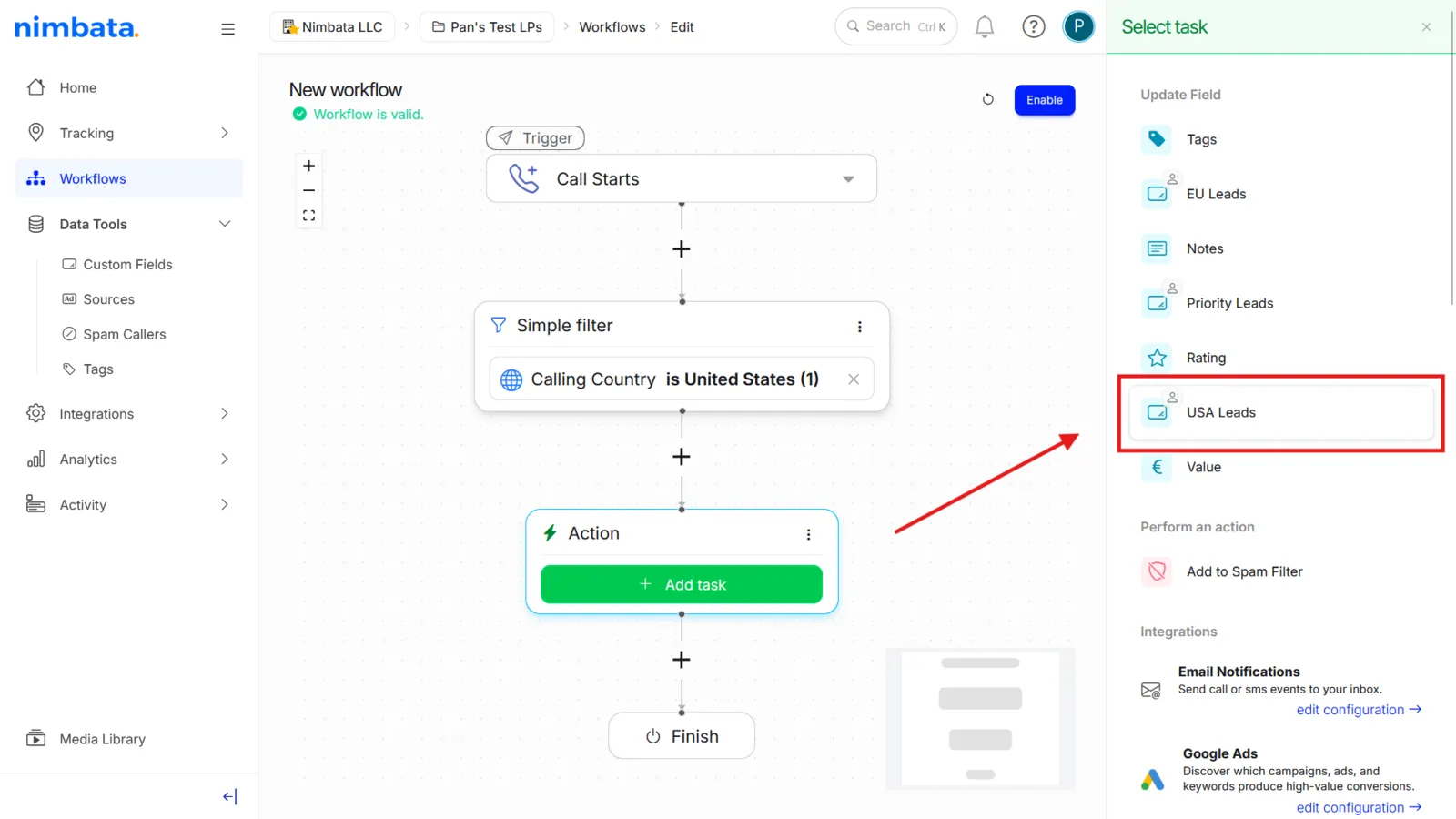
- In the action block, click Add task.
- In the Select task panel, under Update Field, select the custom field you want to populate.
- For example, USA Leads.
Set the value and enable the workflow
- Enter the value to assign in the pop-up (for example,
150for a lead value field). - Click OK.
- Click Enable to activate the workflow.
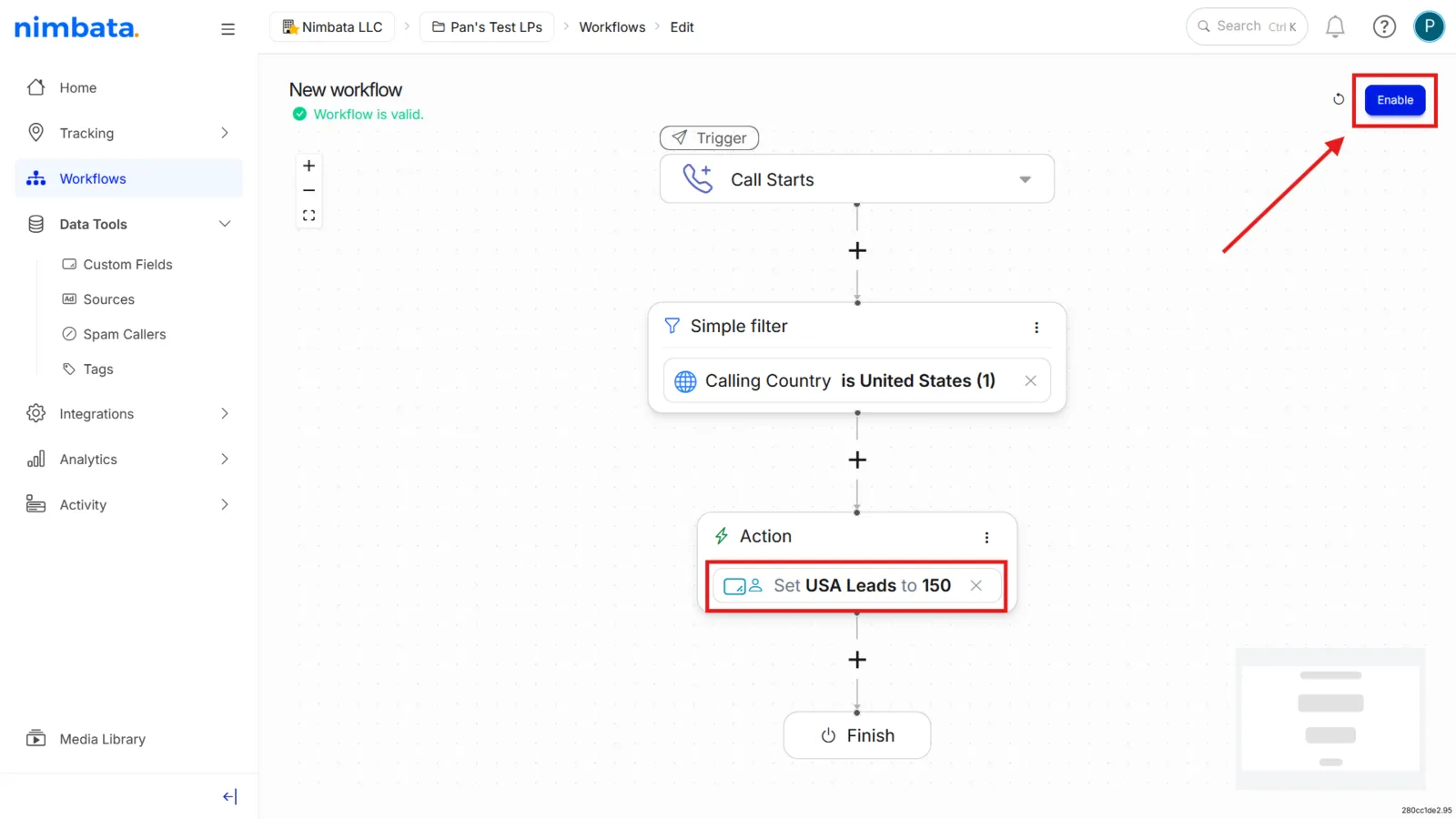
- Enter the value to assign in the pop-up (for example,
Fill fields by hand on a call record
Open the call record
- Go to Activity > Calls.
- Click on the call you want to update.
Edit the field value
- In the caller’s profile panel, locate the custom field you want to update.
- Enter or change the value directly.
Changes are applied automatically; no save button required.
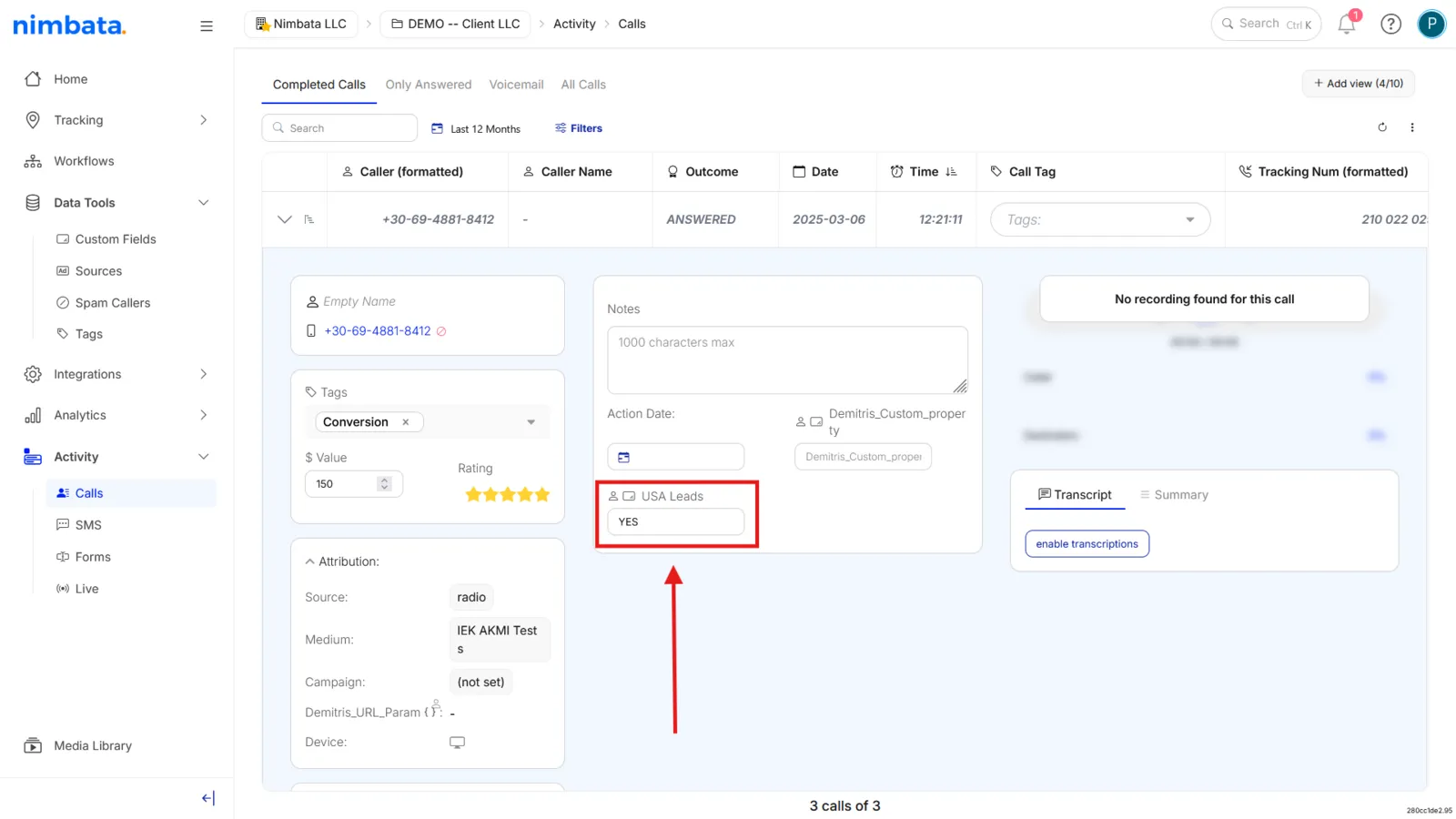
🎉 Your custom field values are now being populated; either automatically on every qualifying call, or on demand from the call record.
Detailed guide: Create a custom field
Detailed guide: Create a workflow