
Once your DNI script is published, it has to load on every page of your website. Pick the method that fits how you manage your site: paste the script into your HTML, use the Nimbata WordPress plugin, or add the Nimbata template in Google Tag Manager.
Install with HTML
Use this method if you manage your site’s HTML directly and don’t use WordPress or Google Tag Manager.
Before you start:
- Complete Steps 1 to 5 of Set up DNI step by step.
- Click Save & Publish before adding the script to your site.
Copy your script
- Go to Tracking > Tracking Code.
- Copy the script tag shown under .js Tracking Code.
It will look like this:
<script type="text/javascript" src="//cdn.dni.nimbata.com/XXXXXX.min.js"></script>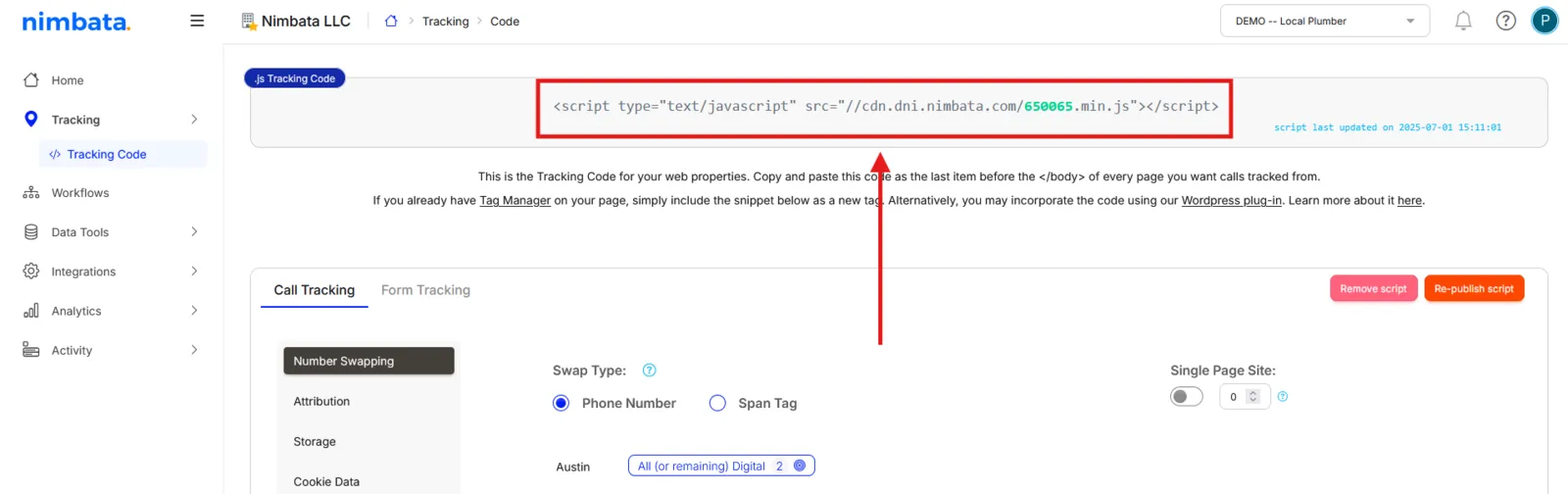
Paste it into your site
Add the script just before the
</body>closing tag in the footer of every page on your site.Note
Make sure the script loads after your Google Analytics script.
🎉 That’s it. Place a test call to confirm it’s working.
Troubleshooting: Numbers not swapping
Install with WordPress
Use this method if your site runs on WordPress. The Nimbata plugin handles script placement automatically; no manual HTML editing needed.
Before you start:
- Complete Steps 1 to 5 of Set up DNI step by step.
- Click Save & Publish before installing the plugin.
Install and activate the plugin
In your WordPress admin:
- Go to Plugins > Add New.
- Search for Nimbata.
- Install the Nimbata Call Tracking plugin.
- Click Activate.
Find your DNI ID
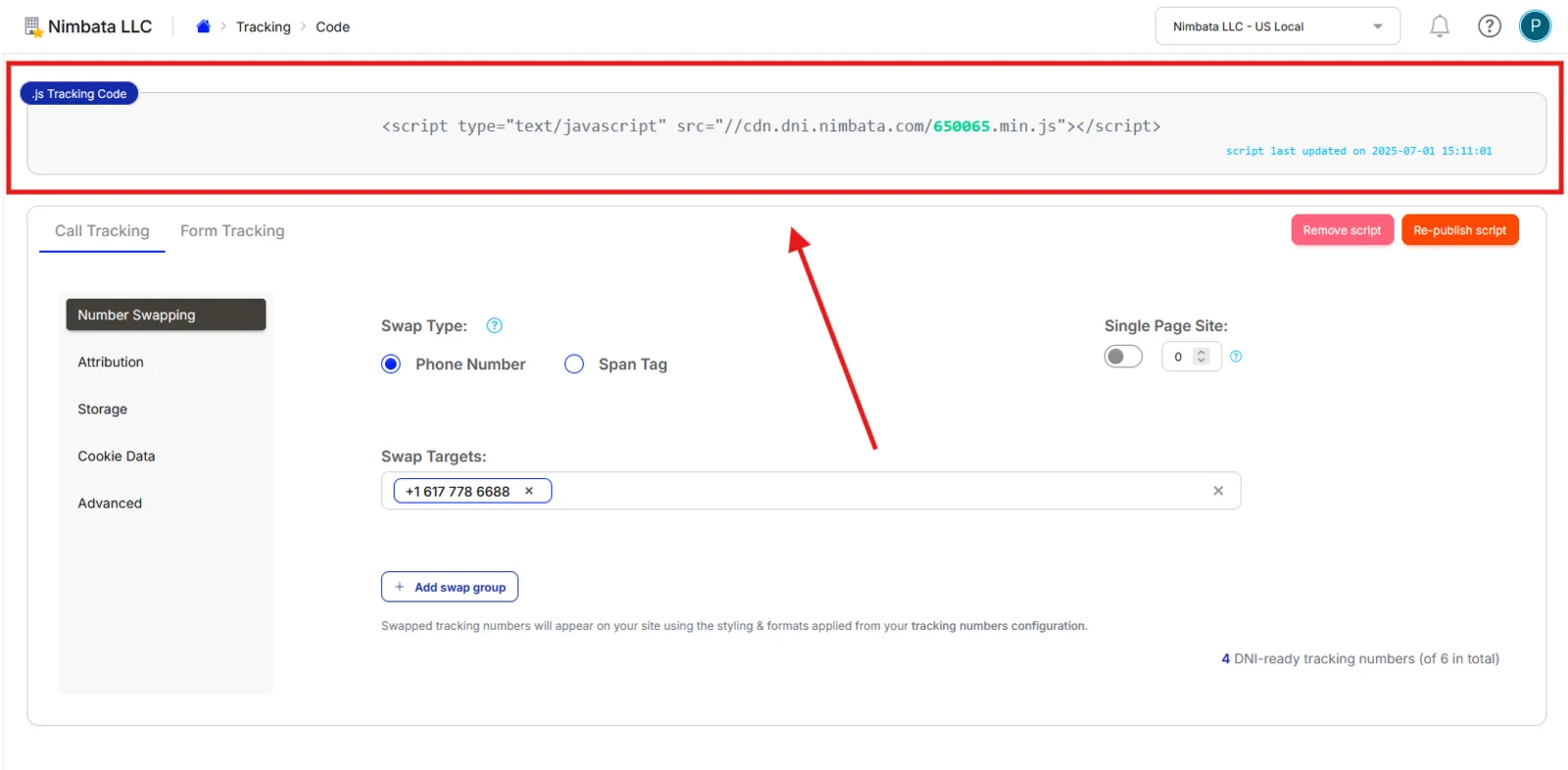
- Go to Tracking > Tracking Code in Nimbata.
- Copy the DNI ID (the numeric value highlighted in green in the script tag).
Enter your DNI ID in WordPress
In your WordPress admin:
- Go to Settings > Nimbata.
- Paste your DNI ID into the Nimbata DNI ID(s) field.
- Click Save Changes.
🎉 The plugin will now load the script on every page. Place a test call to confirm it’s working.
Troubleshooting: Numbers not swapping
Install with Google Tag Manager
Use this method if your site uses Google Tag Manager (GTM). Nimbata has an official template in the Community Template Gallery, so no raw script code is needed.
Before you start:
- Complete Steps 1 to 5 of Set up DNI step by step.
- Click Save & Publish before setting up the GTM tag.
Add the Nimbata template from the Community Template Gallery
In your GTM workspace:
- Click Add New Tag.
- Give it a name (for example, “Nimbata”).
- Click Choose a tag type.
- Select Discover more tag types in the Community Template Gallery.
- Search for Nimbata.
- Click Nimbata Call Tracking.
- Click Add to workspace > Add.
Enter your DNI ID
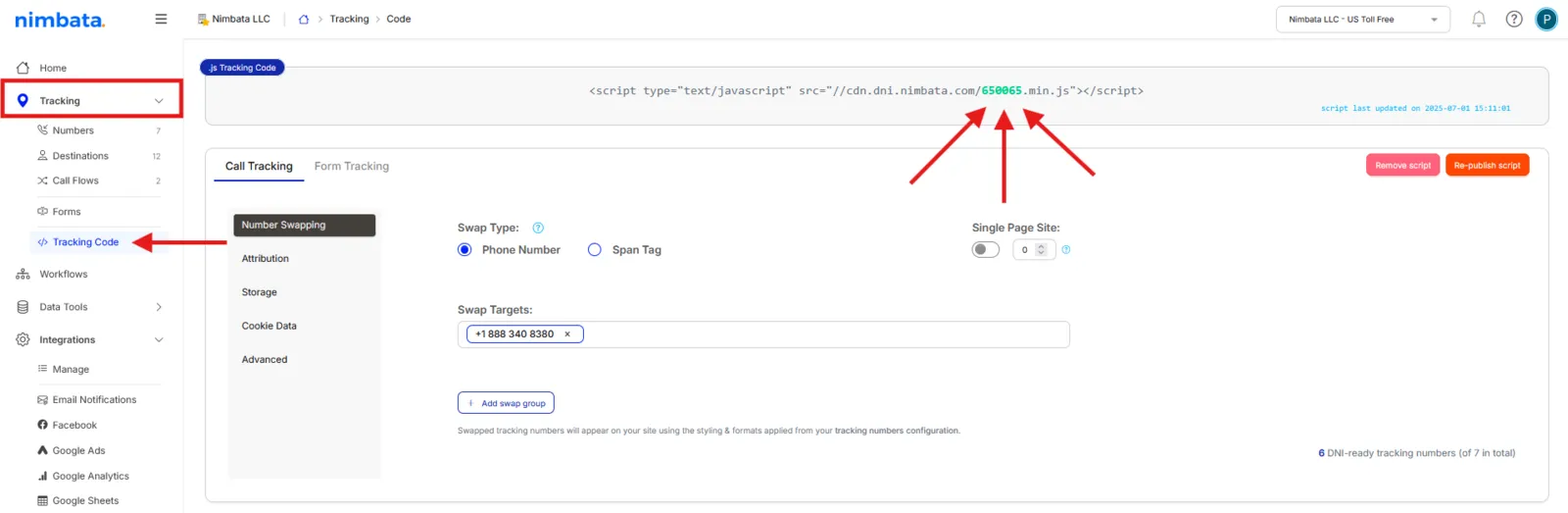
- Go to Tracking > Tracking Code in Nimbata.
- Copy the DNI ID highlighted in green in the script tag.
- Back in GTM, paste it into the Dynamic Number Insertion ID field.
Set firing options and trigger
Under Advanced Settings:
- Set Tag firing options to Once per event.
- Create a new trigger.
- Select Page View - DOM Ready.
- Set it to fire on All DOM Ready events.
Save and publish
Save the tag and submit your GTM workspace changes.
🎉 The tag will now fire on every page load. Place a test call to confirm it’s working.
Troubleshooting: Numbers not swapping