# Managing numbers
Once you have tracking numbers, you manage them from [Tracking > Numbers](https://app.nimbata.com/tracking/numbers). This page covers every change to a number you already own, from linking it to a call flow to deleting it. To move a number out of Nimbata, see [Port a number out](https://help.nimbata.com/guides/number-porting#port-a-number-out).
## Assign a call flow
After setting up your call flows, you need to link them to your tracking numbers so that anyone who calls is routed to the correct destination.
1. **Go to Tracking > Numbers**
Inside the Nimbata app, go to [Tracking > Numbers](https://app.nimbata.com/tracking/numbers).
2. **Open the call flow list**
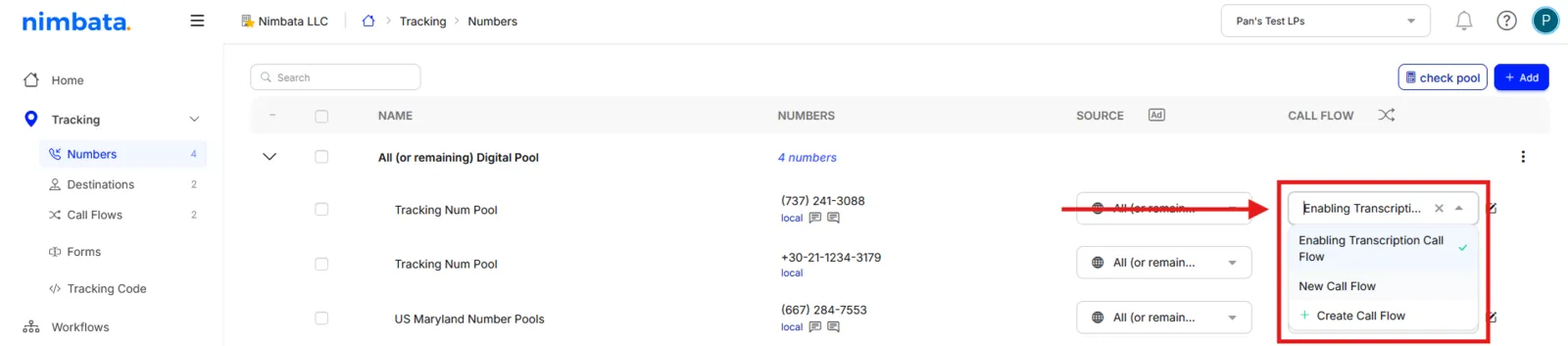
Click the **Select a call flow** field. This expands the list of available call flows.
3. **Pick the call flow**
Select the call flow you want to assign to the tracking number.
### Assign the same call flow to multiple numbers at once
1. **Select the numbers**
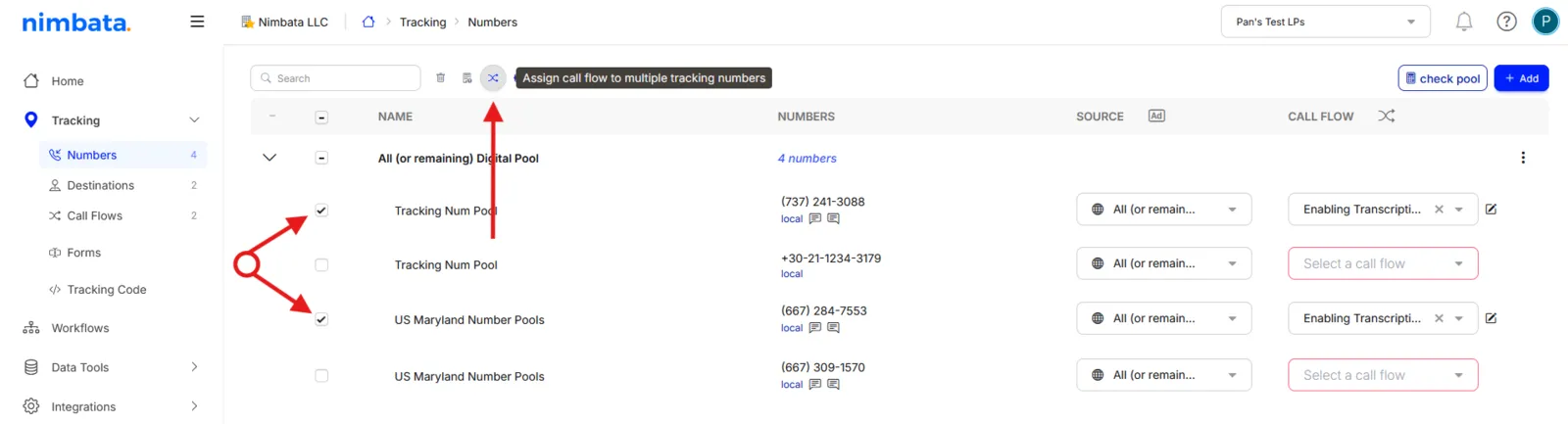
Tick the checkboxes next to all the tracking numbers you want to link.
2. **Click shuffle tracks**
Click the **shuffle tracks** button.
3. **Pick the call flow**
Select the call flow you want to apply and click **Change**.
Your tracking numbers are now ready to use.
Detailed guide: [Build a call flow](https://help.nimbata.com/call-handling/call-flows#build-a-call-flow)
## Change the number format
The appearance (format) of your tracking numbers in Nimbata should match how phone numbers are written on your website.
Whether the DNI script finds the number on your page depends on your swap target, not on this setting: see [How swap target matching works](https://help.nimbata.com/tracking/swap-targets#how-swap-target-matching-works).
In Nimbata, you can display tracking numbers in one of the following formats, shown with **+1** as an example country code:
- [+1 (123) 456-7890](<tel:+1 (123) 456-7890>)
- [+1 123-456-7890](<tel:+1 123-456-7890>)
- [+11234567890](tel:+11234567890)
If text-based swapping isn't reliable on your site (*e.g. numbers are rendered dynamically*), use **Span Tag** swapping for precise replacement.
1. **Go to Tracking > Numbers**
Inside the Nimbata app, navigate to [Tracking > Numbers](https://app.nimbata.com/tracking/numbers).
2. **Change the format**
**For a single number:**
- Click the number you wish to reformat.
- Change the format to match your website.
- Click the **green check icon** to save.
**For multiple numbers at once:**
- Tick the checkboxes next to all numbers you want to edit.
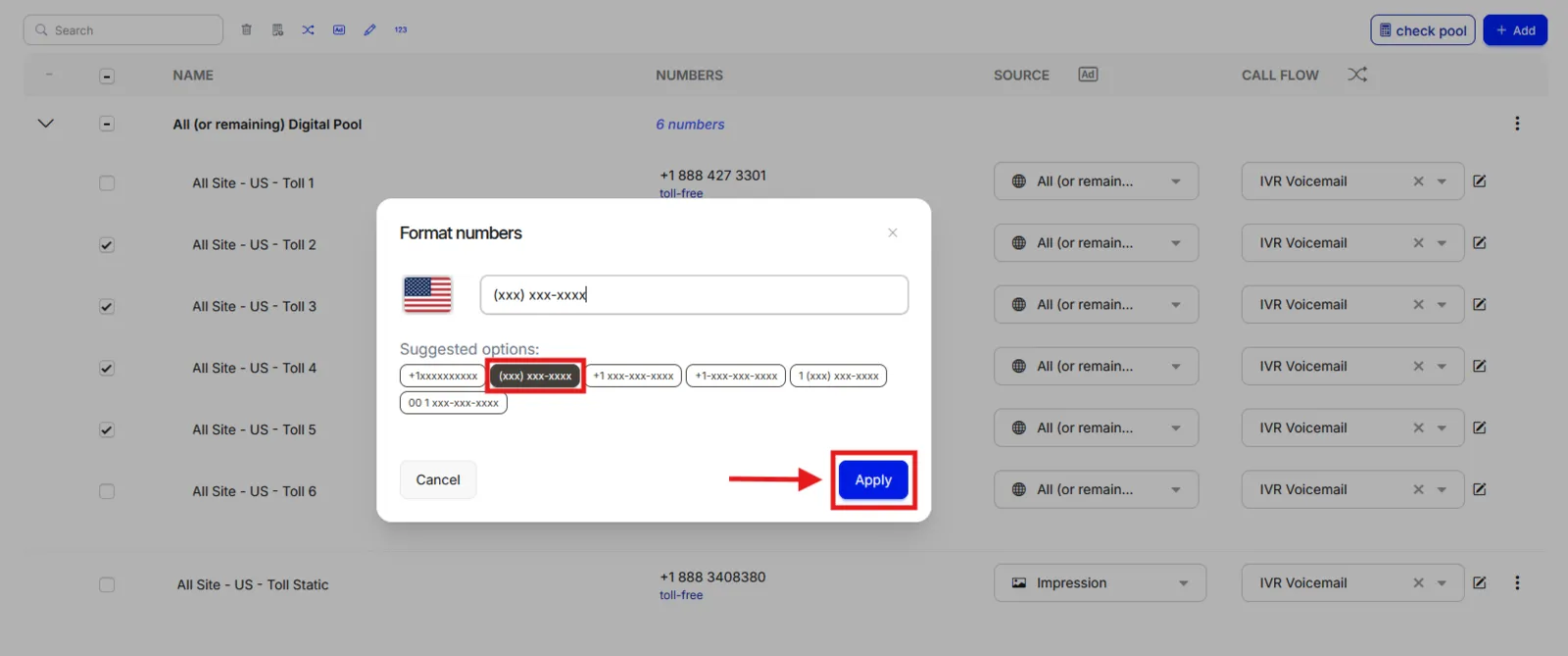
- Click **123 / Modify number appearance**.
- Select your preferred format and click **Apply**.
> **Tip:** Using the buttons next to 'Modify number appearance' you can also bulk edit names, assign call flows, move numbers to different projects, and change their source.
## Move a number to another pool
Adding your tracking numbers to the correct pool is the first step when you want to track your and your clients' efforts properly. But mistakes do happen, and in Nimbata they are reversible: you can reassign a tracking number to the right pool.
1. **Open your tracking numbers overview**
- Log into Nimbata.
- Go to [Tracking > Numbers](https://app.nimbata.com/tracking/numbers).
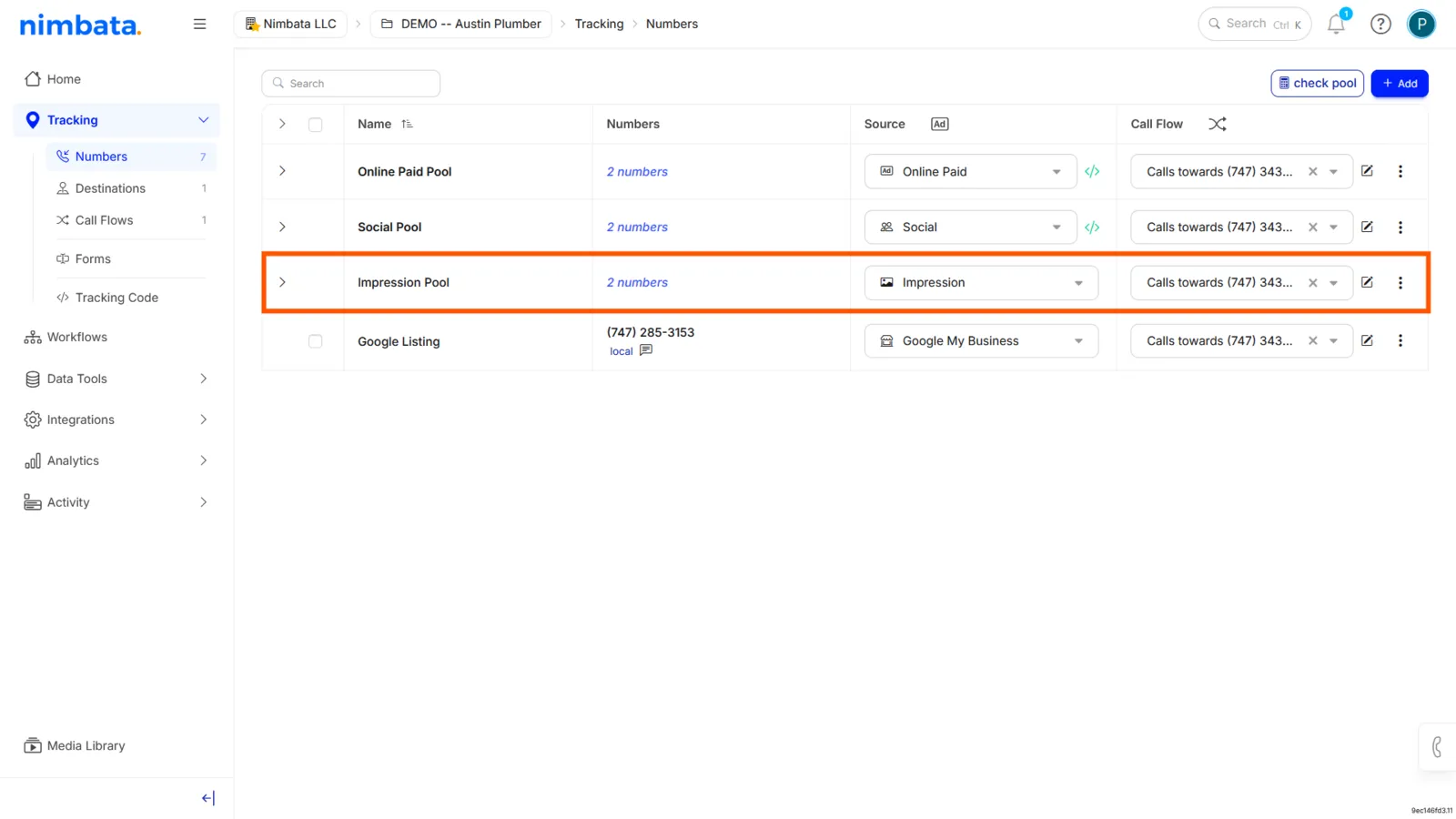
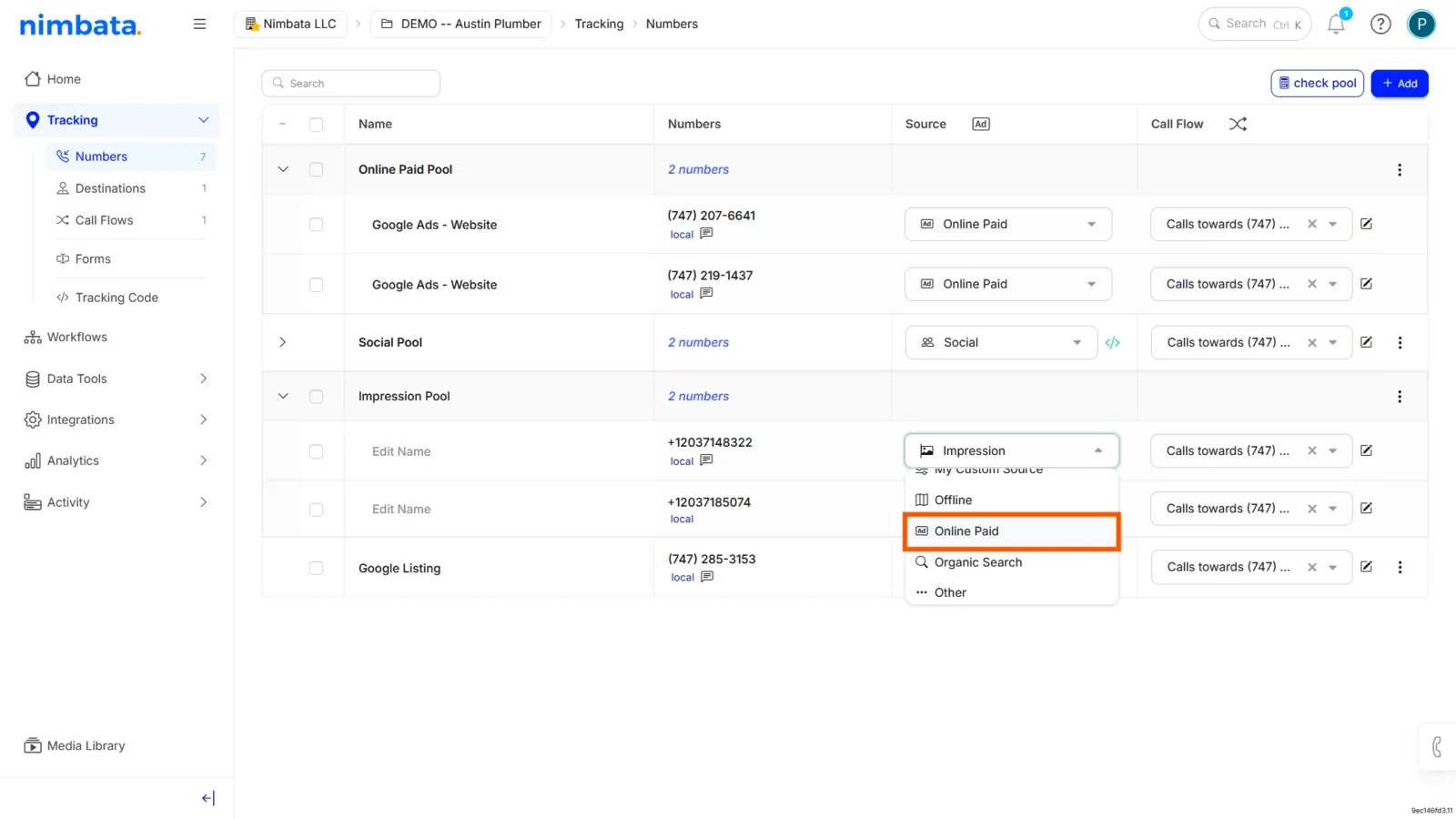
- Locate the tracking number(s) that were accidentally created under a different pool. This example uses the Impression pool.
2. **Remove any associated call flows**
Click the **X** button under the **Call Flow** column. This removes the call flow that's associated with the tracking number(s) you wish to move.
3. **Change the source of the number(s)**
- Click the selected pool name under the **Source** column (**Impression** in this example).
- Select the **same Source** as the tracking numbers in the pool you wish to move your tracking number(s) to (**Online Paid** in this example).
- Finally, reassign your tracking number(s) to the appropriate call flow(s).
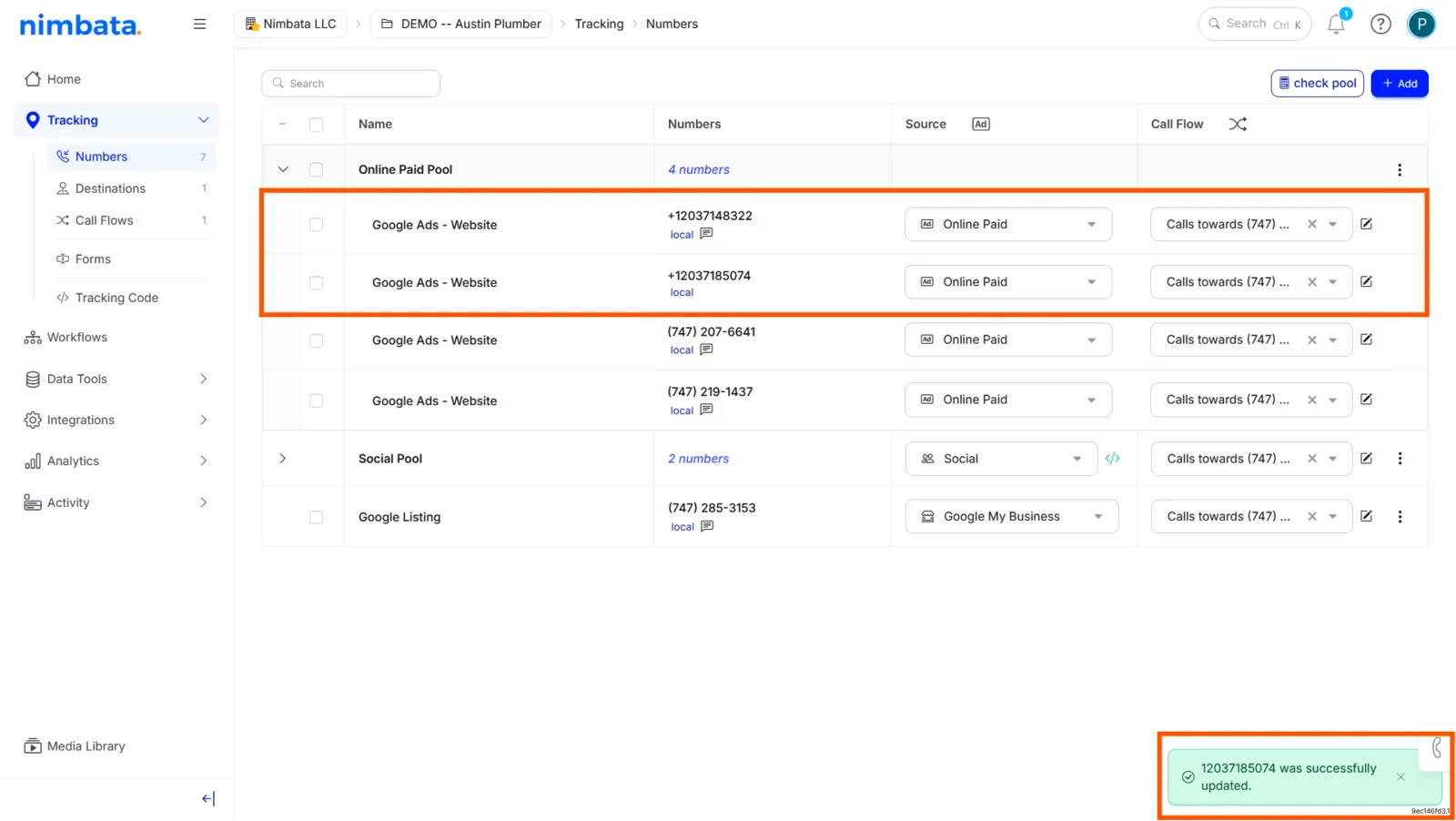
Your tracking number(s) are now under the same pool.
## Move a number to another project
> **Warning:** Tracking numbers can only be moved to a different project once no call flow is assigned to them. If the number has a call flow, follow all the steps below. If it has none, skip the step that releases the call flow.
1. **Go to Tracking > Numbers**
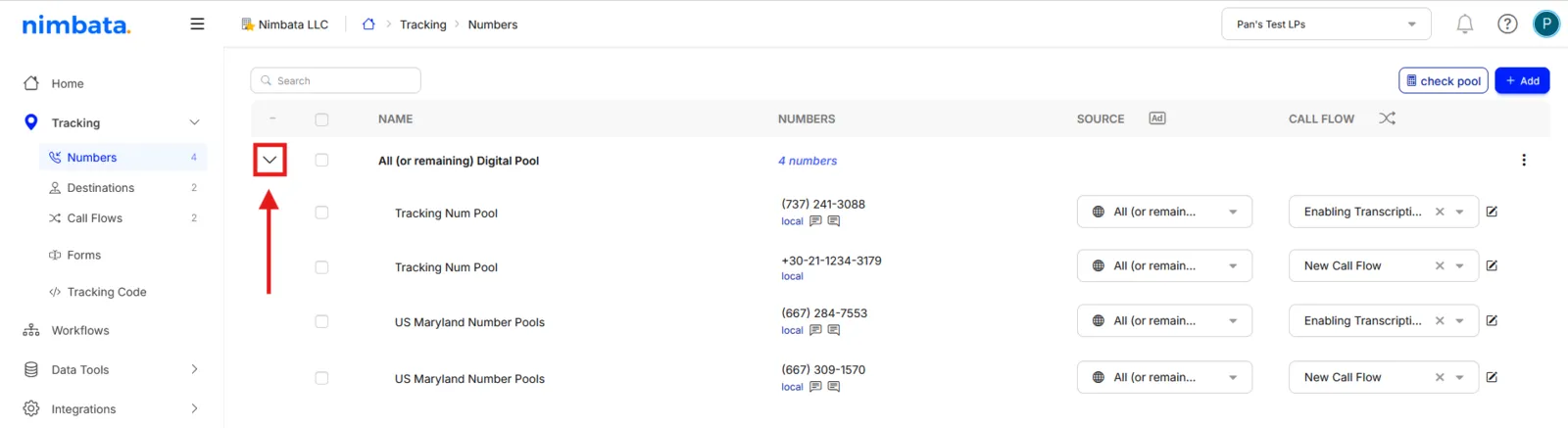
Inside the Nimbata app, head over to [Tracking > Numbers](https://app.nimbata.com/tracking/numbers) and expand the group that contains the number you want to move.
2. **Release the call flow from the tracking number**
Select the number, then click the **x** icon next to the call flow name on the far right.
3. **Move the tracking number**
With the number still selected, click the **Move to different project** icon (now highlighted in blue). On the pop-up, select the destination project and click **Move**.
You receive a confirmation message once the number has been successfully moved.
## Delete a number
Tracking numbers must be removed from any active call flow before they can be deleted. Follow both steps below in order.
### Before you delete: the tracking number lifecycle
When you delete a tracking number, the following happens:
- The number is released back to the carrier and becomes available to other users. It cannot be recovered or re-assigned to your account.
- All historical call data attributed to that number remains in your account. Deleting the number does not delete its call history.
- Any active call flow that included the number must be updated before deletion. Calls to a number with no assigned flow will not route.
- If the number was part of a DNI pool, the pool shrinks, which may affect attribution accuracy. Consider replacing the number rather than removing it.
- Workflows triggered by calls to that number will continue to exist but will no longer fire on it.
If you want to temporarily stop using a number without losing it, removing it from its call flow (without deleting the number itself) is a safer option. You keep paying for the number while it stays in your account.
### Delete the tracking number
1. **Remove the tracking number from its call flow**
Go to [Tracking > Numbers](https://app.nimbata.com/tracking/numbers), select the number you want to delete, and click the **x** icon next to its call flow name on the far right.
A call flow that a tracking number uses shows **In use** under [Call handling > Call Flows](https://app.nimbata.com/call-handling/call-flows), and you can't delete it until it's removed from its numbers. Once it's removed, you can also delete the call flow if it's no longer needed.
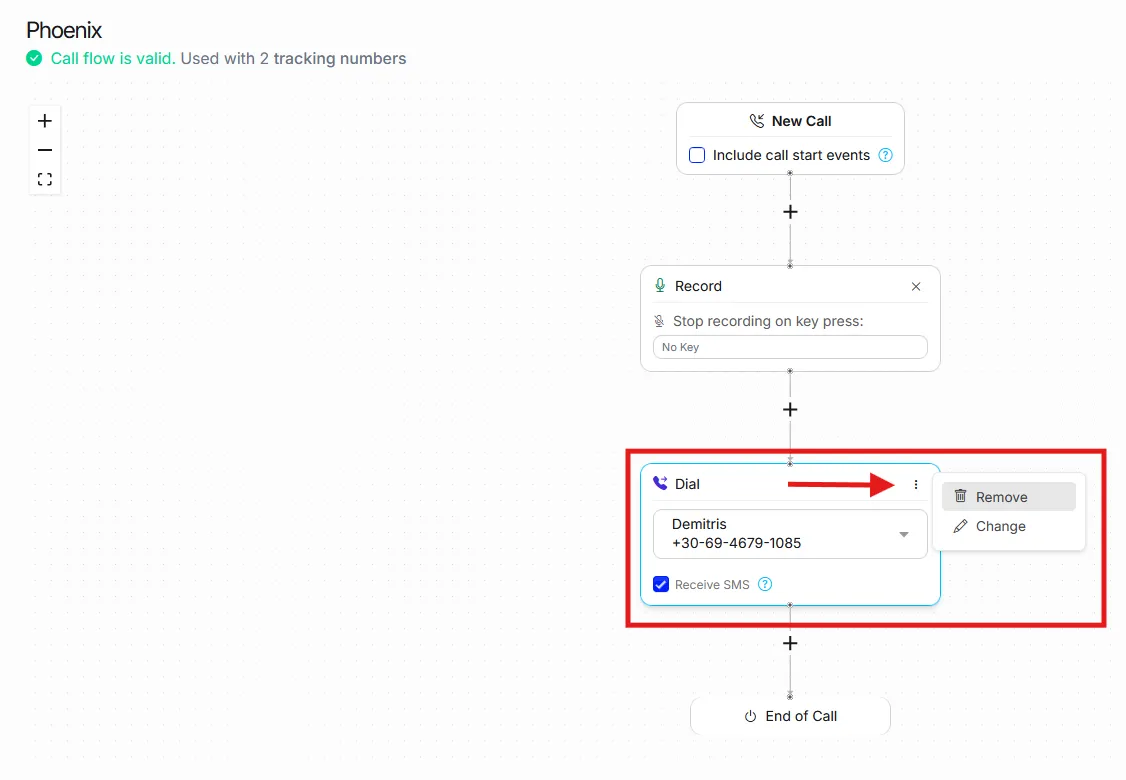
> **Note:** Once no call flows are assigned to the tracking number, you can proceed with deletion.
2. **Delete the tracking number**
- Go to **Tracking > Numbers** and locate the tracking number.
- Click the **x** icon next to the call flow name on the far right to release any remaining assignment.
- Select the number, click the **bin icon**, then click **Remove** on the confirmation message.
You receive a confirmation notification once the tracking number has been successfully deleted.
Updated September 30, 2026
Once you have tracking numbers, you manage them from Tracking > Numbers. This page covers every change to a number you already own, from linking it to a call flow to deleting it. To move a number out of Nimbata, see Port a number out.
Assign a call flow
After setting up your call flows, you need to link them to your tracking numbers so that anyone who calls is routed to the correct destination.
The appearance (format) of your tracking numbers in Nimbata should match how phone numbers are written on your website.
Whether the DNI script finds the number on your page depends on your swap target, not on this setting: see How swap target matching works.
In Nimbata, you can display tracking numbers in one of the following formats, shown with +1 as an example country code:
Tick the checkboxes next to all numbers you want to edit.
Click 123 / Modify number appearance.
Select your preferred format and click Apply.
Tip
Using the buttons next to ‘Modify number appearance’ you can also bulk edit names, assign call flows, move numbers to different projects, and change their source.
Move a number to another pool
Adding your tracking numbers to the correct pool is the first step when you want to track your and your clients’ efforts properly. But mistakes do happen, and in Nimbata they are reversible: you can reassign a tracking number to the right pool.
Locate the tracking number(s) that were accidentally created under a different pool. This example uses the Impression pool.
Remove any associated call flows
Click the X button under the Call Flow column. This removes the call flow that’s associated with the tracking number(s) you wish to move.
Change the source of the number(s)
Click the selected pool name under the Source column (Impression in this example).
Select the same Source as the tracking numbers in the pool you wish to move your tracking number(s) to (Online Paid in this example).
Finally, reassign your tracking number(s) to the appropriate call flow(s).
Your tracking number(s) are now under the same pool.
Move a number to another project
Warning
Tracking numbers can only be moved to a different project once no call flow is assigned to them. If the number has a call flow, follow all the steps below. If it has none, skip the step that releases the call flow.
Go to Tracking > Numbers
Inside the Nimbata app, head over to Tracking > Numbers and expand the group that contains the number you want to move.
Release the call flow from the tracking number
Select the number, then click the x icon next to the call flow name on the far right.
Move the tracking number
With the number still selected, click the Move to different project icon (now highlighted in blue). On the pop-up, select the destination project and click Move.
You receive a confirmation message once the number has been successfully moved.
Delete a number
Tracking numbers must be removed from any active call flow before they can be deleted. Follow both steps below in order.
Before you delete: the tracking number lifecycle
When you delete a tracking number, the following happens:
The number is released back to the carrier and becomes available to other users. It cannot be recovered or re-assigned to your account.
All historical call data attributed to that number remains in your account. Deleting the number does not delete its call history.
Any active call flow that included the number must be updated before deletion. Calls to a number with no assigned flow will not route.
If the number was part of a DNI pool, the pool shrinks, which may affect attribution accuracy. Consider replacing the number rather than removing it.
Workflows triggered by calls to that number will continue to exist but will no longer fire on it.
If you want to temporarily stop using a number without losing it, removing it from its call flow (without deleting the number itself) is a safer option. You keep paying for the number while it stays in your account.
Delete the tracking number
Remove the tracking number from its call flow
Go to Tracking > Numbers, select the number you want to delete, and click the x icon next to its call flow name on the far right.
A call flow that a tracking number uses shows In use under Call handling > Call Flows, and you can’t delete it until it’s removed from its numbers. Once it’s removed, you can also delete the call flow if it’s no longer needed.
Note
Once no call flows are assigned to the tracking number, you can proceed with deletion.
Delete the tracking number
Go to Tracking > Numbers and locate the tracking number.
Click the x icon next to the call flow name on the far right to release any remaining assignment.
Select the number, click the bin icon, then click Remove on the confirmation message.
You receive a confirmation notification once the tracking number has been successfully deleted.








