
Nimbata’s Webhook integration sends call data to any HTTP endpoint, letting you connect Nimbata with internal systems or third-party tools that accept POST requests. The Zapier integration connects call activity with hundreds of apps, and the Cometly integration connects phone leads with your marketing attribution reporting.
Webhooks
Note
Webhooks are delivered on a best-effort basis. If your endpoint is unavailable or returns an error, the payload may not be delivered.
Select your trigger
- Go to Integrations > Webhook.
- Select your trigger.
- Use After Every Call to send all calls.
- Alternatively, click Create Trigger to define specific criteria.
- Triggers are evaluated after the call ends, not during it.
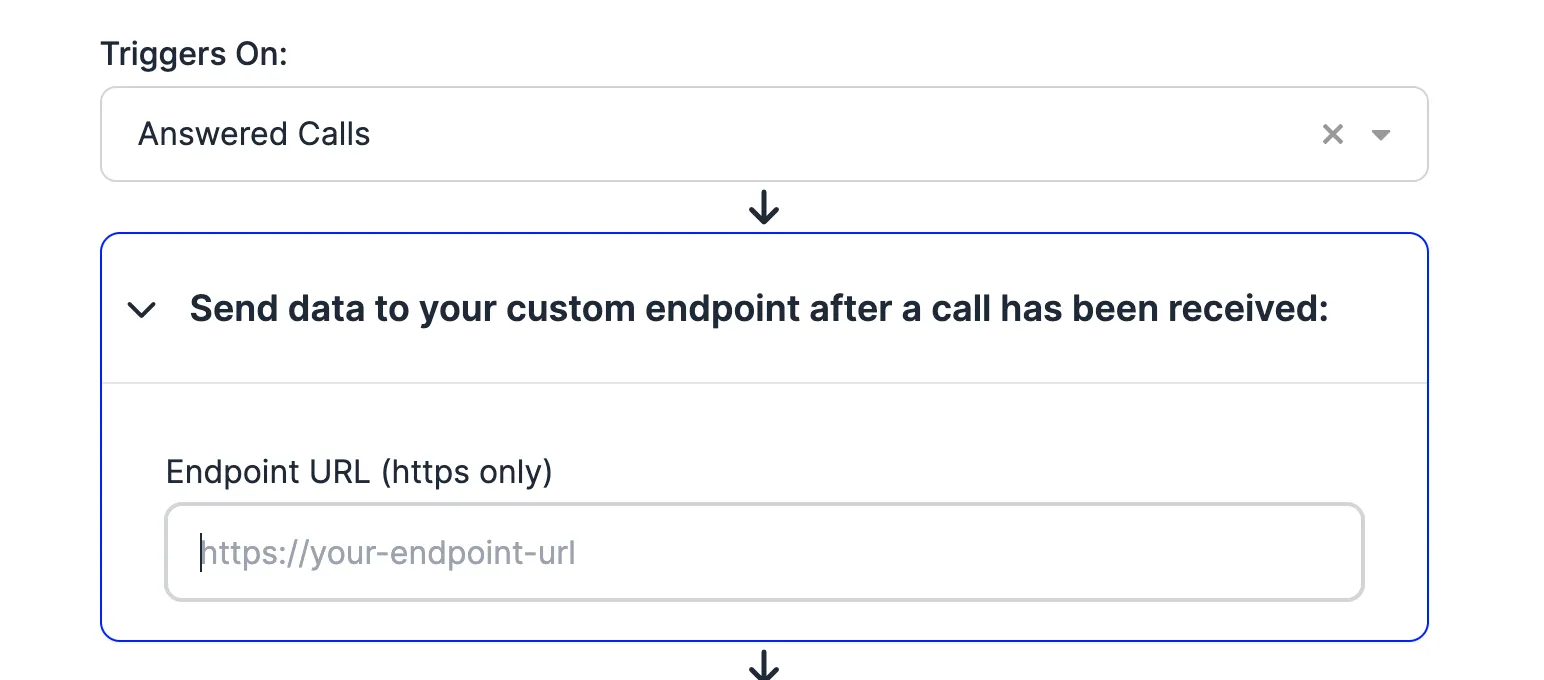
Enter your endpoint URL
- Enter the URL of your endpoint.
- Nimbata sends an HTTP POST request with a JSON payload to this URL whenever trigger conditions are met.
Set authorization
- Select the authorization method if your endpoint requires it and enter the credentials.
- Supported methods apply to outgoing request headers only.
Choose your payload fields
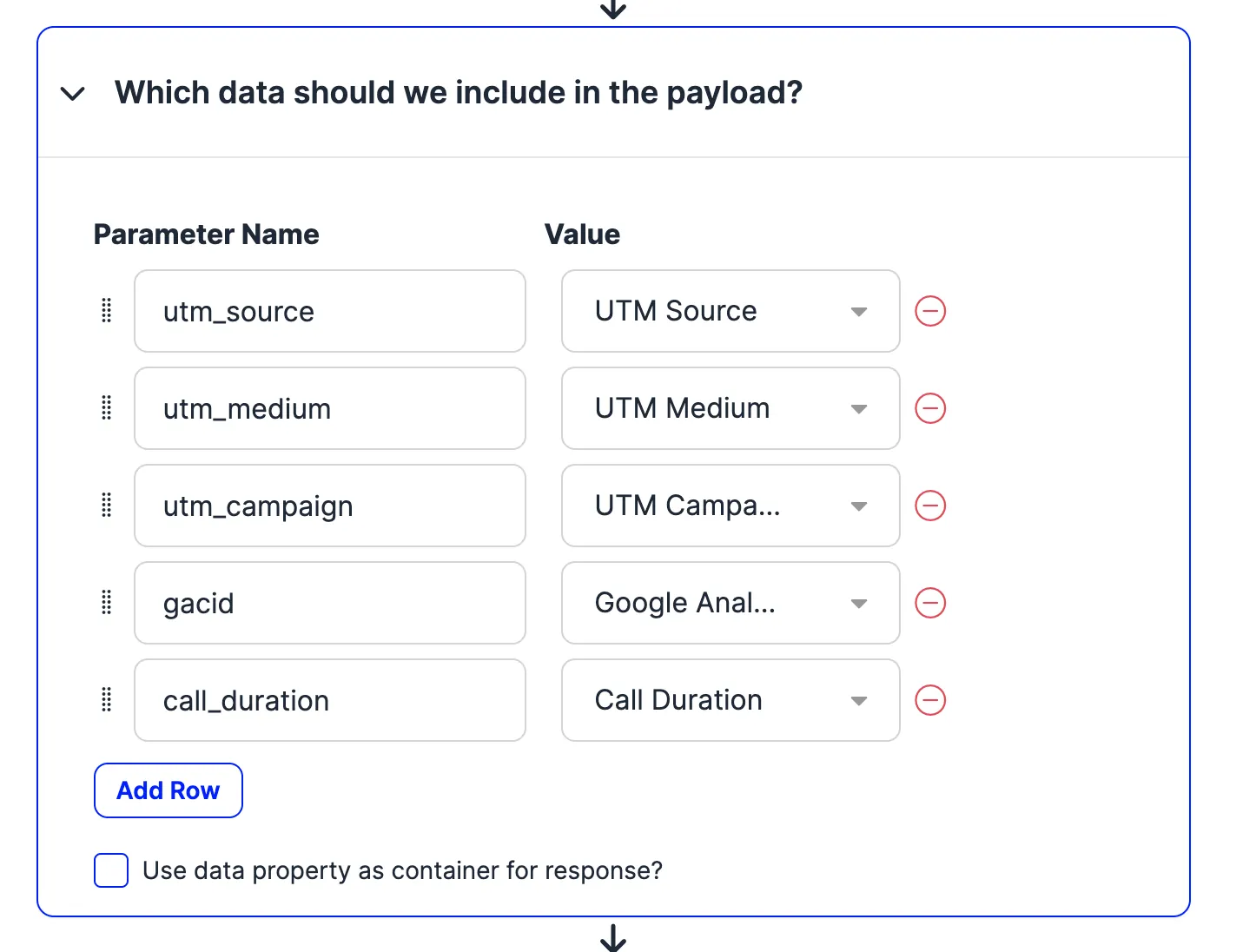
- Select the call data fields to include in the payload.
- Use × to remove a field.
- Click the label to rename it.
- Alternatively, click + to add custom fields.
Tip
Renaming a field only changes the JSON key name. Removing or renaming fields can break downstream systems that expect a fixed schema.
Test and save
- Click Test to send a sample payload to your endpoint and confirm a successful response.
- Then click Save.
Warning
Your endpoint must respond with a 2xx HTTP status code. The test sends a sample payload, not a real call event.
🎉 Done! Whenever a call meets your trigger criteria, Nimbata POSTs the selected call data to your endpoint.
Zapier
Nimbata’s Zapier integration lets you connect call activity with hundreds of apps, CRMs, reporting tools, and more, using automated workflows called Zaps.
Start your Zap
- Go to Integrations > Zapier.
- Browse the pre-built integration tiles.
- Alternatively, search for the app you want to connect.
- Then click the tile to open Zapier.
Tip
If you don’t have a Zapier account, create a free one; it takes just a few minutes.
Configure the Nimbata trigger
In Zapier:
- Set Nimbata as the trigger app and New Call as the event.
- Connect your Nimbata account using the API keys found on the Zapier integration page.
- Then test the trigger to confirm Zapier receives call data.
Configure your action
- Select the destination app.
- Choose the event that should happen after a call (for example, create a contact or add a row).
- Connect your account.
- Map the Nimbata fields to the destination fields.
- Test the action to confirm data flows correctly.
- Finally, click Publish Zap.
Set the Nimbata trigger
- Go back to Nimbata.
- Go to Integrations > Zapier.
- Set the trigger that controls when Nimbata fires the Zap.
Note
You can also set or update the trigger from the integration’s page under Integrations.
🎉 Done! Make a test call to confirm data appears in your connected app.
Detailed guide: Create a workflow
Cometly
Nimbata’s Cometly integration sends call data to Cometly, so you can connect phone leads with your marketing attribution reporting.
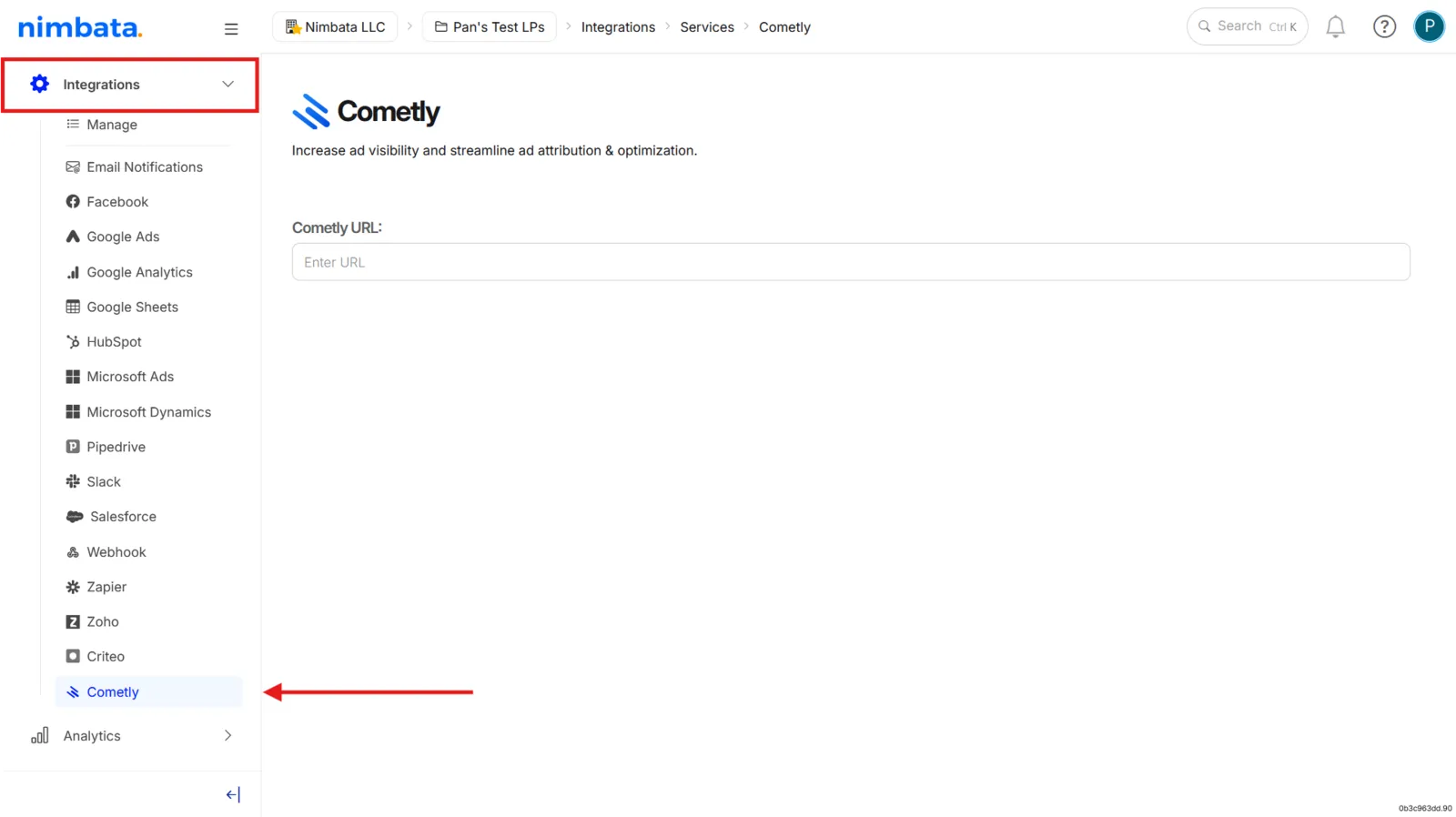
Open the Cometly integration in Nimbata
- Go to Integrations > Cometly.
- Leave the URL field open. You paste the Cometly webhook URL into it in the next step.
Generate the webhook URL in Cometly
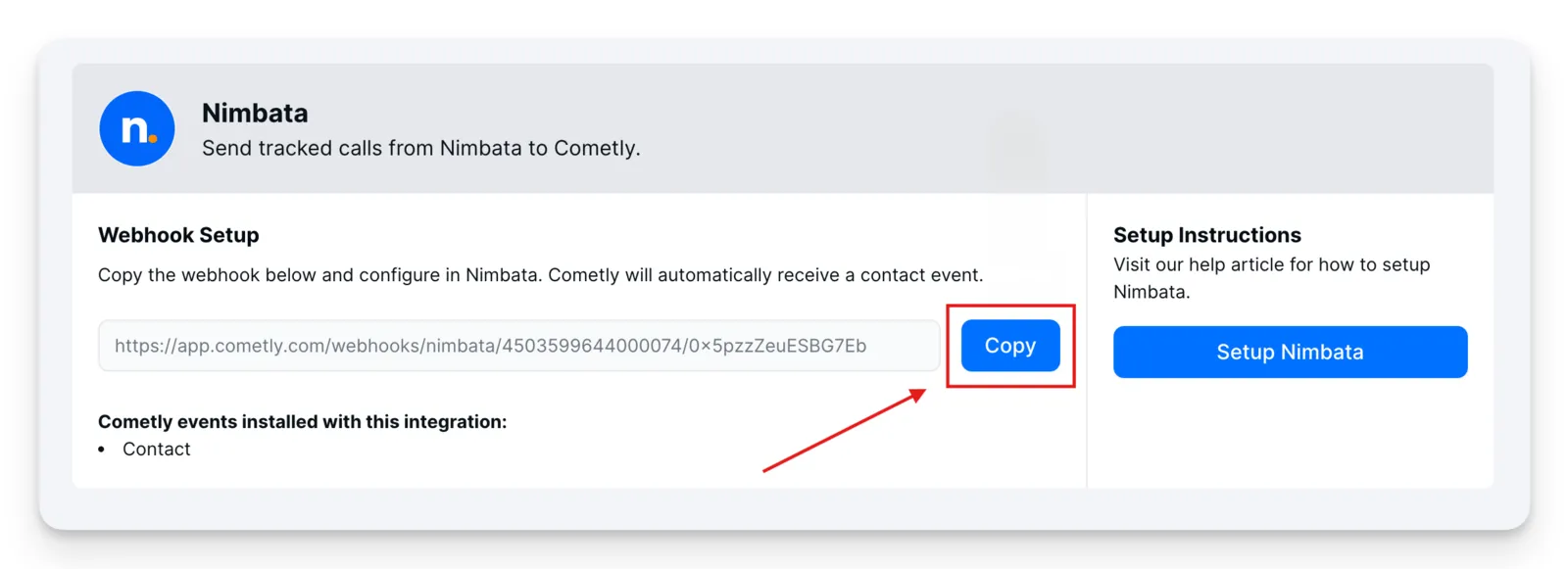
- In Cometly, go to Integrations.
- Scroll to Connections and click Add Integration.
- Search for and select Nimbata.
- Click Next, then click Activate Nimbata.
- Copy the webhook URL that is generated.
Paste the URL in Nimbata and test
- Paste the webhook URL into the URL field in Nimbata.
- Optionally, click Send Test > Send Event to verify that call data appears in Cometly as expected.
🎉 Done! Your Nimbata account is now integrated with Cometly.