
Two things you find through your profile and your user menu: the Personal Auth Token (API key) and the app’s dark theme. The change history of your account is now the Audit trail, under Workspace.
Find your API customer ID
The Nimbata API identifies you by a Personal Auth Token, not by a customer ID: the token is what you need to authenticate requests. You create it in your profile, on the Agency plan (the API is an Agency feature on nimbata.com/pricing).
Open My Profile
- Go to Account > My Profile.
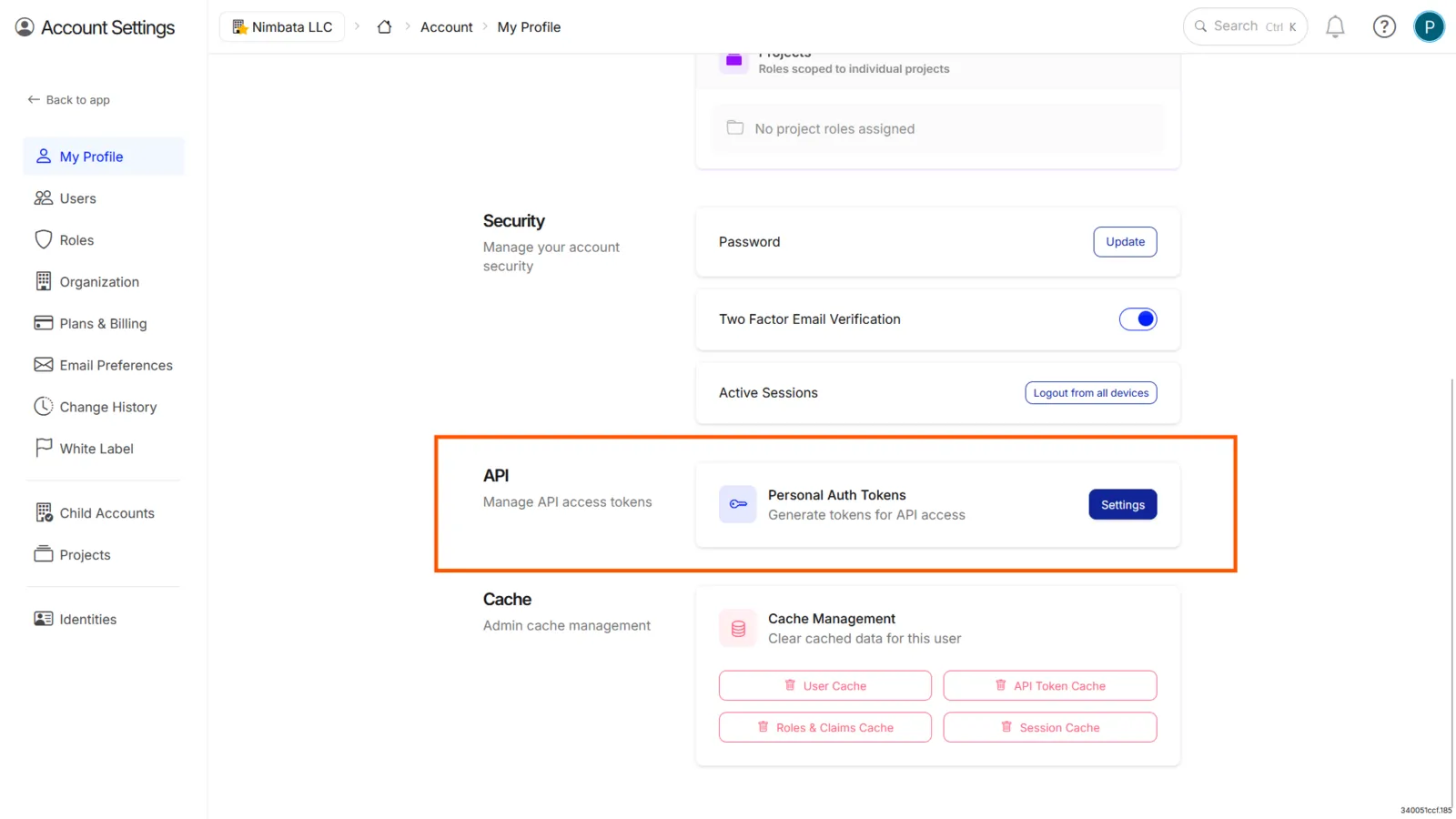
Scroll to Personal Auth Tokens
- Scroll to the bottom of your profile page.
- Find the Personal Auth Tokens section.
Create your API key
- Click Settings next to Personal Auth Tokens.
- Click Create token, give the token a Name, and click Create.
- Copy the token from the Token created box. For your security, it is shown only once; if you lose it, create a new one and revoke the old one.
🎉 Your API key is ready to use.
Detailed guide: Nimbata API documentation
Dark mode
Switch Nimbata to a darker interface to reduce eye strain during long sessions.
Open the theme menu
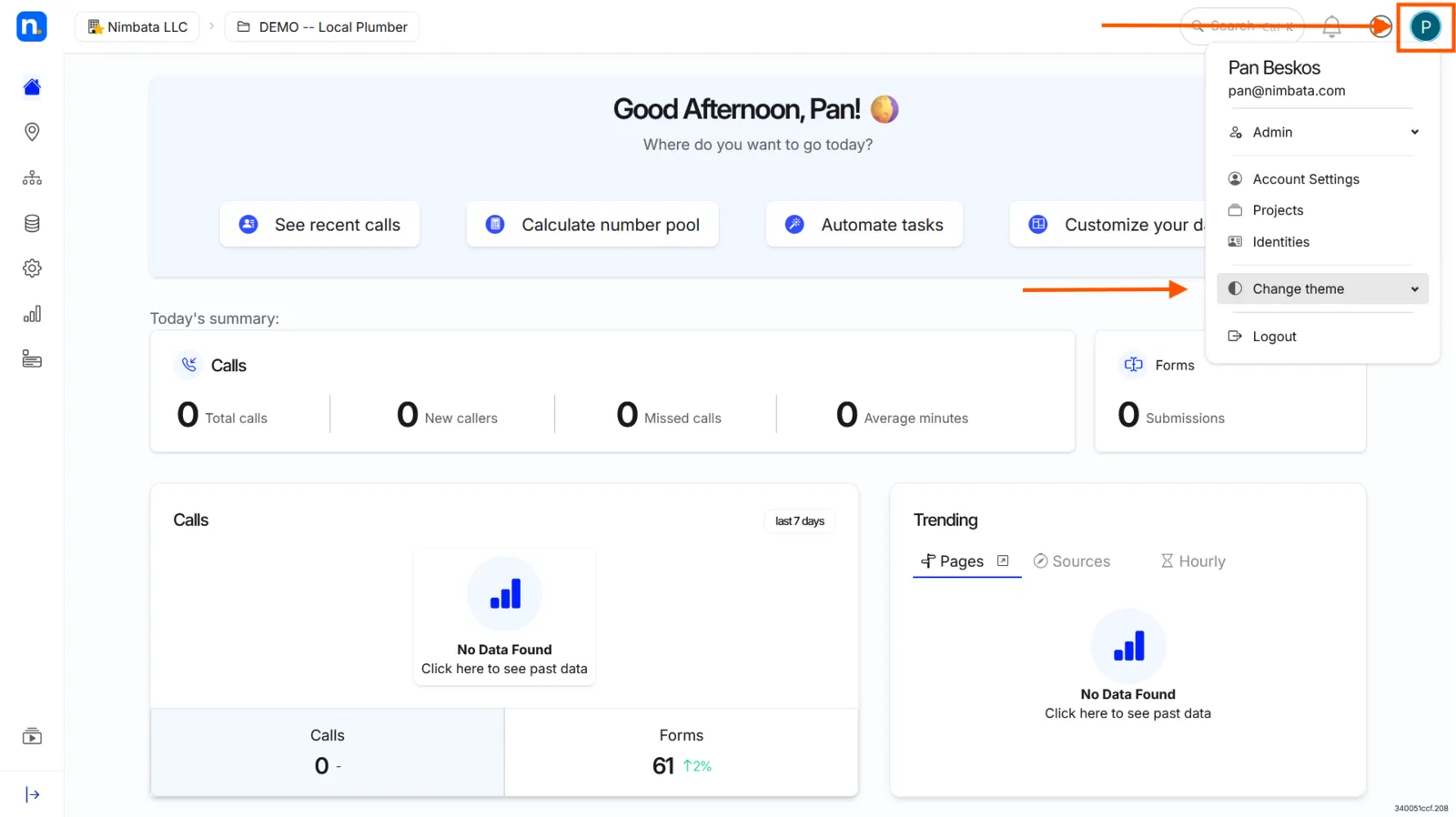
- Click your user avatar in the top-right corner of the Nimbata homepage.
- Select Change theme.
Select Dark
- Click the Dark theme option.
🎉 Nimbata is now in dark mode. To switch back, follow the same steps and select Light.