
Nimbata’s Email Notifications send real-time alerts for inbound calls and SMS to you, your team, or your clients, including call details and recording links. The Slack integration sends real-time call notifications to your Slack workspace, so your team stays informed about inbound call activity.
The workflows that decide which calls send an email (missed calls, or specific call and SMS events) are on Alerts, under Workflows. Set up the recipients here first, then the workflow there.
Email notifications
Add recipients
- Go to Integrations > Email Alerts.
- Enter the recipient email address(es).
- Check Send separate email to each recipient if you want individual emails rather than a CC’d message.
Select a workflow
- Choose the workflow that controls when notifications fire.
- Click See all workflows to pick an existing one.
- Alternatively, click Create new workflow to start from scratch.
Choose your trigger
- Click the trigger (shown in yellow) to set when notifications are sent, for example when a call ends or when an SMS arrives.
The integration shows a status indicator at a glance:
- 🟢 Green: running on all workflows it’s been added to
- 🟡 Yellow: running on some, but not all, workflows
- 🔴 Red: not running on any workflow
Set the email subject
- Enter the subject line for the notification email.
- You can use dynamic variables to personalize it, for example
New call on %tracking_friendly_name% - %call_outcome%.
Available variables:
%tracking_number%%tracking_friendly_name%%destination_number%%destination_friendly_name%%call_outcome%%caller_id%%caller_name%
Customize the message body
Set the greeting text, choose whether to include the recording link and logo, and select the call data fields to display. Drag fields to reorder them.
All changes save automatically. If there’s a validation error (for example, addresses not separated by commas), Nimbata displays an inline error message.
🎉 Done! Email notifications are sent for every call or SMS that matches your workflow conditions.
Multiple configurations
To route different call types to different teams, you can create separate notification configurations.
- Go to Integrations > Email Notifications.
- Click + Add email notification.
- Configure the new entry with different recipients, a different workflow trigger, or both.
- Name the configuration and click the green checkmark to save.
- Choose which configuration(s) to activate by adding the Email Notifications task to a workflow.
Slack
Note
For more information on using Nimbata and Slack, read our privacy policy.
Connect your Slack workspace
- Go to Integrations > Slack.
- Click Add to Slack.
- Click Allow to grant Nimbata access.
- A confirmation message appears once connected.
Select your trigger
- Choose After Every Call to notify for all calls.
- Alternatively, click Create Trigger to filter, for example only calls tagged as “Sales” or only answered calls.
Select a Slack channel
Choose the channel where call notifications should be sent.
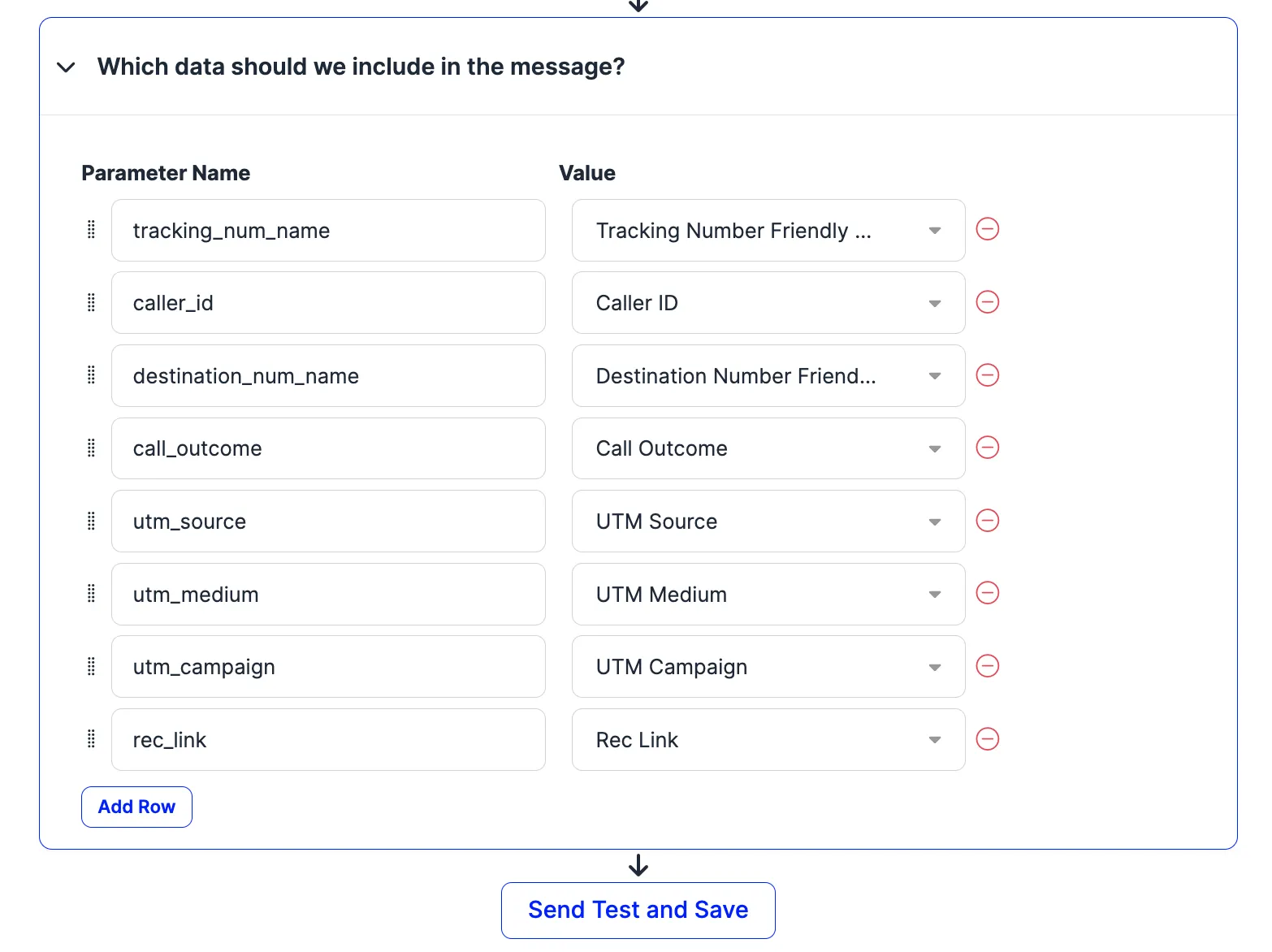
Choose your call data fields
- Select the fields to include in the message.
- Remove a field with the × icon.
- Rename labels inline, or add new fields with the + button.
Tip
Adding the Rec Link field lets your team open call recordings directly from Slack with one click.
Test and save
- Click Send Test.
- Fill in the test fields to verify the notification looks correct in your Slack channel.
- Then click Save.
🎉 Done! Nimbata posts a Slack notification for every call that matches your trigger.
Note
To uninstall the integration, go to Integrations > Slack and click the bin icon at the top of the page.